
Before You Begin
These steps apply to the web workspace task list shown below. Download any generated results you want to keep before removing task records.
Delete One Task
- Sign in to WeShop AI and open My Workspace, then open the workspace containing the task.
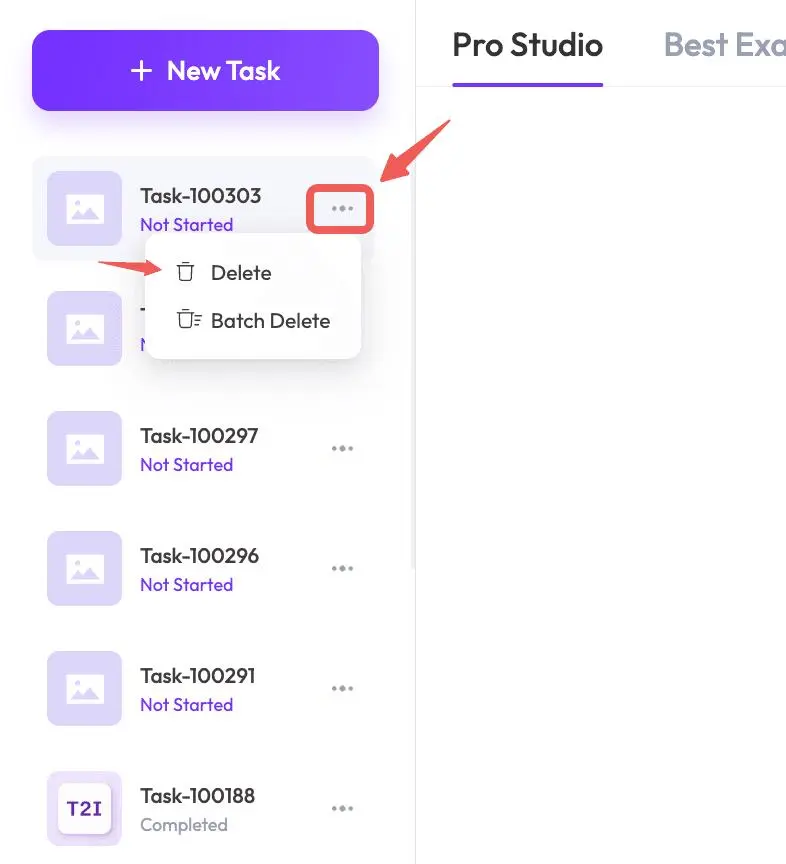
- Find the task in the task list on the left.
- Click the three-dot menu (⋯) beside that task.
- Select Delete. If a confirmation appears, review it and continue only when you have selected the intended task.
Delete Multiple Tasks
- Open the three-dot menu (⋯) beside a task in the same list.
- Select Batch Delete to open the batch-deletion workflow.
- Use the selection controls shown on the page to choose the tasks you want to remove.
- Review your selection and follow the deletion or confirmation controls displayed by the website.
Check the Result
After the action completes, check that the selected tasks no longer appear in the task list you are viewing. If the list has not updated, refresh the page and check that you are in the expected account and workspace.
For questions about stored images or data deletion, see Image and Content Privacy.
Need Help?
If the menu is missing or deletion does not complete, email hi@weshop.ai with your account email, workspace or tool name, task name or ID, and a screenshot of the message shown.