











Redesign a Room with Nano Banana 2.1 Without Losing the Layout
Use Nano Banana 2.1 to restyle a room while preserving its camera, walls, window, doorway, and radiator, with a tested prompt and an honest drift audit.
Changing a room's style is easy for an image model. Keeping the same room is the harder part. A polished redesign can still move a doorway, rebuild a window, stretch the walls, or shift the camera enough to make the concept misleading.
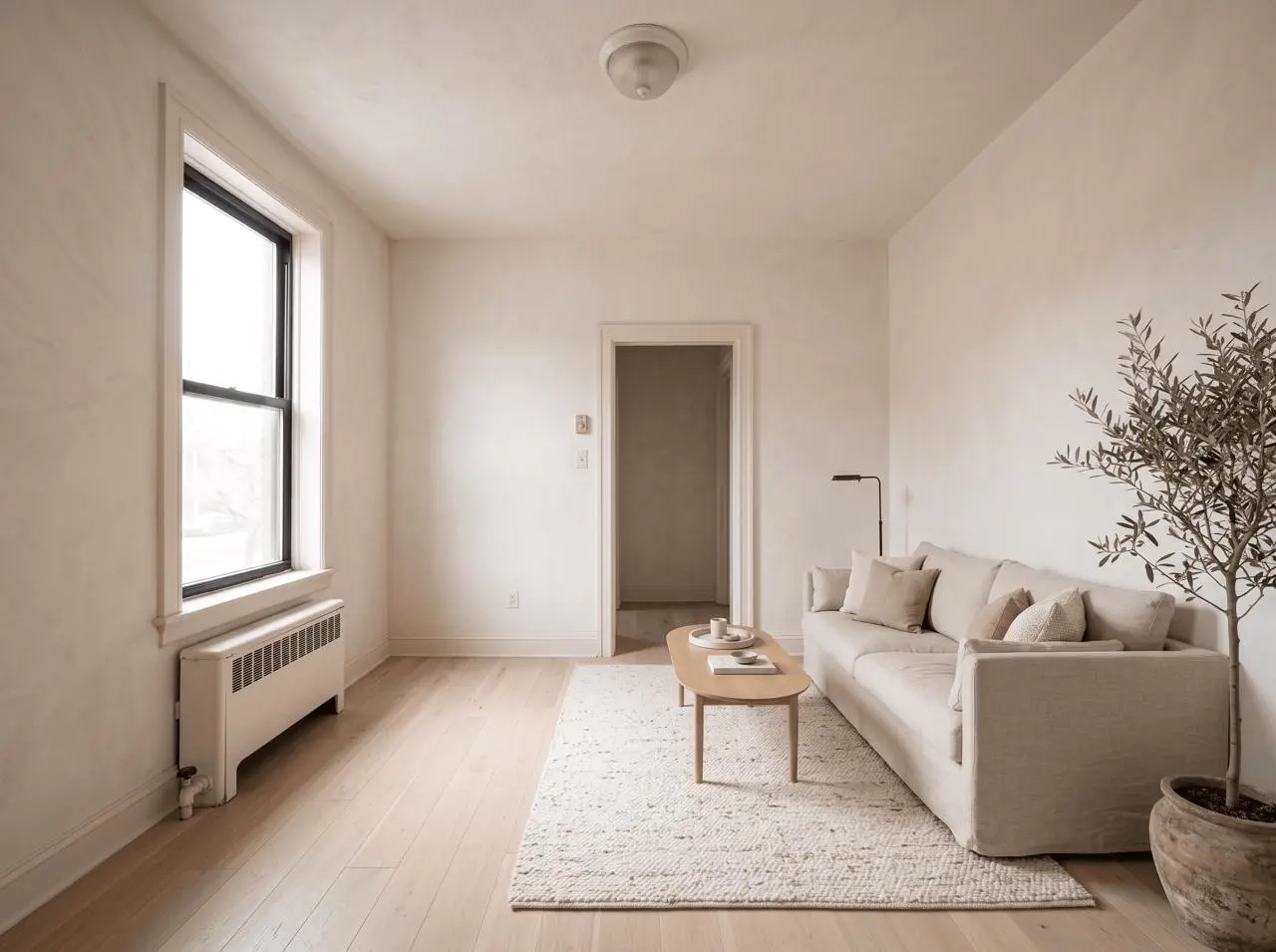
We tested Nano Banana 2.1 on one synthetic apartment photo in the WeShop web generator. The selected image edit turned a dated empty room into a warm Japandi living space while keeping the source camera view, window and frame pattern, radiator, back doorway, wall boundaries, and room depth recognizable. The result is still a visual concept rather than a measured renovation record.
Tested workflow
One synthetic empty room → one verified image edit → one inspected Japandi result. We used Nano Banana 2.1 at 4:3, 2K, and one image per generation on October 19, 2026.
What this room-redesign test needed to preserve
The input was created for this test, so it contains no private home or third-party interior. Its simple geometry makes structural drift easy to spot: one tall black-framed window on the left, a white radiator beneath it, one centered doorway at the back, plain walls, and a tiled floor viewed from the front-right corner.
| Setting | Value |
|---|---|
| Tool | WeShop Nano Banana |
| Model | Nano Banana 2.1 |
| Workflow | Image-to-image room restyling |
| Aspect ratio | 4:3 |
| Image size | 2K |
| Quantity | 1 per generation |
| Delivered dimensions | 2400 × 1792 |
Google's Nano Banana 2.1 model page identifies the model as an image-generation and editing model. This article tests a narrower question through WeShop: can it change finishes and furniture without quietly redesigning the room?
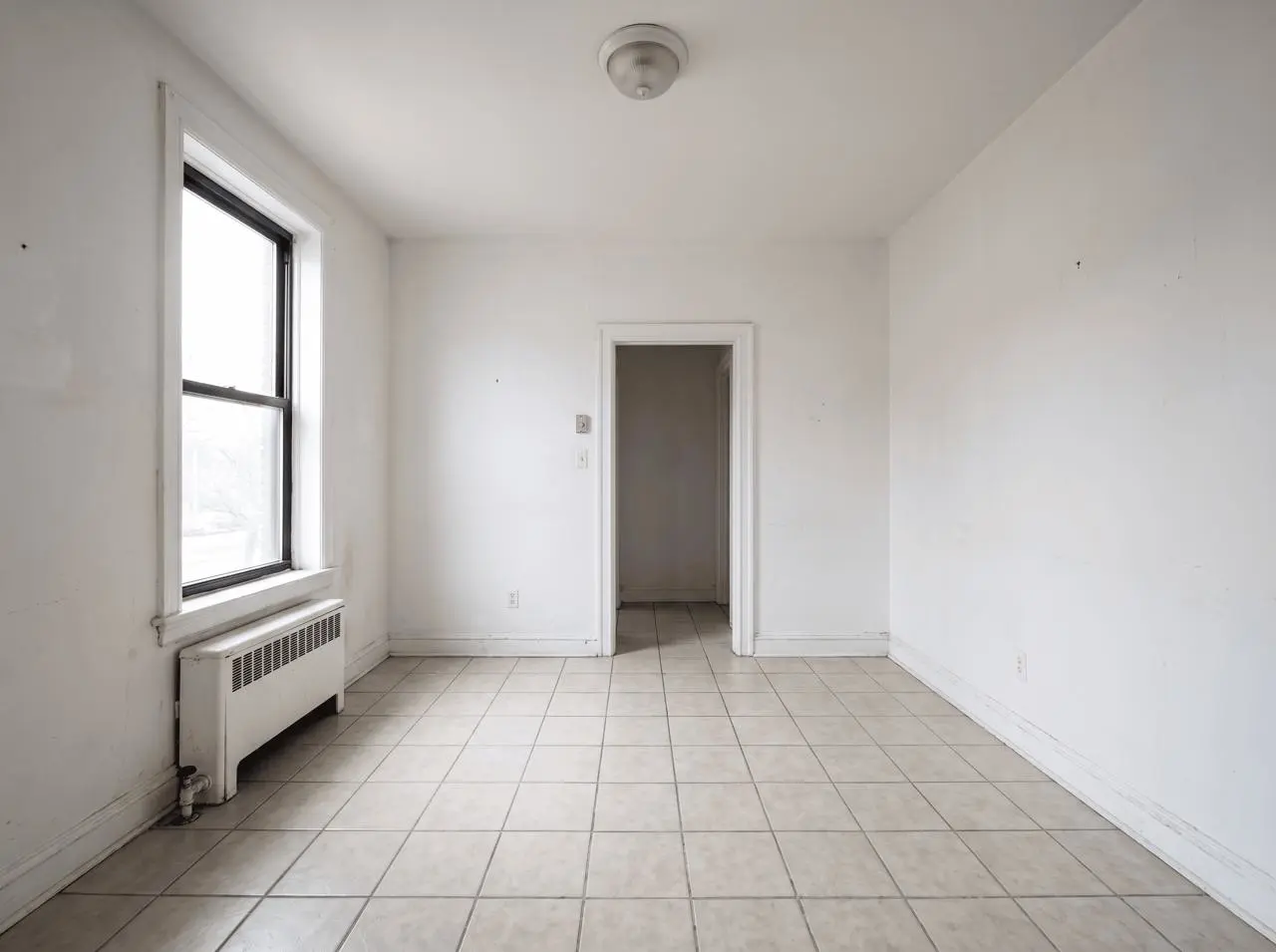
Step 1: choose structural anchors before choosing a style
Begin by listing the parts that define the room rather than its decoration. For this image, the preservation anchors were:
- camera position, crop, and lens perspective;
- room dimensions, ceiling height, and wall edges;
- the left-wall window's opening, location, and frame pattern;
- the radiator directly under that window;
- the centered back doorway;
- the floor perspective and room depth.
This list is more useful than a general instruction such as “keep the room the same.” It turns the image into a set of features that can be checked individually.
The redesign brief was deliberately separate: pale oak flooring, warm off-white plaster, an oatmeal sofa on the right, an oval oak coffee table, a cream rug, a black reading lamp, and one olive tree. Separating preservation from styling makes it clearer which changes are requested and which are accidental.
Step 2: use a preservation-first edit prompt
We uploaded the original room image as the reference, then used a prompt that names both the fixed architecture and the allowed finish-and-furniture changes.
Several phrases do distinct jobs:
- “Locked architectural plate” assigns the reference image a fixed role.
- “Finish-and-furniture edit only” limits the type of allowed change.
- Named anchors identify what must survive.
- “Change only” creates a short positive edit list.
- Explicit exclusions repeat the highest-risk failure modes.
Long prompts are not automatically more controllable. The useful detail is the detail that maps to something visible in the input or something concrete in the intended output. For a broader structure, see our six-part Nano Banana 2.1 prompt formula.
The selected result preserved the room's identity
You can try it directly using the tool on the right.
What stayed recognizable
- The view still reads from the same front-right corner at a similar height.
- The left window occupies the same wall and remains the room's main daylight source.
- The radiator stays directly under the window.
- The back doorway remains visible in the same part of the room.
- The major wall boundaries, floor direction, and room depth remain coherent.
- No extra door or window was added.
What changed as requested
- Beige ceramic tile became pale natural oak flooring.
- The room gained warm off-white wall surfaces.
- The right side received a low oatmeal sofa.
- An oval oak table and cream textured rug created a central seating zone.
- A minimal black lamp and one olive tree completed the restrained Japandi palette.
What still requires verification
At the displayed resolution, the window opening and frame pattern, radiator, doorway, camera position, and room envelope remain consistent with the reference. A generative edit can still alter small edge positions, proportions, or material transitions, so visual similarity should not be treated as measured geometry.
That is the practical boundary of this test: the model kept the room's visual identity, but it did not create a construction document. Do not use this output to infer dimensions, clearances, costs, code compliance, or construction feasibility.
Step 3: audit the result in a fixed order
Avoid judging the redesign only by whether the furniture looks attractive. Compare the input and result at the same size, then check from large geometry to small detail:
- Camera and crop: look for changes in viewpoint, horizon, focal length, and how much of each wall is visible.
- Room envelope: compare wall intersections, ceiling line, floor perspective, and room depth.
- Openings: inspect every door and window for movement, resizing, duplication, or changed pane patterns.
- Fixed fixtures: verify radiators, vents, built-ins, outlets, and other immovable elements.
- Requested finishes: confirm flooring, paint, materials, and lighting direction.
- Furniture placement: check scale, circulation, overlaps, and impossible geometry.
- Artifacts: look for repeated objects, warped edges, merged materials, and inconsistent shadows.
If a major anchor drifts, go back to the original photo. Editing a flawed output can turn the mistake into the new reference and make later corrections harder.
A reusable prompt formula for room concepts
Use this order for future room-photo edits:
- Reference role: “Use image 1 as the fixed room and camera reference.”
- Allowed edit type: “Change finishes and movable furniture only.”
- Preservation anchors: name camera, walls, doors, windows, and fixed fixtures.
- Requested changes: list materials, furniture, palette, and lighting.
- Placement constraints: say where large items should sit and what circulation must remain open.
- Exclusions: prohibit new openings, moved fixtures, camera changes, text, and unrelated decor.
For a small localized change, the same logic appears in our test of editing one object without changing the rest. For a drawing-based exterior workflow, compare the separate sketch-to-render architecture test.
When this workflow is useful
Nano Banana 2.1 can help with early style exploration, furniture directions, finish comparisons, listing refresh concepts, mood boards, and conversations between homeowners and designers. It is especially useful when the goal is to see one coherent direction quickly rather than assemble a manual collage.
Return to measured drawings, CAD, BIM, or a controlled 3D workflow when decisions depend on exact dimensions, product fit, structural work, electrical or plumbing changes, code, accessibility, construction details, or procurement quantities.
The tested result shows why both parts matter: a detailed redesign brief created a convincing Japandi room, while a preservation checklist made the remaining drift visible. Treat the generated image as a proposal to review, keep the source photo beside it, and approve the room one anchor at a time.
Try a preservation-first room edit
Open the WeShop Nano Banana generator, upload a clear room photo, and write the fixed architectural anchors before describing the new style.
Open WeShop Nano Banana