Product Close-Up
Create a slow product reveal from text.
A slow camera push toward an unbranded perfume bottle on a marble surface. Soft side lighting, a quiet studio setting, and a gradual shift to the product detail.

Create with Veo 3.1 on WeShop AI. Describe a scene or add first and last frames to guide a video from its opening shot to its ending.
Start with a written scene or provide images for the opening and closing frames. Describe the subject movement and camera direction that connect the two compositions.
Create a slow product reveal from text.
A slow camera push toward an unbranded perfume bottle on a marble surface. Soft side lighting, a quiet studio setting, and a gradual shift to the product detail.
Guide a scene with first and last frames.
Begin with the uploaded wide product composition and finish with the uploaded close-up. Use a smooth camera push and consistent soft studio lighting.
Develop a clean, short social scene.
A small paper sculpture turns gently on a bright studio surface. A clean pastel background, natural shadows, and a slow camera move from left to right.
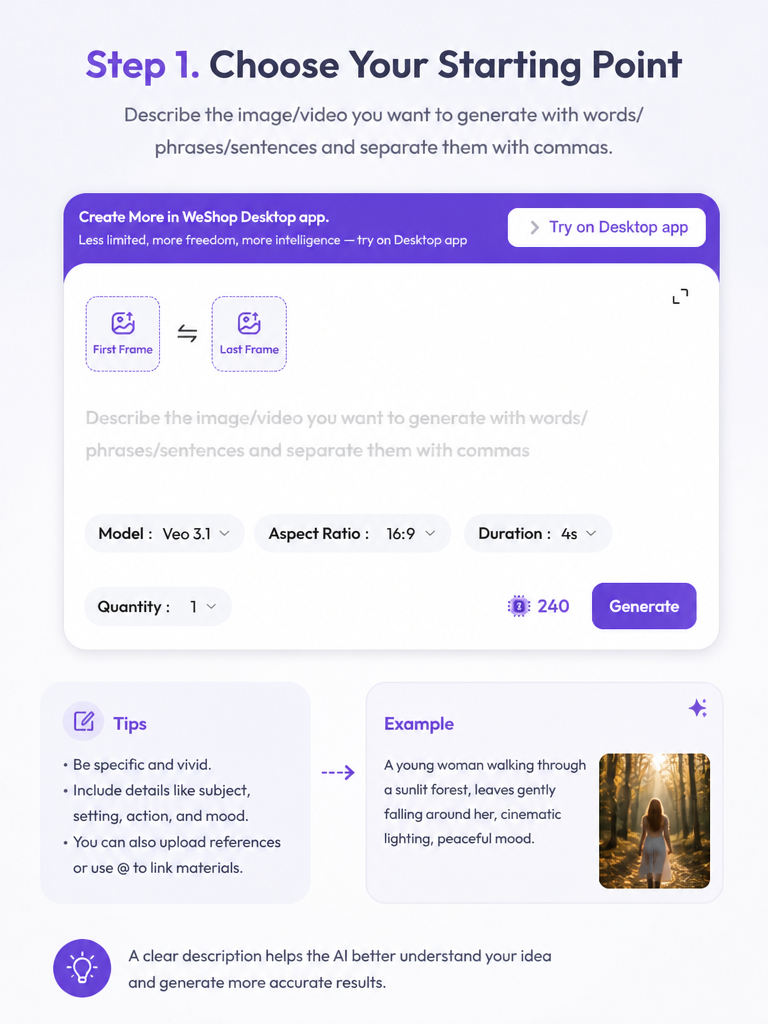
Write a prompt or add images to the first- and last-frame inputs.
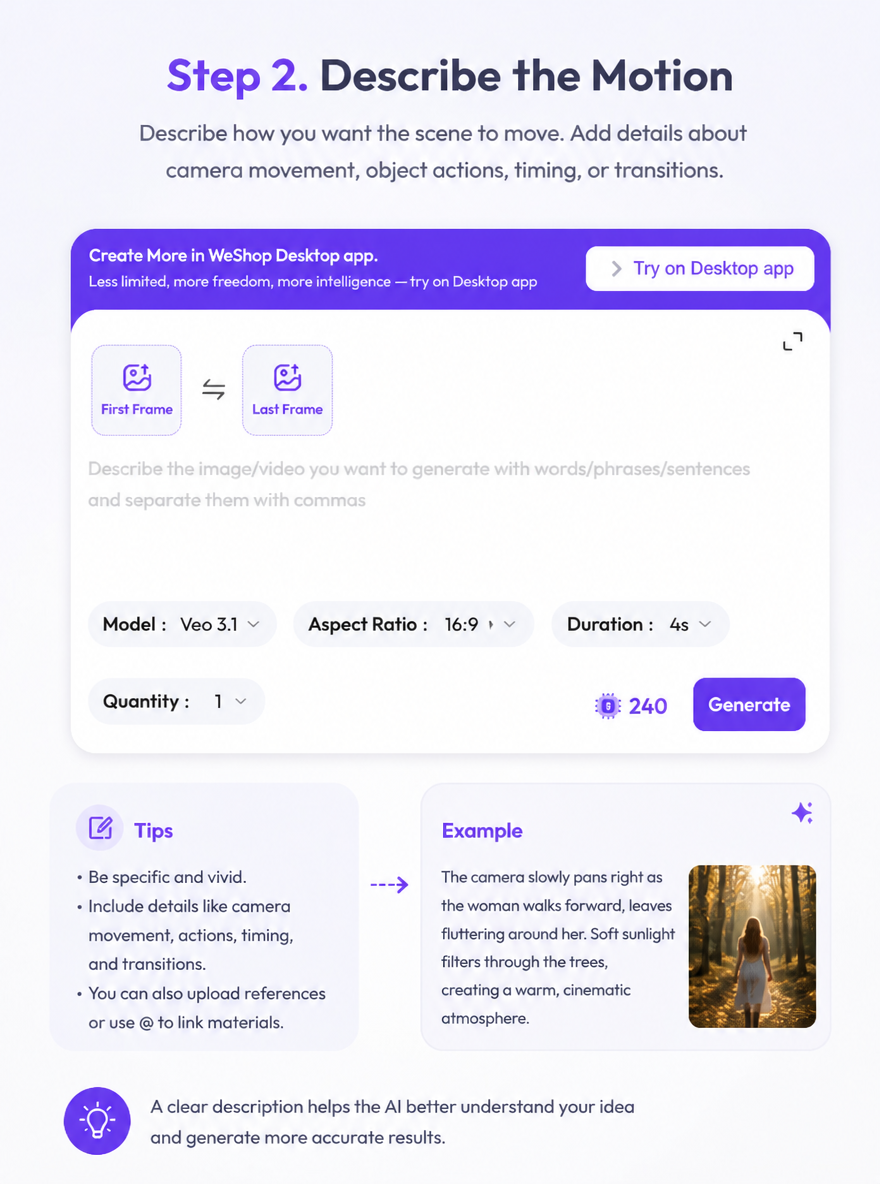
Explain the subject action, camera movement, and how the scene should progress from beginning to end.
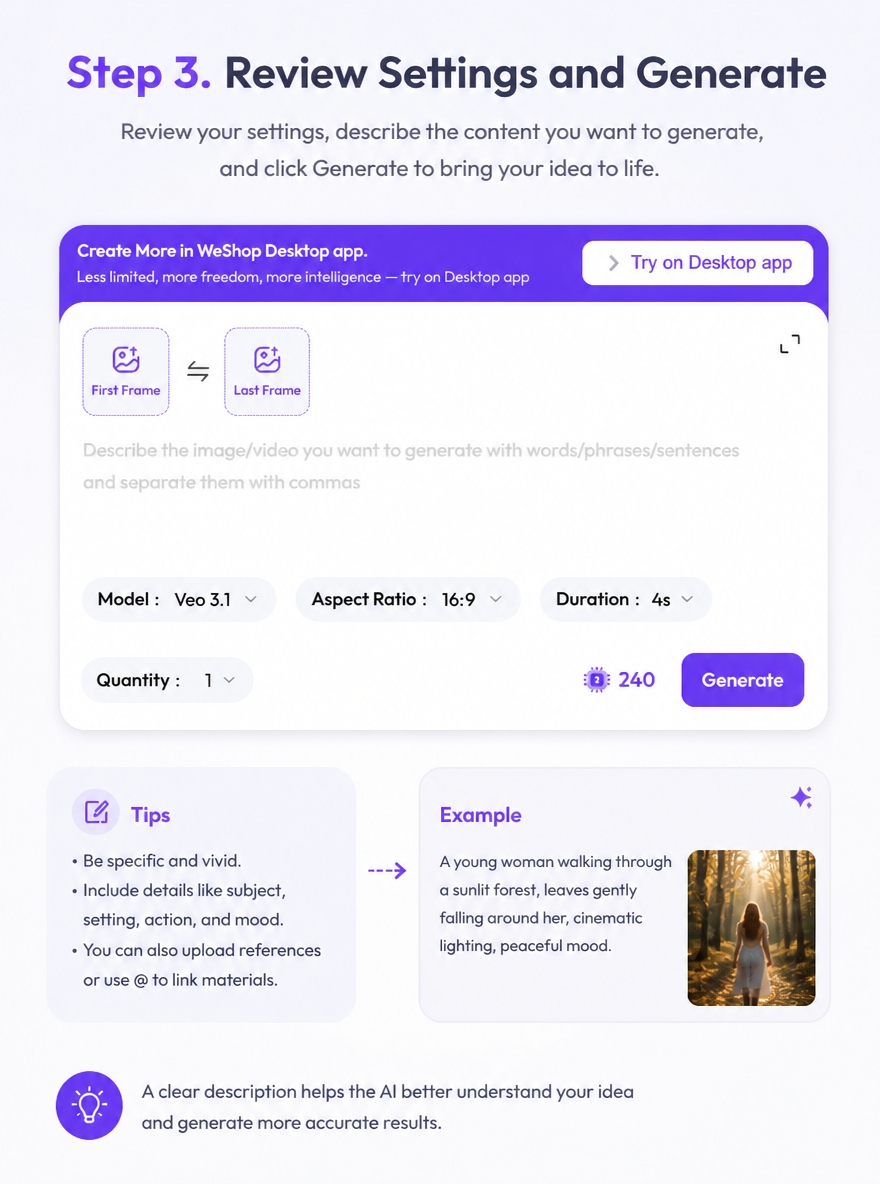
Check the selected Veo version, aspect ratio, duration, and points. Generate the clip and review it against your planned scene.
This page covers the Veo 3 series and currently opens Veo 3.1. Review the selected version and frame inputs in the creation panel.
Review Generation SettingsDirect answers about model inputs, workflows, settings, and availability.
The page covers the Veo 3 series, and the current creation panel selects Veo 3.1. The active version is displayed next to the settings.
Add images to the First Frame and Last Frame inputs, then describe the movement and scene direction that should connect them.
Yes. Describe your subject, action, setting, and camera movement in the prompt field, then review the available controls.
Use the duration and aspect-ratio controls in the creation panel. Review their selected values and the displayed points before generating.