Explore short audiovisual shot variations with Veo 3.1 Fast. Start with an opening image, add an ending frame if needed, and describe the movement and intended sound.
Explore the tasks shown by these actual Veo 3.1 Fast results. Copy a prompt to try in the generator, or open the linked case for its saved setup. Supply your own images or clips when the request uses references.
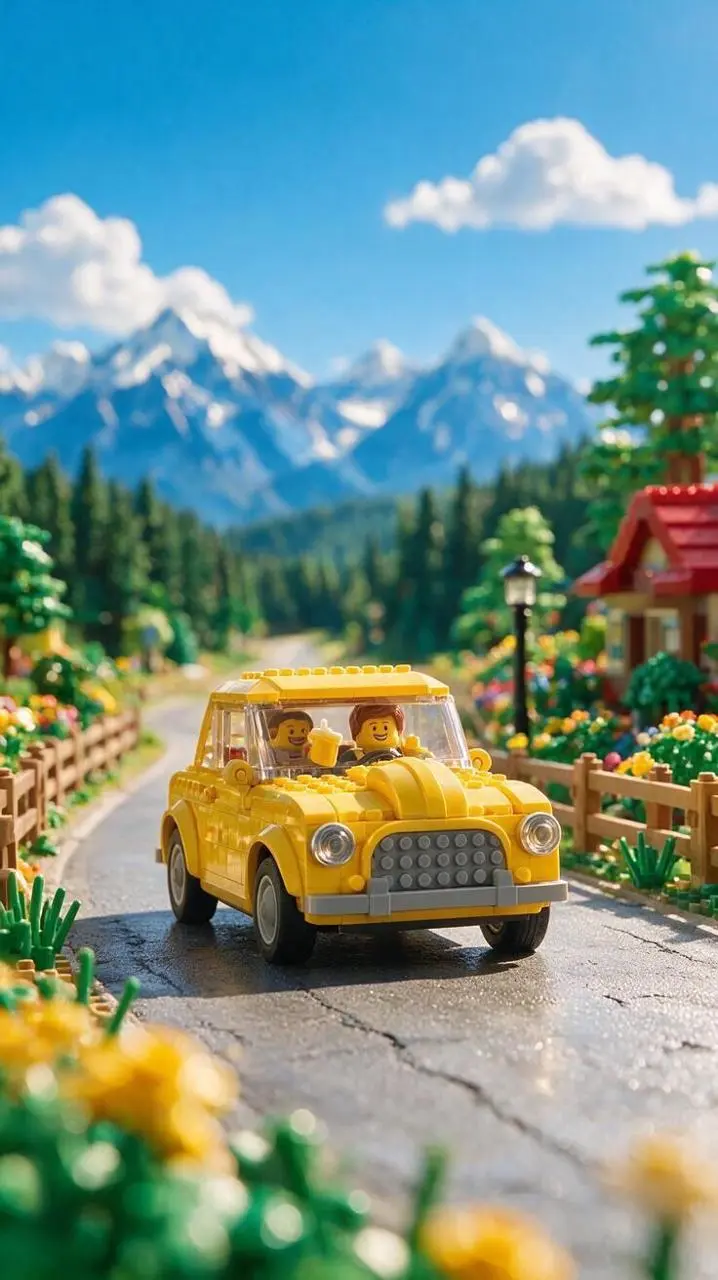
Alpine Toy-Car Travel Shot
Develop a stylized travel shot around a toy car and an alpine environment, joining the vehicle scene with scenic framing.
Use image 1 as the first frame. The yellow car drives slowly forward along the mountain road while flower heads sway gently in the foreground. Track the car smoothly at a low angle. Preserve the illustrated mountains, road and bright summer colors. Full-frame vertical 9:16 image, no frame or added lettering.
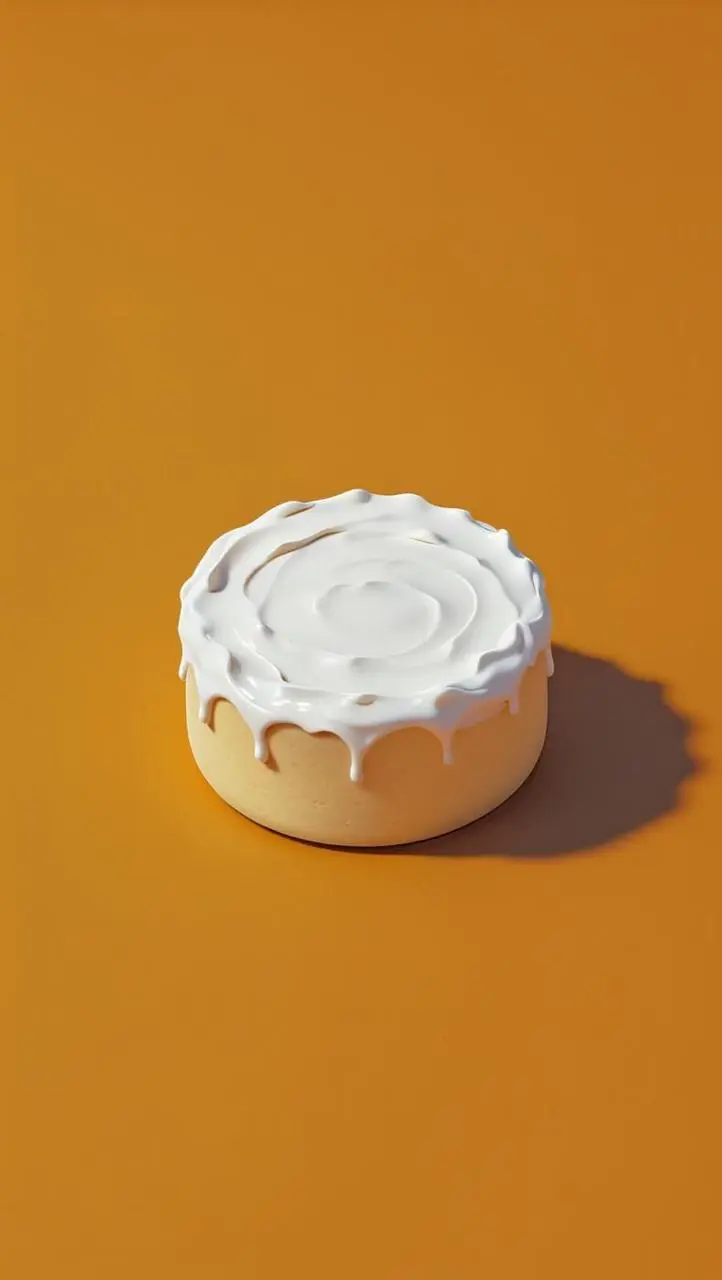
Build a product shot around cream texture and a clean colored background, with the surface detail as the visual focus.
Use image 1 as the first frame. Slowly push the camera toward the open cream container. Move a soft studio highlight across the whipped white cream to reveal its ridges and texture. Keep the orange background, container shape and clean composition unchanged. Full-frame vertical 9:16, no cuts, no lettering or frame.
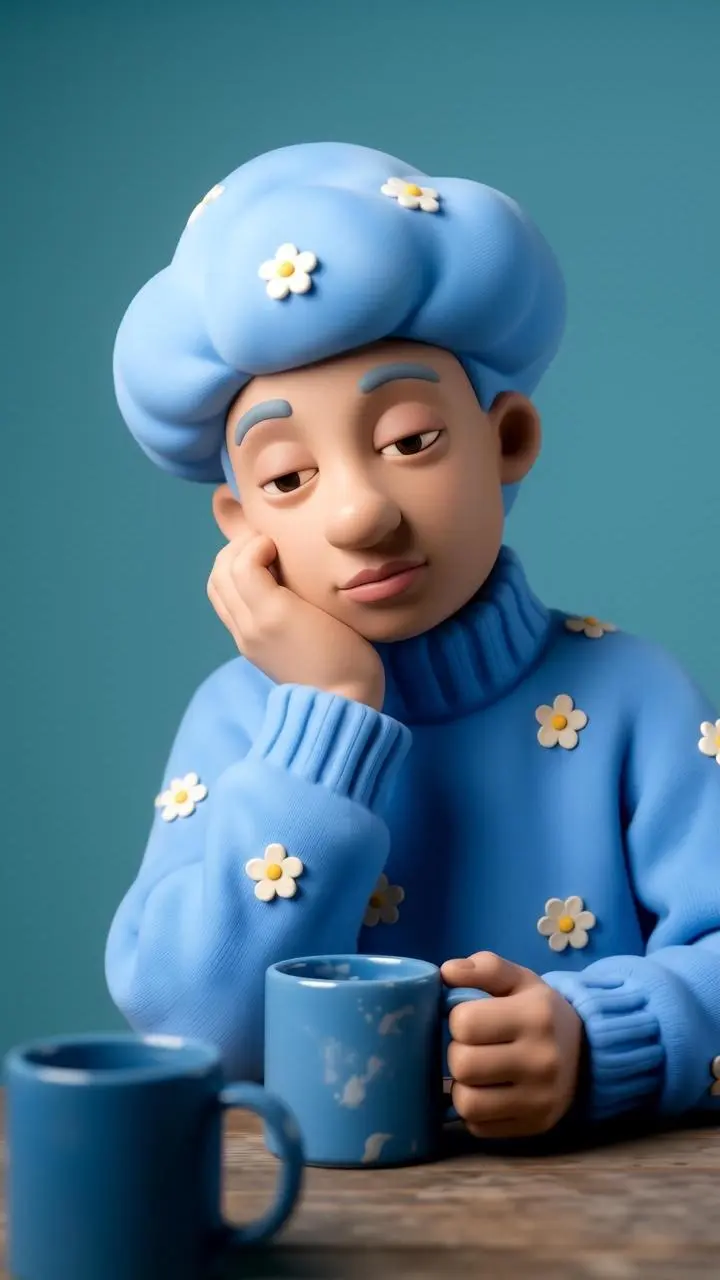
Give a clay-style character a blink, smile, and careful cup movement, using the opening image for its visual treatment.
Use image 1 as the first frame. The blue-clad clay character blinks, smiles, and carefully lifts the little blue teapot to pour tea into one cup, then rests the teapot on the table. Keep the clay surface, soft light and blue costume consistent. A stable medium shot, full-frame vertical 9:16, no cuts, no added lettering or frame.
Veo 3.1 Fast is Google’s faster-oriented Veo 3.1 video model with native audiovisual generation and image-led creation.
Picture and Sound in One Clip
Google documents native audiovisual generation for Veo 3.1. Dialogue and environmental sound can belong to the scene rather than a separate visual-only brief.
Opening and Ending Frame Guidance
A starting image establishes the opening composition. An ending frame, used together with it, can guide the closing view.
Camera and Subject Direction
Framing, camera movement, and subject action define a shot. The output can be reviewed as a short performance rather than only a moving still image.
WORKFLOWS
Choose Your Starting Input
Use the Veo 3.1 Fast input mode that matches the material you have.
Animate an Opening Image
Upload the frame that establishes the subject and scene. Describe the action, environmental movement, or camera direction that follows it.
Guide the Opening and Ending Frames
Supply both images, then describe the action or transition connecting their compositions. Choose a duration offered for this mode.
PROMPT GUIDE
How to Direct Veo 3.1 Fast with a Prompt
Learn from the actual instructions behind these results. Each example keeps its complete original prompt and available inputs. For a new request, replace its subject and reference assignments with your own.
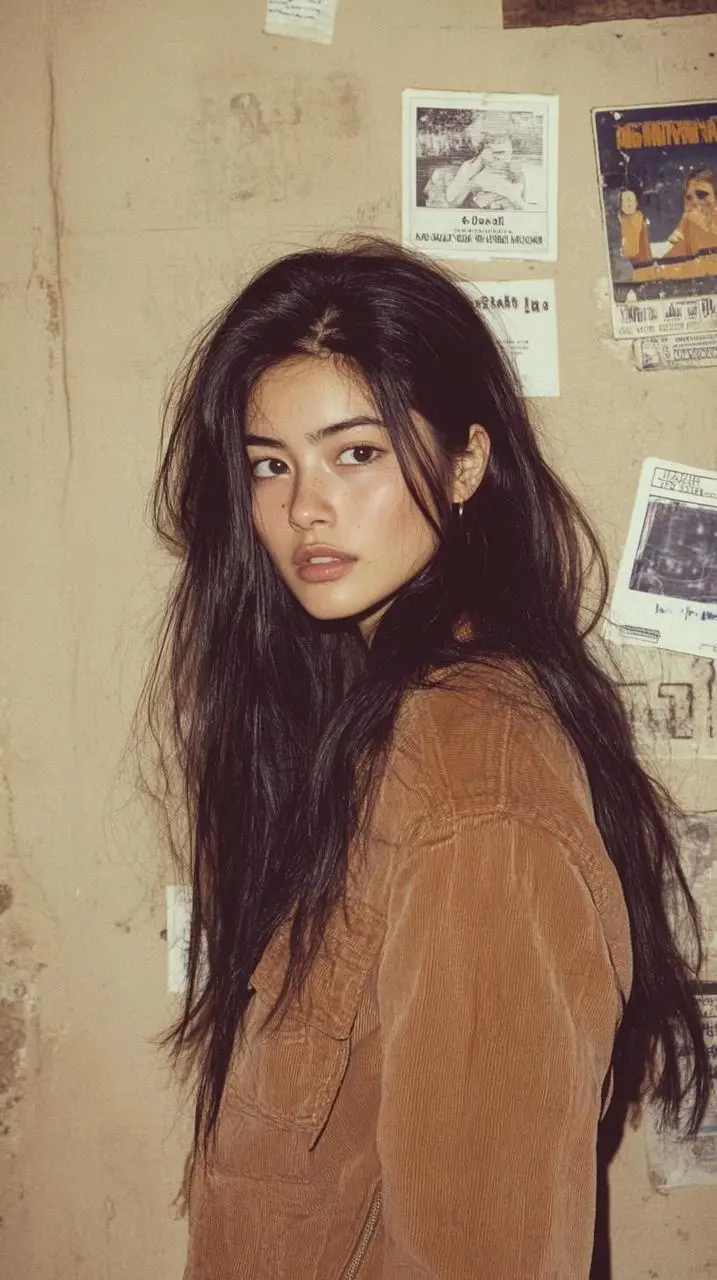
Describe How the Framing Changes
Name the camera movement and the part of the subject or environment it should reveal. In this case: “A slow subtle camera push-in, realistic small movements, full-frame vertical 9:16, no cuts, no added text or frame.”
Use image 1 as the first frame. The woman turns her eyes toward the window and gently moves a loose strand of hair behind her ear. Keep the warm natural light, face, clothing and softly detailed room consistent. A slow subtle camera push-in, realistic small movements, full-frame vertical 9:16, no cuts, no added text or frame.
Give the Face a Specific Performance
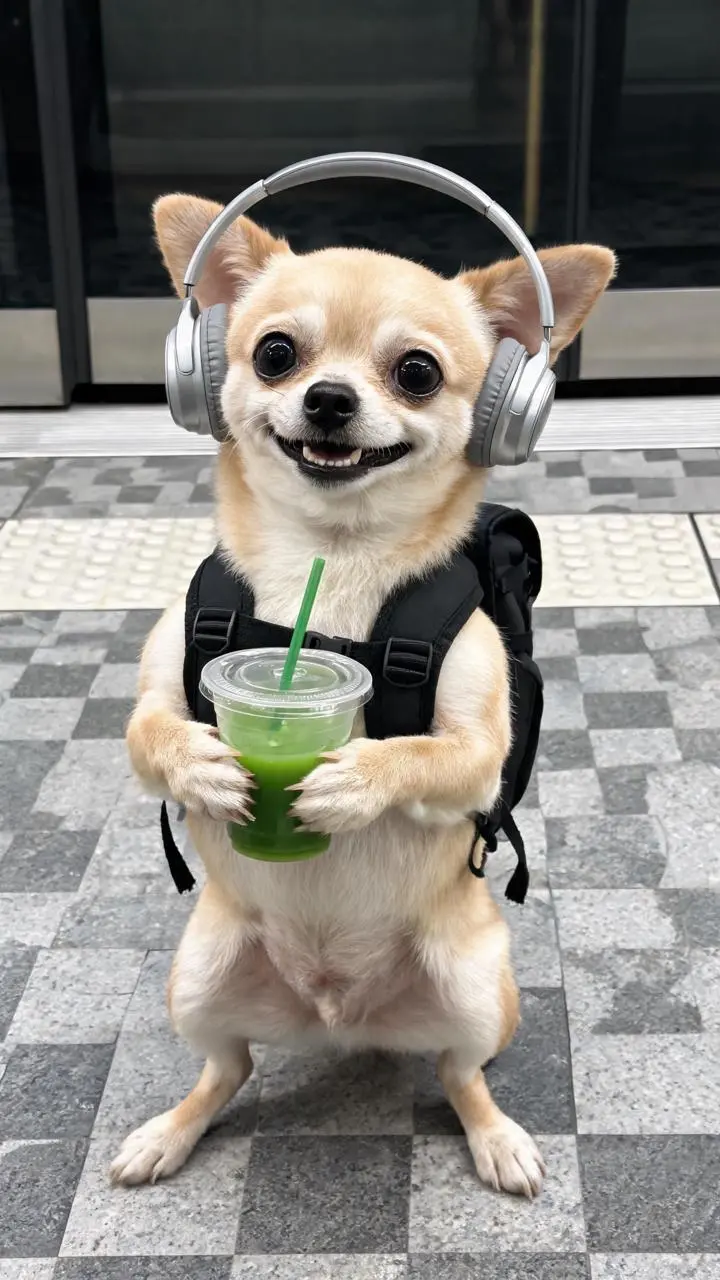
Name the expression or small movement to perform rather than describing appearance alone. In this case: “The dog was bored, so it picked up the coffee next to it and laughed.”
The dog was bored, so it picked up the coffee next to it and laughed.
Describe the Interaction with the Object
Name the object and the action connecting it to the subject, including the gesture or contact. In this case: “The puppy walked forward while drinking its beverage.”
The puppy walked forward while drinking its beverage.
Add Motion to the Environment
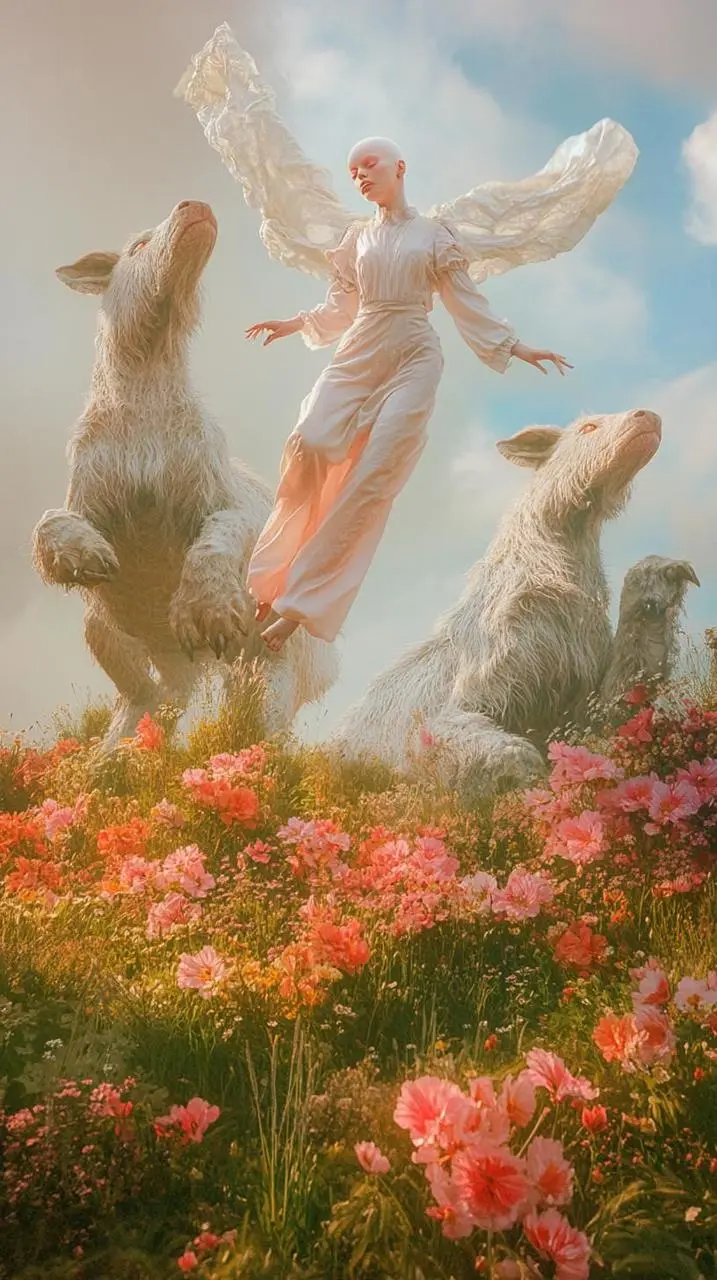
Identify the environmental element that moves while the composition remains recognizable. In this case: “Let the flower stems and the flowing fabric sway in a light breeze while the central figure slowly raises one hand.”
Use image 1 as the first frame. Let the flower stems and the flowing fabric sway in a light breeze while the central figure slowly raises one hand. Keep the classical painted appearance, pastel light, woodland animals and garden composition consistent. One slow continuous shot, full-frame vertical 9:16, no added lettering or frame.
HOW TO USE
Create Your First Veo 3.1 Fast Video
Start in the generator on this page. To reuse an example, click Copy Prompt, return to the description field, and adapt the prompt to your own inputs.
Provide the Scene and Inputs
Upload the opening image that establishes the scene, then describe its movement.
Choose the Output Options
Choose an offered duration, aspect ratio, and other available output options. Check the form’s displayed points before submitting.
Generate and Review
Click Generate and review the resulting video. Check movement, framing, continuity, and any delivered audio. Adjust your prompt or references for the next attempt.
Compare the documented model roles and the inputs and options currently listed in WeShop. Model names or matching settings do not by themselves establish equal output quality or a fixed generation-time difference.
Dimension
Veo 3.1
Veo 3.1 Fast
Model role
Cinematic shot direction with native audiovisual capability
Faster-oriented variant; no WeShop latency promise
Inputs listed for the page
Animate an Opening Image; Guide the Opening and Ending Frames
Animate an Opening Image; Guide the Opening and Ending Frames
Current WeShop options
Duration: 4s, 6s, 8s
Duration: 4s, 6s, 8s
Model role
Veo 3.1
Cinematic shot direction with native audiovisual capability
Veo 3.1 Fast
Faster-oriented variant; no WeShop latency promise
Inputs listed for the page
Veo 3.1
Animate an Opening Image; Guide the Opening and Ending Frames
Veo 3.1 Fast
Animate an Opening Image; Guide the Opening and Ending Frames
Current WeShop options
Veo 3.1
Duration: 4s, 6s, 8s
Veo 3.1 Fast
Duration: 4s, 6s, 8s
When to Consider Veo 3.1 Fast
Match the Model to Your Task
Consider Fast for faster-oriented iteration; compare standard Veo 3.1 on your representative shot.
MORE VIDEO MODELS
Explore More Video Models
Open a related model page to review its capabilities, examples, and current generation options.
Answers about this version, its inputs, and how to get started.
What is Veo 3.1 Fast?
Veo 3.1 Fast is Google’s faster-oriented Veo 3.1 video model with native audiovisual generation and image-led creation.
What is a good task to consider it for?
Consider Fast for faster-oriented iteration; compare standard Veo 3.1 on your representative shot.
What do I need to provide?
Animate an Opening Image. Upload the frame that establishes the subject and scene. Describe the action, environmental movement, or camera direction that follows it. Guide the Opening and Ending Frames. Supply both images, then describe the action or transition connecting their compositions. Choose a duration offered for this mode.
Which output settings are offered here?
Duration: 4s, 6s, 8s
How do I try an example prompt?
Click Copy Prompt, return to the generator, and paste it into the description field. Add your own required references and update their roles. Linked case previews and Use This Prompt open the saved case; they do not automatically fill this page’s form.
What should I know about this version?
Duration, resolution, and endpoint availability vary. Use the options on this page; a retired vendor preview endpoint does not establish the status of every WeShop route.