Create from a clear visual brief
Describe the subject, setting, lighting, composition, and details that should remain consistent.
Create from a clear visual brief
Create images with Midjourney on WeShop AI. Choose V7, V6.1, or Niji 6, add a prompt or reference, and explore product concepts, artwork, and illustrations.
Create a focused image from the documented input flow, then review the result against the brief.
Describe the subject, setting, lighting, composition, and details that should remain consistent.
Create from a clear visual brief
Choose the available aspect ratio and image size for the intended placement before generating.
Control the format
Compare the result with the brief, preserve the settings, and change one instruction at a time for the next version.
Review focused variations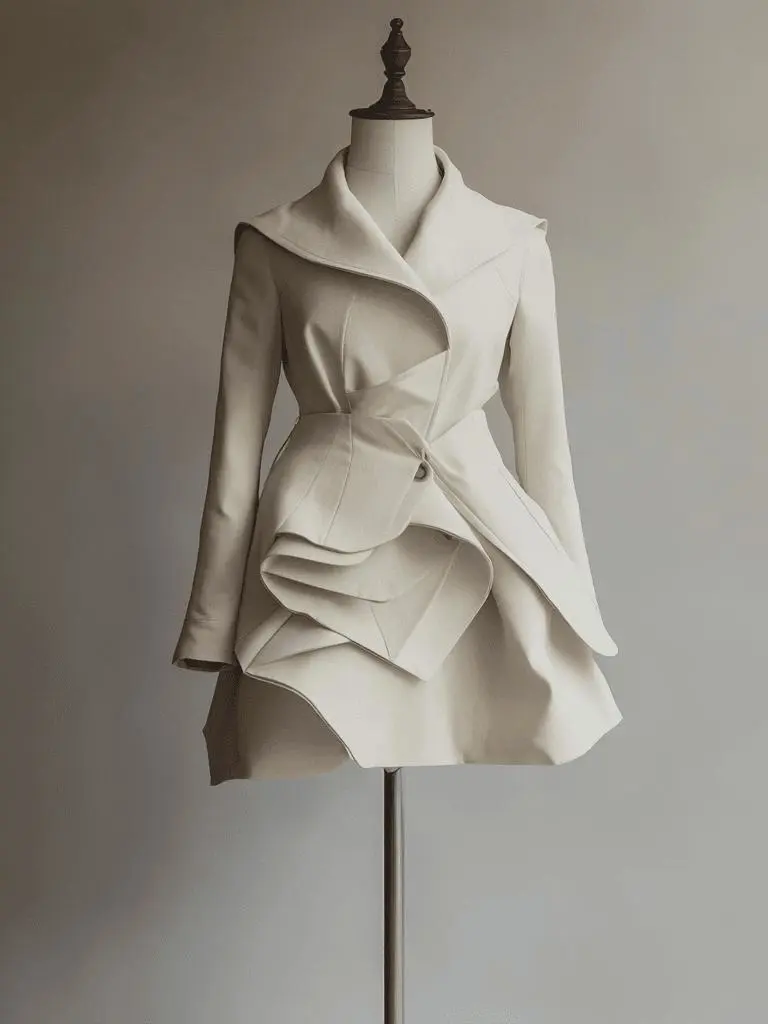
Review the generated result against the prompt, selected model, and format.
A sculptural cream coat displayed on a simple dress form, warm gray studio, dramatic side lighting, editorial fashion photograph, clear fabric folds, no text.Create an editorial fashion image
Review the generated result against the prompt, selected model, and format.
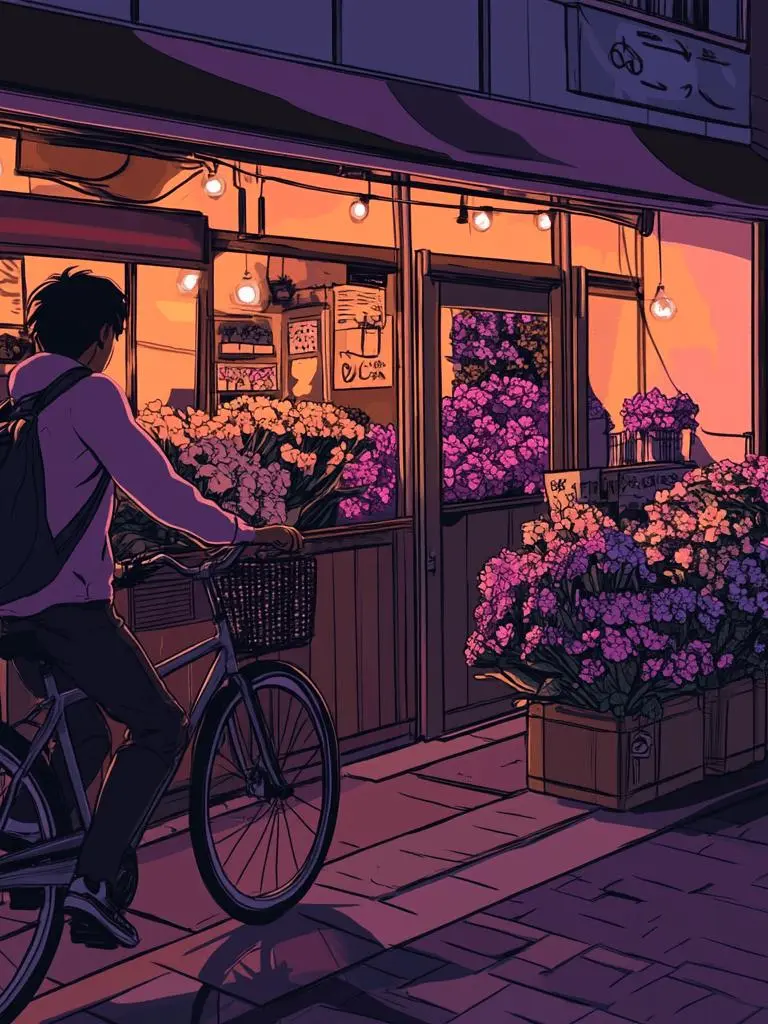
An anime-style illustration of a young adult courier cycling past a small flower shop at dusk, expressive linework, violet shadows, warm shop lights, no text.Explore a Niji illustration
Review the generated result against the prompt, selected model, and format.
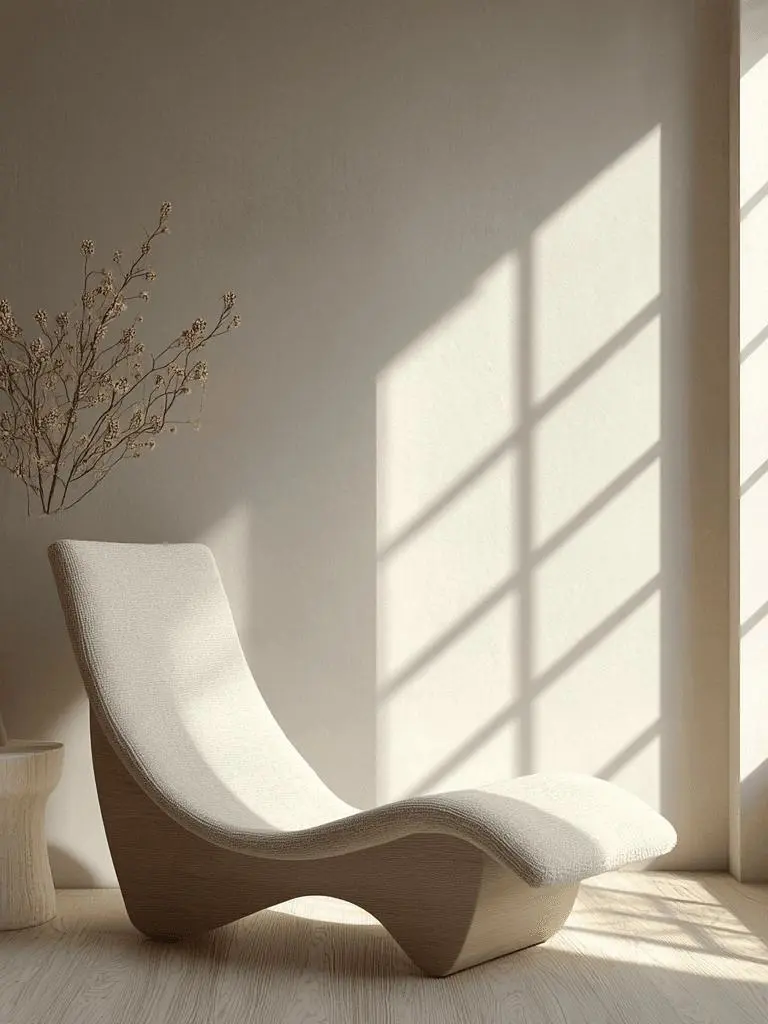
A minimalist reading chair beside a tall window, pale oak floor, soft morning light, quiet contemporary interior, wide architectural composition, no people.Build an architectural interior
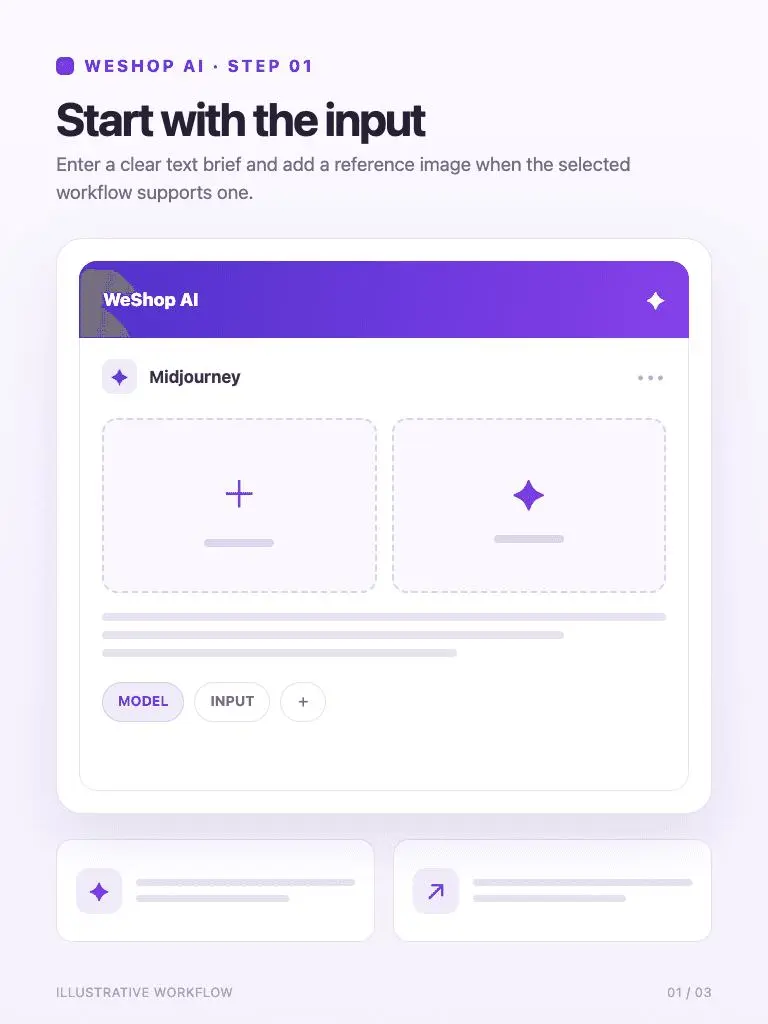
Enter a clear text brief and add a reference image when the selected workflow supports one.
1. Start with the input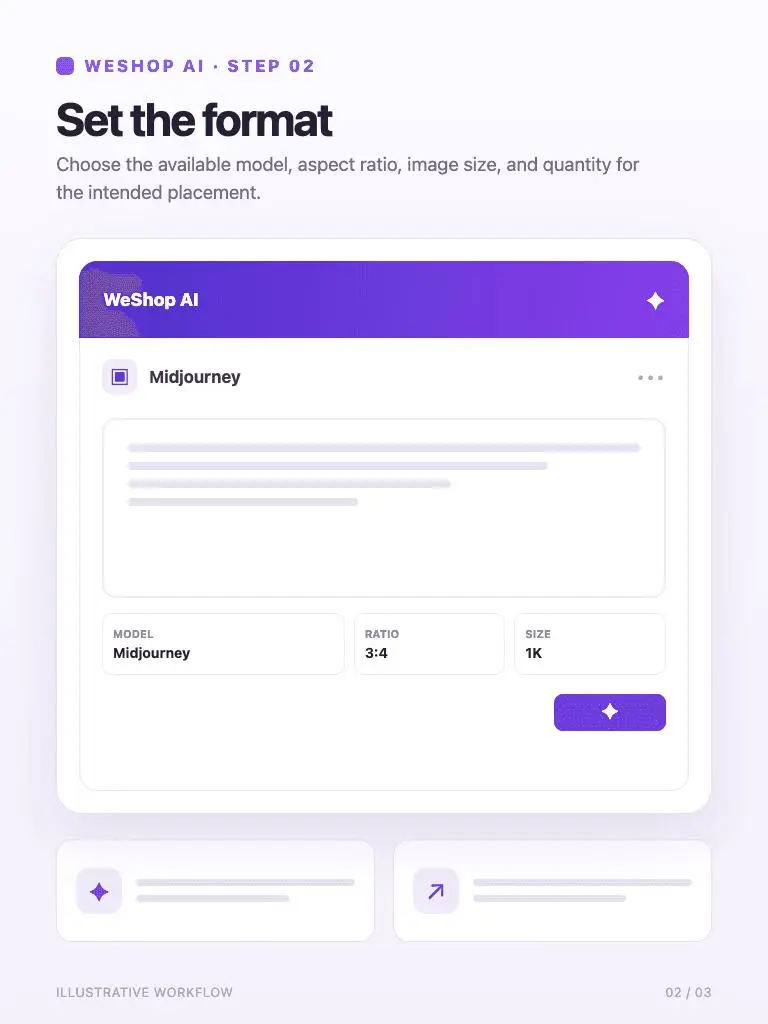
Choose the available model, aspect ratio, image size, and quantity for the intended placement.
2. Set the format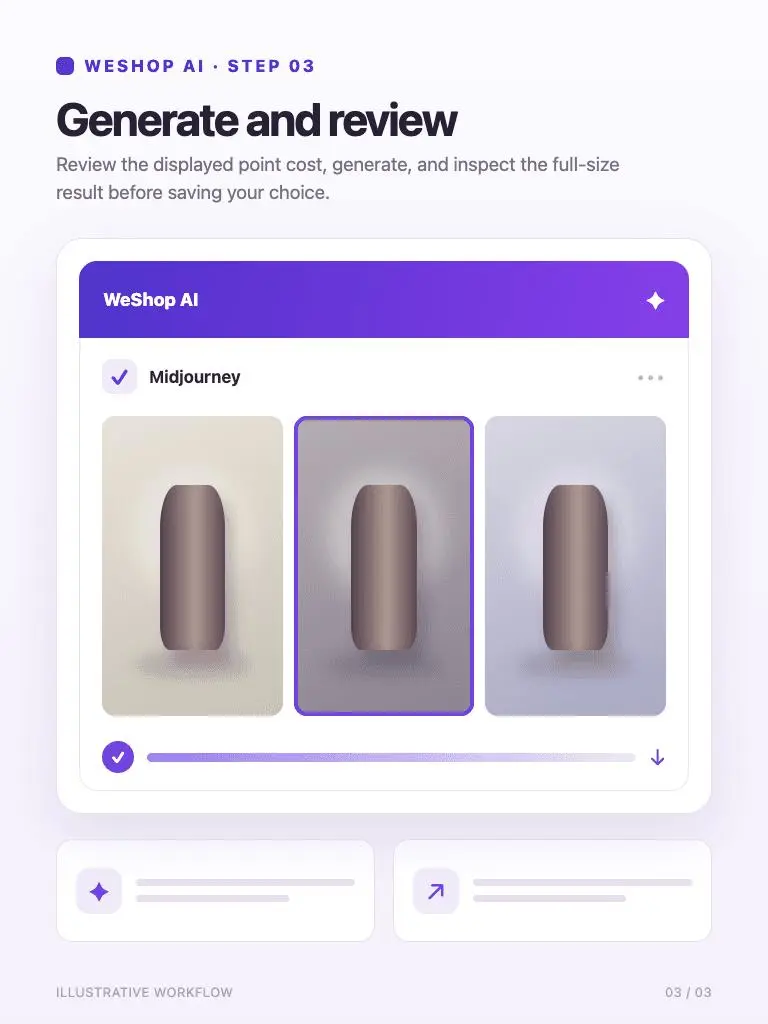
Review the displayed point cost, generate, and inspect the full-size result before saving your choice.
3. Generate and reviewCheck the selected model and available options before you generate. Review the point cost displayed for your selected settings before generating.
Review Generation SettingsDirect answers about model inputs, workflows, settings, and availability.
The current menu offers V6.1, V7, and Niji 6. V6.1 is selected when the page first loads, so choose V7 explicitly if that is the version you want to use.
Add your reference through the optional image input, then describe the scene or style you want in the prompt. Keep the role of the reference clear and review the result against it.
Niji 6 is available in the model menu for illustration-focused work. Select it, describe the subject and composition, and include the desired linework, palette, and lighting.
Use the same prompt and aspect ratio in separate generations. Label each result with its version, then compare the details that matter to your task, such as fabric texture or scene composition.