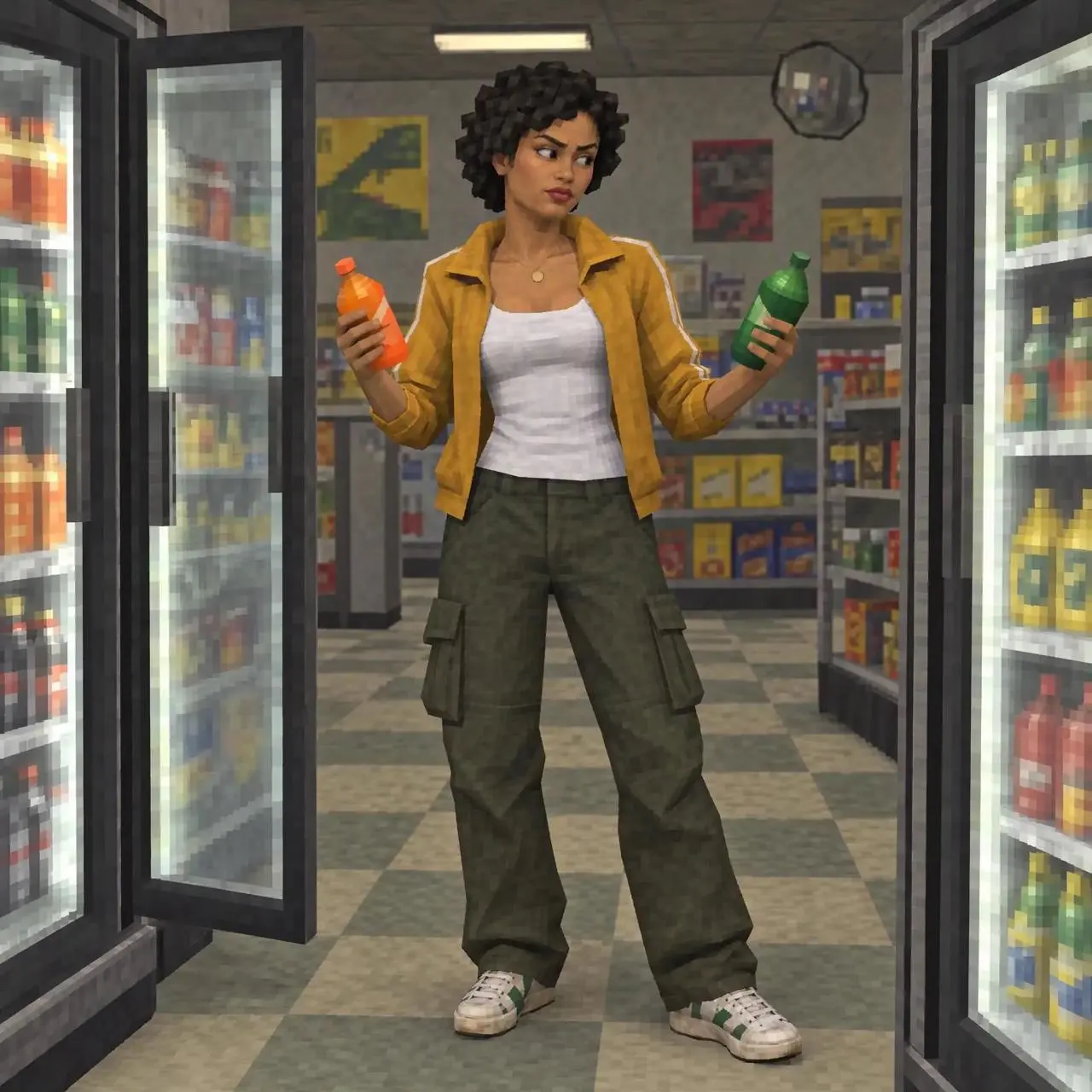
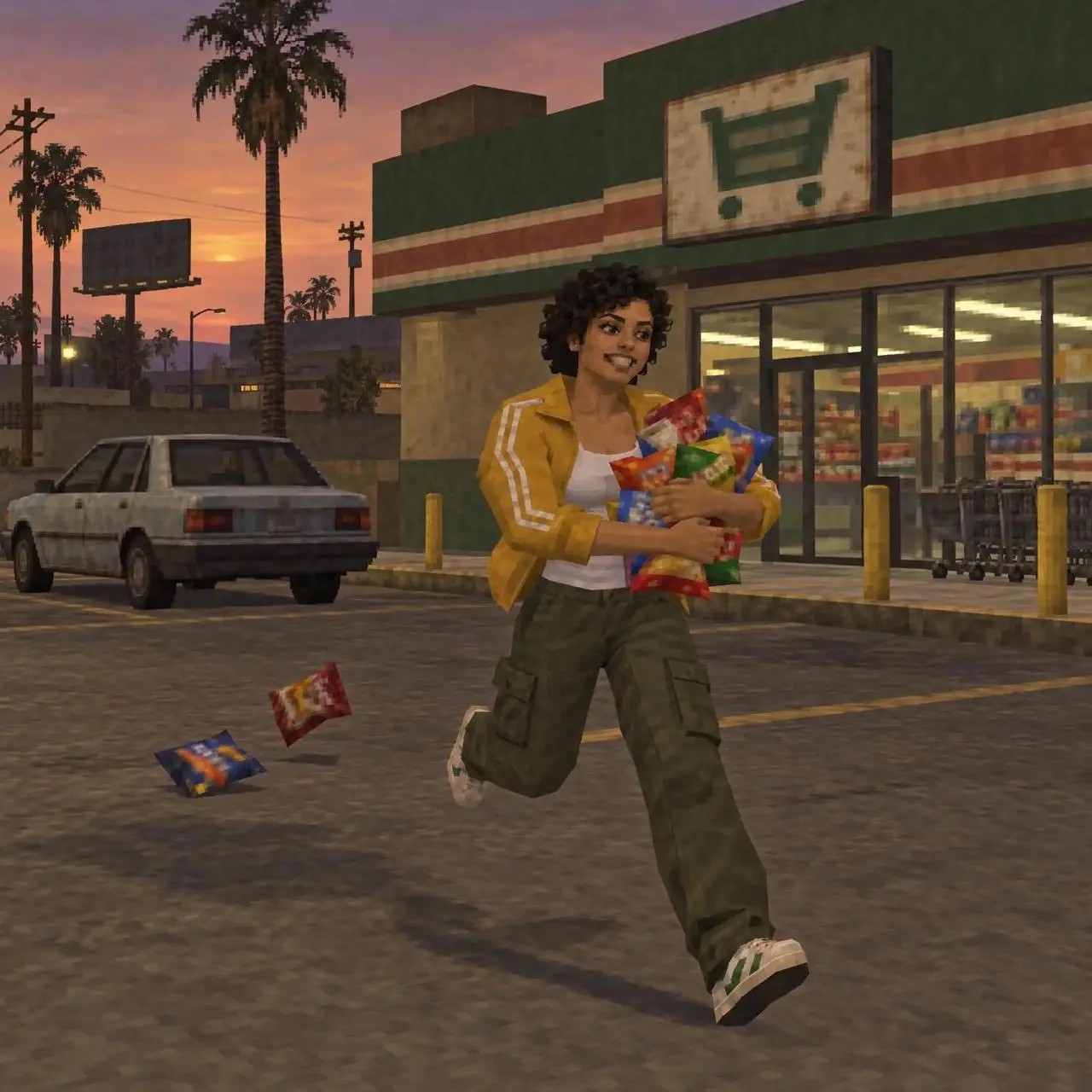
Animated scene transitions
The animated character moves between a shop, a laundrette and an outdoor scene, linked by bright and swirling transitions.
Combine three images into a single production, adding transitions and special effects.

Kling 4.0 is Kuaishou’s video model for dynamic scenes, longer storytelling and reference-guided creation. Generate videos up to 30 seconds, choose a reference workflow, or direct a shot with images and keyframes. Review examples, reference inputs and prompts below.
Explore animated scene changes and outfit transitions. Copy a prompt or open an example to replace its reference images with your own.
The animated character moves between a shop, a laundrette and an outdoor scene, linked by bright and swirling transitions.
Combine three images into a single production, adding transitions and special effects.
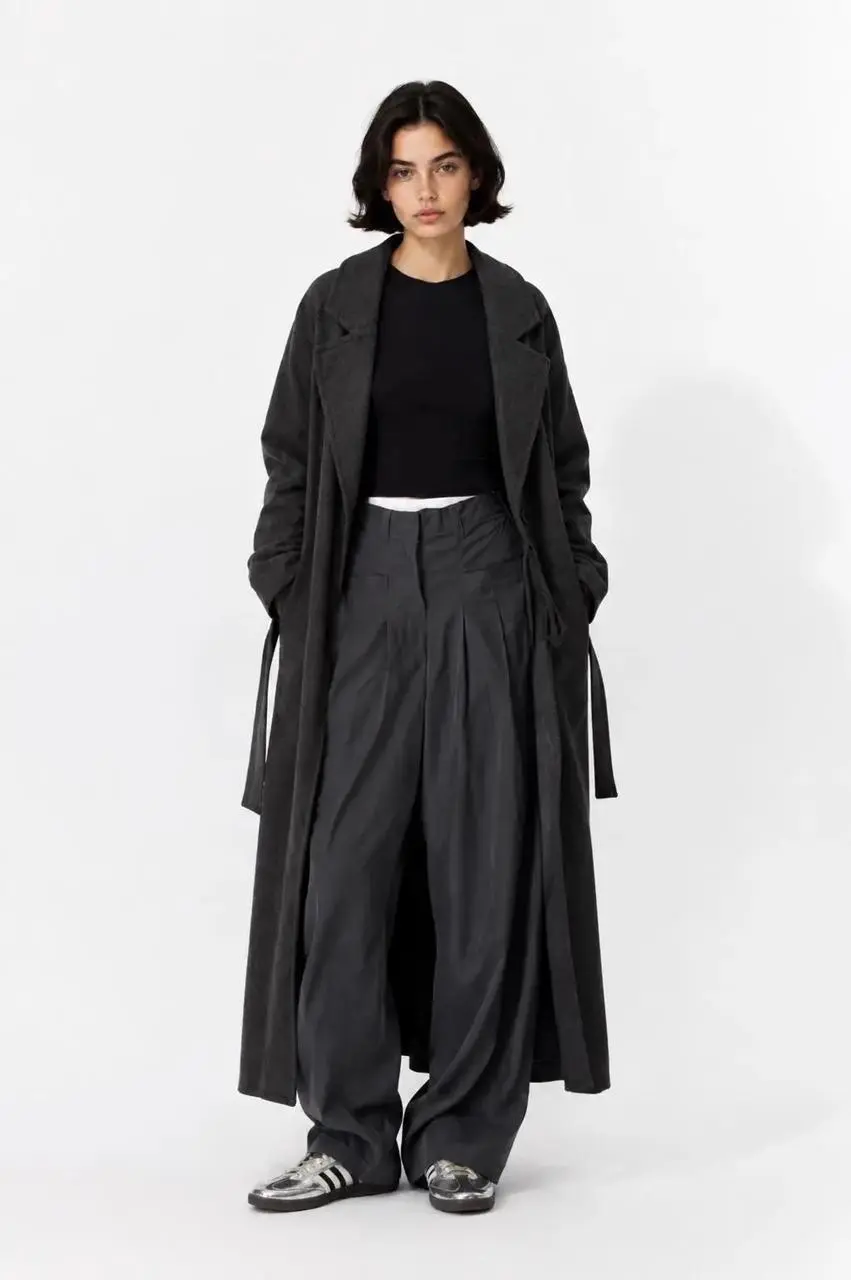
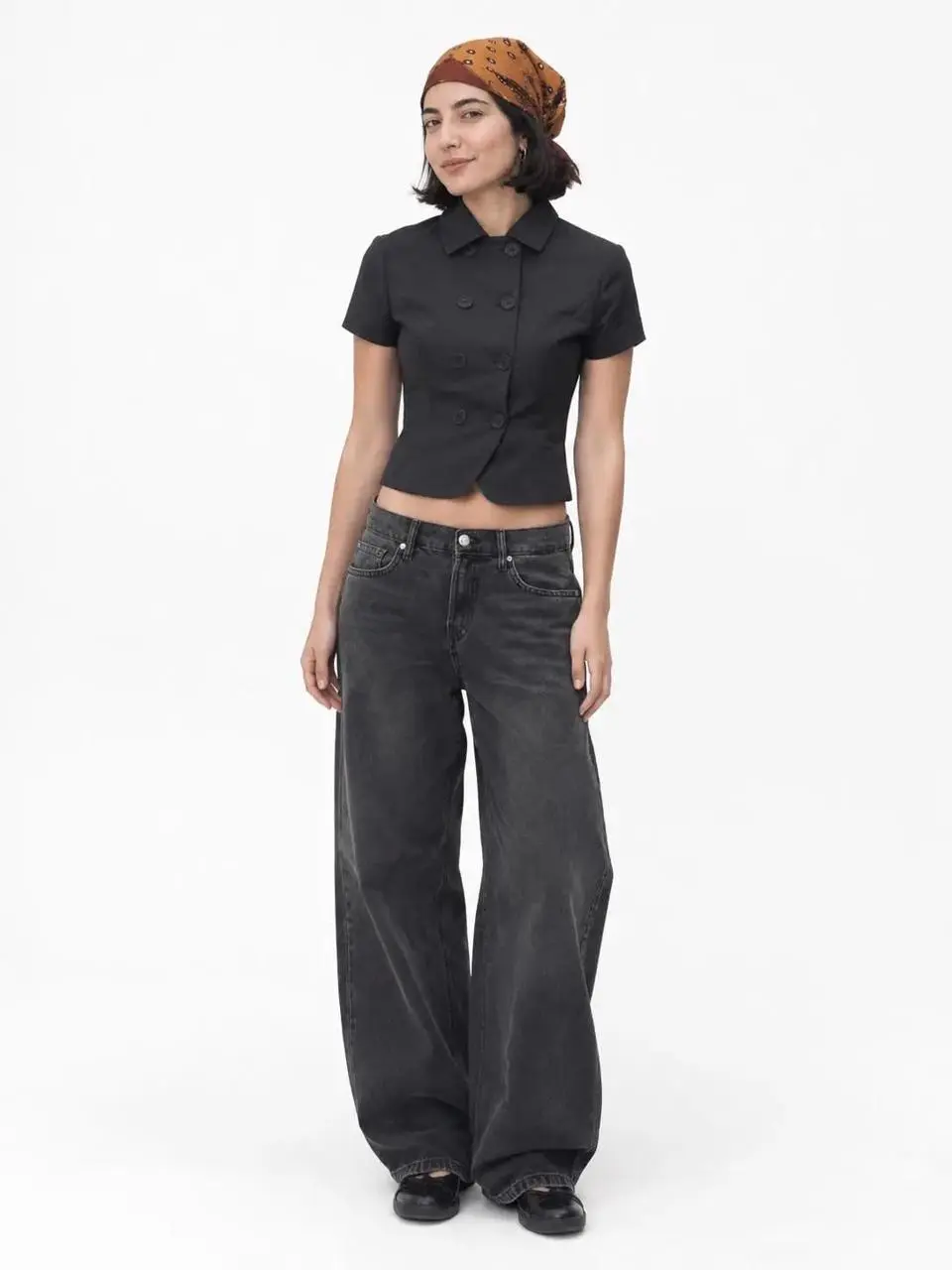
Models enter and leave the frame as outfits change against a white studio background.
Using the uploaded images, create an OOTD transition video; incorporate elements such as "dropping into" the frame or "walking out" of the frame between the clips.
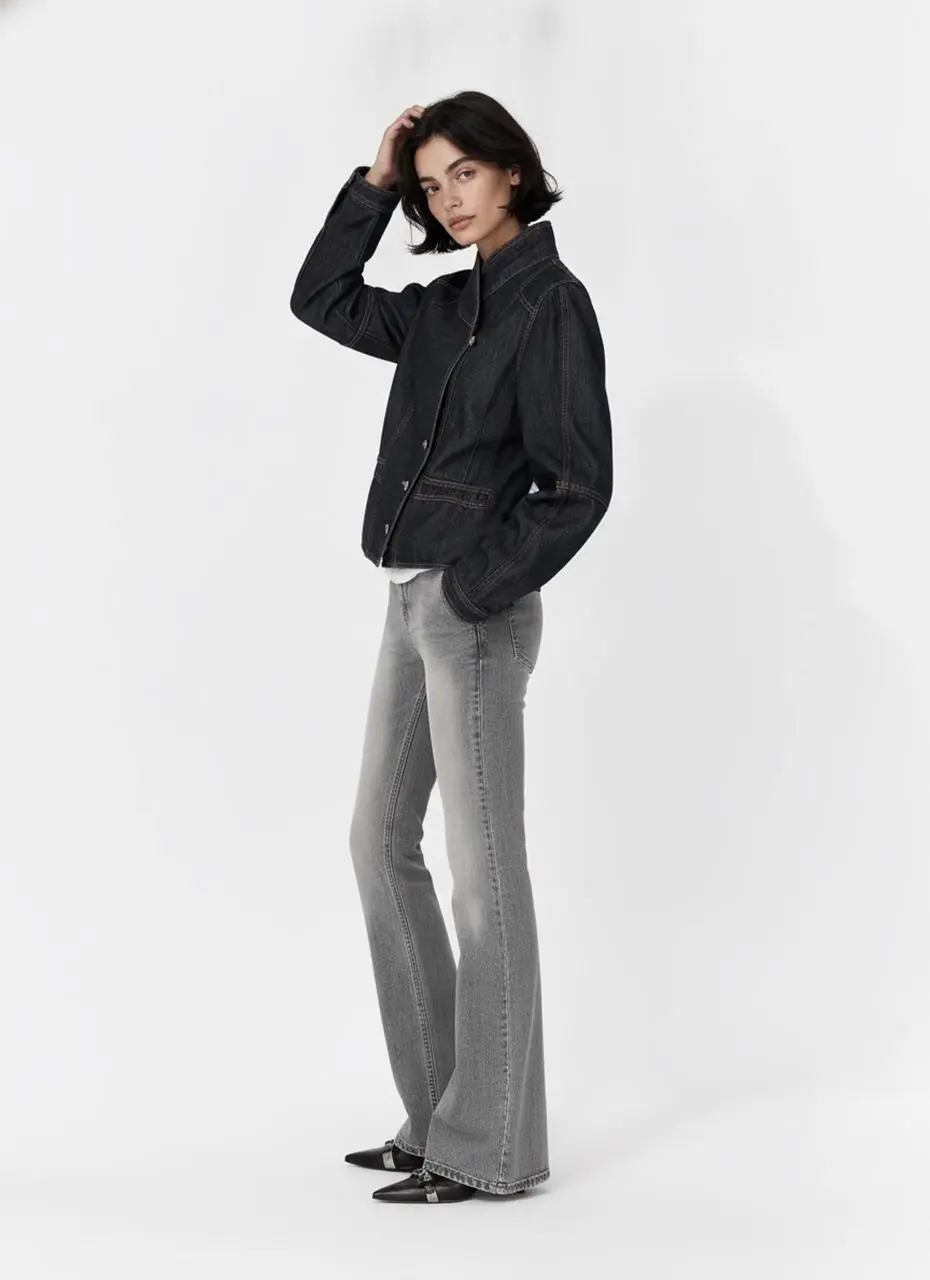
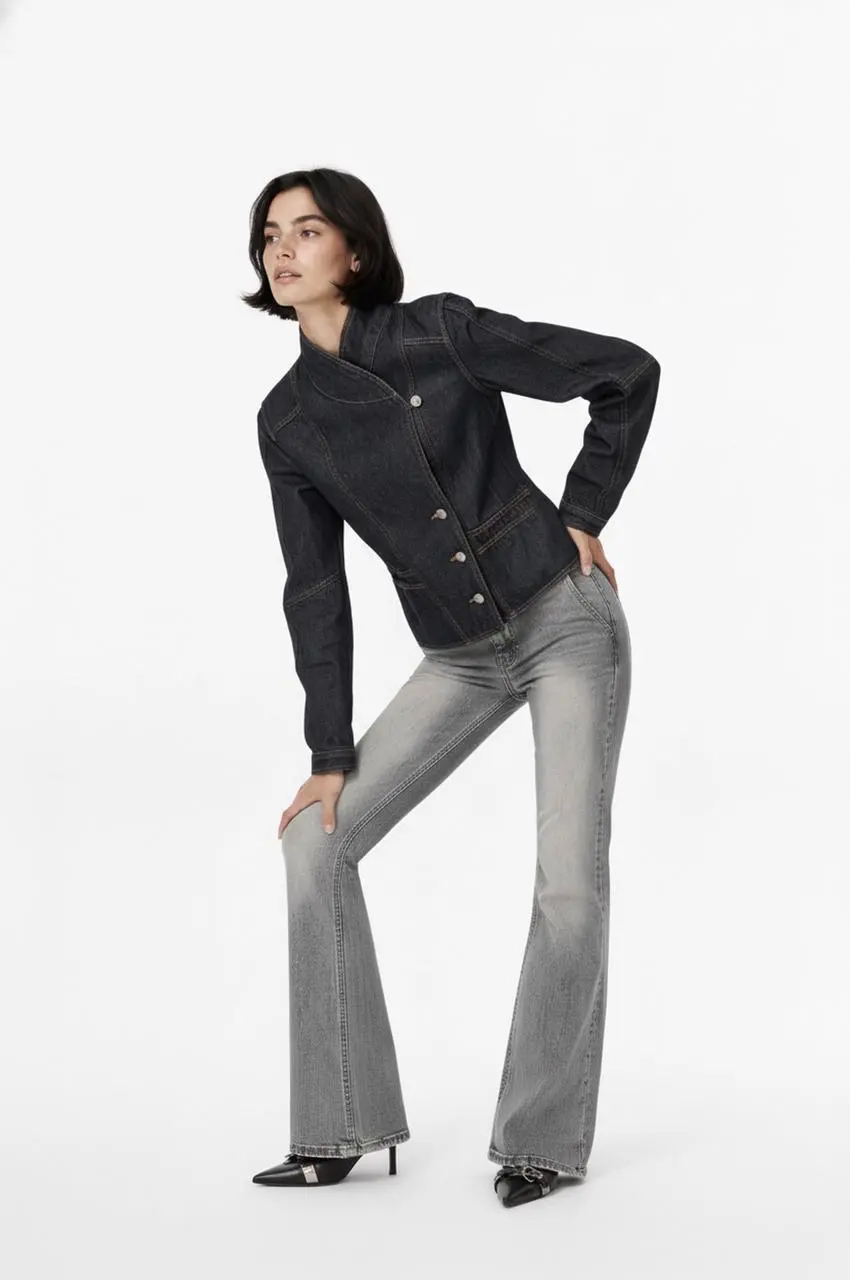
A studio model moves through poses before the look changes from a black jacket to a light-blue top.
Edit into an OOTD transition video
Kling describes 4.0 around motion stability, creative control and longer narrative sequences. Use these as creative goals, then inspect the entire result for subject changes, motion errors and dialogue alignment.
Kling 4.0 is designed for steadier fast action, continuous movement and complex tracking or orbit shots. The lobby and chase demonstrations show action developing as the camera changes position.
Official Omni Reference combines visual assets to guide characters, products, composition and movement. The chase example pairs a reference sheet with a scene containing several people and vehicles.
Native generation of up to 30 seconds gives actions and scene progression more room. The dragon demonstration develops from a cliffside setup into a sequence over the city; its actual file lasts about 27.9 seconds.
The Kling menu offers two 4.0 entries. Choose the input method that matches your materials.
Use text or the reference mode when your starting point is a scene idea or reference assets. Give each uploaded asset a clear role.
Use text, a first frame, first and last frames, or multiple frames. Choose frames that describe compatible stages of the same action.
Learn how to describe subjects, actions, camera movement and scenes through these video examples. Copy the reference prompts and adapt them to your own characters, settings and material.
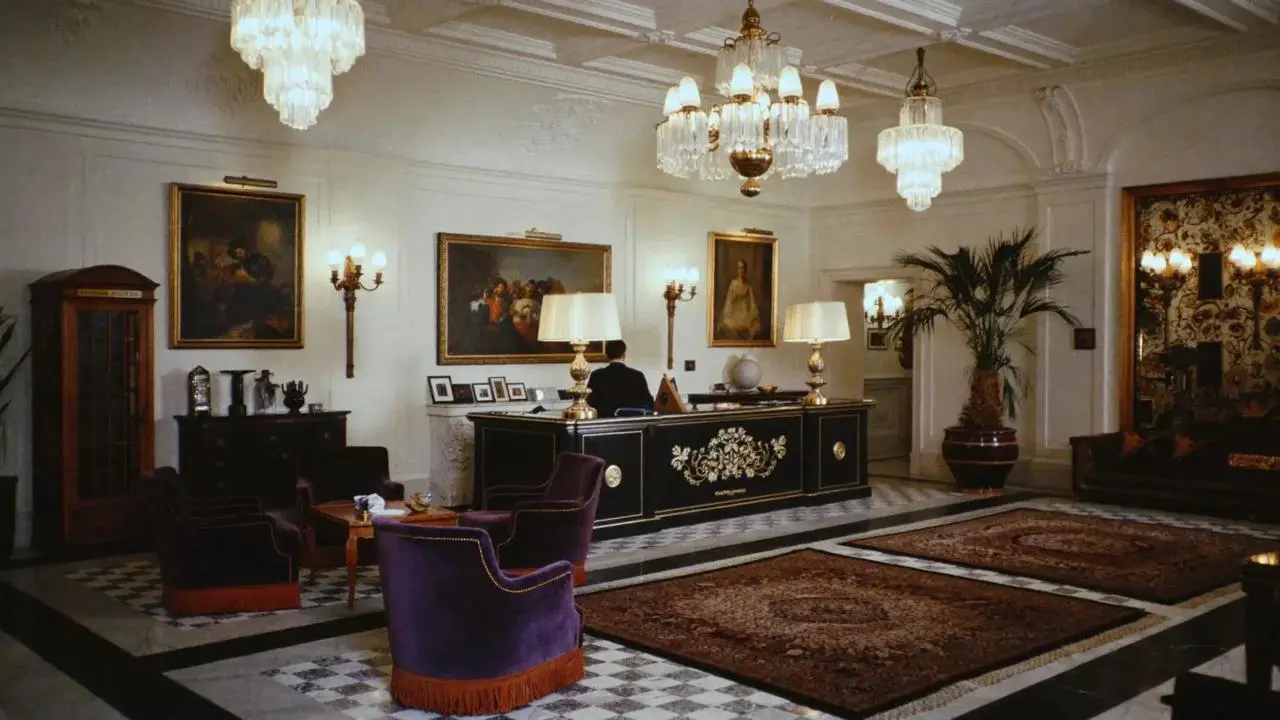
A woman moves through several encounters in a lobby.
A woman defeats five men one after another in a hotel lobby.
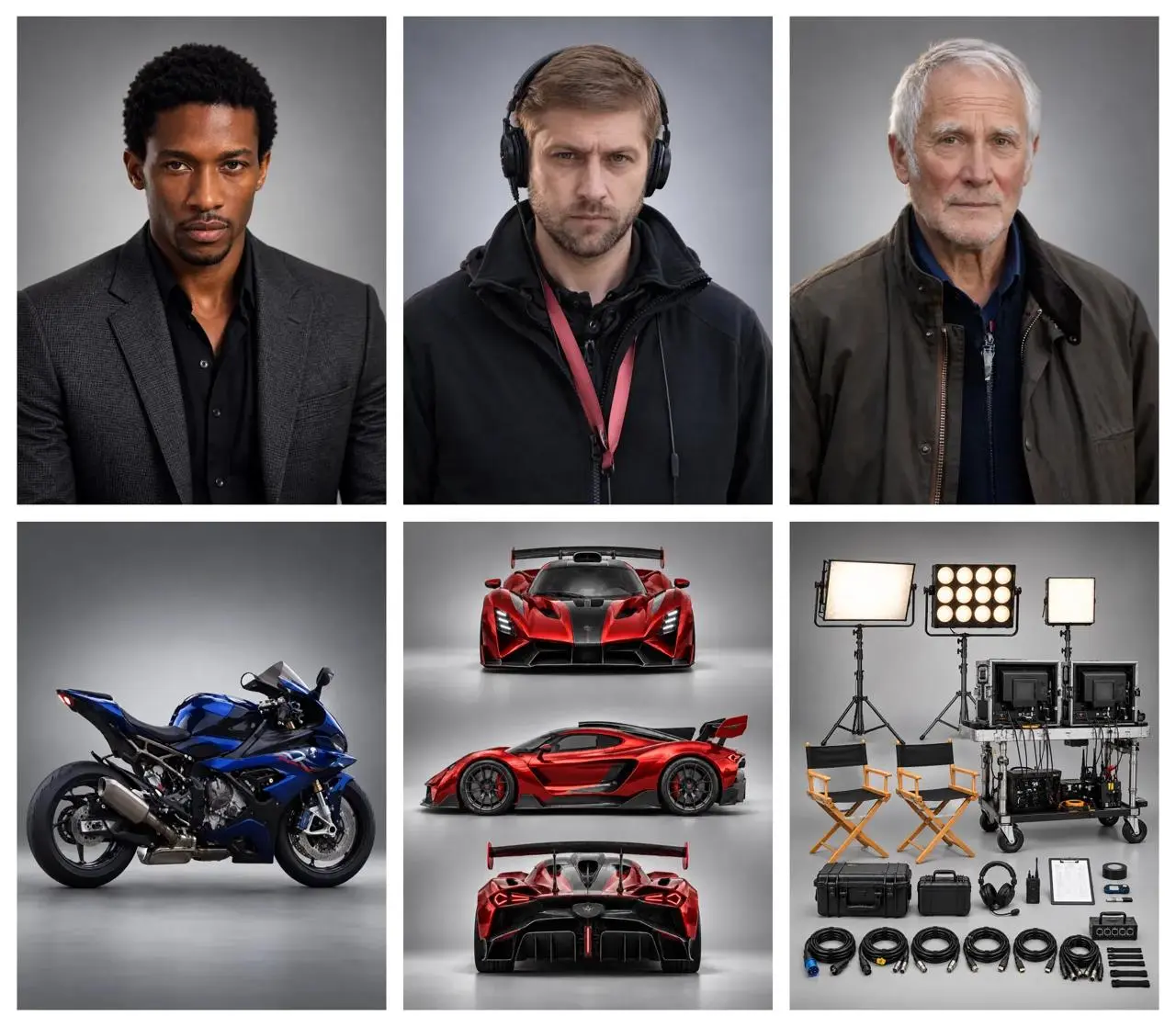
A director, car and motorcycle share the scene.
A director guides the actors while filming a high-speed chase between a supercar and a motorcycle.
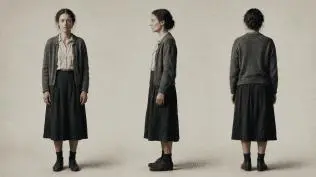
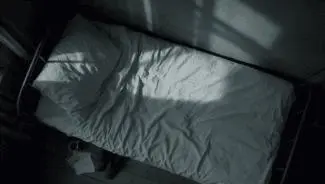
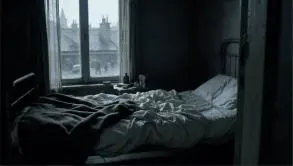
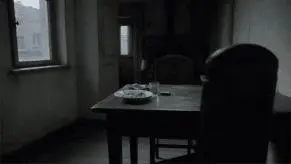
Suggested prompt: give each reference a role, then describe the table, bedside, close-up and overhead shots in order.
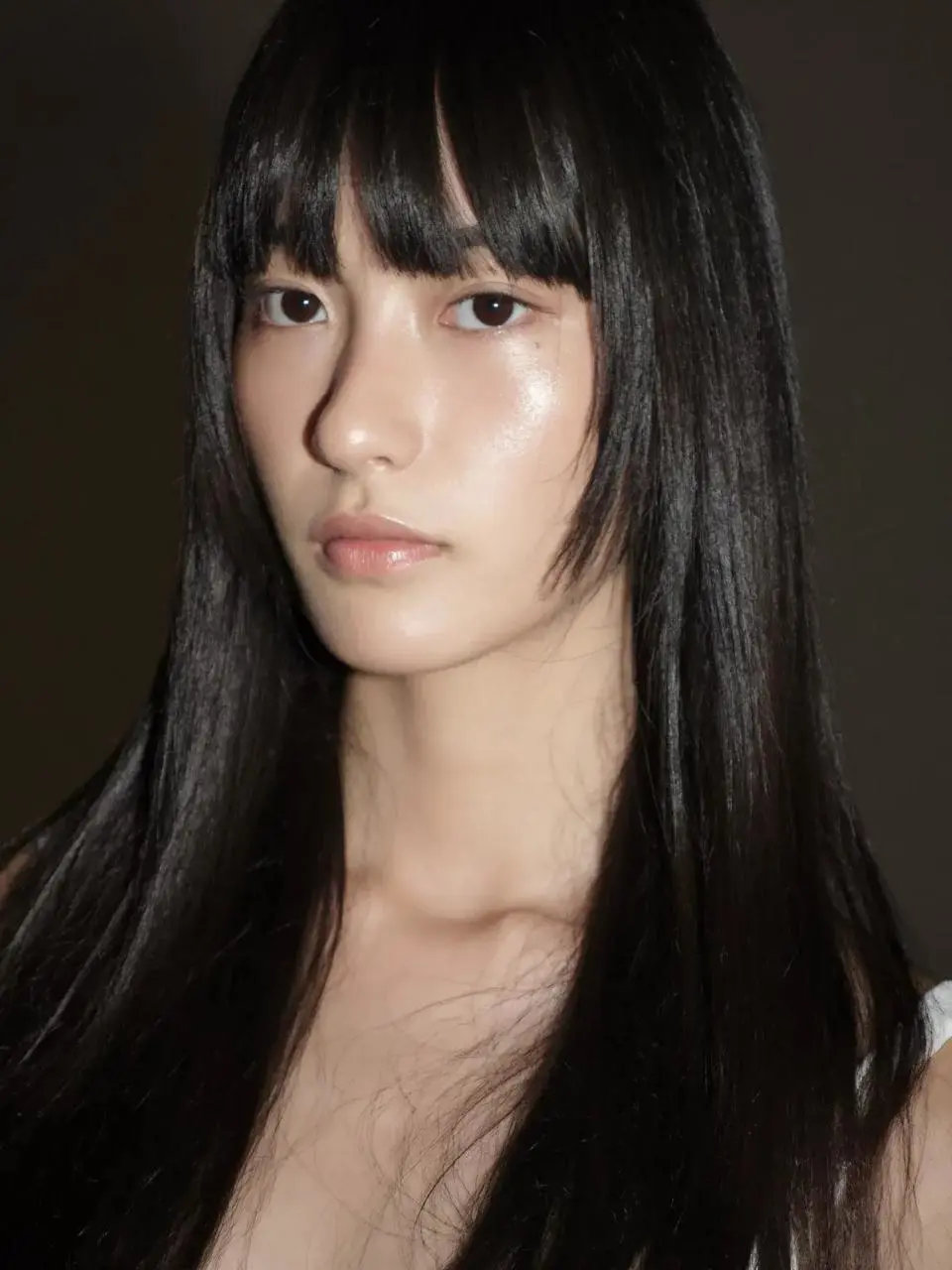
Use the reference images to guide the same woman, her clothing, the room and the shot compositions. Create a quiet cinematic sequence in a modest bedroom with cool daylight entering through the window. First show her seated at a table, eating from a plate. Cut to her seated on the edge of an unmade bed, holding a white cup and taking a slow sip. Move into a close-up of her face and the cup. Finish with an overhead view of her lying on the bed. Keep her face, short dark hair, clothing and the room details consistent across the shots. Use restrained movement and a muted blue-gray color palette.

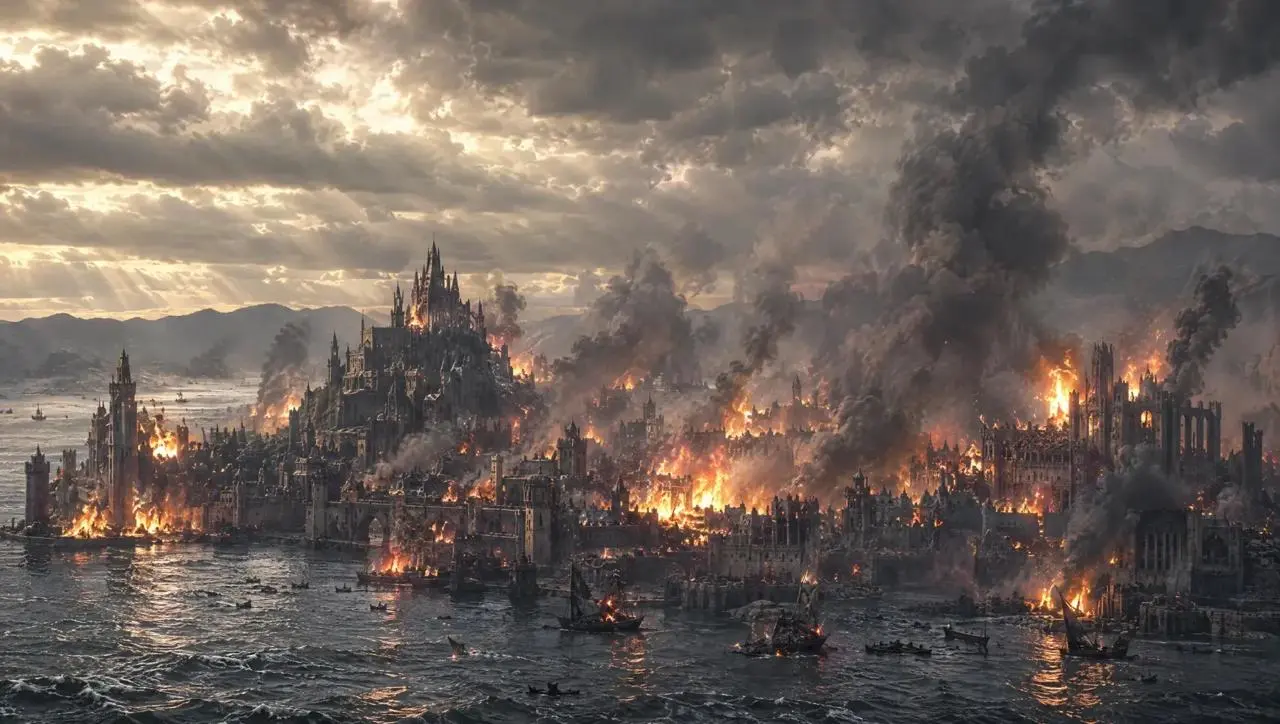
A dragon sequence develops from a cliffside setting to the city.
A giant dragon stands atop a cliff, roaring at the burning city below.
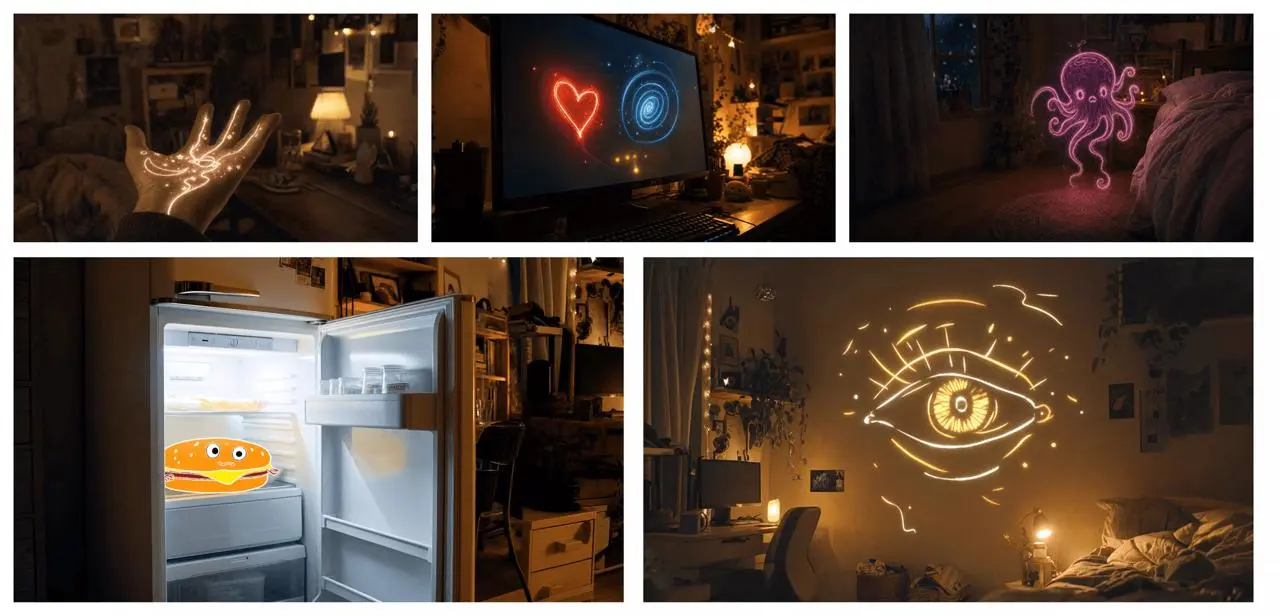
Suggested prompt: follow the board’s visual order and describe the transitions between the glowing objects.
Use the supplied image board as visual guidance for a 20-second magical sequence in a cozy bedroom at night. Begin with a close-up of an open hand covered in glowing golden lines. A small golden star flies from the hand toward a computer monitor displaying a red heart and a blue spiral. Follow the light as it becomes a butterfly, then a flowing purple ribbon that forms a small floating octopus-like figure near the bed. Continue toward an open refrigerator containing a smiling cartoon hamburger. Finish on a large golden line-drawn eye opening above the bed. Connect these moments with fluid camera movement, warm practical lighting, sparkling light trails and a consistent bedroom setting.
A brief prompt leaves room for performance and staging.
An old man ranting about AI.
The prompt specifies the meeting, embrace, handheld camera, light and sound.
A single continuous 7-second shot set in the UK. At dusk, two friends who haven’t seen each other in a long time meet at the corner of a quiet street, with people going about their everyday lives around them. They smile, walk quickly toward each other, and share a warm embrace. Their expressions and body movements feel natural. The handheld camera follows them with a slight, natural shake. Soft, warm lighting and a nostalgic film look. Include natural footsteps, street ambience, background music, and dialogue in English.
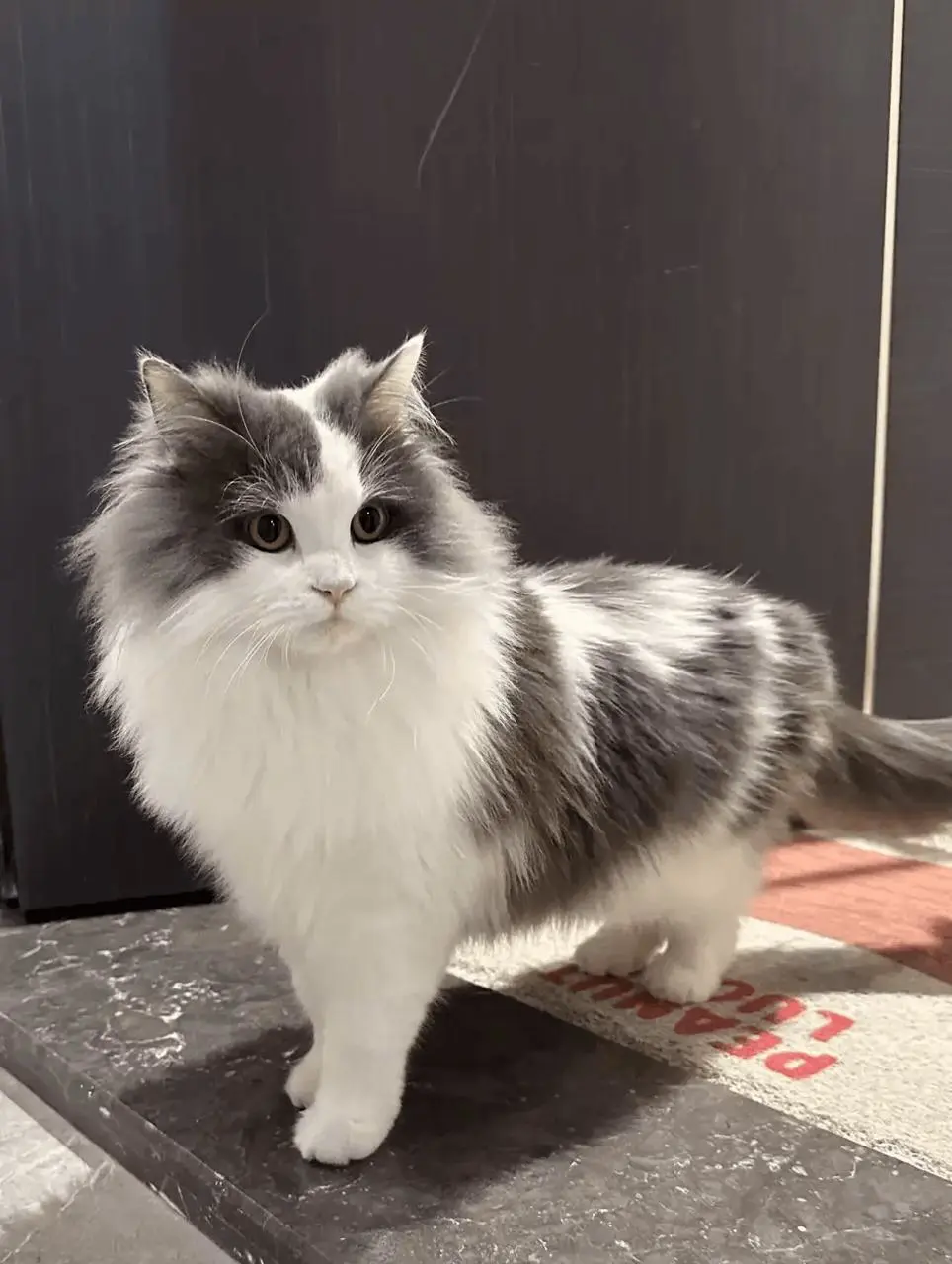
Suggested prompt: use the cat image for appearance and the dog video for shot order, timing and interaction.
Replace the dog in the reference video with the gray-and-white long-haired cat from the reference image. Preserve the original shot sequence, framing, camera movement, timing, white background, and human interactions. Show the cat facing the camera, receiving a gentle stroke on its head, and peeking out of the person's clothing pocket. Keep the cat’s facial markings, fur colors, and fluffy appearance consistent throughout, adapting its movements naturally to each shot.
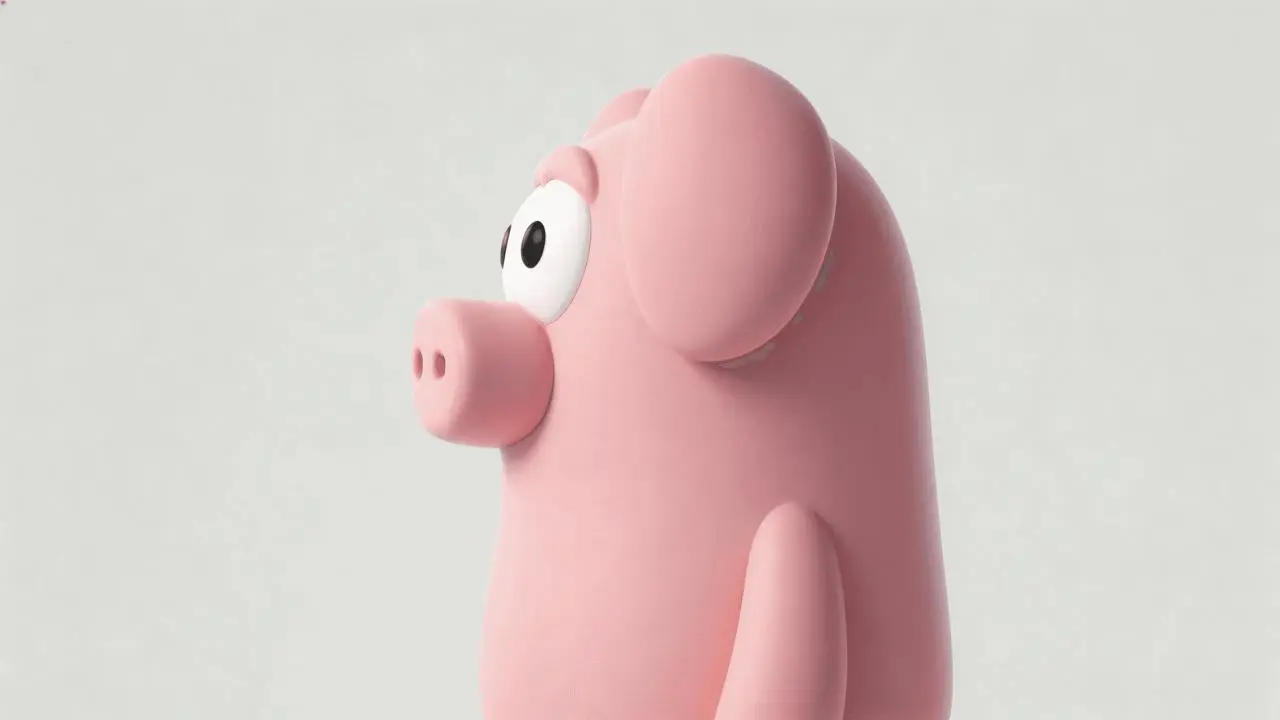
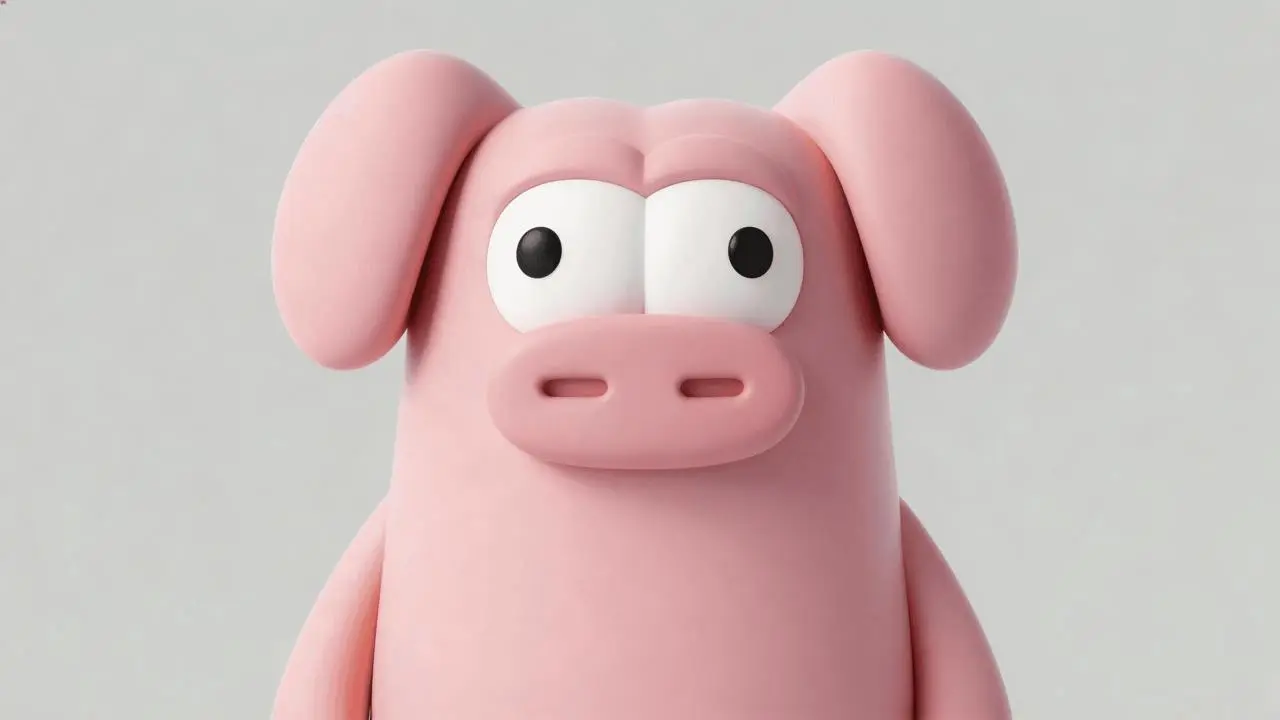
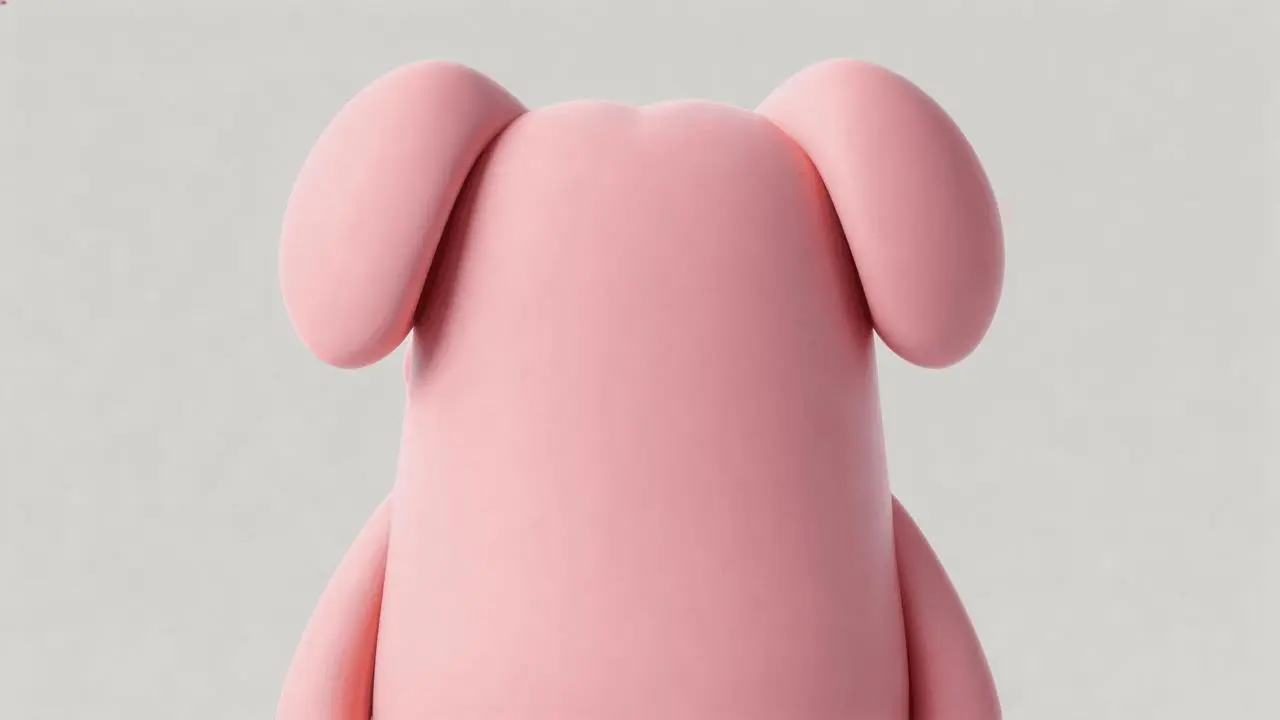
Suggested prompt: retain the room and existing action, reveal the pink character in the box, and change the final reaction.
Edit the reference video while preserving the wood-paneled room, the existing people, their clothing, the warm lighting, the camera cuts and the action around the wooden box. Use the three character images to add the same pink cartoon pig-like character inside the box. Reveal it lying in the box when the camera looks inside near the end, replacing the empty interior and its lettering. Match its position, perspective, scale and lighting to the box while retaining its smooth pink body, floppy ears and large white eyes. Keep the preceding action and dialogue, then change the final spoken reaction and matching English subtitle to: "Why is there a pig here?"
Select the 4.0 entry that matches your task, then choose the corresponding text, reference or frame mode.
Write the action, camera and ending. Select 3–30 seconds, 720p or 1080p, and Auto, 21:9, 16:9, 9:16 or 1:1. Review the displayed credits before submitting.
Check subject details, motion, transitions, text and sound from start to finish. Adjust the specific instruction or reference that needs work.
Choose a model by your source material and shot length. Kling 4.0 Reference and Image to Video are input workflows within 4.0; their input differences are explained above.
| Comparison | Kling 4.0 | Kling 3.0 Omni | Kling 3.0 |
|---|---|---|---|
| Official model focus | Longer narrative sequences, dynamic motion and Omni Reference | Reference-based character consistency and storyboard direction | Native audiovisual generation and multi-shot storytelling |
| WeShop input routes | Reference: text or reference assets; Image to Video: text, first frame, first/last frames or multiple keyframes | Text, source video and reference images | First frame or first and last frames |
| WeShop duration settings | 3–30 seconds | 3–15 seconds | 3–15 seconds |
| WeShop controls | 720p / 1080p; Auto, 21:9, 16:9, 9:16 or 1:1 | 16:9, 9:16 or 1:1; Generate Audio on/off | Generate Audio on/off |
Choose 4.0 when you need a duration beyond 15 seconds, a reference-led scene, or multiple key images to guide the shot. Select Reference or Image to Video to match your materials.
Choose Kling 4.0 for longer scenes or keyframe directionConsider 3.0 Omni when your scene starts with source video or character references and fits a 3–15-second clip. Its official positioning emphasizes reference consistency and storyboard direction.
Choose Kling 3.0 Omni for reference-led character scenesChoose 3.0 when your shot starts with an opening image, optionally adds an ending image, and fits 3–15 seconds. Use the Generate Audio control according to your sound needs.
Choose Kling 3.0 for first-frame or first/last-frame shotsCompare other models for creating video from reference material.
No. Flash is a separately named variant. This page covers the Reference and Image to Video entries labeled Kling 4.0 in WeShop.
Choose Reference when you want to describe a scene or use reference images and videos to guide its subjects, setting or movement. Choose Image to Video when an opening image, first and last images, or multiple keyframes should guide how the shot develops. Both entries support text-based creation. They are two input workflows within Kling 4.0; choose according to your materials and the control you need.
No image is required. Open the Kling creation tool and choose Kling 4.0 Reference. Leave reference images and videos empty, and remove any materials already loaded. Describe the subject, action, setting, camera movement and visual style; include any dialogue or sound directions. Choose the duration, resolution and aspect ratio, review the current credit quote, then generate and open the task result to view the video. Kling 4.0 Image to Video also supports text-only creation; for that route, leave the first frame, last frame and middle keyframes empty.
The listed duration settings run from 3 to 30 seconds, in one-second steps. Choose the duration in the controls; a number written in a prompt does not replace that setting.
The listed WeShop resolution choices are 720p and 1080p. Do not treat the resolution of an official demonstration file as a selectable output setting.
No. Review faces, clothing, product details and text throughout the video. References guide the result and do not guarantee exact preservation.
Check the current credit quote for your selected model and settings, together with your account access, before generating. A single quote is not a fixed price for every request.