GPT IMAGE 2 IMAGE CREATION

GPT Image 2 AI Image Generator

Generate images from text or edit reference photos with GPT Image 2. Create typography-led designs, structured layouts, and photorealistic visuals on WeShop AI.

gpt-image-2
GPT IMAGE 2 EXAMPLES

GPT Image 2 Image Examples

Explore reference editing, an editorial layout, and a poster with specified wording. Open an example to inspect its saved prompt and available inputs.

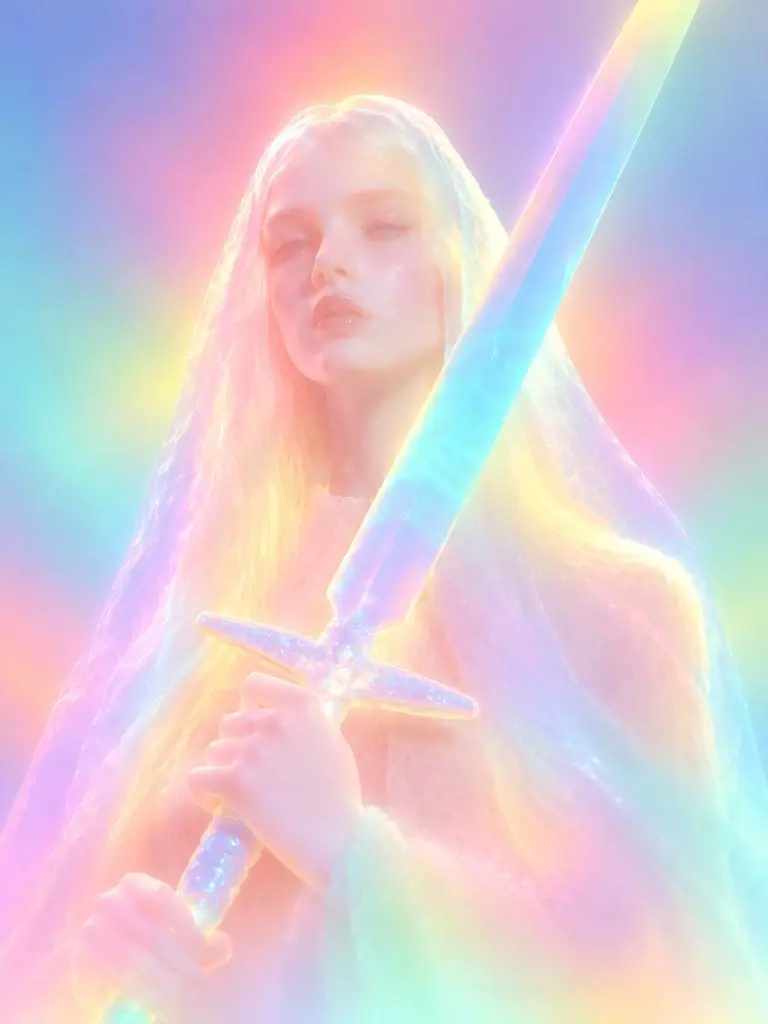
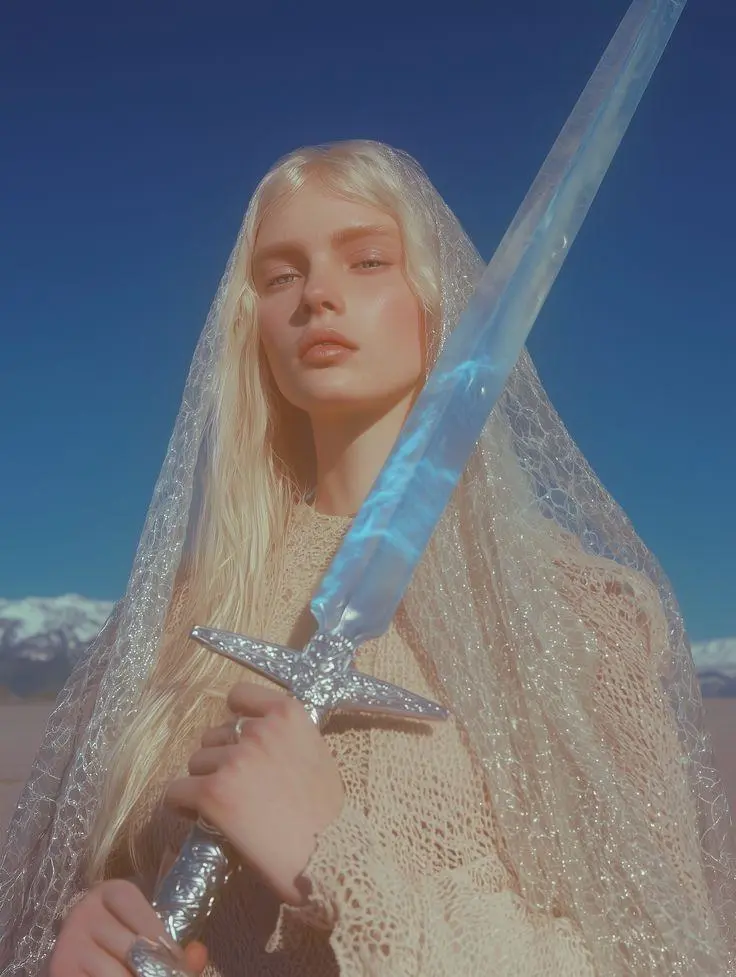
WeShop result: Neon Sculpture Style Transfer
Reference 1

Neon Sculpture Style Transfer

A reference-led transformation into a luminous sculpture. Diffused neon colors, softened facial detail, and rounded materials make the requested style change visible.

Please transform the input image into a soft focus, neon gradient sculptural style. Do not copy specific specific characters, crowds, compositions, or poses from any reference, but follow this visual language: Style & Texture: Create a soft, dreamy, surreal 3D illustration and digital sculpture. The subject should look like translucent plastic, frosted glass, glowing rubber, or soft ceramic sculpture wrapped in colored mist. Smooth rounded edges, moderately simplified details, with a hazy, low-contrast, non-realistic artistic effect. Color & Light: Use highly saturated but softly diffused neon gradients (fluorescent pink, coral orange, lemon yellow, mint green, cyan, violet, pale grayish-blue). Colors should blend seamlessly like thermal imaging, colored mist, or dream halos. Shadows must be bluish-purple, cyan, or deep magenta—NO pure black hard shadows. Use strong inner glow, backlight, rim light, and ambient color reflections to make the subject glow from within. Include soft focus, slight mist, fine grain, and gradient noise. Subject Treatment: Retain the identity, pose, proportions, and clothing outlines of the input image, but transform them into a minimalist, rounded, dreamy neon sculpture. Soften and weaken facial features to create a quiet, ethereal, detached expression. The face should look like a soft mask covered by a glowing halo. Composition: Clean background (solid color, soft gradient, misty or large color blocks). Quiet, surreal, fairytale-like but slightly alienating atmosphere with a floating feeling. Keywords: soft neon gradient, dreamy 3D illustration, translucent sculpture, frosted glass texture, glowing rubber, pastel fluorescence, diffused light, inner glow, soft focus, blurred facial features, surreal portrait, minimal details, smooth rounded forms, luminous mist, thermal color gradient, ethereal atmosphere, clean composition, high-end digital art.
Use This Prompt
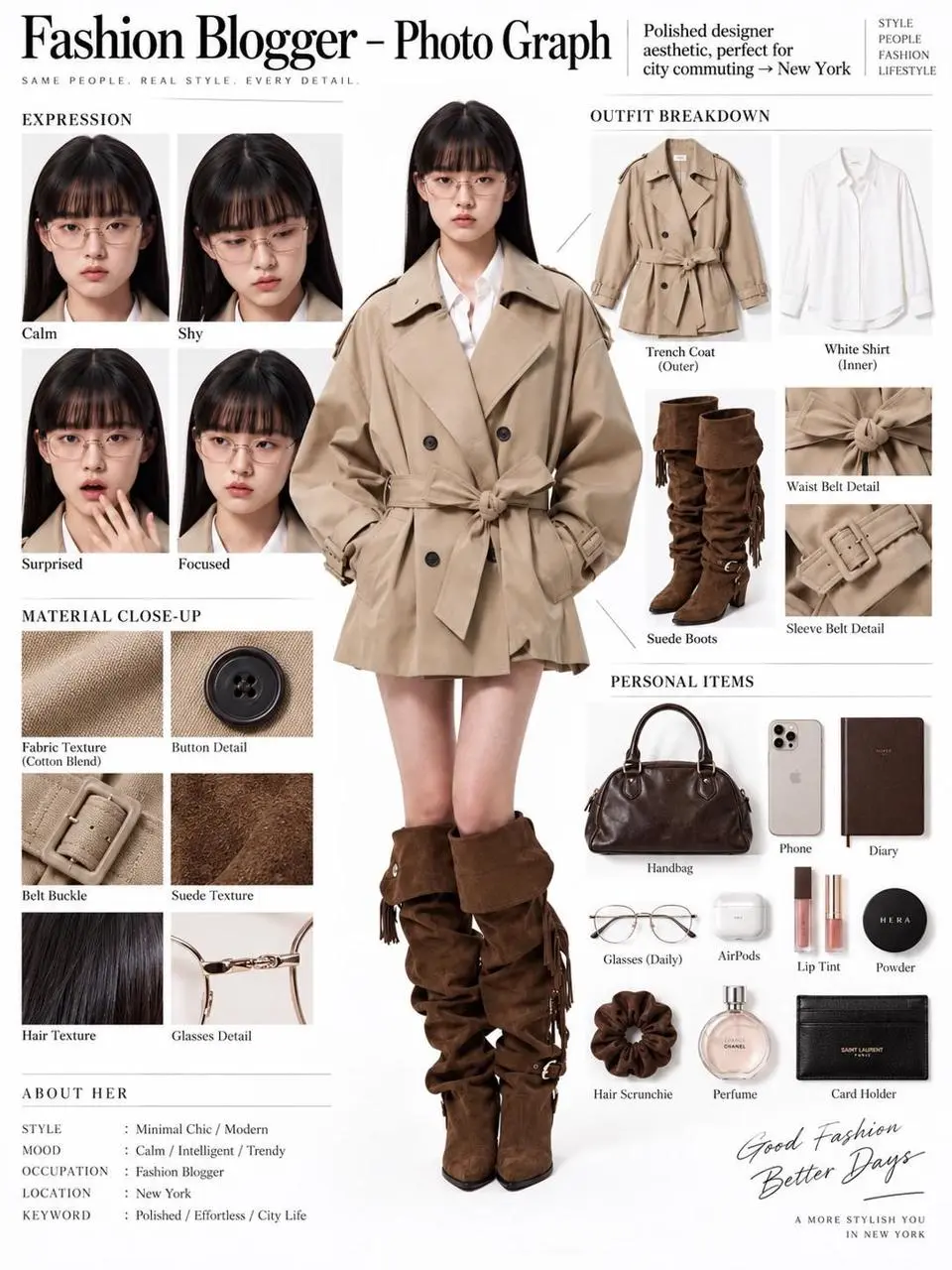
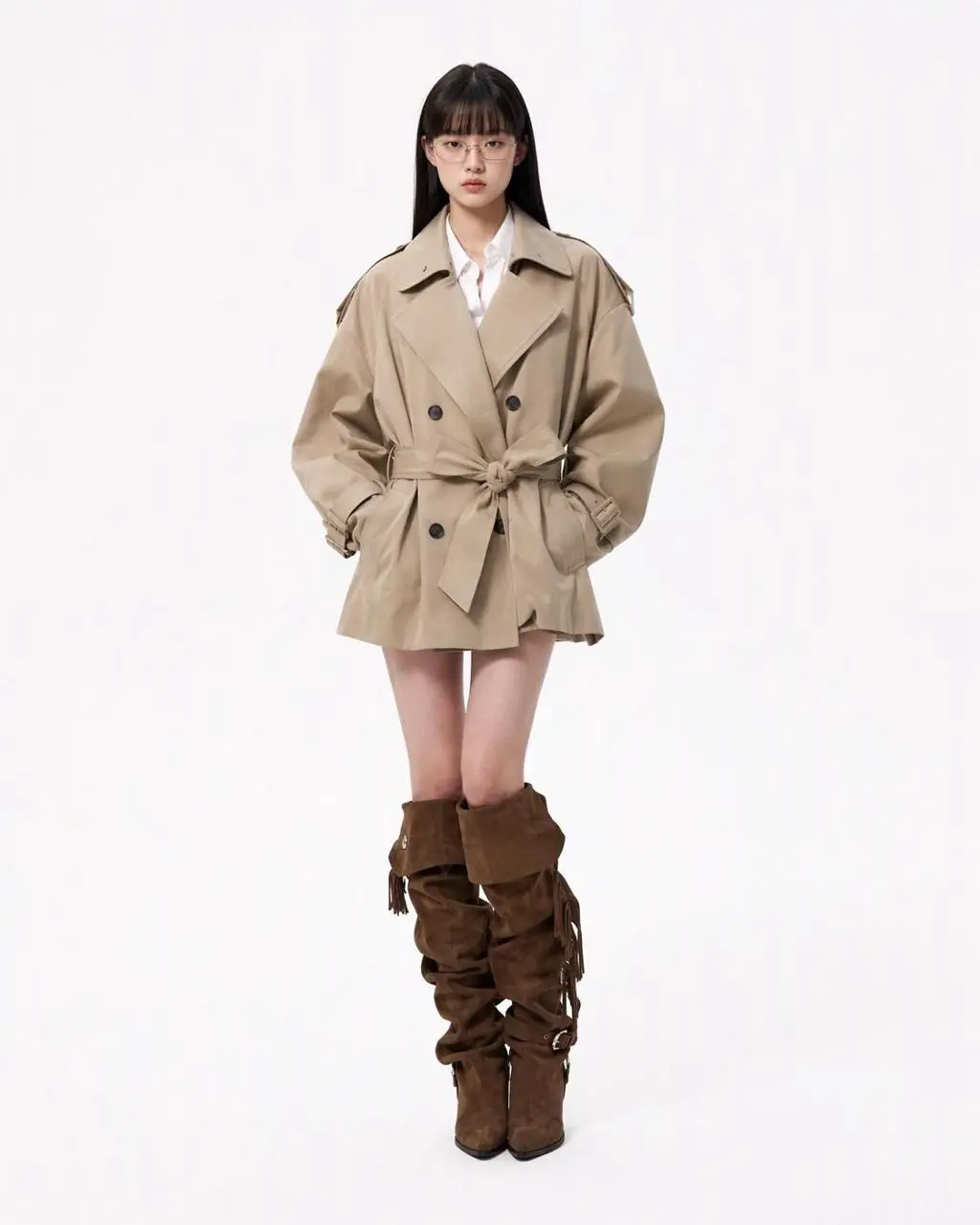
WeShop result: Reference-to-Editorial Breakdown
Reference 1

Reference-to-Editorial Breakdown

A single person reference becomes an editorial board with a full-body figure, outfit pieces, facial close-ups, and material details. The result brings reference editing and a structured layout into one composition.

You are an expert in ultra-detailed, photorealistic character breakdown sheets. Create a highly detailed character reference sheet based on the uploaded person photo. Preserve 100% of the person’s original facial features, identity, hairstyle, clothing, body proportions, and realistic textures. Do not redesign, beautify, or alter the person. TASK: CENTER: Place the full-body photorealistic image of the uploaded person prominently in the center. Keep the person’s original appearance, outfit, proportions, and visual identity exactly consistent with the reference photo. SURROUNDING ELEMENTS: • Outfit Breakdown: Display each clothing item separately, from outer layers to inner layers. Preserve the exact original design, silhouette, colors, materials, patterns, stitching, accessories, and fabric textures. Present each item as realistic product photography. • Expression Variations: Create 3–4 close-up portraits of the same person showing different natural expressions, such as calm, shy, surprised, and focused. The face, hairstyle, skin tone, makeup, and identity must remain fully consistent with the uploaded person. • Material Close-ups: Include realistic macro photography of key details such as fabric texture, stitching, skin texture, hair strands, accessories, buttons, hardware, and other visible materials from the original photo. • Personal Items: Arrange realistic everyday objects that naturally match the person’s fashion style and overall character, such as bag contents, cosmetics, diary, phone, accessories, or other appropriate personal belongings. Present them as premium editorial flat-lay photography. VISUAL GUIDELINES: Layout: Use a clean white background. Position the full-body person as the main visual focus in the center. Arrange all outfit pieces, facial close-ups, material details, and personal items evenly around the central figure. Use thin, refined editorial-style lines to connect relevant details to the person. Style: Hyper-realistic professional photography only. Use natural studio lighting, realistic skin, authentic fabric textures, accurate material reflections, subtle shadows, and premium fashion-editorial photography quality. Overall aesthetic: Clean, sophisticated, modern fashion magazine character analysis board with a New York editorial atmosphere. Maintain a balanced layout, generous white space, and refined visual hierarchy. TEXT: Display the main title: “Fashion Blogger – Photo Graph” Include one short English style/persona judgment: “Polished designer aesthetic, perfect for city commuting → New York” STRICT RULES: The final image MUST look like real photography. NO illustration, anime, cartoon, sketch, painting, CGI, or obvious 3D-rendered appearance. Preserve the uploaded person’s identity, facial structure, facial features, hairstyle, skin tone, clothing, body proportions, and overall appearance as accurately as possible. Do not change, redesign, beautify, replace, or reinterpret the person’s original features. Do not randomly change the clothing design, colors, materials, patterns, or accessories. All facial close-ups must clearly represent the same person. All clothing breakdowns and material close-ups must correspond accurately to the clothing worn by the central person. All surrounding elements must have authentic photographic textures, realistic lighting, and consistent visual quality. Maintain strong visual consistency between the central full-body character and every surrounding detail image.
Use This Prompt
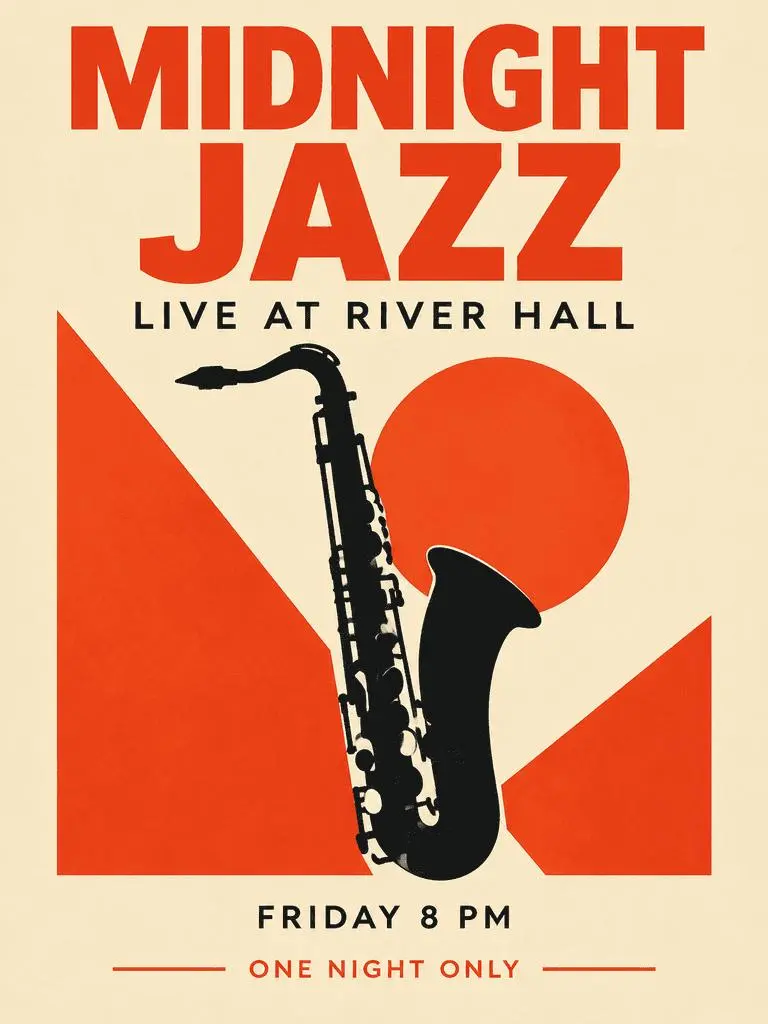
WeShop result: Typography-Led Jazz Poster

Typography-Led Jazz Poster

A fictional event poster combines a dominant headline, supporting information, and a saxophone illustration. Inspect the four requested text phrases and their hierarchy in the generated result.

Create a polished vertical 3:4 poster for a fictional jazz event. Use a warm ivory background, bold vermilion geometric shapes, a single black saxophone silhouette, and a carefully aligned editorial grid. Include exactly these four text lines, with no other words: 'MIDNIGHT JAZZ' as the largest headline, 'LIVE AT RIVER HALL' as the secondary line, 'FRIDAY 8 PM' as the small event detail, and 'ONE NIGHT ONLY' as a small bottom label. Make all four lines legible and spelled exactly. Keep a clear hierarchy between headline, illustration, details, and footer. Flat graphic design, crisp edges, restrained paper texture, no border or watermark.
Use This Prompt
WHAT IS GPT IMAGE 2?

Turn Written Instructions and References into Designed Images

GPT Image 2 is OpenAI’s image generation and editing model. It combines high-fidelity reference inputs, text rendering, structured compositions, and visual style control to create images from a written brief or reshape an existing image.

Text and Layout in One Image

Create posters, editorial boards, and diagrams with words placed inside the composition. Specify headlines, labels, and panel order when the arrangement needs to carry information.

Edit around Your Reference

Use a person, product, or scene image as the starting point. State the details to retain and the changes to make, such as a new setting, composition, or visual treatment.

Photographic Materials or a New Visual Style

Describe natural surfaces and lighting for product photography, or request a different treatment such as illustration or a sculptural style. The paired examples show both kinds of request.

WORKFLOWS

Start from Text or an Image

Choose the starting input for your task. Both approaches use the GPT Image 2 generator above.

Start with Text

Use a written brief when you are creating a new scene or design without an existing image to retain.

Start with References

Upload the image or images you want the request to use. Identify each reference by its role when supplying more than one.

PROMPT GUIDE

How to Write a GPT Image 2 Prompt

Learn how to describe references, layout, materials, and text through real GPT Image 2 examples. Each lesson highlights a line from its actual prompt and what to inspect in the result.

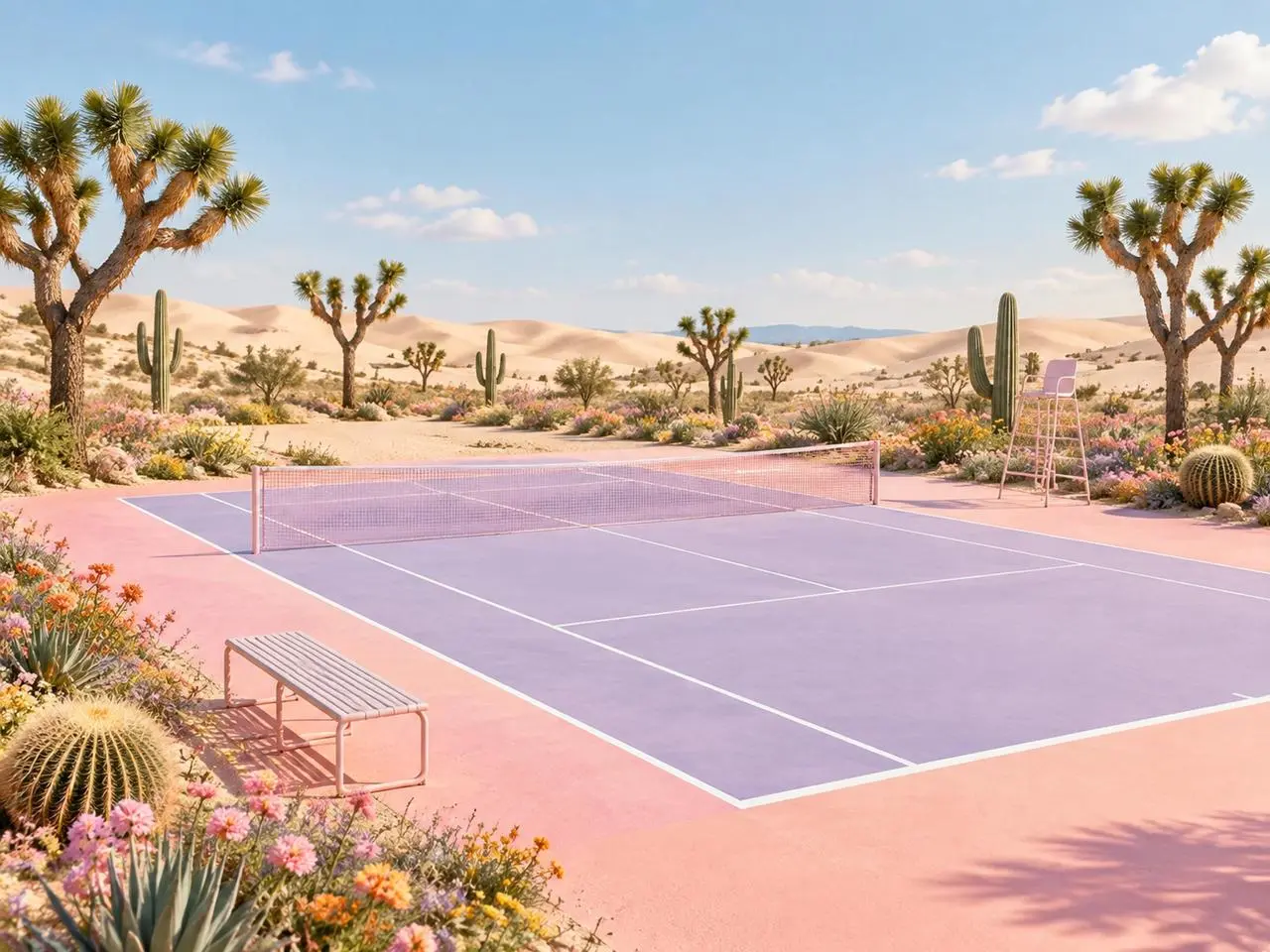
WeShop result: Give Each Reference a Defined Role
Reference 1
Reference 2

Assign a Role to Each Reference

Name what each image contributes before describing the final scene. In this example: “Image 1 is the environment and botanical reference.” Compare the desert plants with the first reference and the court geometry with the second.

Use the two uploaded images as complementary visual references. REFERENCE ROLES: Image 1 is the environment and botanical reference. Use Image 1 to guide: - the open desert atmosphere - Joshua tree shapes and branching structure - dry natural terrain - scattered desert vegetation - spacious outdoor mood - warm arid landscape identity Image 2 is the composition and tennis-court structure reference. Use Image 2 to guide: - the camera angle - the overall court placement - court proportions - baseline and service-line geometry - the central net position - surrounding open space - the relationship between the court and the landscape Do not copy either image literally. Combine the environmental character of Image 1 with the tennis-court composition of Image 2 to create one coherent new scene. FINAL SCENE: Create a dreamy pastel tennis court located in a surreal desert landscape. The tennis court should use a refined pastel palette with: - soft blush pink outer areas - lavender and pale violet playing surfaces - clean white court lines - a subtle warm peach transition around the edges - a pale pink tennis net with realistic mesh texture Preserve believable tennis-court geometry. Keep the sidelines, baselines, service boxes, center marks, net height and court perspective visually coherent. ENVIRONMENT: Surround the court with rolling cream-colored and pale peach sand dunes. Add several Joshua trees inspired by Image 1, along with tall columnar cacti, round barrel cacti, desert succulents and small flowering plants. Scatter clusters of pink, coral, orange, yellow and lavender desert flowers around the edges of the court. Keep the central playing area clean and unobstructed. Place a simple metal bench near the foreground edge of the court and a minimal referee chair near one side of the net. The furniture should match the scene’s clean editorial styling without blocking the court. LIGHTING AND ATMOSPHERE: Use bright, soft natural daylight under a clear pale-blue sky. Add a few soft white clouds. Use gentle shadows, warm highlights and subtle atmospheric depth across the sand dunes. The mood should feel optimistic, imaginative, premium and calm. STYLE: High-end editorial landscape photography blended with polished surreal advertising art. Pastel color grading, clean commercial composition, realistic materials, precise perspective, crisp court details and refined botanical textures. The result should feel suitable for a sports-fashion campaign, lifestyle brand advertisement, social media post, website hero image or creative editorial. COMPOSITION: Use a wide landscape composition. Keep the tennis court as the central visual focus. Use desert plants and flowers to frame the foreground and side edges. Leave the sky and distant dunes relatively clean to prevent visual clutter. The scene must feel like one naturally designed environment, not a collage of two separate photographs. IMPORTANT: Do not add people or players. Do not add text, logos, signs, watermarks, brand names or promotional badges. Do not create extra tennis nets. Do not distort the court lines or perspective. Do not place cacti, flowers or furniture inside the active playing area. Do not reproduce the exact background from either reference image. Generate a new, coherent pastel desert tennis environment inspired by both references. High-resolution commercial quality, realistic lighting, precise geometry, premium AI-generated campaign visual.
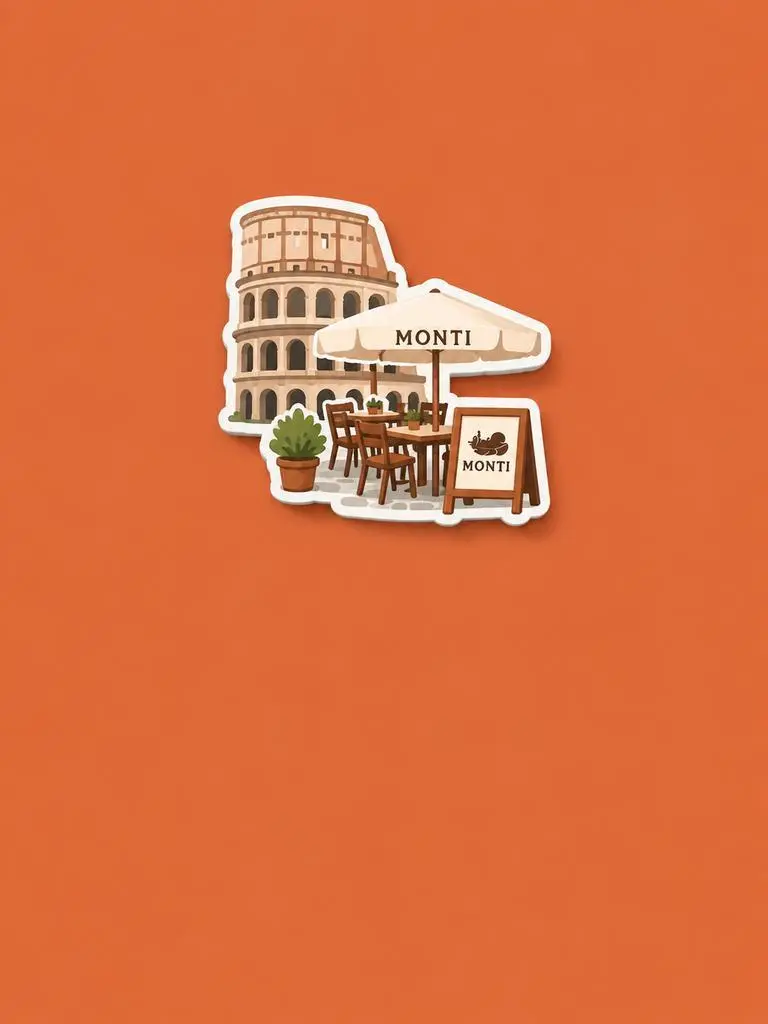
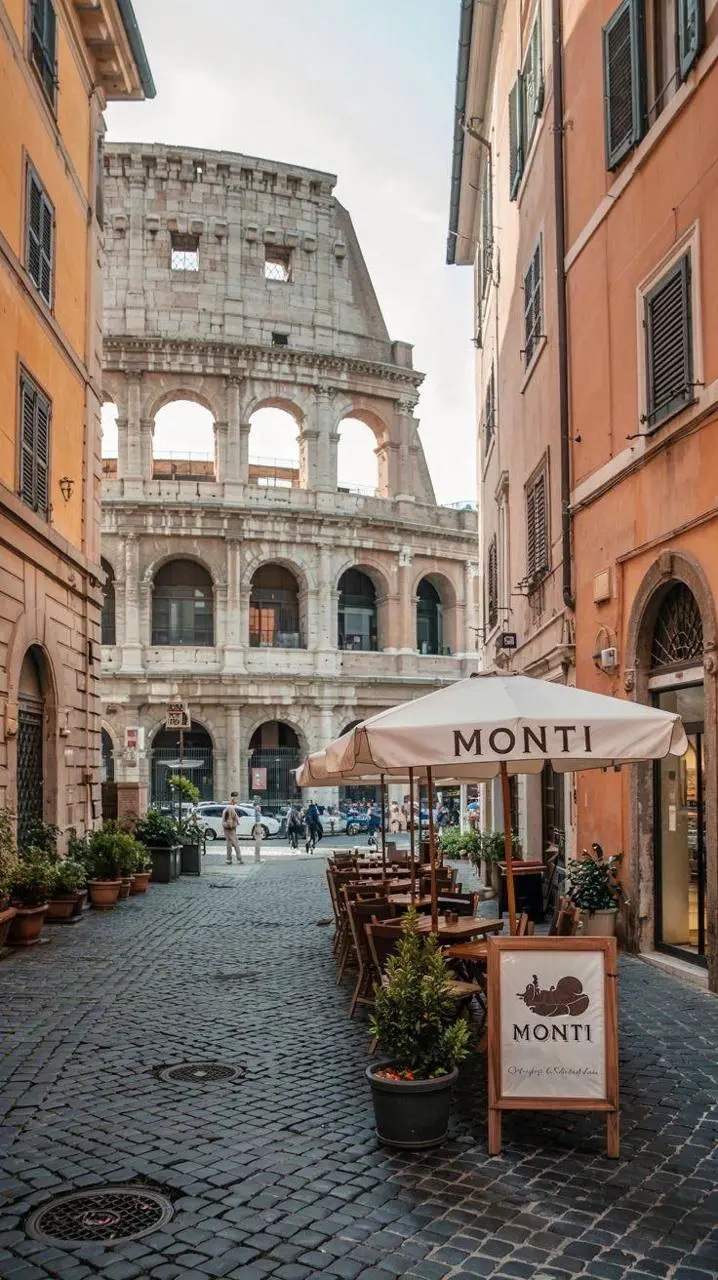
WeShop result: Describe the Change in Material and Style
Reference 1

Describe the Material Change

Name the new material or treatment, then specify which source features to retain. In this example: “Retain the core outline and iconic features of the subject.” Look for the recognizable building and seating reinterpreted as a raised souvenir-style magnet.

Please generate a minimalist fridge magnet photography poster based on the real photo I provided. The overall style should reference "architectural fridge magnets" or "minimalist collage". 【Layout Structure】Horizontal composition, 3:2 ratio. Minimalist solid color background. 【Fridge Magnet Icon】Extract the most recognizable main subject from the provided photo (e.g., the dining table and chairs) and convert it into a minimalist "fridge magnet-style icon". Requirements: 1. Retain the core outline and iconic features of the subject. 2. Simple, clean shape, resembling a cute travel souvenir fridge magnet. 3. Add a slight 3D pop-up effect and a subtle drop shadow. 4. The edges must be clear, with a white or light-colored sticker-like border/stroke. 5. Moderately simplify the details; do not make the drawing too complex or hyper-realistic. 6. Place the icon in the upper center part of the image. 7. The icon should be relatively small and delicate, leaving plenty of negative space around it. 【Background Color】Extract the most prominent, memorable, and saturated color from the provided photo for the background. The background must be a solid, flat color—saturated, clean, and giving a travel postcard vibe. Do NOT use gradients, and do NOT add any complex patterns or background clutter.
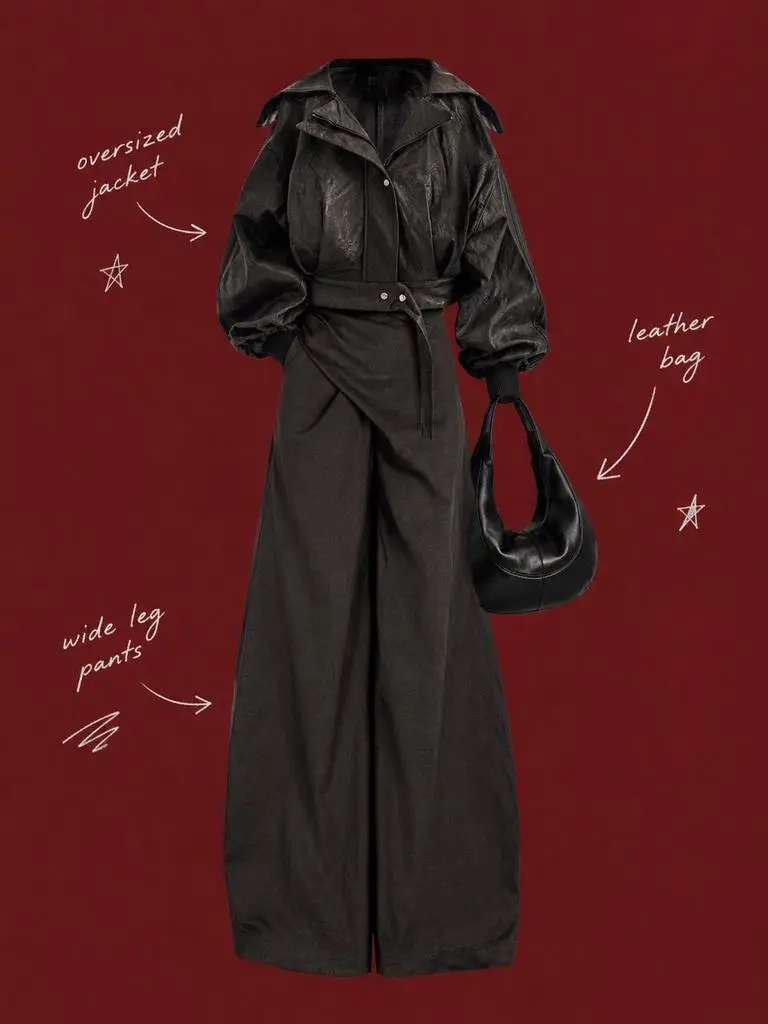
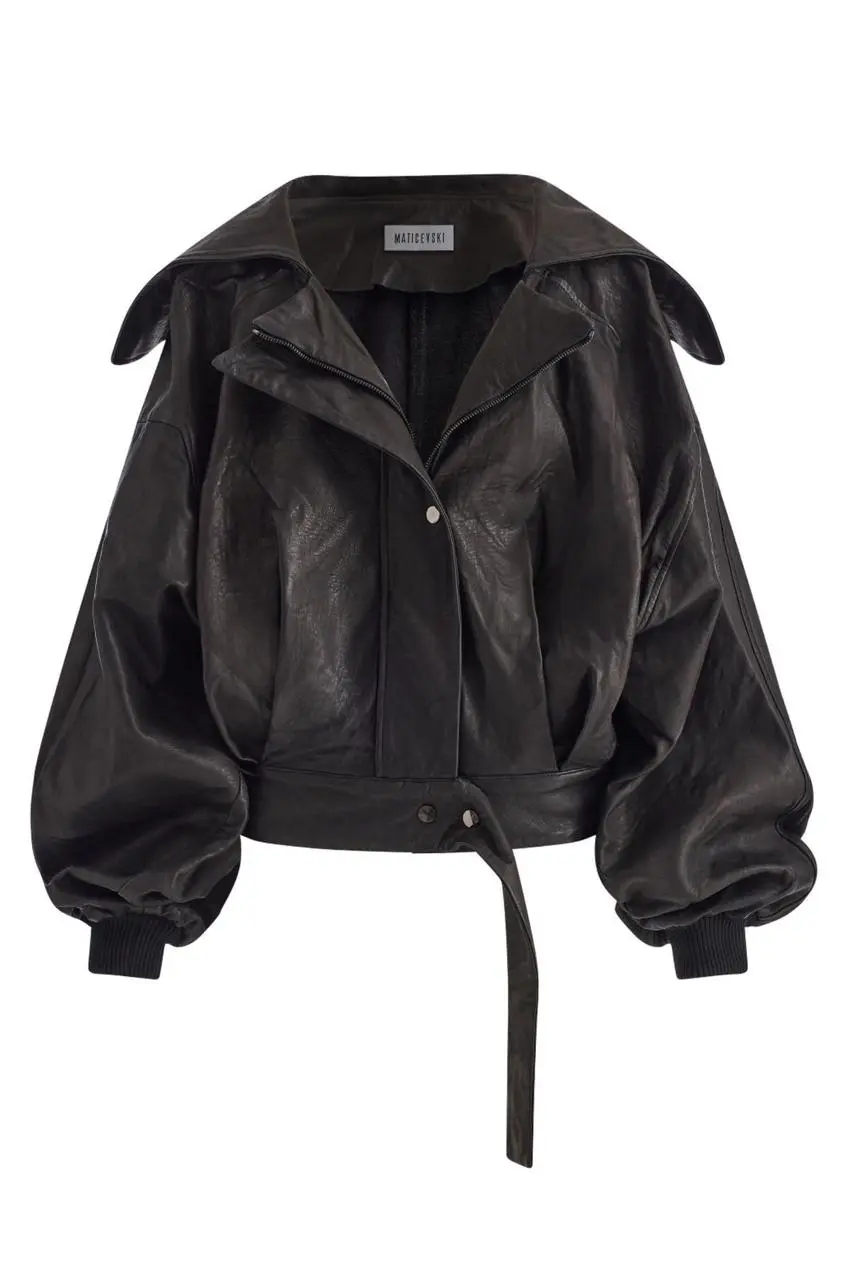
WeShop result: Separate the Subject from the Layout
Reference 1
Reference 2
Reference 3

Separate the Subject from the Layout

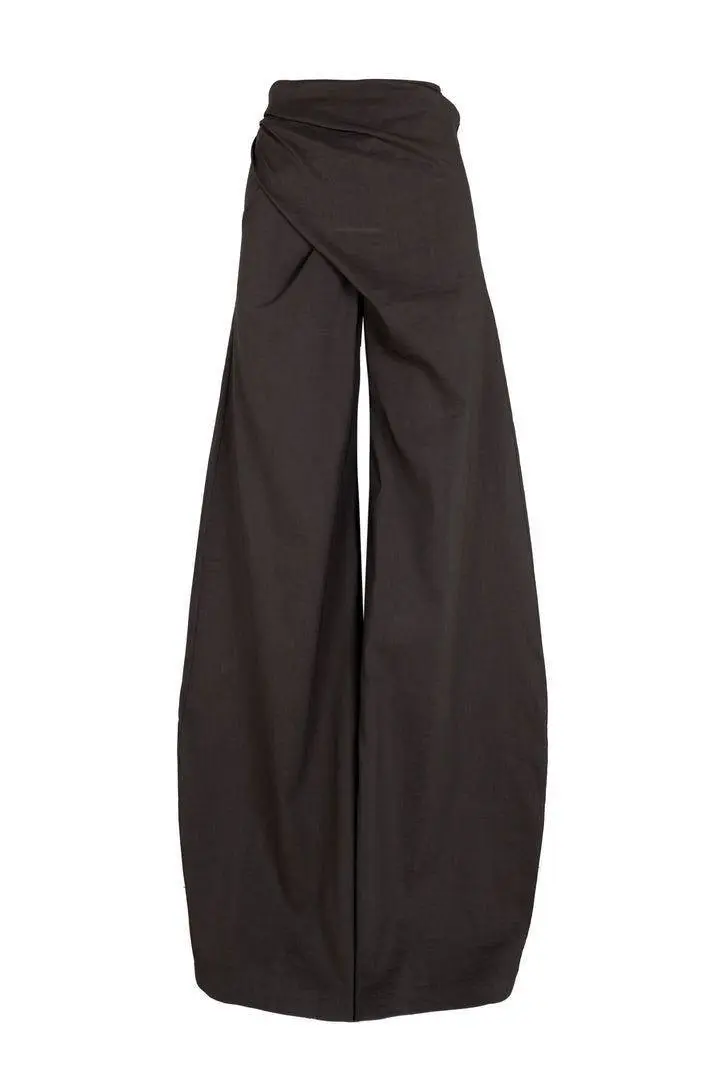
Describe the retained subject and the surrounding layout in separate instructions. In this example: “Use a solid deep burgundy, dark brick-red, or muted oxidized-red background that fills the entire canvas.” Compare the outfit references with the central cutout, then inspect the sparse labels around it.

Use my uploaded image as the main person or product asset to create a vertical, vintage fashion collage poster. Carefully cut out the subject and place it in the center of the composition. Preserve its recognizable clothing, pose, silhouette, proportions, colors, and important details without changing its identity. Present the subject as a clean magazine-style cutout layered directly onto the background. If the uploaded image features a person, the head may be cropped out or extend beyond the top edge so the visual focus remains on the outfit and body shape. If the subject is a product, keep it complete, clear, and easily recognizable. Use a solid deep burgundy, dark brick-red, or muted oxidized-red background that fills the entire canvas. Do not add a white border, white margins, a paper frame, or empty white space around the poster. Add only a few white handwritten English words, curved arrows, and casual fashion-sketch doodles on the left and right sides of the subject. The arrows may point toward clothing pieces, accessories, or other important details. The writing should look naturally hand-drawn, slightly irregular, and loosely arranged, like annotations in a fashion designer’s sketchbook. Keep these elements sparse and make sure they do not cover the subject. The overall visual language should resemble an independent fashion magazine, a clothing-design scrapbook, or an experimental late-20th-century fashion advertisement. Keep the layout minimal and clear, with one central cutout subject against the red background. Use an approximately 2:3 vertical aspect ratio. The subject should occupy around 75%–85% of the poster’s height and be positioned centrally, slightly toward the bottom. Keep the final image sharp and clearly defined. Do not add torn-paper edges, rough cutout edges, glue marks, tape, folds, stains, fading, film grain, scanning noise, blur, distressed textures, decorative badges, realistic scenery, complex props, modern interface elements, neon lighting, 3D rendering, or overly vivid colors.
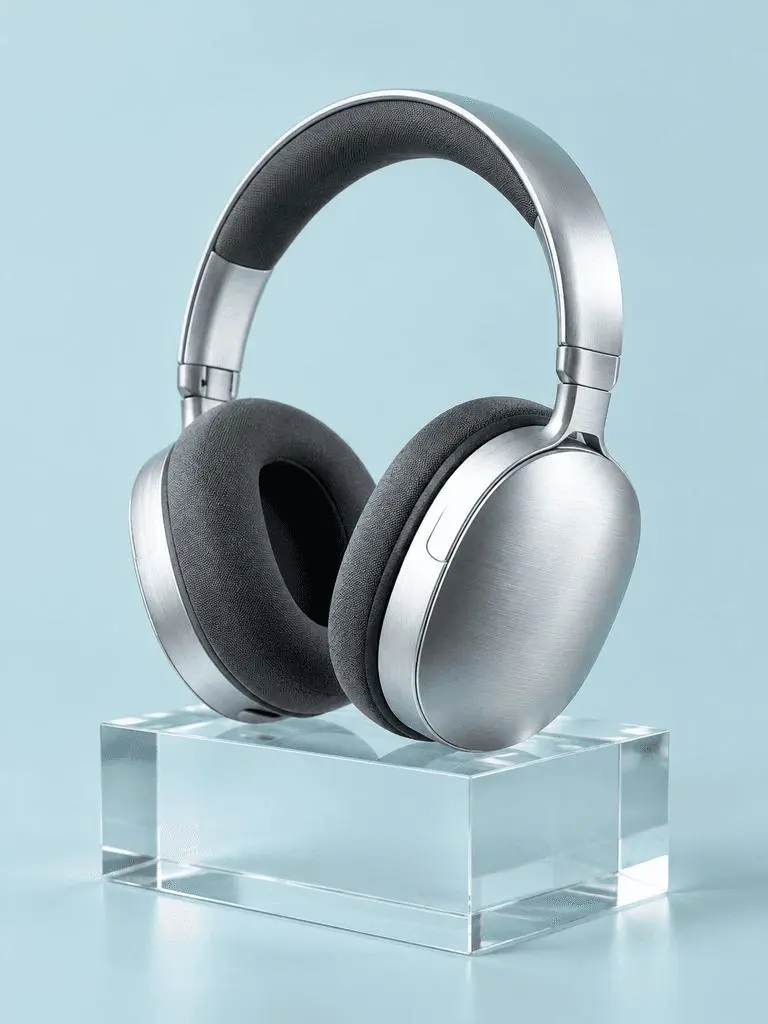
WeShop result: Describe Materials through Lighting

Name Materials and Their Lighting

Pair each important surface with a visible lighting cue. In this example: “a broad softbox reflection across the metal”. Inspect the brushed headphones, fabric cushions, clear block, and their different responses to light.

A photorealistic commercial product photograph of one unbranded pair of brushed-silver wireless over-ear headphones. The headphones rest on a clear rectangular glass block against a seamless pale-cyan background. Show fine metal brushing, soft charcoal fabric ear cushions, a realistic transparent block, a clean contact shadow, and a broad softbox reflection across the metal. Use an eye-level three-quarter camera angle and a restrained monochrome palette. One pair of headphones only, no people, letters, logos, packaging, border, or watermark. Vertical 3:4 composition with the whole product visible.
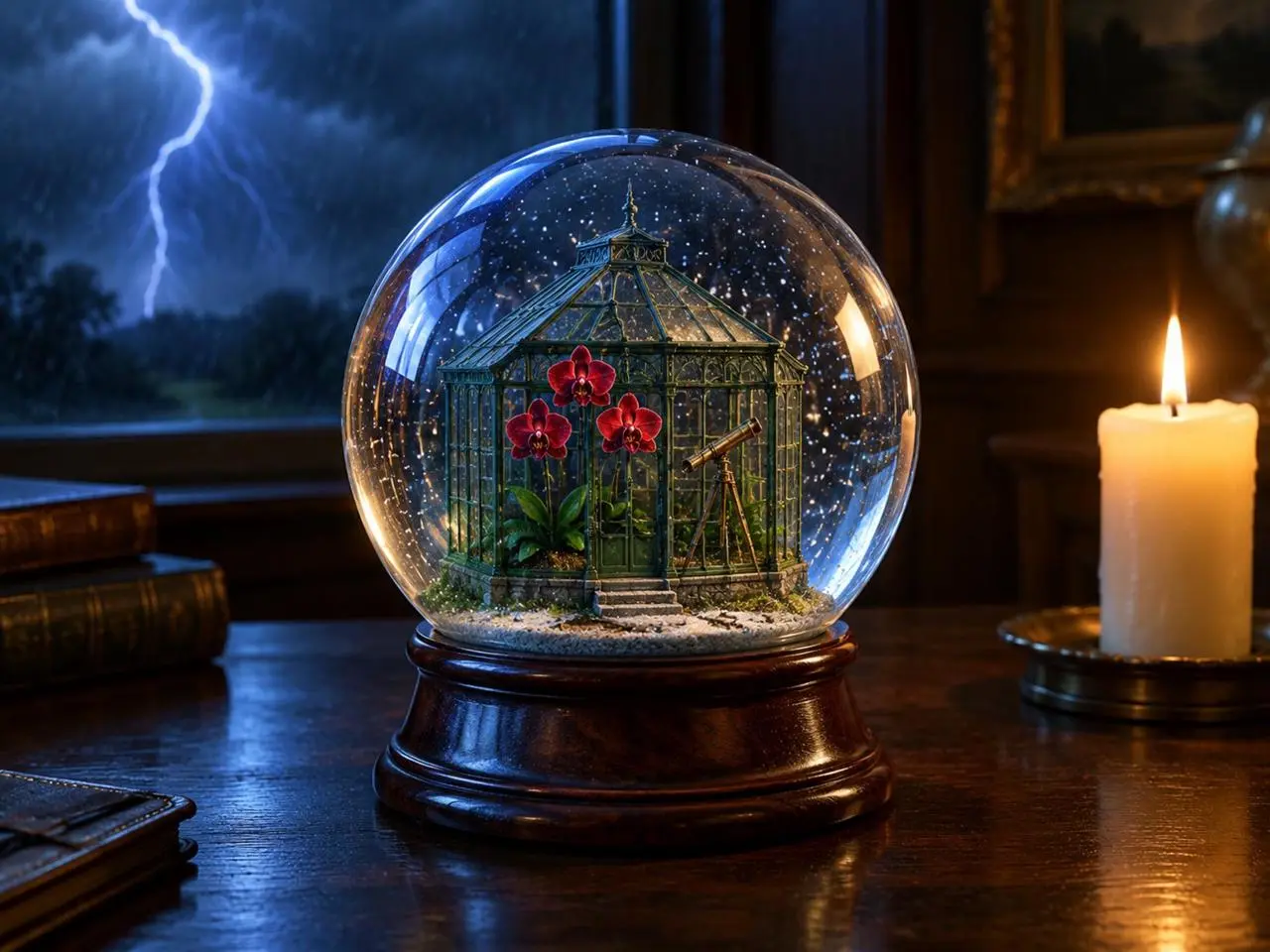
WeShop result: Organize Foreground, Background, and Light

Place the Light Sources

Give the main object, background event, and light sources clear positions. In this example: “one lit ivory candle on the desk to the right of the globe”. Look for the globe in front, lightning behind it, and the warm candle beside it.

Create a finished 3:4 photorealistic editorial image of exactly one clear glass snow globe resting on a dark walnut desk during a thunderstorm. Inside the globe is one miniature Victorian greenhouse containing exactly three red orchids and one small brass telescope. Place a sharp lightning bolt in the upper-left background and one lit ivory candle on the desk to the right of the globe. Use realistic glass reflections and refractions, cool blue storm light from the left, warm candlelight from the right, shallow depth of field, and detailed natural materials. Keep the entire globe visible. No people, no extra flowers, no extra globes, no text, no logo, no watermark.
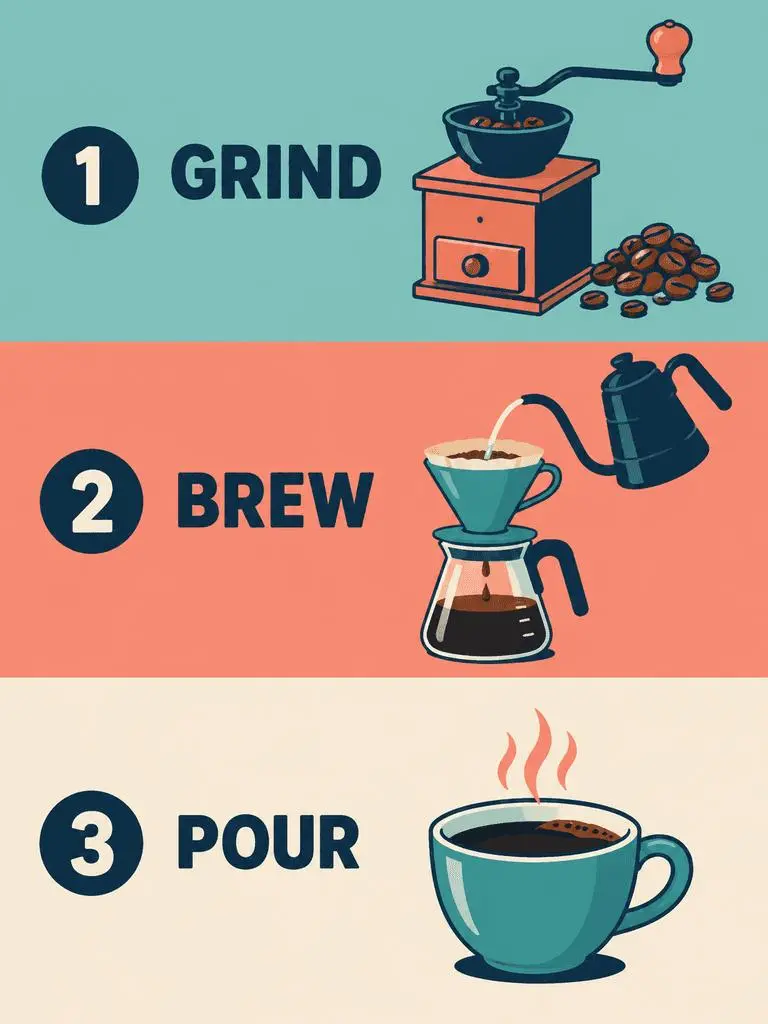
WeShop result: Specify Panel Order and Exact Labels

Specify Panel Order and Exact Text

For a multi-panel design, state the panel sequence and the words each panel needs. In this example: “Panel 1 shows a simple hand grinder and coffee beans, with the exact heading 'GRIND'.” Check the GRIND, BREW, and POUR labels against the illustrations and their top-to-bottom order.

Create a clean flat-vector educational infographic in a vertical 3:4 layout with exactly three equal horizontal panels stacked from top to bottom. Panel 1 shows a simple hand grinder and coffee beans, with the exact heading 'GRIND'. Panel 2 shows a pour-over cone over a glass server and a kettle pouring water, with the exact heading 'BREW'. Panel 3 shows a single ceramic cup filled with coffee, with the exact heading 'POUR'. Place the number 1, 2, or 3 beside each corresponding heading. Use teal, coral, cream, and dark-navy colors, consistent line weights, generous spacing, and a left-to-right illustration-and-label arrangement within every panel. Keep the three panels distinct and correctly ordered. No extra text, border, photorealistic imagery, or watermark.

HOW TO USE

How to Use GPT Image 2 on WeShop AI

Choose Your Starting Point

Use the generator on this page with GPT Image 2 selected. Start with a text brief, or upload the reference images your edit needs.

Describe the Image and the Edit

Specify the subject, layout, light, and exact text. For an edit, identify the details to preserve and the changes to make; assign a role to each reference.

Set, Generate, and Review

Choose the available aspect ratio, 1K, 2K, or 4K size, and low, medium, or high quality. Generate the image, then review text, subject details, and composition in the result workspace.

COMPARE GPT IMAGE MODELS

GPT Image 2 vs GPT Image 2.5

Compare GPT Image 2 with the Flare and Sunburst choices in GPT Image 2.5. Model positioning follows OpenAI; sizes, quality levels, and formats below are the options currently listed in WeShop.

DimensionGPT Image 2GPT Image 2.5
Model choicesGPT Image 2Flare for speed; Sunburst for demanding quality requirements
Creation and editingText prompts and image-guided editingText prompts and image-guided editing
Editing focusHigh-fidelity image inputs for generation and editingOpenAI reports improved precise editing and subject preservation in both variants
Quality levels in WeShopLow, Medium, HighLow, Medium, High, XHigh, Max
Image sizes in WeShop1K, 2K, 4K1K, 2K, 4K
4:5 and 5:4 formats in WeShopNot listed in the current formAvailable for both Flare and Sunburst
Model choices
GPT Image 2
GPT Image 2
GPT Image 2.5
Flare for speed; Sunburst for demanding quality requirements
Creation and editing
GPT Image 2
Text prompts and image-guided editing
GPT Image 2.5
Text prompts and image-guided editing
Editing focus
GPT Image 2
High-fidelity image inputs for generation and editing
GPT Image 2.5
OpenAI reports improved precise editing and subject preservation in both variants
Quality levels in WeShop
GPT Image 2
Low, Medium, High
GPT Image 2.5
Low, Medium, High, XHigh, Max
Image sizes in WeShop
GPT Image 2
1K, 2K, 4K
GPT Image 2.5
1K, 2K, 4K
4:5 and 5:4 formats in WeShop
GPT Image 2
Not listed in the current form
GPT Image 2.5
Available for both Flare and Sunburst

Keep GPT Image 2 When

Use GPT Image 2 for text-led designs, structured compositions, or reference edits when its results meet your brief. Its WeShop form offers Low, Medium, and High quality.

Try GPT Image 2.5 When

Consider Flare when generation speed is a priority, or Sunburst for a quality-focused brief, following OpenAI’s positioning. Both also expose XHigh and Max quality in the current WeShop form. Evaluate the same representative inputs before changing an established workflow.

MORE IMAGE MODELS

Explore More Image Models

Explore other model pages and inspect their own examples and available workflows.

FAQ

GPT Image 2 FAQ

What is GPT Image 2?

GPT Image 2 is an OpenAI image generation and editing model. It accepts text and image inputs for tasks such as photorealistic scenes, designed layouts, and reference-led edits.

Can I edit an existing photo?

Yes. Upload a reference image and explain what to retain and what to change. The reference-editing cases on this page show the original input alongside the result.

Can GPT Image 2 create words inside an image?

Yes. OpenAI documents text rendering and layout tasks for GPT Image 2. Put the required wording in your prompt and describe its placement and hierarchy; inspect the generated spelling and layout before use.

How do I guide a person or product edit?

Identify the reference subject and specify the features to preserve, then describe the requested change separately. OpenAI’s prompting guide discusses preservation constraints, but an instruction does not guarantee an identical subject in every output.

Which image sizes are available on WeShop AI?

The current GPT Image 2 form offers 1K, 2K, and 4K size choices. Select an aspect ratio in the form; the dimensions of an individual saved example belong to that generation and may differ from another size or ratio.

Which quality settings can I choose?

WeShop AI currently lists low, medium, and high quality for GPT Image 2. Review the settings shown in the generator before submitting; this page does not promise a fixed generation time.

Can I use more than one reference image?

Yes. This page includes real GPT Image 2 cases with multiple reference inputs. State what each image contributes so the requested subject, setting, and composition are clear.

How does GPT Image 2 compare with GPT Image 2.5?

OpenAI positions GPT Image 2.5 Flare around speed and Sunburst around quality, with updated editing and subject-preservation behavior. Use the comparison section for the documented differences and current WeShop settings; the cases here are GPT Image 2 results, not a paired benchmark.