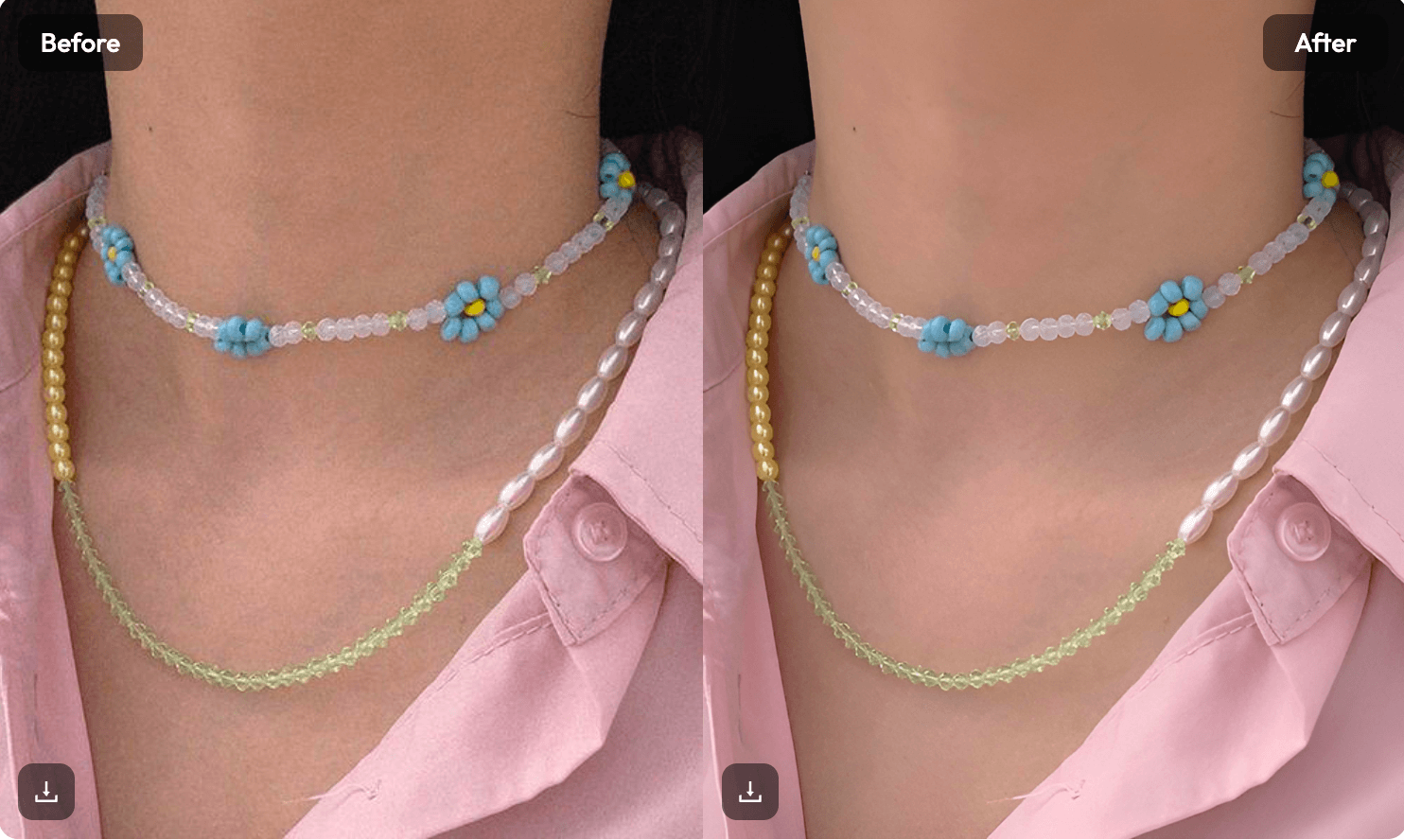
You take a stunning photo, upload it to Instagram, and suddenly it looks like it was taken with a toaster. It’s frustrating because your original file looks perfect, but the app turns it into a blurry mess. The secret to fixing this isn’t just cropping; it’s about how you create resized images that satisfy the Instagram algorithm. If you want your feed to look professional, you need a workflow that enhances quality while fitting the right dimensions.
Why Your Photos Lose Quality on Social Media
Instagram is a data-hungry platform. To keep the app running fast, it compresses every single file you upload. If your file is too large, the app crushes it. If it’s too small, the app stretches it. Either way, you lose.
The Problem with Basic Cropping
Most people think they can just pinch and zoom in the app. This is a mistake. When you do this, you aren’t creating high-quality resized images. You are just telling Instagram to cut out pixels. This usually results in jagged edges and “noise” in your shadows.
Understanding Social Media Compression
Platforms like Instagram and Facebook have strict “sweet spots.” If you don’t hit their exact pixel requirements, their AI takes over. Usually, their AI isn’t very gentle. By preparing your files beforehand, you stay in control of the final look.
Why You Need to Upscale First
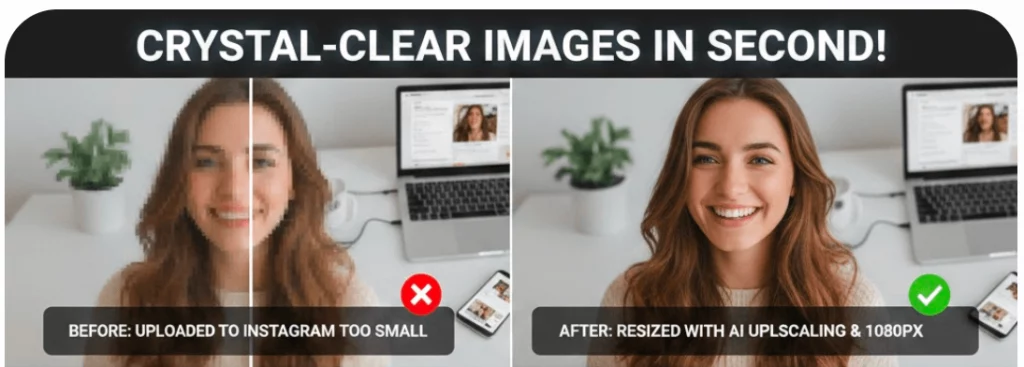
Sometimes, the photo you want to post is a bit too small. Maybe it’s a crop from a larger group shot. If you try to resize for instagram from a small source, it will look pixelated. Upscaling uses AI to “fill in” the missing details, making the photo look like it was shot on a much better camera.
The Golden Rules to Resize Photo for Instagram
To get that “influencer” look, you have to follow the rules of the grid. It’s not just about making the file smaller; it’s about the aspect ratio.
Master the 4:5 Portrait Ratio
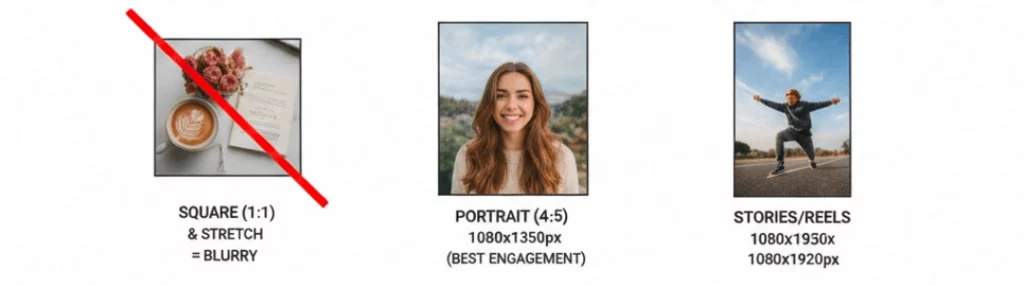
If you want the most engagement, stop posting squares. The 4:5 portrait ratio takes up the most physical space on a phone screen. When you instagram resize picture files to 1080 x 1350 pixels, you grab more attention. More screen space equals more likes.
Getting the Perfect Square
The 1:1 square is the classic look. It’s great for product shots. When you create these resized images, aim for 1080 x 1080 pixels. This ensures the image stays sharp even when viewed on high-resolution Retina displays.
Don’t Forget the Stories
Stories use a 9:16 ratio. If you don’t resize photo for instagram stories properly, the app will add weird gradient backgrounds. Always aim for 1080 x 1920 pixels to keep your stories looking immersive and clean.
Top Tools to Get Perfect Resized Images Fast
You don’t need to be a Photoshop expert to get professional results. There are several tools designed to do the heavy lifting for you in seconds.
WeShop AI: The Pro Choice for E-commerce
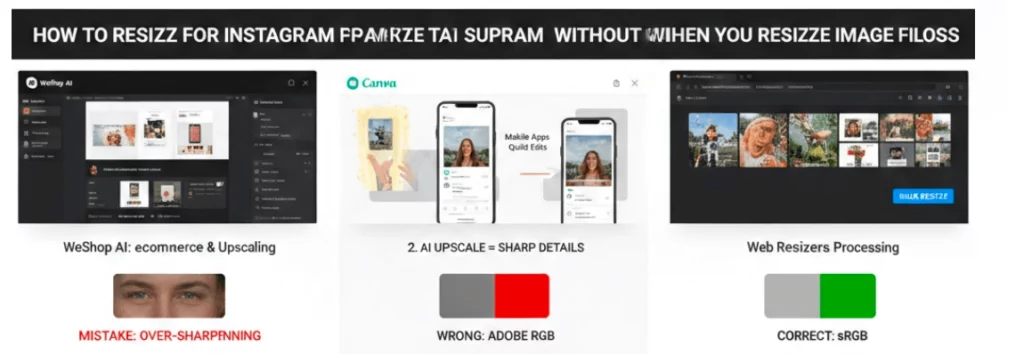
If you are running a business, WeShop AI is a game-changer. It’s not just a simple tool to resize image files. It uses advanced AI to help you swap backgrounds and enhance product details. It’s specifically great for those who need to instagram pic resize their products while maintaining a high-end, commercial look. It saves hours of manual editing.
Mobile Apps for Quick Edits
For those on the go, apps like Lightroom Mobile or Canva are solid choices. They have presets that help you resize photo for instagram with one tap. However, be careful with free apps that add a lot of “sharpening,” as this can make your skin look unnatural in portraits.
Web-Based Bulk Resizers
If you have a whole gallery to upload, use a web-based bulk tool. These allow you to instagram pic resize twenty photos at once. This is a huge time-saver for creators who post daily.
How to Create Resized Images Without Losing Sharpness
The biggest fear is losing that “crisp” feeling. Here is a simple workflow to ensure your photos stay sharp after the resize.
Use AI Upscaling Before You Crop
If your photo is low resolution, use an AI upscaler first. This adds digital information back into the image. Once the image is large and detailed, you can then move on to resize photo for instagram. This prevents the “blurry” look that happens when you stretch small files.
Set Your Export Resolution
When saving your file, look for the “PPI” or “DPI” setting. For web use, 72 DPI is standard, but the pixel dimensions matter more. Ensure your width is exactly 1080 pixels. This is the magic number that stops Instagram from resizing your file again.
The Facebook Profile Trick
Many people forget that your profile picture needs love too. When you resize photo for facebook profile, use a square format but remember it will be cropped into a circle. Keep your face or logo in the dead center so nothing important gets cut off.
Common Mistakes When You Resize Image Files
Even pros make mistakes. Avoid these common pitfalls to keep your feed looking top-tier.
Over-Sharpening Your Photos
When people see a blurry image, their first instinct is to crank up the “Sharpness” slider. Don’t do this. Over-sharpened resized images look grainy and cheap. Let the AI upscaler do the work instead of forcing digital sharpness.
Ignoring the Color Space
Always export your photos in the sRGB color space. Most screens use this. If you use Adobe RGB, your colors might look “muddy” or grey once they hit the internet. A perfect instagram resize picture process always includes a check on the color profile.
Forgetting the File Size Limit
While you want high quality, you don’t want a 20MB file. Instagram will crush large files. Aim for a file size under 1MB for your resized images. This is the “sweet spot” where quality meets performance.
Pro Techniques for Better Resized Images
Let’s look at some advanced tips that take five seconds but make a world of difference.
Use the “Rule of Thirds” While Resizing
When you resize for instagram, don’t just center everything. Use the crop tool to place your subject on the grid lines. This makes the final resized images look much more artistic and balanced.
Why Contrast Matters for Small Screens
People scroll fast. When you instagram pic resize, give your contrast a tiny boost. This makes the image “pop” on a small mobile screen. Clearer edges make the photo look sharper than it actually is.
Consistency is Key
Try to use the same aspect ratio for all your carousel posts. If you mix square and portrait, Instagram will force them all to fit the first image’s size. To avoid this, make sure all resized images in a set have the exact same dimensions before you upload.
Summary: The Path to a Clear Feed
Getting clear photos on social media isn’t magic. It’s about preparation. By using tools like WeShop AI and following the 1080-pixel rule, you can beat the algorithm. No more blurry faces or pixelated landscapes.
Your Final Checklist
- Upscale low-res photos first.
- Choose the 4:5 ratio for maximum reach.
- Set width to 1080px.
- Export as sRGB.
- Check your file size.
Level Up Your Content
The difference between a hobbyist and a pro is often just the technical execution. When you take the time to properly resize photo for instagram, you show your audience that you care about quality. Your photos deserve to be seen in their best light.