We have all been there. You find the perfect image for your website or social media. However, it is too small. You try to stretch it, and suddenly it looks like a blocky mess. If you want to resize pixels settings without ruining the clarity, you need a better strategy. Simply dragging the corner of a photo is not enough. You need to understand how digital information works to keep things sharp.
Why You Need a Dedicated Pixel Resizer
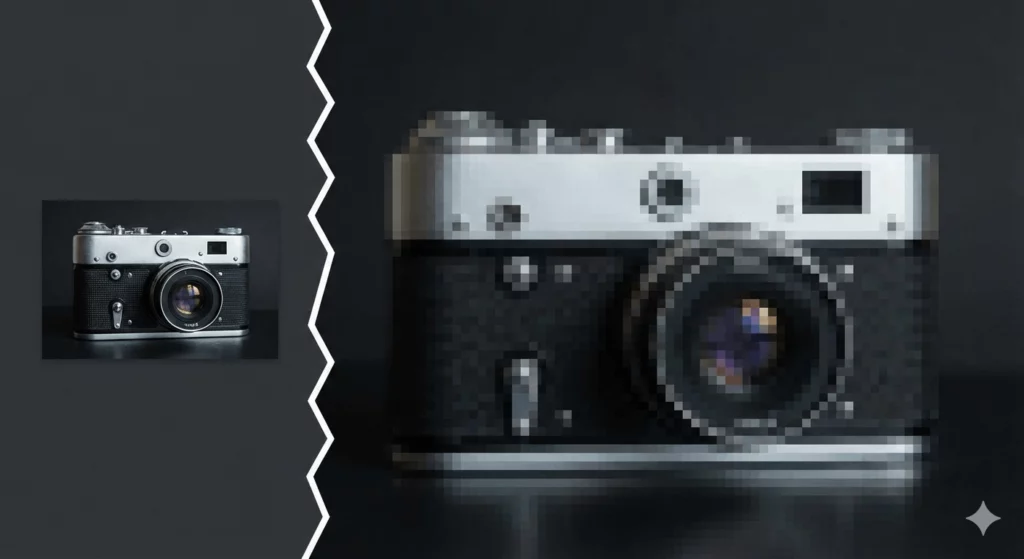
Many people think resizing is just about making things bigger or smaller. In reality, it is about data management. A standard pixel resizer helps you manage the density of information in your file. When you shrink an image, you throw data away. When you enlarge it, you have to create data that wasn’t there before.
Most basic software just stretches the existing dots. This creates the “blur” we all hate. Using a professional approach allows you to maintain clean lines. It ensures your brand looks professional. It also helps with your site’s loading speed. High-quality images don’t have to be massive files.
Best Ways to Resize Pixels Effortlessly
There are several methods to handle your images. Some involve manual math, while others use artificial intelligence. To truly resize pixels with success, you must choose the right tool for the job.
Use AI to Resize Pixels for Clarity
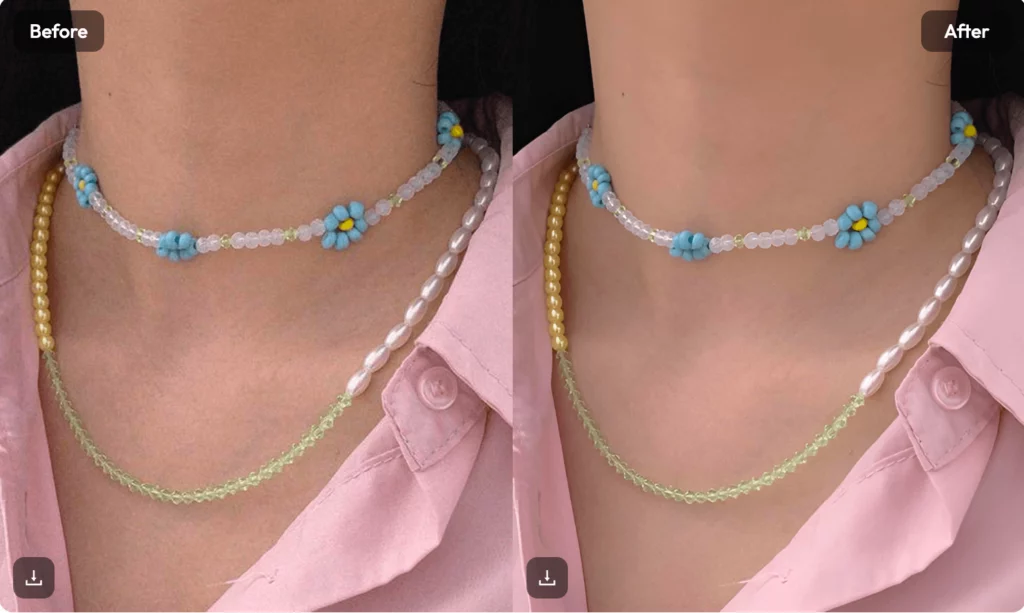
AI has changed the game for photographers and designers. In the past, “enhancing” an image was just a movie trope. Now, it is real. AI tools look at the patterns in your photo. They “guess” what the missing pixels should look like. This allows you to resize pixels up to 4x or 8x the original size. The result is a crisp, clear image that looks like it was shot on a high-end camera.
How to Resize Pixels for Social Media
Every platform has its own rules. Instagram likes squares. Pinterest likes long rectangles. When you resize pixels for these sites, you must respect the aspect ratio. If you don’t, your face might look stretched or squashed. Always lock your proportions before you start changing numbers. This keeps your composition intact while you meet the platform’s requirements.
Why WeShop AI is the Best Way to Resize Pixels
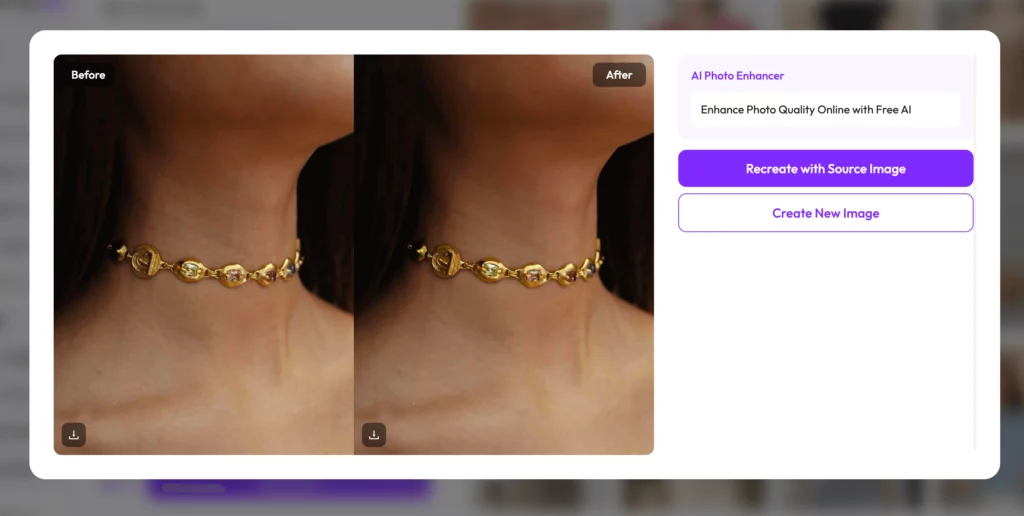
If you are in e-commerce, WeShop AI is a lifesaver. It is not just a generic tool. It is designed for professional product shots. It helps you resize pixels while keeping your products looking realistic.
Many tools make skin look like plastic or metal look like liquid. WeShop AI maintains the texture. You can take a simple smartphone photo and turn it into a high-resolution hero image. It is fast, efficient, and built for people who need results in seconds.
Step-by-Step: How Do You Change the Dimensions of a Photo?
Changing dimensions sounds technical, but it is quite simple. First, open your chosen image editor. Look for the “Image Size” or “Canvas Size” option. This is where you will see the width and height in pixels.
Enter your desired numbers. If you are wondering, “how do i change the size of a photo without a struggle?”, the secret is the “Resample” box. Ensure this is checked. This tells the computer to actually change the amount of data, not just the print size. For the best results, use “Bicubic Smoother” for enlargements and “Bicubic Sharper” for reductions.
How to Change Pixel Size of Image Without Distortion
Distortion is the enemy of quality. It happens when you change the width but not the height. To avoid this, always look for the chain-link icon. This icon links the dimensions together.
When you want to know how to change pixel size of image files safely, focus on the DPI (dots per inch) as well. For screens, 72 DPI is standard. For print, you need 300 DPI. Changing the pixel count without checking the DPI can lead to a photo that looks great on your phone but tiny on a poster.
Pro Secrets to How to Set Photo Size
Setting the right size starts before you even open an editor. Always start with the largest version of the file you have. You can always go smaller. Going bigger is much harder.
When you learn how to set photo size, always save a copy. Never overwrite your original file. You might need those original pixels later. Use formats like PNG for graphics with text. Use JPEG for photos to save space. If you need the highest quality for the web, try WebP. It offers great compression without losing the sharp edges you worked hard to get.
How to Resize the Pixels of an Image for Fast Loading
Website speed is vital for SEO. If your images are too big, your bounce rate will climb. When you resize the pixels of an image, aim for the exact size it will appear on the screen.
Don’t upload a 4000-pixel photo if it only shows up as 400 pixels wide. That is a waste of bandwidth. A good pixel resizer will let you preview the file size before you hit save. Try to keep most web images under 200KB. This keeps your site snappy and your visitors happy.
Common Mistakes When You Resize Pixels
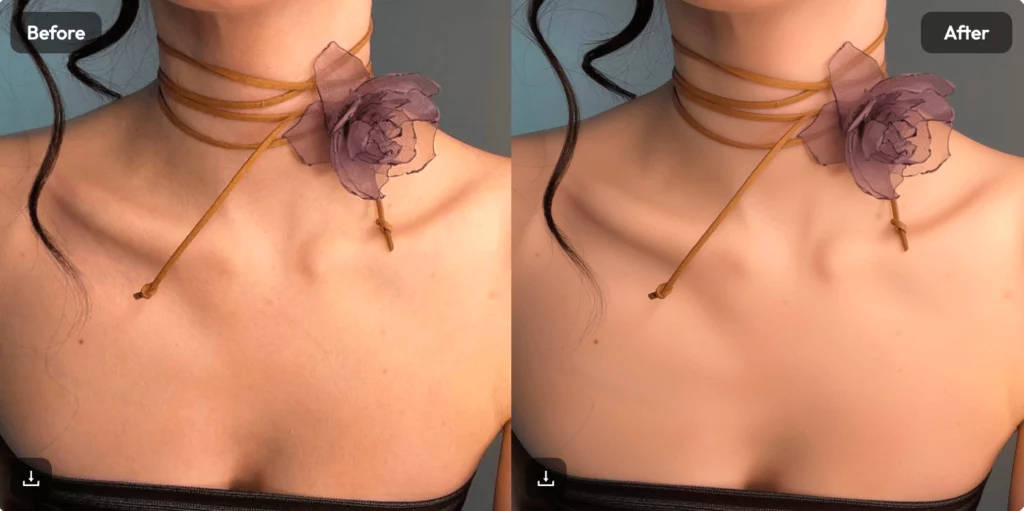
One big mistake is “over-processing.” People often try to resize pixels and then add too much sharpening. This creates weird halos around objects. It looks “crunchy” and fake.
Another mistake is ignoring the source quality. If your original photo is very grainy, a pixel resizer will just make the grain bigger. In these cases, use a noise reduction tool first. Clean the image before you scale it. This gives the software a better foundation to work with.
Final Thoughts on Achieving Crystal-Clear Images
Mastering your image quality does not require a degree in graphic design. It just requires the right workflow. Whether you are using a basic pixel resizer or an advanced tool like WeShop AI, the principles remain the same.
Respect your aspect ratios. Understand the difference between shrinking and growing. Always prioritize clarity over sheer size. By following these steps, you can turn any low-res shot into a professional asset. No more blur. No more blocks. Just clean, beautiful visuals that grab attention.