Make a focused five-second clip with WeShop’s MiniMax H3 Lite selection. Choose its reference-led or frame-led entry, then give the subject a short action.
Explore the tasks shown by these actual MiniMax H3 Lite results. Copy a prompt to try in the generator, or open the linked case for its saved setup. Supply your own images or clips when the request uses references.
Dog and Water Motion
Use an opening dog image for a request involving a jump, splashing water, shaking, and a head movement within the short clip.
The shiba inu jumps in the puddle splashing water, shakes off water droplets, then tilts head with a happy smile. Anime style animation, kawaii movement.
Build a short astronaut shot around a slight turn toward the window and a small camera movement.
Use image 1 as the first frame. The astronaut turns slightly toward the window as the camera makes a gentle sideward move. Keep the face, spacesuit and spacecraft interior consistent. Reflections travel slowly over the visor. One continuous shot, no cuts and no text.
Animate a jellyfish scene with gentle movement around a luminous underwater setting established by the image.
Use image 1 as the first frame. The amber jellyfish pulses gently and rises slowly while its tentacles sway with the water. Tiny blue plankton drift past the reef. Keep the luminous color palette, reef arrangement and jellyfish identity consistent. One continuous underwater shot with a subtle upward camera move, no text and no scene changes.
MiniMax H3 Lite is WeShop’s Lite-labeled H3 selection. Its current entries offer reference-led and frame-led video requests with a five-second duration choice.
A Five-Second Action
The current Lite entries list a five-second duration. A brief action or camera movement fits this exposed clip length.
Reference-Led or Frame-Led Inputs
The WeShop entries distinguish reference context from an initial-frame workflow, with an ending frame where offered.
WORKFLOWS
Choose Your Starting Input
Use the MiniMax H3 Lite input mode that matches the material you have.
Animate an Opening Image
Upload the frame that establishes the subject and scene. Describe the action, environmental movement, or camera direction that follows it.
Guide the Opening and Ending Frames
Supply both images, then describe the action or transition connecting their compositions. Choose a duration offered for this mode.
Direct a Scene with References
Describe the scene and add reference media through the available controls. Identify what each input supplies, such as the subject, setting, motion, or sound.
PROMPT GUIDE
How to Direct MiniMax H3 Lite with a Prompt
Learn from the actual instructions behind these results. Each example keeps its complete original prompt and available inputs. For a new request, replace its subject and reference assignments with your own.
Add Motion to the Environment
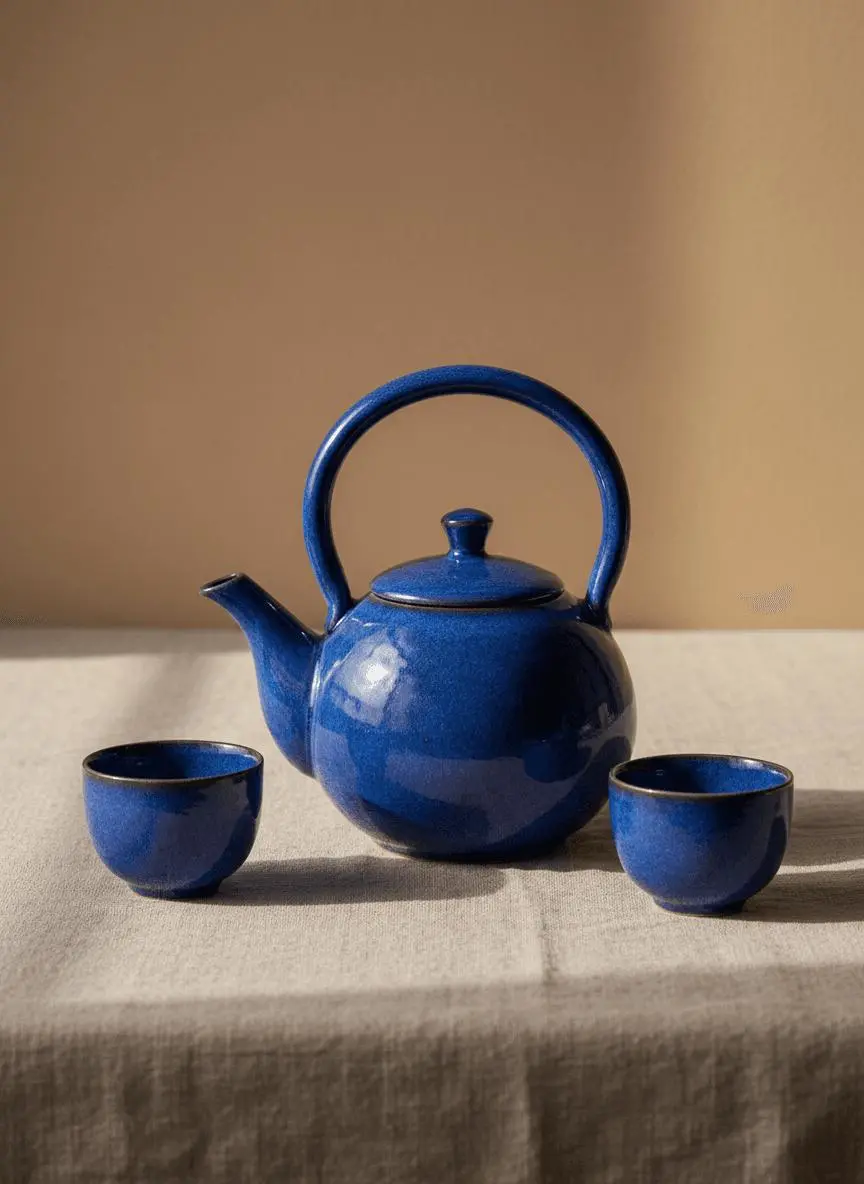
Identify the environmental element that moves while the composition remains recognizable. In this case: “A soft patch of window light moves slowly across the linen cloth while the camera makes a gentle push-in.”
Use image 1 as the first frame. Keep the blue teapot and two cups unchanged in shape, color and placement. A soft patch of window light moves slowly across the linen cloth while the camera makes a gentle push-in. One uninterrupted product shot, realistic shadows, no new objects, no cuts and no text.
Specify the Intended Speech or Song
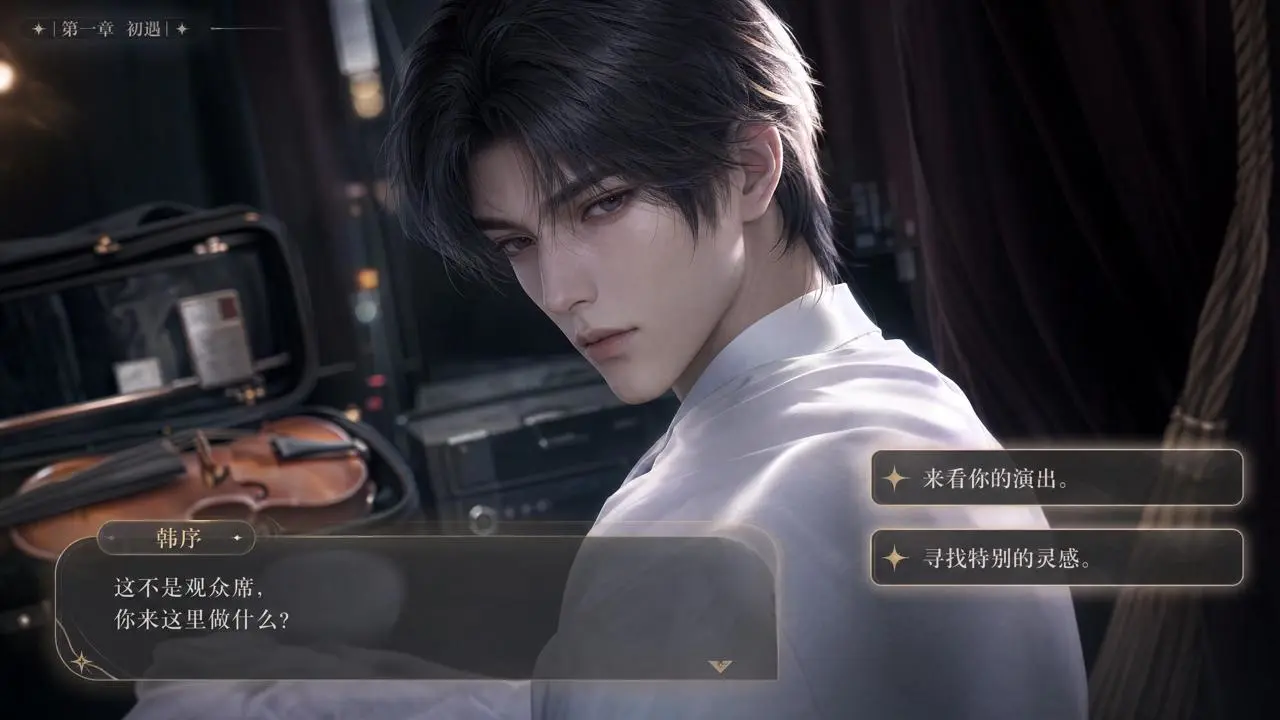
Identify the speaker or performance and its relationship to the visible scene. Check the delivered audio separately from the picture. In this case: “The UI text, options, and dialogue boxes are all presented in an exquisite otome game style, with smooth transitions and ambiguous yet restrained emotions.”
The high-end Chinese otome game features an interactive romance interface, capturing ambiguous moments before and after performances. The transition from "choosing to watch his performance" to "Han Xu being attracted by the female lead's words and showing an interested reaction" is seamless. The UI text, options, and dialogue boxes are all presented in an exquisite otome game style, with smooth transitions and ambiguous yet restrained emotions.
Establish the Visual Starting Point
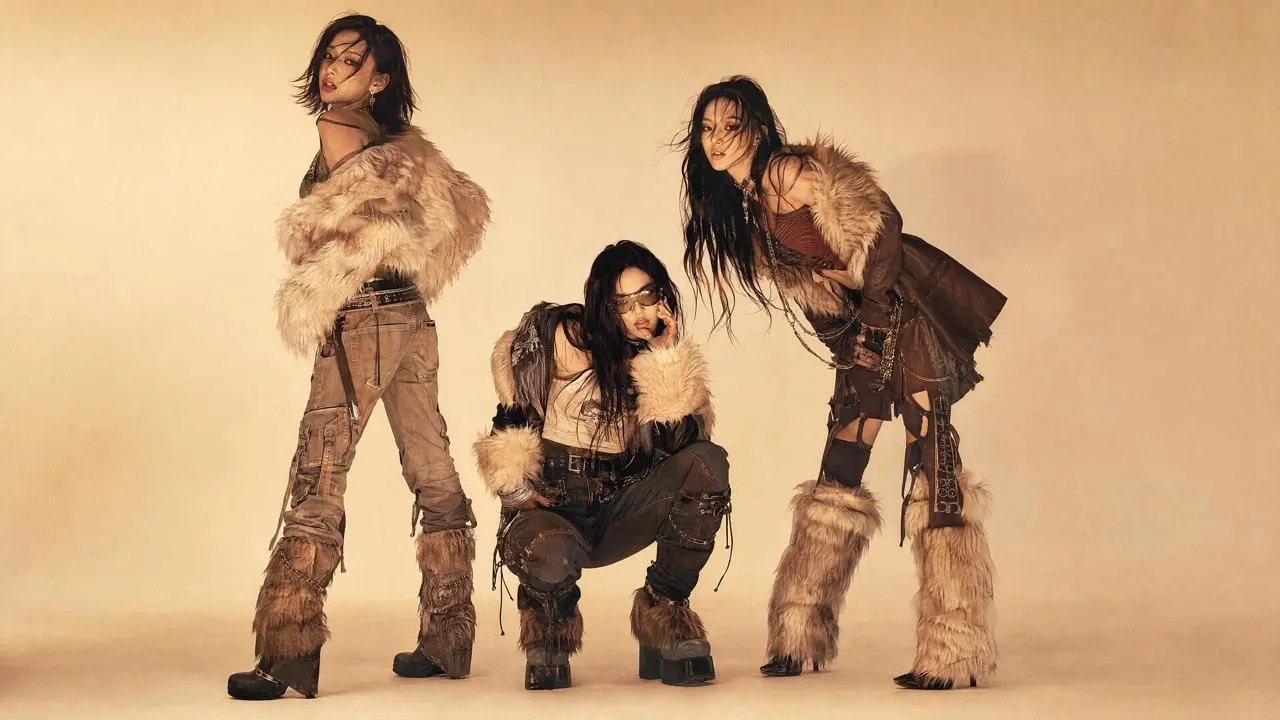
The request defines the subject and setting. Use it to study scene description rather than treating it as evidence of a particular motion or sound control. In this case: “realistic high-fashion feel, film magazine quality, high contrast but not cheap.”
Style: Dark-pop / cyber-grunge / rap music video; realistic high-fashion feel, film magazine quality, high contrast but not cheap. Overall reference to late 90s and early 2000s independent magazines, photocopied paper, film scans, underground music posters, and zine collage aesthetics. Visuals feature graininess, slight film jitter, halftone dots, printing fringes, and scanning misalignment. Fast-paced editing uses only hard cuts, avoiding fades or soft transitions. Text packaging style and texture are referenced from the images.
HOW TO USE
Create Your First MiniMax H3 Lite Video
Start in the generator on this page. To reuse an example, click Copy Prompt, return to the description field, and adapt the prompt to your own inputs.
Provide the Scene and Inputs
Write your brief and add the reference media required by the selected mode. Explain the role of each supplied input.
Choose the Output Options
Choose an offered duration, aspect ratio, and other available output options. Check the form’s displayed points before submitting.
Generate and Review
Click Generate and review the resulting video. Check movement, framing, continuity, and any delivered audio. Adjust your prompt or references for the next attempt.
Compare the documented model roles and the inputs and options currently listed in WeShop. Model names or matching settings do not by themselves establish equal output quality or a fixed generation-time difference.
Dimension
MiniMax H3
MiniMax H3 Lite
Model role
Full H3 family multimodal generation and transformation
Animate an Opening Image; Guide the Opening and Ending Frames; Direct a Scene with References
MiniMax H3 Lite
Animate an Opening Image; Guide the Opening and Ending Frames; Direct a Scene with References
Current WeShop options
MiniMax H3
Duration: 5–15 seconds
MiniMax H3 Lite
Duration: 5s
When to Consider MiniMax H3 Lite
Match the Model to Your Task
Consider Lite when the available five-second workflow fits the task. Compare full H3 for its separately documented capabilities and longer WeShop duration choices.
MORE VIDEO MODELS
Explore More Video Models
Open a related model page to review its capabilities, examples, and current generation options.
Answers about this version, its inputs, and how to get started.
What is MiniMax H3 Lite?
MiniMax H3 Lite is WeShop’s Lite-labeled H3 selection. Its current entries offer reference-led and frame-led video requests with a five-second duration choice.
What is a good task to consider it for?
Consider Lite when the available five-second workflow fits the task. Compare full H3 for its separately documented capabilities and longer WeShop duration choices.
What do I need to provide?
Animate an Opening Image. Upload the frame that establishes the subject and scene. Describe the action, environmental movement, or camera direction that follows it. Guide the Opening and Ending Frames. Supply both images, then describe the action or transition connecting their compositions. Choose a duration offered for this mode. Direct a Scene with References. Describe the scene and add reference media through the available controls. Identify what each input supplies, such as the subject, setting, motion, or sound.
Which output settings are offered here?
Duration: 5s
How do I try an example prompt?
Click Copy Prompt, return to the generator, and paste it into the description field. Add your own required references and update their roles. Linked case previews and Use This Prompt open the saved case; they do not automatically fill this page’s form.
What should I know about this version?
A separate official Lite checkpoint is not independently established. Full H3’s 2K, 15-second, or stereo specifications are not inherited here.