Build a video from visual and audio context with MiniMax H3. Choose the reference-led or frame-led entry that fits your materials, then describe the scene or transformation.
Explore the tasks shown by these actual MiniMax H3 results. Copy a prompt to try in the generator, or open the linked case for its saved setup. Supply your own images or clips when the request uses references.
One Character across Six City Shots
Carry a referenced character across six city shots, with the prompt separating location changes and the intended soundscape.
subject_definitions:
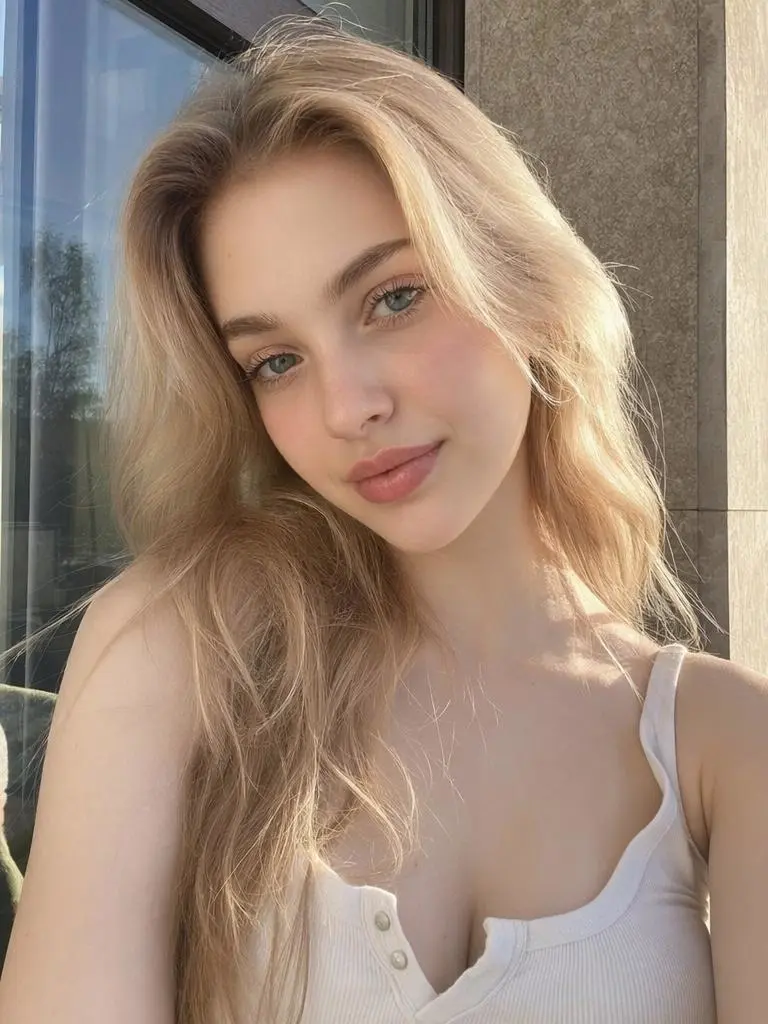
<Subject 1> is the young woman in <Picture 1>,
with a dark ponytail and a yellow sundress.
integrated_multimodal_description:
[Shot 1] <Subject 1> dances with Rome in the background.
[Shot 2] At 00:01.000, the shot changes to Paris.
[Shot 3] At 00:02.000, the shot changes to London.
[Shot 4] At 00:03.000, the shot changes to New York.
[Shot 5] At 00:04.000, the shot changes to Tokyo.
[Shot 6] At 00:05.000, the shot changes to Berlin.
overall_soundscape:
Light city ambience remains underneath the dance performance.
non_diegetic_music:
An upbeat instrumental dance rhythm without vocals.
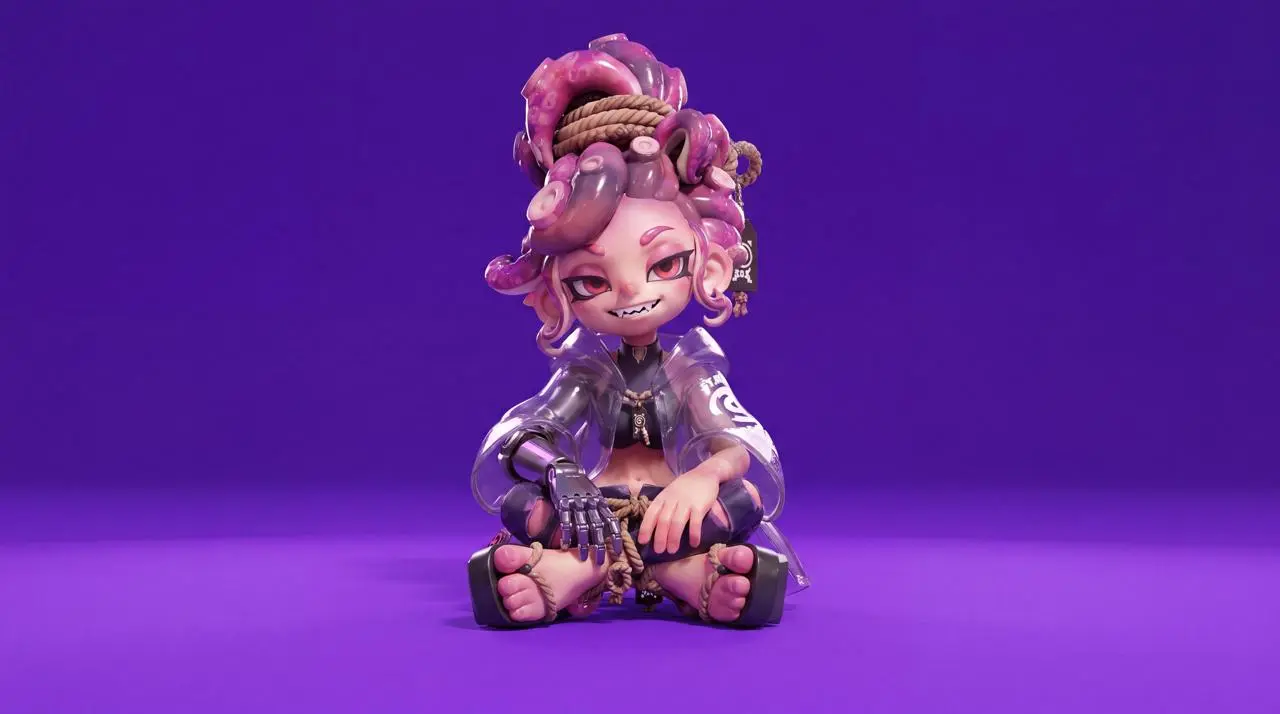
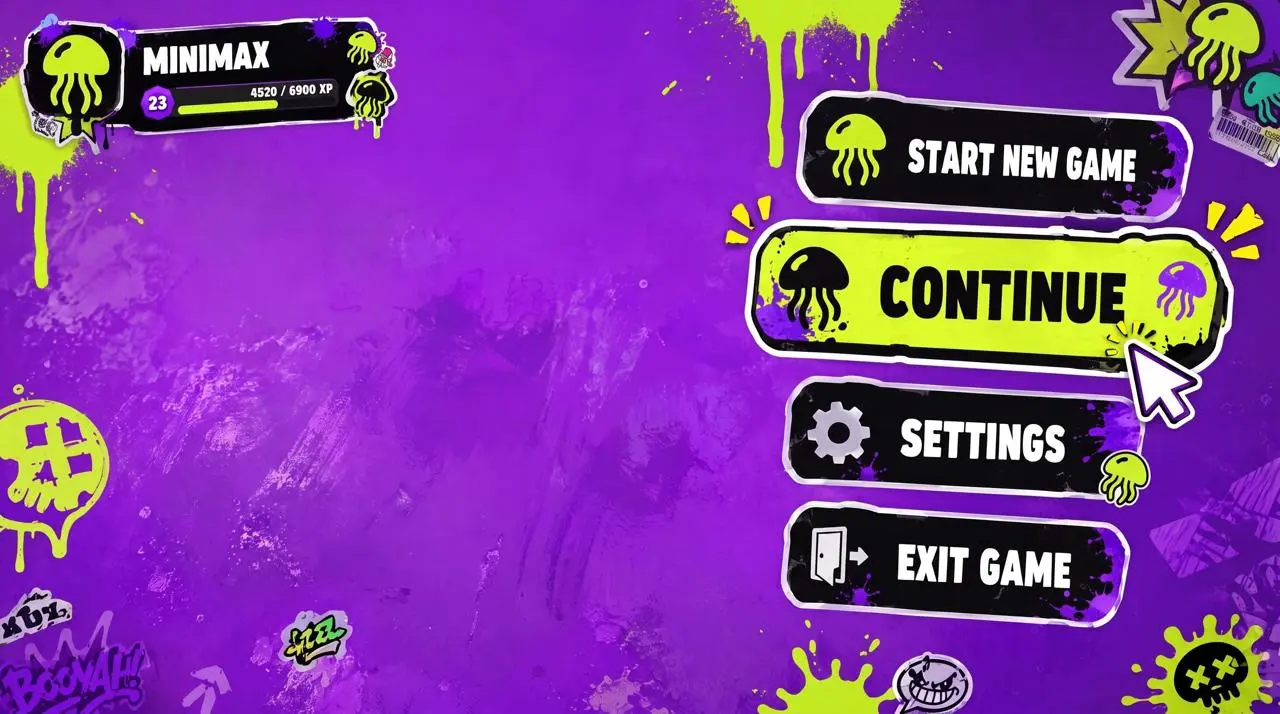
Combine a character image and an interface-style image in a timed customization sequence, separating camera, UI, and character changes.
Character reference image 1, UI style reference image 2. [0 seconds - 2 seconds] High-angle overhead shot. The character sits on a highly saturated bright purple ground, as shown in image 1, looking up at the camera. The game menu UI is displayed on the right: Start New Game, Continue Game (highlighted), Settings, Exit Game. The player profile MINIMAX is displayed in the upper left corner. Click "Continue Game". [2 seconds - 4 seconds] Smoothly zoom to her right arm. The UI panel slides in from the right, and the "Right Arm EQUIPMENT" panel appears. Select the highlighted "Phantom Grap", then slide to "Chronos Claw". Her right hand mechanically reconfigures, fingers spread, new claw-like knuckles lock in place, and the cyan LED lights flash brighter. [4 seconds - 7 seconds] The camera smoothly moves to her left side. The new UI slides into the "ARMAMENT CUSTOMIZATION" grid, displaying the hand, forearm, elbow, and upper arm components. Selections quickly cycle through the components. Her left arm is disassembled piece by piece: the forearm plate detaches, new armor slides in, the elbow joint is replaced, and the hand is reconfigured, revealing exposed wiring and pistons during the replacement process. [7-8.5 seconds] The camera pulls back to a medium shot. The CONFIRM CONFIG button flashes. Click it. All UI panels shrink inward and disappear. The character's legs loosen, she adjusts her posture, and now sits relaxed, one knee raised, her prosthetic hand naturally raised, displaying a slight post-configuration movement. [8.5-10 seconds] A loading bar appears at the bottom. It quickly fills from 0% to 100%. The highly saturated bright purple environment begins to darken, shadows spread from the edges, and a warm golden light seeps in. [10-15 seconds] As she stands up, the complete environment loads around her. A dense cyberpunk slum appears, neon lights flashing, damp streets reflecting light, crowds surging, motorcycles weaving, and a tangled web of wires. Stacked buildings stretch towards futuristic skyscrapers in the distance. The camera stabilizes in a third-person perspective, positioned behind her, showing her back. HUD elements fade in, displaying a minimap in the upper right corner and a health and ammo counter in the lower left. A mission marker appears. She steps into the street.
MiniMax H3 is MiniMax’s multimodal video model for generation and transformation using text, images, video, and audio context.
Creative Context across Media
The H3 release describes text, image, video, and audio context. Different references can define the subject, treatment, or movement in the task.
Motion Transfer and Transformation
MiniMax documents video-to-video motion transfer and editing-oriented applications. The request can distinguish the intended change from the source subject.
Native Stereo Audio-Video
The full H3 release includes native stereo audiovisual output. Listen to the actual result when sound is part of the brief.
WORKFLOWS
Choose Your Starting Input
Use the MiniMax H3 input mode that matches the material you have.
Animate an Opening Image
Upload the frame that establishes the subject and scene. Describe the action, environmental movement, or camera direction that follows it.
Guide the Opening and Ending Frames
Supply both images, then describe the action or transition connecting their compositions. Choose a duration offered for this mode.
Direct a Scene with References
Describe the scene and add reference media through the available controls. Identify what each input supplies, such as the subject, setting, motion, or sound.
PROMPT GUIDE
How to Direct MiniMax H3 with a Prompt
Learn from the actual instructions behind these results. Each example keeps its complete original prompt and available inputs. For a new request, replace its subject and reference assignments with your own.
Establish the Visual Starting Point
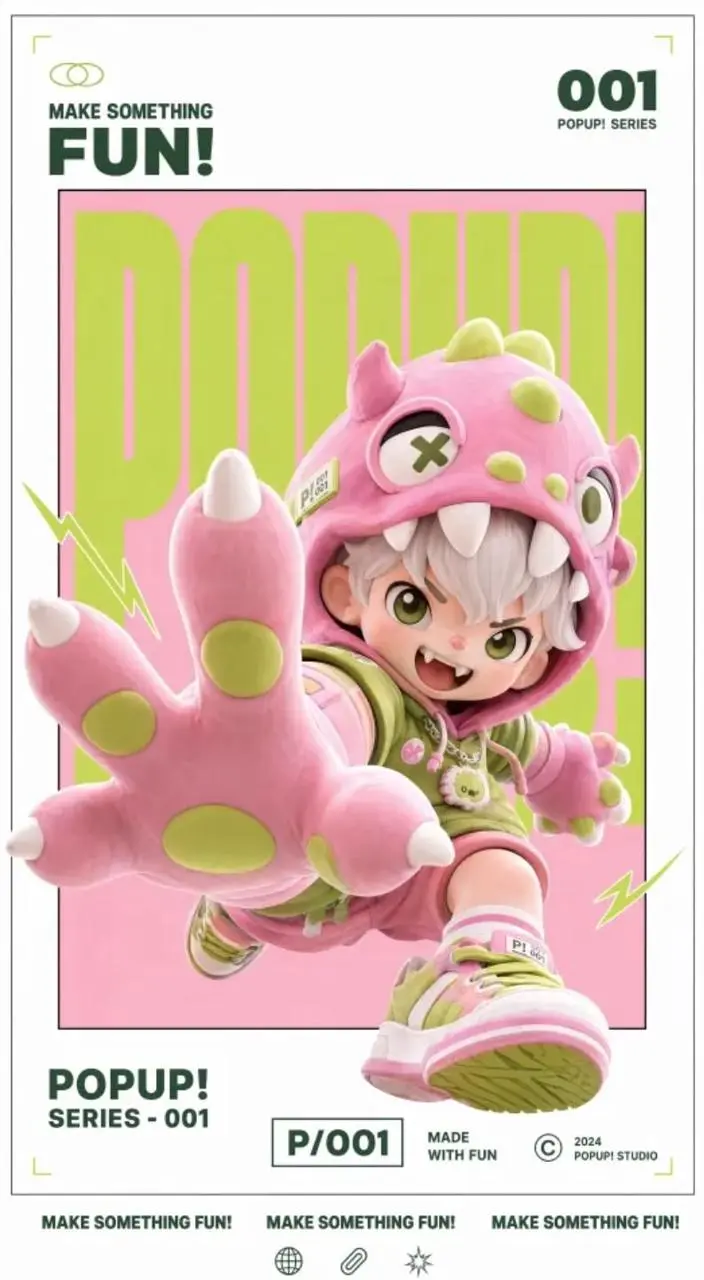
The request defines the subject and setting. Use it to study scene description rather than treating it as evidence of a particular motion or sound control. In this case: “Create a dynamic poster video that retains the original image's gallery white frame, inner frame, red, white and black color scheme, 3D figure feel and layout structure, and adds a lively sound effect”
Create a dynamic poster video that retains the original image's gallery white frame, inner frame, red, white and black color scheme, 3D figure feel and layout structure, and adds a lively sound effect when the text appears.
Give the References Different Jobs
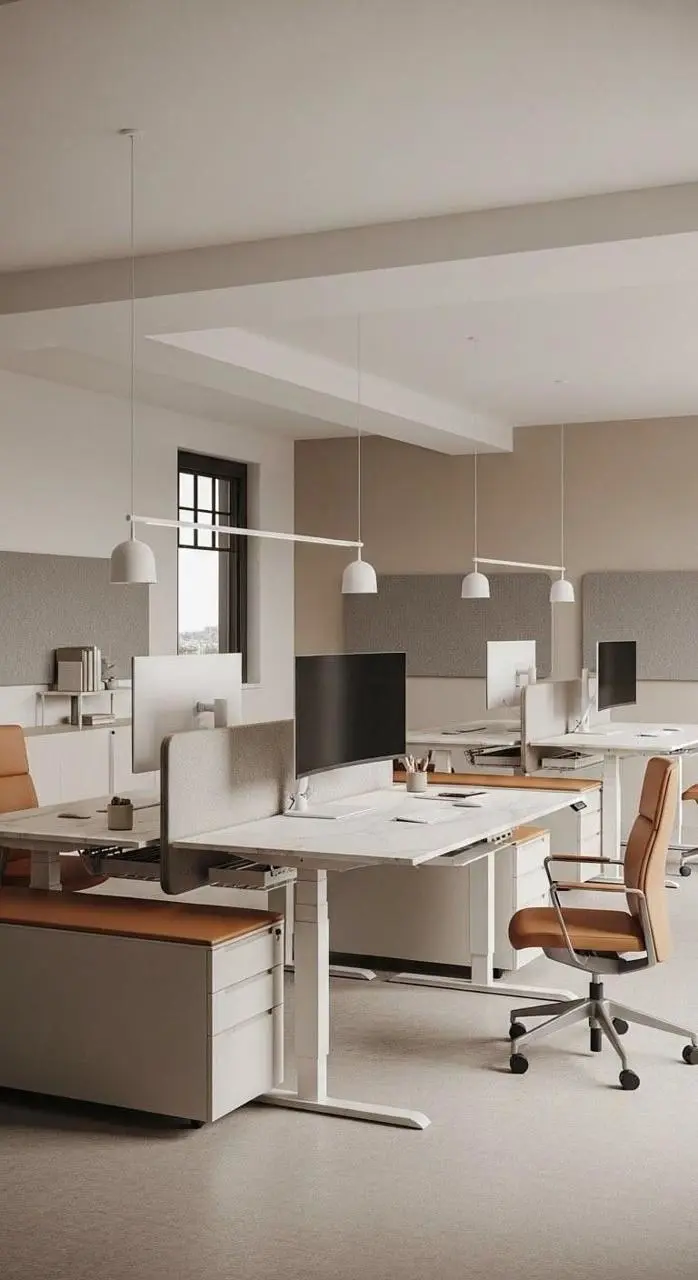
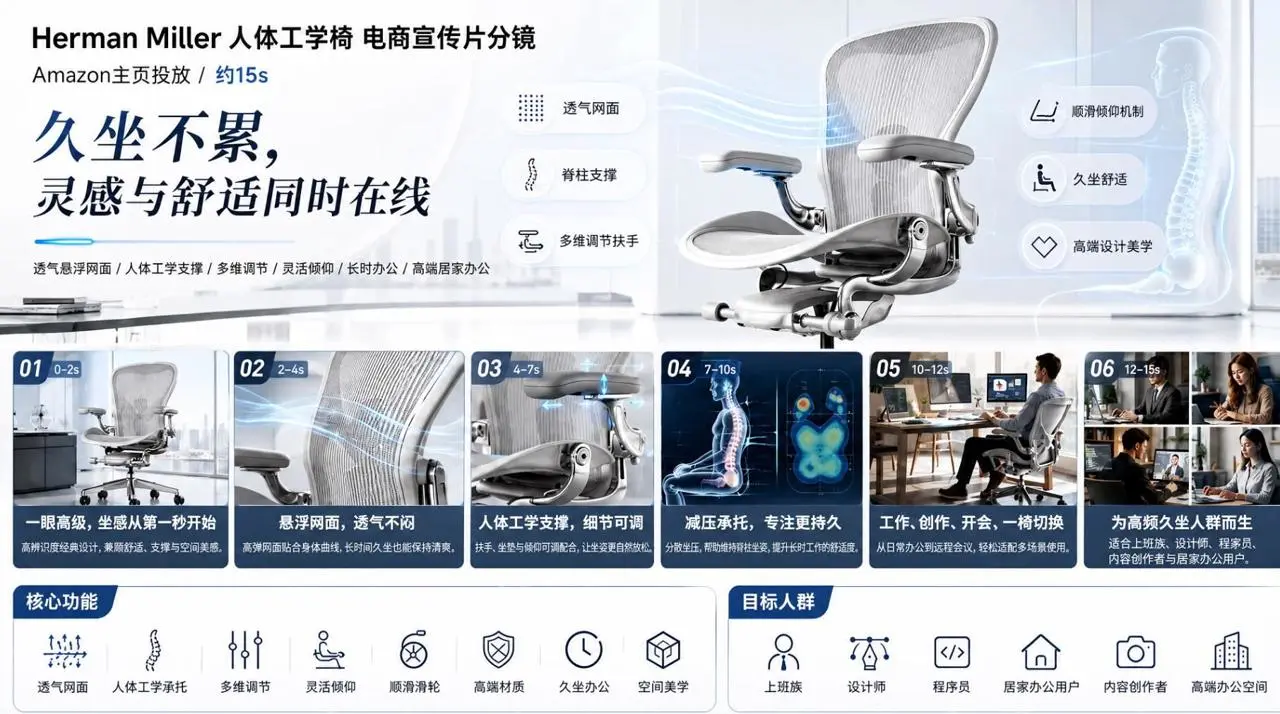
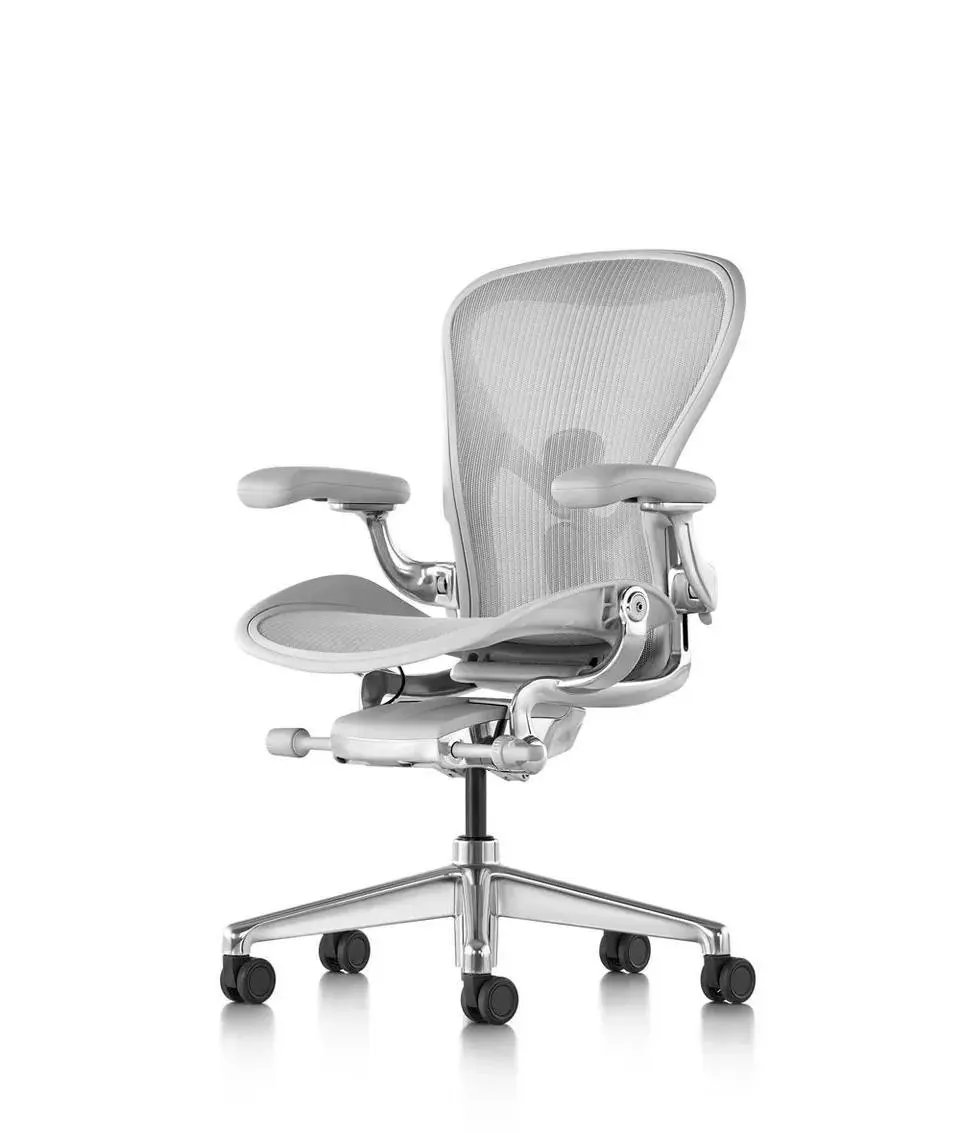
Identify what each supplied image contributes before describing the combined result. In this case: “Please refer to Figure 1 for product details and Figure 2 for product images.”
360-degree display of Herman Miller black ergonomic chair for high-end offices. Breathable mesh back for close-up visualization of air flow. Lumbar support + ergonomic curve engineering animation. Multi-dimensional armrest/seat height adjustment demonstration. Designers/programmers/creatives work in scenarios where they work for a long time, and their posture can be relaxed and comfortable. 3D skeletal support diagram to prevent fatigue from sitting for long periods of time. Spatial aesthetics interior display. At the end, the words "Inspiration and comfort are online at the same time" appear. High-end simplicity, cool colors, professional futuristic feel, and slow-paced camera movement. Please refer to Figure 1 for product details and Figure 2 for product images.
Describe How the Framing Changes
Name the camera movement and the part of the subject or environment it should reveal. In this case: “and slowly turns its head toward the camera.”
15 seconds, 16:9, realistic nature-documentary style.
In a misty wetland at dawn, an adult white crane stands on one leg in shallow water
and slowly turns its head toward the camera.
Soft backlight passes through the mist, and small ripples move across the water.
The camera slowly pushes from an extreme wide shot to a medium shot without cutting.
Use only wind, water, and distant bird calls. Do not add background music.
Give the Movement a Concrete Action
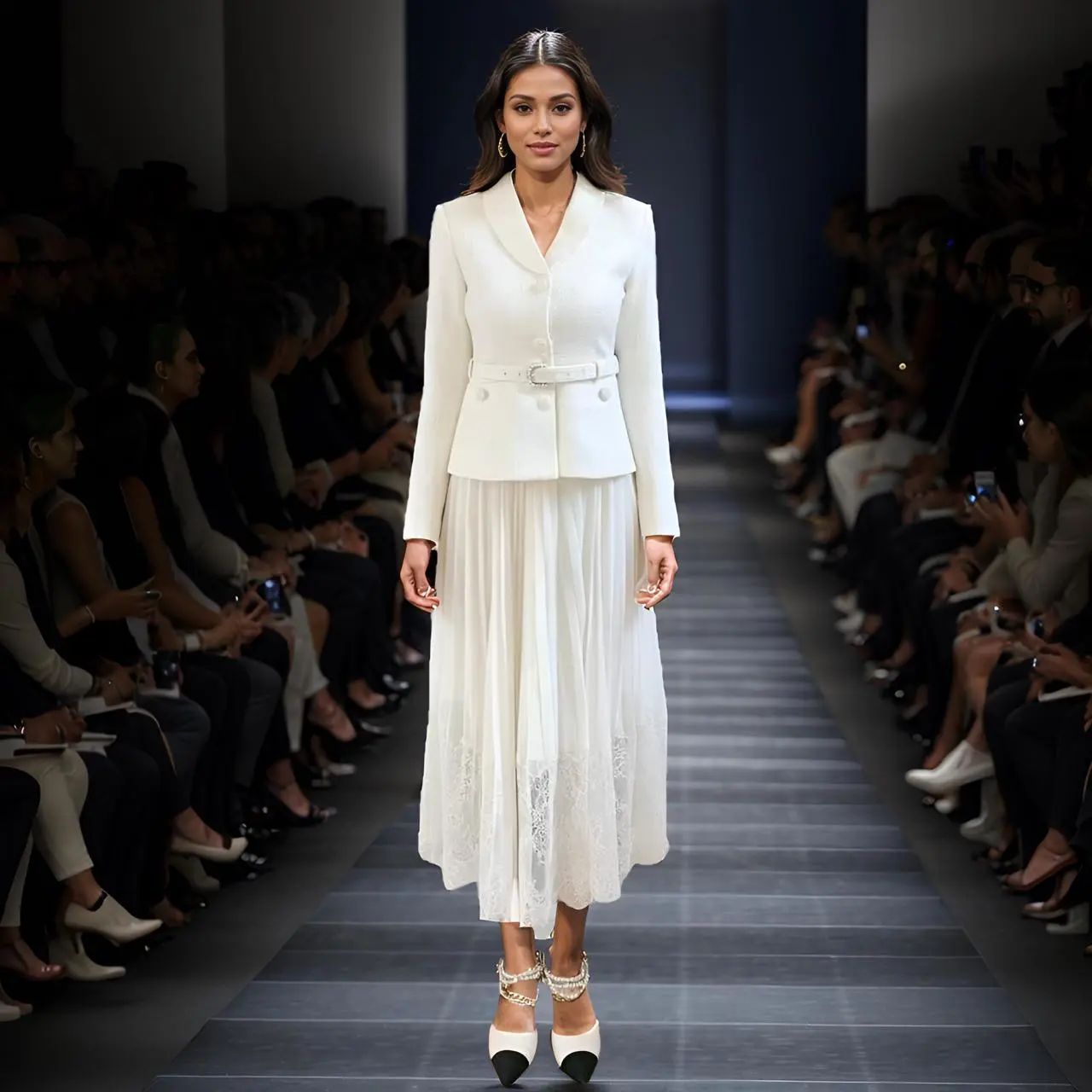
Name the movement the subject should perform within the shot. In this case: “Generate a smooth animation of the model's runway show, moving forward naturally, showing the clothes clearly.”
Generate a smooth animation of the model's runway show, moving forward naturally, showing the clothes clearly. The movie has extremely high-quality visuals. There is an inner lining in the skirt hem, and it must not be visible.
HOW TO USE
Create Your First MiniMax H3 Video
Start in the generator on this page. To reuse an example, click Copy Prompt, return to the description field, and adapt the prompt to your own inputs.
Provide the Scene and Inputs
Write your brief and add the reference media required by the selected mode. Explain the role of each supplied input.
Choose the Output Options
Choose an offered duration, aspect ratio, and other available output options. Check the form’s displayed points before submitting.
Generate and Review
Click Generate and review the resulting video. Check movement, framing, continuity, and any delivered audio. Adjust your prompt or references for the next attempt.
Compare the documented model roles and the inputs and options currently listed in WeShop. Model names or matching settings do not by themselves establish equal output quality or a fixed generation-time difference.
Dimension
MiniMax H3
MiniMax H3 Lite
Model role
Full H3 family multimodal generation and transformation
Animate an Opening Image; Guide the Opening and Ending Frames; Direct a Scene with References
MiniMax H3 Lite
Animate an Opening Image; Guide the Opening and Ending Frames; Direct a Scene with References
Current WeShop options
MiniMax H3
Duration: 5–15 seconds
MiniMax H3 Lite
Duration: 5s
When to Consider MiniMax H3
Match the Model to Your Task
Consider H3 for a context-rich or transformation task. Compare Lite by its actual five-second duration options, rather than assuming the two entries have identical limits.
MORE VIDEO MODELS
Explore More Video Models
Open a related model page to review its capabilities, examples, and current generation options.
Answers about this version, its inputs, and how to get started.
What is MiniMax H3?
MiniMax H3 is MiniMax’s multimodal video model for generation and transformation using text, images, video, and audio context.
What is a good task to consider it for?
Consider H3 for a context-rich or transformation task. Compare Lite by its actual five-second duration options, rather than assuming the two entries have identical limits.
What do I need to provide?
Animate an Opening Image. Upload the frame that establishes the subject and scene. Describe the action, environmental movement, or camera direction that follows it. Guide the Opening and Ending Frames. Supply both images, then describe the action or transition connecting their compositions. Choose a duration offered for this mode. Direct a Scene with References. Describe the scene and add reference media through the available controls. Identify what each input supplies, such as the subject, setting, motion, or sound.
Which output settings are offered here?
Duration: 5–15 seconds
How do I try an example prompt?
Click Copy Prompt, return to the generator, and paste it into the description field. Add your own required references and update their roles. Linked case previews and Use This Prompt open the saved case; they do not automatically fill this page’s form.
What should I know about this version?
Frame-led and reference-led H3 entries expose different settings. Use the controls for the selected entry, not every option in the vendor specification.