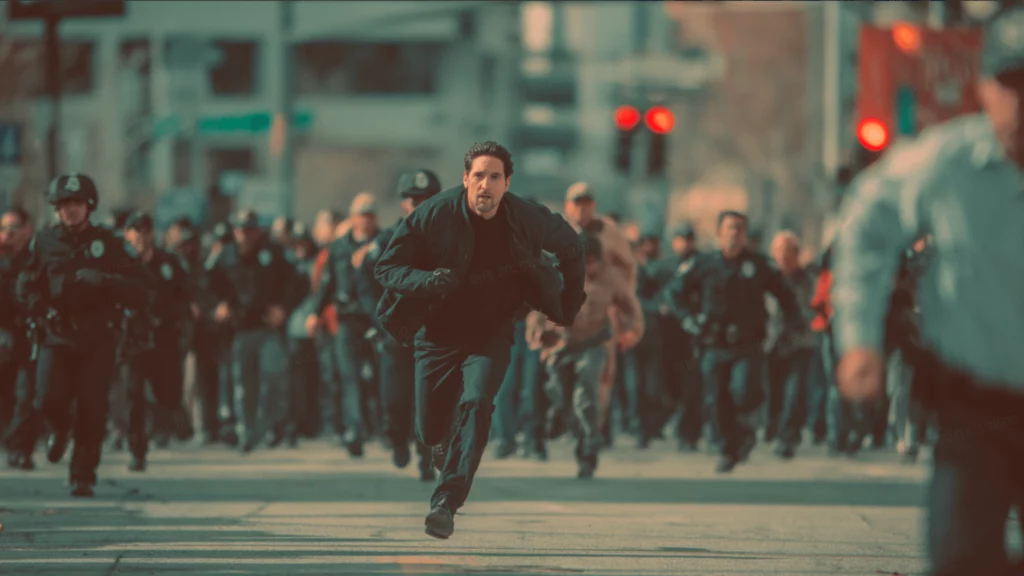
Seedance 2.0 has officially arrived, and it feels like a whole new world for AI creators. I spent the last few days digging through the latest documentation and testing every button. ByteDance didn’t just give us a small update. They rebuilt the engine to give us more control over our stories. In the past, AI video felt like a guessing game. You typed a prompt and hoped for the best. Now, you have a professional console to direct every frame. This manual will walk you through everything you need to know. We are moving from “luck” to “precision” with the best AI video generator 2026 has to offer.
If you are tired of flickering faces or random movements, you are in the right place. The new model understands the relationship between images, videos, and text. It allows you to build a scene layer by layer. You can pick your character, choose the background, and even dictate the camera movement. This is the most complete guide to mastering Seedance 2.0. Let’s dive into the workspace and see how it works.
Understanding the Seedance 2.0 Interface
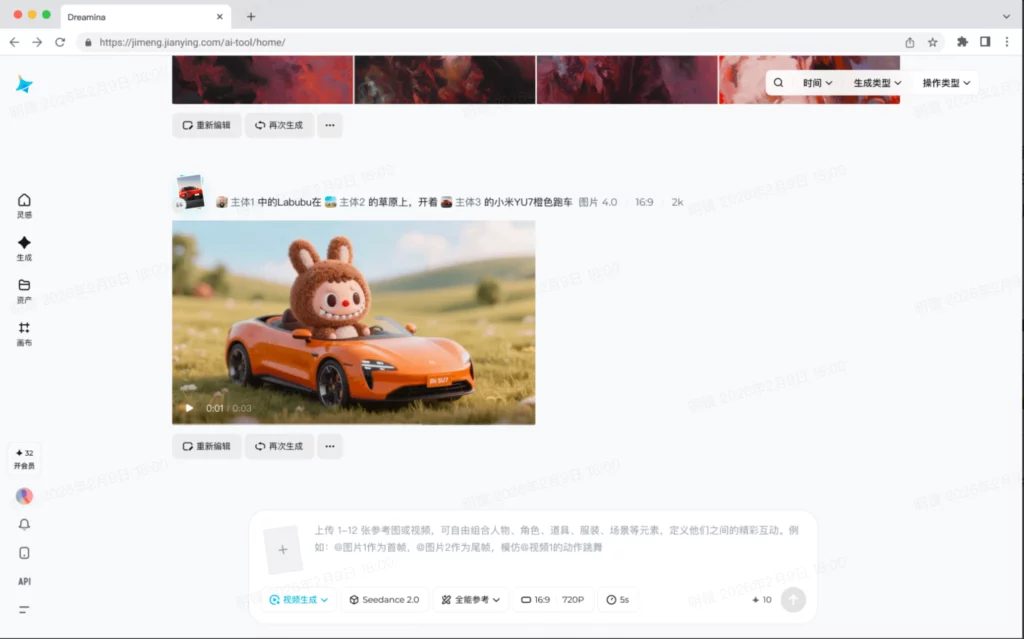
When you first open the tool, the interface looks clean and professional. It is divided into three main areas. On the left, you have your reference panel. This is where the magic happens. In the center, you have your prompt box and settings. On the right, you see your gallery of generated clips. Everything is designed to keep you in the creative flow.
Setting Up Your Workspace
Before you hit “Generate,” you need to choose your basic settings. In the bottom toolbar, you can select your aspect ratio. Common choices are 9:16 for TikTok or 16:9 for YouTube. You can also choose the duration of your clip. The model supports 5-second and 10-second outputs. I recommend starting with 5 seconds for faster testing. Once you are happy with the movement, you can extend the clip later.
The New Reference Panel
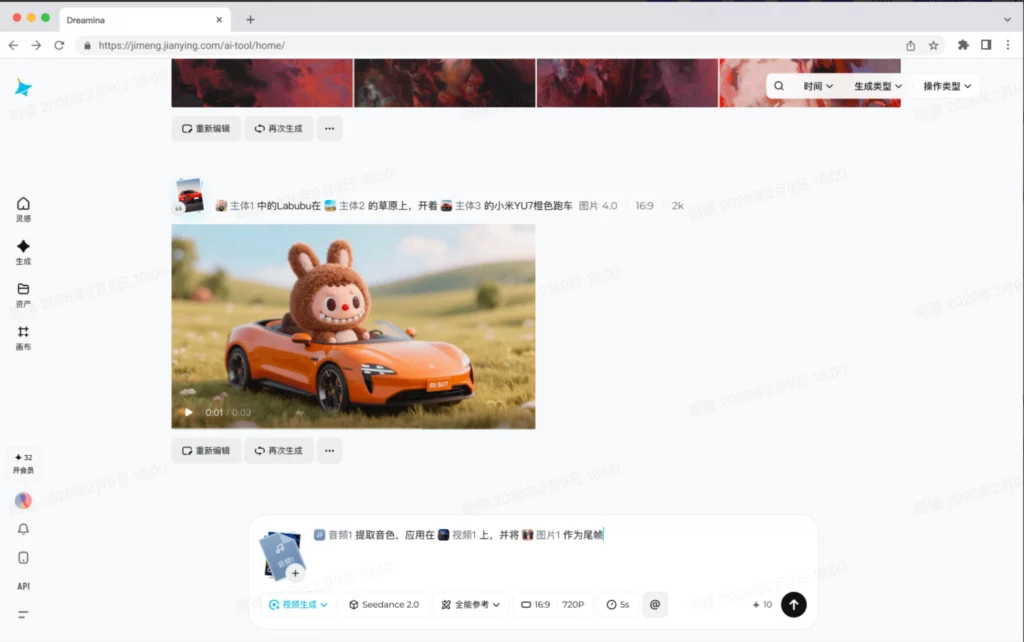
The reference panel is where you upload your “raw materials”. You can upload up to 5 files here. These files are the blueprints for your video. They can be photos of a person, a specific background, or a video of a cool camera move. The interface labels these files automatically as @Image1, @Image2, or @Video1. This makes it very easy to reference them in your text prompt.
Mastering All-Round Reference in Seedance 2.0
The “All-Round Reference” mode is the most powerful feature in this version. It allows you to mix different types of data. You aren’t just limited to “Text-to-Video” anymore. This mode uses multimodal logic to understand what each file represents. It can tell the difference between a character reference and a style reference.
The New @Tag Logic
This is the secret sauce for pro creators. You use @tags in your prompt to talk to the model. For example, you can write: “@Image1 as the first frame, @Image2 as the last frame”. This creates a perfect transition between two photos. You can also use tags to define character identity. Writing “@Image3 is the main character” ensures the face stays consistent throughout the video. It removes the “morphing” issue that plagued older AI models.
Storytelling with Multi-Shot Prompts
Seedance 2.0 is excellent at narrative consistency. You can describe a sequence of shots in one prompt. You might say, “Shot 1 is a wide view of the city. Shot 2 is a close-up of the character from @Image1.” The AI understands that these belong to the same story. This is huge for filmmakers who want to create short films. You don’t have to generate twenty separate clips and hope they match. The AI plans the whole sequence for you.
Technical Details and Resolution Control
Quality is just as important as control. The ByteDance AI video model now supports native 2K resolution. This isn’t just a filter. The AI calculates the pixels at a high density from the start. This makes the textures look incredibly realistic. You can see the fine details in a person’s eyes or the rough texture of a stone wall.
Fine-Tuning Your Video Settings
Inside the settings menu, you can adjust the “Creativity” and “Consistency” sliders. If you want the AI to follow your prompt strictly, turn up the consistency. If you want to see something unexpected, turn up the creativity. I usually keep mine at a 60/40 split for the best results. You also have the option to enable native audio. This generates a soundscape that matches the visual action of your video.
Native Audio and Lip-Sync
One of the most impressive additions is the sound engine. If you have a character speaking, the model can generate realistic lip-sync. It matches the mouth movements to the audio track. Even if there is no speaking, the “Environmental Sound” feature is amazing. It creates the sound of wind, rain, or traffic based on what it sees on the screen. This makes the Seedance 2.0 review scores much higher than competitors like Kling.
Pro Tips for the Best AI Video Generator 2026
Even with the best manual, you need some “insider” tips to stand out. Here are three strategies I use to get viral-quality results every time.
- Use High-Quality References: If your @Image1 is blurry, your video will be blurry. Always use 2K or 4K images as your input. The AI needs a clean source to build a clean video.
- Combine Video and Image Tags: This is a pro move. Upload a photo of a person as @Image1. Upload a video of a person dancing as @Video1. Prompt: “@Image1 performs the dance from @Video1.” This gives you perfect motion with a custom character.
- Iterate Small Changes: Don’t rewrite your whole prompt if you don’t like a result. Just change one word or swap one reference file. The speed of Seedance 2.0 allows you to try ten versions in five minutes.
By following these tips, you can reduce your “wasted” generations. You will find that your “hit rate” goes up significantly. This model is designed to be a partner, so treat it like one. Give it clear instructions and high-quality assets.
Comparing Seedance 2.0 to Kling and Sora
Many creators ask: is Seedance 2.0 better than Kling? In my experience, it depends on what you need. Kling is wonderful for organic, flowing motion. However, Seedance 2.0 wins on character consistency and control. The @tag system is much more advanced than Kling’s current tools.
Why ByteDance Wins on UI
The Feishu manual highlights how intuitive the UI has become. It doesn’t feel like a science experiment anymore. It feels like a video editor. The ability to drag and drop up to 5 reference files is a huge advantage. It allows for complex “remixing” that Sora hasn’t fully opened to the public yet. This makes it the most accessible tool for the average creator in 2026.
Speed vs. Quality
Some models take ten minutes to render a five-second clip. Seedance 2.0 is remarkably fast. You get 2K quality in a fraction of the time. This speed is essential for professional workflows. If you are working on a deadline for a client, you need a tool that can keep up. ByteDance has optimized this model for efficiency without sacrificing the cinematic look.
Final Thoughts: Your Journey with Seedance 2.0
Mastering this tool is about more than just reading a manual. It is about experimentation. The Seedance 2.0 platform is a playground for the imagination. Every day, creators are finding new ways to use the @tag system. They are making everything from movie trailers to personalized ads.
The era of “guessing” with AI is over. We now have the tools to be precise. We can dictate the lighting, the motion, and the sound. The combination of native 2K resolution and All-Round Reference is a massive leap forward. Whether you are a total beginner or a seasoned pro, this model has something for you.
Take your time to explore the different @tag combinations. Upload your favorite photos and see them come to life. The more you use it, the more you will realize that the only limit is your own creativity. The ByteDance AI video model is officially the new standard for 2026.