I recently discovered a secret that changes how we think about AI video. You don’t need an entire gallery of assets to make a movie. In fact, I just finished a 30-second cinematic project using only two photos. The tool that made this possible is Seedance 2.0. ByteDance has created something truly special here. It isn’t just about generating random clips anymore. It is about precision. I realized that by using the right settings, two images can provide enough data for a whole story.
In this guide, I will show you how to stretch your assets. We will turn those two photos into four distinct, high-quality videos. Then, we will stitch them into a professional 30-second film. We will use the latest ByteDance AI video model features to ensure every frame looks perfect. If you want to make a movie but have limited resources, this is for you. Let’s look at how to master the best AI video generator 2026 has to offer.
The Magic of All-Round Reference in Seedance 2.0
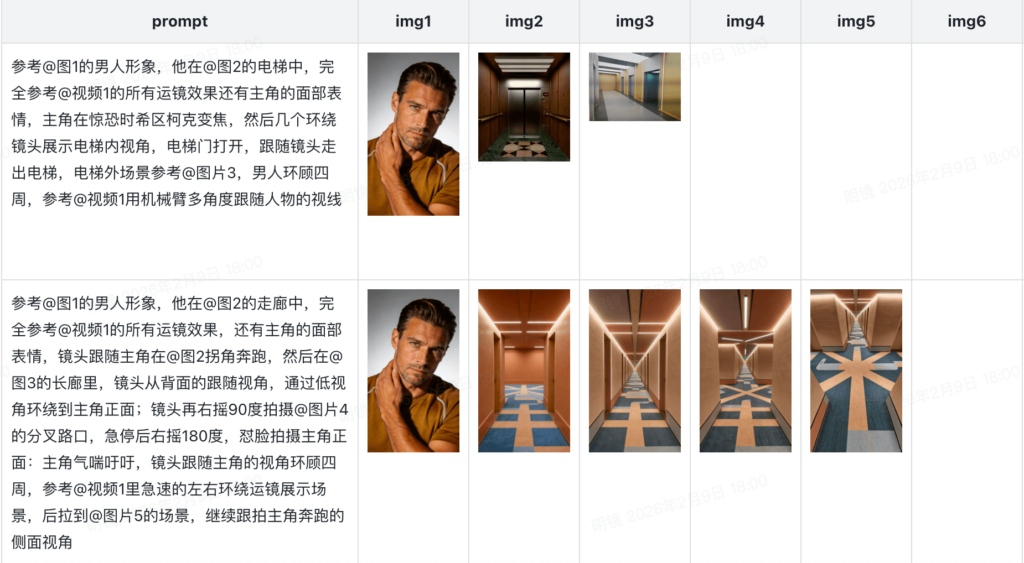
The secret to this workflow is the “All-Round Reference” mode. This is the heart of the new update. In older models, you had to type long prompts and hope for the best. Now, you use @tags to guide the machine. You upload your two photos into the reference panel. The system labels them as @Image1 and @Image2. This allows you to “talk” to your images like they are actors on a set.
Setting the Scene with @Image1
Your first photo should be your “Anchor Image.” This is usually your main character or your primary setting. I used a high-res photo of a woman in a neon city. By tagging this as @Image1, I told the AI to keep her face and clothes the same. Consistency is the most important part of a movie. Without it, your viewers will get confused. Seedance 2.0 handles this better than any other tool I have tried.
Building the Bridge with @Image2
Your second photo acts as the “Destination Image.” It should show a different angle or a change in the environment. For my movie, @Image2 was a close-up of a holographic map. This gave the AI a goal. It knew the story needed to move from the wide city to the tiny map. The model uses these two points to calculate the motion in between. This is the core of the Seedance 2.0 review praise right now.
Turning 2 Photos into 4 Dynamic Scenes
Now, let’s get into the technical part. We have our two photos. How do we get four videos out of them? The trick is to vary your motion references and your text prompts. We will generate four 7.5-second clips to fill our 30-second timeline. Each clip will feel unique but stay consistent.
Shot 1: The Establishing Shot
For the first video, use @Image1 as the first frame. I wanted a slow, cinematic zoom. I typed: “@Image1 as the first frame. The camera slowly zooms into the character’s eyes. Cinematic lighting, 2K resolution.” This gives us a beautiful 7.5-second intro. The ByteDance AI video model creates the motion while keeping every detail of the original photo.
Shot 2: The Action Shift
For the second video, we introduce motion imitation. I uploaded a reference video of someone walking through a crowd. I tagged it as @Video1. My prompt was: “The character from @Image1 walks forward. Follow the motion of @Video1. Rain splashes on the ground. 2K sharpness.” Now we have our second 7.5-second clip. The character is moving, but she still looks exactly like @Image1.
Shot 3: The Narrative Pivot
This is where we use @Image2. I wanted to show the character looking at the map. I used @Image1 and @Image2 together. The prompt said: “@Image1 is the starting point. The camera pans down to @Image2 on the character’s hand. 2K detail, soft blue glow.” The AI filled in the movement between the two photos. This creates a perfect transition that feels hand-edited.
Shot 4: The Dramatic Close-up
For the final 7.5 seconds, I focused on the map itself. I used @Image2 as the main reference. I added native audio cues here. My prompt was: “@Image2 is the subject. The holographic light flickers. Add a low digital hum sound. 2K resolution.” The AI generated the glowing light and the sound effect at the same time. This brings the total footage to 30 seconds.
Why Seedance 2.0 Motion Imitation Matters
You might ask why we don’t just use four different photos. The answer is simplicity and flow. When you use the same image as a base, the colors match. The lighting matches. The “soul” of the video stays the same. Seedance 2.0 uses a Dual-branch Diffusion Transformer to ensure this. It processes the identity of the image separately from the motion.
The Power of Native 2K Detail
Because we are making a “movie,” resolution is king. Most AI videos look blurry when you put them on a big screen. But Seedance 2.0 generates in native 2K. Every shot we created has sharp edges and realistic textures. You can see the rain on the jacket. You can see the light in the eyes. This is why people call it the best AI video generator 2026. It saves you hours of upscaling in other apps.
Native Audio and Emotional Impact
A movie is nothing without sound. The fourth shot in our project had a “digital hum.” The AI created this sound to match the flicker of the hologram. In the Seedance vs Kling AI debate, this is a huge win for Seedance. Kling is great at motion, but it is silent. Seedance creates a full sensory experience. When you stitch these 4 clips together, the audio flows naturally. It feels like a real production.
Editing the Final Masterpiece
Once you have your four clips, the work is almost done. You just need to put them together. You can use any basic editor for this. But since you used Seedance 2.0, your clips are already the same resolution. They have the same frame rate. They have the same lighting. This makes the editing process incredibly fast.
Seamless Transitions with @Tags
If you followed my @tag method, your shots will naturally connect. Shot 2 ends where Shot 3 begins. This is called “match cutting.” It is a professional film technique. Usually, it takes years to learn. With Seedance 2.0, it happens because the AI understands the spatial relationship between your images. It builds the “connective tissue” between @Image1 and @Image2.
Final Color Grading and Sound
I usually add a light color filter at the end. This helps “glue” the shots together even more. I also add a 30-second music track. Since the AI already gave us ambient sounds, the music sits on top perfectly. The result is a 30-second cinematic film that looks like it took weeks to shoot. In reality, it took two photos and about 20 minutes of rendering time.
Advanced Tricks for 2-Photo Movies
If you want to take this further, you can use the 12-file reference system. You can upload multiple angles of the same character. This gives the AI even more data to work with. But for most creators, the 2-photo method is the “sweet spot.” It is fast, efficient, and very high-quality.
- Tip 1: Use Contrast. Pick two photos with different lighting. This makes the transition in Shot 3 look more dramatic.
- Tip 2: Verb Power. Use strong verbs in your prompts. Use words like “shatters,” “soars,” or “collides.” The ByteDance AI video model responds well to energy.
- Tip 3: Audio Cues. Don’t forget to describe the sounds. A movie is 50% what you hear.
These small details are what make a Seedance 2.0 review positive. The tool gives you the power. You just have to learn how to use the @tags correctly. Once you do, you can make a movie out of anything. A photo of your cat and a photo of a park can become an epic adventure.
Final Thoughts on the Seedance 2.0 Workflow
The launch of Seedance 2.0 today is a gift to creators. We are no longer limited by our gear. We are only limited by our ideas. The ability to turn 2 photos into a 30-second cinematic experience is a superpower. It allows us to tell stories that were impossible a year ago.
This workflow is the future of content. It is efficient. It is high-quality. And it is accessible to everyone. You don’t need a film degree. You just need to understand the relationship between @Image1 and @Image2. ByteDance has done the heavy lifting. Now, it is your turn to be the director.
I hope this manual helps you start your first project. Take two photos today. Run them through the 4-shot method. You will be amazed at what you can create. The best AI video generator 2026 is here, and it is ready for your vision.