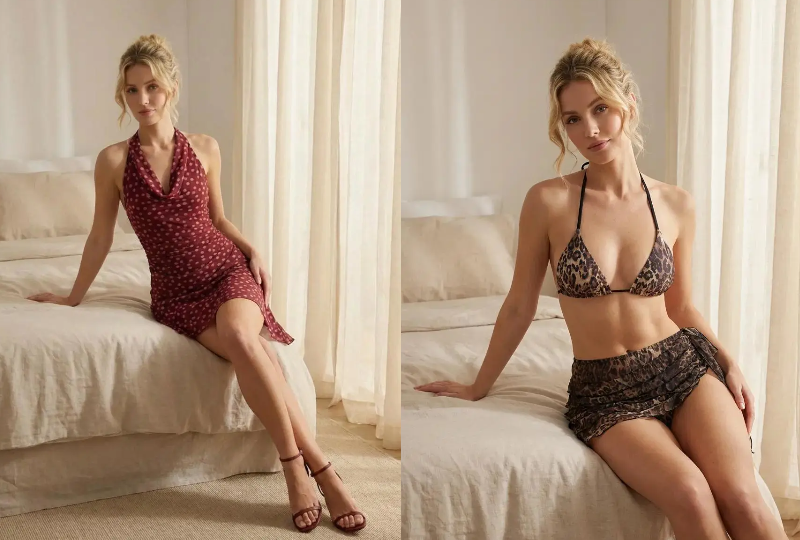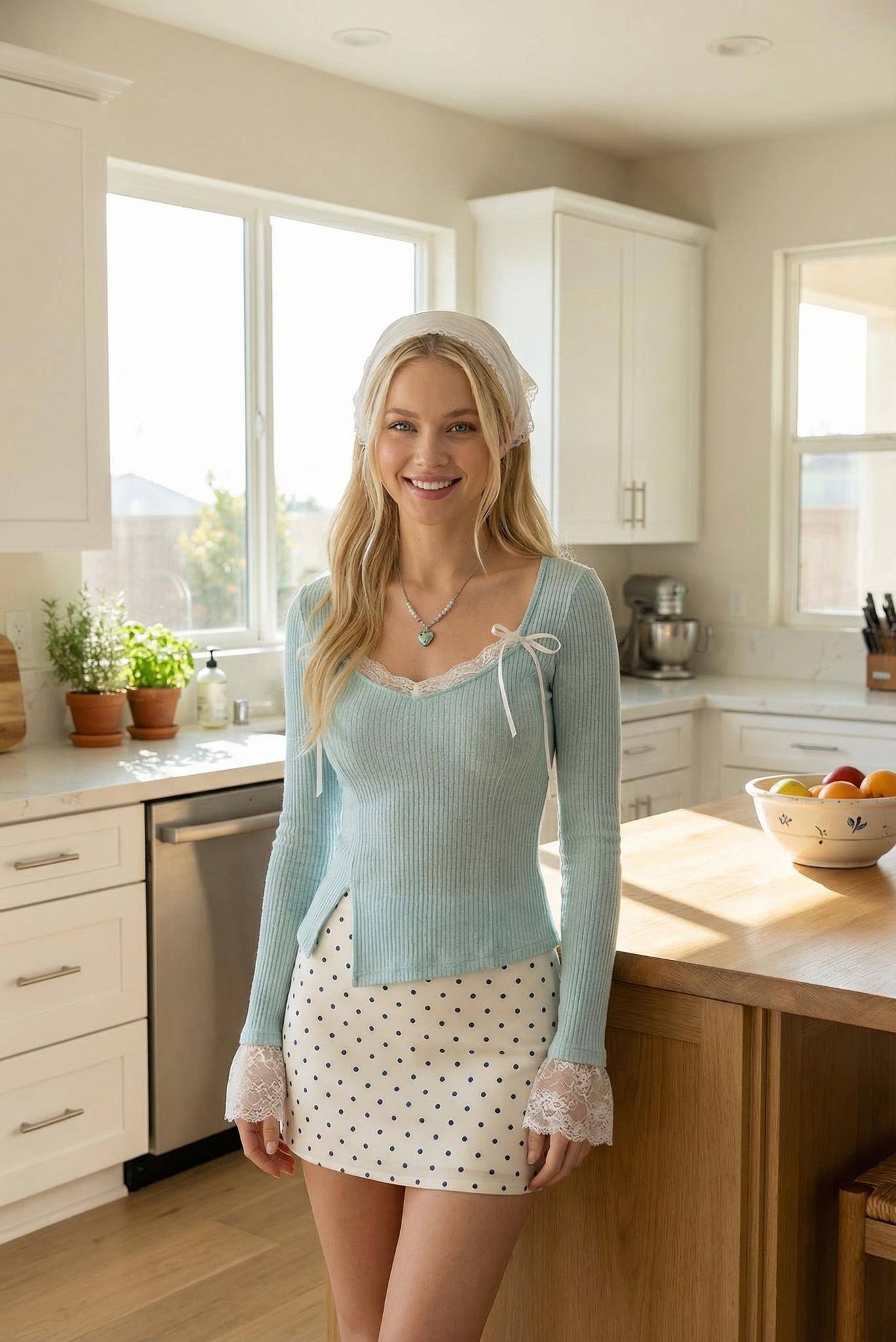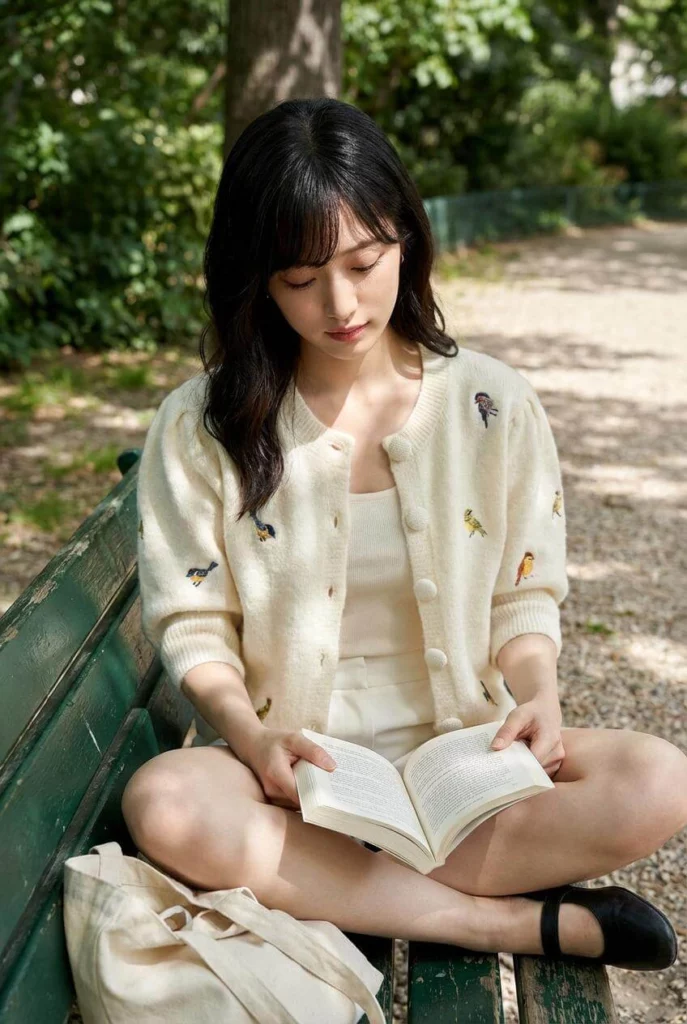
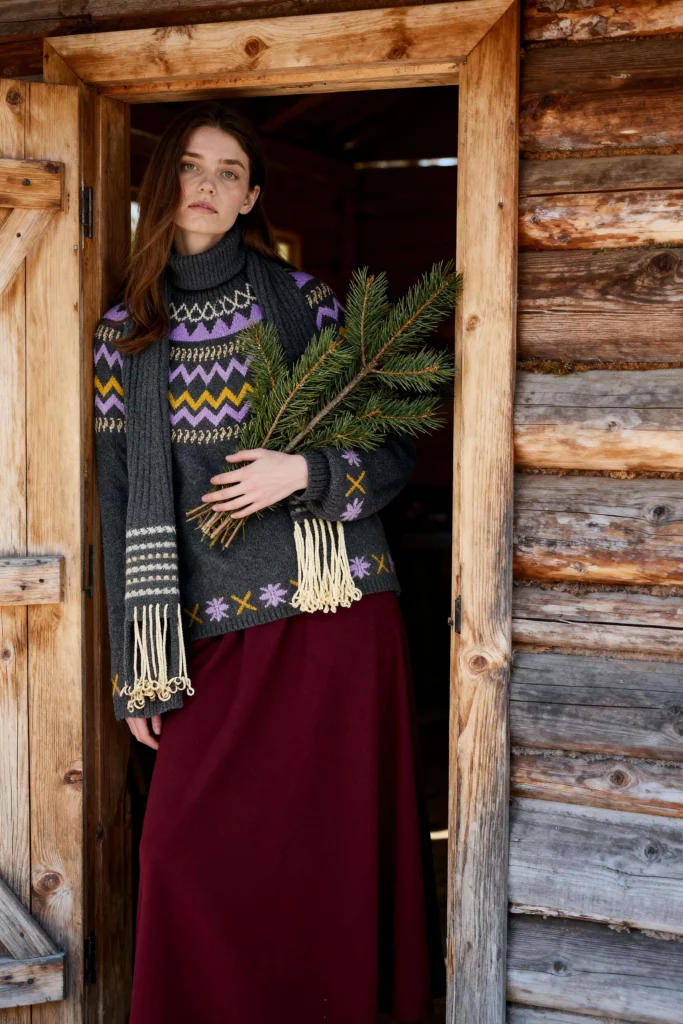
Ever tried to dress a digital model and realized you could only upload one file? It is a common hurdle for many creators. You have a great top, the perfect pants, and a matching bag. You want to see them all together. However, most platforms seem to ask for one item at a time. The good news is that you can achieve a full-body virtual try-on with just one image. You just need to know how to prep your file and talk to the AI.
The Struggle with Multi-Item Virtual Try-On
Many people start their digital fashion journey by uploading a single shirt. That works fine. But fashion is about the whole look. A “complete look” usually involves at least three elements: a top, a bottom, and an accessory. If you upload them separately, the AI might get confused. It might replace the pants when you try to add the bag.
This is a common limitation in the world of virtual try-on technology. Most systems are built to recognize one primary garment. They look for “the item” to place on the model. When you give them three separate files, they often prioritize the largest one. To get around this, we have to change our approach. We need to present all items as a single “set.”
Why Traditional Methods Often Fail
If you try to “layer” images one by one, you often get glitches. The AI might blur the edges of the shirt into the pants. Or, the bag might look like it is floating in mid-air. This happens because the AI recreates the model for every new upload. It does not always remember what the model was wearing in the previous step.
The Benefit of the “One-Image” Strategy
By putting everything in one image, you provide a single source of truth. The AI sees the color of the top and the texture of the pants at once. It understands the scale of the bag relative to the clothes. This results in a much more realistic virtual try-on experience. It also saves you a lot of time.
Prepping Your “Master Image” for Virtual Try-On
Since the platform only accepts one upload, that image has to be perfect. You cannot just throw three photos together and hope for the best. You need to create a “composite image” or a “flat lay” that includes everything. Think of it as a mood board for your AI model.
Creating a Clean Composite Layout
Open a simple design tool like Canva or even a basic photo editor. Create a square canvas. Place your top in the upper left, your pants in the middle, and your bag in the bottom right. Do not let the items overlap.
The AI needs to see the “silhouette” of each piece. If the bag covers the waistband of the pants, the AI might get confused. It might think the bag is part of the trousers. Keep a bit of white space between each item. This is the secret to a successful virtual try-on for multiple items.
Quality Matters: Lighting and Resolution
Use high-quality photos for each item. If your pants are blurry but your top is sharp, the final result will look strange. Try to use photos with similar lighting. If the top was shot in bright sunlight and the bag in a dark room, the AI will struggle. It will try to blend these different lighting styles on one model. This often leads to “muddy” or unrealistic textures.
Choosing the Right Background
Always use a plain, neutral background for your items. White or light gray works best. Busy backgrounds distract the AI. If your items are on a cluttered floor, the AI might try to put the floor patterns on the model’s skin. A clean background ensures the virtual try-on tool focuses only on the clothes.
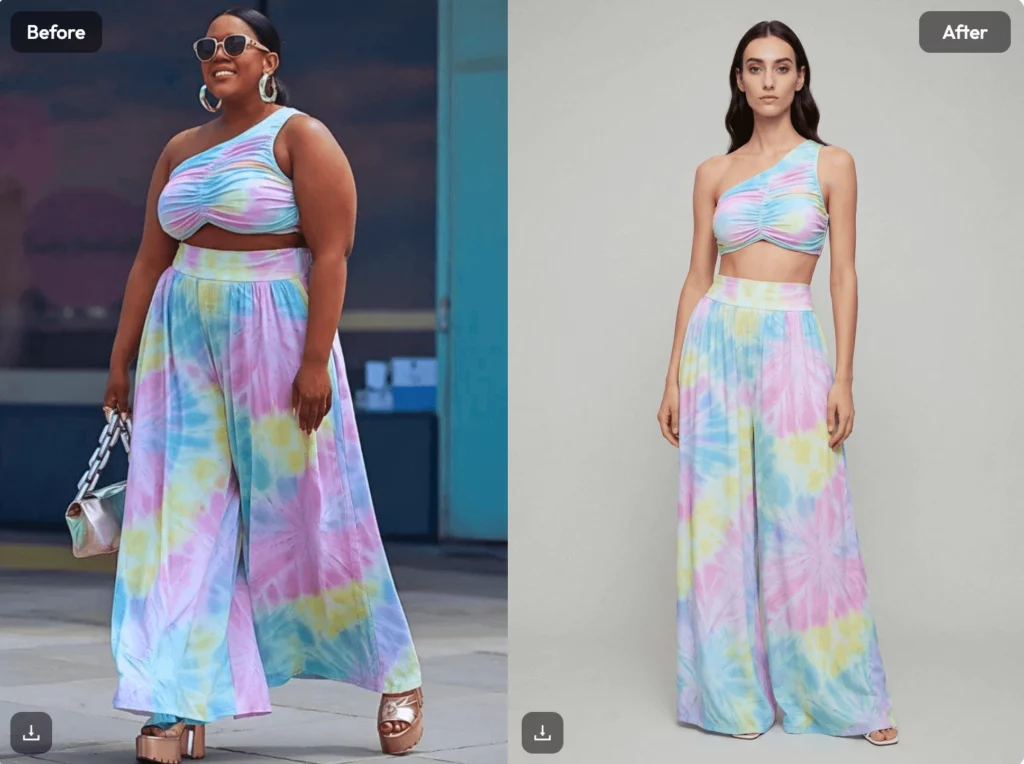
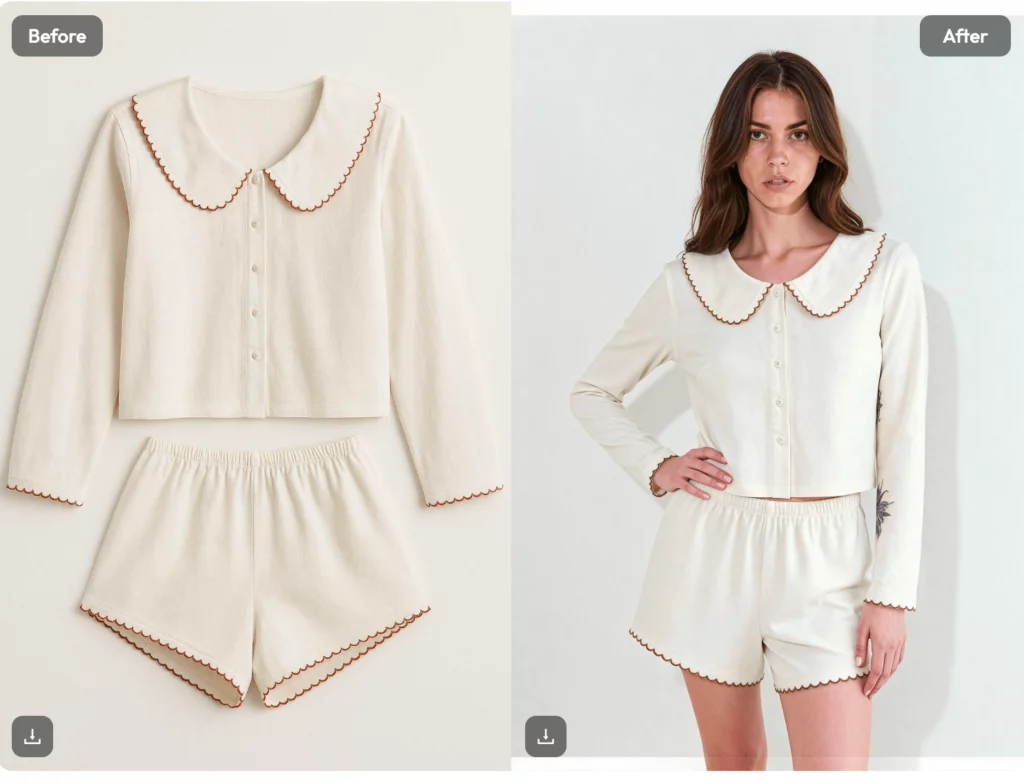
Mastering the Virtual Try-On Command Logic
Once your image is ready, the next step is the command. This is where many users fail. They upload the image but don’t tell the AI how to use it. You need to be specific. You are the stylist, and the AI is your assistant.
Writing Prompts that AI Understands
Don’t just say “dress the model in this.” Instead, list the items clearly.
- Bad Prompt: “Put these clothes on the girl.”
- Good Prompt: “Dress the model in the white silk top, the black tailored pants, and the leather handbag from the image.”
By naming each item, you help the AI map the “Top” in your image to the “Top” of the model. This simple step makes the virtual try-on much more accurate.
Explaining the Fit
You can also add details about how the items should be worn. Do you want the top tucked in? Should the model hold the bag or wear it over the shoulder?
- Example: “Dress the model in the blue blouse tucked into the denim jeans. The model should be holding the brown tote bag.”
These details give the AI clear instructions. It prevents the AI from making random guesses that might ruin your look.
Why Accuracy Matters in Virtual Try-On
If you are using these images for a shop or a blog, accuracy is everything. A glitchy image looks unprofessional. It can drive customers away. People use virtual try-on to build trust in a product. They want to see how a “total look” actually flows together.
Handling Accessories Correctly
Bags and jewelry are often the hardest part of a virtual try-on. They are small and have complex shapes. If you include a bag, make sure its handle is clearly visible in your upload. If the AI can see the handle, it knows where the model’s hand should go.
Checking the Proportions
Sometimes the AI might make the bag too big or the pants too short. This usually happens if your source image has weird proportions. Make sure your “master image” looks balanced. If the bag in your photo is bigger than the pants, the AI might scale it up. Keep the items roughly the same size as they would be in real life.
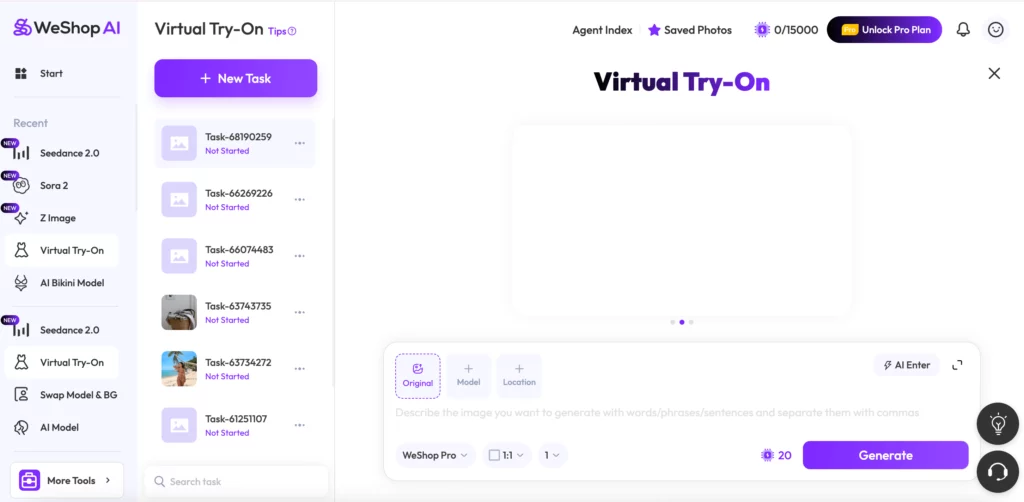
Streamlining Your Workflow with WeShop AI
If you are looking for a tool that handles these complex tasks easily, check out WeShop AI. It is designed for professional-grade fashion tasks. Their virtual try-on feature is specifically optimized for high-quality e-commerce needs.
The platform is very intuitive. You can upload your composite image and use the prompt tips we discussed above. It excels at maintaining fabric textures and realistic shadows. This is crucial when you are trying to combine three different items into one cohesive image.
How to Use WeShop AI for Multi-Item Looks
- Prepare your image: Combine your top, pants, and bag into one clean file.
- Upload: Go to the WeShop AI tool.
- Command: Use a clear, descriptive prompt to identify each item.
- Refine: If the first result isn’t perfect, tweak your description and try again.
Conclusion: Your Digital Studio
Creating a full outfit with one image is not magic. It is just about being organized. By prepping a clean “master image” and writing clear commands, you can master the virtual try-on process. You no longer have to settle for one item at a time. You can build entire collections and showcase “total looks” with ease.
This method saves time and produces better results. It allows you to act as a true digital stylist. Whether you are a creator or a shop owner, these tips will help you stand out. Ready to see your favorite outfit on a model? Give these steps a try today!