












MiniMax H3 Video to Video: Character Swap Guide
Learn how to use MiniMax H3 video to video to replace a character while preserving the original motion, framing, lighting, and scene. This practical guide covers source-video preparation, composite character references, an optimized prompt, and consistency checks for social content, campaign previews, and creative production.
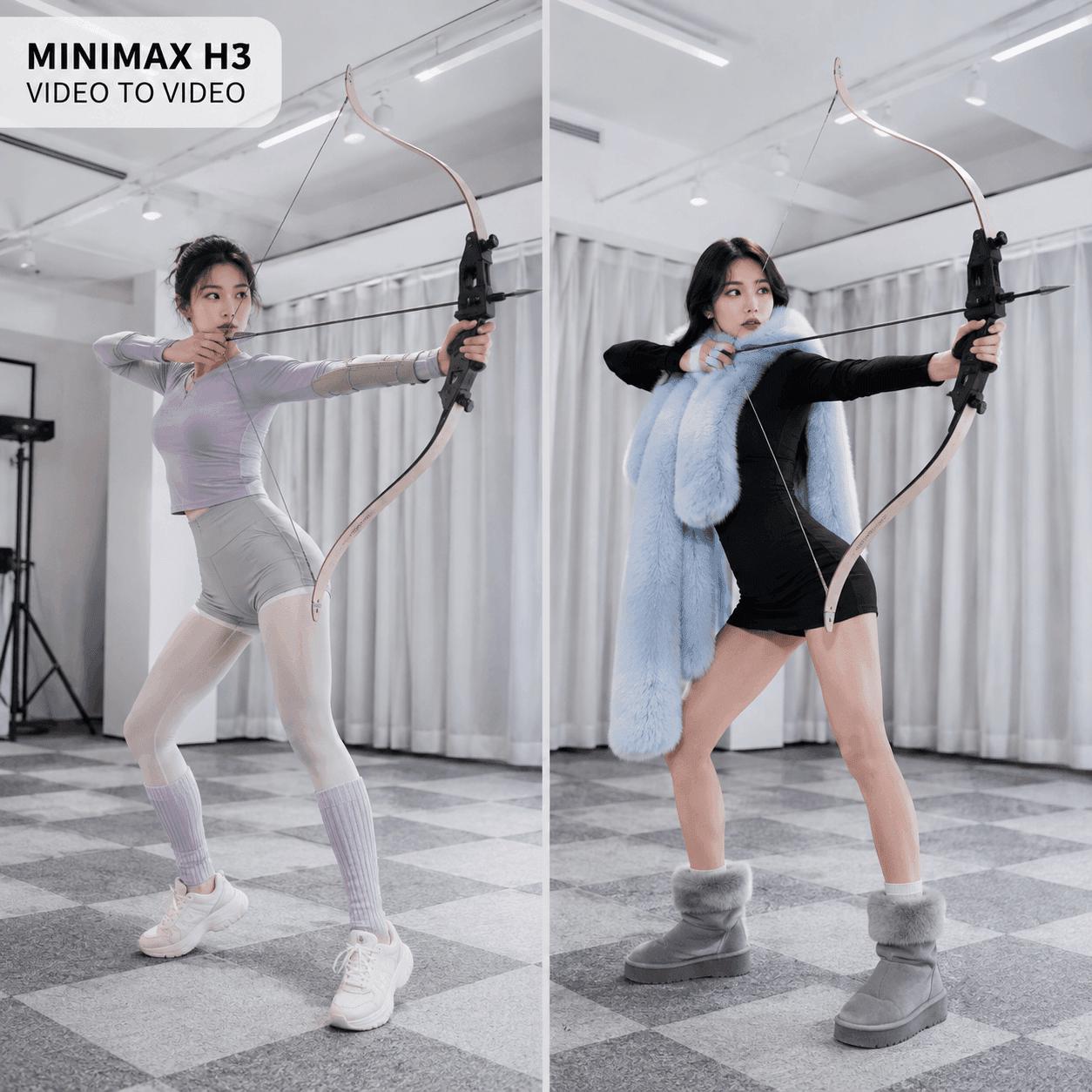
MiniMax H3 Video to Video: Recreate a Character Swap from Reference Images
MiniMax H3 video to video lets creative teams replace a character while keeping the motion, framing, and rhythm of an existing clip. Instead of animating a new performance from zero, you can combine a source video, a character reference, and a precise replacement prompt.
This guide follows a public case with two inputs. Video 1 is a vertical action clip of a female archer. Image 1 is a composite reference showing a new character from the front, back, and close-up. The goal is to change the performer while preserving the choreography, bow, camera, background, lighting, and timing.
Final MiniMax H3 character replacement result
Why This MiniMax H3 Video to Video Case Works
A full character replacement is harder than a face swap. The model may need to rebuild the face, hair, outfit, and body across every frame while preserving the original performance.
This case is a strong MiniMax H3 video to video test because the performer turns, crosses her arms, and moves a large bow in front of her body. Those actions create difficult tracking and occlusion, making MiniMax H3 video to video useful for evaluating reference control. The workflow gives each input one clear role:
| Input | Controls | Must remain stable |
|---|---|---|
| Video 1 | Motion and scene | Action, timing, camera, bow, background, lighting |
| Image 1 | New identity | Face, hair, outfit, colors, proportions |
| Prompt | Reference relationship | Only the performer changes |
Video 1 — Source performance
Prepare a Better Character Reference
For MiniMax H3 video to video, the case uses one image containing three views, not three separate uploads. The front view defines the silhouette and outfit. The back view explains the hair and clothing during turns. Meanwhile, the close-up strengthens facial identity.
For your own MiniMax H3 video to video project, use a clean background and consistent styling. Do not mix different hairstyles, accessories, colors, or faces. Keep every view large and unobstructed.
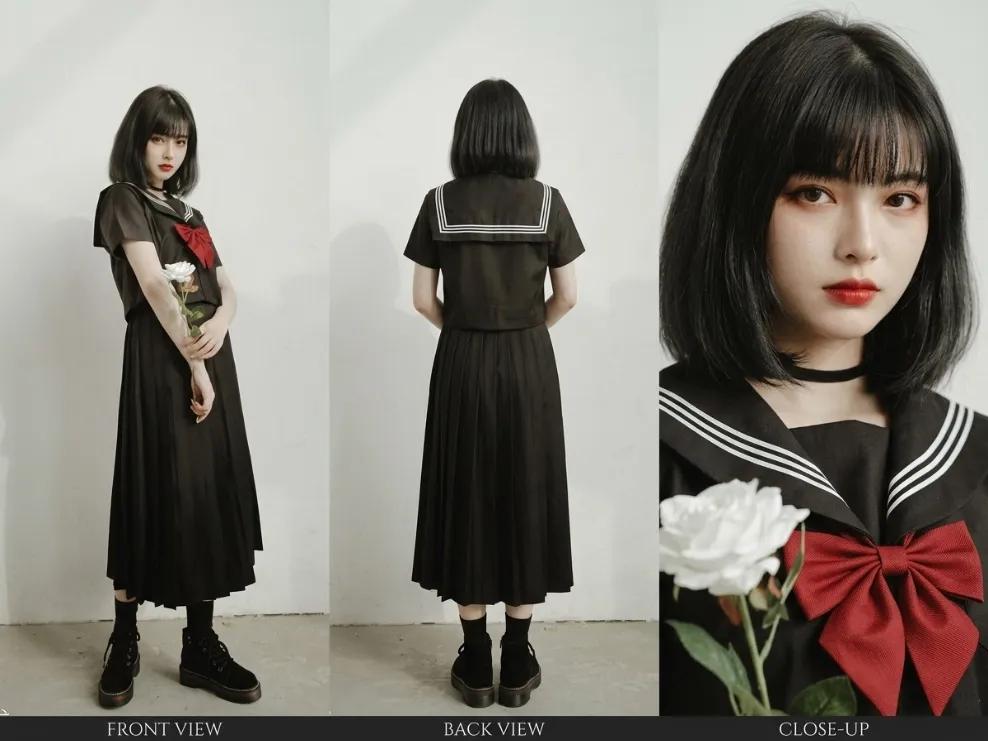
Image 1 — Composite character reference
How to Use MiniMax H3 Video to Video in WeShop AI
This MiniMax H3 video to video workflow needs one master clip, one character board, and one focused instruction. Before starting, confirm that you have permission to use the performance and character identity.
1. Prepare Video 1
For MiniMax H3 video to video, choose a clear clip with one visible performer and a stable background. Trim it to a duration supported by the current interface. If the full clip is too long, keep the strongest continuous action.
2. Build Image 1
A MiniMax H3 video to video reference works best when the front, back, and facial views share one clean canvas. Use consistent scale, lighting, clothing, and hair. This file becomes Image 1 in the prompt.
3. Add the References in WeShop AI
In this MiniMax H3 video to video setup, open MiniMax H3 in WeShop AI. Add the action clip as Video 1 and the character board as Image 1 through the available reference inputs. Make sure the input order matches the labels used in your prompt.
MiniMax H3 Video to Video Prompt for Character Replacement
Use <Video_1> as the master performance and scene. Replace only the female archer with the character shown in <Image_1>.

Match the new character's face, short black hair, outfit, colors, body proportions, and visible design details to <Image_1> throughout the clip. Use its front, back, and close-up views as one identity reference.

Inherit the original performer's movement, position, pose, rotation, speed, and timing frame by frame. Preserve the bow, arrows, background, camera path, framing, focus, motion blur, lighting, shadows, and original edit from <Video_1>.

Maintain correct occlusion when the hands, arms, bow, or arrow pass in front of the body. Keep the face, hair, clothing, hands, and body shape consistent. Do not add new movement, objects, cuts, text, accessories, or camera motion.
This prompt makes the target explicit. It also separates identity, motion, scene preservation, and quality controls. Therefore, it is clearer than repeatedly calling the performer a “target object.”
4. Generate and Review the Base Result
Run the MiniMax H3 video to video generation and watch the full clip at normal speed. Then inspect the difficult frames. Check turns, crossed arms, the bow grip, and every moment when the weapon covers the body.
MiniMax H3 video to video responds better when you correct one major problem at a time. If the outfit changes, strengthen the identity instruction. If the bow changes, state that it belongs to Video 1 and must remain untouched.
|
Before: Video 1 |
After: MiniMax H3 character swap |
Improve MiniMax H3 Video to Video Consistency
A long prompt cannot repair weak references. Keep the replacement character reasonably close to the source performer’s proportions. Also provide every view revealed by the action. A front portrait alone is not enough when the performer turns away.
Separate what changes from what stays. Here, the person changes, but the bow, camera, curtains, floor, lighting, and choreography remain. Review these areas before publishing:
- Facial identity during profile angles
- Hair and outfit during fast movement
- Hands gripping or crossing the bow
- Occlusion around the weapon and body
- Background and camera stability
- Flicker, texture drift, extra objects, or new cuts
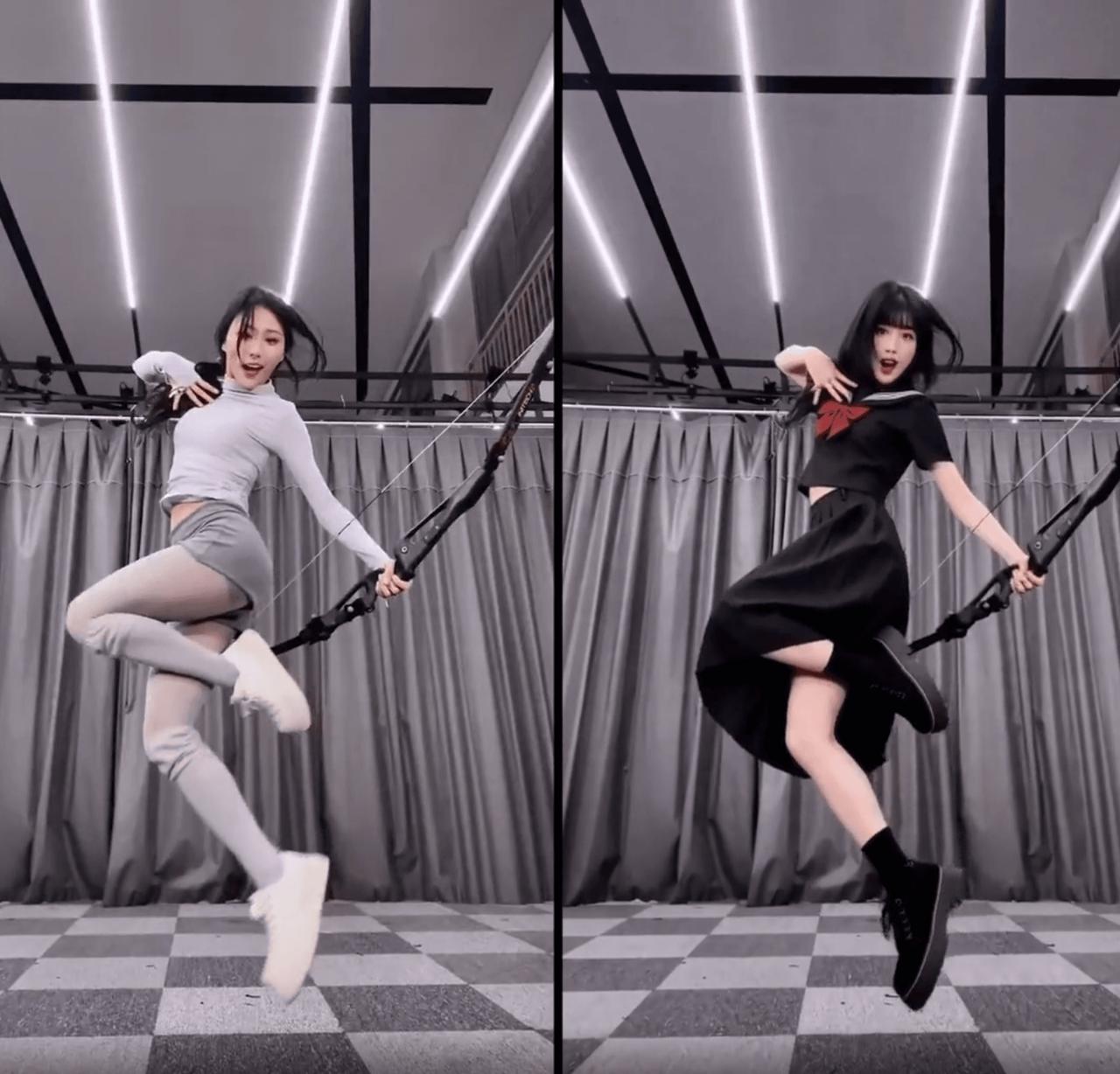
Commercial Uses for Character Replacement
MiniMax H3 video to video can support authorized game-character promos, mascot videos, storyboards, and campaign previews. Because MiniMax H3 video to video inherits a known performance, creative teams can test how a designed character moves before committing to animation or a live shoot.
However, do not use character replacement for impersonation or unauthorized endorsements. Use performances, faces, voices, and designs that you own or have permission to use. For client work, keep the approvals with the project record.
Create Your Own MiniMax H3 Video to Video Test
This case works because every reference has a defined role. Video 1 controls the performance and scene. Image 1 controls the new identity. The prompt explains how they work together. A controlled MiniMax H3 video to video test starts with this separation.
With WeShop AI, bring those materials into one MiniMax H3 video to video workflow. Start with a licensed performance, a clean character board, and one precise replacement task. Review difficult motion first. Then create social clips, ads, campaign previews, or character content.