









MiniMax H3 AI Model Swap: Replace Fashion Models with XL–XXXL Models in Video
Learn how to use MiniMax H3 to replace a fashion video character with an XL–XXXL model reference while retaining the source clip’s movement, framing, and scene flow.
Provides the original posing, movement, camera framing, handbag interaction, and indoor scene.
Replaces the on-screen character with the supplied XL–XXXL reference model.
What You Need for a Plus-Size AI Model Swap
The source video supplies the motion and composition. In this example, the model adjusts her sunglasses, holds a handbag, and changes poses inside a bright dressing room.
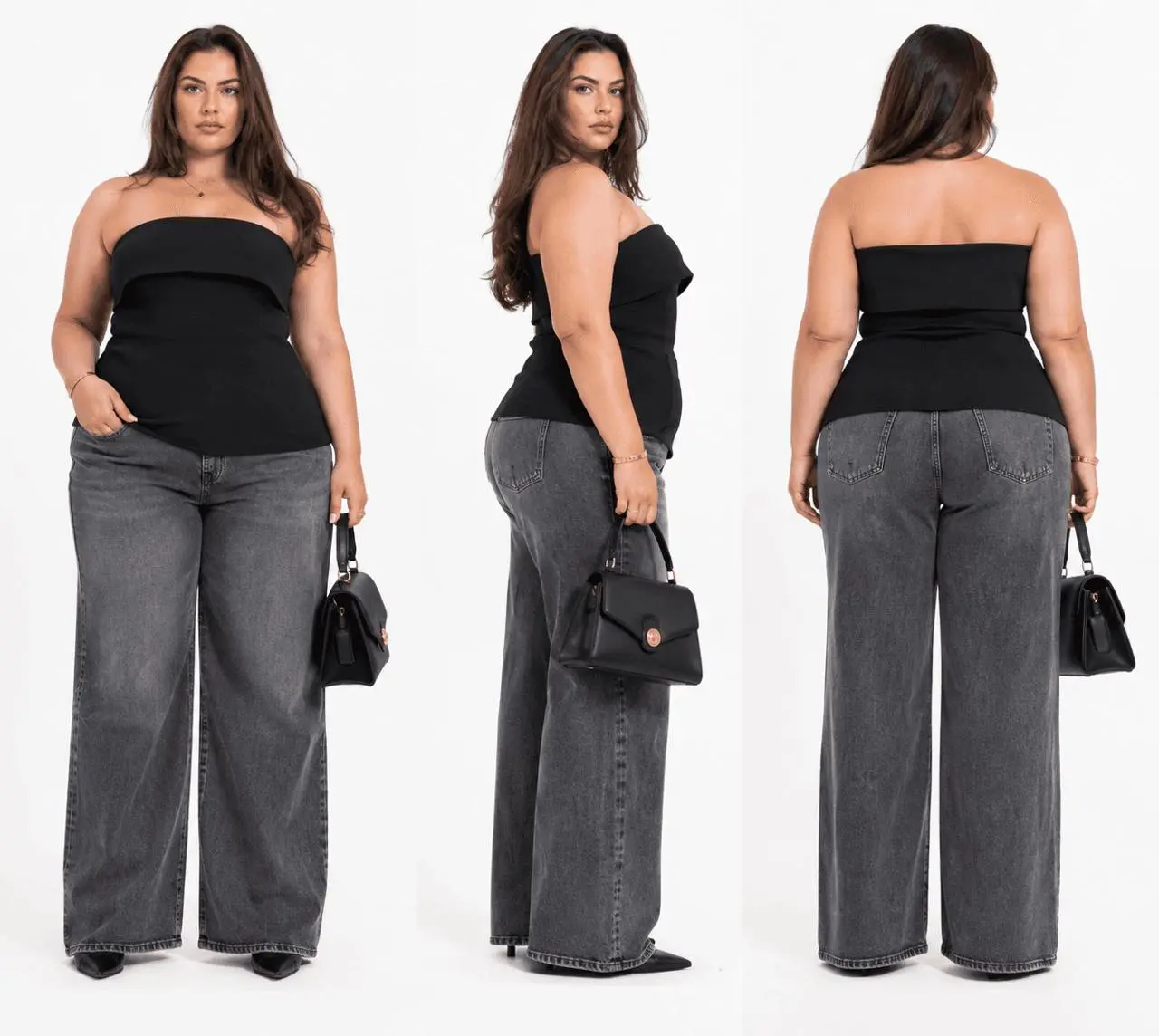
The target reference shows the plus-size model from the front, side, and back. These views give MiniMax H3 more visual information about her face, hairstyle, silhouette, and body proportions than a face-only portrait would provide.
Step 1: Upload the Source Fashion Video
Open MiniMax H3 on WeShop AI and upload the fashion clip as video 1.
Choose a source in which the main character remains easy to see. Heavy occlusion, fast cuts, or multiple people can make it harder to maintain a consistent replacement. The source clip should already contain the movement, shot composition, and scene you want to reuse.
Step 2: Upload the XL–XXXL Model Reference
Upload the three-view model image as image 1. This tells MiniMax H3 which character should replace the person in the video.
For a body-type change, use a full-body reference rather than only a headshot. A strong reference should have:
- a clearly visible face;
- an unobstructed full-body view;
- readable body proportions;
- a simple background;
- no additional people.
When available, front, side, and back views provide useful information for turns and pose changes. Keep all views visually consistent so the model is not asked to combine conflicting identities or proportions.
Step 3: Enter the MiniMax H3 Character-Replacement Prompt
Use this concise prompt:
The asset references perform two different jobs:
@{video 1}identifies the video whose character will be changed.@{image 1}identifies the target XL–XXXL model.
Because the source video already contains the action and camera information, the prompt can stay focused on the character replacement. Add extra instructions only when you have a specific element that must change or remain stable.
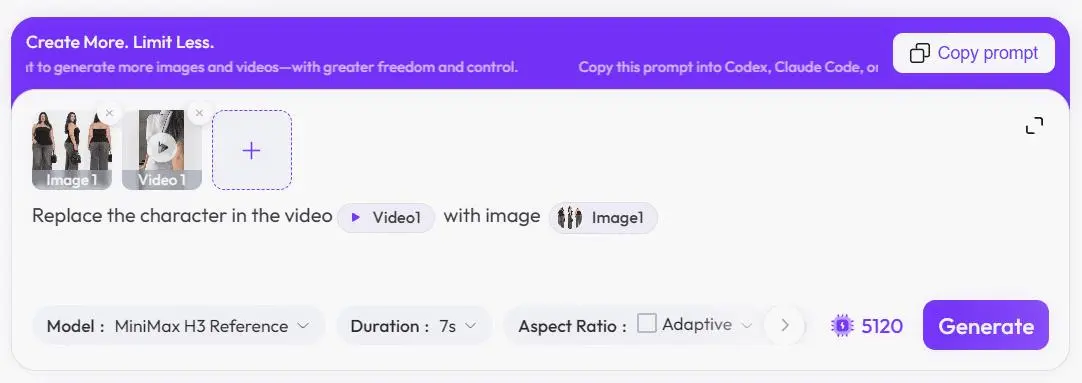
Step 4: Generate and Review the XL–XXXL Fashion Video
Run the generation, then review the result at normal speed and frame by frame around difficult movements.
You can try it directly using the tool on the right.
Turn One Fashion Concept into a More Inclusive Visual
An existing fashion clip no longer has to remain tied to a single model presentation. With one authorized video, a clear full-body reference, and a direct prompt, MiniMax H3 gives creative teams a practical way to explore an XL–XXXL version of the same visual idea.
Use only source videos and character images you have permission to edit, and disclose AI-generated media where appropriate.
You can try it directly using the tool on the right.