







How to Create a 15-Second AI Fashion Video from Two Reference Images
Learn how to use atmosphere and character reference images with WeShop MiniMax H3 to generate a 15-second cinematic AI fashion video.
This tutorial shows fashion brands, ecommerce sellers, creative teams, and content creators how to use two reference images to produce a cinematic AI fashion video with a consistent character and visual direction.
One image establishes the atmosphere, lighting, and film treatment. The other defines the model’s appearance and outfit. Together with a structured prompt, they provide the visual foundation for a 15-second horizontal fashion commercial.
- Input: One atmosphere reference, one character reference, and a video prompt
- Tool: WeShop MiniMax H3
- Output: A 15-second, 16:9 AI fashion video
- Case basis: Two supplied reference images, the generation prompt, and the resulting video
This case documents one generation result. Different inputs or later generations may not produce identical details.
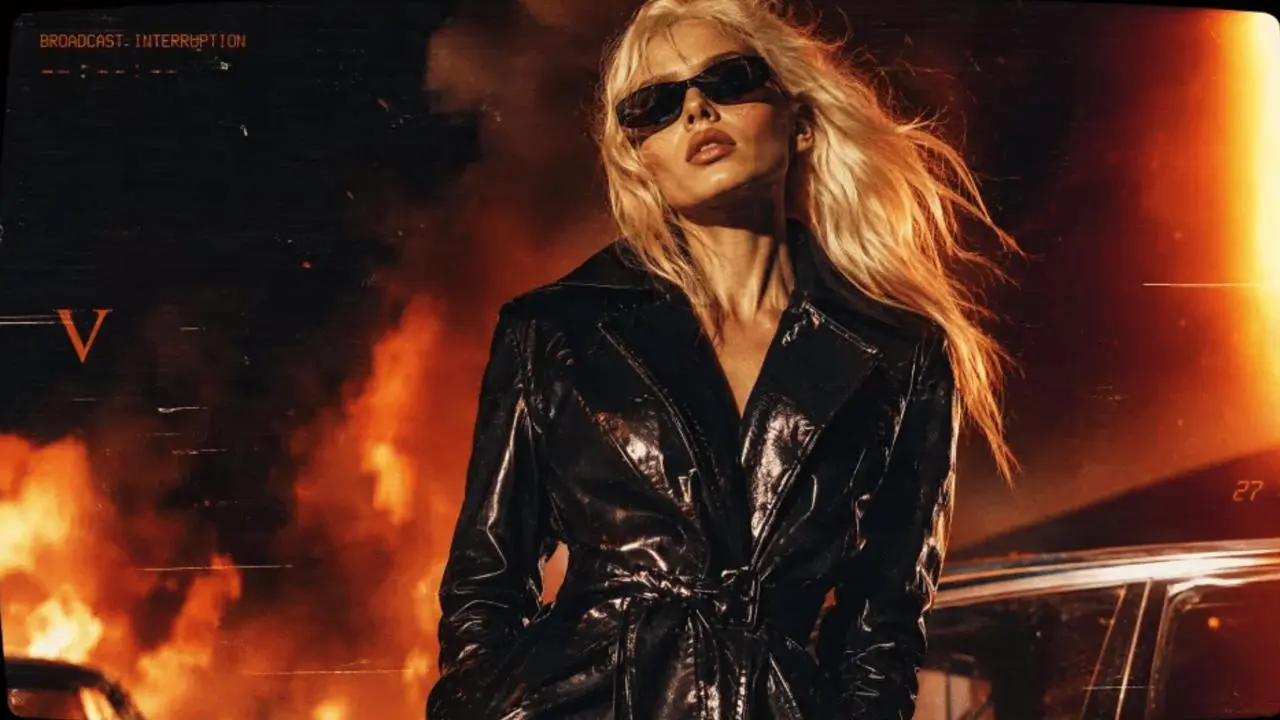
Blonde fashion model in a glossy black coat standing in front of an orange nighttime fire
|
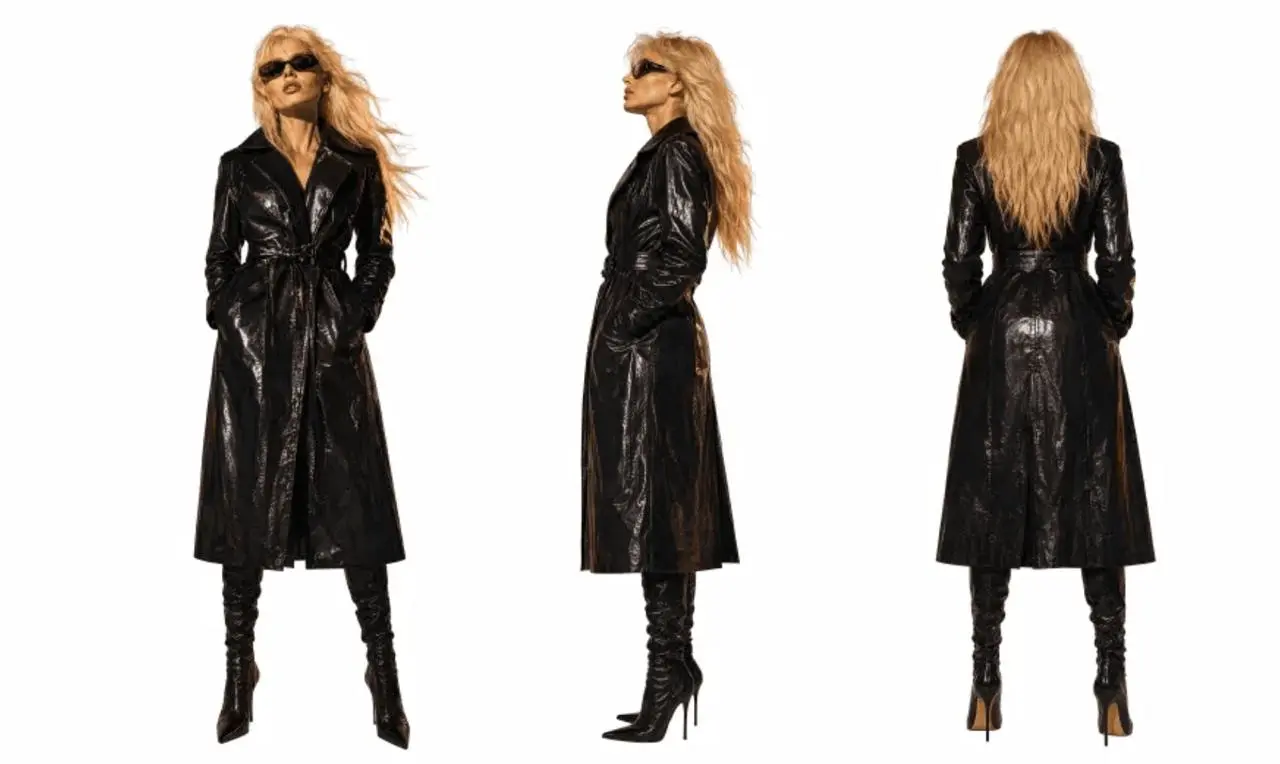
Front, side, and back reference views of a blonde model wearing a glossy black trench coat
|
Step 1: Prepare Two Reference Images with Different Roles
Avoid using two reference images that communicate the same information. For this AI fashion video workflow, each image should have a clearly defined purpose.
Use Image 1 to Control the Mood and Visual Style
The first reference establishes the overall art direction:
- A nighttime fire scene with black smoke
- Orange-red flames and high-contrast lighting
- Warm reflections across glossy black patent leather
- Analog film grain and subtle image damage
- Broadcast-interruption or surveillance-style graphics
- A cold, dangerous, editorial fashion-ad composition
This image should communicate how the final video feels, rather than define every detail of the character.
Use Image 2 to Support Character Consistency
The second reference shows the character from the front, side, and back. It provides recognizable visual anchors for the AI fashion video generator:
- Long platinum-blonde hair
- Narrow black retro sunglasses
- A glossy black patent-leather trench coat
- A belted waist and long coat silhouette
- Black heeled boots
- A cool, confident fashion pose
Before uploading any reference, confirm that you have the necessary rights to use the person, clothing image, and generated result. If the reference depicts a real person, obtain the appropriate authorization and avoid implying an endorsement that does not exist.
Step 2: Upload the Reference Images to WeShop MiniMax H3
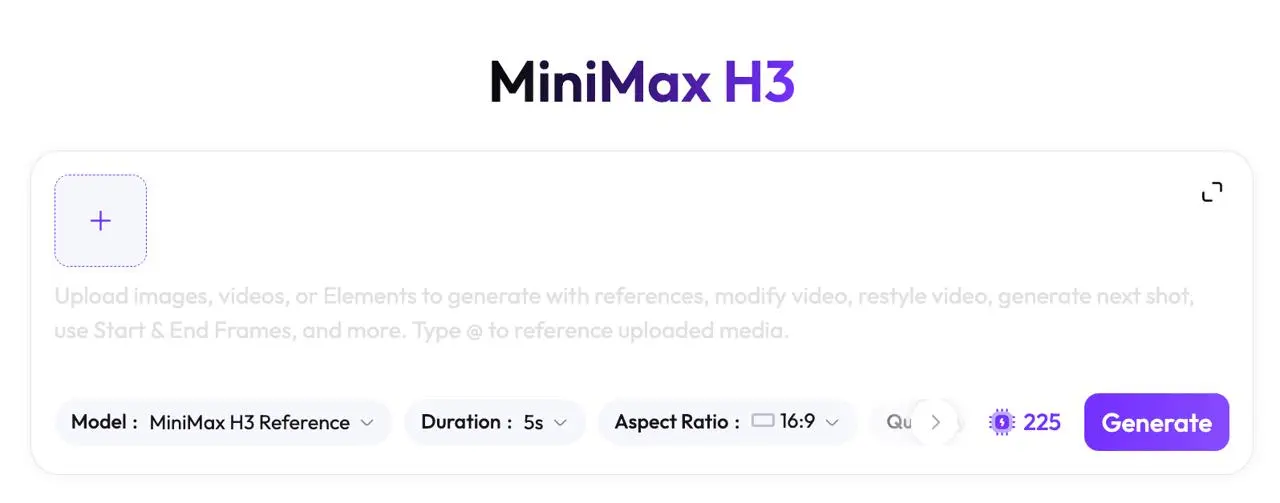
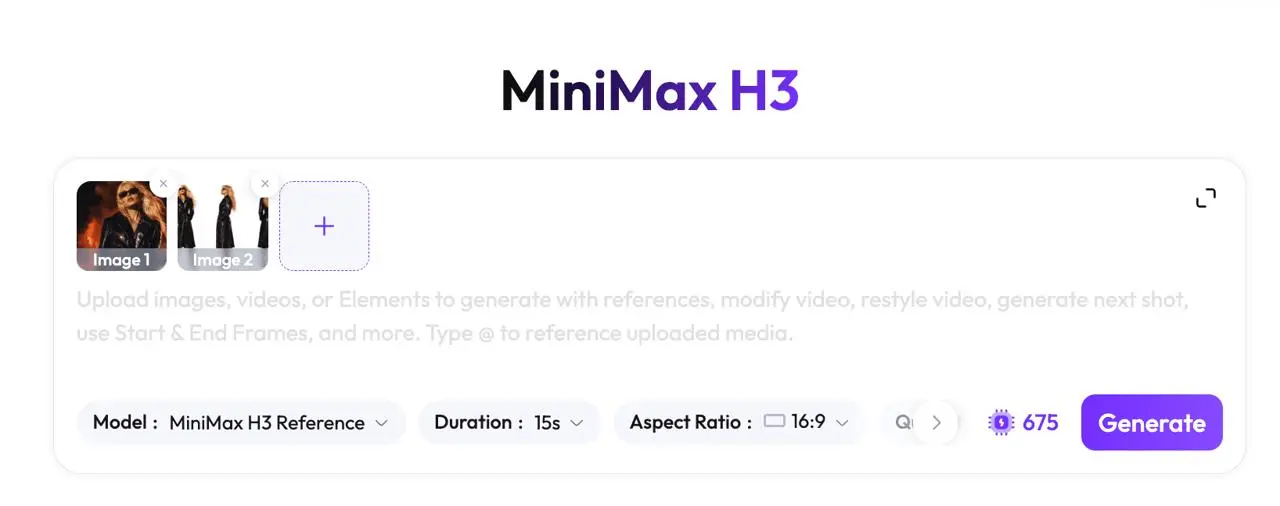
Open WeShop MiniMax H3 and locate the reference-image video generation area.
Upload the source images according to their intended roles:
- Use Image 1 as the atmosphere and visual-style reference.
- Use Image 2 as the character and outfit reference.
- Confirm that both images are displayed correctly.
- Check that the hair, sunglasses, trench-coat silhouette, and fire lighting are clearly visible.
The current interface may apply specific rules to the number, order, format, or size of reference images. Follow the options shown on the live tool page.
Step 3: Enter a Structured AI Fashion Video Prompt
A useful prompt should define the role of each reference image before describing the output, character, environment, and editing style.
Use the following prompt for this case:
Image 1 is the reference for the overall texture, mood, and atmosphere. Image 2 is the reference for the character’s appearance.

Create a 15-second, 16:9 horizontal fashion film. Keep the character consistent: long platinum-blonde hair, narrow black retro sunglasses, a glossy black patent-leather trench coat, and a cool, confident fashion expression. Orange firelight reflects across the leather coat.

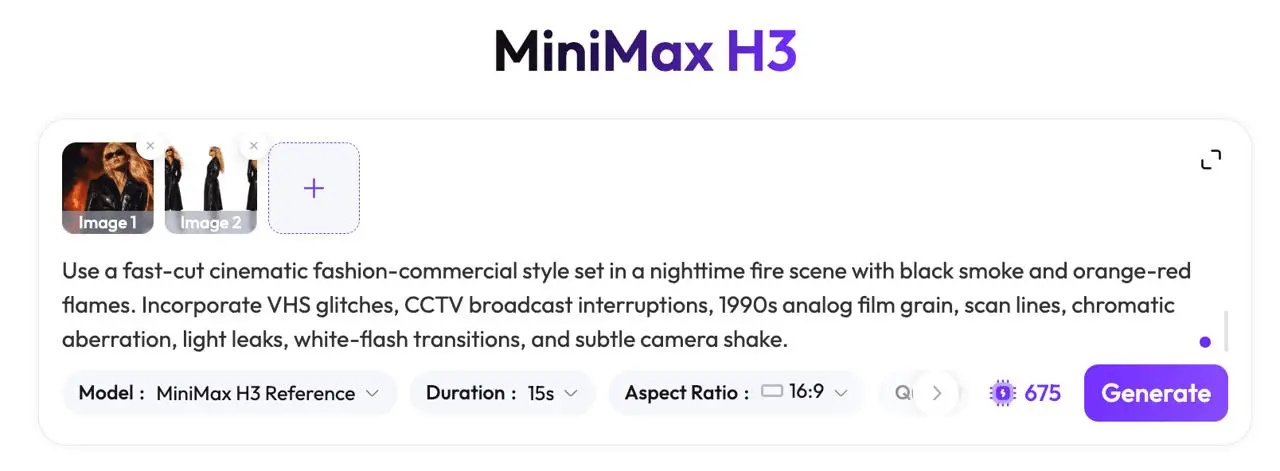
Use a fast-cut cinematic fashion-commercial style set in a nighttime fire scene with black smoke and orange-red flames. Incorporate VHS glitches, CCTV broadcast interruptions, 1990s analog film grain, scan lines, chromatic aberration, light leaks, white-flash transitions, and subtle camera shake.
The prompt contains five control layers:
| Control layer | Prompt content | Purpose |
|---|---|---|
| Reference roles | Image 1 controls atmosphere; Image 2 controls appearance | Reduces ambiguity between the two inputs |
| Output format | 15 seconds, 16:9, horizontal | Defines the intended deliverable |
| Character anchors | Platinum hair, narrow sunglasses, glossy black coat | Reinforces recognizable traits across shots |
| Environment and lighting | Night fire, smoke, orange-red flames, leather reflections | Creates a unified setting |
| Film language | Fast cuts, VHS glitches, grain, scan lines, and light leaks | Establishes the editorial advertising style |
The goal is not to stack as many adjectives as possible. Each group of instructions should control one aspect of the result.
Keep the character description concise and recognizable. Build the environment around one coherent location, then select visual effects that support the same advertising style.
Step 4: Generate the 15-Second AI Fashion Video
Review the two reference images and prompt before starting generation.
If the current interface provides matching controls, use settings aligned with the intended result:
- Duration: 15 seconds
- Aspect ratio: 16:9
- Orientation: Horizontal
- Other settings: Follow the options currently available in WeShop MiniMax H3
Do not assume that every detail must be configured through a separate control. Some requirements may be expressed through the prompt instead. Confirm the current duration options, aspect-ratio controls, resolution settings, points, pricing, and generation limits on the live product page.
Click the generation button shown in the interface when the inputs are ready.
You can try it directly using the tool on the right.
Step 5: Review Character Consistency and the Final Result
Watch the full generated video before examining individual frames. Review the character, atmosphere, and editing style separately.
Check Character Consistency in the AI Fashion Video
Compare the character across close-ups, profile shots, full-body frames, and walking sequences. Focus on the most recognizable anchors:
- Platinum-blonde hair
- Narrow black sunglasses
- Glossy black trench coat
- Facial structure and overall styling
- Cool, confident expressions and poses
In this case, the main styling cues remain recognizable across facial close-ups, profile views, full-body shots, and walking sequences. However, faces, hands, accessories, and clothing details in AI-generated video still require human review.
Check Whether the Atmosphere Matches Image 1
Look for continuity in the following elements:
- Nighttime fire setting
- Black smoke and orange-red flames
- Dark backgrounds with high-contrast lighting
- Orange reflections across glossy leather
- A cinematic environment combining fire and a vehicle
The atmosphere reference should guide the overall visual language without forcing every frame to copy the original composition.
Check Whether the Effects Support the Fashion-Ad Rhythm
The result includes portrait close-ups, clothing details, full-body movement, environmental fire shots, and frames resembling a broadcast interruption.
Review whether these effects appear naturally in the video:
- Fast-cut editing
- Analog film grain
- VHS- or CCTV-style interference
- Scan lines and chromatic aberration
- Light leaks and white-flash transitions
- Subtle image shake
Including an effect in the prompt does not prove that the generated video reproduced it accurately. Judge each effect from the actual frames.
If the First Result Needs Improvement
First determine whether the problem concerns the character, environment, or visual effects. Then revise only the relevant part of the prompt.
- The character changes between shots: Remove secondary appearance details and repeat the essential hair, sunglasses, and coat anchors.
- The outfit changes: Emphasize the glossy black patent-leather material, long silhouette, and belted waist.
- The fire overwhelms the subject: State that the character is the main subject and that the flames and smoke remain in the background.
- The visual treatment feels excessive: Reduce the number of glitch effects and prioritize film grain, scan lines, and light leaks.
- The shot sequence feels unfocused: Simplify the direction to three priorities—fashion commercial, fast cuts, and character close-ups.
Change one group of variables at a time. This makes it easier to determine which revision improved the output.
Save unsuccessful generations when possible. A failed result, revised prompt, and corrected result provide more credible evidence than a successful video shown without context.
Final Pre-Publication Check
Before using the generated video in an advertisement, product page, or social post, confirm that:
- The character remains recognizable in the main shots.
- The face, hands, sunglasses, and clothing contain no obvious visual errors.
- The aspect ratio and duration meet the destination platform’s requirements.
- The flames, vehicle, and background elements contain no distracting artifacts.
- The audio is cleared for the intended use and plays correctly.
- You have the necessary rights to the reference images and depicted likeness.
- The page clearly discloses that the video was AI-generated.
- A human reviewer has checked that the result will not mislead viewers.