








AI Bikini Video Editor: Change Clothes in a Video with MiniMax H3
Learn how to turn an authorized fashion clip into a swimwear version with MiniMax H3, preserving motion, scene details, and a consistent outfit.
The original clip shows a character walking toward the camera in a black top and jeans. After one video-to-video generation, the outfit becomes a black bikini while the walking motion, handbag, indoor setting, and overall composition remain recognizable.
Instead of recreating the performance from scratch, this AI bikini video editor workflow uses the existing clip as the motion and scene reference. You only need to upload the video and describe the replacement outfit.
The input clip provides the character’s movement, camera framing, handbag, footwear, lighting, and interior setting.
The outfit changes to a black bikini while the character continues the original walk through the same scene.
What You Need for an AI Video Clothes Change
Prepare one video in which the adult character and the outline of the original clothing are easy to see. For a more stable outfit replacement, choose a clip with:
- one clearly visible adult character;
- limited obstruction across the body;
- consistent lighting and a clear silhouette;
- controlled character and camera movement;
- permission to edit and publish the person’s likeness.
Step 1: Open MiniMax H3
Open WeShop AI MiniMax H3 and use its video-to-video workflow. The existing video will guide the motion and scene, while your prompt defines the new clothing.
Step 2: Upload the Original Video
Upload the video you want to edit. Because the clip already contains the performance, camera framing, and environment, you do not need to rewrite the entire action as a text-to-video prompt.
After the upload finishes, enter the target outfit in the prompt field.
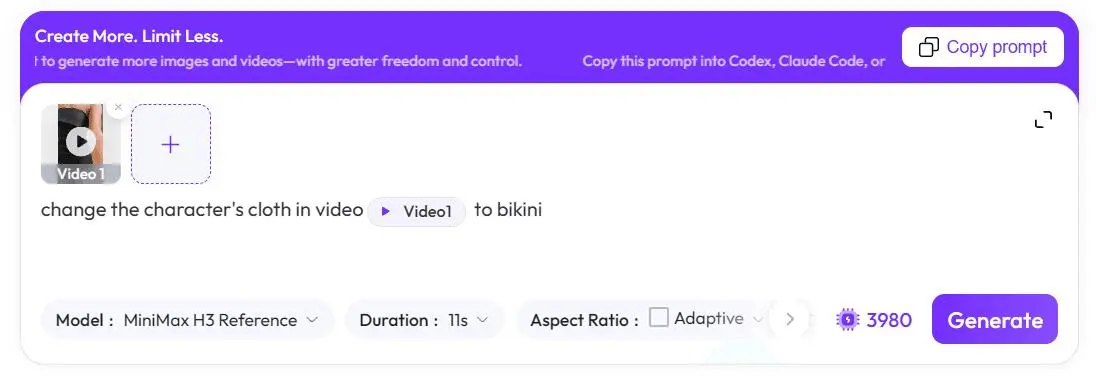
Step 3: Enter the AI Bikini Video Prompt
The short instruction change the character's cloth in video @{video1} to bikini communicates the basic transformation. A more specific version helps define what should change and what should remain consistent:
To create another swimwear style, replace a black bikini with a more specific description, such as a red high-waisted bikini or a blue one-piece swimsuit.
Describe the intended final outfit rather than using an ambiguous instruction such as remove her clothes. A direct clothing description gives the model a clearer visual target and keeps the workflow focused on outfit replacement rather than nudity.
Step 4: Generate and Review the Result
Start the generation, then review the complete video instead of judging a single frame. Check whether:
- the bikini design remains consistent as the character moves;
- the face, hairstyle, and overall identity stay recognizable;
- the body and limbs remain visually coherent;
- the handbag, footwear, and other accessories are preserved;
- the original background, framing, and movement continue naturally.
If the outfit changes between frames, make the color, cut, straps, and fabric more specific in the prompt before generating again.
You can try it directly using the tool on the right.
Turn an Existing Fashion Clip into a Swimwear Version
The useful shift is not “undressing” a person—it is giving an existing performance a new, continuous wardrobe. The original clip supplies the movement and setting; the prompt supplies the target look; MiniMax H3 brings them together in a new video.
Use footage of yourself or an adult who has explicitly authorized the edit, and label the published result as AI-generated where appropriate.