







Turn a Video into Clay Animation with MiniMax H3
Turn a video into clay animation with MiniMax H3. Upload real source footage, use a focused restyling prompt, and compare motion, composition, and handmade texture.
A clay-animation prompt has two separate jobs: change the material appearance and keep a recognizable action sequence. This workflow gives MiniMax H3 an actual motion-reference video plus a clearly sculpted clay appearance image, then asks it to animate the clay dog using the video’s head movement. The result is evaluated as video-guided regeneration, with no claim of frame-perfect movement preservation or physical stop-motion production.
Source video — AI-generated pet clip
Generated result — clay animation restyling
Video-guided clay animation restyling. The displayed result was generated from the actual reference video.
Use a short source clip with one readable action
The source is the AI-generated corgi clip from our separate pet-photo animation tutorial. It is reused here openly as input, not presented as live-action footage. The photo-animation article answers how to create motion from a still; this article begins with an existing video and asks how to restyle it. A short single shot makes it easier to compare where the head moves and whether the background changes. The clay appearance image was separately prepared with Nano Banana 2 from the corgi reference; that preparation is supporting material, while the reusable MiniMax step consumes the appearance image and motion video together.
Both clips are AI-generated. The second is the actual video-guided restyling output; the first is its source input.
Give the image and video different roles
Choose the MiniMax H3 reference mode that accepts both images and video. Attach the clay appearance image as Image 1 and the existing clip as Video 1. The image defines the target character and materials; the video supplies the action. Typing “follow my video” without attaching it would not demonstrate this reference-guided workflow.
Describe clay materials separately from motion constraints
Ask for matte modeling clay, handmade tool marks, rounded edges and miniature props. Separately name the subject, camera and action sequence to retain. A slightly stepped feel is a requested visual style; it is not proof that the output was photographed frame by frame or rendered at a particular stop-motion frame rate.
Generate and review the clip in WeShop
- Open WeShop’s MiniMax H3 generator and select the mode that accepts a reference video.
- Upload the clay appearance reference as Image 1 and the source clip as Video 1. Confirm that both are attached.
- Use the tested settings below, paste the prompt, then generate one clip.
- Play the entire output, compare the opening, middle and end with the source, and inspect the subject as well as the background.
| Setting | Tested value |
|---|---|
| Tool | MiniMax H3 on WeShop |
| Exact model mode | MiniMax_H3_Reference |
| Actual reference input | One appearance image + one motion video |
| Requested aspect ratio | 3:4 |
| Live template aspect selector | Adaptive (video-reference UI) |
| Requested duration | 5s |
| Quantity | 1 |
| Returned dimensions | 1440 × 1920 pixels |
| Measured clip duration | 5.17 seconds |
Copy the exact tested prompt
Image 1 is the exact target clay character and clay scene appearance. @Video 1 supplies only the head-tilt motion and timing; do not use its photorealistic fur or photographic room materials. Animate the visibly sculpted clay corgi from Image 1 using the motion from Video 1. Reinterpret the entire clip as handcrafted clay animation. Keep one golden-brown corgi sitting on the rug, the same broad body proportions, two upright ears, eye-level locked camera, background arrangement and sequence of small head movements from the source. Replace photoreal fur and surfaces with visibly sculpted matte modeling clay, subtle handmade tool marks, rounded clay edges, miniature beige rug and miniature blue cushion. Preserve the recognizable corgi color pattern and the simple scene. One continuous shot, gentle slightly stepped stop-motion feel, no new actions, cuts, people, extra animals, text or logos. No speech or music.
The tool on the right loads this selected result with its original reference and generation setup. You can try it directly using the tool on the right. Replace the reference with your own and adjust the scene-specific wording.
What changed across the generated clip
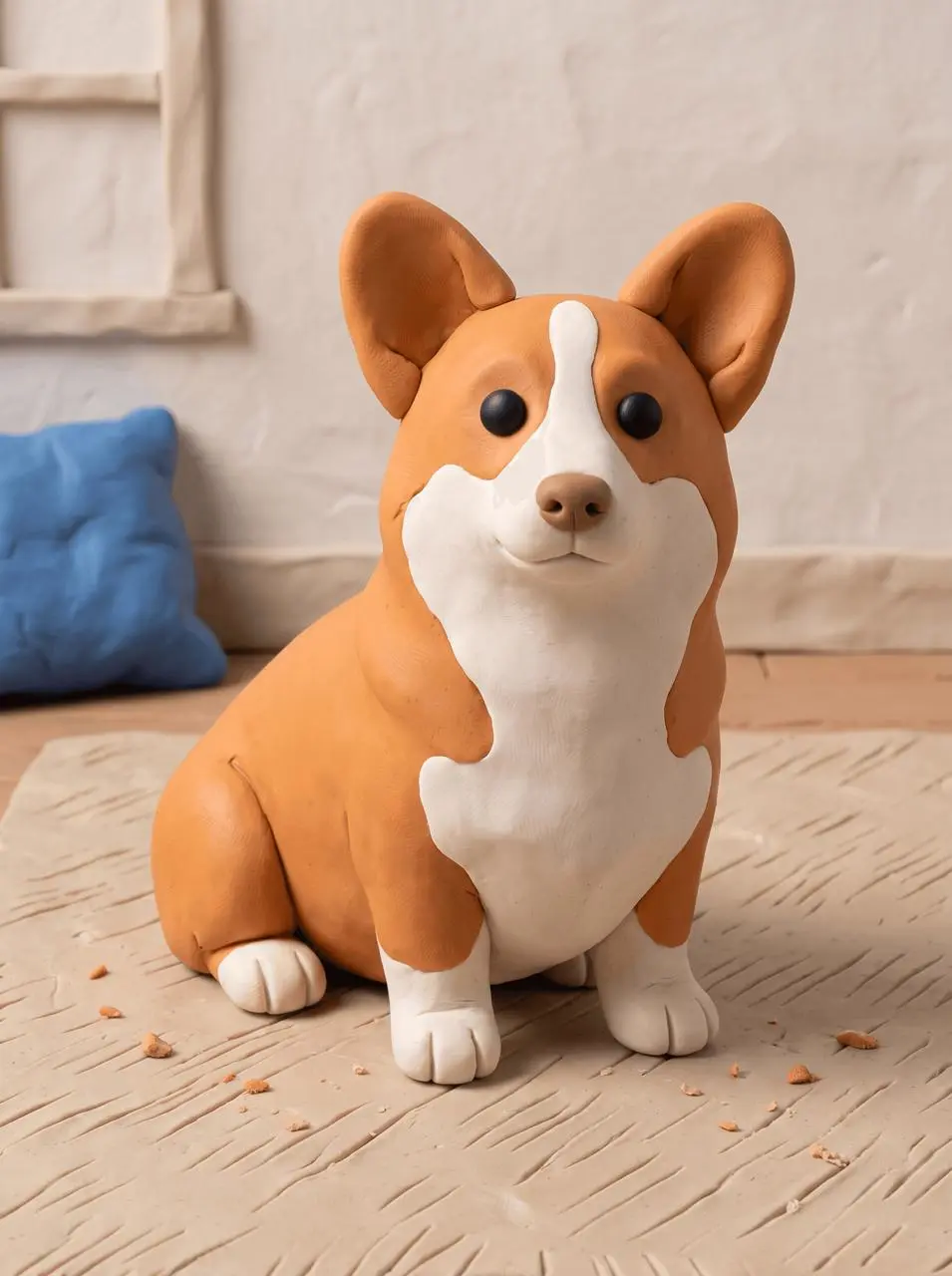
The selected clip uses a clearly sculpted orange-and-white clay corgi, a grooved clay floor and a handmade-looking wall and cushion. The photographic fur of the source video is replaced by smooth modeled surfaces.
Across opening, middle and end samples, the clay dog tilts its head sideways and returns nearer upright, following the broad sequence in the source video while keeping its body seated.
A first attempt with only the video reference retained a photographic appearance and failed the clay-style goal. The selected second attempt adds the explicit clay image as an appearance reference and the source video as a motion reference. Only this dual-reference generation is loaded in the reusable tool.
The output changes character proportions, floor details and the exact head/ear positions relative to the source. It is not frame-perfect motion transfer, and the slightly stepped stop-motion feel is a creative request rather than a verified production method. The returned video is 5.17 seconds; the request was five seconds. The saved generation requested 3:4, but the live reference-video tool currently displays Adaptive for its aspect-ratio selector. The table distinguishes that live selector from the recorded request; an identical crop is not guaranteed.
The example was generated on October 28, 2026. It is one selected output, not a measured success rate, an exact-preservation guarantee or a model comparison. Requested settings and returned file measurements are reported separately.
Replace the source while keeping a clear restyling boundary
For your own authorized clip, attach a clearly clay-style character or scene image as the appearance reference, then attach the clip as the motion reference. Identify what supplies the motion and which surfaces should become clay. A wide shot with many people, rapid cuts or frequent occlusion is a more demanding test than the seated dog shown here. Avoid adding new actions and a moving camera while also testing material transfer, because it becomes harder to tell whether the source video influenced the result.
Frequently asked questions
Is this a clay filter on the original pixels?
No. MiniMax H3 generates a new video guided by the reference. Shapes, timing and background details can change. Compare the full clips rather than judging only the first frame.
Can it preserve every source gesture exactly?
That is not established by this example. The goal is recognizable action and composition with a changed material style. Use controlled animation or compositing when exact motion is a hard requirement.
The source was generated in Animate a Pet Photo with MiniMax H3: A Natural Motion Prompt. These tutorials share one clearly identified source asset but answer different questions: making motion from a still and restyling an existing clip. Start with the loaded example, change one part of the brief, and compare the result with the source before using it.