






Animate a Pet Photo with MiniMax H3: A Natural Motion Prompt
Animate a pet photo with MiniMax H3 using one reference image and a small-motion prompt. See the actual clip, settings, and checks for paws, ears, and camera drift.
A pet photo does not need a dance routine to become a short video. A blink, gentle breathing and one curious head movement can be a more useful starting brief. This MiniMax H3 tutorial uses a corgi portrait as the actual opening-image input and asks for one continuous shot, then checks the resulting clip for recognizable appearance and unwanted changes.
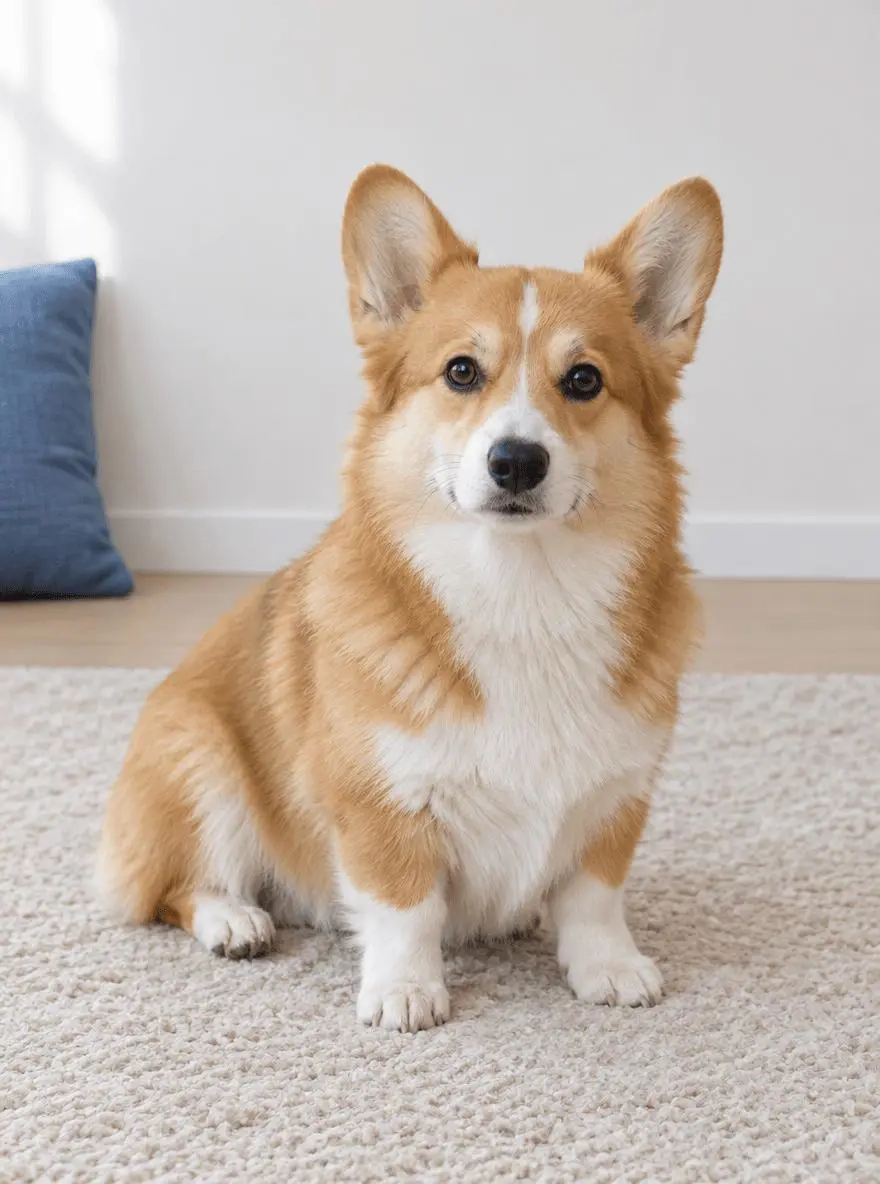
Generated result — pet photo animation
Natural pet photo animation. The displayed result was generated from the actual reference image.
Choose a pet portrait with the whole silhouette visible
Use a sharp photo where both ears, the muzzle, body outline and paws are easy to distinguish. Leave enough space around the animal for a small movement. In the example, a beige rug and a blue cushion provide simple background anchors. A cropped ear or hidden paw gives the video model less information about the animal’s shape, so it is worth choosing a clearer original before adding a longer motion prompt.
The source image is synthetic and was created specifically for this demonstration. Use your own suitable image or a reference you are authorized to edit.
Keep the motion brief deliberately small
The tested instruction requests gentle breathing, one blink and one slight head tilt. It excludes walking, jumping and talking. Those exclusions keep the acceptance test clear: the output should feel like the same seated dog coming to life, rather than a new performance.
Use the image-to-video mode, not an unrelated text-only scene
Attach the pet image as the first frame and choose the image-to-video mode. In the recorded request, the exact model mode is MiniMax_H3_I2V and the aspect setting is adaptive. The reference, rather than a written description of a similar dog, is what makes this a photo-animation workflow.
Generate and review the clip in WeShop
- Open WeShop’s MiniMax H3 generator and select the mode that accepts a first-frame image.
- Upload the pet photo as the first-frame image and confirm its thumbnail is attached.
- Use the tested settings below, paste the prompt, then generate one clip.
- Play the entire output, compare the opening, middle and end with the source, and inspect the subject as well as the background.
| Setting | Tested value |
|---|---|
| Tool | MiniMax H3 on WeShop |
| Exact model mode | MiniMax_H3_I2V |
| Actual reference input | One attached image |
| Requested aspect ratio | adaptive |
| Requested duration | 5s |
| Quantity | 1 |
| Returned dimensions | 1440 × 1952 pixels |
| Measured clip duration | 5.17 seconds |
Copy the exact tested prompt
Use image 1 as the opening frame. A single continuous five-second shot of this same corgi sitting on the same beige rug. The dog breathes gently, blinks once, then makes one small curious head tilt to its right and settles. Keep the same recognizable coat markings, body size, upright ears, four paws, cushion, living room, lighting and framing. Locked camera, natural small movements, no walking, jumping, talking, extra animals, text, scene changes or dramatic camera movement. Quiet room ambience only, no music or speech.
The tool on the right loads this selected result with its original reference and generation setup. You can try it directly using the tool on the right. Replace the reference with your own and adjust the scene-specific wording.
What changed across the generated clip
Across the sampled opening, middle and end frames, the seated corgi makes a small sideways head tilt and returns closer to upright. Its paws stay on the rug and the blue cushion remains at the left.
The coat pattern and upright ears remain recognizable, with no walking or scene cut in the inspected sequence. The movement is restrained rather than a speaking or dancing performance.
The prompt also requested a blink, but the sampled frames do not establish that exactly one blink occurred. Do not treat every requested micro-action as verified. Ear angles and fine fur can change; the measured file is 5.17 seconds despite the five-second request, and seamless looping was not tested.
The example was generated on October 28, 2026. It is one selected output, not a measured success rate, an exact-preservation guarantee or a model comparison. Requested settings and returned file measurements are reported separately.
Adapt the prompt without overloading the pet
Replace “corgi” and the coat description with your own animal’s visible features. Start with one small action, such as an ear twitch or a slight look toward the camera. Treat additional actions as new tests. Do not promise a perfect loop: a clip can look natural when played once and still jump when its last frame returns to the first.
Frequently asked questions
Can I animate a cat photo with the same prompt?
Use the same structure but describe the cat and the movement you actually want. The published example tests a seated corgi; it does not establish equal reliability across species or poses.
Does the clip show how my pet would really move?
No. The motion is synthesized from the image and instruction. It is a creative animation rather than a recording or a behavioral prediction.
For a separate video-input workflow, see Turn a Video into Clay Animation with MiniMax H3. These tutorials share one clearly identified source asset but answer different questions: making motion from a still and restyling an existing clip. Start with the loaded example, change one part of the brief, and compare the result with the source before using it.