Develop an image-led character performance or short scene with Vidu Q3 Pro. Supply the opening image or start/end pair, then describe the action, framing, and any intended sound.
Explore the tasks shown by these actual Vidu Q3 Pro results. Copy a prompt to try in the generator, or open the linked case for its saved setup. Supply your own images or clips when the request uses references.
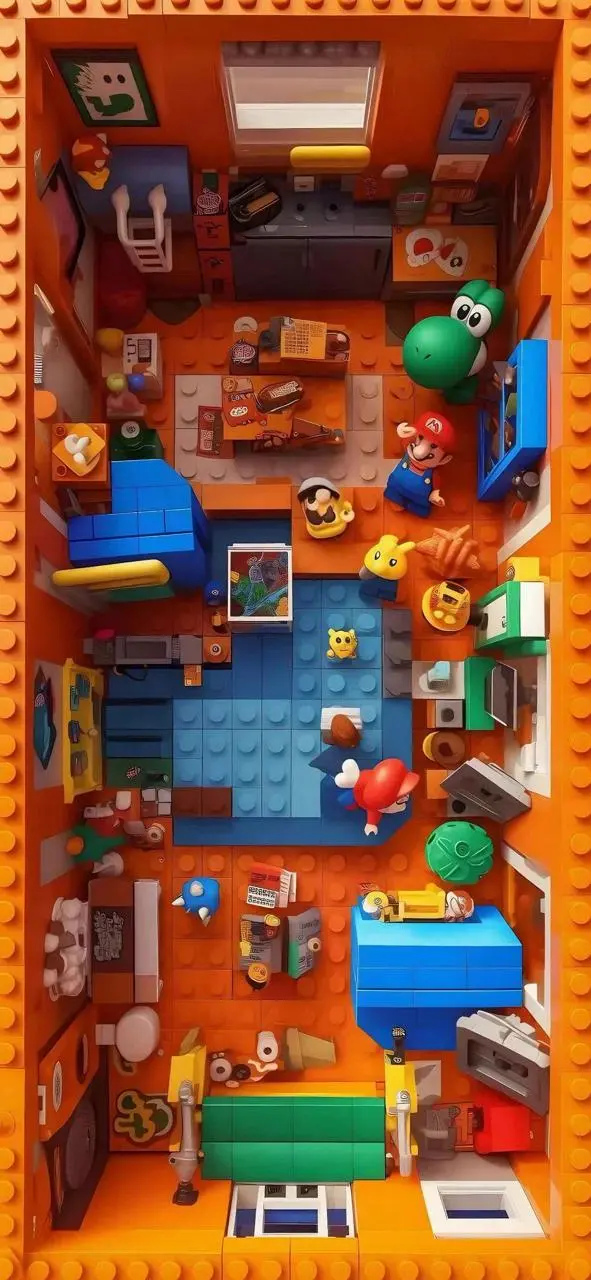
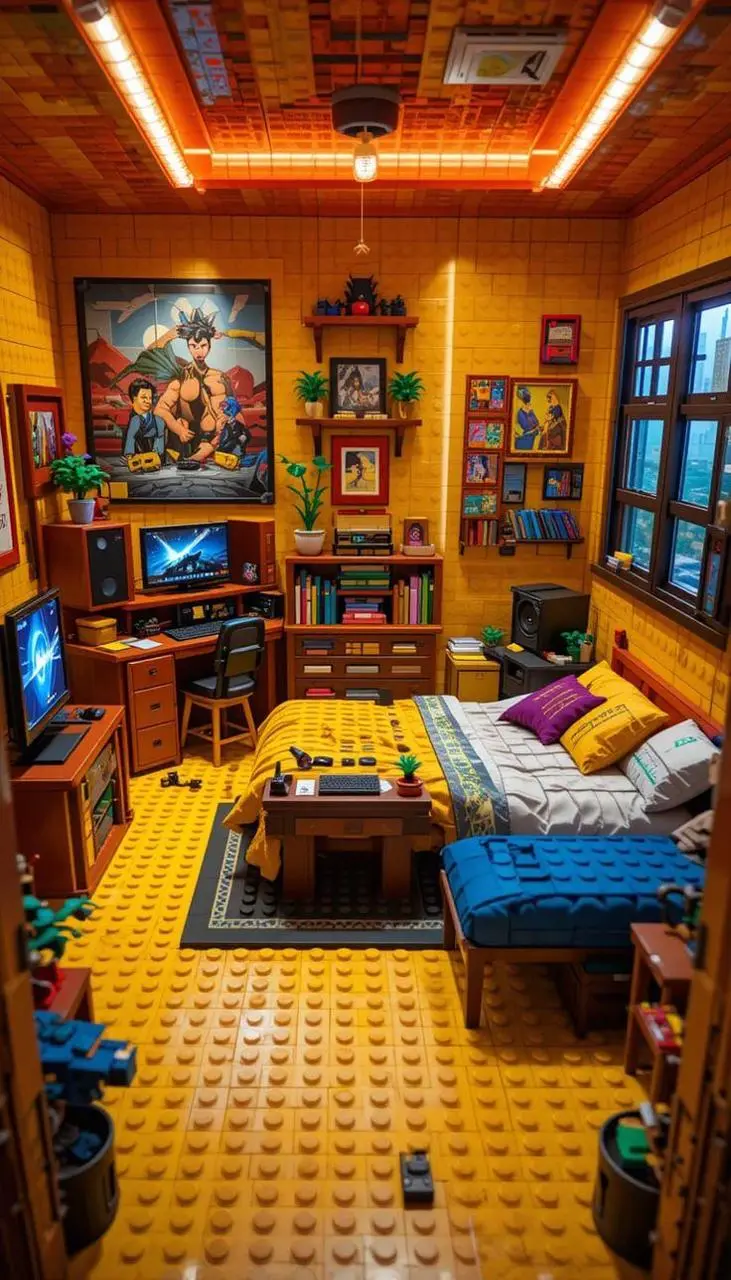
Animated Character in a Room
Develop an animated-character scene within an interior, using the original image and brief to establish the subject.
Walking forward with a laptop in hand and an unhappy expression, I ran into a good friend who was having a drink, and we struck up a conversation.
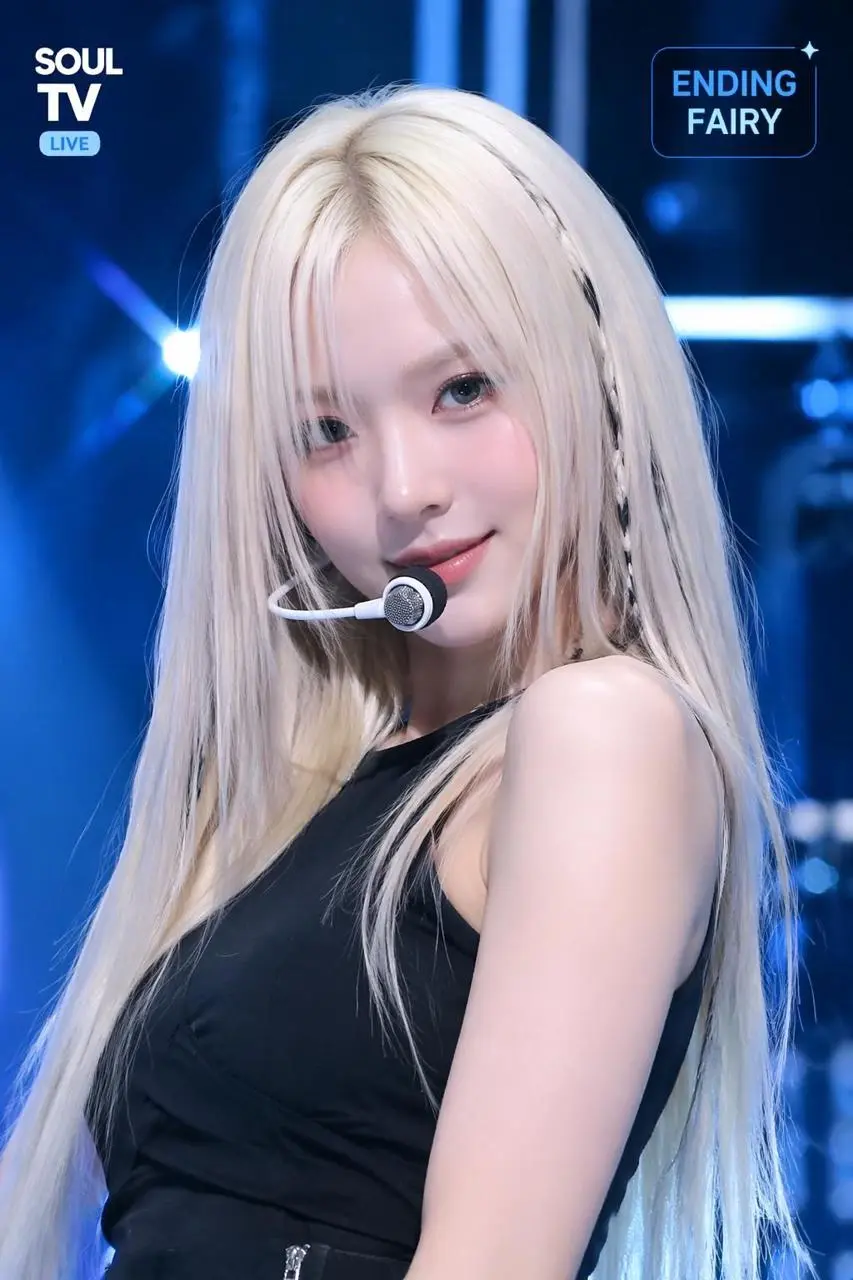
Describe a broadcast-style final pose, breathing, and small expression changes for an idol-style character shot.
A K-pop ending fairy broadcast shot — idol-style person in a final dance pose, breathing softly and smiling into the camera as confetti slowly falls around them
Vidu Q3 Pro is ShengShu’s Q3 video model for synchronized audiovisual output and shot-based storytelling.
Audiovisual Performance
Vidu’s Q3 model map describes sound and picture generated together. A performance brief can include visible action as well as intended dialogue or ambience.
Shot-Based Storytelling
The Q3 documentation includes shot switching. A sequence can distinguish changes in framing from the action of the subject.
Frame-Led Inputs on WeShop
The current Pro entry offers an initial image or an opening/ending image pair. These are the starting modes exposed by this form.
WORKFLOWS
Choose Your Starting Input
Use the Vidu Q3 Pro input mode that matches the material you have.
Animate an Opening Image
Upload the frame that establishes the subject and scene. Describe the action, environmental movement, or camera direction that follows it.
Guide the Opening and Ending Frames
Supply both images, then describe the action or transition connecting their compositions. Choose a duration offered for this mode.
PROMPT GUIDE
How to Direct Vidu Q3 Pro with a Prompt
Learn from the actual instructions behind these results. Each example keeps its complete original prompt and available inputs. For a new request, replace its subject and reference assignments with your own.
Establish the Visual Starting Point
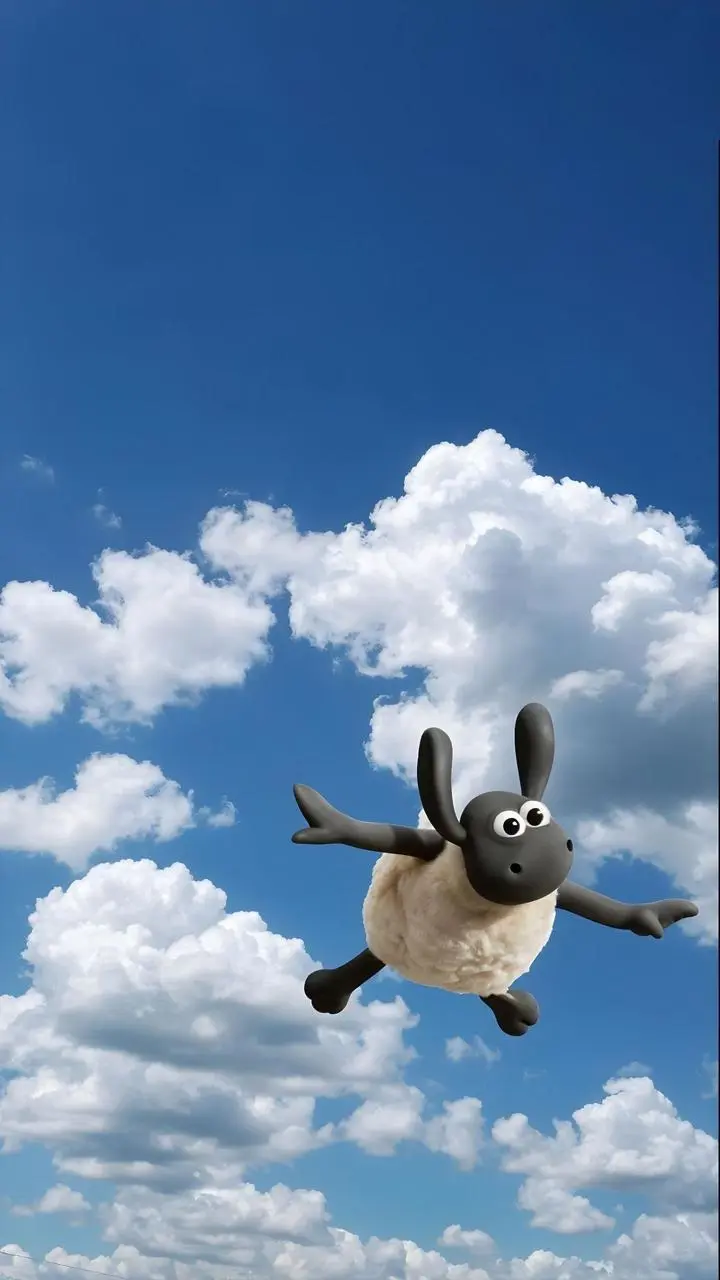
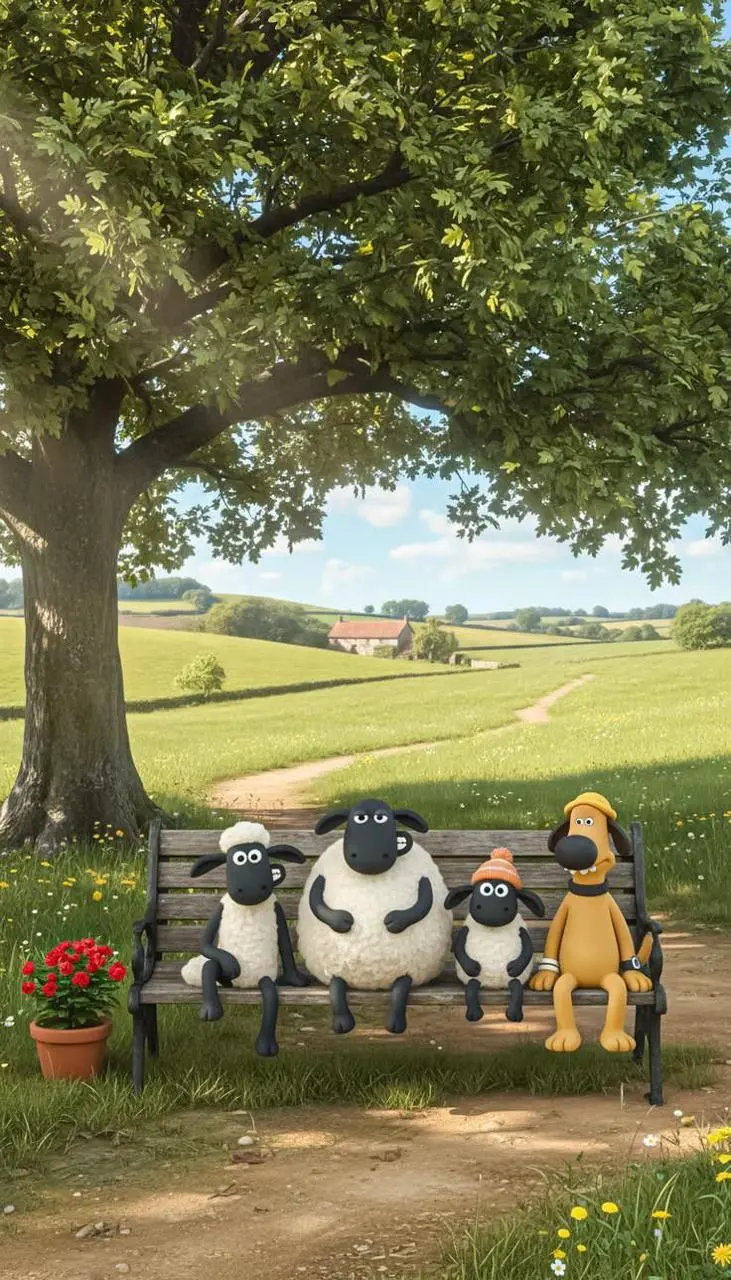
The request defines the subject and setting. Use it to study scene description rather than treating it as evidence of a particular motion or sound control. In this case: “A little lamb fell from the sky, screaming "Ah!”
A little lamb fell from the sky, screaming "Ah! Ah! Ah!" as it tumbled into a haystack.
Put the Events in Order
Describe what happens first and how the next action or reveal follows it. In this case: “Swimming while listening to music, then diving into the water.”
Swimming while listening to music, then diving into the water.
Give the Movement a Concrete Action
Name the movement the subject should perform within the shot. In this case: “The little lambs came down in turn to salute.”
The little lambs came down in turn to salute.
Move the Camera around the Subject
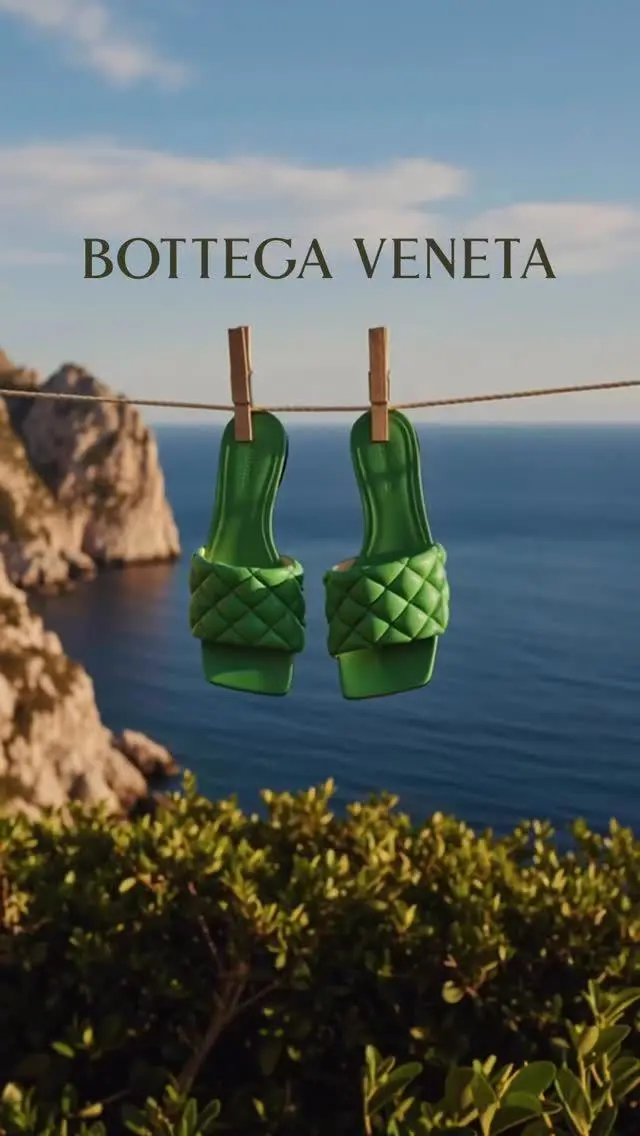
Specify the camera’s route around the subject, rather than leaving the viewpoint implicit. In this case: “The shoes swayed in the wind, and the camera slowly circled around them.”
The shoes swayed in the wind, and the camera slowly circled around them.
Add Motion to the Environment
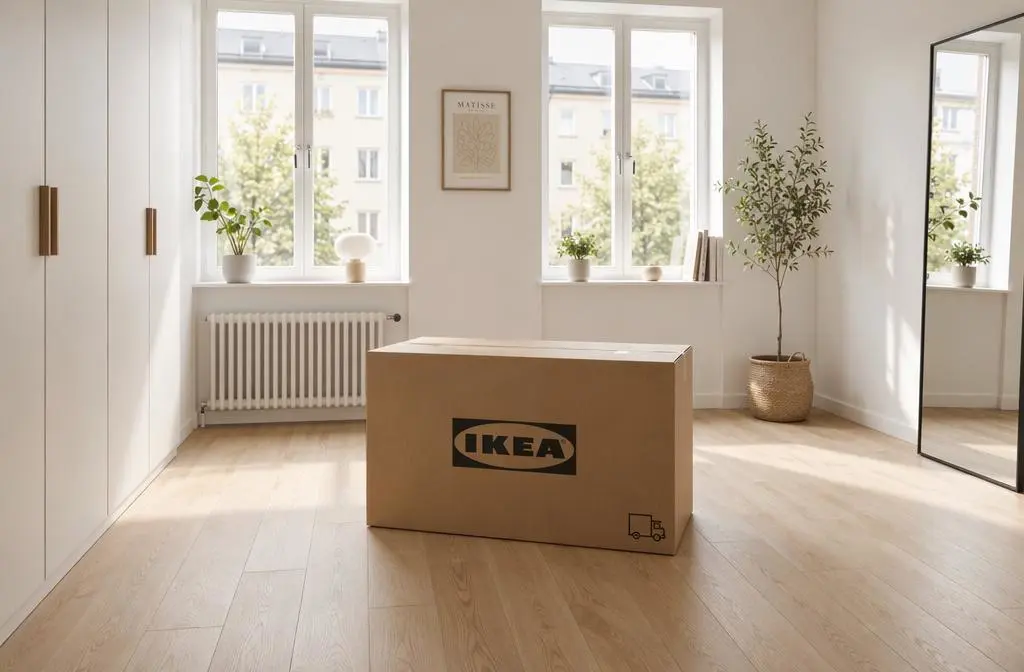
Identify the environmental element that moves while the composition remains recognizable. In this case: “A cinematic IKEA-style commercial set inside a bright, empty Scandinavian apartment with warm natural morning light, pale wooden floors, white walls, two tall windows, and a minimalist calm atmosphere”
A cinematic IKEA-style commercial set inside a bright, empty Scandinavian apartment with warm natural morning light, pale wooden floors, white walls, two tall windows, and a minimalist calm atmosphere. In the center of the room sits a large IKEA cardboard box. The camera begins with a slow symmetrical dolly-in toward the box, emphasizing the clean geometry of the room and the soft sunlight spilling across the floor. The box subtly vibrates, then opens by itself. Flat-pack wooden panels, screws, cushions, lamps, shelves, a bed frame, a table, chairs, curtains, and decor pieces rise smoothly into the air as if guided by invisible hands. In a magical but elegant sequence, the furniture self-assembles piece by piece with satisfying precision. The empty room gradually transforms into a cozy, stylish, fully furnished modern living space with Scandinavian design: soft textiles, neutral tones, indoor plants, warm wood textures, clean storage, and inviting home details. Add gentle floating dust in the sunlight, realistic material textures, smooth camera transitions, premium commercial pacing, and a warm emotional feeling of “building a better everyday home.” High-end ad film look, realistic cinematic lighting, subtle sound-design-friendly visuals, polished product-commercial aesthetic
Describe How the Framing Changes
Name the camera movement and the part of the subject or environment it should reveal. In this case: “As the car starts moving, the camera slowly pans across the scenery outside.”
As the car starts moving, the camera slowly pans across the scenery outside.
HOW TO USE
Create Your First Vidu Q3 Pro Video
Start in the generator on this page. To reuse an example, click Copy Prompt, return to the description field, and adapt the prompt to your own inputs.
Provide the Scene and Inputs
Upload the opening image that establishes the scene, then describe its movement.
Choose the Output Options
Choose an offered duration, aspect ratio, and other available output options. Check the form’s displayed points before submitting.
Generate and Review
Click Generate and review the resulting video. Check movement, framing, continuity, and any delivered audio. Adjust your prompt or references for the next attempt.
Compare the documented model roles and the inputs and options currently listed in WeShop. Model names or matching settings do not by themselves establish equal output quality or a fixed generation-time difference.
Dimension
Vidu Q3 Pro
Vidu Q3 Pro Fast
Model role
Q3 audiovisual and shot-based storytelling capability
Image-led Q3 option; not the same label as Q3 Turbo
Inputs listed for the page
Animate an Opening Image; Guide the Opening and Ending Frames
Animate an Opening Image; Guide the Opening and Ending Frames
Current WeShop options
Duration: 4–16 seconds
Duration: 4–16 seconds
Model role
Vidu Q3 Pro
Q3 audiovisual and shot-based storytelling capability
Vidu Q3 Pro Fast
Image-led Q3 option; not the same label as Q3 Turbo
Inputs listed for the page
Vidu Q3 Pro
Animate an Opening Image; Guide the Opening and Ending Frames
Vidu Q3 Pro Fast
Animate an Opening Image; Guide the Opening and Ending Frames
Current WeShop options
Vidu Q3 Pro
Duration: 4–16 seconds
Vidu Q3 Pro Fast
Duration: 4–16 seconds
When to Consider Vidu Q3 Pro
Match the Model to Your Task
Consider Q3 Pro for its documented audiovisual and shot-based role. Pro Fast has its own entry; compare actual results rather than inferring a measured speed or quality difference.
MORE VIDEO MODELS
Explore More Video Models
Open a related model page to review its capabilities, examples, and current generation options.
Answers about this version, its inputs, and how to get started.
What is Vidu Q3 Pro?
Vidu Q3 Pro is ShengShu’s Q3 video model for synchronized audiovisual output and shot-based storytelling.
What is a good task to consider it for?
Consider Q3 Pro for its documented audiovisual and shot-based role. Pro Fast has its own entry; compare actual results rather than inferring a measured speed or quality difference.
What do I need to provide?
Animate an Opening Image. Upload the frame that establishes the subject and scene. Describe the action, environmental movement, or camera direction that follows it. Guide the Opening and Ending Frames. Supply both images, then describe the action or transition connecting their compositions. Choose a duration offered for this mode.
Which output settings are offered here?
Duration: 4–16 seconds
How do I try an example prompt?
Click Copy Prompt, return to the generator, and paste it into the description field. Add your own required references and update their roles. Linked case previews and Use This Prompt open the saved case; they do not automatically fill this page’s form.
What should I know about this version?
Other Q3 reference modes and specialized variants are not automatically part of this Pro form.