Animate an existing image with Runway Gen-4. The image establishes the subject and visual style; a short motion prompt tells the subject, camera, or environment what to do.
Explore the tasks shown by these actual Runway Gen-4 results. Copy a prompt to try in the generator, or open the linked case for its saved setup. Supply your own images or clips when the request uses references.
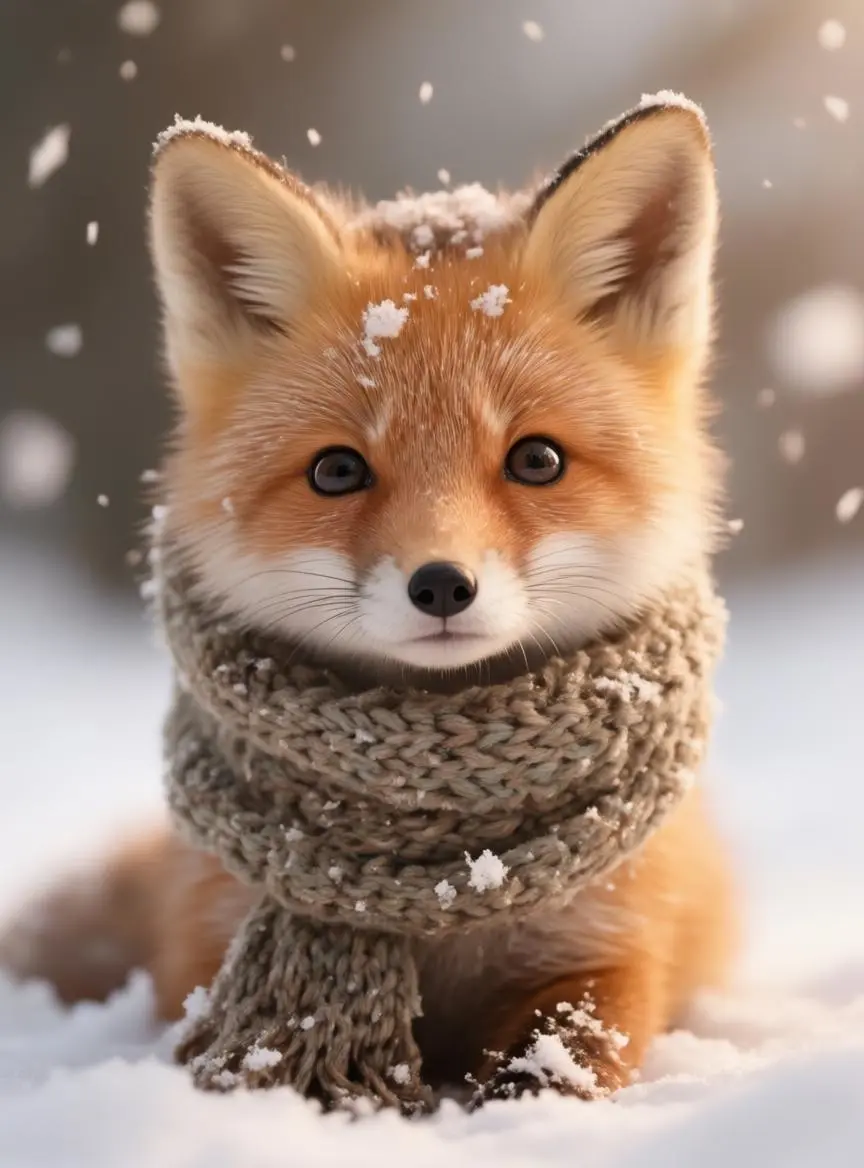
Fox Movement from an Opening Image
Animate snow, a sniff, and a small nuzzle around the referenced fox, keeping the shot focused on one character.
Snowflakes gently fall around the fox, it sniffs the air, then nuzzles deeper into the scarf with a content expression. Cinematic realistic style, gentle natural movement.
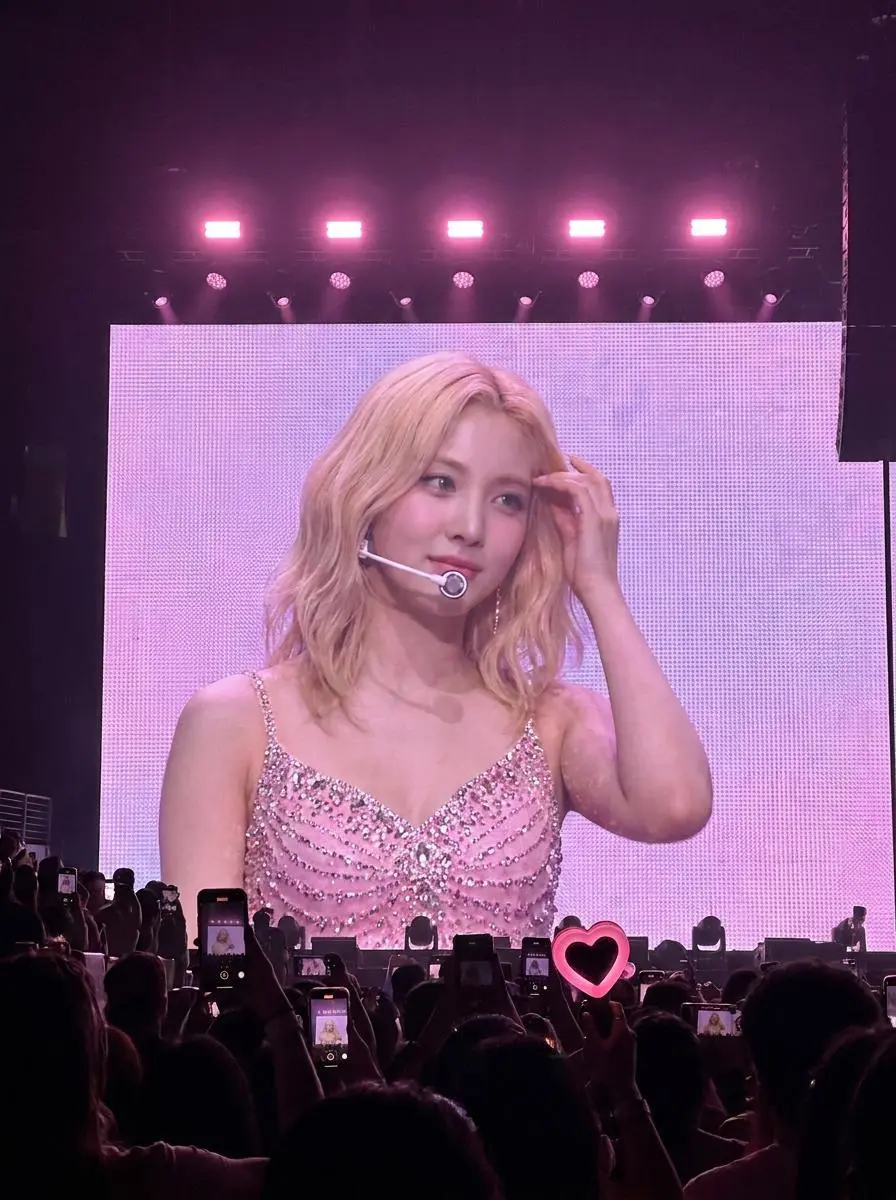
Animate a performer within a concert-screen scene. The starting image establishes both the performance area and its surrounding view.
Use image 1 as the first frame. The performer on the stage screen turns her head slightly and makes a small natural hand gesture. Keep the pink stage lights, LED screen and audience silhouettes consistent. One continuous audience-view shot, a fixed camera, no new people, no cuts and no text.
Runway Gen-4 is an image-to-video model that uses an input image to establish the scene and text to describe the motion.
The Image Establishes the Shot
Runway’s Gen-4 workflow starts with an image. That input supplies the composition, lighting, subject, and visual treatment.
Text Directs the Movement
Runway recommends clear positive descriptions of subject, camera, and environmental motion. A focused shot gives the clip one understandable task.
WORKFLOWS
Choose Your Starting Input
Use the Runway Gen-4 input mode that matches the material you have.
Animate Your Starting Image
Upload an image to establish the scene, then describe the subject, camera, or environmental movement for the clip.
PROMPT GUIDE
How to Direct Runway Gen-4 with a Prompt
Use the source image to establish the shot, then focus your text on movement. These real Gen-4 requests illustrate subject, camera, and environmental motion.
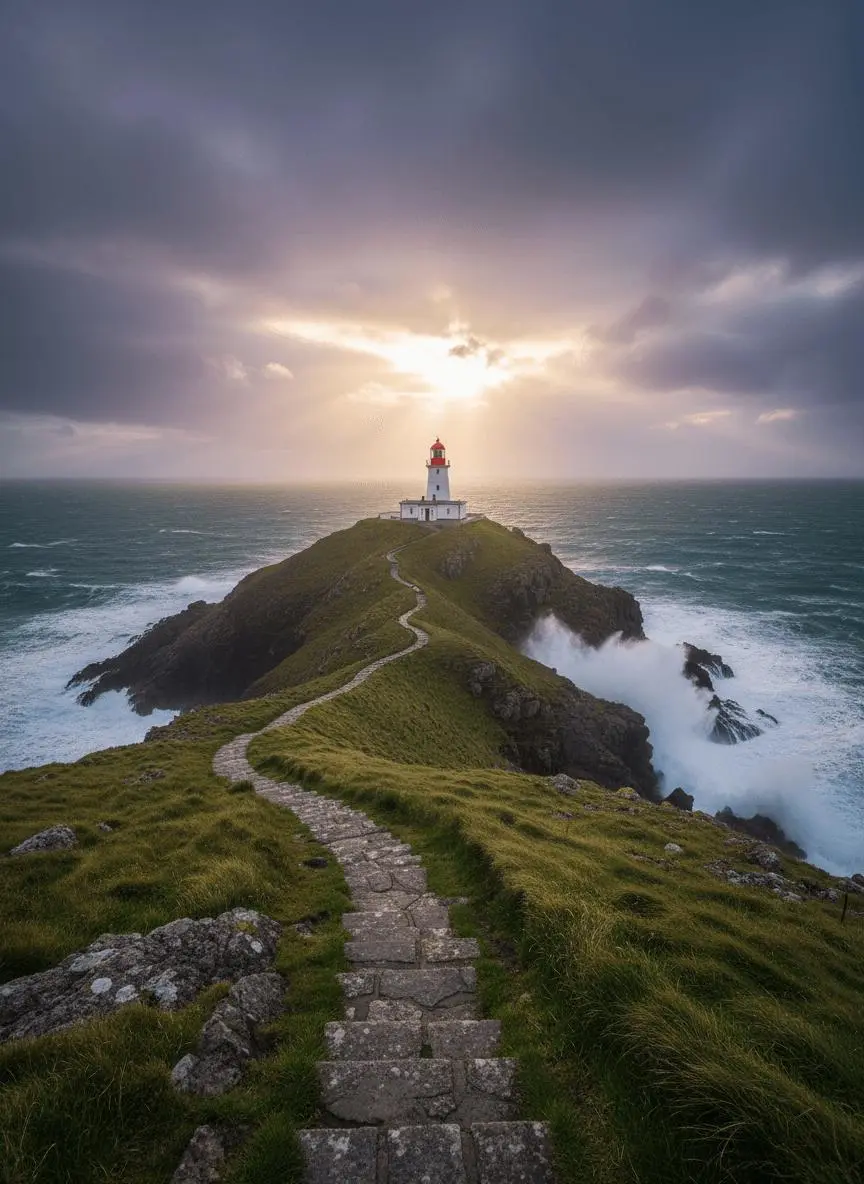
Add Motion to the Environment
Identify the environmental element that moves while the composition remains recognizable. In this case: “Waves roll gently around the headland and foam against the rocks.”
Use image 1 as the first frame. Waves roll gently around the headland and foam against the rocks. The clouds drift slowly as sunlight breaks through. The camera glides forward along the stone path toward the lighthouse. Keep the geography and lighthouse consistent. One continuous landscape shot, no new buildings, no cuts and no text.
Describe How the Framing Changes
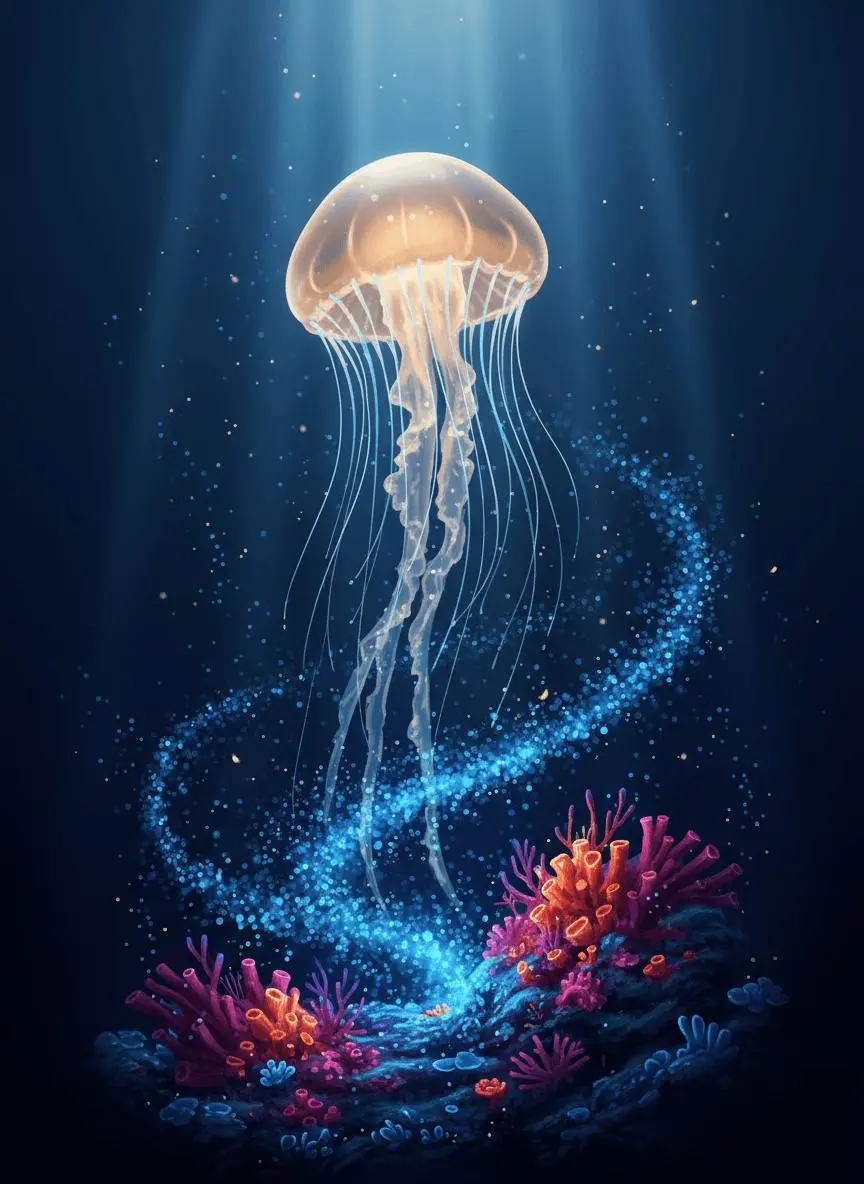
Name the camera movement and the part of the subject or environment it should reveal. In this case: “One continuous underwater shot with a subtle upward camera move, no text and no scene changes.”
Use image 1 as the first frame. The amber jellyfish pulses gently and rises slowly while its tentacles sway with the water. Tiny blue plankton drift past the reef. Keep the luminous color palette, reef arrangement and jellyfish identity consistent. One continuous underwater shot with a subtle upward camera move, no text and no scene changes.
HOW TO USE
Create Your First Runway Gen-4 Video
Start in the generator on this page. To reuse an example, click Copy Prompt, return to the description field, and adapt the prompt to your own inputs.
Provide the Scene and Inputs
Upload the opening image that establishes the scene, then describe its movement.
Choose the Output Options
Choose an offered duration, aspect ratio, and other available output options. Check the form’s displayed points before submitting.
Generate and Review
Click Generate and review the resulting video. Check movement, framing, continuity, and any delivered audio. Adjust your prompt or references for the next attempt.
Answers about this version, its inputs, and how to get started.
What is Runway Gen-4?
Runway Gen-4 is an image-to-video model that uses an input image to establish the scene and text to describe the motion.
What is a good task to consider it for?
Choose Gen-4 when you already have a strong starting image and want to animate a focused shot. It is an image-to-video workflow, not a text-only scene generator.
What do I need to provide?
Animate Your Starting Image. Upload an image to establish the scene, then describe the subject, camera, or environmental movement for the clip.
Which output settings are offered here?
Duration: 5s, 10s
How do I try an example prompt?
Click Copy Prompt, return to the generator, and paste it into the description field. Add your own required references and update their roles. Linked case previews and Use This Prompt open the saved case; they do not automatically fill this page’s form.
What should I know about this version?
The official guide recommends a simple focused scene. Long multi-scene timelines and heavy negative instructions are not the recommended Gen-4 starting approach.