Create a product reveal, character action, or scene with PixVerse V6. Begin with text or a starting image, using the frame modes available for this version.
Explore the tasks shown by these actual PixVerse 6.0 results. Copy a prompt to try in the generator, or open the linked case for its saved setup. Supply your own images or clips when the request uses references.
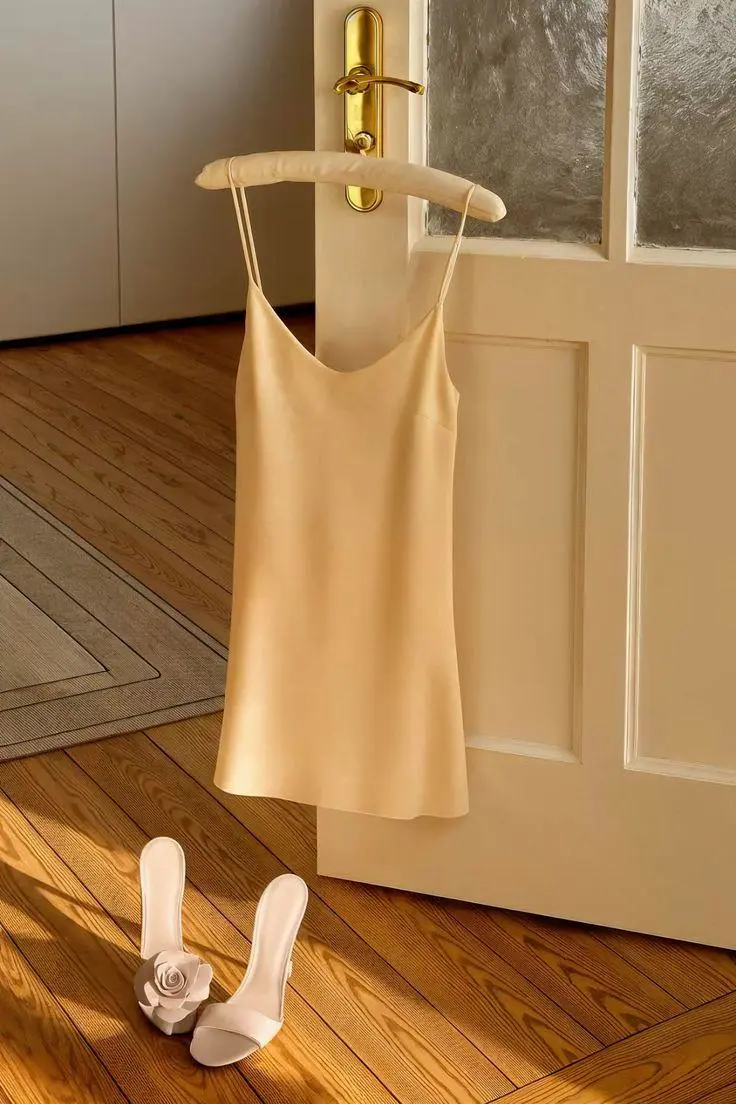
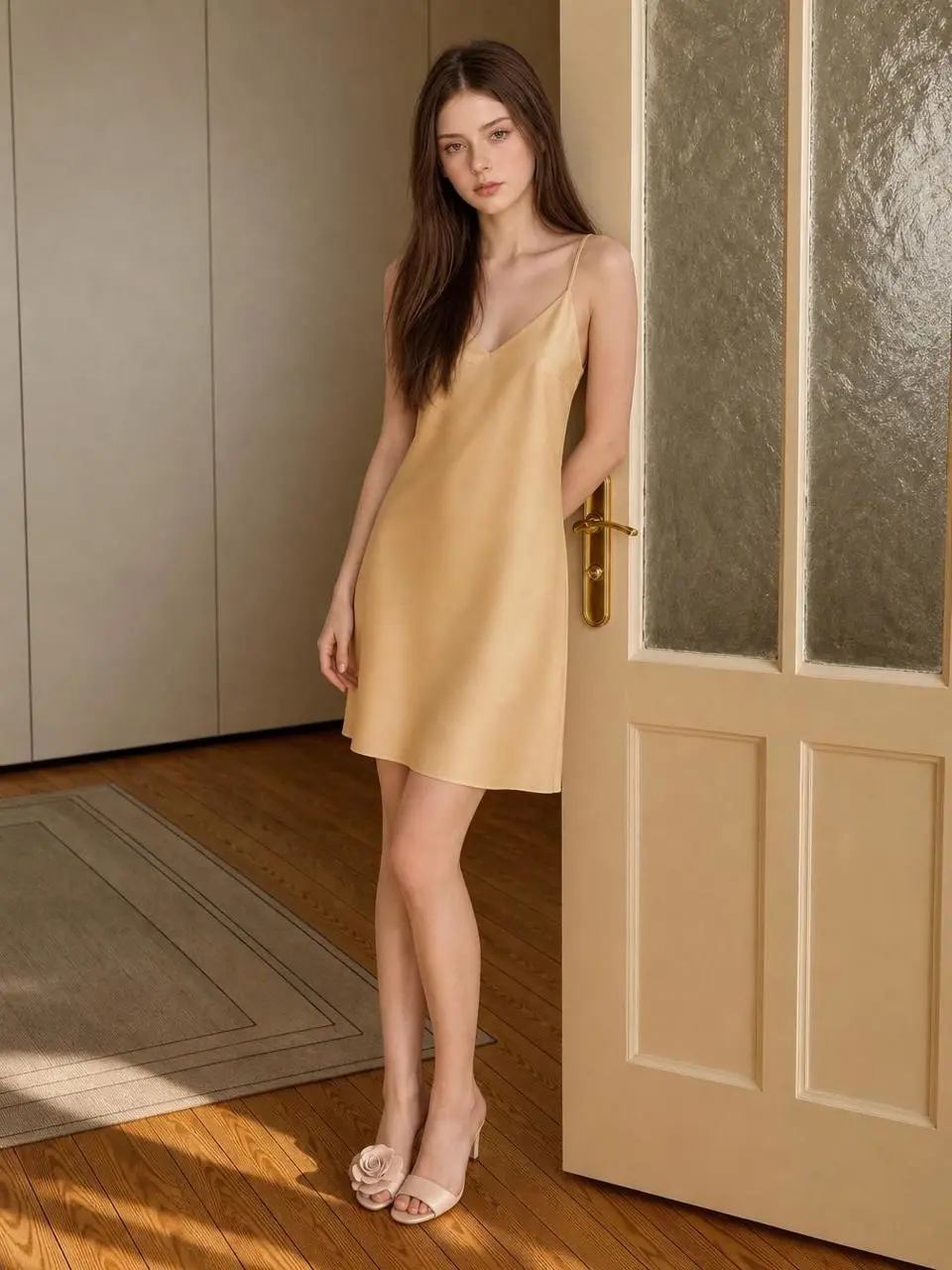
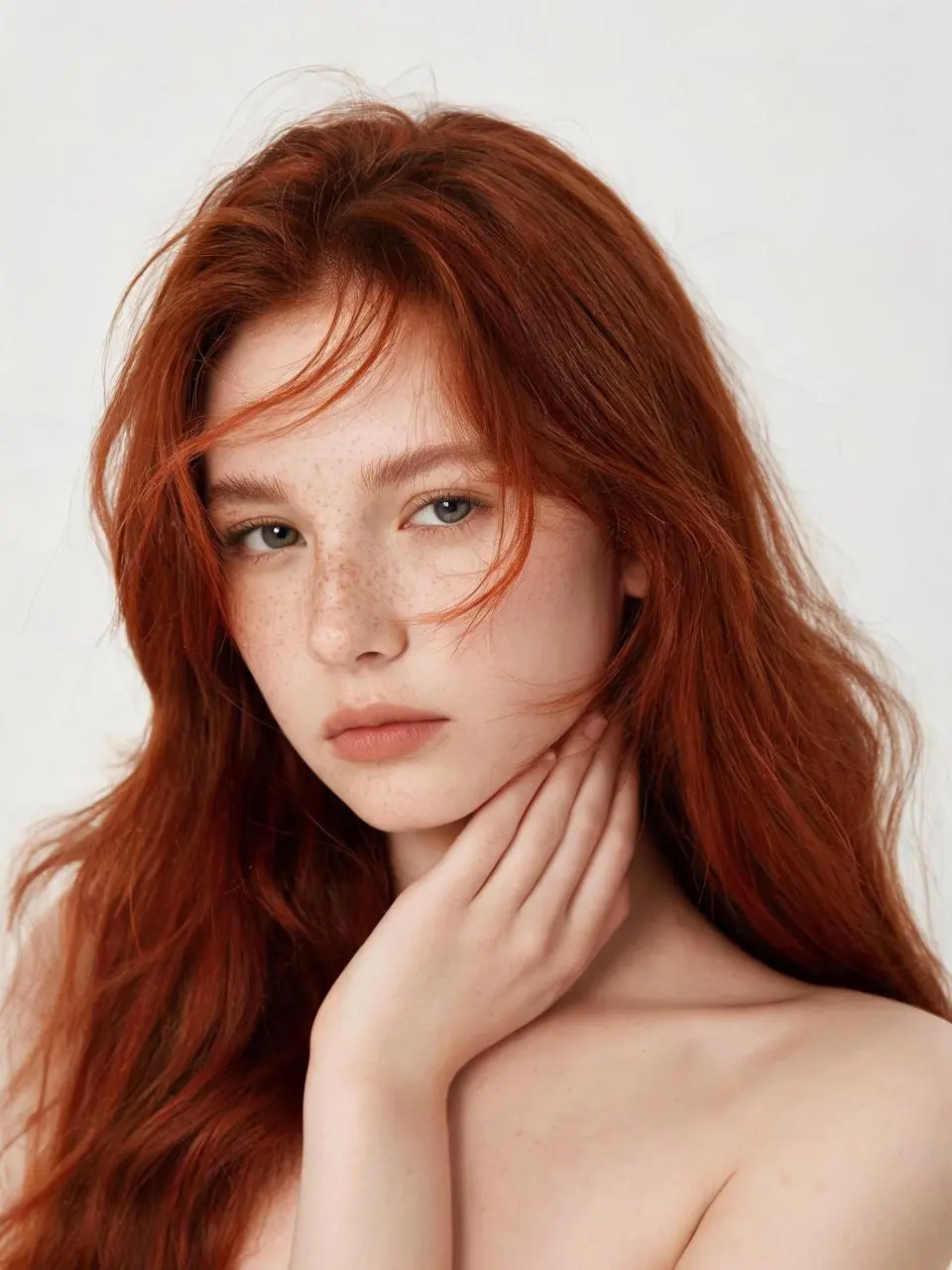
Outfit Transformation from Two References
Connect two outfit references through movement and transitions, using the images to define the clothing change.
Through camera movement and transitions, the outfit appears on the person, resulting in the look shown in Image 2.
Describe a camera move from a high aerial viewpoint down toward a road-level view, making the route part of the scene brief.
Cinematic 4K vertical drone shot descending from high aerial view to ground-level road POV. Starting with bird's eye view at 200 feet, smooth gimbal descent through golden hour sky, transitioning seamlessly to first-person road perspective. Warm sunset lighting, cinematic color grading, photorealistic rendering, professional cinematography.
PixVerse V6 is PixVerse’s video generation model for text- and image-led clips, with V6 emphasizing camera control, performance, and connected shots.
A Scene from Text or an Image
PixVerse supports text- and image-led creation through version-specific endpoints. A written brief creates the scene, while a starting image anchors its look.
Subject and Scene Movement
An action brief can describe a character, product, or object moving through the shot. The selected version and mode determine which controls are exposed.
Camera, Performance, and Connected Shots
The V6 release emphasizes camera direction, character performance, and multi-shot creation, alongside audiovisual capability.
WORKFLOWS
Choose Your Starting Input
Use the PixVerse 6.0 input mode that matches the material you have.
Build a Scene from Text
Describe the subject, setting, action, and camera for a new scene. Match the amount of action to the duration selected in the form.
Animate an Opening Image
Upload the frame that establishes the subject and scene. Describe the action, environmental movement, or camera direction that follows it.
Guide the Opening and Ending Frames
Supply both images, then describe the action or transition connecting their compositions. Choose a duration offered for this mode.
PROMPT GUIDE
How to Direct PixVerse 6.0 with a Prompt
Learn from the actual instructions behind these results. Each example keeps its complete original prompt and available inputs. For a new request, replace its subject and reference assignments with your own.
Add Motion to the Environment
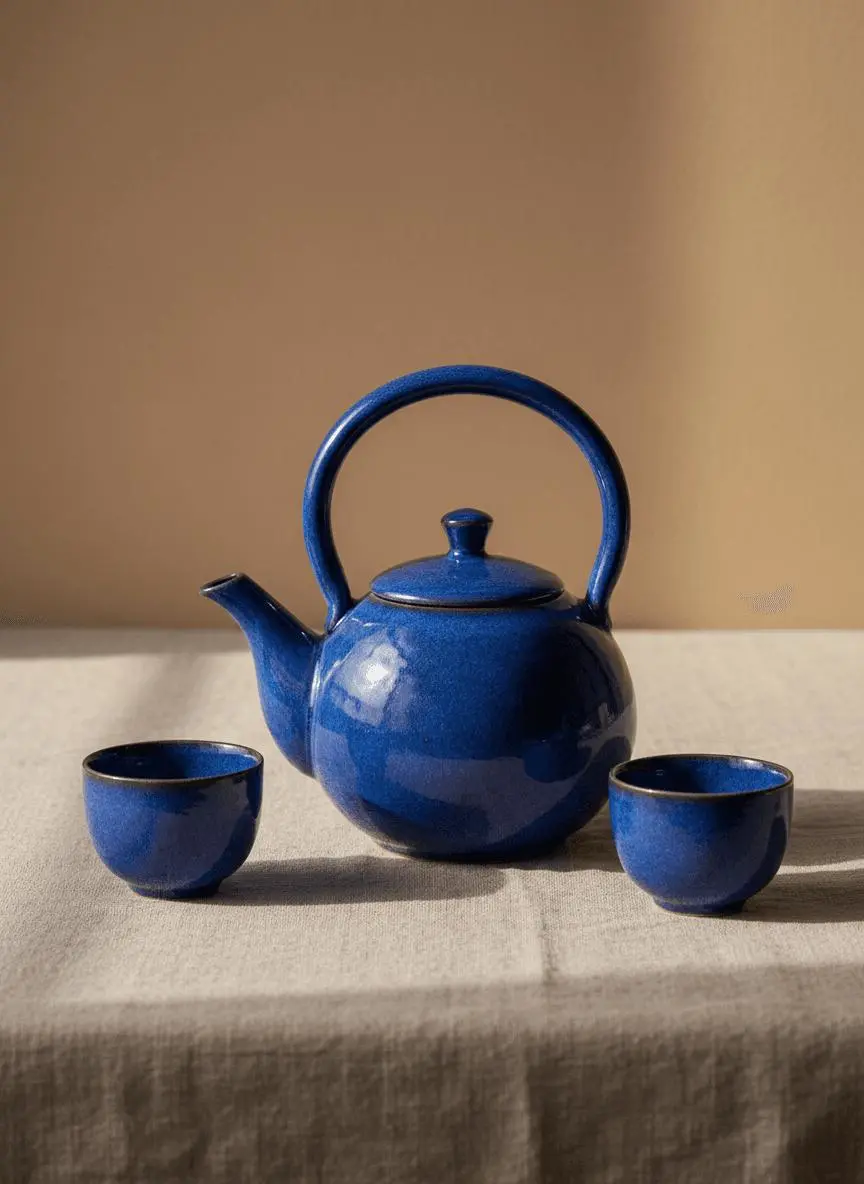
Identify the environmental element that moves while the composition remains recognizable. In this case: “A soft patch of window light moves slowly across the linen cloth while the camera makes a gentle push-in.”
Use image 1 as the first frame. Keep the blue teapot and two cups unchanged in shape, color and placement. A soft patch of window light moves slowly across the linen cloth while the camera makes a gentle push-in. One uninterrupted product shot, realistic shadows, no new objects, no cuts and no text.
Describe How the Framing Changes
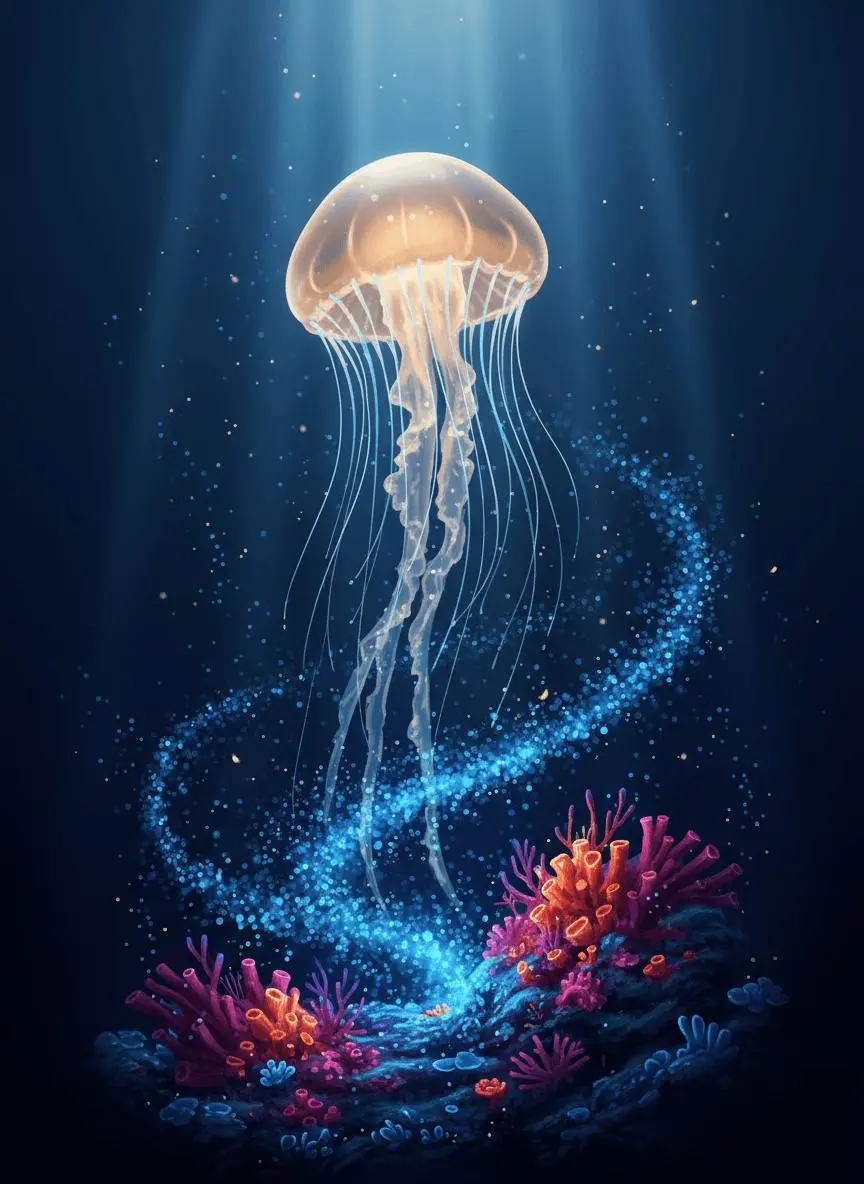
Name the camera movement and the part of the subject or environment it should reveal. In this case: “One continuous underwater shot with a subtle upward camera move, no text and no scene changes.”
Use image 1 as the first frame. The amber jellyfish pulses gently and rises slowly while its tentacles sway with the water. Tiny blue plankton drift past the reef. Keep the luminous color palette, reef arrangement and jellyfish identity consistent. One continuous underwater shot with a subtle upward camera move, no text and no scene changes.
Describe the Product Event
The request asks for the box to explode and the snacks to burst from inside it. Naming the container and what emerges makes the intended event explicit.
The snack box exploded, and the snacks burst open from the inside.
Establish the Visual Starting Point
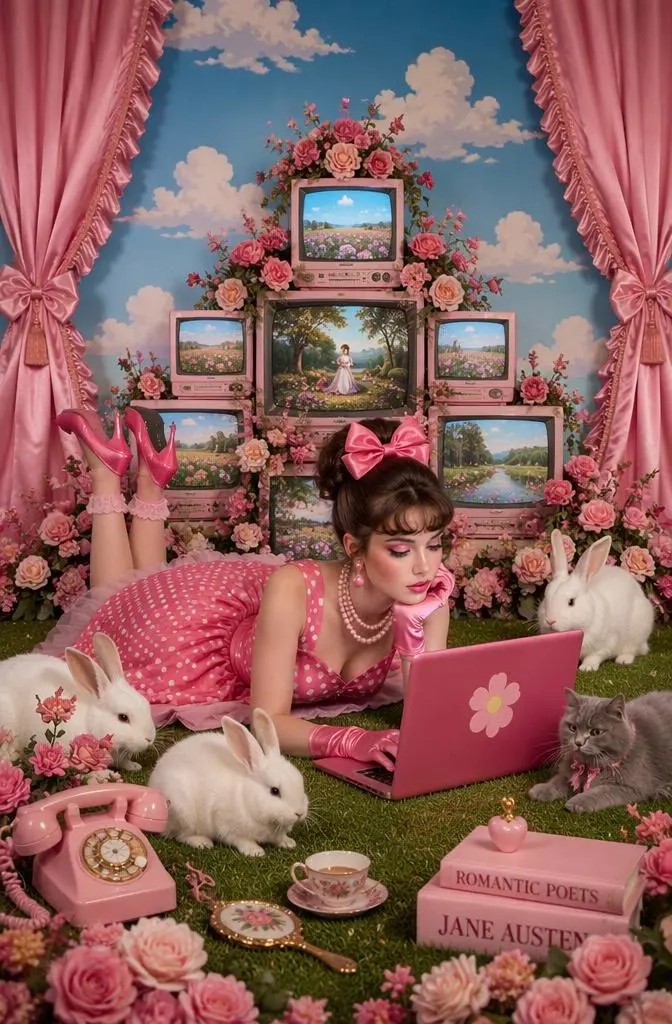
The request defines the subject and setting. Use it to study scene description rather than treating it as evidence of a particular motion or sound control. In this case: “While thinking, he swung his toes and typed on the keyboard.”
While thinking, he swung his toes and typed on the keyboard.
HOW TO USE
Create Your First PixVerse 6.0 Video
Start in the generator on this page. To reuse an example, click Copy Prompt, return to the description field, and adapt the prompt to your own inputs.
Provide the Scene and Inputs
Write your brief and add the reference media required by the selected mode. Explain the role of each supplied input.
Choose the Output Options
Choose an offered duration, aspect ratio, and other available output options. Check the form’s displayed points before submitting.
Generate and Review
Click Generate and review the resulting video. Check movement, framing, continuity, and any delivered audio. Adjust your prompt or references for the next attempt.
Compare the documented model roles and the inputs and options currently listed in WeShop. Model names or matching settings do not by themselves establish equal output quality or a fixed generation-time difference.
Dimension
PixVerse 5.5
PixVerse 5.6
PixVerse 6.0
Model role
Earlier text/image video selection
Later 5.x text/image selection; modes differ by endpoint
V6 emphasizes camera control, performance, and connected shots
Inputs listed for the page
Build a Scene from Text; Animate an Opening Image; Guide the Opening and Ending Frames
Build a Scene from Text; Animate an Opening Image
Build a Scene from Text; Animate an Opening Image; Guide the Opening and Ending Frames
Current WeShop options
Duration: 5s, 8s, 10s
Duration: 5s, 8s, 10s
Duration: 1–15 seconds
Model role
PixVerse 5.5
Earlier text/image video selection
PixVerse 5.6
Later 5.x text/image selection; modes differ by endpoint
PixVerse 6.0
V6 emphasizes camera control, performance, and connected shots
Inputs listed for the page
PixVerse 5.5
Build a Scene from Text; Animate an Opening Image; Guide the Opening and Ending Frames
PixVerse 5.6
Build a Scene from Text; Animate an Opening Image
PixVerse 6.0
Build a Scene from Text; Animate an Opening Image; Guide the Opening and Ending Frames
Current WeShop options
PixVerse 5.5
Duration: 5s, 8s, 10s
PixVerse 5.6
Duration: 5s, 8s, 10s
PixVerse 6.0
Duration: 1–15 seconds
When to Consider PixVerse 6.0
Match the Model to Your Task
Choose V6 when its listed modes fit the scene. Compare V6 for its documented camera, performance, and connected-shot focus; older entries have different available controls.
MORE VIDEO MODELS
Explore More Video Models
Open a related model page to review its capabilities, examples, and current generation options.
Answers about this version, its inputs, and how to get started.
What is PixVerse 6.0?
PixVerse V6 is PixVerse’s video generation model for text- and image-led clips, with V6 emphasizing camera control, performance, and connected shots.
What is a good task to consider it for?
Choose V6 when its listed modes fit the scene. Compare V6 for its documented camera, performance, and connected-shot focus; older entries have different available controls.
What do I need to provide?
Build a Scene from Text. Describe the subject, setting, action, and camera for a new scene. Match the amount of action to the duration selected in the form. Animate an Opening Image. Upload the frame that establishes the subject and scene. Describe the action, environmental movement, or camera direction that follows it. Guide the Opening and Ending Frames. Supply both images, then describe the action or transition connecting their compositions. Choose a duration offered for this mode.
Which output settings are offered here?
Duration: 1–15 seconds
How do I try an example prompt?
Click Copy Prompt, return to the generator, and paste it into the description field. Add your own required references and update their roles. Linked case previews and Use This Prompt open the saved case; they do not automatically fill this page’s form.
What should I know about this version?
Supported endpoints differ by version. This page does not imply access to every PixVerse reference, sound, or editing tool.