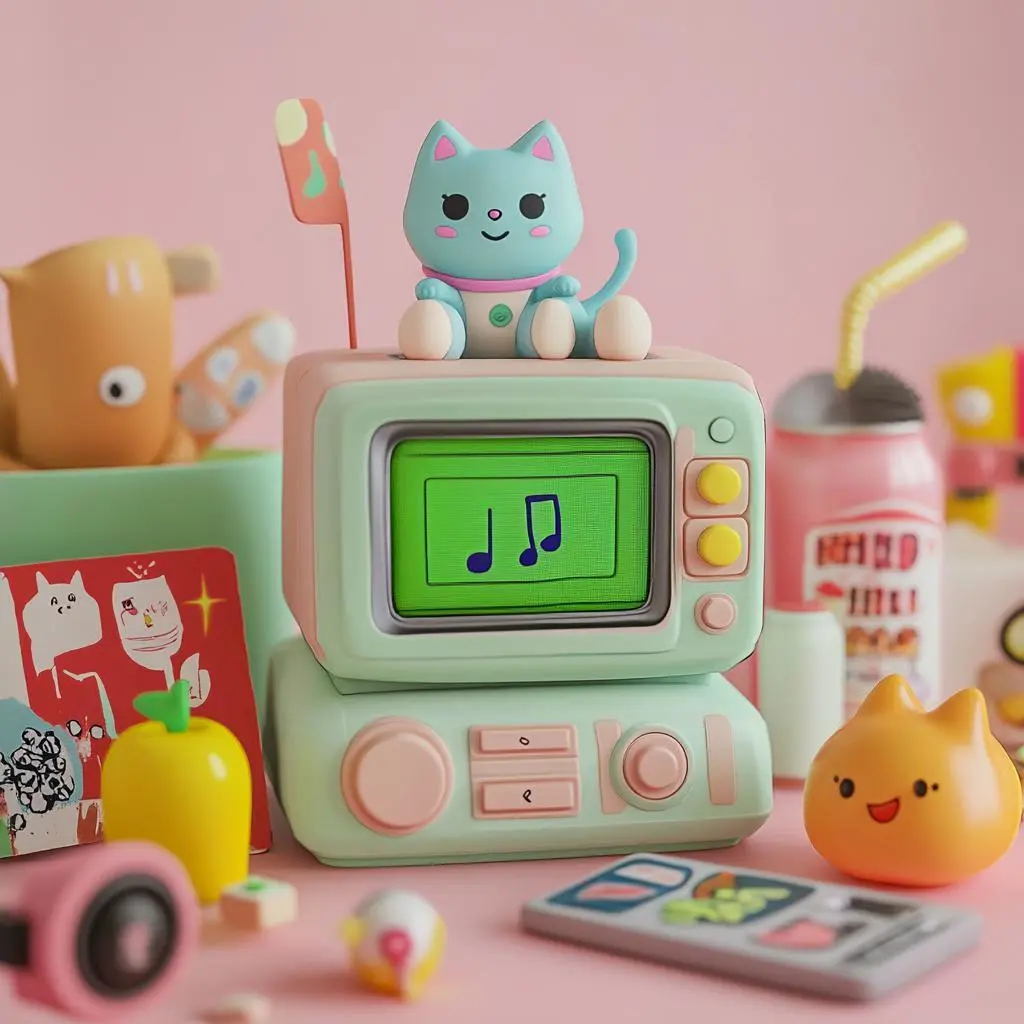
Pastel Toy Device and Cat
Animate a stylized scene built around a toy-like device and a cat, with the image establishing its playful treatment.
The musical notes inside the machine started moving.

Animate a starting image with Kling 2.1 Master. Establish the character or scene in the image, then direct a visible action and camera movement in the prompt.
Explore the tasks shown by these actual Kling 2.1 Master results. Copy a prompt to try in the generator, or open the linked case for its saved setup. Supply your own images or clips when the request uses references.
Animate a stylized scene built around a toy-like device and a cat, with the image establishing its playful treatment.
The musical notes inside the machine started moving.
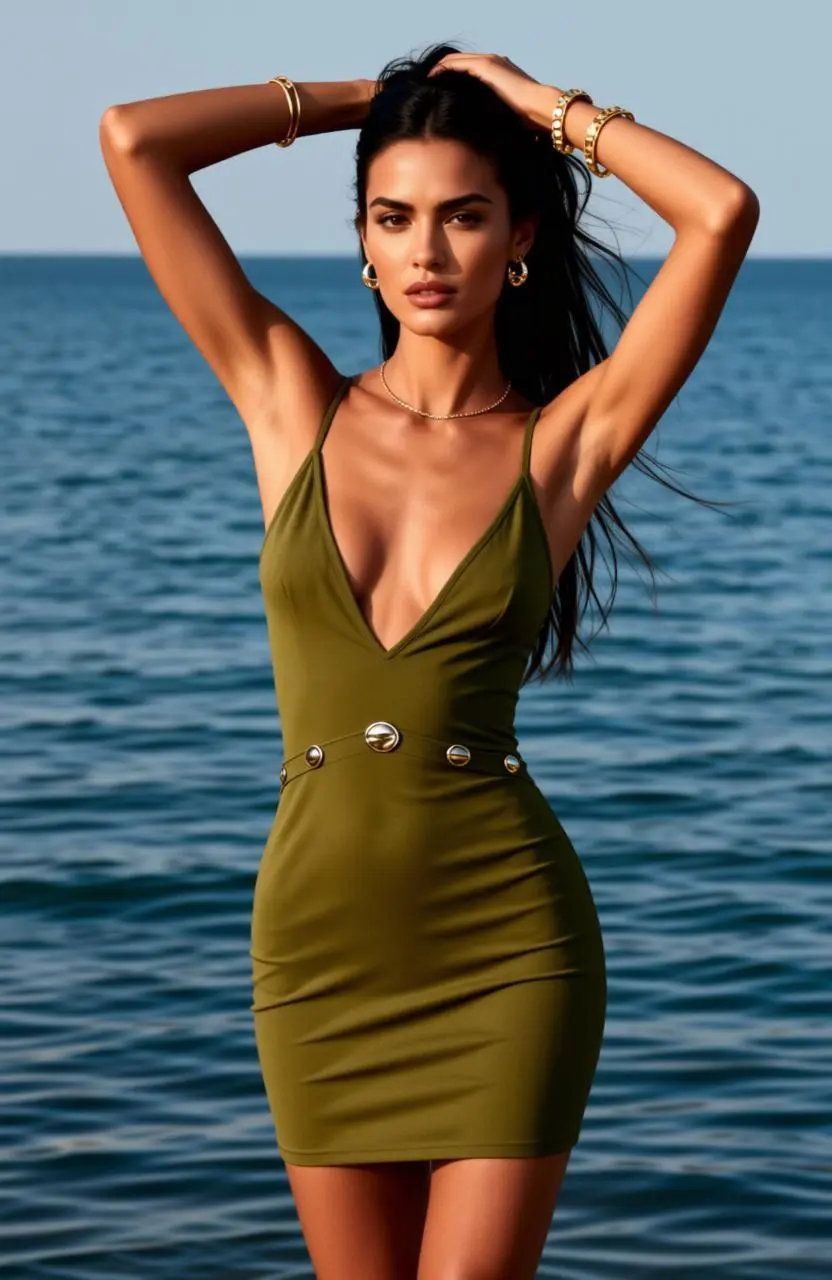
Give a portrait a sequence of lowering the arms, tossing the hair, looking toward the camera, and smiling.
Lower your arms, toss your hair, look at the camera, and smile.
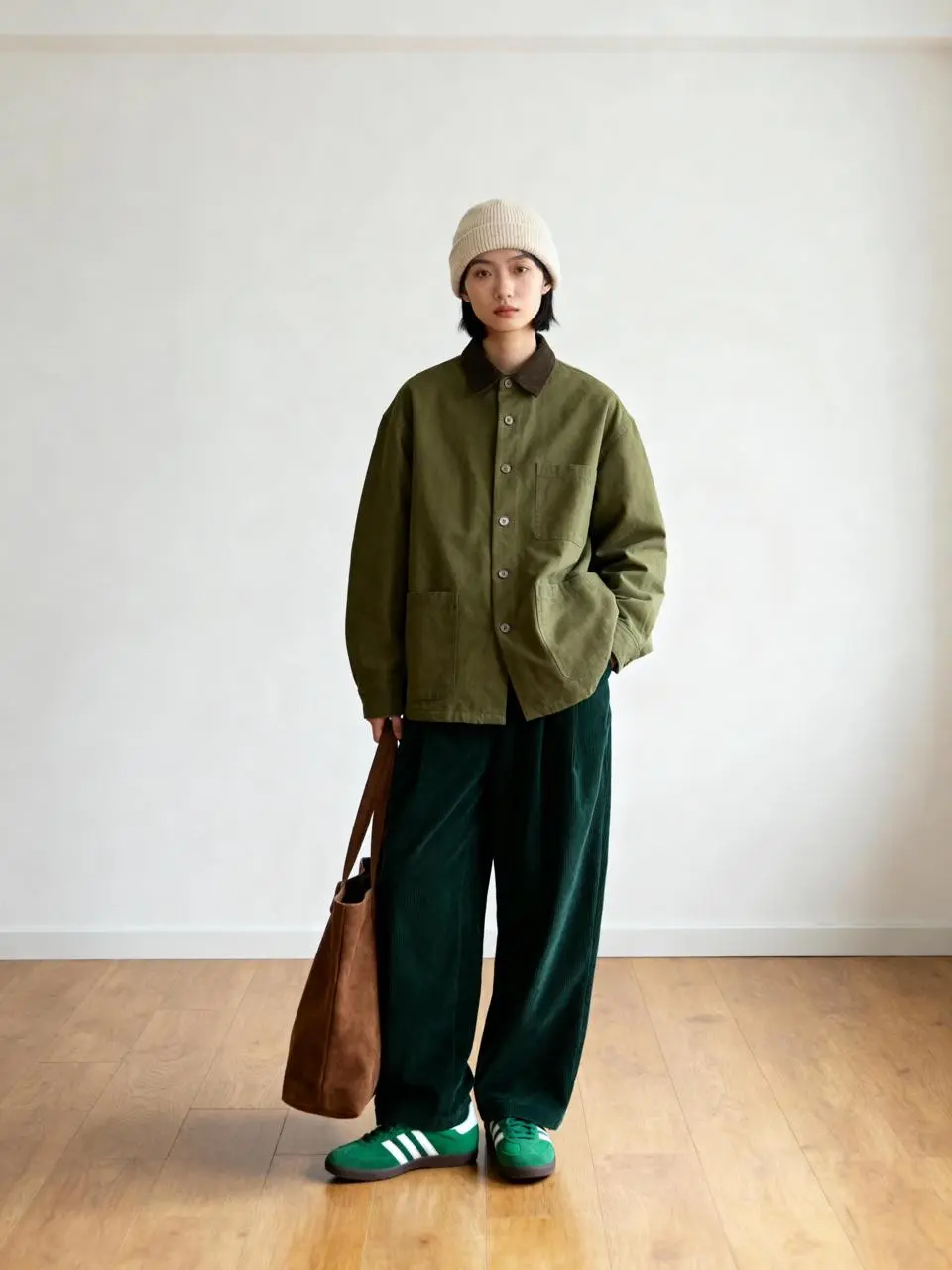
Plan an interaction in which a bear cub approaches and bumps the character’s leg, followed by a human response.
A little bear cub should come in and bump into the girl’s leg. The girl is touched and tries to gently pet it.
Kling 2.1 Master belongs to Kuaishou’s Kling 2.1 video model series, introduced around motion, visual quality, and responsiveness to scene instructions.
The opening image establishes the scene for this WeShop selection. The written direction describes what should happen after that frame.
Kuaishou’s 2.1 series launch emphasizes motion and physical simulation. Character actions and interactions provide concrete tasks for a short clip.
Use the Kling 2.1 Master input mode that matches the material you have.
Upload the frame that establishes the subject and scene. Describe the action, environmental movement, or camera direction that follows it.
Learn from the actual instructions behind these results. Each example keeps its complete original prompt and available inputs. For a new request, replace its subject and reference assignments with your own.

Name the object and the action connecting it to the subject, including the gesture or contact. In this case: “a white persian cat wearing sunglasses and holding an open fashion magazine, sitting on the seat of a luxury private jet, drinking champagne.”
a white persian cat wearing sunglasses and holding an open fashion magazine, sitting on the seat of a luxury private jet, drinking champagne. the image has a soft, textured fur, warm lighting, and a luxurious setting. the photography style is high-resolution, with an f/2 lens and a shallow depth of field. the glass has a pink rose tint, and there is pink champagne in the background. the fashion magazine is open next to the cat, creating a soft focus and an elegant, sophisticated atmosphere.
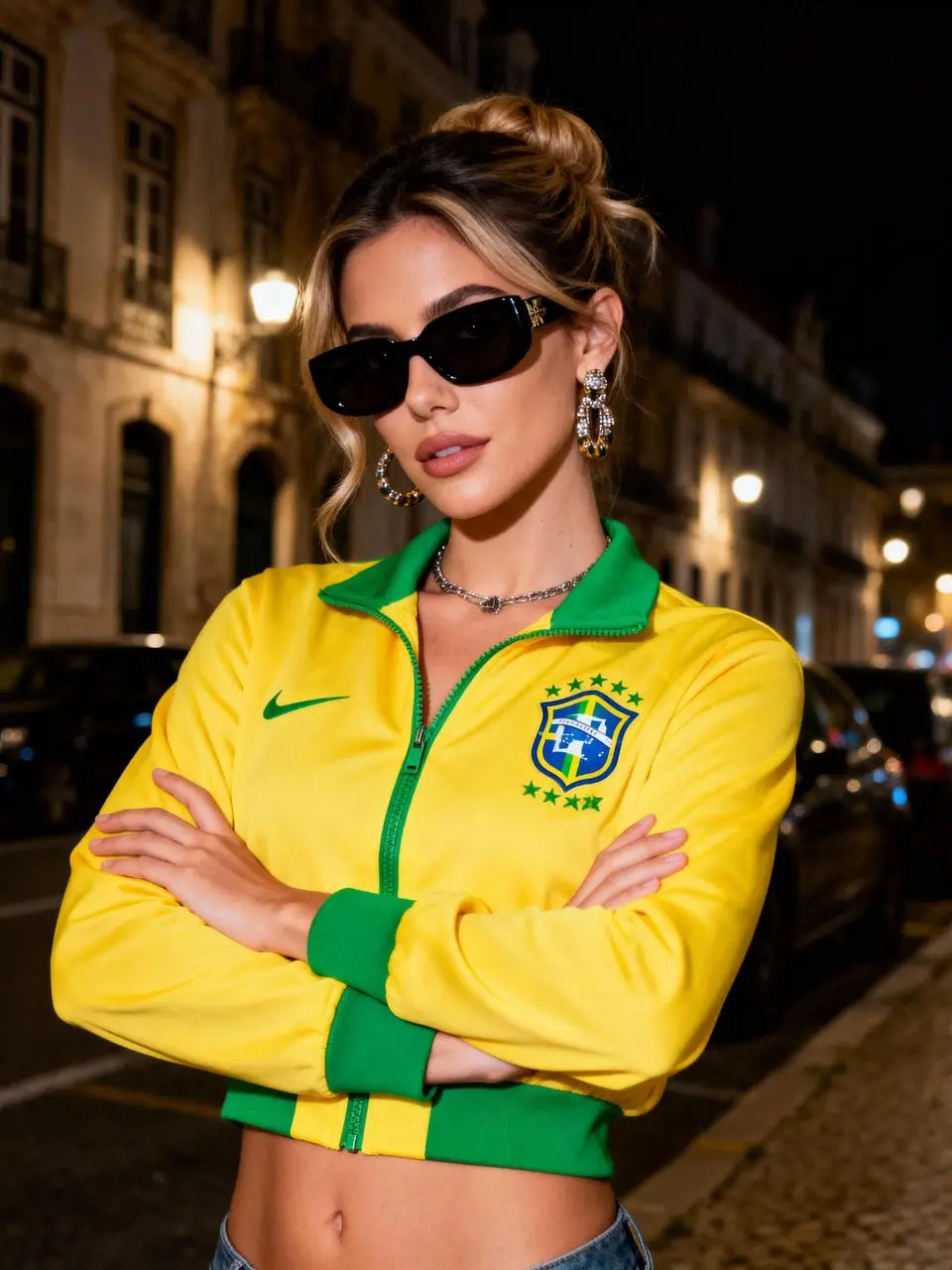
Name the movement the subject should perform within the shot. In this case: “A perfect jump-scare or dramatic backdrop”
A train appears behind the subject at full speed—loud, fast, and intense. A perfect jump-scare or dramatic backdrop
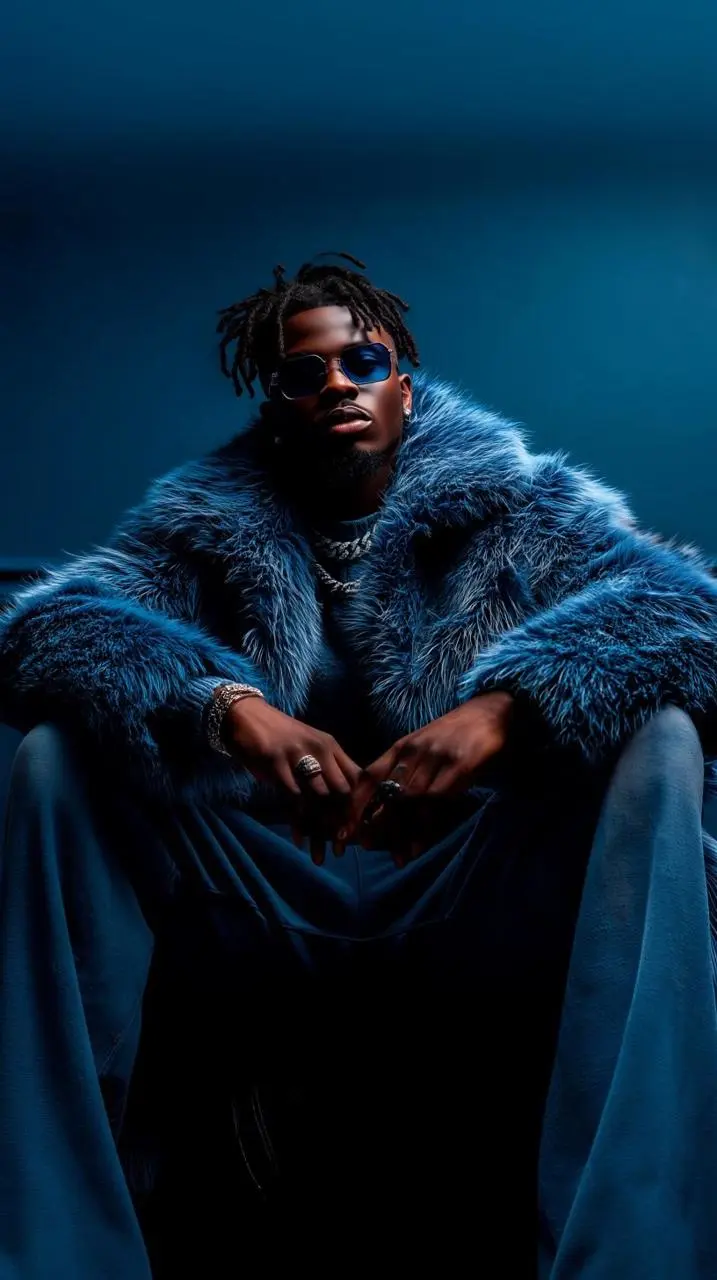
The request defines the subject and setting. Use it to study scene description rather than treating it as evidence of a particular motion or sound control. In this case: “Gestures to the hip-hop rhythm and sings.”
Gestures to the hip-hop rhythm and sings.
Start in the generator on this page. To reuse an example, click Copy Prompt, return to the description field, and adapt the prompt to your own inputs.
Upload the opening image that establishes the scene, then describe its movement.
Choose an offered duration, aspect ratio, and other available output options. Check the form’s displayed points before submitting.
Click Generate and review the resulting video. Check movement, framing, continuity, and any delivered audio. Adjust your prompt or references for the next attempt.
Compare the documented model roles and the inputs and options currently listed in WeShop. Model names or matching settings do not by themselves establish equal output quality or a fixed generation-time difference.
| Dimension | Kling 2.1 | Kling 2.1 Master | Kling 2.5 Turbo |
|---|---|---|---|
| Model role | 2.1 series image-led motion | Master selection in the 2.1 series; no paired benchmark asserted | Later motion-focused, efficiency-oriented selection |
| Inputs listed for the page | Animate an Opening Image; Guide the Opening and Ending Frames | Animate an Opening Image | Animate an Opening Image; Guide the Opening and Ending Frames |
| Current WeShop options | Duration: 5s, 10s | Duration: 5s, 10s | Duration: 5s, 10s |
Choose 2.1 Master when its available image-led workflow fits the shot. Standard 2.1 also offers a start/end mode in WeShop; Master currently lists an initial-frame mode.
Open a related model page to review its capabilities, examples, and current generation options.
Answers about this version, its inputs, and how to get started.
Kling 2.1 Master belongs to Kuaishou’s Kling 2.1 video model series, introduced around motion, visual quality, and responsiveness to scene instructions.
Choose 2.1 Master when its available image-led workflow fits the shot. Standard 2.1 also offers a start/end mode in WeShop; Master currently lists an initial-frame mode.
Animate an Opening Image. Upload the frame that establishes the subject and scene. Describe the action, environmental movement, or camera direction that follows it.
Duration: 5s, 10s
Click Copy Prompt, return to the generator, and paste it into the description field. Add your own required references and update their roles. Linked case previews and Use This Prompt open the saved case; they do not automatically fill this page’s form.
The source describes the 2.1 series, not a measured Master-versus-standard advantage. Use the actual input modes listed for each selection.