Animate your character using the movement in a reference video with Kling Motion Control. Supply the character image and motion clip, then describe any appearance or scene details to retain.
Explore the tasks shown by these actual Kling Motion Control results. Copy a prompt to try in the generator, or open the linked case for its saved setup. Supply your own images or clips when the request uses references.
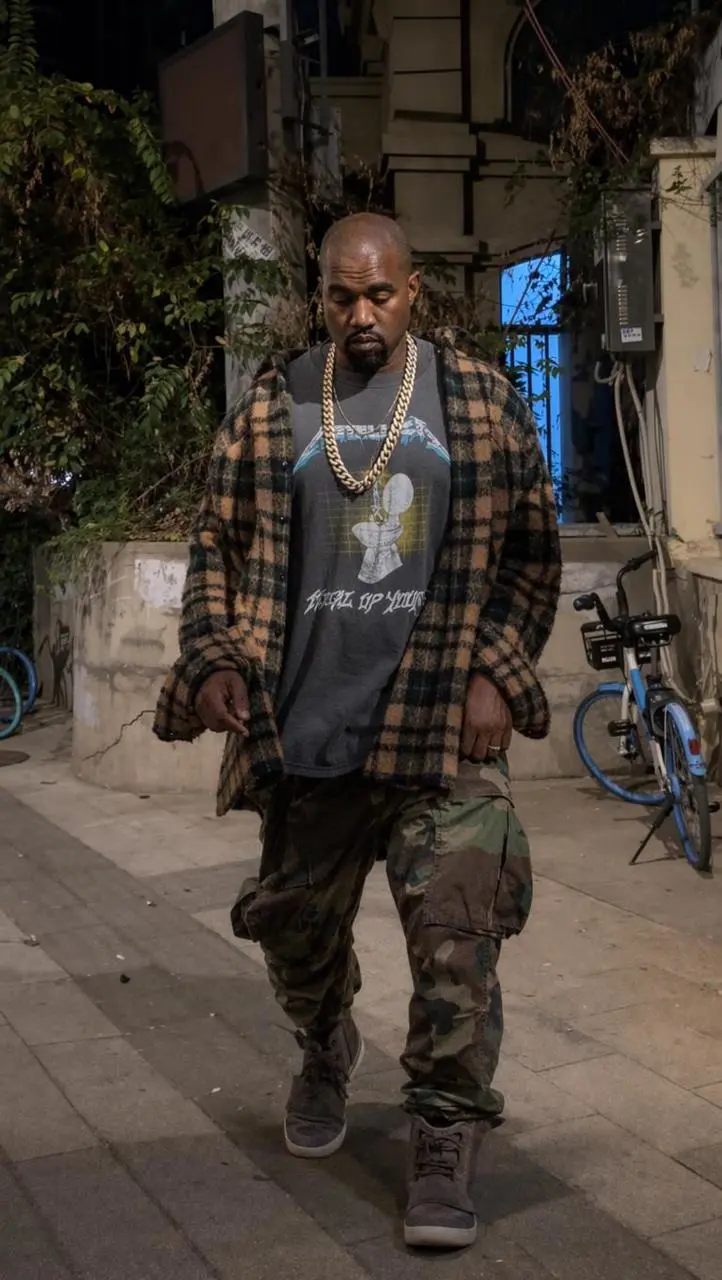
Cartoon Character Motion Transfer
Use a cartoon character image for appearance and a separate video for movement. The motion source is available in the linked case. This case also uses a motion-reference video; open the linked case to view the full setup.
Use image 1 to define the character appearance, clothing and visual style. Follow the body movement and timing in video 1 while keeping the character recognizable. Preserve the original background and avoid added people, lettering or scene changes. Keep the flat cartoon outlines and green character colors.
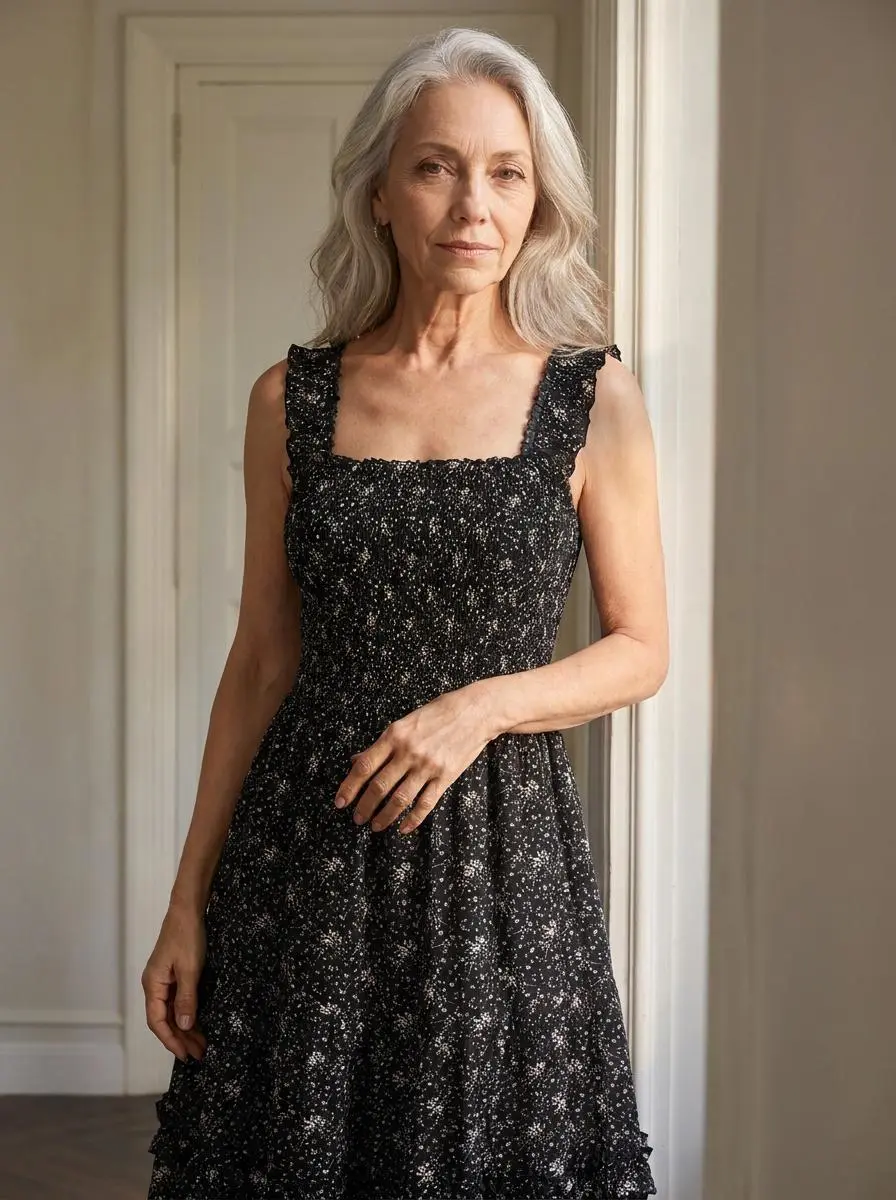
Apply a motion-reference clip to a fashion character image, keeping clothing and setting as separately specified visual details. This case also uses a motion-reference video; open the linked case to view the full setup.
Use image 1 to define the character appearance, clothing and visual style. Follow the body movement and timing in video 1 while keeping the character recognizable. Preserve the original background and avoid added people, lettering or scene changes. Preserve the black dress and softly lit interior.
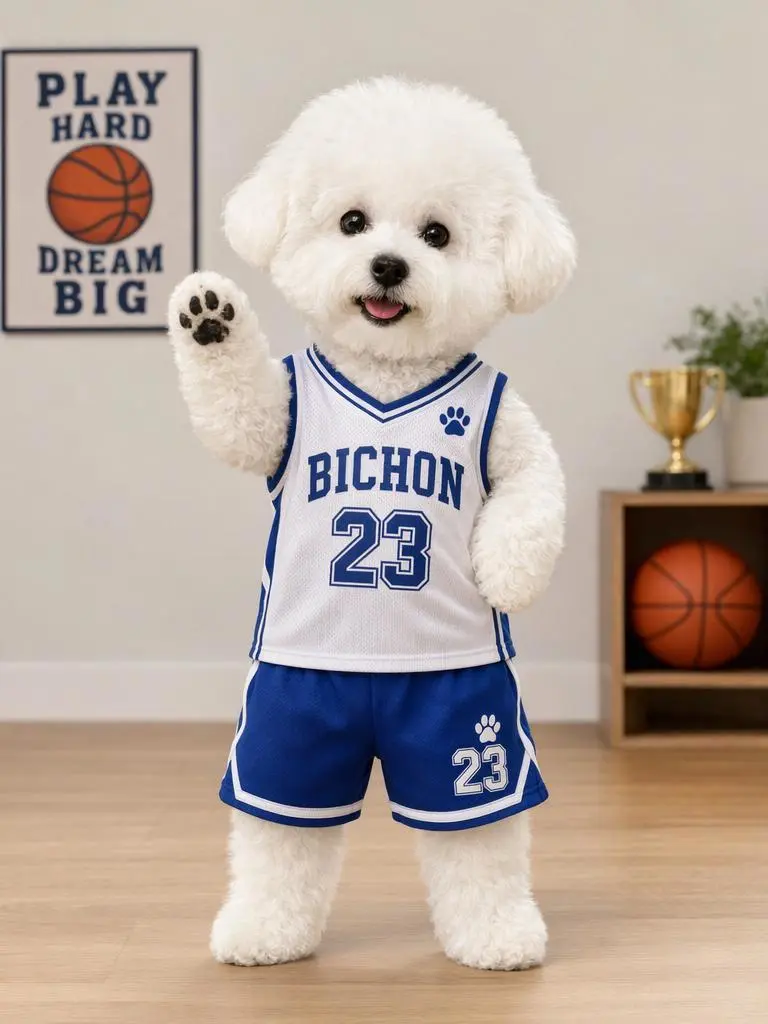
Animate a dog character in sports clothing using a supplied movement video rather than only a written action request. This case also uses a motion-reference video; open the linked case to view the full setup.
Use image 1 to define the character appearance, clothing and visual style. Follow the body movement and timing in video 1 while keeping the character recognizable. Preserve the original background and avoid added people, lettering or scene changes. Keep the small white dog, basketball outfit and soft toy-like proportions.
Kling Motion Control is Kling’s reference-driven feature for applying movements from a video to a supplied character image. It is a motion workflow rather than a separate general-purpose text-to-video version.
Appearance from the Image
The character image supplies the intended appearance and visual treatment. It is a separate input from the movement reference.
Movement from a Reference Video
Kuaishou documents transferring motion from a supplied clip or motion library. The result needs to be reviewed against that movement source.
WORKFLOWS
Choose Your Starting Input
Use the Kling Motion Control input mode that matches the material you have.
Supply the Character and Motion Clip
Upload the character image and a motion-reference video through the available controls. Assign appearance to the image and movement to the clip.
PROMPT GUIDE
How to Direct Kling Motion Control with a Prompt
Learn from the actual instructions behind these results. Each example keeps its complete original prompt and available inputs. For a new request, replace its subject and reference assignments with your own.
Give Appearance and Motion Different Inputs
Use the character image for appearance and the video for movement. The prompt assigns those jobs separately rather than treating the sources as interchangeable. Open the linked case for its additional video or audio input.
Preserve the character appearance from the input image and follow the movement in the reference video. Keep the original clothing and a consistent background.
Match the Movement and Its Timing
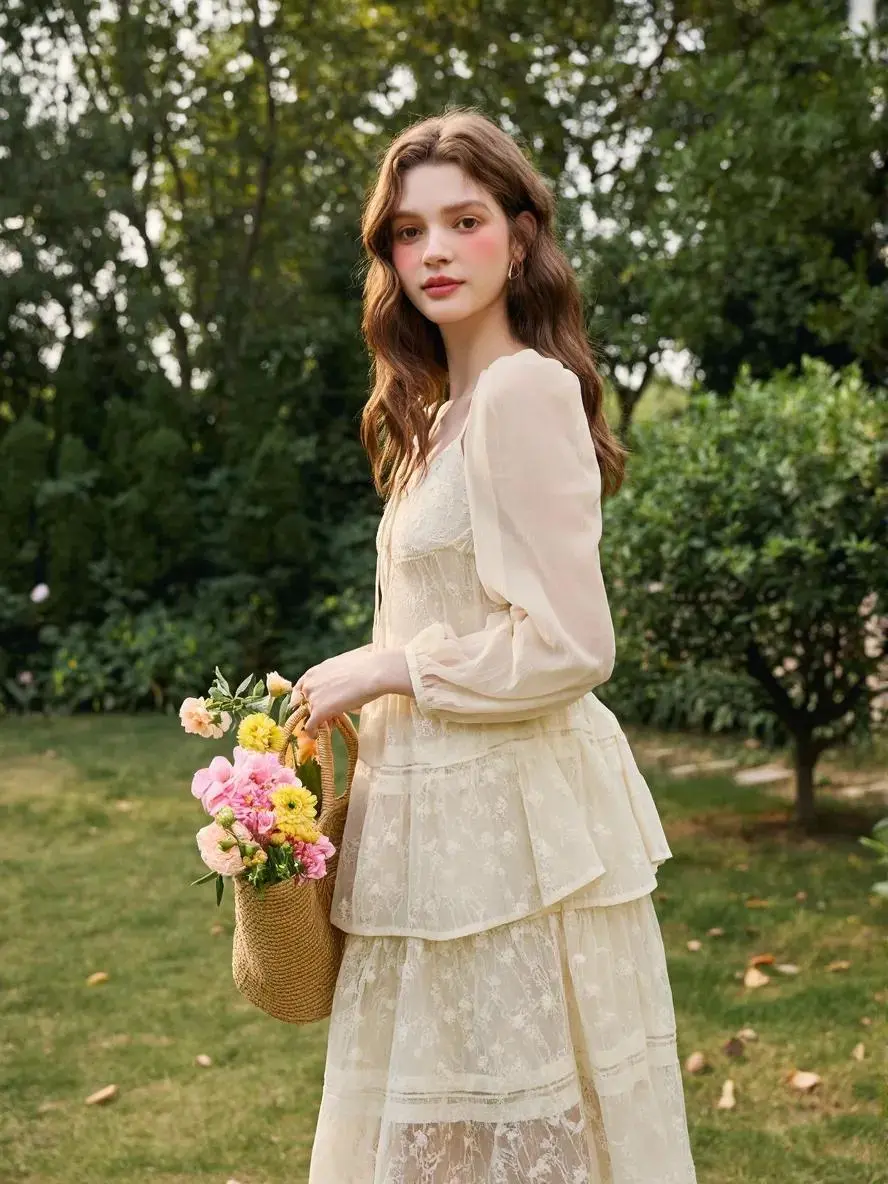
Use the clip for body movement and pace, while the image supplies the character. This fashion request also names the outfit, garden, and bouquet to retain. Open the linked case for its additional video or audio input.
Use image 1 to define the character appearance, clothing and visual style. Follow the body movement and timing in video 1 while keeping the character recognizable. Preserve the original background and avoid added people, lettering or scene changes. Keep the cream outfit, garden and flower bouquet recognizable.
Keep the Setting through the Movement
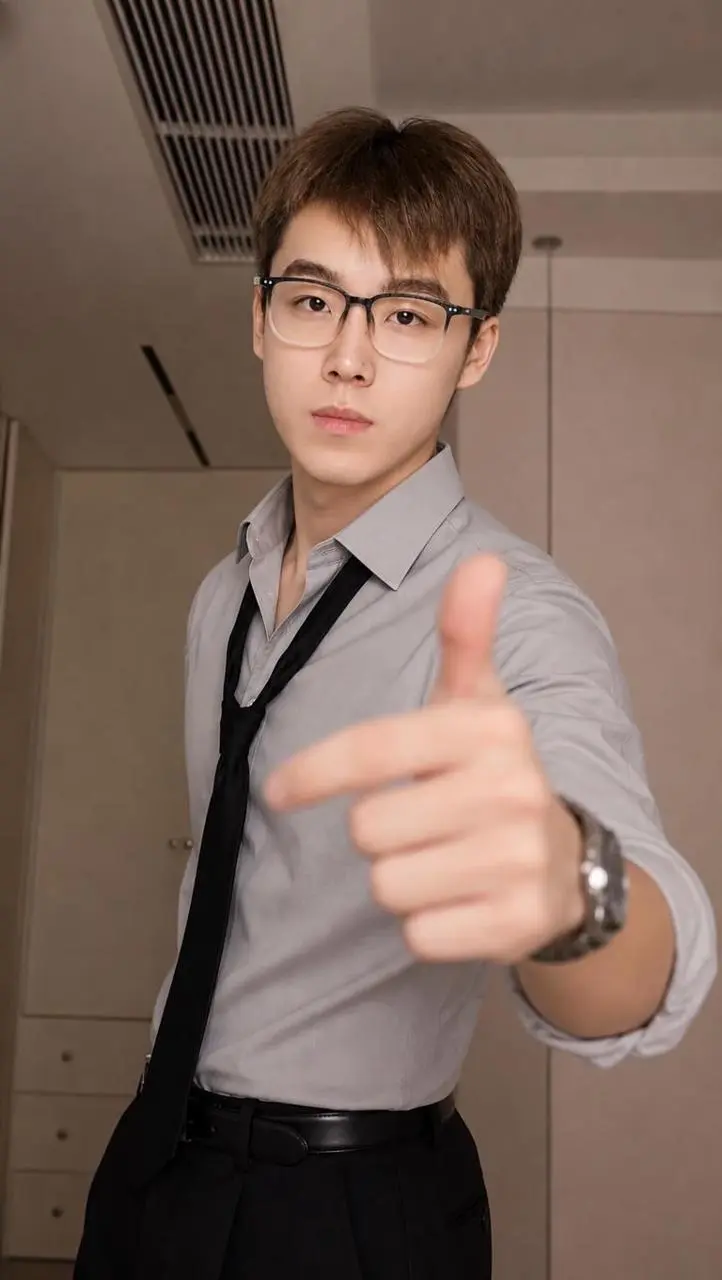
Describe the scene details to retain while the subject follows the reference clip. The shirt, tie, glasses, and room are specified separately from the arm gestures. Open the linked case for its additional video or audio input.
Use image 1 as the appearance reference and video 1 as the body-motion reference. Preserve the shirt, tie, glasses and recognizable face. Follow the arm gestures and timing in the video while retaining the room background. No added people, no cuts and no text.
HOW TO USE
Create Your First Kling Motion Control Video
Start in the generator on this page. To reuse an example, click Copy Prompt, return to the description field, and adapt the prompt to your own inputs.
Provide the Scene and Inputs
Upload an image and motion-reference video. Assign the image to appearance and the clip to movement.
Choose the Output Options
Choose an offered duration, aspect ratio, and other available output options. Check the form’s displayed points before submitting.
Generate and Review
Click Generate and review the resulting video. Check movement, framing, continuity, and any delivered audio. Adjust your prompt or references for the next attempt.
Answers about this version, its inputs, and how to get started.
What is Kling Motion Control?
Kling Motion Control is Kling’s reference-driven feature for applying movements from a video to a supplied character image. It is a motion workflow rather than a separate general-purpose text-to-video version.
What is a good task to consider it for?
Choose Motion Control when you already have a movement reference and a character image. A text-only action brief is a different starting workflow.
What do I need to provide?
Supply the Character and Motion Clip. Upload the character image and a motion-reference video through the available controls. Assign appearance to the image and movement to the clip.
Which output settings are offered here?
This entry does not list additional size, quality, or duration choices. Use the input controls shown in the form.
How do I try an example prompt?
Click Copy Prompt, return to the generator, and paste it into the description field. Add your own required references and update their roles. Linked case previews and Use This Prompt open the saved case; they do not automatically fill this page’s form.
What should I know about this version?
A motion prompt cannot replace the required source clip. Compare the movement and character separately; a still preview cannot establish motion fidelity.