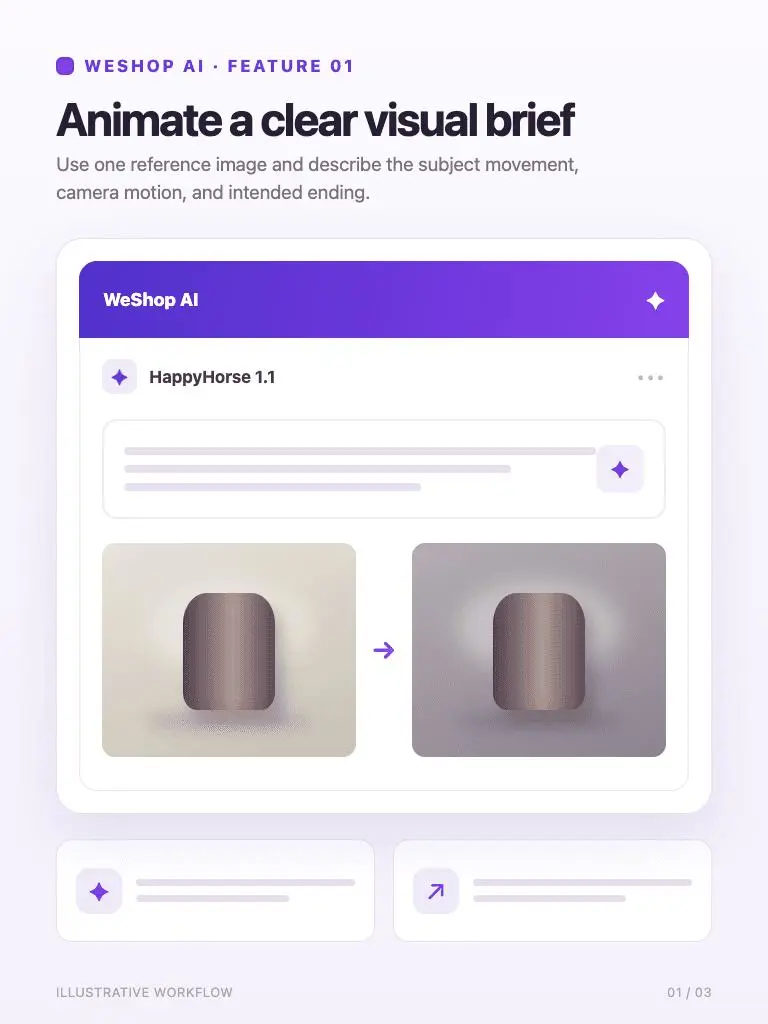
Animate a clear visual brief
Use one reference image and describe the subject movement, camera motion, and intended ending.
Animate a clear visual brief
Create videos with HappyHorse 1.1 on WeShop AI. Add a reference image, describe the motion, and choose 3–15 seconds for product clips and visual concepts.
Turn a still image into a focused short clip with controlled motion and format.
Use one reference image and describe the subject movement, camera motion, and intended ending.
Animate a clear visual brief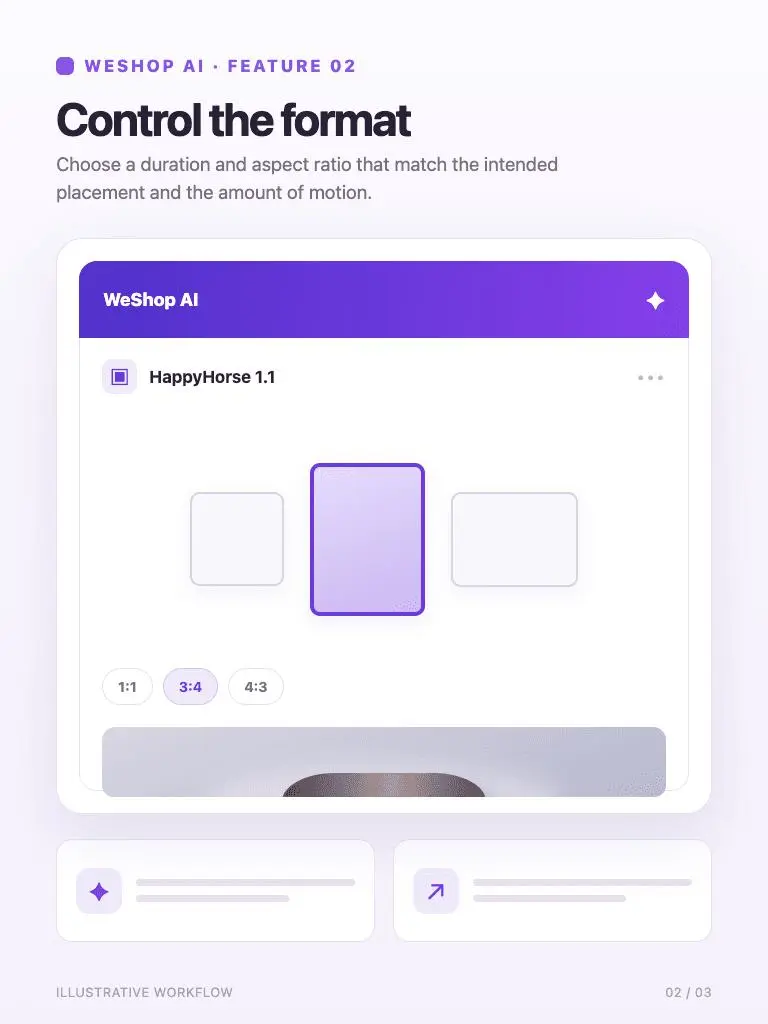
Choose a duration and aspect ratio that match the intended placement and the amount of motion.
Control the format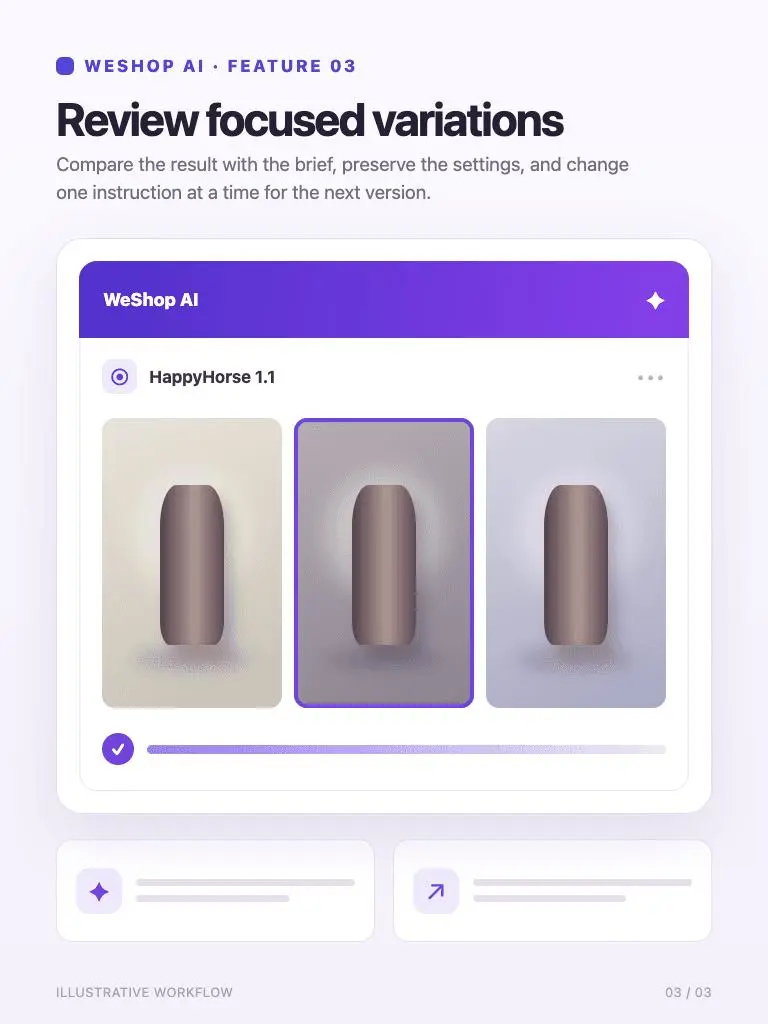
Compare the result with the brief, preserve the settings, and change one instruction at a time for the next version.
Review focused variationsReview the generated result against the prompt, selected model, and format.
Slowly push the camera toward the bottle while a soft highlight moves across the glass. Keep the bottle shape and label stable. Finish with a brief still hold on the product.Animate a product highlight
Review the generated result against the prompt, selected model, and format.
A light breeze gently moves the edge of the linen sleeve. The camera tracks slightly to the right across the fabric. Keep the same garment, background, and soft daylight.Add subtle fabric movement
Review the generated result against the prompt, selected model, and format.
Sunlight moves slowly across the desk as a sheer curtain stirs beside the window. A subtle camera push-in ends on the notebook. Keep the scene calm and the objects in place.Create a calm camera push
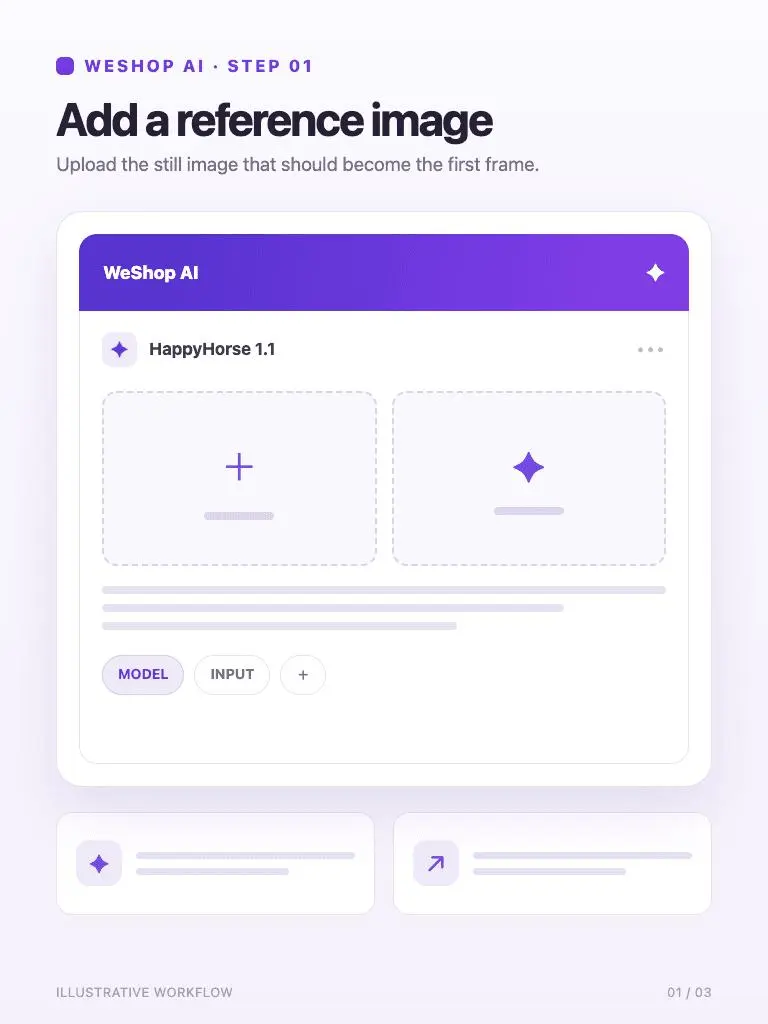
Upload the still image that should become the first frame.
1. Add a reference image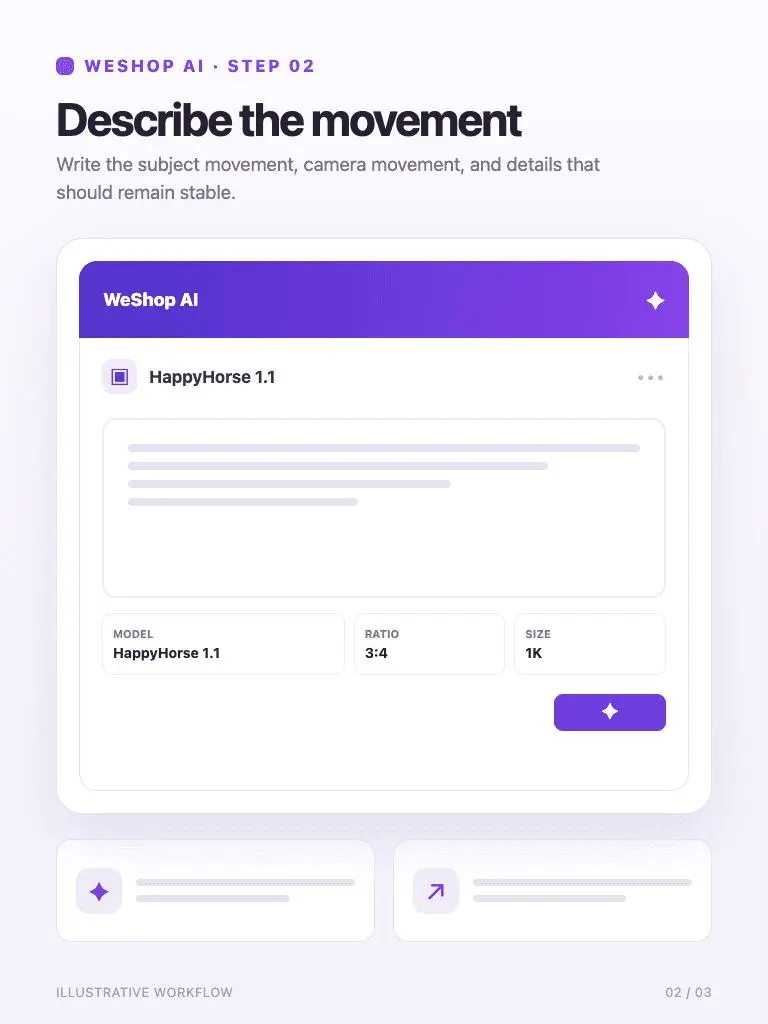
Write the subject movement, camera movement, and details that should remain stable.
2. Describe the movement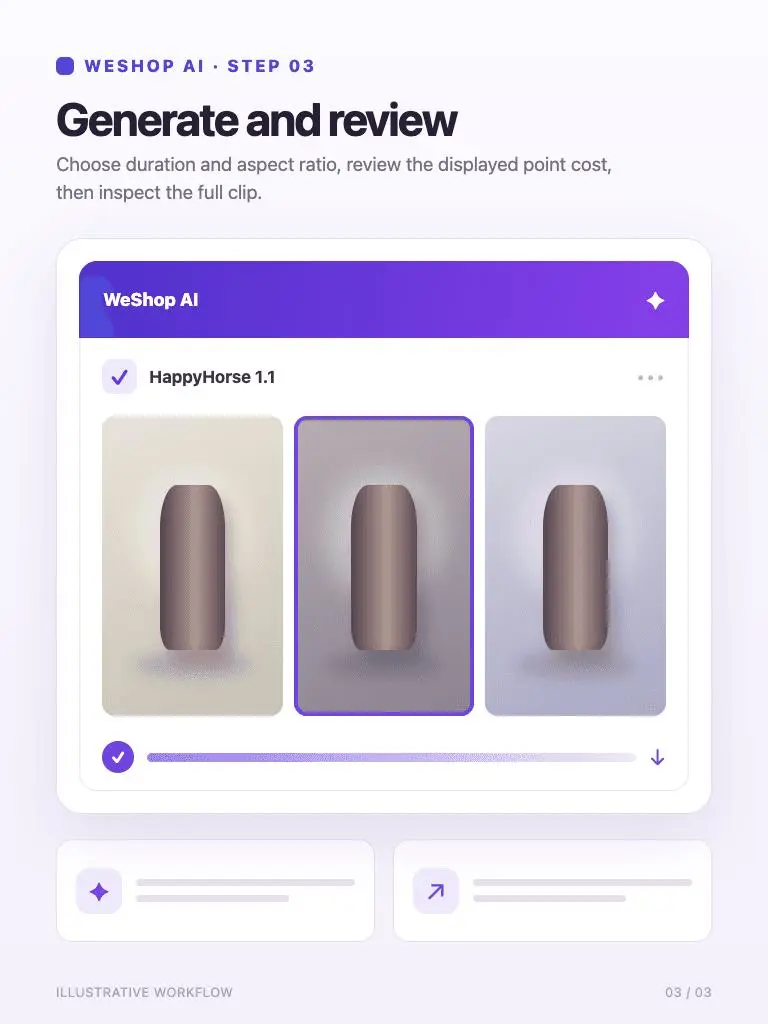
Choose duration and aspect ratio, review the displayed point cost, then inspect the full clip.
3. Generate and reviewCheck the selected model and available options before you generate. Review the point cost displayed for your selected settings before generating.
Review Generation SettingsDirect answers about model inputs, workflows, settings, and availability.
The current duration menu on WeShop AI offers 3–15 seconds. Choose a length that fits the action in your prompt and review the displayed point cost.
Describe the subject movement, camera movement, and ending. For a product clip, specify which product details should remain stable while the scene moves.
This page is dedicated to the 1.1 version. The separate HappyHorse page is another entry in the model catalog. Use the version label and available settings to choose the workflow you intend to run.
Watch the full clip and inspect the product silhouette, label, material, and movement. Check the opening and ending frames as well as the transitions between them before downloading your chosen result.