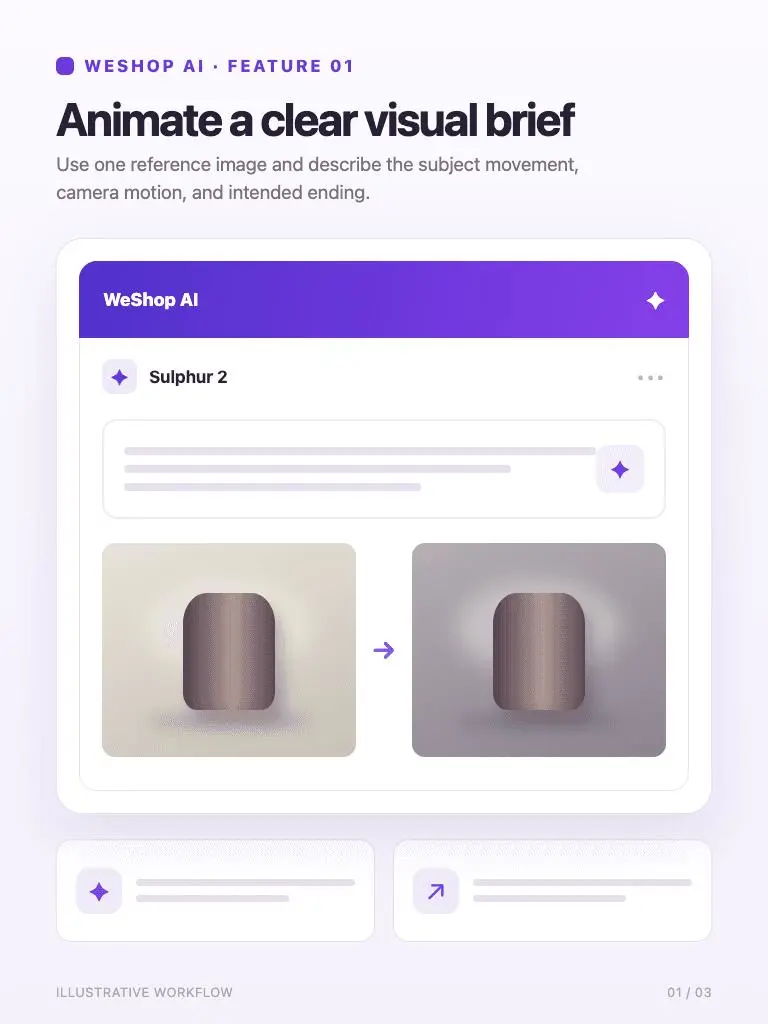
Animate a clear visual brief
Use one reference image and describe the subject movement, camera motion, and intended ending.
Animate a clear visual brief
Create short videos with Sulphur 2 on WeShop AI. Add an image and a motion prompt, choose 5–10 seconds, and explore product shots or cinematic concepts.
Turn a still image into a focused short clip with controlled motion and format.
Use one reference image and describe the subject movement, camera motion, and intended ending.
Animate a clear visual brief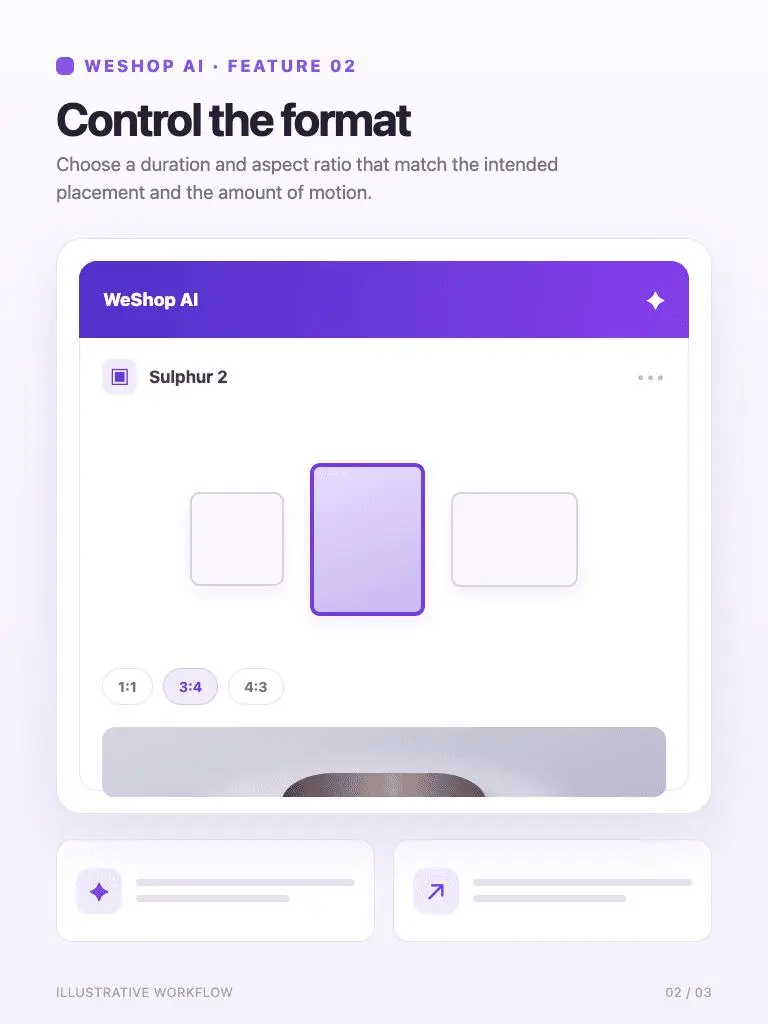
Choose a duration and aspect ratio that match the intended placement and the amount of motion.
Control the format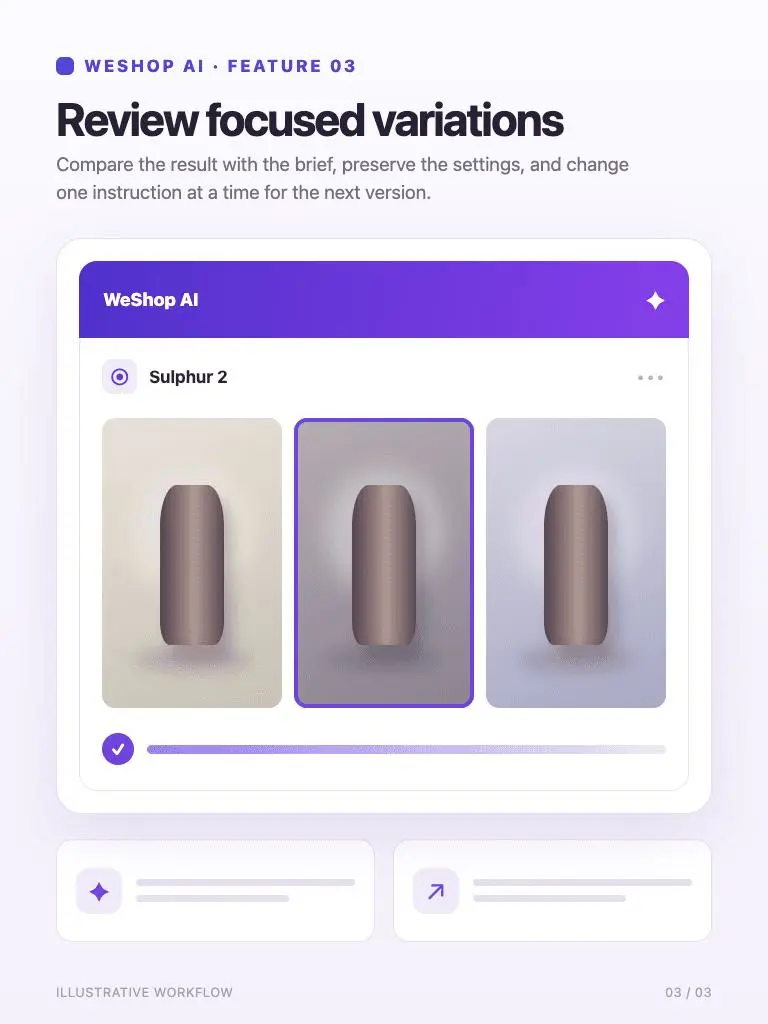
Compare the result with the brief, preserve the settings, and change one instruction at a time for the next version.
Review focused variationsReview the generated result against the prompt, selected model, and format.
The camera slowly moves closer to the coffee cup as a thin ribbon of steam rises. Keep the cup, saucer, and table fixed. Soft morning window light, calm movement.Add steam and a slow push-in
Review the generated result against the prompt, selected model, and format.
Make a gentle camera arc around the headphones on the pedestal. Keep the product shape and position stable, with soft studio light and a clean background.Create a product camera arc
Review the generated result against the prompt, selected model, and format.
A slow forward camera move along a quiet wet street at dusk. Reflections shimmer subtly under warm shop lights. Keep the buildings and signs in the same positions.Develop a cinematic street move
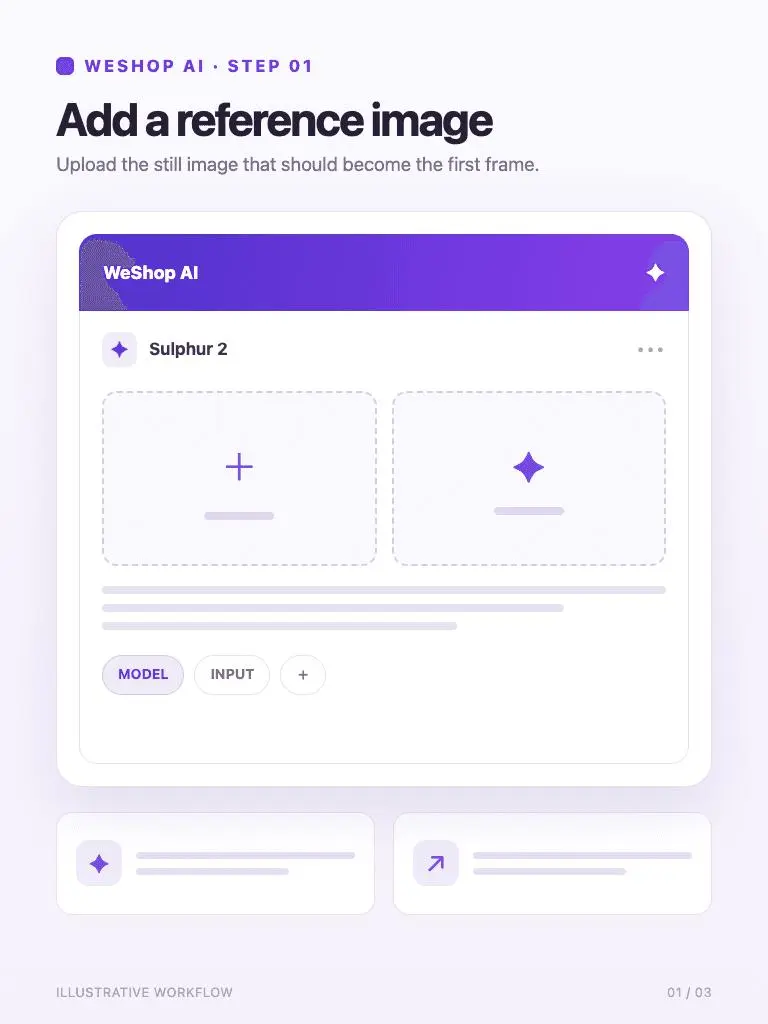
Upload the still image that should become the first frame.
1. Add a reference image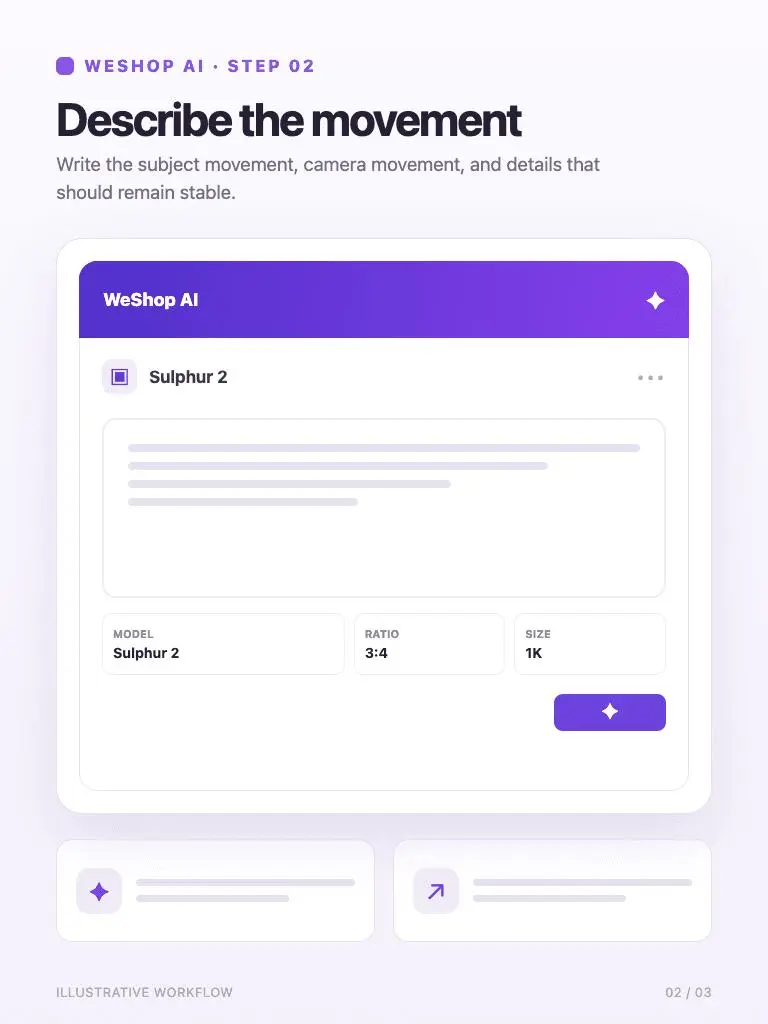
Write the subject movement, camera movement, and details that should remain stable.
2. Describe the movement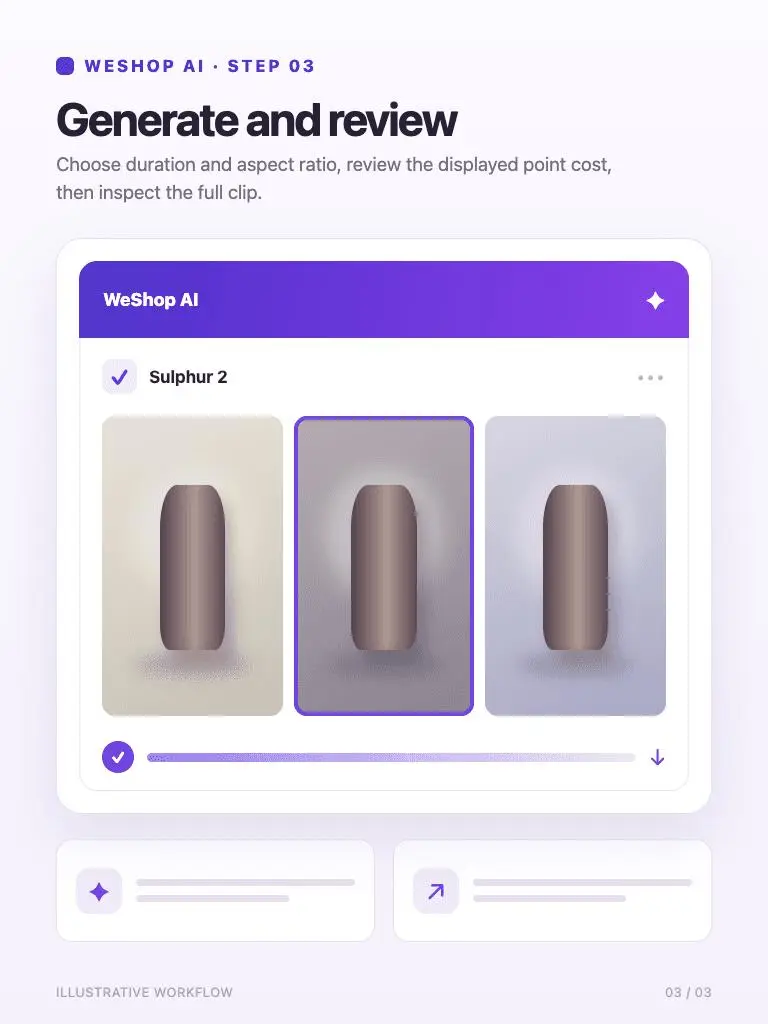
Choose duration and aspect ratio, review the displayed point cost, then inspect the full clip.
3. Generate and reviewCheck the selected model and available options before you generate. Review the point cost displayed for your selected settings before generating.
Review Generation SettingsDirect answers about model inputs, workflows, settings, and availability.
The page provides an image upload, a text prompt, duration, aspect ratio, and quantity. Add the starting image, describe the movement, and review the settings before generating.
The current menu offers 5, 6, 7, 8, 9, and 10 seconds. Match the duration to one clear action or camera movement.
Start with the subject and the movement, then add camera direction and lighting. Specify the details to keep stable, especially when animating a product.
WeShop AI displays the point cost next to the generation control. Review the amount after choosing your settings and use the pricing page to check the available plans.