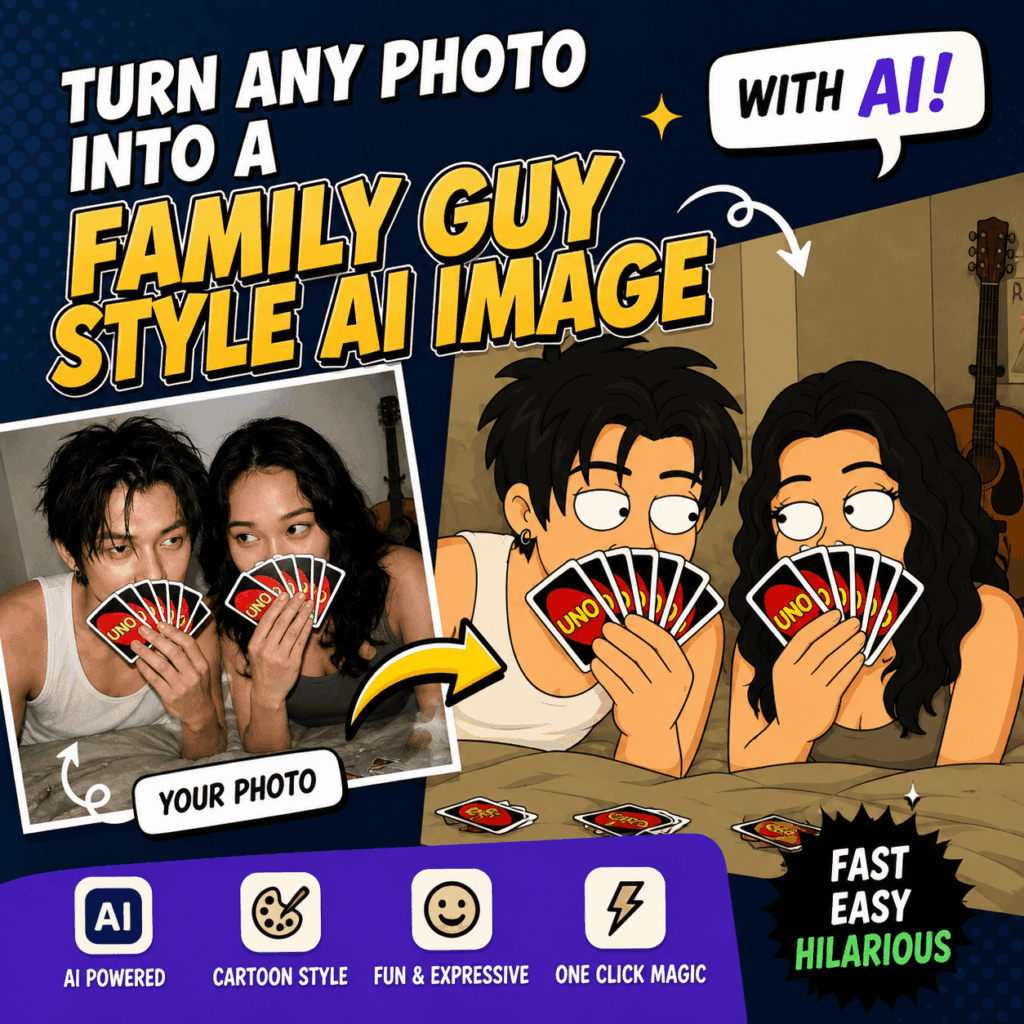
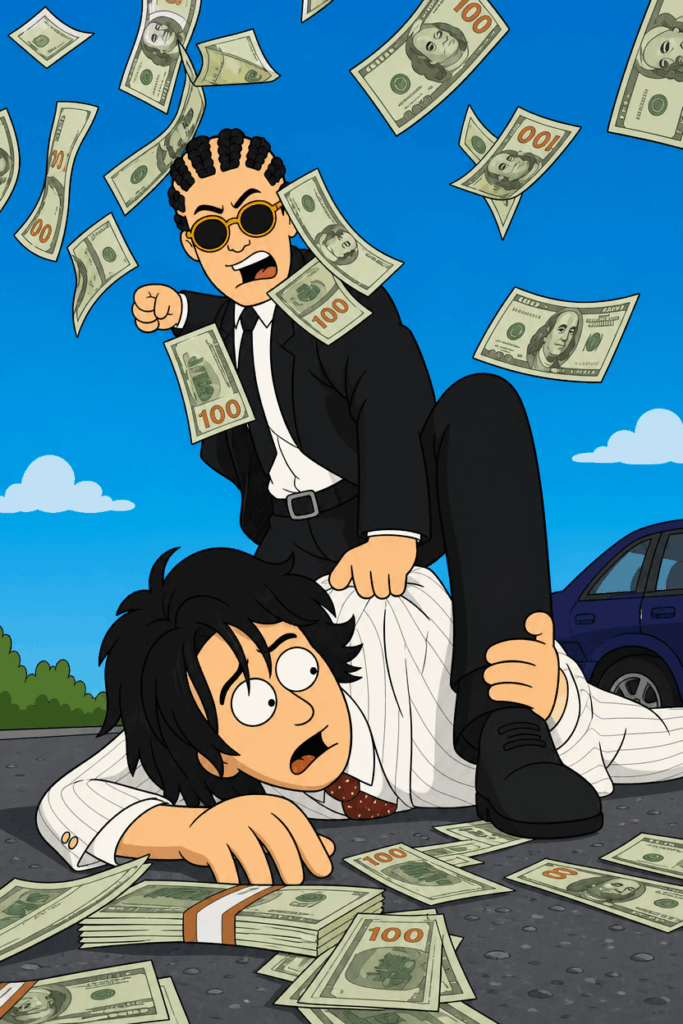
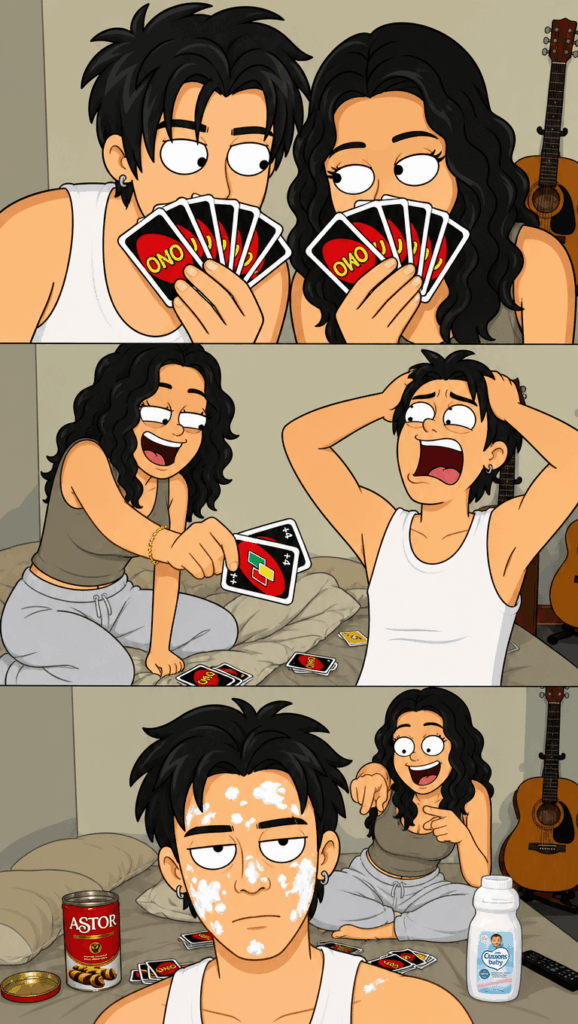
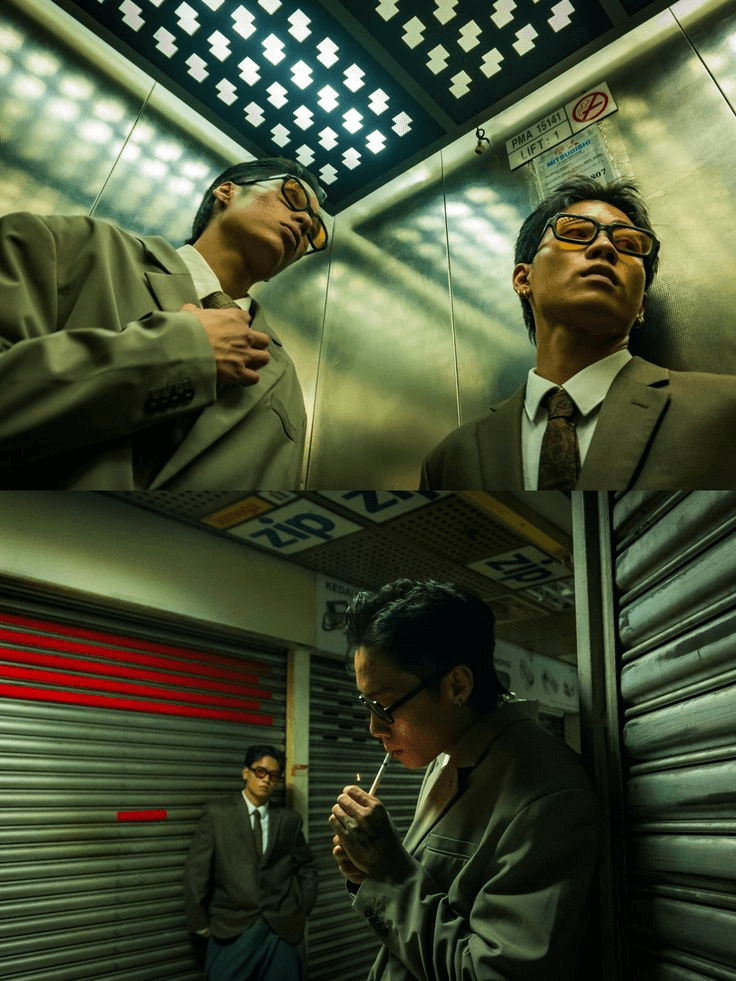
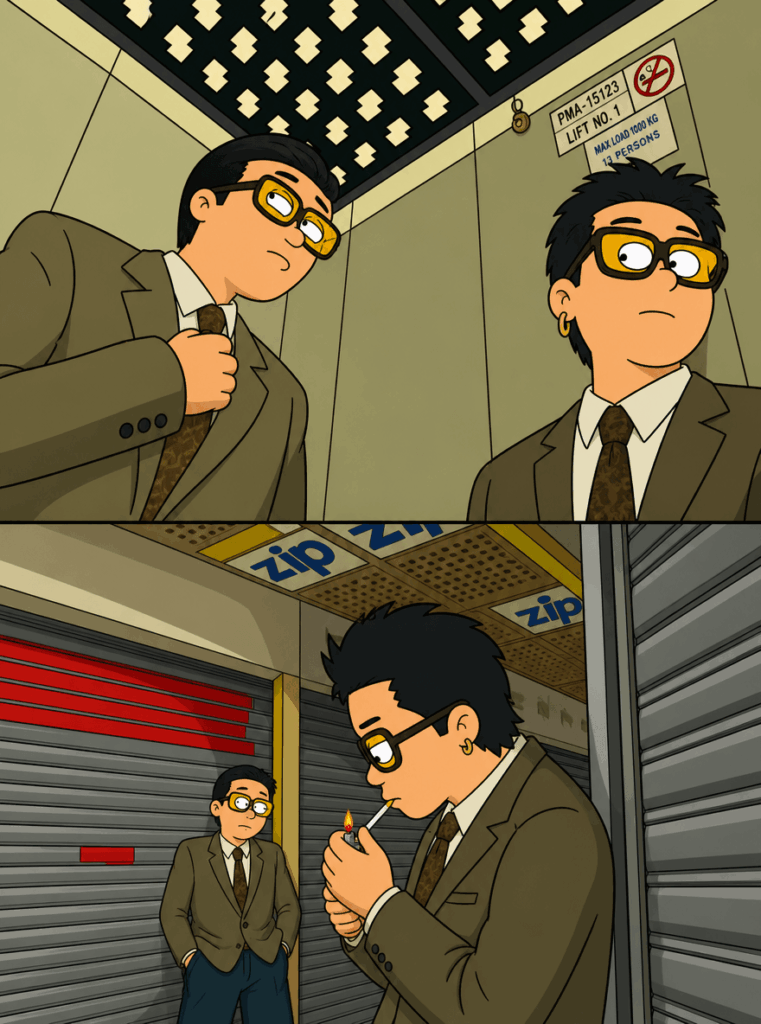
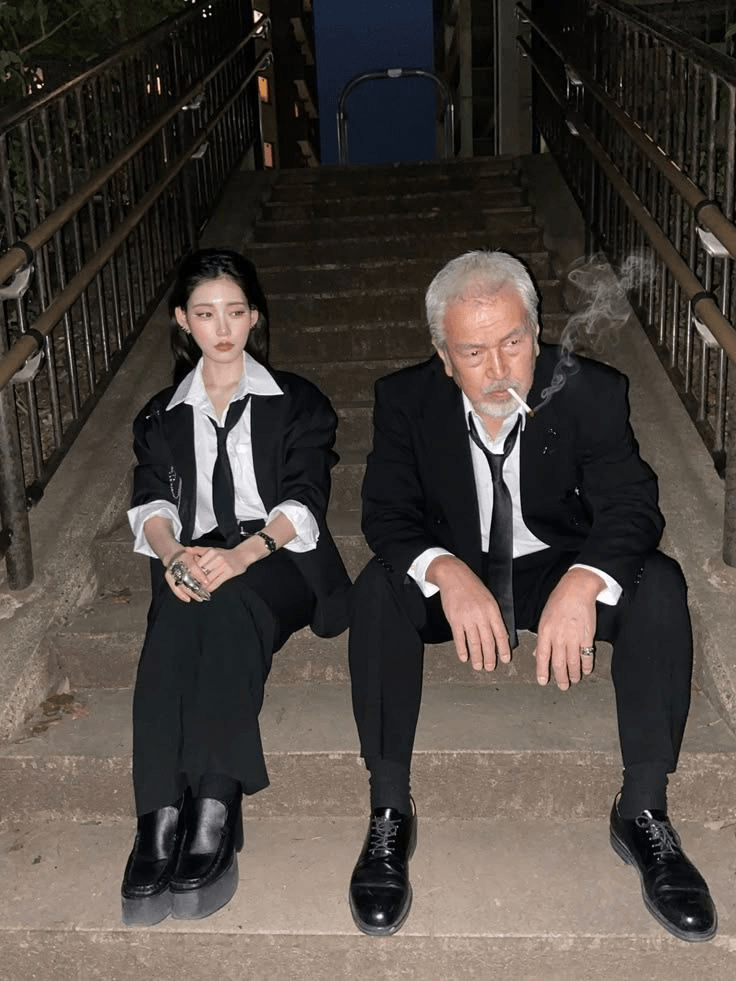
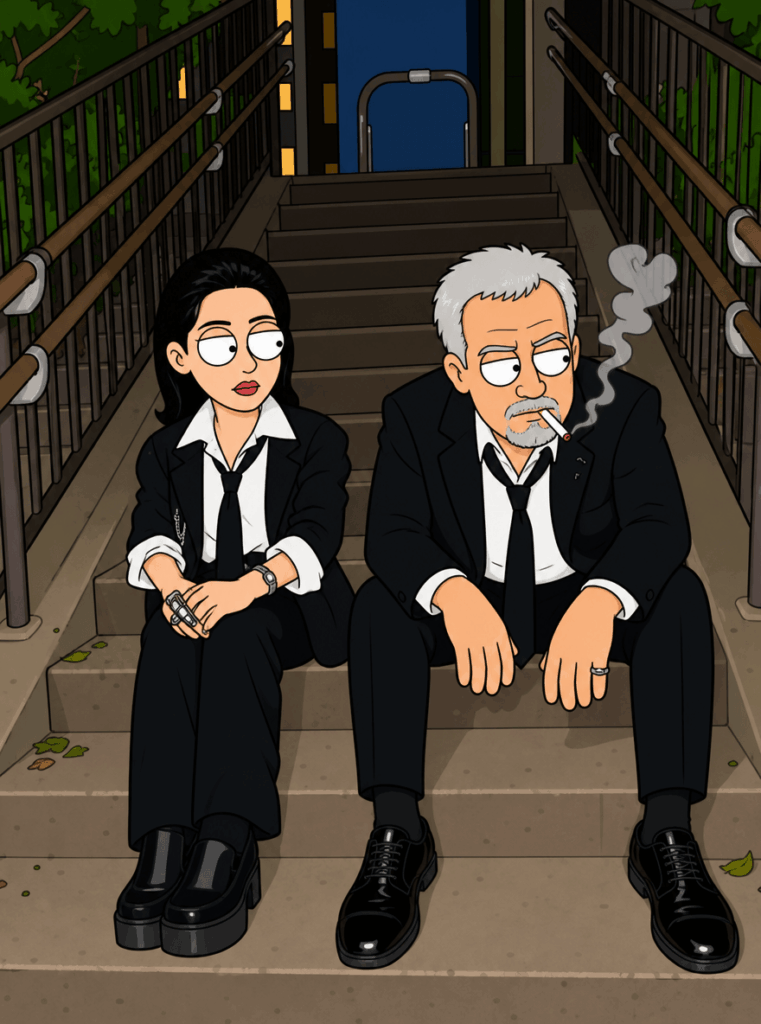
Have you ever looked at a normal photo and imagined it as a scene from an American adult animated sitcom?
Think bold black outlines, flat colors, exaggerated faces, awkward poses, and that slightly chaotic comedy energy you often see in shows like Family Guy or The Simpsons. The result feels funny, dramatic, and instantly shareable.
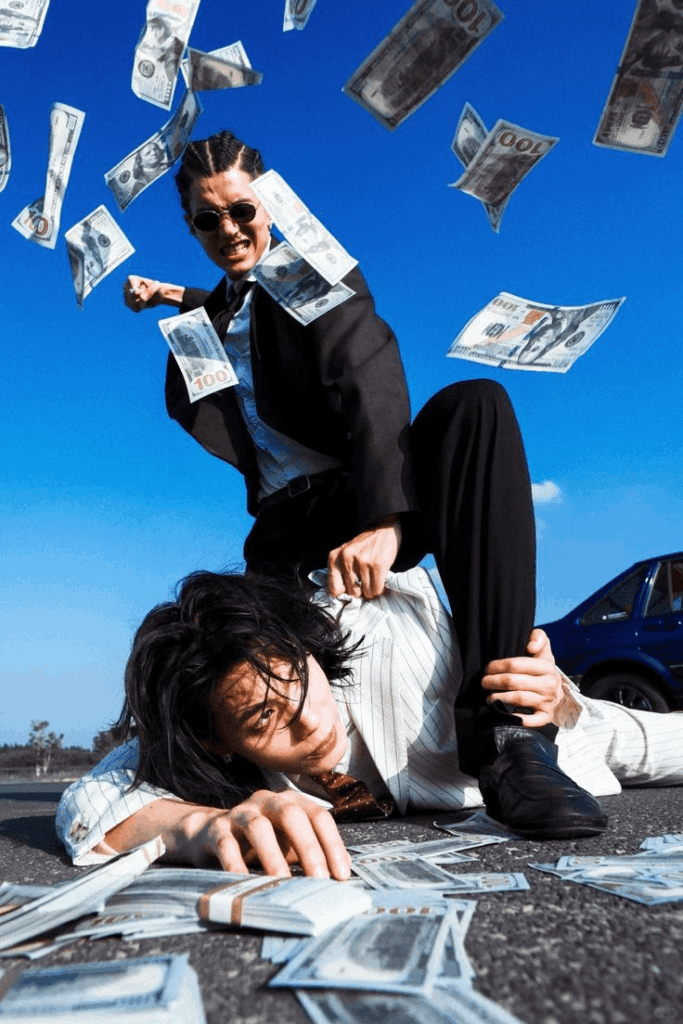
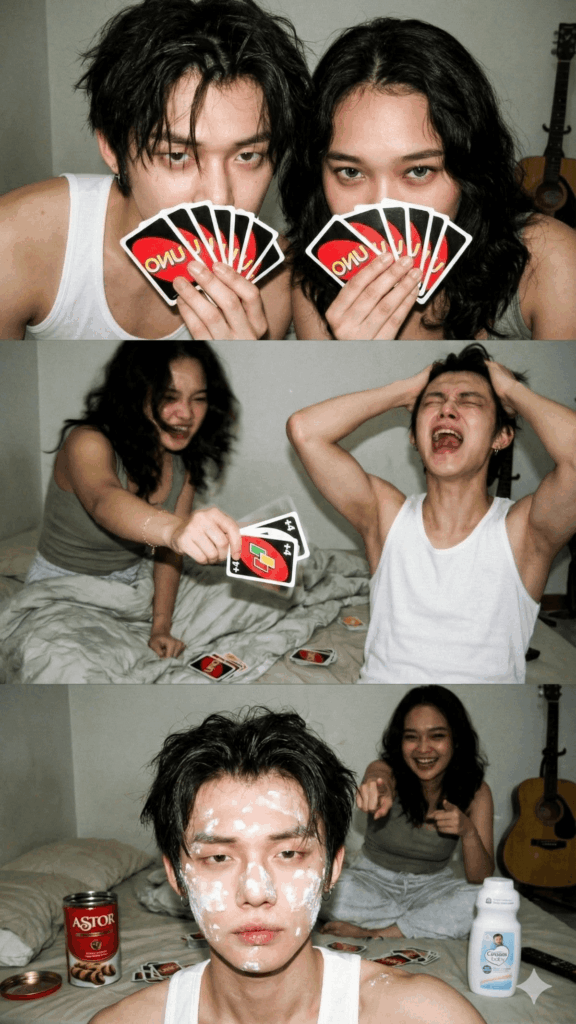
That is exactly why this visual style has become so popular on social media. A simple selfie, couple photo, group shot, or funny moment can suddenly look like a screenshot from an animated TV episode. Even better, you do not need to know how to draw. You also do not need advanced editing skills.
With the right Family Guy style AI photo editor workflow, you can upload a clear photo, paste a strong prompt, and let AI do the heavy lifting.
In this guide, I will show you how to use WeShop AI to turn your photo into a bold, humorous, American animated sitcom-style image. The steps are simple, the prompt is ready to copy, and the whole process is beginner-friendly.
What You Need Before You Start
Before we begin, prepare these three things:
- An AI image editing tool: Open your browser and go to the WeShop AI image generation tool, powered by GPT-Image. It is easy to use and works well for AI photo style transfer.
- A clear original photo: Choose a photo with visible faces, clear poses, and an interesting scene. A selfie, couple photo, family picture, or group shot can all work.
- A ready-to-use prompt: Below, you will find an optimized English prompt designed for this exact visual style.
For the best result, pick a photo where the main subject is easy to recognize. If the image is too blurry, too dark, or crowded with random objects, the AI may struggle to keep the original composition.
In other words, a cleaner photo usually gives you a cleaner result.
Step-by-Step Guide
Step 1: Open the Tool and Upload Your Photo
First, go to the WeShop GPT-Image page in your browser.
Then, look for the Image Upload, Reference Image, or ControlNet area. This is where you upload the photo you want to transform.
You can either click the upload button or drag your image directly into the upload box. After that, wait for the preview to appear. Make sure the image looks correct before moving on.
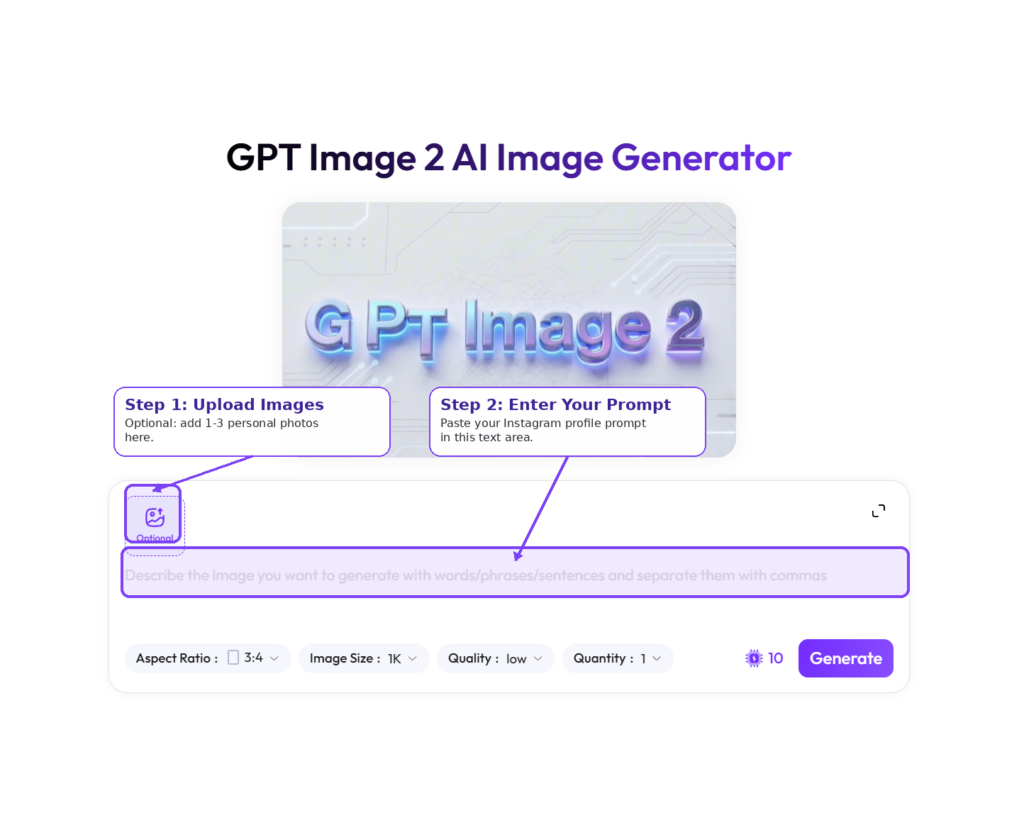
Tip: Use a photo with clear subjects, visible body poses, and expressive faces. This helps the AI preserve the original scene while turning it into a cartoon-style image.
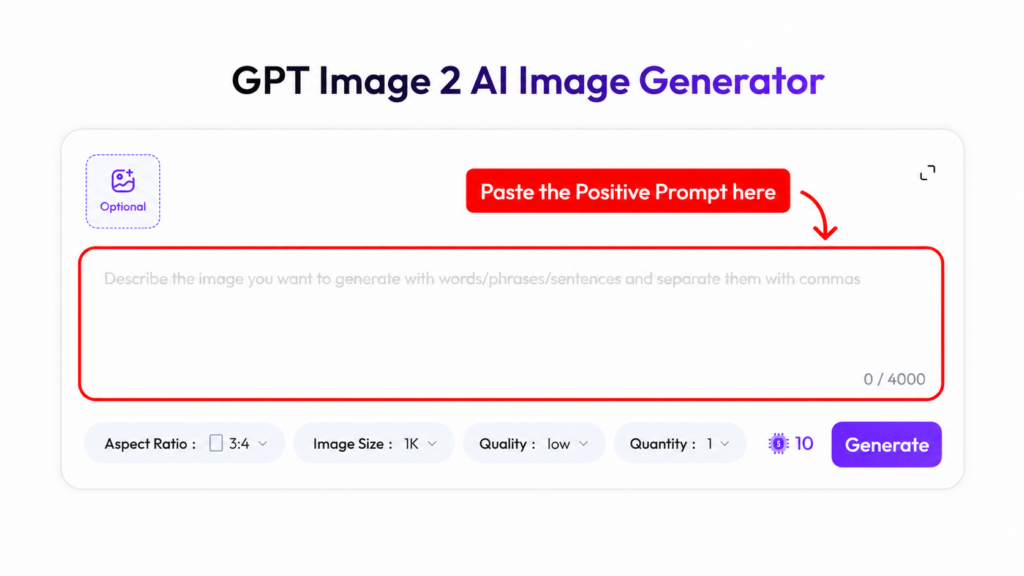
Step 2: Add the Positive Prompt
Now it is time to tell the AI what kind of image you want.
AI tools usually understand English prompts more accurately. So, instead of writing a vague request like “turn this into a cartoon,” use a detailed prompt that explains the exact style, composition, character design, and mood.
Copy and paste the prompt below into the Prompt box.
Redraw this image in the style of an American adult animated sitcom, referencing the cartoon visual language of shows like Family Guy. Preserve the original composition, number of characters, character poses, clothing, facial expression direction, props, scene relationships, and camera angle. Transform all characters into exaggerated American TV animation characters: thick black outlines, simplified round face shapes, big eyes, small noses, exaggerated mouths, funny expressions, and slightly stiff but comedic body movements. Use flat, vibrant color blocks for coloring, keep lines clean and crisp, and simplify the background into a cartoon scene. The overall look should resemble a frame from an American satirical animation—humorous, absurd, and exaggerated—while keeping the original actions and scene completely recognizable.
This prompt works well because it gives the AI clear instructions. It does not only ask for a cartoon effect. Instead, it tells the AI to keep the original character count, poses, clothing, props, and camera angle.
As a result, the final image is more likely to look like a stylized redraw of your original photo, not a random cartoon image.
This is also the key to getting a better result from a Family Guy style AI photo editor. The more specific your prompt is, the more stable the output becomes.
Step 3: Add the Negative Prompt
Next, we need to tell the AI what to avoid.
This step is important because AI sometimes adds things you did not ask for. For example, it may create a 3D look, realistic skin texture, strange fingers, watermarks, or random text.
To reduce those issues, paste the following into the Negative Prompt box.
Realistic photo texture, 3D rendering, oil painting, watercolor, impasto, complex cinematic lighting, realistic skin texture, changing the number of characters, extra digits, irrelevant text, logos, watermarks.
The negative prompt helps the AI stay closer to a flat 2D animation look. It also reduces the chance of unwanted details.
For this type of AI photo editing, negative prompts are not just optional extras. They are part of the control system. They help guide the final image away from realism and toward a clean animated sitcom style.
So, if you want your photo to look more like a frame from an American adult cartoon, do not skip this step.
Step 4: Generate the Image and Make Small Adjustments
Once your image is uploaded and both prompts are filled in, you can generate the result.
Here is the basic workflow:
- Check that your photo has been uploaded successfully.
- Make sure the positive prompt is complete.
- Make sure the negative prompt is complete.
- Click Generate.
- Wait a few seconds or a short while for the AI to create the image.
After the image is generated, take a close look at the result. If the style is close but not perfect, you can make small adjustments and try again.
For example, if the result still looks too realistic, add this to the positive prompt:
stronger 2D animation look, flatter colors, less shading, simple cartoon lighting
If you want the faces to look funnier and more dramatic, add:
more exaggerated facial expressions, wider open eyes, dramatic mouth shapes, comedic body language
If the character poses changed too much, add:
strictly preserve the original pose, gesture, character placement, and body direction
Small prompt changes can make a big difference. Therefore, it is worth generating a few versions and choosing the best one.
Advanced Tips and Common Questions
Why does my image still look too realistic or 3D?
This usually happens when the original photo has strong lighting, deep shadows, or a very cinematic look. The AI may follow those visual cues and create a result that feels more like 3D animation than flat TV animation.
To fix this, add these words to your positive prompt:
flat colors, 2D animation, simple shading, clean vector-like outlines
You can also strengthen your negative prompt with:
3D rendering, realistic lighting, realistic texture, cinematic lighting
If the platform allows you to adjust image reference strength or denoising strength, try lowering the reference strength slightly. A value around 0.6 to 0.7 often gives the AI more room to stylize the image while still keeping the original structure.
What should I do if the pose or number of people changes?
This can happen when the original image has too many people, overlapping bodies, or unclear poses.
To improve the result, start with a cleaner photo. Choose one where each person is visible and not heavily blocked.
If WeShop AI supports ControlNet options, you can also try features like Canny edge detection or OpenPose. These tools help lock the structure, pose, and composition of the original image.
You can also add this line to your prompt:
keep the exact number of characters, preserve all original poses, preserve the original composition, do not add or remove any people
This gives the AI a stronger reminder to protect the original layout.
How can I make the expressions funnier?
One of the best parts of the Family Guy-inspired look is the exaggerated comedy expression. If your result feels too calm, you can push the emotions further.
Add details like:
jaw dropped, wide open eyes, raised eyebrows, awkward smile, exaggerated panic expression
For a more meme-like result, you can also add:
meme-like expression, absurd comedy, over-the-top reaction
These phrases help the AI create a more dramatic and entertaining face. This works especially well for reaction photos, party pictures, travel fails, and funny group shots.
Why does my result look like a normal cartoon instead of an adult animated sitcom?
The word “cartoon” is very broad. If you only ask the AI to make a cartoon image, it may create a generic illustration style.
To get closer to a Family Guy-style AI image, you need to describe the visual language more clearly. Use phrases like:
American adult animated sitcom style, thick black outlines, simplified round faces, exaggerated mouths, flat vibrant colors, clean crisp lines
These details help the AI understand that you want a bold, flat, humorous TV animation look, not a soft illustration or children’s cartoon style.
This is why using a strong Family Guy style AI photo editor prompt matters so much. The right words guide the entire visual direction.
Where can I use this kind of AI-generated image?
A Family Guy-style AI photo can be used in many fun and creative ways.
You can use it for social media avatars, couple profile pictures, friend group edits, reaction memes, short video covers, event posters, or creative campaign visuals.
It works especially well when the original photo already has a funny expression or dramatic pose. Once the AI turns that moment into an animated sitcom-style frame, the image feels more like a mini story.
That makes it much more likely to catch attention on platforms like Instagram, TikTok, Pinterest, X, and Xiaohongshu.
Final Thoughts
Turning a normal photo into an American animated sitcom-style image is more than a simple filter. It is a fun way to turn everyday moments into something playful, bold, and highly shareable.
With WeShop AI and the prompt in this guide, you can create a strong Family Guy-style AI photo without drawing skills or advanced editing experience. Just upload your image, paste the prompt, add the negative prompt, and generate.
From there, you can adjust the expressions, make the colors flatter, or push the comedy even further.
So, pick a selfie, a couple photo, or a funny group shot from your gallery and try it out. Your next favorite animated “TV screenshot” might already be sitting in your camera roll.
Go to WeShop AI For Exploration: