Want to turn a simple portrait into something that feels like a movie poster?
The secret is not just making the image sharper. Instead, it comes down to three visual elements: lighting, mood, and movement. When these three work together, even a still portrait can feel dramatic, expensive, and full of story.
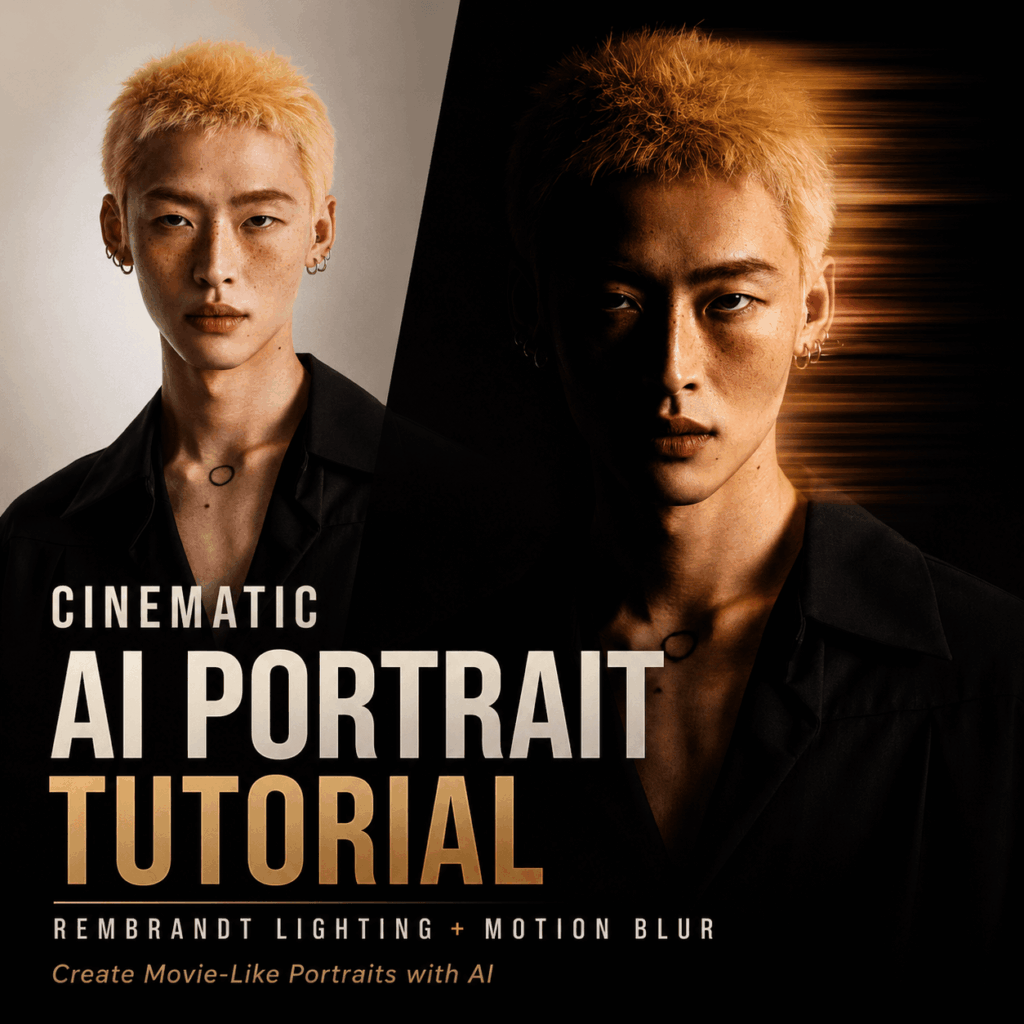
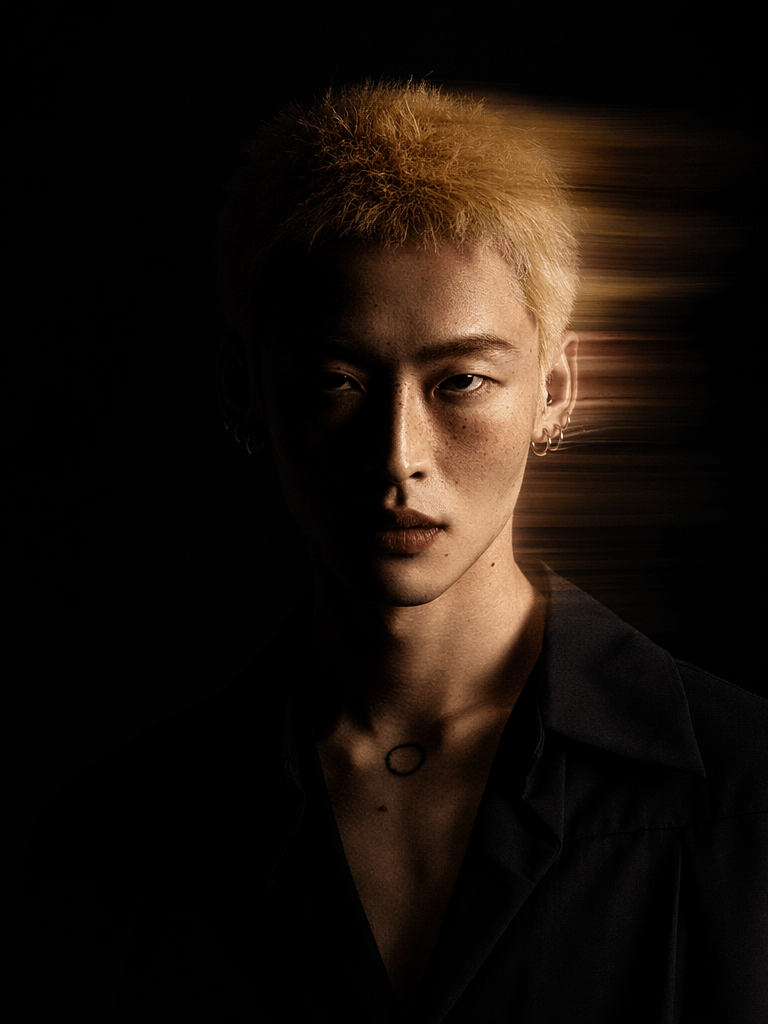
In this tutorial, we will create a cinematic AI portrait using Rembrandt lighting, a dark moody background, and horizontal motion blur. This style works especially well for social media avatars, fashion-inspired portraits, character posters, brand visuals, and creative AI photography experiments.
Rembrandt lighting is one of the most classic lighting techniques in portrait photography. It usually lights one side of the face while leaving the other side in deep shadow. As a result, the face looks more sculpted, intense, and cinematic.
Then, we add dynamic motion blur behind the subject. This creates a sense of speed, tension, and movement. Suddenly, the portrait no longer feels static. It feels like a frame taken from a thriller, action movie, or high-end editorial shoot.
The best part? You do not need a professional studio, expensive lighting gear, or advanced editing skills. With WeShop AI – GPT Image, you can create this kind of cinematic AI portrait by using one well-written prompt.
In this step-by-step guide, I will show you exactly how to build the prompt, why each keyword matters, and how to adjust the result if the image looks too dark, too messy, or not cinematic enough.
Preparation / Tools You Need
Before we start, make sure you have the following ready.
Main AI Tool: WeShop AI – GPT Image
For this tutorial, we will use WeShop AI – GPT Image. It is an easy-to-use online AI image generation tool that works directly in your browser.
You simply enter a text prompt, and the tool generates an image based on your description. This makes it a great option for anyone who wants to create cinematic visuals without building a full photography setup.
A Stable Internet Connection
Since the image is generated online, a stable connection will make the process smoother. In most cases, the generation only takes a short while. However, a better connection helps avoid loading issues or failed results.
A Ready-to-Copy English Prompt
For AI image generation, English prompts often work better, especially when describing lighting, camera language, mood, and visual effects.
That is why I have prepared a complete prompt for you. You can copy it directly, paste it into the prompt box, and start generating your own cinematic AI portrait right away.
Step-by-Step Guide
Step 1: Open the Workspace and Understand the Interface
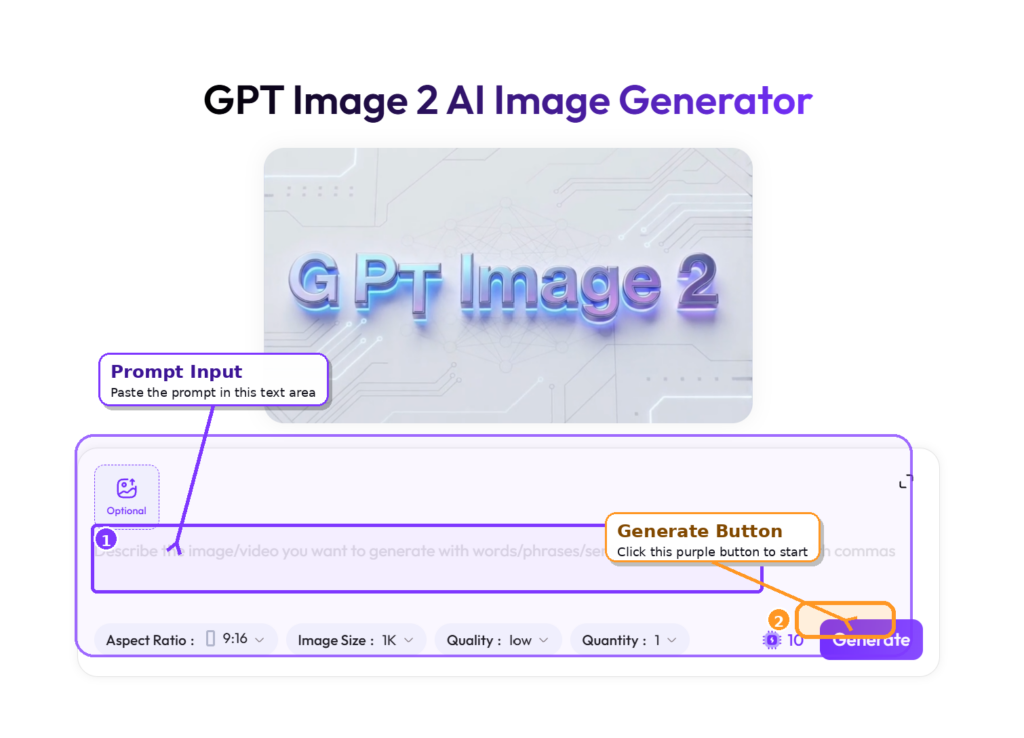
First, open the WeShop AI – GPT Image page.
Once you enter the workspace, you will see a text input area. This is where you type your prompt. You can think of it as the place where you give visual direction to the AI.
Instead of simply saying “make a cool portrait,” we need to describe the image like a photographer or film director.
For this tutorial, our goal is to create a portrait with these key features:
One side of the face is lit by a strong beam of light.
The other side stays in deep shadow.
The background is pure black and distraction-free.
The overall mood is dark, intense, and cinematic.
Horizontal motion blur appears behind the subject.
The final result looks detailed, sharp, and poster-ready.
This structure helps the AI understand not only what to create, but also how the image should feel.
Step 2: Enter the Core English Prompt
Now copy the prompt below and paste it into the prompt input box:
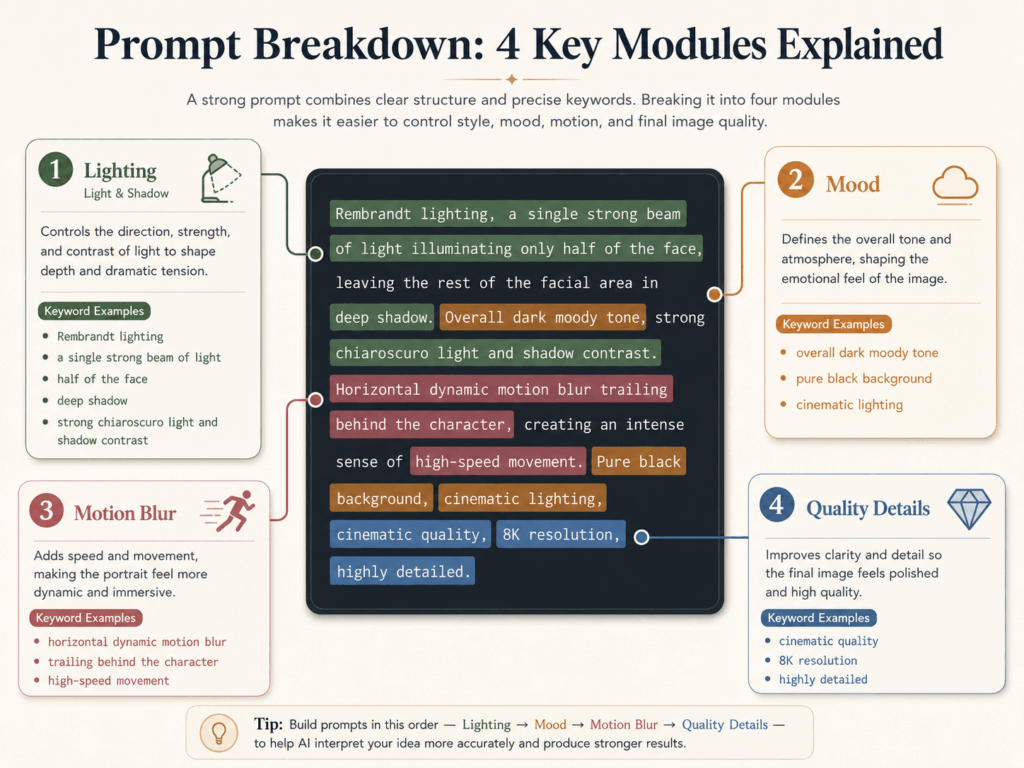
Rembrandt lighting, a single strong beam of light illuminating only half of the face, leaving the rest of the facial area in deep shadow. Overall dark moody tone, strong chiaroscuro light and shadow contrast. Horizontal dynamic motion blur trailing behind the character, creating an intense sense of high-speed movement. Pure black background, cinematic lighting, cinematic quality, 8K resolution, highly detailed.
This prompt may look simple, but every phrase has a clear purpose. Together, they guide the AI to create a polished cinematic AI portrait with strong visual impact.
Let’s break it down.
1. Lighting Control: Rembrandt Lighting
The phrase “Rembrandt lighting” is the foundation of this prompt.
It tells the AI to create a dramatic portrait lighting setup. One side of the face should be illuminated, while the other side remains in shadow. This instantly adds depth, contrast, and mystery.
Without this phrase, the portrait may look flat or evenly lit. With it, the image becomes more dramatic and film-like.
2. Strong Contrast: Chiaroscuro Light and Shadow
The word “chiaroscuro” refers to a strong contrast between light and dark. It is often used in painting, cinema, and portrait photography.
By adding “strong chiaroscuro light and shadow contrast,” we push the AI to create a bolder visual style. The face will not just be slightly shaded. Instead, the light and shadow should feel intentional, dramatic, and expressive.
This is one of the key details that makes the image feel more like a movie still.
3. Mood and Background: Dark Moody Tone and Pure Black Background
Next, we use “Overall dark moody tone” and “Pure black background.”
These phrases help remove visual distractions. They also make the subject stand out more clearly. A black background is especially useful when you want the viewer to focus on the face, expression, and lighting.
In addition, a dark moody tone gives the portrait more emotional weight. It feels serious, stylish, and cinematic rather than casual or generic.
4. Motion Effect: Horizontal Dynamic Motion Blur
The phrase “Horizontal dynamic motion blur trailing behind the character” adds energy to the image.
This is the detail that makes the portrait feel alive. Instead of looking like a standard studio shot, the subject appears to be moving through space. The blur behind the character creates speed, tension, and a sense of story.
For a cinematic AI portrait, this effect is especially useful. It turns a simple headshot into something closer to a character poster, action scene, or futuristic editorial image.
5. Final Quality: Cinematic Quality, 8K Resolution, Highly Detailed
Finally, we add quality-related keywords such as “cinematic quality,” “8K resolution,” and “highly detailed.”
These phrases help guide the AI toward a sharper, more refined result. They also support the overall visual goal: a clean, high-impact portrait that feels ready for a poster, campaign image, or social media cover.
Step 3: Generate and Preview the Result
After pasting the prompt, click the Generate button.
Now give the AI a moment to process the image. During generation, it will interpret the lighting direction, facial shadows, background tone, motion blur, and image quality based on your prompt.
When the image appears, check these points:
Does one side of the face have strong lighting?
Is the other side properly hidden in shadow?
Is the background clean and black?
Does the motion blur appear behind the subject?
Does the final image feel cinematic instead of random?
If the answer is yes, your prompt is working well.
However, do not worry if the first result is not perfect. AI image generation always includes some randomness. Sometimes the second or third result will have better facial structure, stronger lighting, or a more natural blur effect.
So, generate a few variations. Compare them side by side. Then choose the one with the best balance of lighting, expression, and motion.
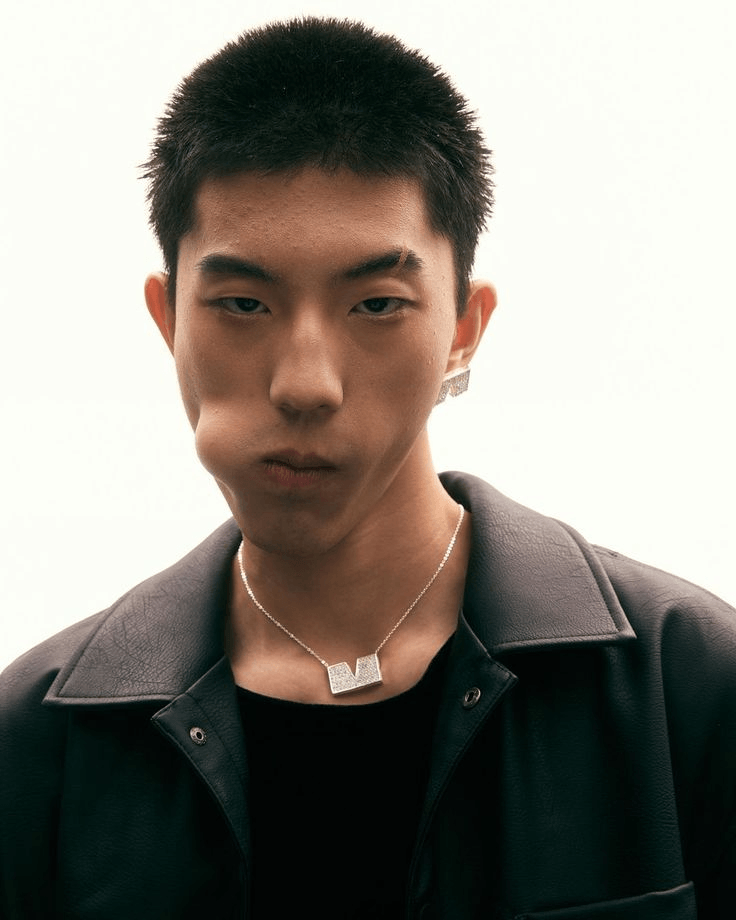
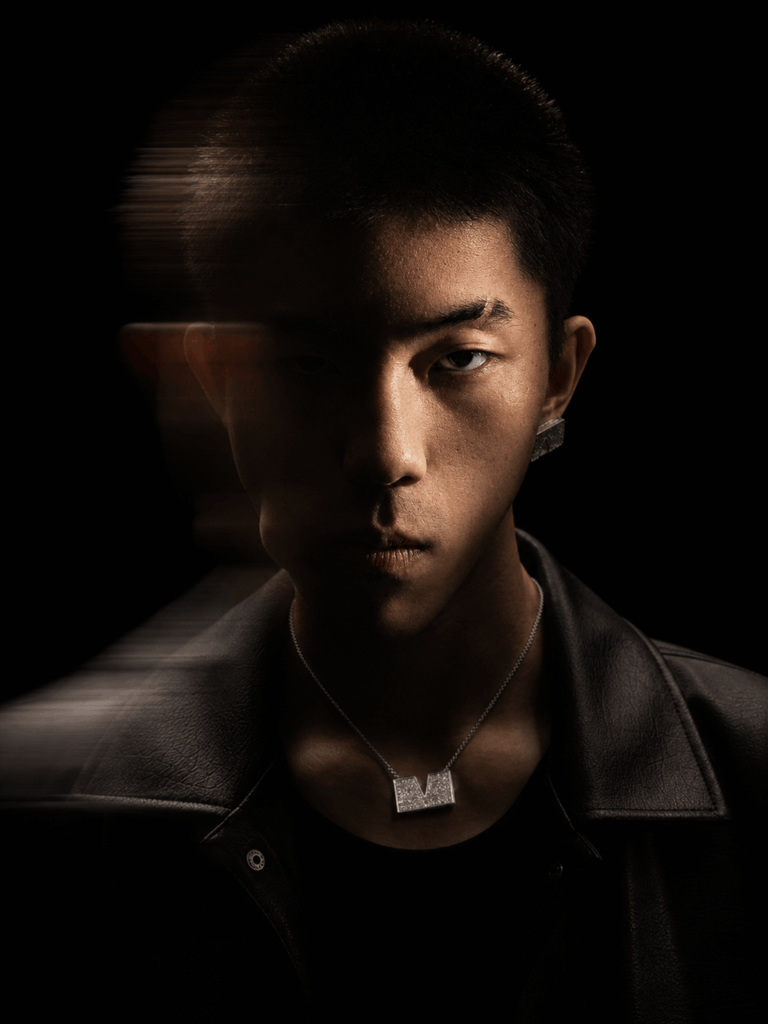
Image caption: This 8K-style cinematic AI portrait uses Rembrandt lighting, a pure black background, and horizontal motion blur to create a dramatic half-lit character image with strong movie-poster energy.
Advanced Tips / FAQ
Once you understand the basic prompt, you can start adjusting it to create different styles. Small changes can make a big difference.
Below are some common questions and easy ways to improve your result.
How Can I Change the Character Type?
The original prompt does not define a specific character identity. That means the AI will choose a subject based on the overall mood.
If you want more control, add a short character description at the beginning of the prompt.
For example:
A cyberpunk hacker,
Or:
A female assassin,
Then continue with the original prompt.
This helps the AI adjust the outfit, attitude, and overall design of the subject. For example, “cyberpunk hacker” may create a futuristic look, while “female assassin” may lead to a sharper and more mysterious character.
You can also try:
A futuristic model,
A mysterious villain,
A dark hero,
These small additions can quickly turn the image into a more story-driven cinematic AI portrait.
What If the Motion Blur Looks Too Messy?
Sometimes the motion blur may become too strong. It might cover the hair, distort the face, or distract from the subject.
If that happens, reduce the intensity.
Replace this phrase:
intense sense of high-speed movement
With:
subtle motion blur
This will make the blur softer and cleaner. The image will still have movement, but it will feel more controlled.
This version is better for profile images, fashion portraits, brand visuals, and polished social media posts.
What If the Image Is Too Dark?
A dark image can look cinematic, but it still needs enough detail. If the face, hair, or clothing disappears into the background, add more controlled light.
Try adding this phrase at the end of the prompt:
volumetric lighting
Or:
subtle rim light
“Volumetric lighting” adds atmosphere and depth to the light. It can make the scene feel more three-dimensional.
“Subtle rim light” adds a soft outline around the subject. This helps separate the person from the black background without ruining the dark mood.
Both options are useful when your cinematic AI portrait looks too flat or too hidden in shadow.
How Can I Make It Look More Like a Movie Poster?
If you want the final image to feel closer to a real movie poster, add these keywords:
movie poster style, dramatic composition, editorial portrait photography
This pushes the AI toward a more composed and professional result. The pose may feel stronger. The framing may become more dramatic. The final image may also look more suitable for a cover, poster, or campaign visual.
How Can I Make the Portrait Look More Fashionable?
If you want a more stylish editorial look, add:
high fashion editorial style, luxury portrait, sharp facial features
This can make the subject look more polished and fashion-forward. It may also improve the outfit, facial structure, and overall styling.
This version works well for creative portfolios, fashion visuals, beauty content, and high-end social media posts.
Conclusion
Creating a strong AI portrait is not only about using words like “HD,” “8K,” or “highly detailed.”
Those words help, but they are not enough on their own.
A powerful cinematic AI portrait needs a clear visual direction. You need to guide the lighting, mood, background, motion, and level of detail. Once these parts work together, the image starts to feel more intentional and more professional.
In this tutorial, we used one prompt to combine Rembrandt lighting, chiaroscuro contrast, a pure black background, and horizontal motion blur. The result is a dramatic portrait with strong cinematic energy.
You can copy the prompt directly into WeShop AI – GPT Image and try it yourself. Then, adjust the character type, motion blur, rim light, or movie poster keywords to match your own creative idea.
The real trick is simple: do not just tell the AI what the subject is. Tell it how the scene should feel.
Once you learn that, creating a cinematic AI portrait becomes much easier, faster, and more fun.
Go to WeShop AI For Exploration: