A great logo does not always need an icon.
Today, many startups, apps, and lifestyle brands are choosing clean wordmark logos. They are simple. They are memorable. More importantly, they work almost everywhere.
However, creating a custom wordmark from scratch can feel hard if you are not a designer. You may start with a basic font. Then, the logo looks too plain. You may try to adjust the letters. Still, the result may not feel like a real brand.
That is where an AI wordmark generator can help.
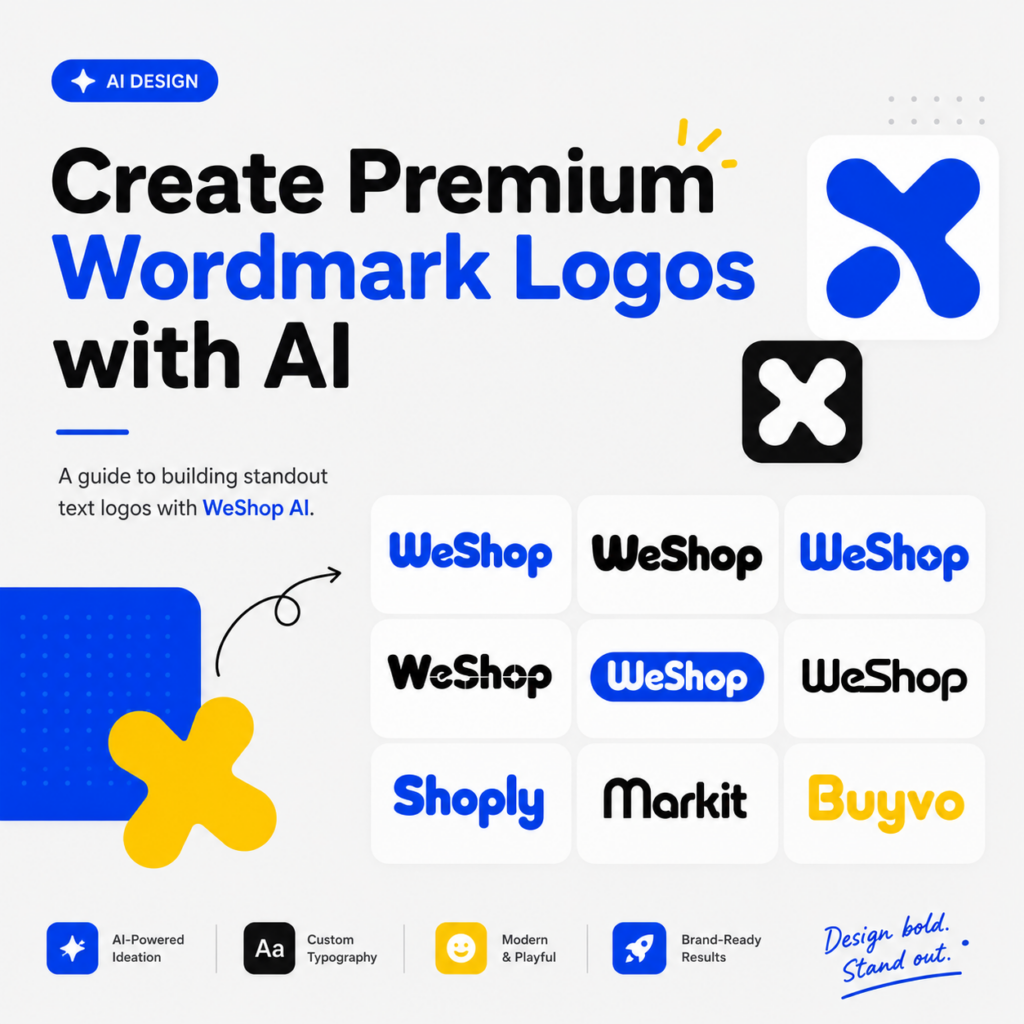
In this guide, you will learn how to use WeShop AI as an AI wordmark generator. With one prompt, you can create 12–20 modern, typography-only logo ideas for your brand. As a result, you can explore strong visual directions before spending time or money on final logo design.
Why Use an AI Wordmark Generator?
A wordmark logo uses the brand name as the main design element. Instead of using an icon, mascot, or illustration, it turns the letters into the logo.
This style is popular for a good reason. A wordmark is clean, flexible, and easy to remember. It can work on websites, apps, social media pages, pitch decks, product pages, packaging, and ads.
However, a good wordmark is not just a typed-out brand name. It needs strong letter shapes. It also needs balanced spacing, clear structure, and a little personality.
For example, a SaaS brand may need a clean and smart wordmark. Meanwhile, a lifestyle app may need something softer and more playful. In the same way, an e-commerce brand may need a logo that feels friendly, modern, and easy to trust.
That is why an AI wordmark generator can be useful. It helps you move from a blank page to a full sheet of logo ideas in minutes.
Instead of testing one font at a time, you can see many custom typography directions at once. Then, you can compare them. After that, you can choose the strongest direction and refine it.
In short, an AI wordmark generator makes the early branding process faster, easier, and much more visual.
What You Need Before You Start
Before you open WeShop AI, prepare a few simple materials. This step does not take long. However, it can make your results much better.
Core Tool
Use the WeShop AI image generation tool.
This is where you will enter the prompt, upload your reference images, and generate your wordmark logo concepts.
Your Brand Name
Next, choose the English brand name you want to design.
In this tutorial, we will use “WeShop” as the example. Of course, you can replace it with your own name.
Next, choose the English brand name you want to design. It’s also worth checking early on whether matching .com domain names are still available, since a wordmark and a matching web address work best together for brand consistency.
For example, you can use:
“TechFlow”
“Nova”
“Luma”
“BrightPay”
“Velo”
“Monza”
The name can be for a startup, app, SaaS product, online store, creator brand, or lifestyle project.
Reference Images
Reference images are optional. Still, they are highly recommended.
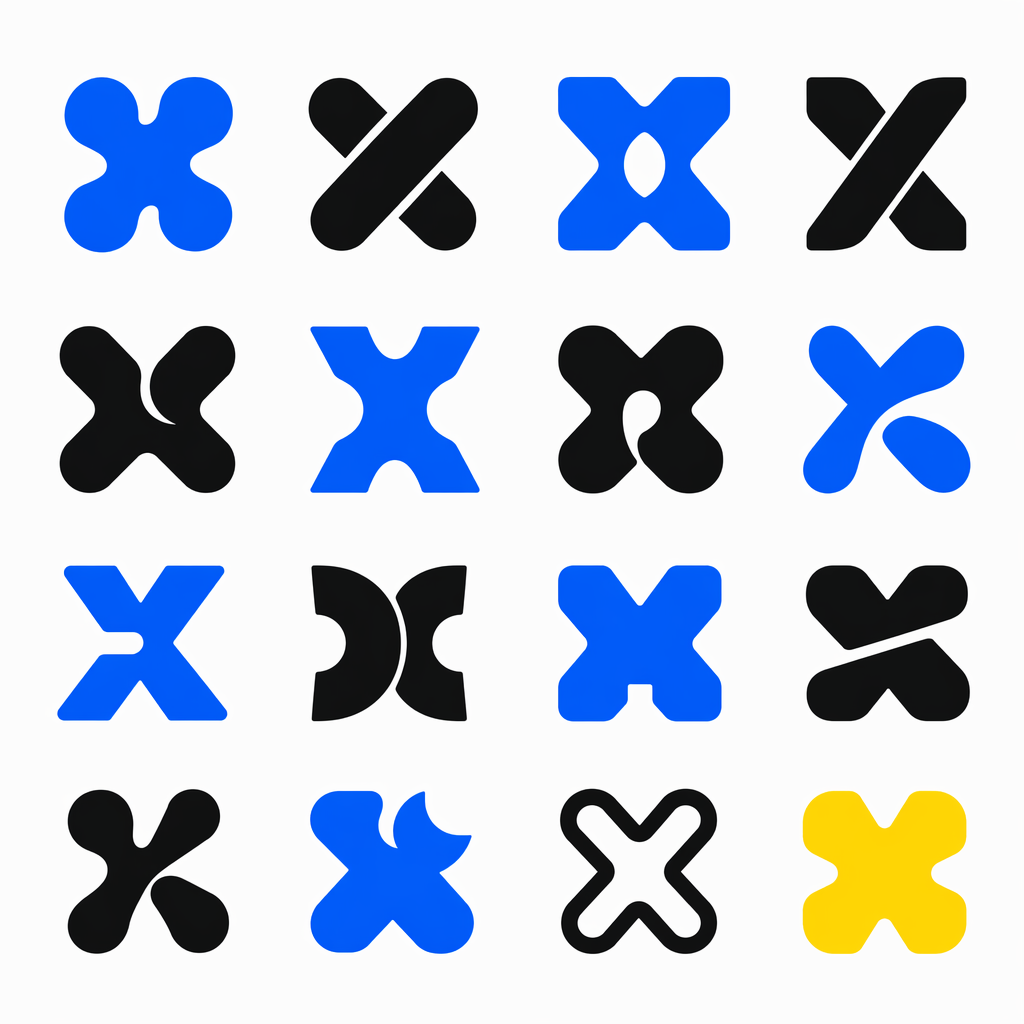
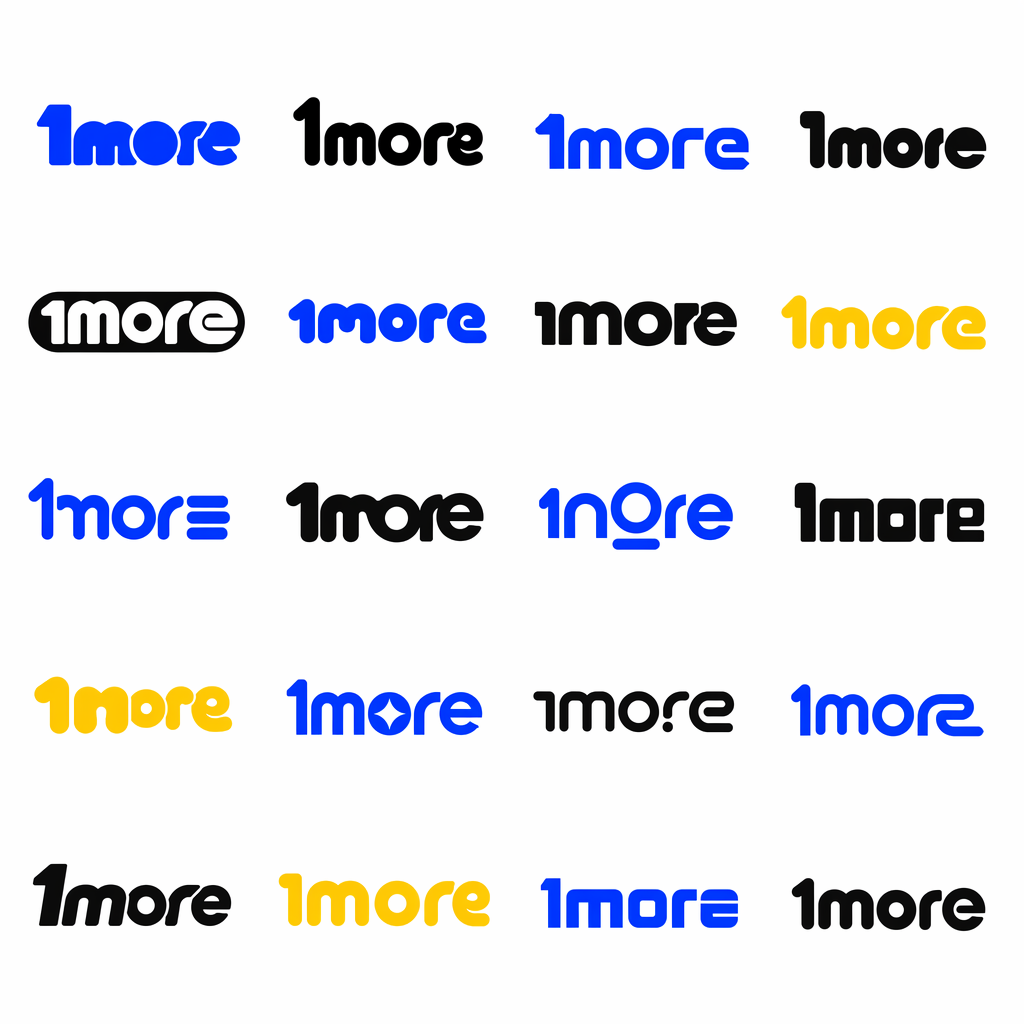
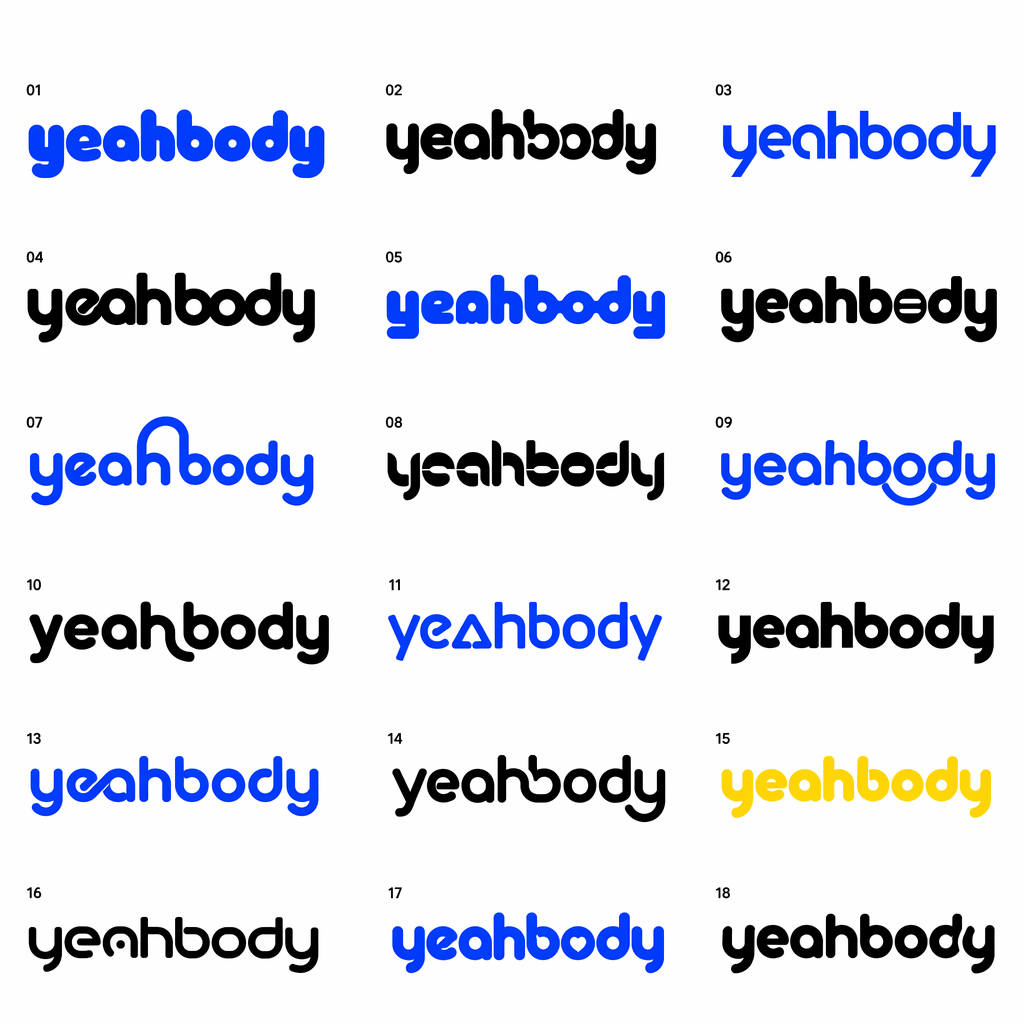
Prepare 2–3 screenshots of wordmark logos, typography designs, or brand marks you like. These images give the AI wordmark generator a stronger visual direction.
For better results, choose references with:
Rounded or bubble-like letterforms
Bold geometric shapes
Modern startup or app branding styles
Clear custom lettering
Simple color palettes
Strong contrast, such as blue, black, white, or yellow
Clean layouts with enough spacing
As a result, WeShop AI can better understand the style you want. The prompt explains your idea in words. Meanwhile, the reference images show the look and feeling you prefer.
Together, they help the AI wordmark generator create results that feel more intentional and less generic.
Step-by-Step Guide
Step 1: Open the WeShop AI Workspace
First, open the WeShop AI image generation page in your browser.
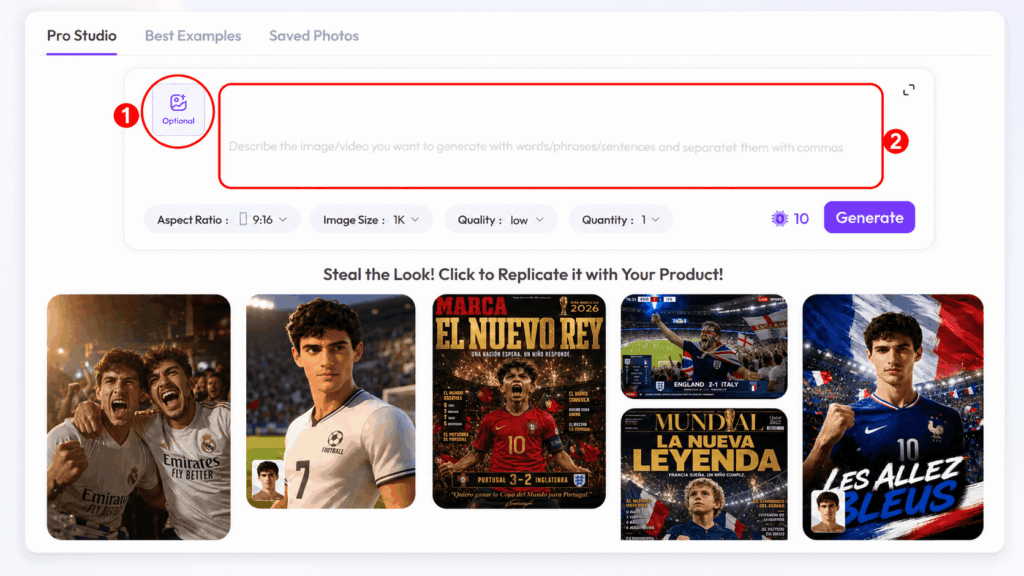
After that, log in or create an account if needed. Once you enter the tool page, you will see a prompt input area and an image upload section.
This is where the whole workflow happens. You will upload references. Then, you will paste the prompt. Next, you will replace the brand name. Finally, you will generate your logo concepts.
Because the process is simple, you can test several brand names or visual styles in one session.
Step 2: Upload Your Inspiration References
Next, upload your visual references.
Click the Upload Image button under the input area. Then, add the logo or typography screenshots you prepared.
Although this step is optional, it can improve the final result a lot. An AI wordmark generator works better when it has both written instructions and visual examples.
For example, your prompt may say “rounded geometric wordmark.” A reference image, however, shows how rounded the letters should be. It also helps define whether the style should feel playful, premium, soft, bold, or futuristic.
Good reference materials include:
Wordmark logo screenshots
Typography inspiration boards
Logo design collections
Brand identity references from design websites
Pinterest, Behance, or social media screenshots
A simple moodboard for your brand
Try not to upload too many images at once. Two or three strong references are usually enough. Otherwise, the AI may receive too many mixed signals.
A clean reference set leads to cleaner output. As a result, your AI wordmark generator workflow becomes easier to control.
Step 3: Copy and Edit the Prompt
Now comes the most important part: the prompt.
Instead of asking WeShop AI to “make a logo,” this prompt gives it a clear creative brief. It explains the logo type, style direction, visual references, layout, colors, and output format.
Most importantly, it tells the tool to create a typography-only wordmark. So, the result should not include icons, mascots, or extra illustrations.
Before you paste the prompt into WeShop AI, replace “WeShop” in the first line with your own brand name.
For example, change it to:
“TechFlow”
“Nova”
“Luma”
“BrightPay”
“Velo”
“Monza”
👇 Copy this prompt:
Create a set of modern wordmark logo concepts for the brand name "WeShop".

The logo should be typography-only, with no icon, no mascot, no illustration, and no extra decorative elements outside the letters.

Style direction:
- Bold, playful, memorable wordmark design
- Custom lettering rather than standard fonts
- Rounded geometric letterforms mixed with experimental shapes
- Soft bubble-like curves, chunky proportions, and distinctive negative spaces
- Some letters may be slightly stretched, compressed, connected, cut, or reshaped
- The wordmark should feel youthful, tech-forward, friendly, and brandable
- It should look like a real startup / app / lifestyle brand logo
- Avoid generic sans-serif fonts
- Avoid overly complex details
- Avoid thin lines
- Avoid 3D effects unless very subtle
- Keep the logo clean, flat, and highly readable

Visual references:
Use the attached reference images as inspiration for the diversity of typography styles: rounded bubble wordmarks, bold geometric forms, playful ligatures, futuristic cuts, soft modular letter shapes, and high-contrast simple color palettes.

Composition:
- Center the logo on a clean background
- Generate 12–20 different wordmark variations in one image
- Arrange them in a neat grid with generous spacing
- Each variation should explore a different custom typography treatment
- Make every version readable and usable as a standalone logo

Color:
- Use a limited palette
- Prefer solid colors such as cobalt blue, black, white, or bright yellow
- No gradients unless very subtle
- High contrast between logo and background

Output:
A polished logo exploration sheet, professional brand design presentation style, clean spacing, sharp vector-like edges, high-resolution, minimal background.
Why This Prompt Works
This prompt works because it gives the AI wordmark generator enough direction without making the result feel stiff.
For instance, “typography-only” tells the AI to focus on the letters. Therefore, it is less likely to add random icons or decorations.
Meanwhile, “custom lettering rather than standard fonts” pushes the result beyond basic typefaces. This helps the logo feel more brandable.
In addition, “generate 12–20 different wordmark variations” turns one prompt into a full design exploration sheet. Instead of getting one idea, you get many.
Finally, “arrange them in a neat grid” makes the output feel more like a professional logo presentation.
Because of these details, the prompt is ideal for founders, indie makers, small teams, and creators who want to explore brand visuals quickly.
Step 4: Click Generate and Review the Results
Once your brand name is updated and your references are uploaded, click Generate.
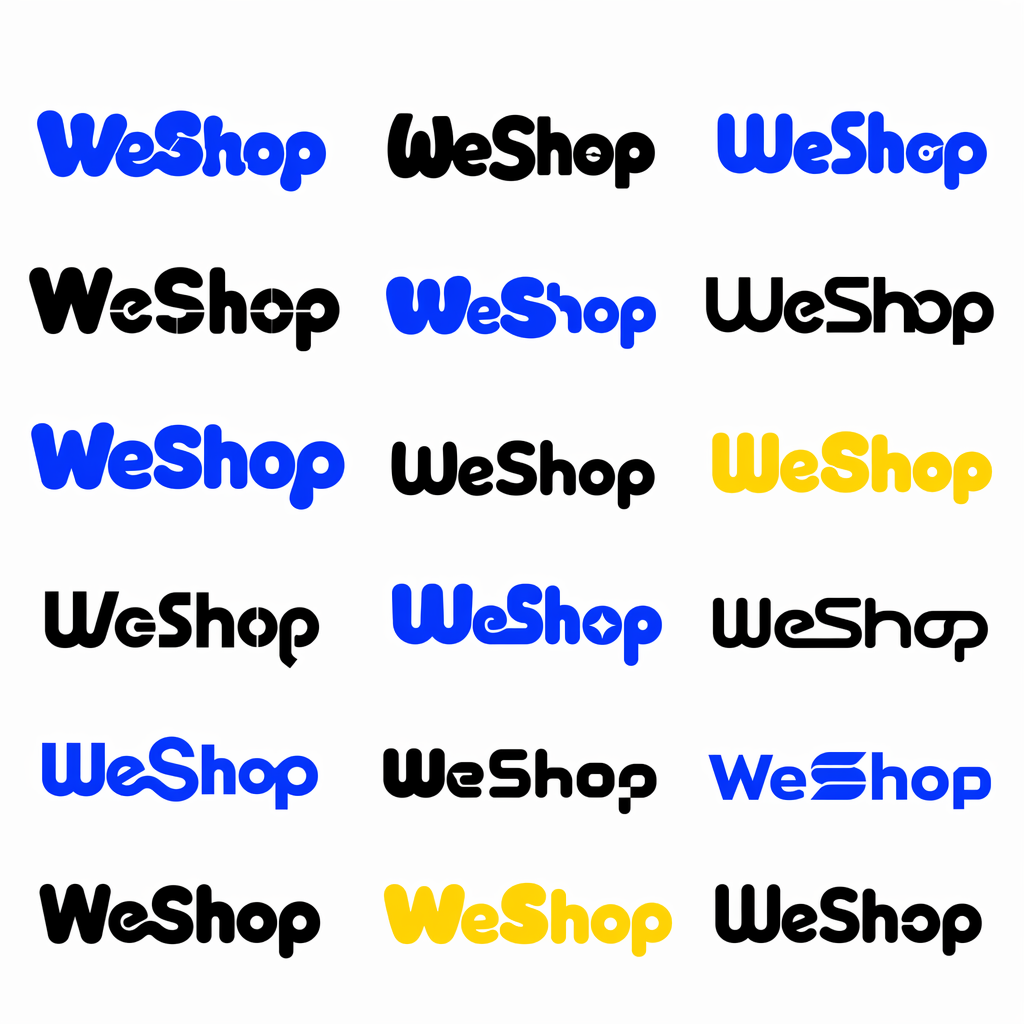
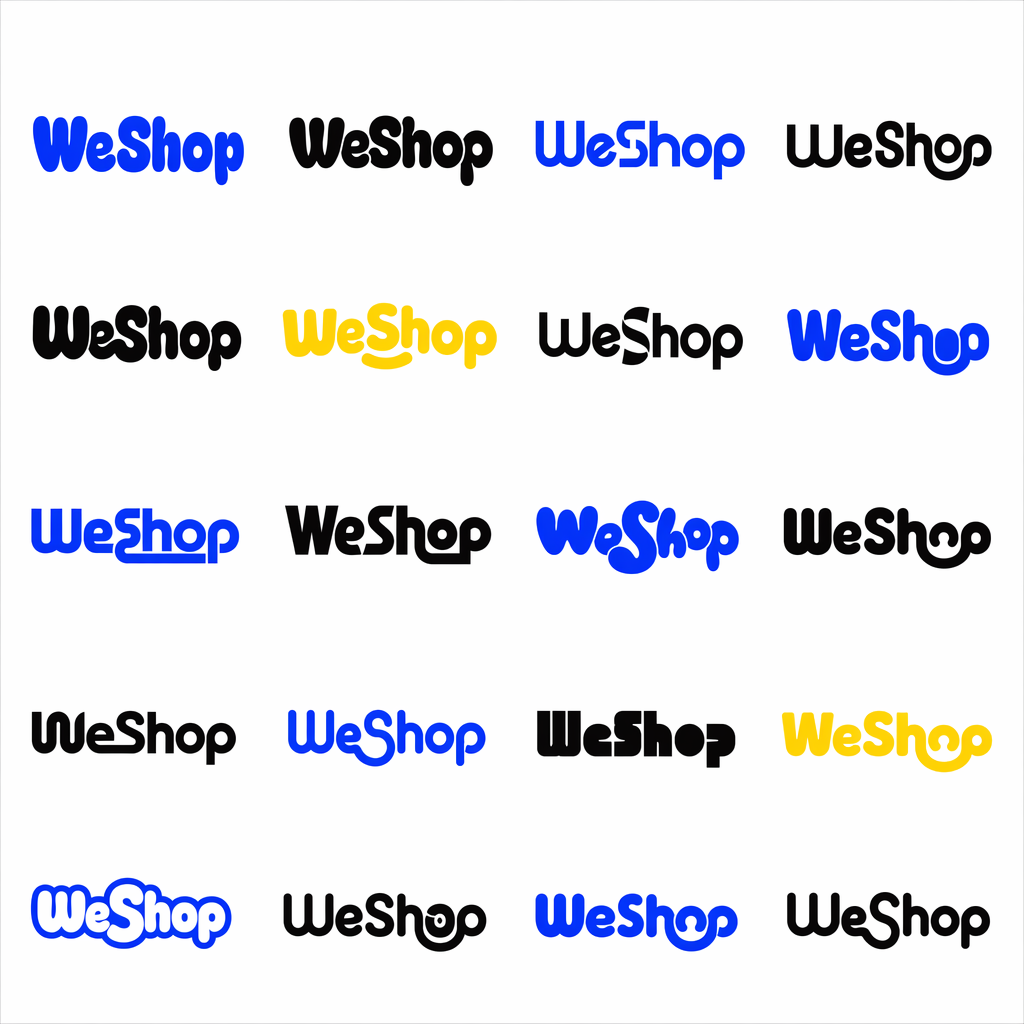
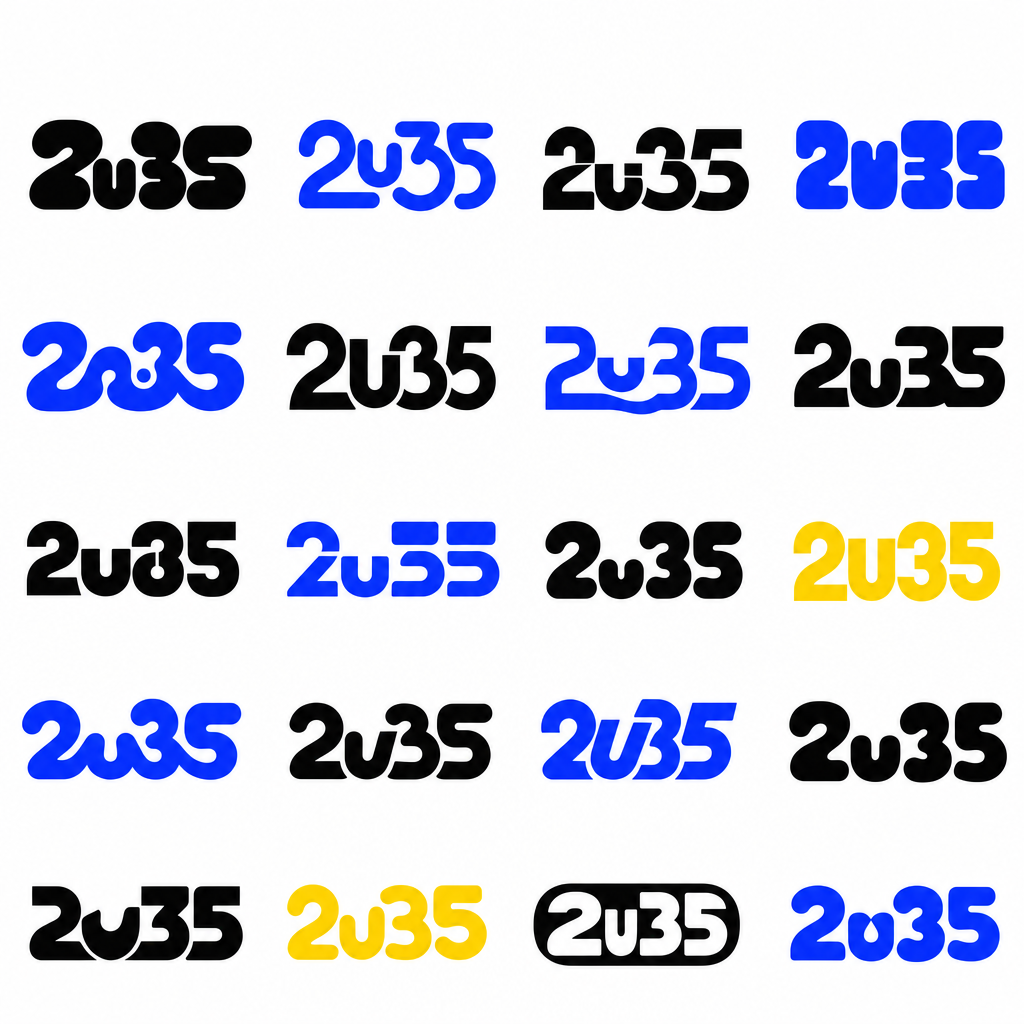
After a short wait, WeShop AI will create a logo exploration sheet. In most cases, you will see 12–20 wordmark logo concepts arranged in a clean grid.
At this stage, do not look for a perfect final logo right away. Instead, treat the first result as a creative starting point.
Some versions may feel playful. Others may feel more minimal, premium, tech-forward, or app-friendly. That variety is exactly what makes an AI wordmark generator helpful.
You may notice differences in:
Letter thickness
Rounded corners
Geometric shapes
Connected letters
Negative space
Bubble-like curves
Futuristic cuts
Compact or stretched proportions
Color combinations
Overall brand mood
How to Choose the Best Direction
Start by asking a few simple questions.
Is the wordmark easy to read?
Does the style match your brand personality?
Would it work well in a website header?
Can the design still look good in black and white?
Does the result feel more original than a basic font?
After that, choose the strongest 1–3 directions. Then, continue refining them with follow-up prompts.
For example, try these prompts:
Make version 3 more premium and minimal.
Create more variations based on the blue rounded logo in the first row.
Make the wordmark cleaner, flatter, and more suitable for a SaaS brand.
Try a more luxury black-and-white version.
Keep the same letter structure, but make it more readable.
This workflow feels closer to a real branding process. First, you explore. Next, you select. Then, you refine. Finally, the best version can be prepared for real use.
Advanced Tips and FAQ
Q1: What if some letters are misspelled in the generated logo?
This can happen with AI image generation. It is especially common when the design includes stylized text, logos, or custom lettering.
However, a spelling issue does not always mean the design is useless. If the style looks strong, save the image. Then, use it as a visual reference for the next round.
One option is to upload the image again and add this correction prompt:
Keep the same style, but correct the spelling and make the wordmark clearly read as WeShop.
Another option is to choose the best logo direction and clean it up in Figma, Adobe Illustrator, or Photoshop. With a little editing, you can fix letters, spacing, curves, and proportions.
You can also ask WeShop AI to redraw a specific version:
Use the second logo in the first row as inspiration, but make every letter accurate and readable.
In many cases, the first result from an AI wordmark generator should be treated as a concept sheet, not the final production file. This is normal. Even professional logo design often needs several rounds.
Q2: How can I turn the generated image into a commercial-ready vector logo?
Most AI-generated images are PNG or JPG files. These formats are useful for inspiration, internal review, social posts, and early brand testing.
However, for real commercial use, the best version should be converted into a vector file. This matters because vector logos stay sharp at any size.
Common vector formats include SVG, AI, EPS, and PDF.
Here are a few tools that can help:
Vector Magic is useful for quick bitmap-to-vector conversion.
Adobe Illustrator offers Image Trace for turning images into editable paths.
Figma works well for layout, color testing, and brand mockups.
Manual vector redraw usually gives the cleanest final result.
For commercial use, manual cleanup is often the safest choice. A designer can refine the curves, spacing, proportions, and edges. As a result, the final logo will look more polished across different sizes and platforms.
Before finalizing the logo, check these details:
Is the wordmark readable at a small size?
Do the letters feel balanced?
Are the edges clean?
Can the logo work in black and white?
Will it sit well on both light and dark backgrounds?
Could it be used in a website header, app icon, package label, and social avatar?
A good wordmark should not only look nice in one image. More importantly, it should work across real brand touchpoints.
Q3: How do I change the color style in the prompt?
You can edit the Color section of the prompt.
The original prompt says:
Prefer solid colors such as cobalt blue, black, white, or bright yellow
For a warmer and more natural look, change it to:
Prefer solid colors such as emerald green, cream, warm beige, and soft black
For a more premium tech style, try:
Prefer solid colors such as deep navy, silver gray, pure white, and graphite black
For a bold consumer brand look, use:
Prefer solid colors such as electric blue, bright yellow, hot pink, and black
For a softer lifestyle brand style, try:
Prefer solid colors such as soft lavender, blush pink, ivory, and warm gray
As a general rule, do not include too many colors. Three to five colors are enough.
Also, use clear color words. This helps the AI wordmark generator keep the output consistent. As a result, the logo sheet feels more professional and less random.
Q4: How do I make the result feel more like a real brand logo?
Add a clear brand personality to the prompt.
This small step can make the result much stronger. After all, a logo is not only a shape. It should also express a feeling.
For example, if your brand is an AI productivity tool, add:
The brand should feel like a modern AI productivity tool: smart, efficient, clean, and trustworthy.
For a lifestyle app for young users, add:
The brand should feel like a fun lifestyle app for young users: friendly, energetic, playful, and memorable.
For a premium e-commerce brand, add:
The brand should feel like a premium e-commerce brand: refined, confident, minimal, and highly recognizable.
Because AI responds to both visual style and brand positioning, this sentence can guide the result in a better direction.
Therefore, if your first output feels too generic, do not only change the design words. Change the brand feeling too.
That is another reason to use an AI wordmark generator early in the branding process. It lets you test different visual personalities before choosing one.
Q5: What should I do if I do not like the first result?
Do not stop after one generation.
Logo design is a process. First, you test. Then, you compare. After that, you refine. Finally, you clean up the best direction.
The first result may not be perfect. However, it can still show you what is worth exploring.
A simple workflow could look like this:
First round: Generate 12–20 different wordmark directions.
Second round: Pick 1–3 promising versions.
Third round: Ask for more variations based on those versions.
Fourth round: Improve readability, spacing, and brand personality.
Fifth round: Test color, black-and-white versions, and small-size use.
Final round: Vectorize and clean up the best version.
You can use follow-up prompts like:
Create 10 more variations based on the most rounded and playful version.
Make the logo more premium, minimal, and suitable for a SaaS startup.
Improve readability while keeping the custom lettering style.
Generate black-and-white versions only, with no color.
Make the wordmark more compact and suitable for an app header.
The more specific you are, the better the next result will be. In addition, each round helps the AI wordmark generator move closer to the style you actually want.
Final Thoughts
A strong wordmark can make a young brand look more polished from day one. It helps your website feel more trustworthy. Your app can look more professional, too. Most importantly, the brand becomes easier to remember.
In the past, exploring this many logo directions could take days. You might need to collect references, brief a designer, review sketches, and go through several feedback rounds.
Now, with WeShop AI, an AI wordmark generator can help you create a full logo exploration sheet in just a few minutes.
Of course, AI-generated logos are not always ready for final commercial use right away. Some letters may need correction. Spacing may need refinement. Colors may also need adjustment. After that, the best option can be converted into a clean vector file.
Still, as a starting point, this workflow is extremely useful.
For founders, indie makers, small teams, and creators, WeShop AI can help with:
Testing a new brand name
Exploring logo styles before hiring a designer
Creating visual directions for a startup or app
Building early brand identity ideas
Preparing references for a design team
Finding inspiration for a SaaS, e-commerce, or lifestyle brand
So, if you are working on a new brand, try this AI wordmark generator workflow in WeShop AI. Replace “WeShop” with your own brand name. Upload a few references. Then, generate your first wordmark exploration sheet.
It is a quick way to move from a blank brand name to real visual directions you can compare, refine, and build on.
Go to WeShop AI For Exploration: