Old family photos hit differently.
Maybe the corners are worn. Maybe the color has faded. Or maybe there are scratches across someone’s face. Even so, these photos still matter. They hold birthdays, weddings, family trips, and quiet little moments we never want to lose.
For many of us, old photos are not just pictures. Instead, they are pieces of family history. They show people we love in another time. They also keep memories alive when words are not enough.
In the past, restoring an old photo usually meant hiring a professional retoucher. As a result, the process could take days and cost more than expected.
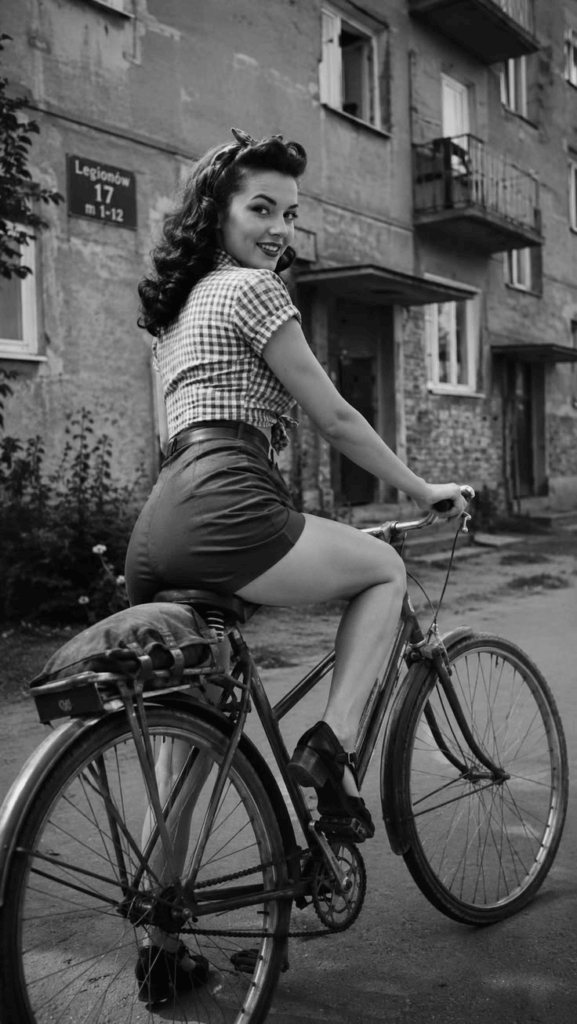
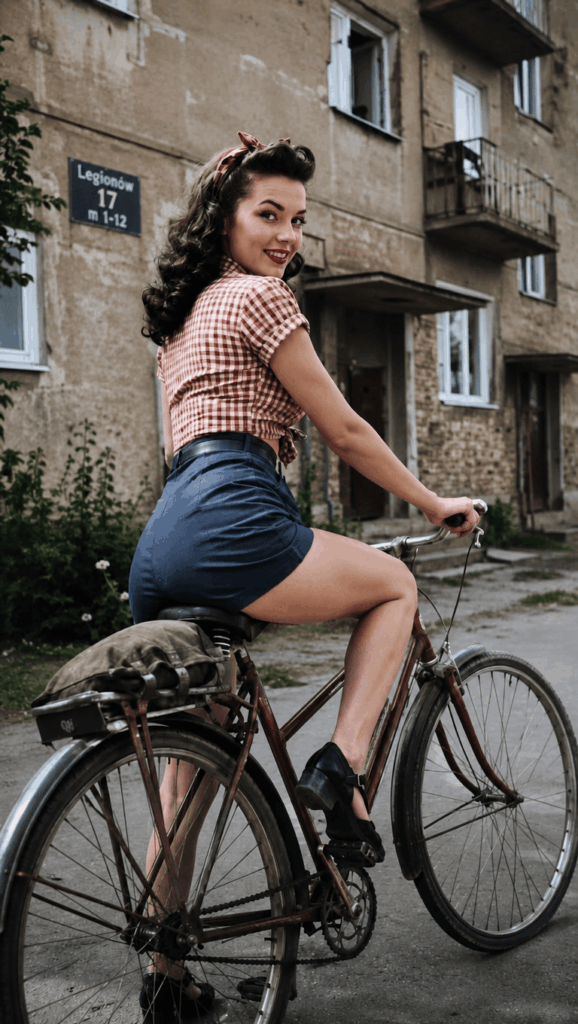
Today, however, things are different. With AI old photo restoration, you can repair old pictures in minutes. You can clean up scratches, make blurry details clearer, and even add soft, natural color.
More importantly, you can do it without making the photo look fake.
In this guide, I’ll show you how to use WeShop AI for AI old photo restoration. Also, I’ll share ready-to-use prompts, so you can get cleaner and more natural results from the start.
What Is AI Old Photo Restoration?
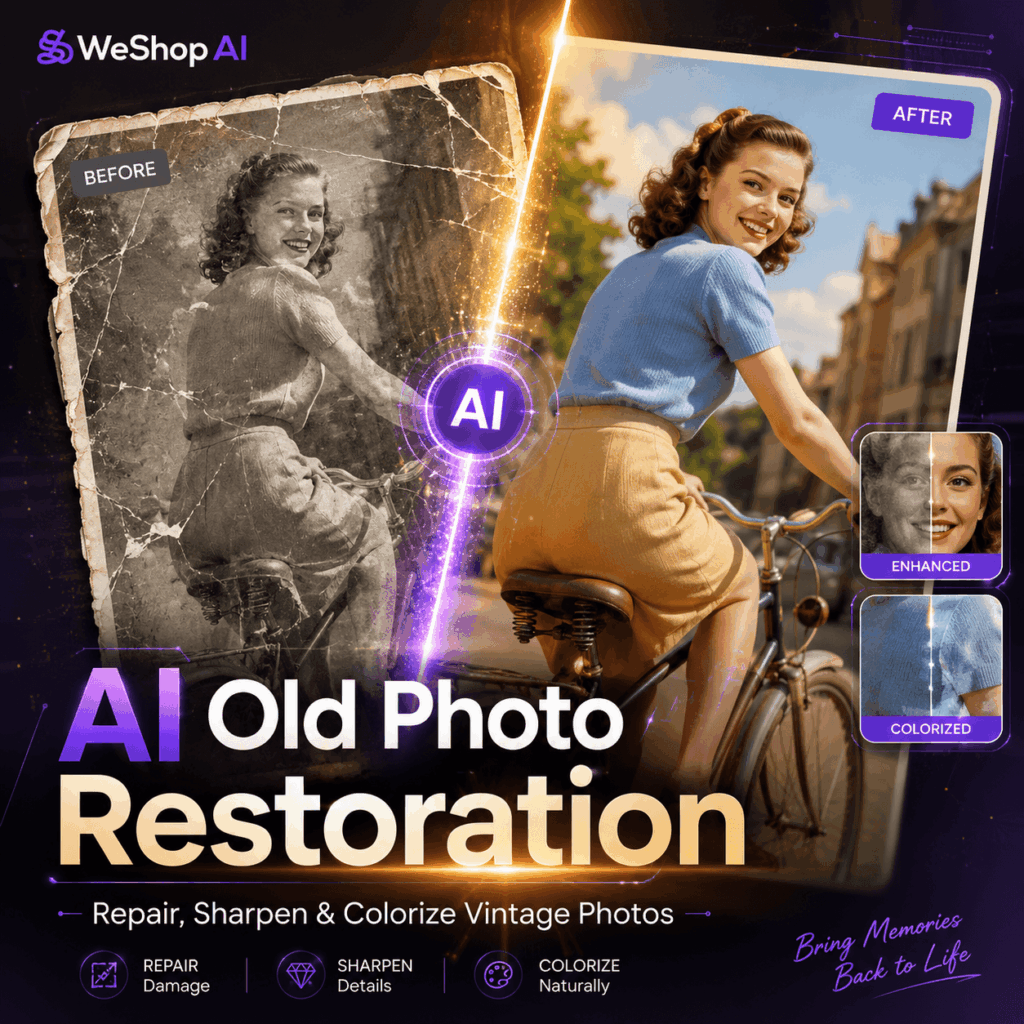
AI old photo restoration uses artificial intelligence to repair old or damaged photos.
Instead of fixing every scratch by hand, the AI looks at your image and fills in damaged areas. Then, it improves details based on the original photo.
As a result, the process becomes faster and easier.
For example, AI old photo restoration can help with scratches, stains, creases, faded color, blur, heavy grain, black-and-white photos, and yellowed family pictures.
In addition, it can colorize old photos. When the color is done well, the result feels warm and real, not strange or overly bright.
However, there is one thing to remember.
A good restored photo should still feel like the original photo. It should not look like a new AI portrait.
Therefore, the prompt is very important.
A clear prompt tells the AI what to fix. At the same time, it tells the AI what to protect. For example, it can help preserve the face, clothing, background, lighting, and vintage texture.
Why the Prompt Matters
A simple prompt like “restore this old photo” may work. However, the result can be hit or miss.
Sometimes, the AI may smooth the skin too much. In other cases, it may change the face. It may also add modern colors or make the image look too digital.
Therefore, for better AI old photo restoration, you need to be clear.
First, tell the AI what to fix. Next, tell it what not to change. Finally, make sure it understands that the goal is restoration, not redesign.
That way, the tool focuses on repair instead of creating a new image.
Why Use WeShop AI?
WeShop AI makes the process simple.
First, you upload your old photo. Next, you add a prompt. After that, the tool creates a restored version based on your image.
Because the workflow is simple, beginners can use it without stress. At the same time, the result can still look polished when the prompt is written well.
You can use WeShop AI to restore family portraits, colorize old pictures, repair album photos, and create before-and-after images.
In addition, it is useful for blog posts, social media content, and personal keepsakes.
Prepare Your Photo First
Before you upload your photo, try to get a clear digital copy.
This step makes a big difference. If the photo is too blurry, the AI has to guess. As a result, the face may look slightly different from the real person.
For better results, scan the photo if you can.
However, if you do not have a scanner, do not worry. You can use a phone scanning app. The iPhone Notes app works well for this too.
If you take a photo with your phone, use soft light. Also, keep the picture flat. Try to avoid glare and shadows.
Most importantly, make sure the face is clear.
In short, better input leads to better output. A clearer original image will usually create a more natural AI old photo restoration result.
Step 1: Upload Your Old Photo
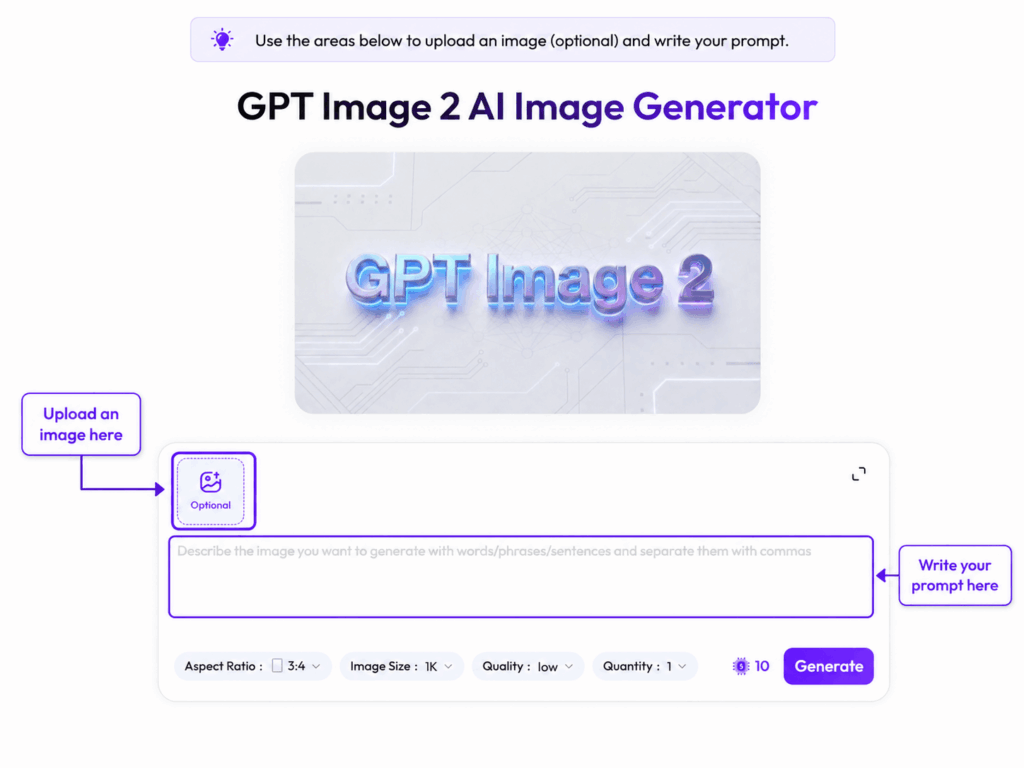
First, open WeShop AI in your browser,
Then, go to the Image to Image workspace.
After that, upload the old photo you want to restore.
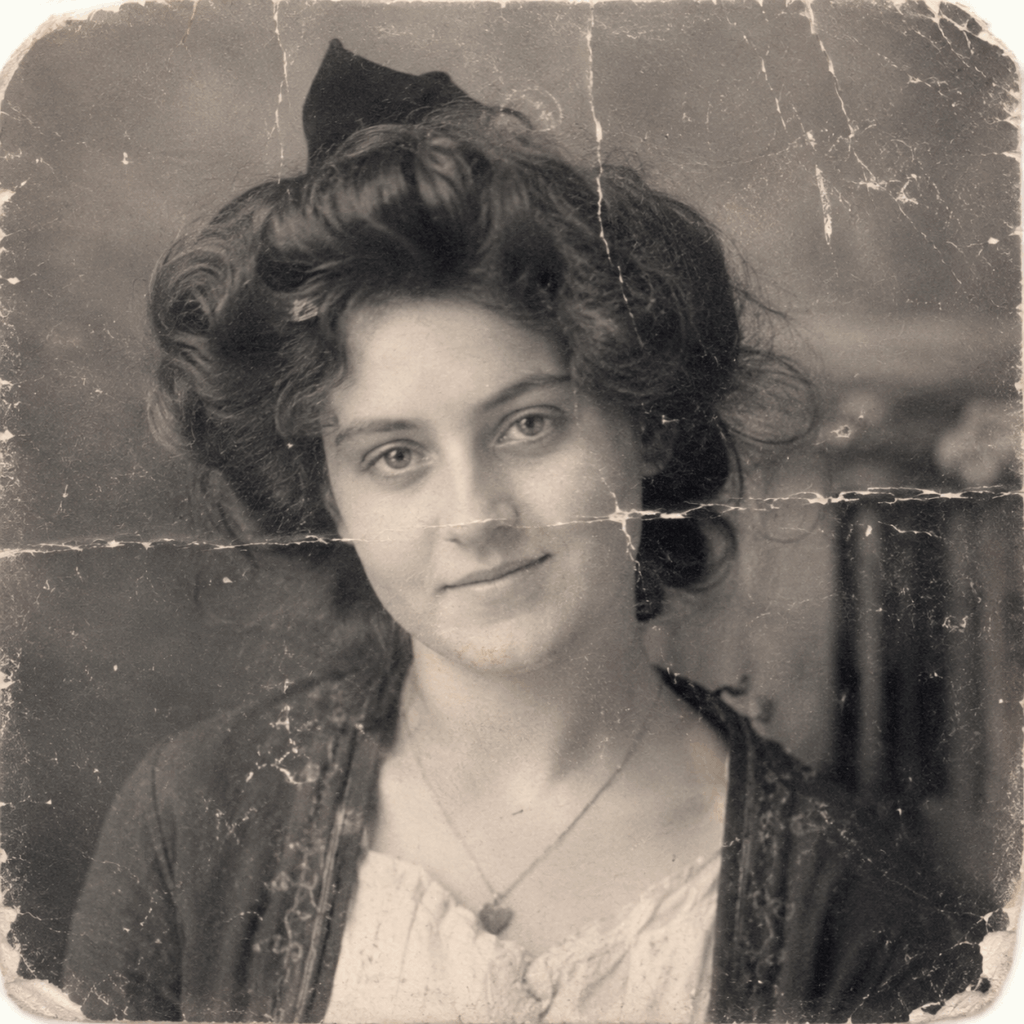
For your first try, choose a photo with clear damage. For example, a scratched, faded, or slightly blurry photo is a good test.
This makes the before-and-after result easier to compare.
Once the image is uploaded, you can add your prompt.
Step 2: Add the Positive Prompt
The positive prompt tells the AI what you want.
For AI old photo restoration, the goal is simple. You want the AI to repair the photo, improve clarity, and keep the original look.
However, a short prompt may not be enough. If you only type “restore this old photo,” the AI may overdo the edit.
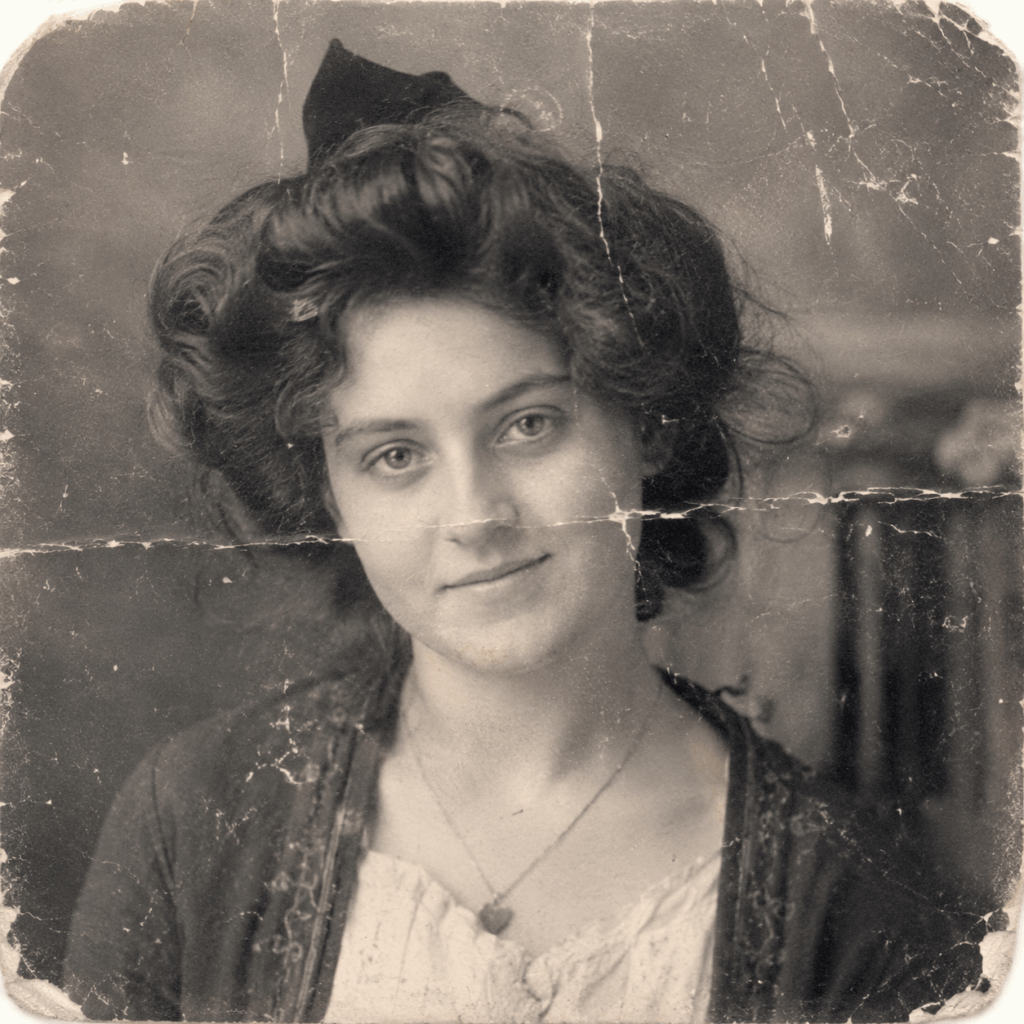
For example, it may smooth the skin too much. It may also change the face, add fake color, or make the image look too modern.
Therefore, use a clear and detailed prompt.
Copy and paste this into the Prompt field:
Image2Image old photo restoration prompt. This is an old and damaged photo. Perform a professional-grade old photo restoration. The core principle is to 100% restore the original, authentic appearance of the photo at the time it was taken. Absolutely no extra modifications or secondary creations are allowed. Strictly follow these requirements:

1. Hard constraints: Strictly preserve the original photo's dimensions, composition, boundaries, character proportions, and scene layout. Absolutely no outpainting, cropping, or changing the aspect ratio. Do not add any elements not present in the original scene, and do not remove any existing elements.

2. Damage repair and clarity restoration: Accurately repair all damages, scratches, creases, mildew spots, stains, missing corners, and fading. Eliminate blur, out-of-focus areas, excessive grain, and noise. Restore the original authentic details of facial features, clothing textures, and scene objects. Restore the original sharpness as if the photo was just developed. Do not apply skin smoothing, beauty filters, face thinning, or any facial modifications. Completely preserve the original facial characteristics.

3. Era-appropriate colorization: Strictly apply realistic colorization according to the true color standards of the historical era when the photo was taken. Colors must match the authentic style of that era with natural and realistic tones. Strictly follow the original lighting and shadow relationships without altering the original lighting logic. Color saturation must be natural and moderate, with no exaggerated overflowing or unnatural color shifts, fully conforming to the authentic color texture of the historical era.

4. Final bottom line: Overall, only perform damage repair, clarity restoration, and accurate era colorization. Do not apply any artistic processing, stylistic treatments, or special effects. The final result must be a beautifully restored, authentic, and clear old photo that perfectly retains the original film texture without any modern digital feel.
This prompt gives the AI clear limits.
First, it tells the tool to repair damage. Next, it asks the AI to restore detail. Then, it guides the AI to add realistic color.
Most importantly, it tells the AI not to crop the photo, change the face, or add new objects.
Because of that, the result is more likely to feel like a real restored photo.
Step 3: Add the Negative Prompt
The negative prompt tells the AI what to avoid.
This step is important because AI can sometimes get too creative. For example, it may add extra objects, change the face, or make the photo look like a modern portrait.
To prevent that, copy and paste this into the Negative Prompt field:
Outpainting, changing image dimensions, cropping, changing original composition, adding extra elements, removing original elements, changing face, changing identity, changing facial features, face beautification, skin smoothing, face thinning, modern beauty filter, plastic skin, exaggerated makeup, unrealistic colors, oversaturated colors, cartoon style, anime style, painting style, illustration style, fantasy style, cinematic effect, dramatic lighting, modern digital look, artificial texture, over-sharpening, blurry face, distorted face, deformed hands, deformed body, extra limbs, missing limbs, unnatural eyes, fake smile, altered clothing, altered background, low quality, bad quality, artifacts, watermark, text, logo
This helps avoid common problems.
For example, it can reduce fake skin, strange hands, changed faces, harsh color, and modern beauty filters.
As a result, your AI old photo restoration result should look more natural.
Step 4: Generate the Restored Photo
Now, check your photo and both prompts.
When everything looks ready, click Generate.
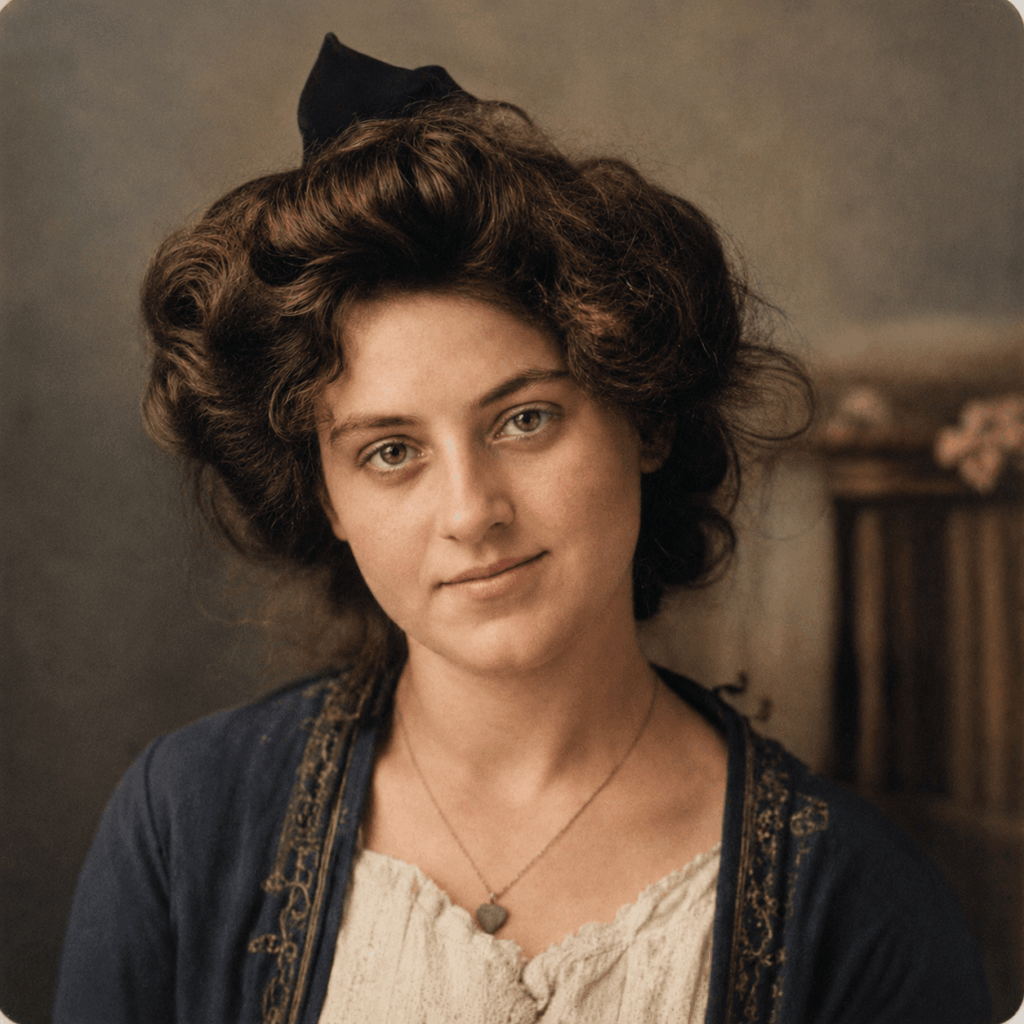
Then, wait for the tool to process your image. In most cases, the AI will clean up damage, reduce noise, sharpen details, and add a soft vintage color tone.
Once the result appears, look closely.
Start with the face. After that, check the hands, clothes, background, and small objects.
If the image still feels true to the original, download it.
For a stronger blog or social media post, make a before-and-after image. This lets people see the change right away.
How to Keep the Photo Black and White
Not every old photo needs color.
Sometimes, black and white looks better. It can feel more classic and more emotional.
If you want to keep the original black-and-white look, remove the colorization part from the positive prompt.
Then, add this line near the start:
Maintain original black and white color. Do not colorize the photo.
With this small change, the AI will repair the photo without adding color.
As a result, you still get a cleaner image, but the old black-and-white mood stays.
What If the Face Looks Different?
This can happen.
Usually, it means the AI changed too much of the image. It may also happen when the original face is very blurry.
If your tool has advanced settings, lower the redraw strength or denoising strength.
In addition, you can add this line to the prompt:
Strictly preserve the original face, identity, facial proportions, expression, and all unique facial characteristics. Do not modify the person's appearance.
Also, try a clearer scan if possible.
AI can improve details, but it cannot truly know what missing details looked like. Therefore, if the face is almost gone in the original, the result may not be fully accurate.
Can AI Fix a Very Blurry Photo?
AI can help, but it has limits.
If the photo still has enough detail, AI can make it clearer. It can also make faces and clothing easier to see.
However, if the image is too blurry, the AI has to guess.
That means the final photo may look clean, but it may not be fully true to the real person.
For family photos, that matters. Therefore, always start with the clearest version you can get.
Tips for Better AI Old Photo Restoration
A good restored photo should look cleaner, not fake.
Here are a few simple tips.
💡Keep the Colors Soft
Old photos should not look like modern phone pictures.
If the colors are too bright, the image may lose its vintage feeling. Therefore, keep the colors soft and natural.
In most cases, warm and gentle tones work best.
💡Keep Natural Skin Texture
Do not remove every wrinkle or skin detail.
Those details make the photo feel real. They are also part of the person’s story.
So, avoid heavy beauty filters. The goal is restoration, not a makeover.
💡Protect the Background
The background matters too.
Old walls, streets, furniture, cars, and clothing all tell us something about the time and place.
For that reason, try to keep the background close to the original. Do not let the AI replace it unless the area is badly damaged.
💡Try More Than One Result
AI results can change each time.
If the first result feels too modern, try again. If the face looks a little off, generate another version.
Then, compare each result with the original photo.
In the end, the best version should feel like the same memory, only clearer.
Final Thoughts
Old photos are not just pictures. They are family history.
With AI old photo restoration, you can bring faded memories back in a simple way. You can repair damage, improve detail, and add natural color without learning complex editing skills.
However, the key is control.
Use clear prompts. Keep the face natural. Protect the background. Also, avoid heavy filters.
That way, your restored photo will still feel real.
If you have old family photos sitting in an album, now is a great time to try. Upload one to WeShop AI, use the prompts above, and see how much life an old photo can still hold.
Go to WeShop AI For Exploration: