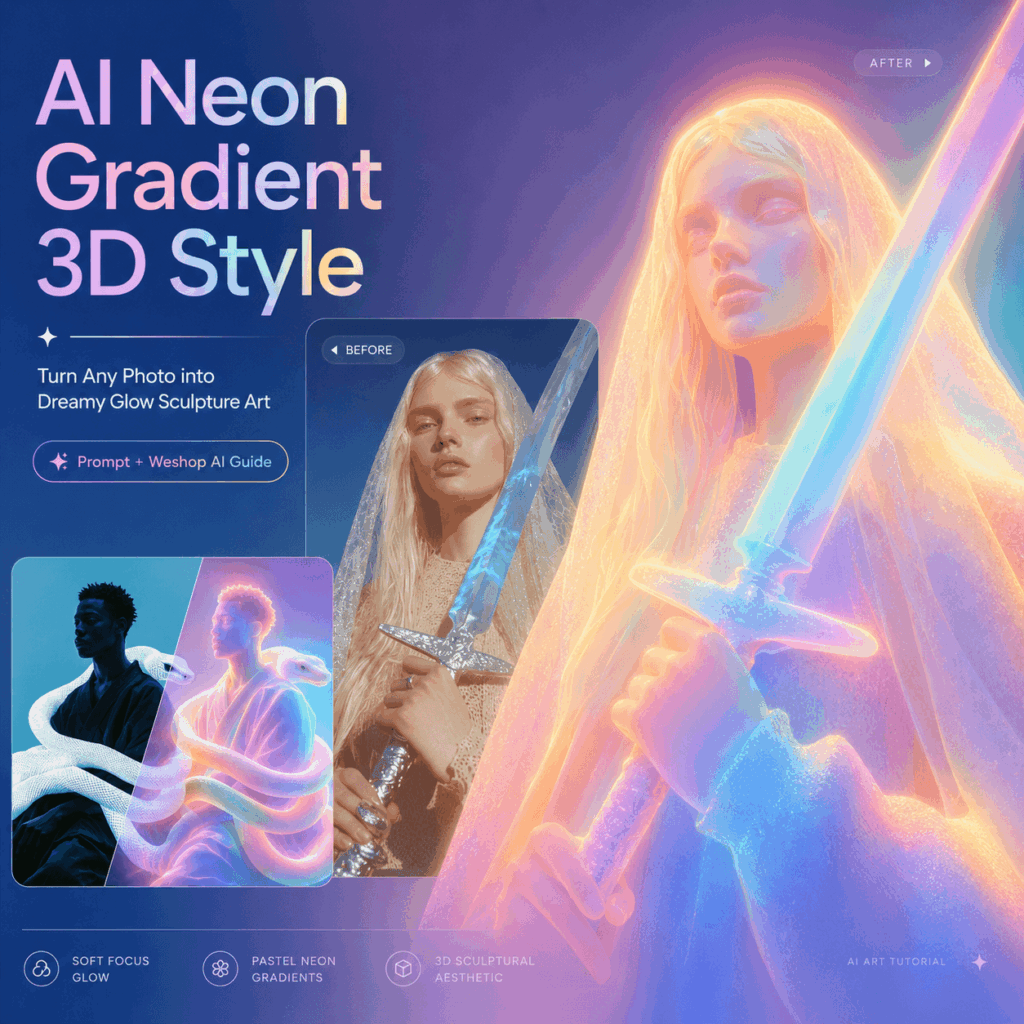
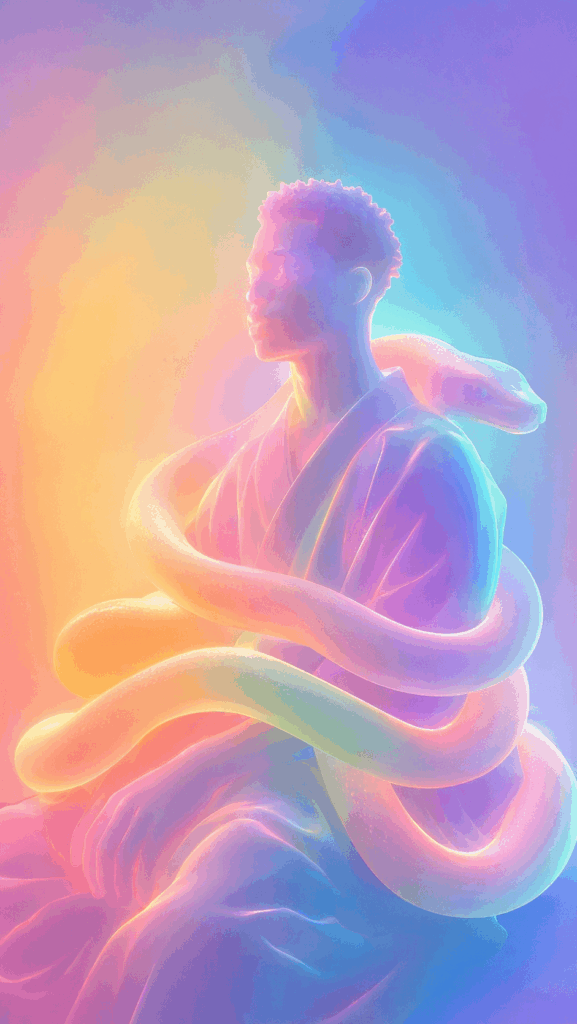
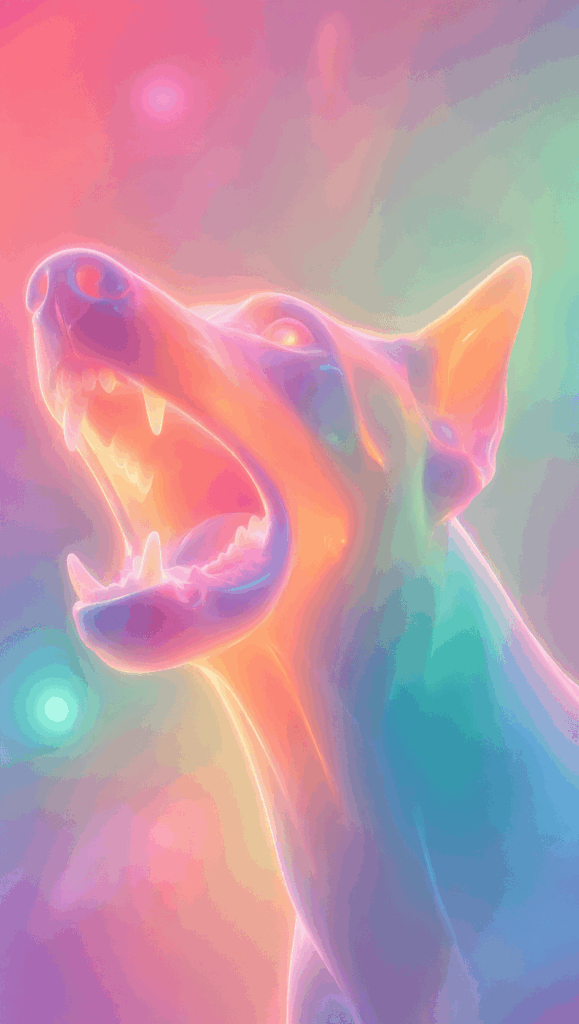
The AI neon gradient 3D style is everywhere right now, and it is easy to see why. You have probably seen images with soft focus, glowing edges, candy-colored gradients, frosted glass texture, and a surreal sculpture-like finish. At first glance, they feel dreamy and futuristic. At the same time, they still look soft, polished, and surprisingly wearable for social media, brand visuals, profile images, and creative campaigns.
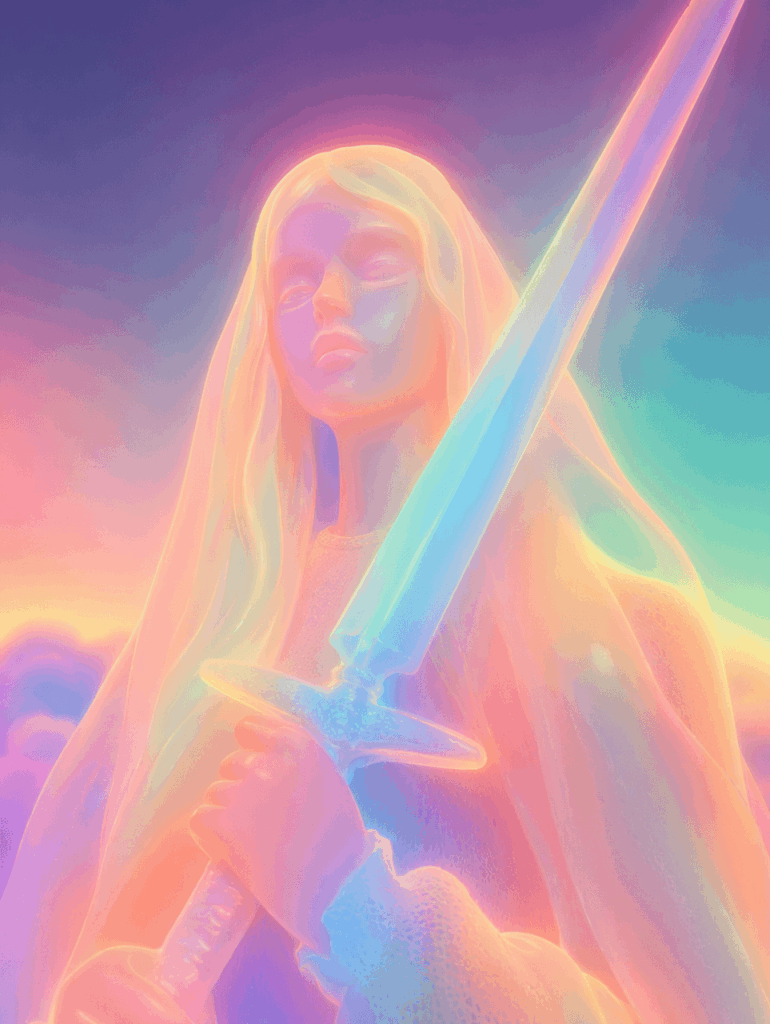
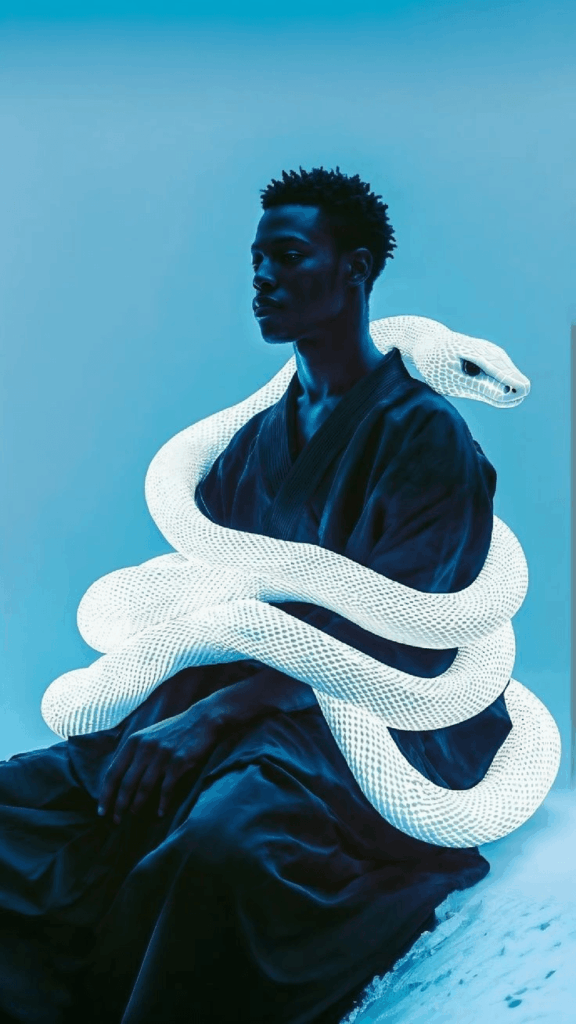
What makes this style so eye-catching is that it does more than add a filter to your photo. Instead, it transforms the original subject into a soft digital sculpture. For example, skin, clothing, hair, and objects can start to look like translucent plastic, glowing rubber, frosted glass, or smooth ceramic. Then, layers of pink, cyan, violet, lemon yellow, mint green, and pale blue light blend across the image. As a result, even a simple portrait or product photo can feel like it belongs in a digital art gallery.
At first, this kind of image may seem difficult to create. You might think you need 3D software, advanced editing skills, or a long design workflow. However, the process is much simpler than that. With one clear input photo, the right prompt, and Weshop AI’s image-to-image feature, you can create a polished AI neon gradient 3D style image in just a few minutes.
In this guide, I will walk you through the full process step by step. First, we will look at what kind of image works best. Then, we will upload the image to Weshop AI and adjust the basic settings. After that, you can copy the ready-made prompt and negative prompt directly into the tool. By the end, you will be able to turn portraits, products, pets, or everyday objects into soft-focus neon sculpture art.
What You Need Before You Start
Before creating the AI neon gradient 3D style, it helps to prepare a few simple things. This will make the whole process smoother and also improve your final result.
First, you need a creation tool. In this tutorial, we will use Weshop AI’s image generation tool:
Weshop AI GPT-Image:
https://www.weshop.ai/apps/gpt-image
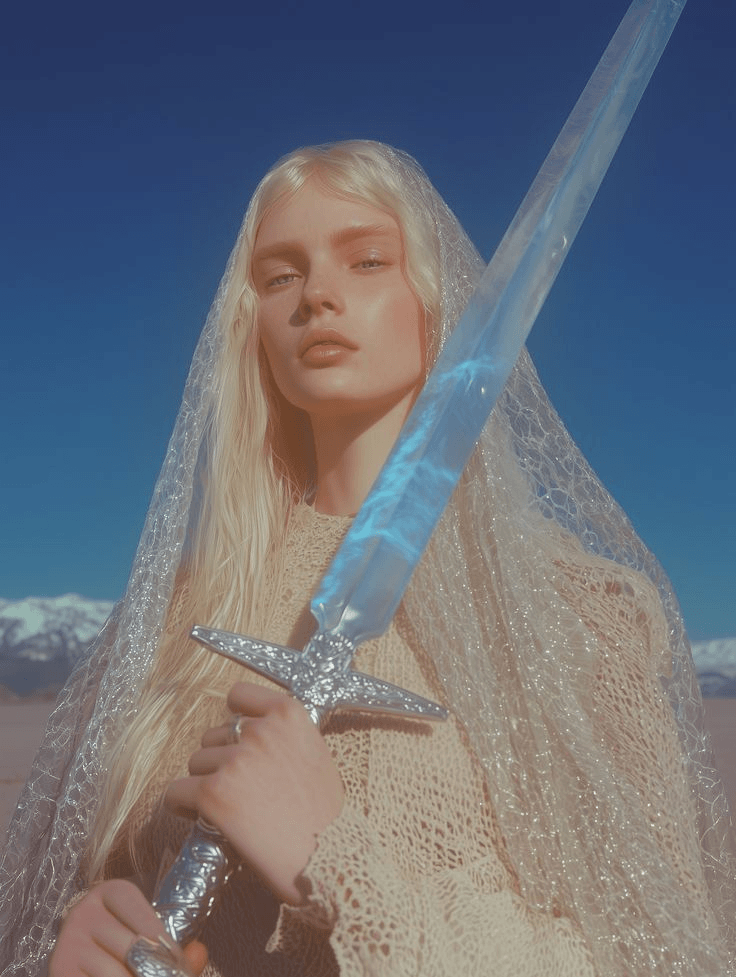
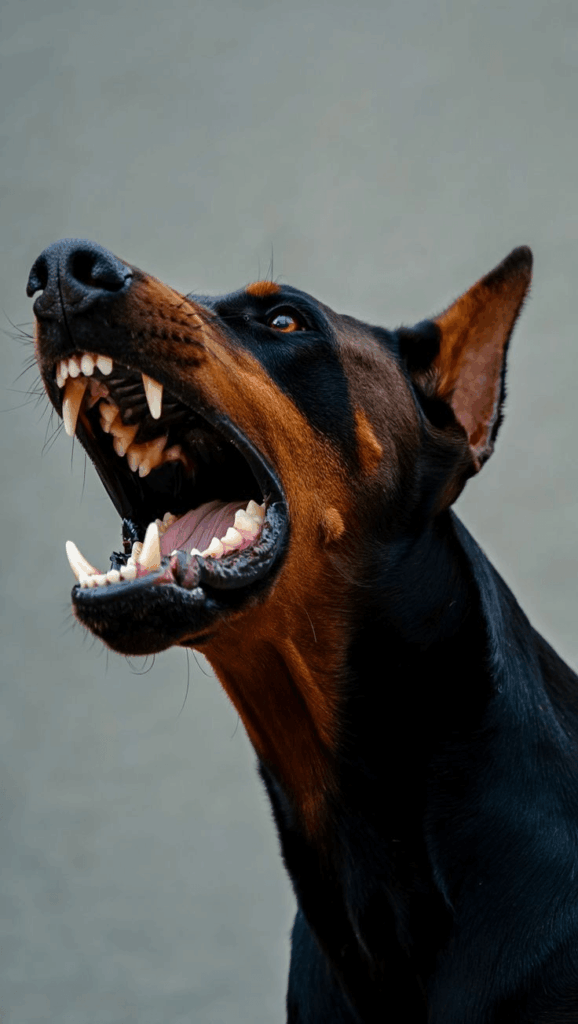
Next, prepare one base image. This can be a portrait, a half-body photo, a product photo, a pet photo, or an object with a clear shape. In general, the best input image has a clean outline, a visible subject, and a background that is not too busy.
This part is important because the input image gives the AI its structure. If the subject is clear, Weshop AI can keep the basic pose, shape, and proportions while changing the material, lighting, and color. On the other hand, if the image has a messy background, too many people, or a subject that is too small, the result may look less clean.
Finally, you will need a prompt. Fortunately, you do not have to write one from scratch. The full English prompt and negative prompt are included below, so you can copy and paste them directly.
Step-by-Step Guide
Step 1: Open Weshop AI and Upload Your Image
To begin, open the Weshop AI GPT-Image tool in your browser.
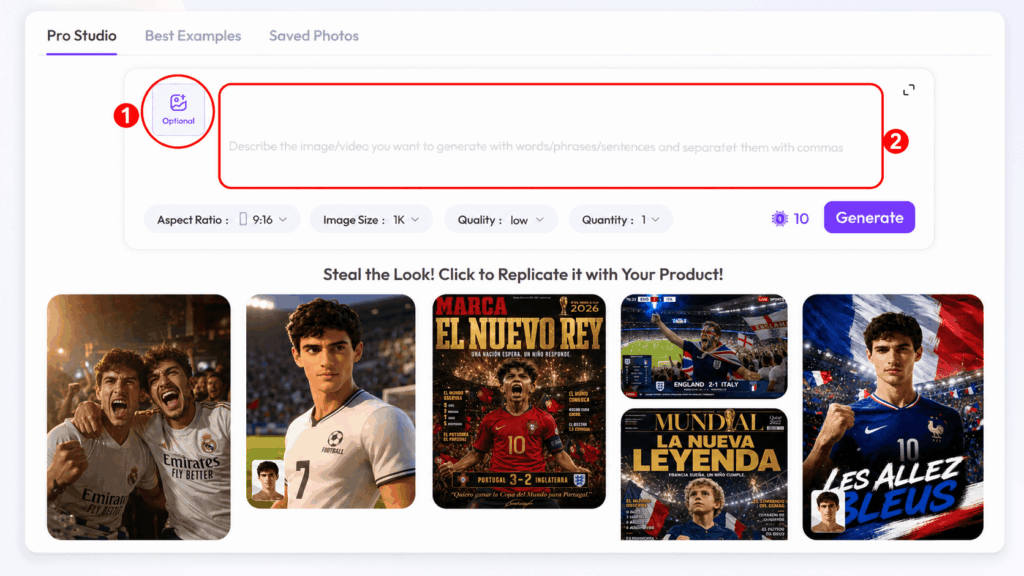
Once the page loads, find the image upload area. Depending on the interface version, it may appear as Upload Image, Reference Image, or a similar image input section. From there, upload the photo you want to transform. You can usually click the upload button or drag your image into the upload area.
After uploading, take a quick look at the preview. Make sure the image is not cropped in the wrong way. Also, check that the subject is large enough and easy to recognize. This small step can save you time later, especially if you want the final image to keep the original pose or product shape.
The AI neon gradient 3D style works best when the subject has a strong silhouette. For that reason, a clear face, a clean body pose, or a well-defined product shape will usually produce a more polished result. In addition, a simple background helps the AI focus on the subject instead of turning random background details into glowing color blocks.
Step 2: Adjust the Basic Settings
Next, check whether your interface allows you to adjust settings such as Image Weight, Denoising Strength, or Image Similarity. If these options are available, start with a value between 0.55 and 0.75.
This range works well for the AI neon gradient 3D style because it gives the AI enough freedom to stylize the image while still keeping the original subject recognizable.
If the value is too low, the AI may change the pose, face shape, clothing outline, or product structure too much. As a result, the image may look creative, but it may no longer feel connected to your original photo.
If the value is too high, the opposite can happen. The image may stay too close to realistic photography. In that case, you may not get enough soft-focus glow, frosted glass texture, or dreamy 3D sculpture effect.
A good testing order is:
First try: 0.65
For a result closer to the original photo: 0.70 – 0.75
For a more artistic result: 0.55 – 0.60
Of course, these numbers are not strict rules. Think of them as a starting point. Once you generate your first result, you can adjust the value slightly and compare different versions.
Step 3: Enter the Main English Prompt
Now it is time to add the main prompt. Copy the prompt below and paste it into the Prompt input box in Weshop AI.
This prompt is designed to control several things at once: style, texture, lighting, color, subject treatment, and composition. In other words, it tells the AI that you want a soft, glowing, sculptural transformation instead of a simple colorful filter.
Please copy this English prompt:
Please transform the input image into a soft focus, neon gradient sculptural style. Do not copy specific characters, crowds, compositions, or poses from any reference, but follow this visual language:

Style & Texture: Create a soft, dreamy, surreal 3D illustration and digital sculpture. The subject should look like translucent plastic, frosted glass, glowing rubber, or soft ceramic sculpture wrapped in colored mist. Smooth rounded edges, moderately simplified details, with a hazy, low-contrast, non-realistic artistic effect.

Color & Light: Use highly saturated but softly diffused neon gradients (fluorescent pink, coral orange, lemon yellow, mint green, cyan, violet, pale grayish-blue). Colors should blend seamlessly like thermal imaging, colored mist, or dream halos. Shadows must be bluish-purple, cyan, or deep magenta—NO pure black hard shadows. Use strong inner glow, backlight, rim light, and ambient color reflections to make the subject glow from within. Include soft focus, slight mist, fine grain, and gradient noise.

Subject Treatment: Retain the identity, pose, proportions, and clothing outlines of the input image, but transform them into a minimalist, rounded, dreamy neon sculpture. Soften and weaken facial features to create a quiet, ethereal, detached expression. The face should look like a soft mask covered by a glowing halo.

Composition: Clean background (solid color, soft gradient, misty or large color blocks). Quiet, surreal, fairytale-like but slightly alienating atmosphere with a floating feeling.

Keywords: soft neon gradient, dreamy 3D illustration, translucent sculpture, frosted glass texture, glowing rubber, pastel fluorescence, diffused light, inner glow, soft focus, blurred facial features, surreal portrait, minimal details, smooth rounded forms, luminous mist, thermal color gradient, ethereal atmosphere, clean composition, high-end digital art.
To make the prompt easier to understand, here are the most important phrases:
soft neon gradient
This creates the smooth color transition that defines the look.
dreamy 3D illustration
This moves the image away from realistic photography and closer to digital art.
translucent sculpture
This helps create the glassy, sculptural feeling.
frosted glass texture
This gives the subject a soft, semi-transparent surface.
inner glow
This makes the subject feel like it is glowing from within.
soft focus
This adds the dreamy blur and hazy atmosphere.
Together, these details help create a refined AI neon gradient 3D style instead of a random colorful effect. More importantly, they guide the AI to focus on texture, lighting, and mood, which are the key parts of this visual trend.
Step 4: Add the Negative Prompt and Generate
After adding the main prompt, move on to the negative prompt. This step is easy to skip, but it can make the final image much cleaner.
A negative prompt tells the AI what to avoid. For this look, we do not want harsh black shadows, overly realistic skin, messy backgrounds, hard metallic textures, horror elements, distorted hands, random text, watermarks, or logos.
Copy this negative prompt:
realistic photography, sharp hard lines, heavy black shadows, metallic hard texture, messy complex background, generic anime cel shading, over-sharpened, horror, gore, deformed features, extra fingers, text, watermark, logo.This helps keep the final image softer, cleaner, and more intentional. It also makes the AI neon gradient 3D style look more like a polished digital artwork rather than an overprocessed AI image.
Once everything is ready, click Generate.
After a few seconds, Weshop AI will create your image. If the first result is not perfect, do not stop there. Try generating again. The same prompt can produce slightly different results each time. Sometimes the second or third version will have better color blending, cleaner lighting, or a stronger sculpture effect.
Advanced Tips and FAQ
Q1: Why does the face look too blurry?
This usually happens because the prompt includes phrases like blurred facial features and soft mask covered by a glowing halo. These phrases are used on purpose. They help create a calm, ethereal, sculpture-like face.
That said, not every image needs a very blurred face. If you want the face to look more recognizable, you can make a few simple changes.
First, increase the image similarity or image weight. This helps Weshop AI keep more details from the original photo.
Next, remove or soften the phrase blurred facial features.
Finally, add this line to the prompt:
clear subtle facial features, elegant facial structure, soft but recognizable faceThis keeps the dreamy glow while making the face easier to read.
Q2: What kind of image works best?
The best input image has a clear subject and a simple background. In general, the cleaner the original image is, the easier it is to create a strong final result.
Good choices include:
Portrait photos
Half-body photos
Full-body photos with a clear pose
Product photos with a strong outline
Pet photos
Perfume bottles, jewelry, bags, shoes, toys, or decorative objects
Meanwhile, try to avoid crowded group photos, busy street backgrounds, dark faces, blurry images, or photos where the subject is too small.
In short, a clean input image gives the AI a better foundation. As a result, your AI neon gradient 3D style image will look more polished and less chaotic.
Q3: How can I make the image look cooler and more futuristic?
You only need to change the color keywords.
The original prompt uses this color palette:
fluorescent pink, coral orange, lemon yellow, mint green, cyan, violet, pale grayish-blueFor a cooler, more sci-fi look, replace it with:
cyber blue, neon purple, deep sea green, silver, icy cyan, electric blue, cool violetIn addition, you can add:
futuristic atmosphere, sci-fi lighting, holographic glow, cool cyber aestheticThis will make the image feel more like a cyber poster, virtual avatar, electronic music cover, or futuristic fashion campaign.
Q4: Why does my result look too bright or too cheap?
Neon colors can easily become too strong. Therefore, if the result looks too loud, try adding these words to the prompt:
soft pastel neon, elegant color blending, refined gradient, subtle saturation, high-end art directionYou can also reduce the number of colors. Instead of using every neon color at once, choose two or three main colors. For example, you can try pink and blue, yellow and violet, or cyan and mint green.
This makes the image feel more controlled. As a result, the final visual will look more premium and less messy.
Q5: Can I use this prompt for product photos?
Yes. The AI neon gradient 3D style works very well for product visuals, especially when the product has a strong shape.
For example, it is great for perfume bottles, skincare products, headphones, bags, jewelry, shoes, collectible toys, and design objects.
However, for product images, it is better to adjust the subject treatment. Replace the Subject Treatment section with this:
Retain the product shape, silhouette, proportions, and key design details of the input image, but transform it into a minimalist translucent neon sculpture with frosted glass texture, inner glow, and smooth rounded forms.This tells the AI to focus on the product shape instead of treating the image like a portrait.
Q6: How can I make it look like a high-end art poster?
If you want a more editorial or gallery-style result, add this line at the end of the prompt:
museum poster style, editorial art direction, luxury visual campaign, clean negative space, premium digital art, gallery exhibition atmosphereThis helps create a cleaner composition, more negative space, and a more polished visual direction. Because of that, it is especially useful for social media covers, campaign images, posters, and portfolio pieces.
Q7: Where can I use this style?
This style is flexible, which is one reason it has become so popular. You can use it for:
Social media avatars
Instagram posts
Pinterest visuals
Blog cover images
Brand campaign visuals
Product posters
Music cover art
AI art portfolios
Virtual character concepts
Creative profile images
Because the AI neon gradient 3D style feels both soft and futuristic, it works well for beauty, fashion, tech, lifestyle, music, design, and digital art content.
Final Thoughts
Turning an ordinary photo into a glowing neon sculpture is much easier than it looks. You do not need 3D software or advanced editing skills. Instead, you only need a clean input image, a clear prompt, and the right settings.
To get the best AI neon gradient 3D style, remember these three things:
Choose a photo with a clear subject.
Use a prompt that describes texture, light, color, and mood.
Add a negative prompt to avoid messy details, harsh shadows, and unwanted text.
From there, you can keep experimenting. Try different color palettes, adjust the image weight, or generate a few versions from the same photo. With Weshop AI, you can quickly transform portraits, products, pets, and everyday objects into dreamy digital artworks. Your next eye-catching AI visual might already be sitting in your camera roll.
Go to WeShop AI For Exploration: