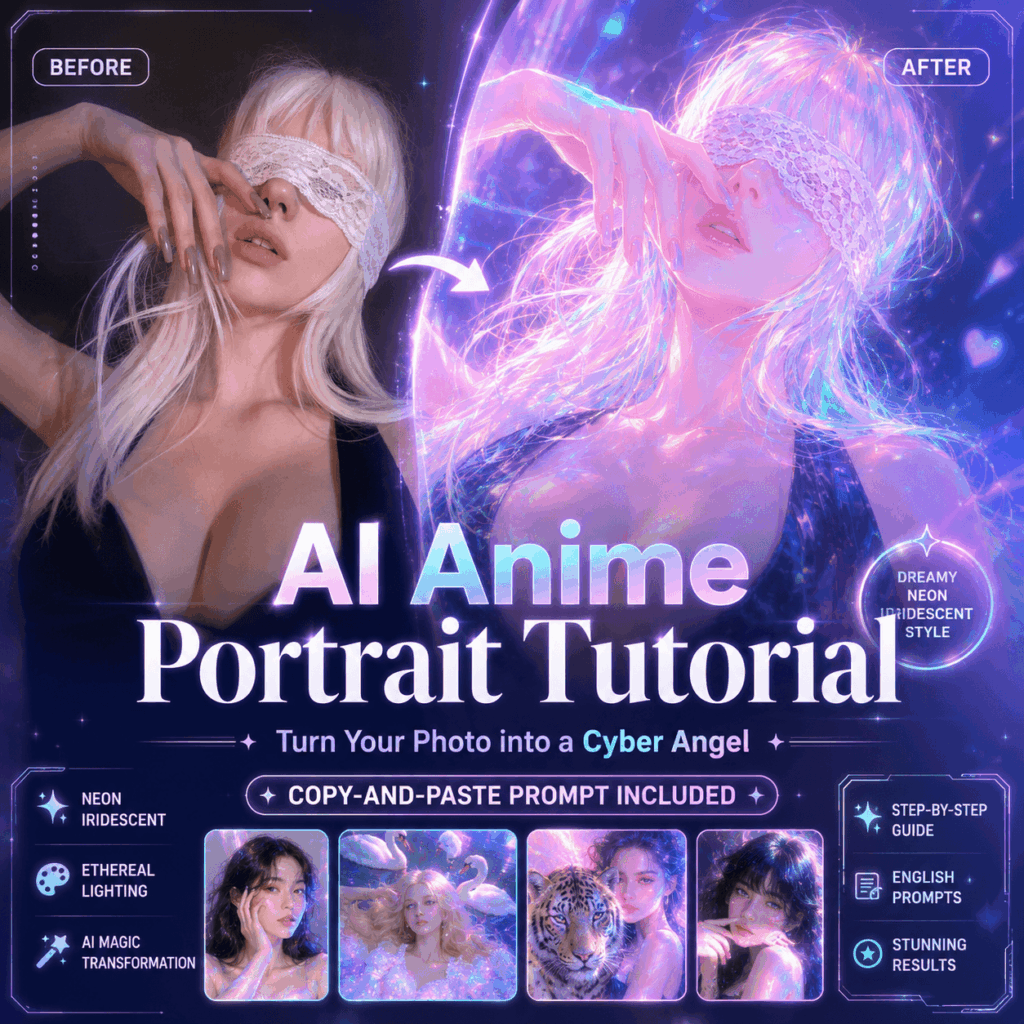
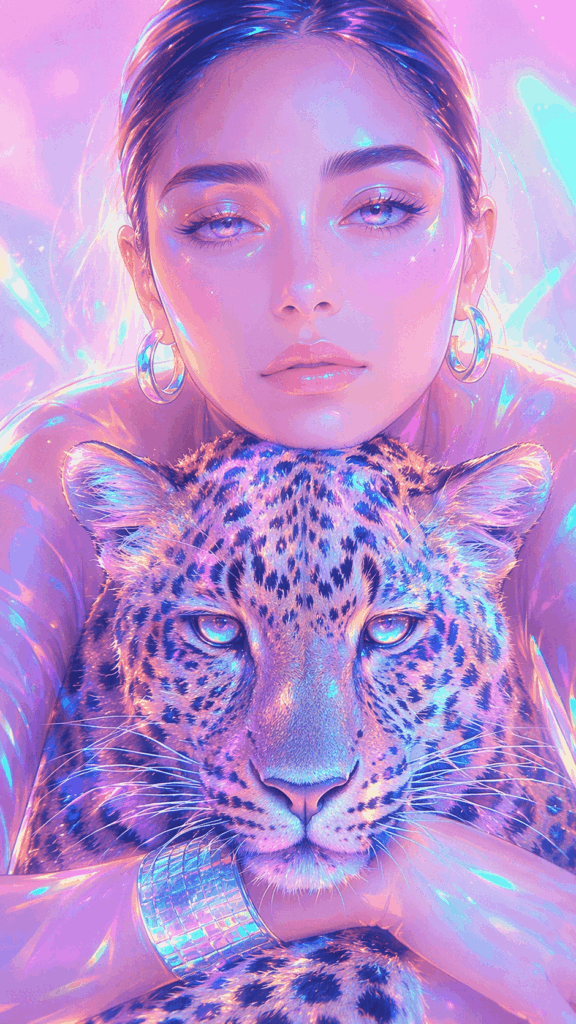
An AI anime portrait is one of the most eye-catching image trends right now, especially if you love dreamy neon colors, holographic glow, and futuristic character art. If you have been scrolling through Instagram, TikTok, Pinterest, or AI art communities lately, you have probably seen this style everywhere: glowing skin, glass-like highlights, soft pastel reflections, and a cyber-angel mood that feels both delicate and powerful.
At first glance, this look may seem difficult to create. However, it is much easier than it appears. You do not need advanced drawing skills, and you do not need to spend hours editing every detail by hand. Instead, with a clear portrait photo, the right AI image tool, and a well-written prompt, you can turn an ordinary selfie into a polished AI anime portrait in just a few steps.
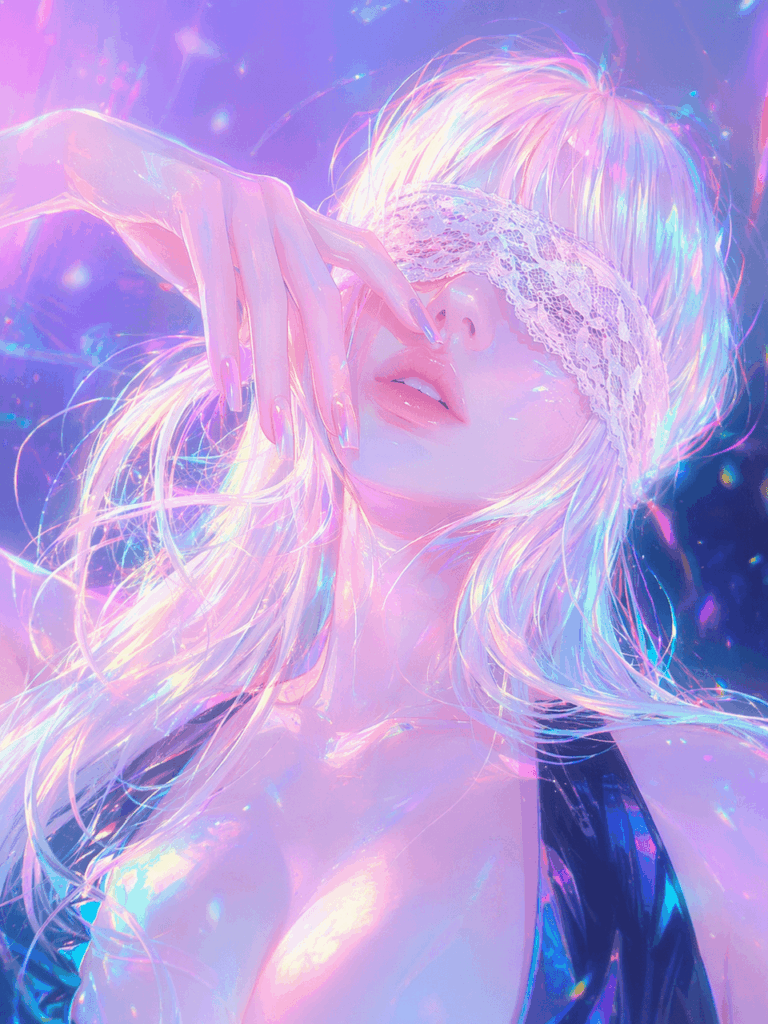
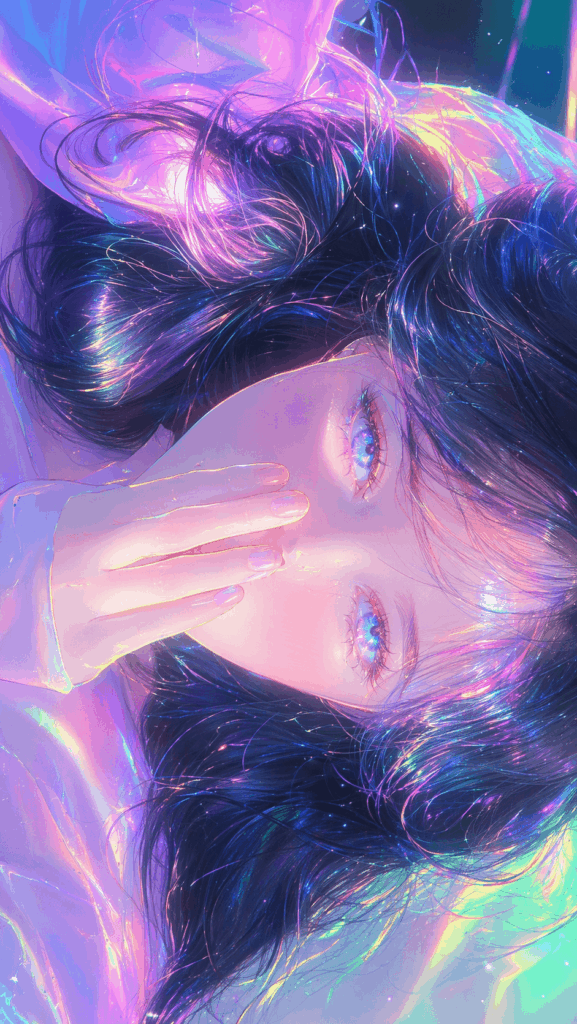
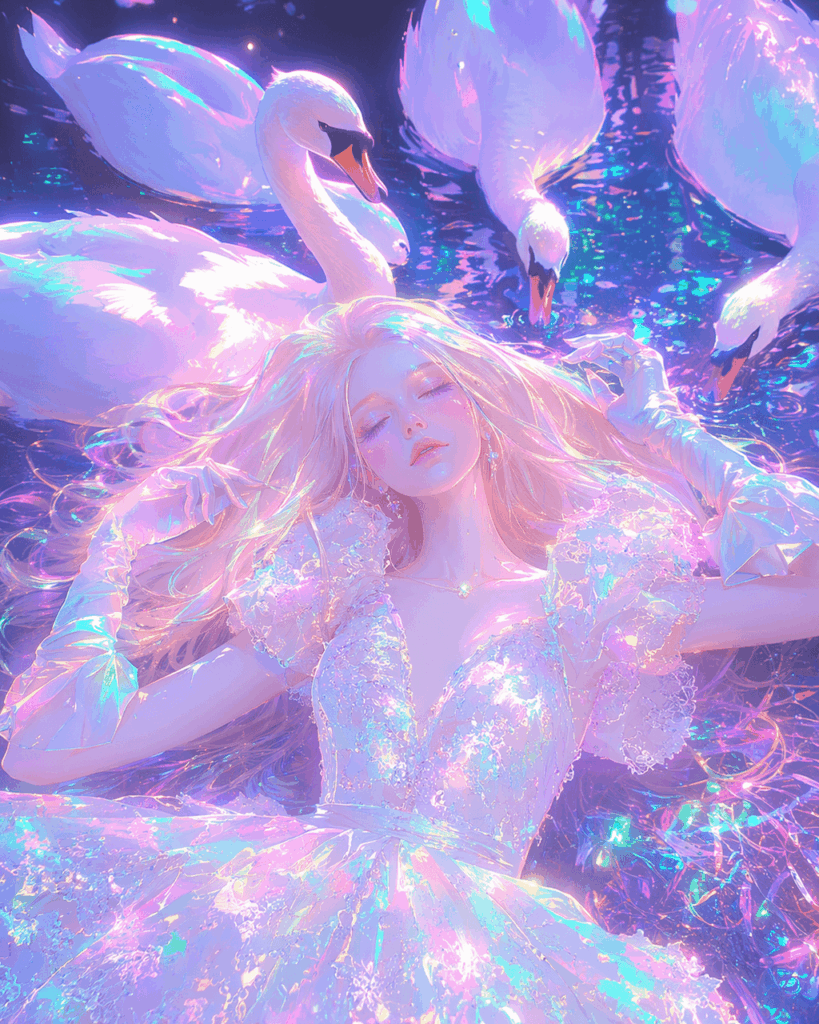
Unlike a basic anime filter, this style does more than change your face into a cartoon version. It transforms the entire image into a high-end fantasy illustration. As a result, the final artwork often includes iridescent hair, luminous skin, colorful shadows, neon rim lighting, and a soft cyber-angel atmosphere.
In this guide, I will show you how to create a dreamy neon AI anime portrait using WeShop AI. The workflow is beginner-friendly, and you can follow it even if this is your first time trying AI image generation. In addition, I will share the exact positive prompt and negative prompt, so you can copy, paste, and start creating right away.
What You Need Before You Start
Before we jump into the tutorial, prepare these three things first.
Tool:
Open WeShop AI – GPT Image Tool on your phone or computer browser.
Base image:
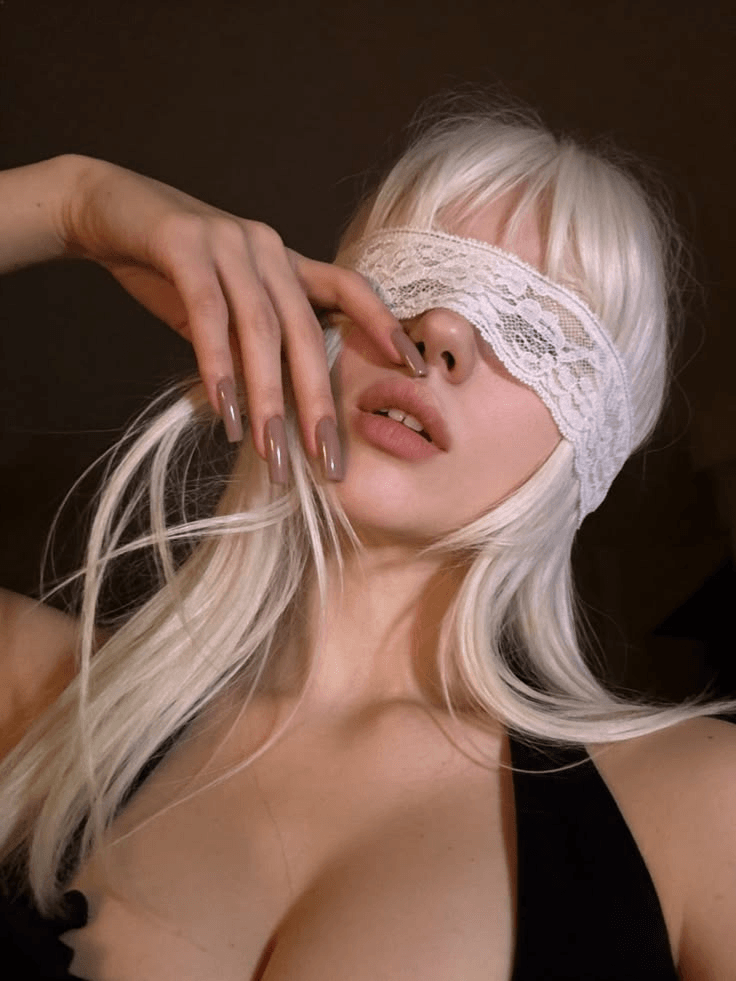
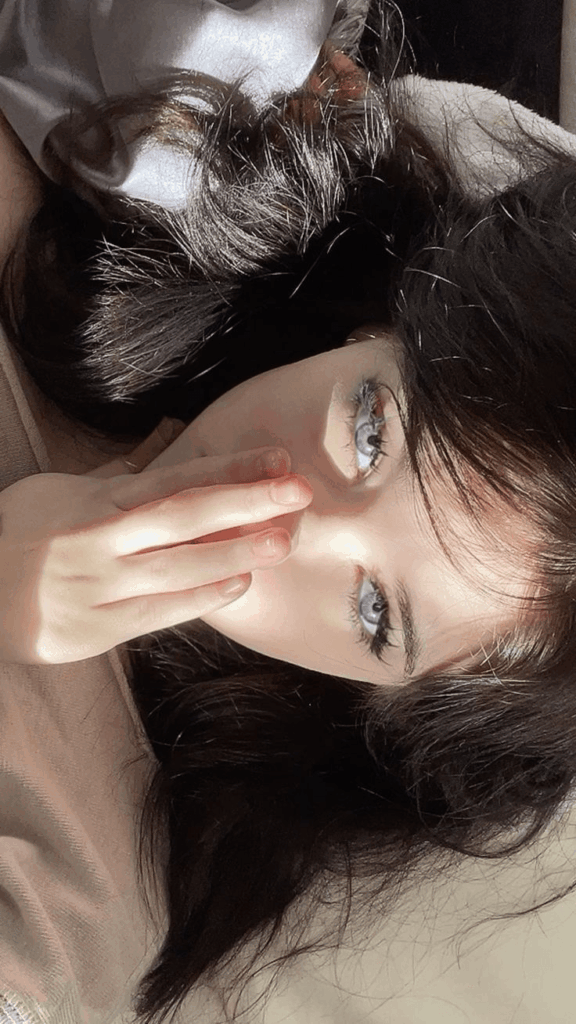
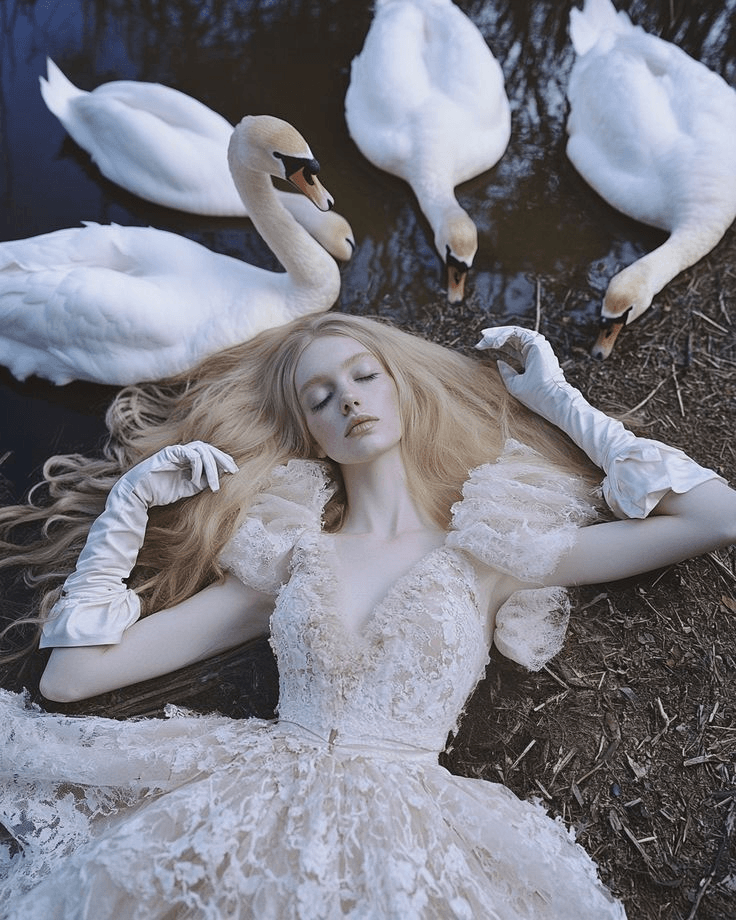
Choose a clear portrait photo. A selfie, half-body photo, or close-up portrait will work well. For better results, pick an image with clear facial features, visible hair shape, and a clean pose.
Prompt:
Use the English prompt in this tutorial. It is designed to create a neon iridescent AI anime portrait with glowing skin, holographic reflections, and soft anime details.
In general, your source photo matters a lot. Therefore, try to avoid images that are too blurry, too dark, or heavily covered by shadows. Also, avoid photos where the face is hidden by hands, hair, sunglasses, or other objects. The clearer the original photo is, the easier it is for AI to keep the subject recognizable.
Step-by-Step Guide
Step 1: Open the WeShop AI Image Workspace
First, go to the WeShop AI – GPT Image page. If this is your first time using it, you may need to sign up or log in.
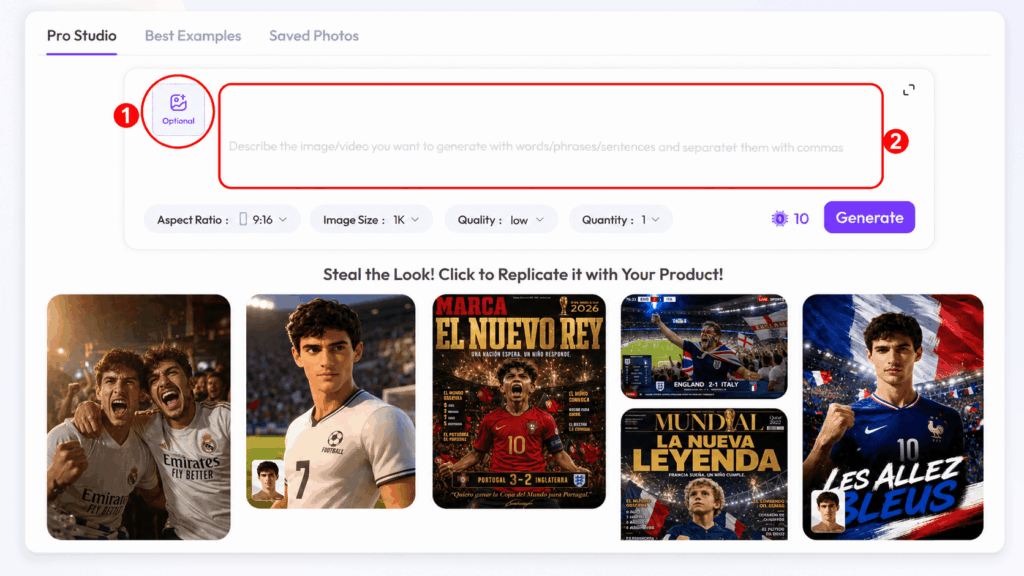
Once you enter the workspace, you will see a simple image generation panel. It usually includes an image upload area, a prompt input box, optional settings, and a Generate button.
At this stage, you do not need to adjust anything complicated. Just make sure you are in the image generation or image-to-image workspace. Since we are working from an existing photo, this step is important for creating a more accurate AI anime portrait.
Step 2: Upload Your Portrait Photo
Next, upload your base photo. You can click the upload area or drag your image directly into the workspace.
For this cyber angel effect, a clean portrait works best. A front-facing selfie, a soft side profile, or a half-body portrait can all create beautiful results. However, the AI still needs enough visual information to understand the person’s face, pose, hairstyle, and clothing shape.
A good source photo will usually have:
Clear facial features
Balanced lighting
A visible hairstyle
A simple or not-too-busy background
A pose that is easy to read
Meanwhile, think about the final use of your image. If you want a profile picture, choose a closer portrait with a clear face. If you want a social media cover, a half-body image with more hair, clothing, and background space may work better.
💡 Tip: If you want the final AI anime portrait to still look like the original person, choose a photo where the face is not overly covered. If you want to keep the original pose, make sure the arms, hands, and clothing outline are also clear.
Step 3: Enter the Neon Iridescent Prompt
Now comes the most important step. A strong prompt tells the AI exactly what kind of style, color, lighting, and mood you want.
For this look, we are going for a dreamy cyber-angel anime style. More specifically, the key visual elements are neon rim lights, holographic reflections, soft glowing skin, colorful shadows, and a delicate fantasy illustration finish.
Copy and paste the prompt below into the Positive Prompt box:
Transform the input image into a dreamy neon iridescent anime portrait. Retain the subject's core identity, pose, and main clothing silhouette, but convert them into a highly refined fantasy anime/cyber-angelic portrait.

Style & Color: High saturation fluorescent tones (pink, cyan-blue, mint green, lemon yellow, lavender purple). Soft iridescent gradients and polarized reflections, resembling a mix of soap bubbles, holographic films, neon lights, and dreamy halos.
Character: Ethereal eyes, quiet and detached mood, sacred and melancholic dreamlike aura. Delicate facial lines, faintly glowing eyes, soft lips with glassy highlights. Porcelain, translucent, soft-focus skin texture with cold-to-warm gradients of pink, blue, and purple. Colorful light and shadow transitions instead of black shadows.
Lighting & Material: Strong neon rim lights, holographic reflections, highlight blooms, soft mist light, and colorful ambient light. Flowing iridescent luster on hair, clothing, and skin surfaces. Slight halos, glow, chromatic aberration, lens soft focus, and micro-grain texture.
Composition: Clean, dreamy dark or bright fluorescent gradient background. High-end fantasy illustration, AI concept art, neon icon style.

Quality tags: highly detailed, ethereal, iridescent, holographic glow, neon pastel lighting, soft focus, luminous skin, dreamy anime portrait, cinematic lighting, delicate linework, glossy highlights, radiant aura, ultra refined, 4k illustration.
This prompt does more than simply ask for an anime version of your photo. Instead, it guides the AI to keep the subject’s basic identity, pose, and clothing silhouette while changing the whole image into a polished fantasy AI anime portrait.
One sentence is especially important:
Retain the subject's core identity, pose, and main clothing silhouette
This helps the AI keep the person recognizable. Without it, the result may still look beautiful, but it may no longer feel connected to the original photo.
In addition, the prompt avoids heavy black shadows. Instead, it asks for colorful light and shadow transitions. As a result, the final image can look soft, luminous, and dreamlike rather than dark or muddy.
Step 4: Add a Negative Prompt to Avoid Common AI Issues
After adding the positive prompt, you also need to tell the AI what to avoid. This is where the negative prompt comes in.
A negative prompt helps reduce messy backgrounds, strange hands, distorted faces, watermarks, logos, heavy noise, and other unwanted details. It will not fix every issue every time. However, it can make your AI anime portrait much cleaner and more polished.
Copy and paste this into the Negative Prompt box:
low resolution, dirty background, messy background, heavy black shadows, horror, overly realistic, rough lines, deformed facial features, extra fingers, deformed limbs, text, watermarks, logos, heavy noise, overexposed, obscure subject.
This negative prompt is especially helpful when your original photo has complex lighting, a dark background, or visible hands. These details can sometimes confuse AI image models. Therefore, it is better to guide the output from the start.
If your image includes hands near the face, you may also want to generate a few versions and choose the best one. Hands are still one of the most common trouble spots in AI image generation, so a little patience can make a big difference.
Step 5: Generate Your Cyber Angel Portrait
Once your photo is uploaded and both prompts are ready, click Generate.
After a short wait, WeShop AI will create your neon cyber angel image. Ideally, the result should feel like a polished fantasy illustration, with glowing skin, iridescent hair, soft pastel lighting, and a futuristic anime atmosphere.
However, do not stop at the first result. AI image generation often gives you slightly different versions each time. Some may have better eyes. Some may have a stronger color palette. Others may keep the original pose more accurately.
After generating, zoom in and check:
Facial features
Hair shape
Hands and fingers
Clothing outline
Background glow
Overall color balance
If you want a profile picture, choose a version with a clear face and centered composition. On the other hand, if you want a social media cover or visual banner, pick a version with more background glow and flowing hair details.
Finally, save the version that feels the most balanced. A strong AI anime portrait should look stylish, but it should also feel clean, intentional, and recognizable.
Advanced Tips and FAQ
Q1: Why does my image still look too realistic?
This usually happens when the AI follows the original photo too closely. In WeShop AI, try lowering the Image Weight or ControlNet Strength if these settings are available. This gives the AI more freedom to create a stronger anime illustration style.
You can also add these words to your positive prompt:
anime portrait, fantasy illustration, delicate linework, cyber-angelic anime style, non-realistic illustration
And add these to your negative prompt:
photorealistic, realistic skin texture, real photo
As a result, the output will move further away from a realistic photo and closer to a stylized AI anime portrait.
Q2: How can I change the main color palette?
This is easy. Go to the Style & Color section in the positive prompt and replace the colors inside the brackets.
Original color palette:
pink, cyan-blue, mint green, lemon yellow, lavender purple
For a darker cyber look, try:
deep black, violet purple, electric blue, neon magenta, cold silver
For a green cyberpunk look, try:
emerald green, neon green, deep black, cyber yellow, electric cyan
For a softer dreamy look, try:
baby pink, pearl white, lavender, soft cyan, champagne gold
In other words, you can keep the same prompt structure and only change the color palette. This is a simple way to create a full series of AI anime portrait images with the same visual style but different moods.
Q3: What should I do if the image looks too blurry or too bright?
The prompt uses words like soft focus and highlight blooms to create a dreamy effect. However, too much of that effect can make the image look blurry or overexposed.
If the result is too soft, remove or reduce:
soft focus
Then add:
sharp focus, crisp details, clear facial features
If the result is too bright, remove or reduce:
highlight blooms
You can also add this to the negative prompt:
overexposed, washed out, blown highlights
These small changes can make the image clearer while keeping the glowing cyber angel mood.
Q4: What if the face does not look like the original person?
If the final image looks beautiful but does not resemble the original subject, strengthen the identity-preserving part of the prompt.
Add this to the beginning of your positive prompt:
keep the same facial structure, preserve recognizable facial features, maintain the original hairstyle and pose
You can also slightly increase the image reference weight. However, do not make it too high. If the AI follows the original photo too much, the image may lose its anime feeling.
The goal is balance. You want the final image to feel like the same person, but reimagined as a glowing fantasy AI anime portrait.
Q5: How can I fix strange hands or distorted limbs?
If the original photo has complex hand poses, the AI may create extra fingers, fused fingers, or unnatural arms. This is common, especially when hands cover part of the face.
To reduce this problem, use photos with simple poses when possible. You can also add this to the negative prompt:
bad hands, extra fingers, missing fingers, fused fingers, deformed hands, distorted arms
Then generate several versions and compare them. Often, one version will have much better hand details than the others.
Q6: How can I make the image feel more like a cyber angel?
If you want a stronger cyber angel effect, add more sacred and futuristic words to the positive prompt.
Try this:
cyber angel, sacred aura, divine glow, halo light, futuristic angelic portrait, translucent wings of light
If you do not want actual wings to appear, remove translucent wings of light and keep words like halo light, divine glow, and sacred aura. This will create the mood without changing the character design too much.
In addition, you can use a darker background with brighter rim lighting. This contrast often makes the cyber angel effect look more dramatic.
Final Thoughts
Creating a dreamy neon AI anime portrait is much easier than it looks. Once you understand how the prompt works, you can turn a normal selfie into a glowing cyber angel artwork in minutes.
The real secret is not just using AI. It is using the right visual language. Words like iridescent, holographic glow, neon rim lights, luminous skin, and colorful light transitions help the AI understand the exact mood you want.
Therefore, if your first result is not perfect, do not worry. Try another version, adjust the color palette, reduce the image weight, or refine the negative prompt. Small changes can lead to a much better final image.
So, open WeShop AI, upload a portrait photo, paste the prompts above, and click generate. Try a few versions, compare the results, and save the one that feels the most magical.
Whether you want a new profile picture, a social media post, a character concept, or a full visual series, this cyber angel prompt is a great place to start. With the right photo and the right prompt, your next AI anime portrait could easily become your most eye-catching image yet.
If you create a stunning result, share it in the comments or save this tutorial for later. You may want to come back and copy the prompt again for your next AI anime portrait.
Go to WeShop AI For Exploration: