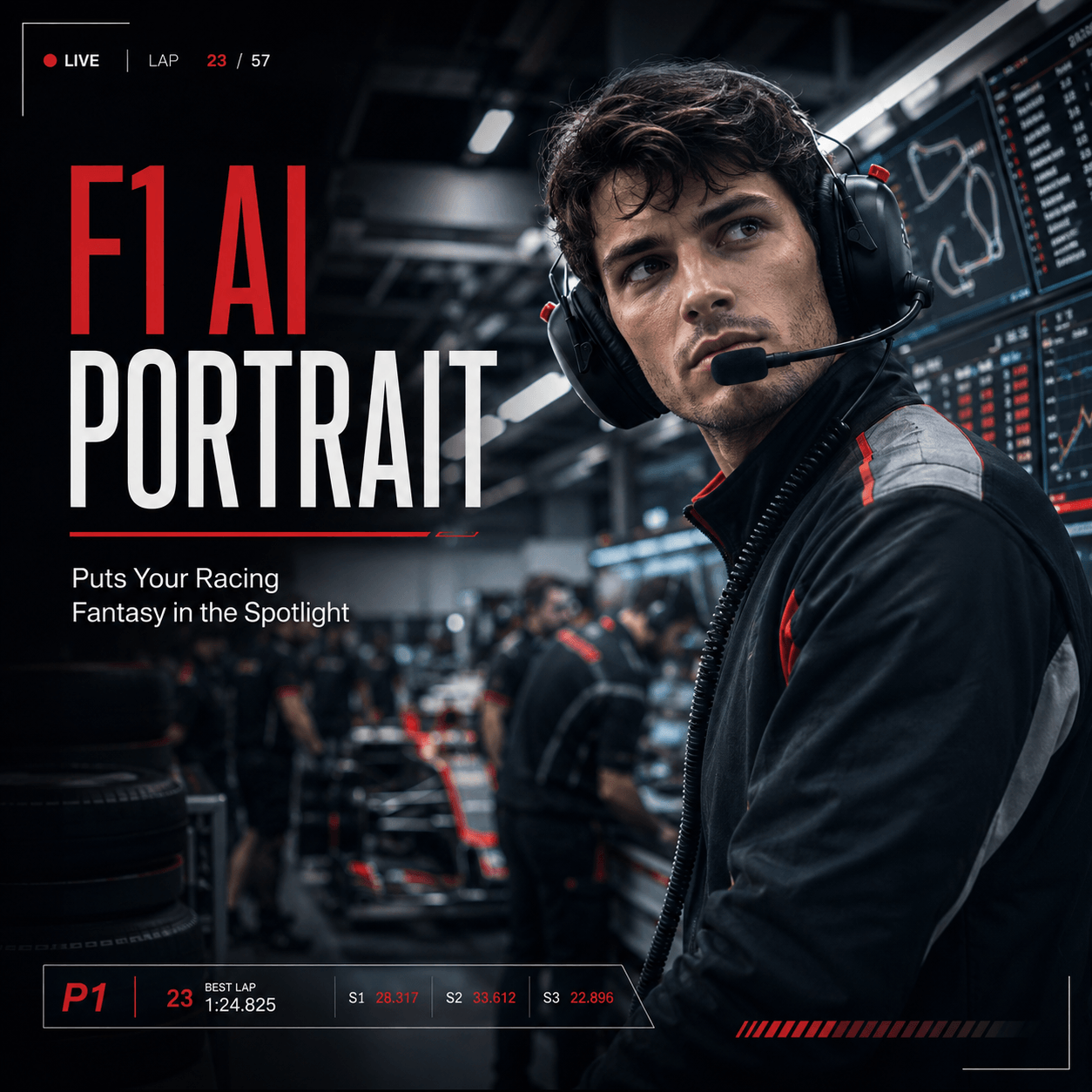
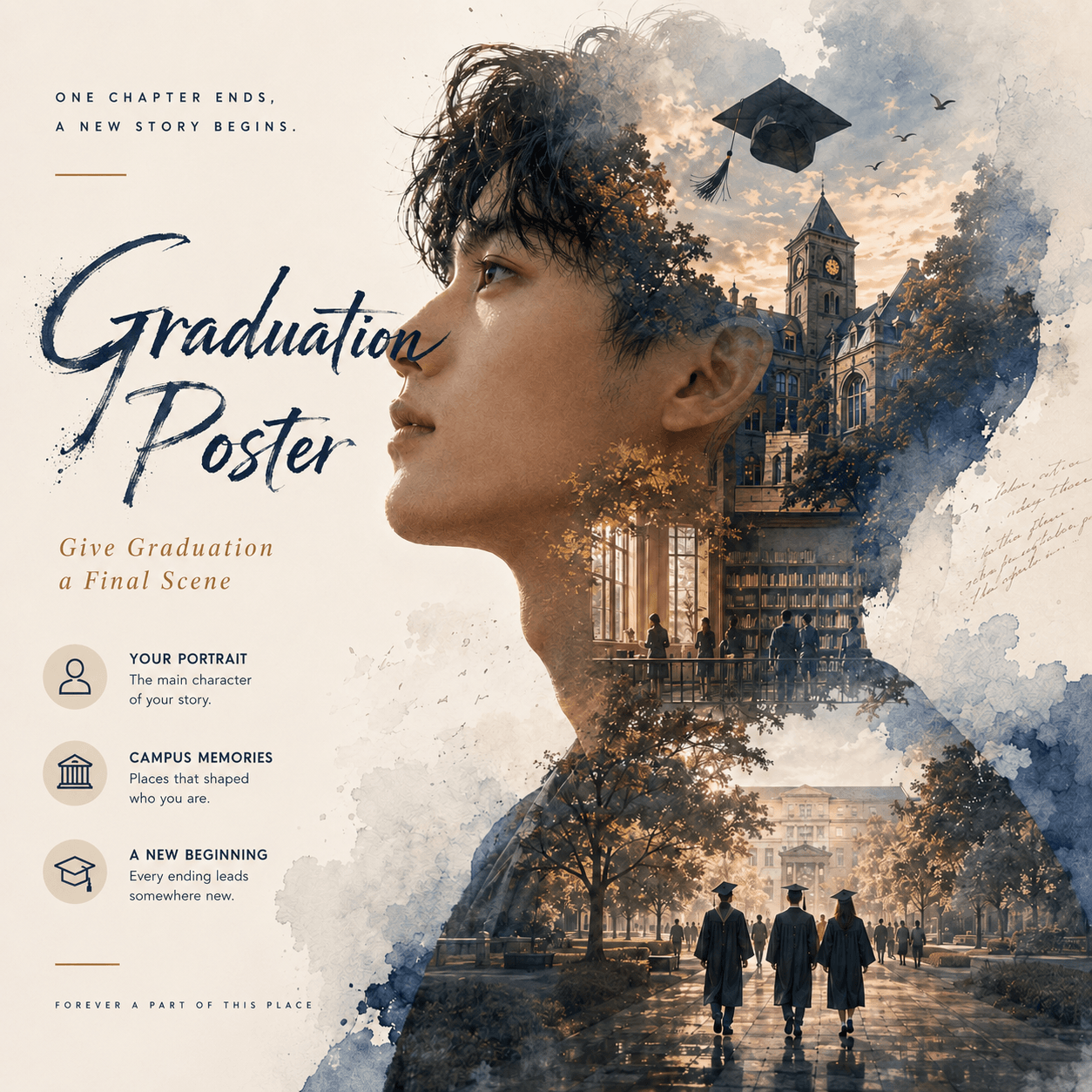
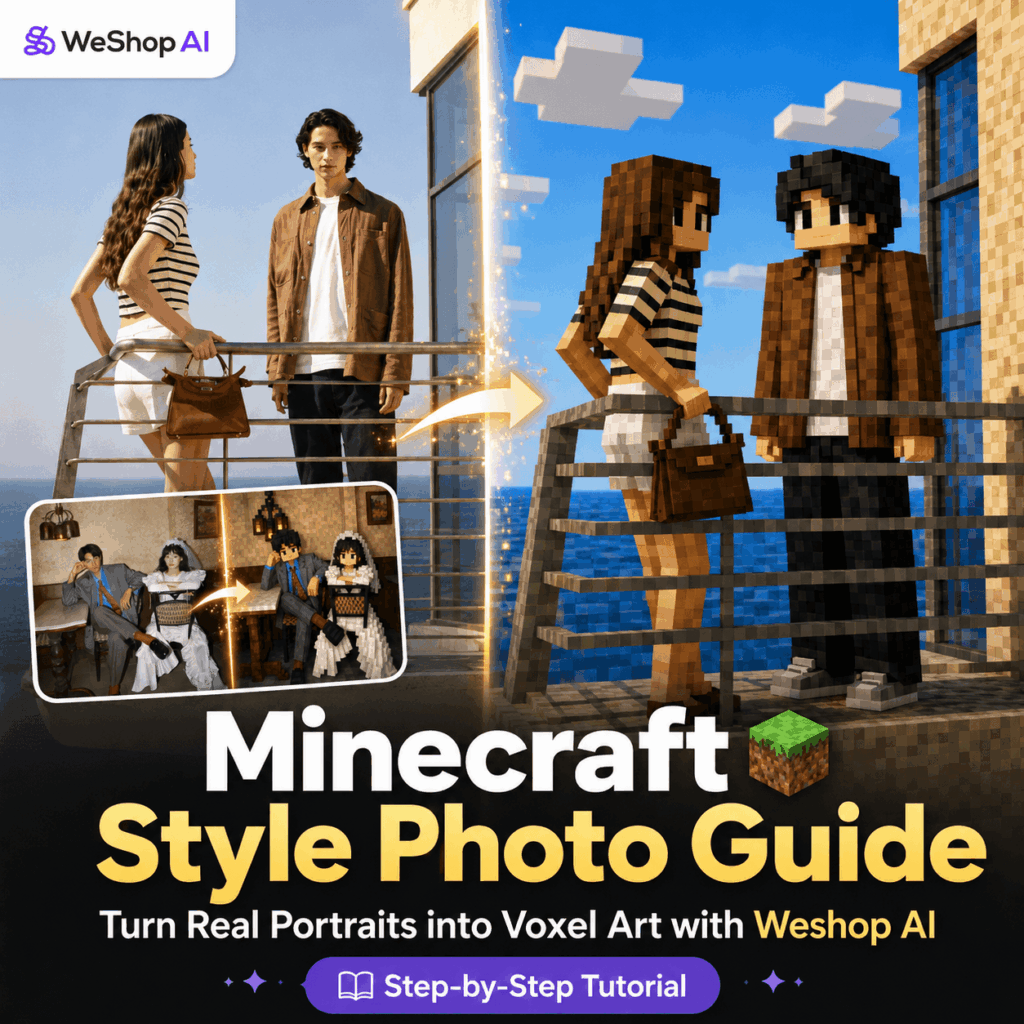
Turning everyday photos into a Minecraft style photo has become one of the most fun AI image trends on social media. A simple portrait, couple photo, pet picture, or travel shot can quickly become a charming voxel-style scene that feels like it came straight out of a blocky game world.
However, there is one common problem.
Many AI-generated Minecraft-style images look cool at first glance, but the people in them lose their facial details. The face becomes blurry. The outfit becomes too simple. Sometimes, the character even blends into the background. In the end, the image has the Minecraft look, but it no longer looks like the original person.
The good news is that this problem is easy to fix.
In this guide, you will learn how to use Weshop AI to create a detailed Minecraft style photo while keeping the character recognizable. More importantly, you will learn the exact prompt logic behind it: make the character detailed, and make the background rougher and more blocky.
With the right prompt, you can turn a normal portrait into a polished Minecraft-inspired image in just a few steps.
What You Need Before You Start
Before creating your Minecraft style photo, prepare these two things.
1. A clear portrait photo
Choose a photo where the subject is easy to see. The best results usually come from images with good lighting, a clear face, and a strong subject.
A half-body portrait works very well. A full-body photo can also work, as long as the person is not too far away from the camera.
For better results, try to avoid photos where the face is too small, too dark, or heavily covered. The clearer the original photo is, the easier it is for AI to preserve the person’s hairstyle, facial features, outfit, pose, and accessories.
2. Weshop AI image tool
Open the Weshop AI GPT-Image tool on your computer or mobile browser. You do not need complicated software. The process can be done directly on the web.
After entering the workspace, log in to your account and find the image generation or image editing panel. This is where you will upload your photo and enter the prompt.
A quick tip: if you want a more eye-catching result, use a portrait where the subject takes up a good amount of space in the frame. Couple portraits, fashion shots, pet close-ups, and lifestyle photos usually work better than distant group photos.
Step-by-Step Guide
Step 1: Open Weshop AI and Enter the Workspace
First, open the Weshop AI GPT-Image page.
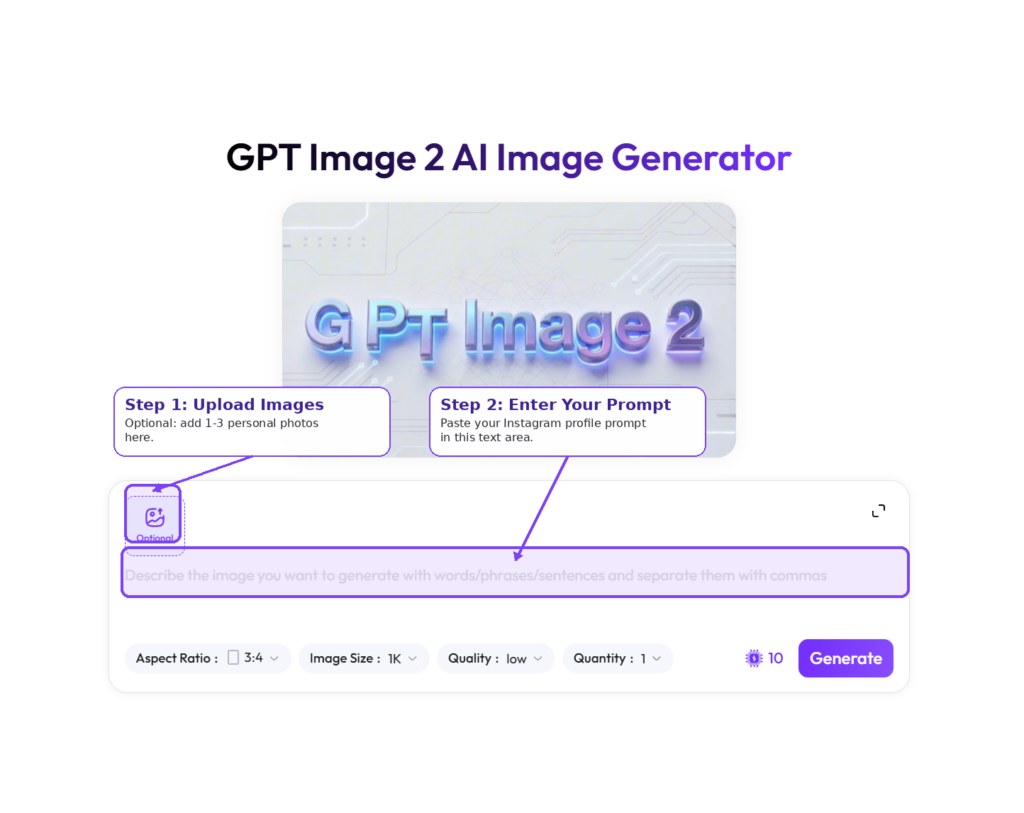
Once you are inside, make sure you are logged in. Then, look for the image generation workspace. The layout is usually simple. You will see an upload button, a text input box, and a send or generate button.
If this is your first time using the tool, take a few seconds to get familiar with the interface. The workflow is similar to chatting with an AI assistant. The main difference is that you will provide both an image and a written instruction.
Step 2: Upload Your Reference Photo
Next, upload the portrait you want to transform.
In the workspace, find the image upload icon. It may look like a paperclip, an image symbol, or an upload button. Click it and choose the photo from your device.
For a better Minecraft style photo, use an image with these qualities:
The face is clear and visible.
The subject is placed near the center.
The lighting is bright enough.
The outfit, hairstyle, and accessories are easy to recognize.
The background is not too messy.
This step matters more than many people think. If the original image is blurry, the final AI result may also lose detail. If the subject is too small, the AI may focus more on the environment than the person.
So, before uploading, you can crop the image slightly. Let the subject take up more space. This small adjustment can make the final Minecraft-style result much stronger.
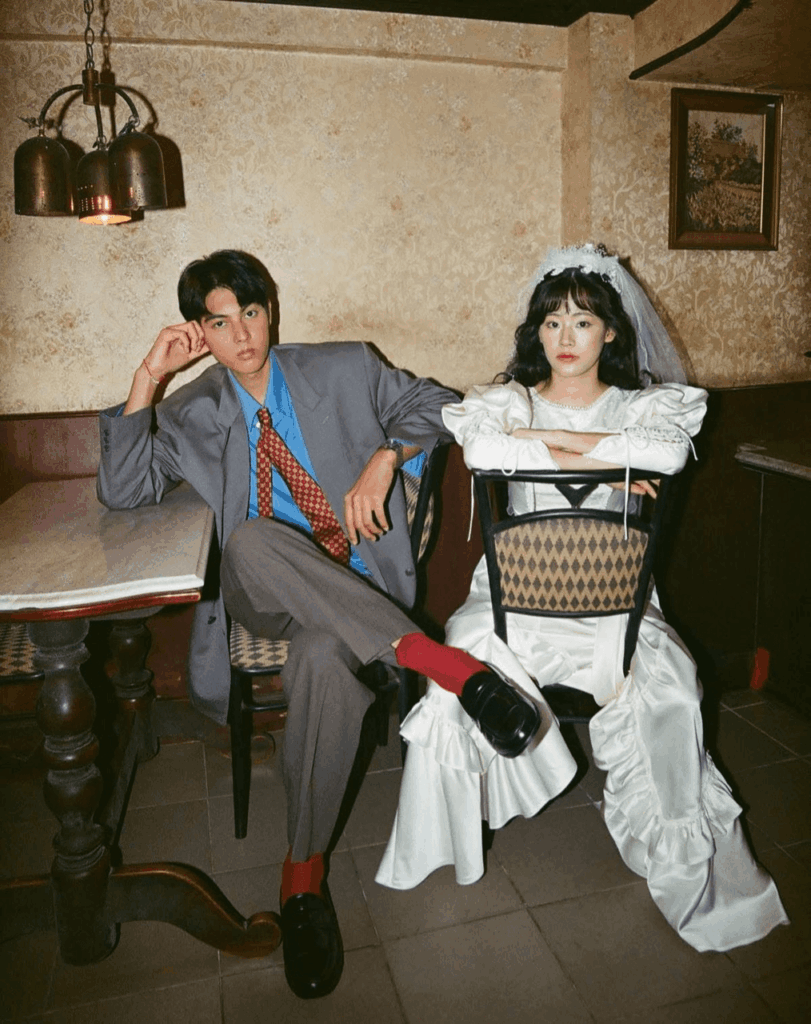
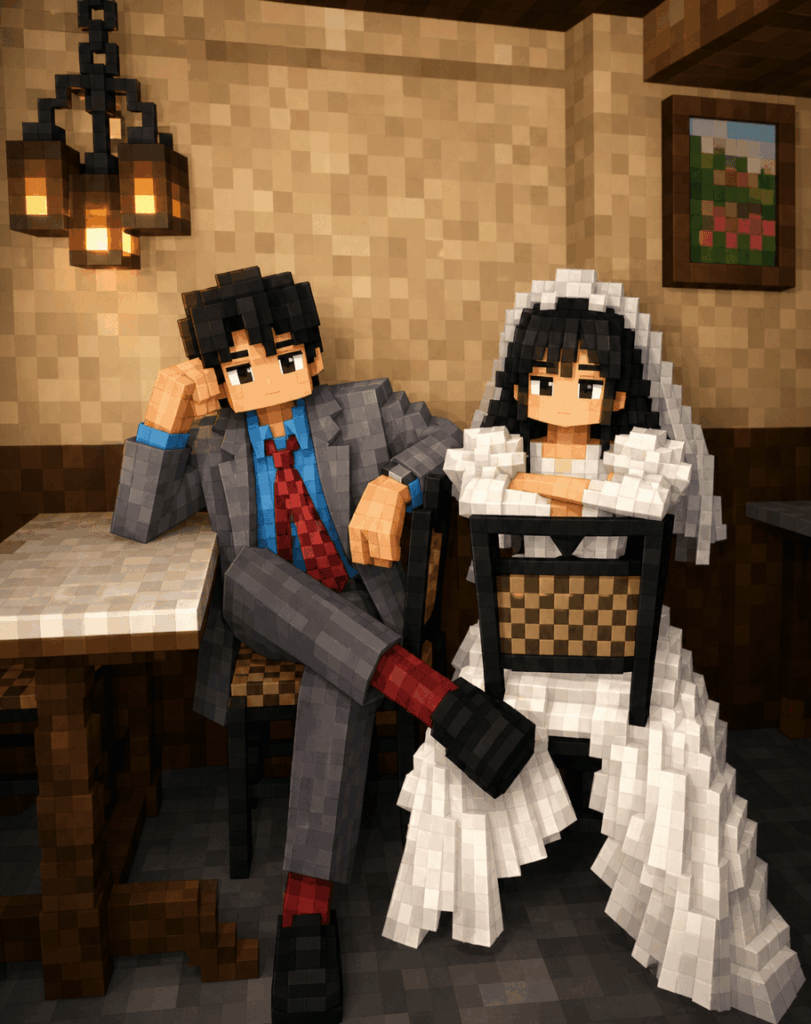
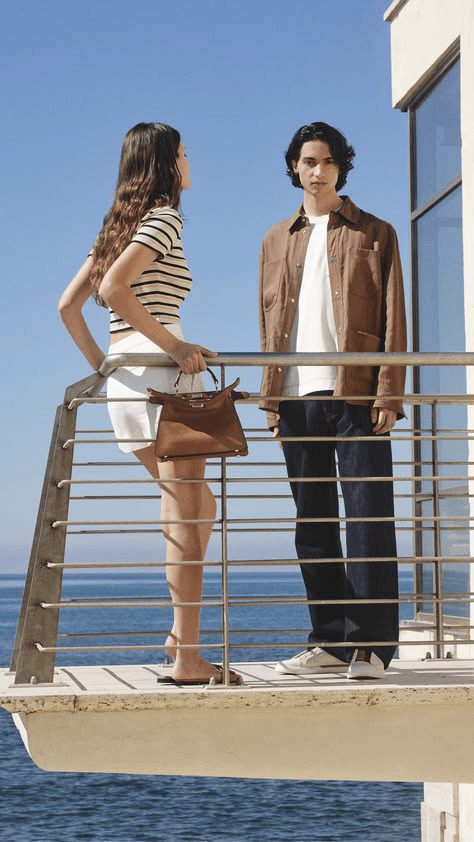
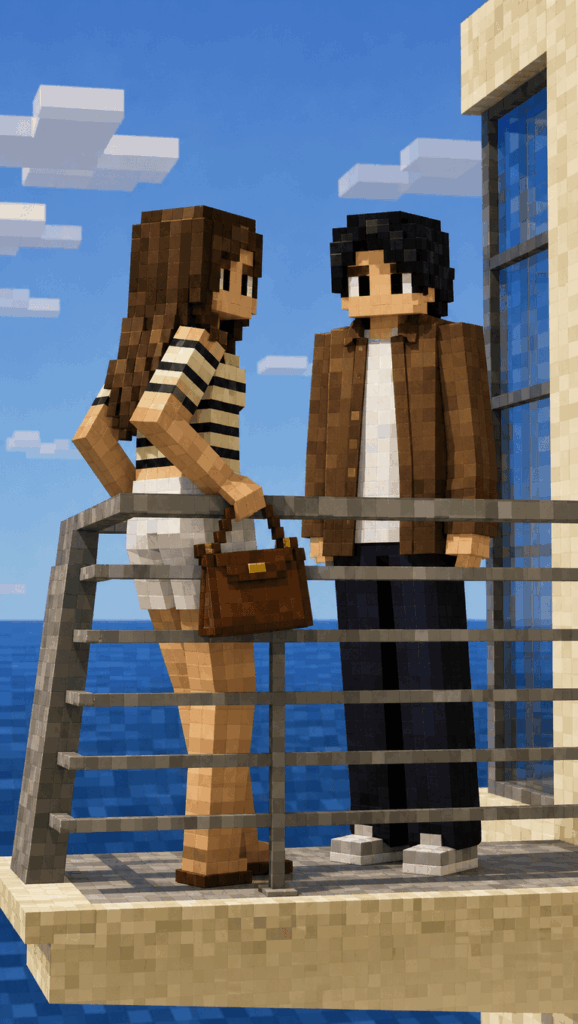
Step 3: Enter the Core Prompt
This is the most important step.
Many people only type something like “turn this photo into Minecraft style.” While this can create a blocky look, it often treats the whole image in the same way. As a result, the face, clothing, and background all become equally rough.
That is why the character may lose identity.
To create a better Minecraft style photo, you need to guide the AI more clearly. The key is to tell it that the character should stay detailed, while the background should become larger, rougher, and more voxel-like.
Copy and paste this prompt into Weshop AI:
Transform this photo into a Minecraft style. Do not lose the character’s details. Make the character’s blocks fine and highly detailed, while keeping the background blocks large and rough.
This prompt works because it separates the subject from the background. The person becomes more refined, while the environment keeps that chunky Minecraft-inspired texture.
In other words, the image still feels like Minecraft, but the person remains recognizable.
Why This Prompt Works
Let’s break down the prompt.
“Transform this photo into a Minecraft style”
This sets the overall visual direction. It tells the AI to create a voxel-style image with blocky shapes, pixel-inspired textures, and a game-like atmosphere.
Without this line, the result may drift into cartoon, anime, 3D render, or general illustration styles. This sentence keeps the image close to a Minecraft-inspired look.
“Do not lose the character’s details”
This is the part that helps preserve identity.
It tells the AI to pay attention to the person’s face, hairstyle, pose, outfit, expression, and accessories. For portraits, this is essential. You do not just want a random blocky character. You want a Minecraft style photo that still feels connected to the original person.
“Make the character’s blocks fine and highly detailed”
This line makes the character more refined.
Instead of using large blocks for the face and body, the AI is guided to use smaller, more detailed blocks. This helps preserve the eyes, nose, mouth, hair layers, clothing folds, and small accessories.
As a result, the character looks more polished and less like a flat block figure.
“While keeping the background blocks large and rough”
This line creates contrast.
The background stays chunky, rough, and game-like. This makes the scene feel closer to a Minecraft world. At the same time, it helps the character stand out.
The final image has a better visual hierarchy: the subject is detailed, and the background supports the style without stealing attention.
In short, the core logic is simple:
Detailed character. Rough blocky background.
Once you understand this, you can use the same idea for many other styles. For example, you can make the subject detailed and the background painterly, cinematic, blurred, or futuristic.
Step 4: Generate, Review, and Fine-Tune
After entering the prompt, click the send or generate button. Then, wait for Weshop AI to process the image.
When the result is ready, do not download it immediately. Take a quick look at these details first:
Can you still recognize the person?
Are the face and expression clear enough?
Does the outfit still match the original photo?
Does the image have a strong Minecraft-inspired block style?
Is the background rough and atmospheric?
Does the character stand out from the scene?
If the image looks good, save it to your device.
If it needs a little improvement, you can continue refining it with short follow-up prompts. Here are some useful examples:
Make the background brighter.
Use this if the scene feels too dark.
Blur the background slightly to emphasize the character.
Use this if the background looks too busy.
Keep the face more recognizable.
Use this if the character does not look close enough to the original person.
Make the Minecraft blocks more three-dimensional.
Use this if the image looks too flat.
Add warm cinematic lighting.
Use this if you want a more polished, social-media-ready result.
Usually, one prompt is enough to create a solid image. However, if you want the best version, generate a few options and pick the one with the clearest face and strongest atmosphere.
Advanced Tips and FAQ
Q1: Why is the face still a little blurry?
This usually happens when the original photo is not clear enough, or when the person is too small in the frame.
To fix this, crop the photo before uploading it. Let the person take up more space, especially the face and upper body.
You can also add this sentence to the prompt:
Keep the face more recognizable and detailed.
This reminds the AI to focus more on facial clarity.
Q2: What if the background looks too messy?
If the background blocks feel too chaotic, add this line:
Blur the background slightly to emphasize the character.
This helps reduce visual noise. It also makes the character stand out more clearly.
You can also try:
Make the background simpler and less distracting.
This is useful when the original photo has a busy room, crowded street, or complex scenery.
Q3: Can I use this method for pet photos?
Yes. This method works well for pets too.
Just replace “character” with “pet,” “cat,” or “dog.” For example:
Transform this photo into a Minecraft style. Do not lose the pet’s details. Make the pet’s blocks fine and highly detailed, while keeping the background blocks large and rough.
The same logic still applies. Keep the main subject detailed, and make the background more blocky and atmospheric.
Q4: Can I turn a landscape photo into a Minecraft style photo?
Yes, but you should adjust the prompt slightly.
For landscapes, there is no main character. So, instead of focusing on a face, you can focus on buildings, mountains, trees, rivers, or streets.
Try this prompt:
Transform this landscape photo into a Minecraft style. Keep the main buildings and natural elements recognizable, with large voxel blocks, clear structure, and cinematic lighting.
This will help the AI keep the key elements of the scene while turning the overall image into a voxel-style world.
Q5: Can I use this for group photos?
Yes, but smaller group photos usually work better.
Two-person or three-person photos are ideal. They are great for couple portraits, best friend photos, family pictures, and gaming-themed gifts.
For group photos, use this prompt:
Transform this group photo into a Minecraft style. Keep each person’s face, hairstyle, outfit, and pose recognizable. Make the characters’ blocks fine and highly detailed, while keeping the background blocks large and rough.
This tells the AI to preserve every person in the image, not just the most obvious subject.
Q6: How can I make the result look more like a game screenshot?
If you want the final image to look less like a filter and more like a high-quality game scene, add this line:
Make it look like a high-quality Minecraft game screenshot with cinematic lighting and a voxel world environment.
This gives the image more depth, lighting, and atmosphere. It is especially useful for social posts, profile pictures, and blog visuals.
Copy-and-Paste Prompt Templates
Here are two ready-to-use prompt templates.
Basic Prompt
Transform this photo into a Minecraft style. Do not lose the character’s details. Make the character’s blocks fine and highly detailed, while keeping the background blocks large and rough.
This version is simple and effective. Use it when you want a quick Minecraft style photo with a clear subject and blocky background.
Enhanced Prompt
Transform this photo into a Minecraft style. Do not lose the character’s details. Make the character’s blocks fine and highly detailed, while keeping the background blocks large and rough. Keep the face recognizable, preserve the outfit and pose, and create a cinematic voxel world atmosphere.
This version is better for portraits, couple photos, lifestyle shots, and social media images.
Social Media Style Prompt
Transform this photo into a stylish Minecraft-inspired voxel art portrait. Keep the character’s face, hairstyle, outfit, and pose recognizable. Make the character’s blocks fine and detailed, while keeping the background blocks large, rough, and atmospheric. Add cinematic lighting and a high-quality game screenshot feeling.
Use this if you want a more polished and shareable result.
Final Thoughts
Creating a Minecraft style photo with AI is not just about adding a blocky filter. The real trick is knowing how to guide the AI.
If the whole image is treated with the same rough block style, the person may lose their identity. But when you ask the AI to keep the character detailed and make the background rougher, the result becomes much better.
The character stays recognizable. The background feels like a voxel world. The whole image looks more balanced, more stylish, and more fun to share.
So, the next time you want to turn a portrait, couple photo, pet picture, or travel shot into a Minecraft style photo, try this Weshop AI prompt. It is simple, fast, and surprisingly effective.
Give it a try with Weshop AI, and see how your everyday photo turns into a blocky world of its own.
Go to WeShop AI For Exploration: