A clean product photo is no longer enough. Today, people scroll fast. Brands only have a few seconds to get attention. So your image needs a strong idea, not just good lighting. That is where AI commercial photography can help.
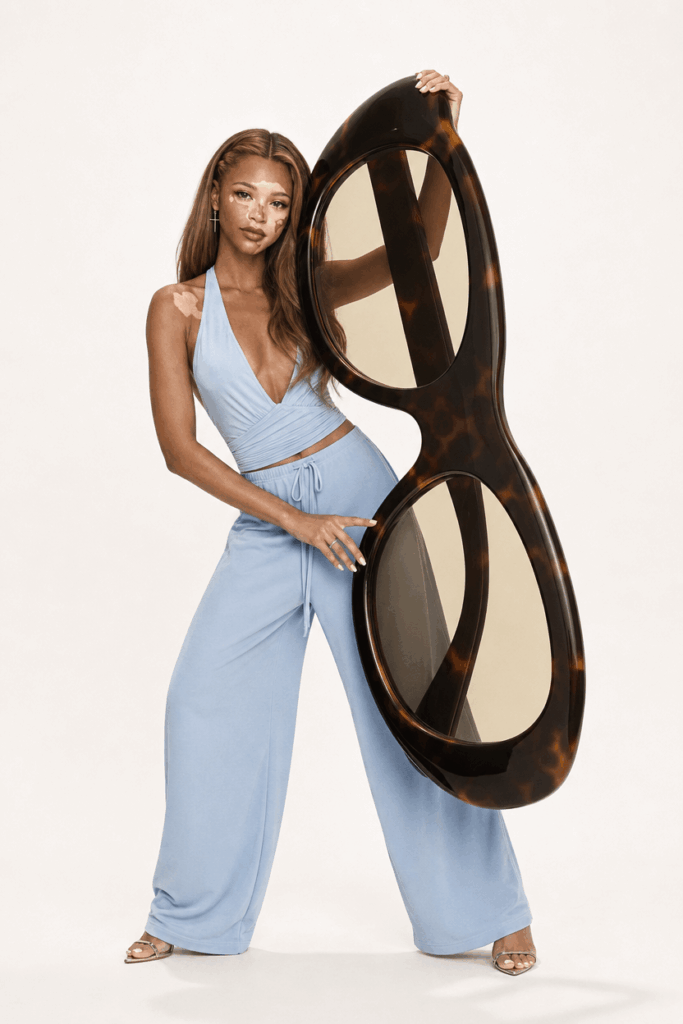
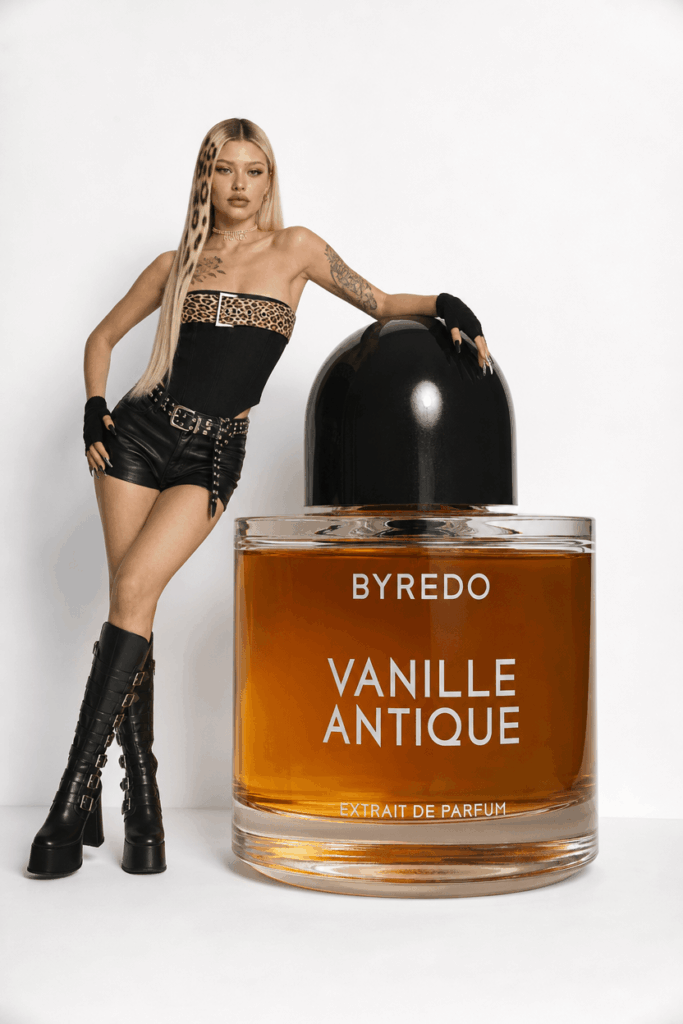
One simple way to make a product image more eye-catching is to change its scale. For example, a pair of sunglasses can become taller than the model. A handbag can turn into a sculptural prop. Even a perfume bottle can become the main object in the whole scene.
As a result, the image feels bold, playful, and editorial. More importantly, it stands out in a crowded feed.
In the past, this kind of shoot needed a studio, a model, a photo team, and custom props. It also took time and money. Now, with WeShop AI, you can create a similar look with one reference image and one prompt.
In this tutorial, you will learn how to create realistic AI commercial photography with oversized product props. The steps are simple. However, the final result can look like a real fashion campaign.
What This Tutorial Helps You Create
This workflow is made for ecommerce teams, marketers, creators, and small brands.
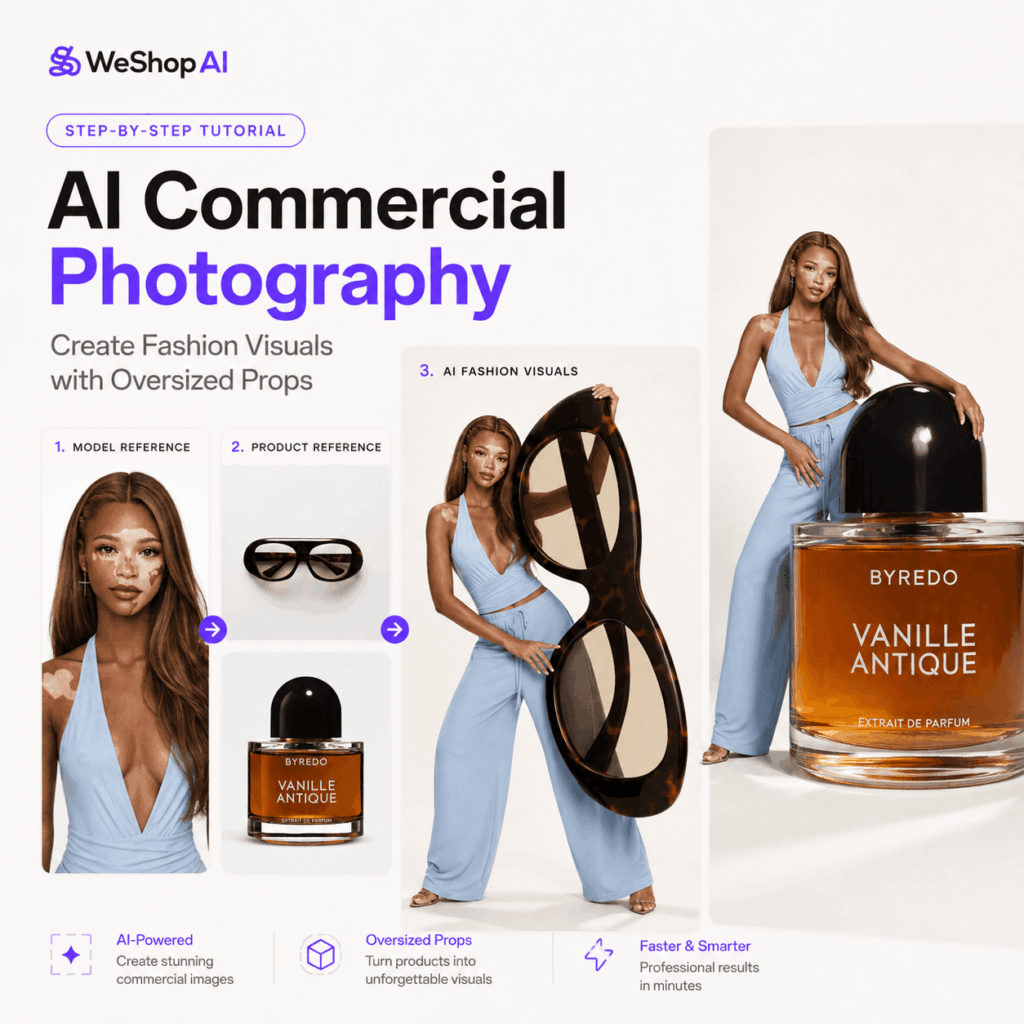
With this method, you can turn a normal product image into a bold fashion visual. The final image will show a full-body model and a giant product. Instead of sitting quietly in the background, the product becomes the hero of the scene.
You can use the result for social posts, product launch visuals, blog covers, campaign ideas, or ecommerce hero images.
In addition, the prompt helps protect key details. If you upload a model photo, the AI will try to keep the person’s main look. If you upload a product photo, it will try to keep the product’s shape, material, color, and design.
Because of this, the final image feels more controlled and more useful for real brand content.
What You Need Before You Start
Before you begin, prepare a few things.
- Main AI tool: Open WeShop AI GPT-Image Generator. This is where you will create the image.
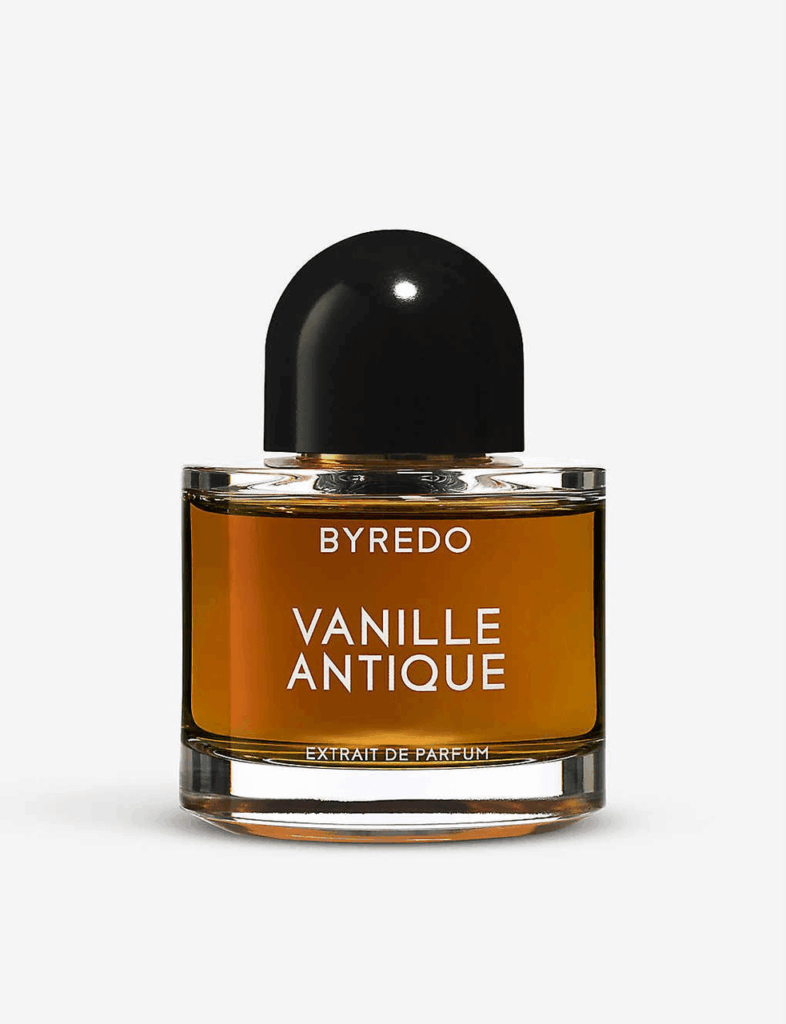
- Product image: Use a clear photo with a simple background. This helps the AI read the product.
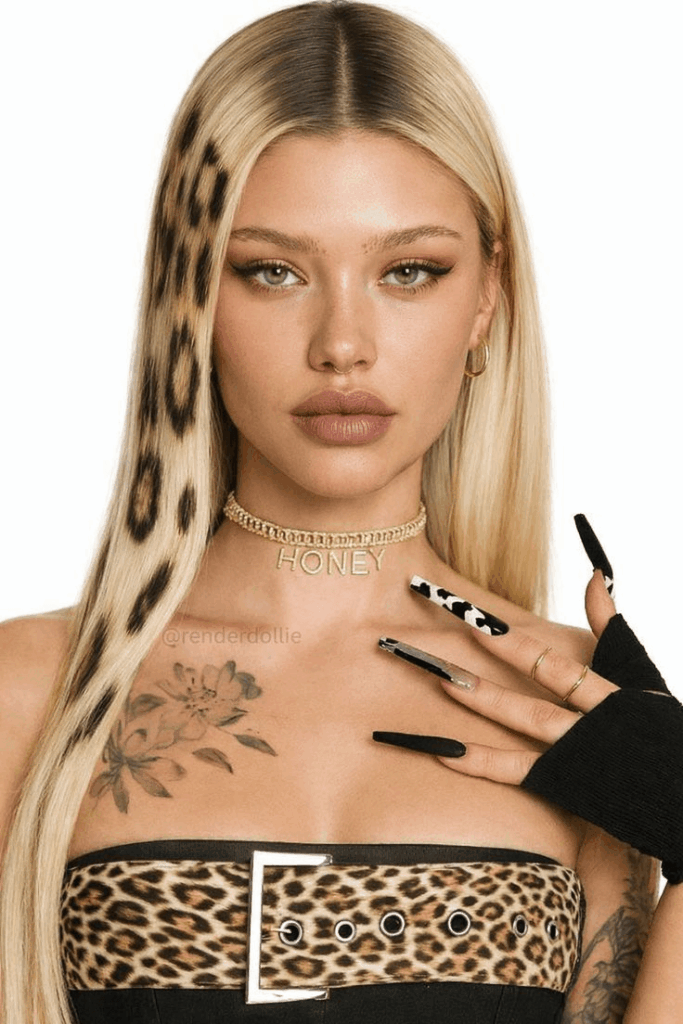
- Model image: Use a clear photo with visible facial features and body shape. This helps the AI keep the model’s look.
- Creative idea: Pick a product to enlarge. Sunglasses, bags, shoes, perfume bottles, lipsticks, headphones, coffee cups, watches, and hats all work well.
For better results, use sharp images. Also, avoid messy backgrounds. A clean input often leads to a cleaner AI commercial photography result.
You can still generate an image without a reference photo. However, a reference gives you more control. It also makes the image more suitable for brand use.
Step-by-Step Guide
Step 1: Open the WeShop AI Workspace
First, open WeShop AI GPT-Image in your browser.
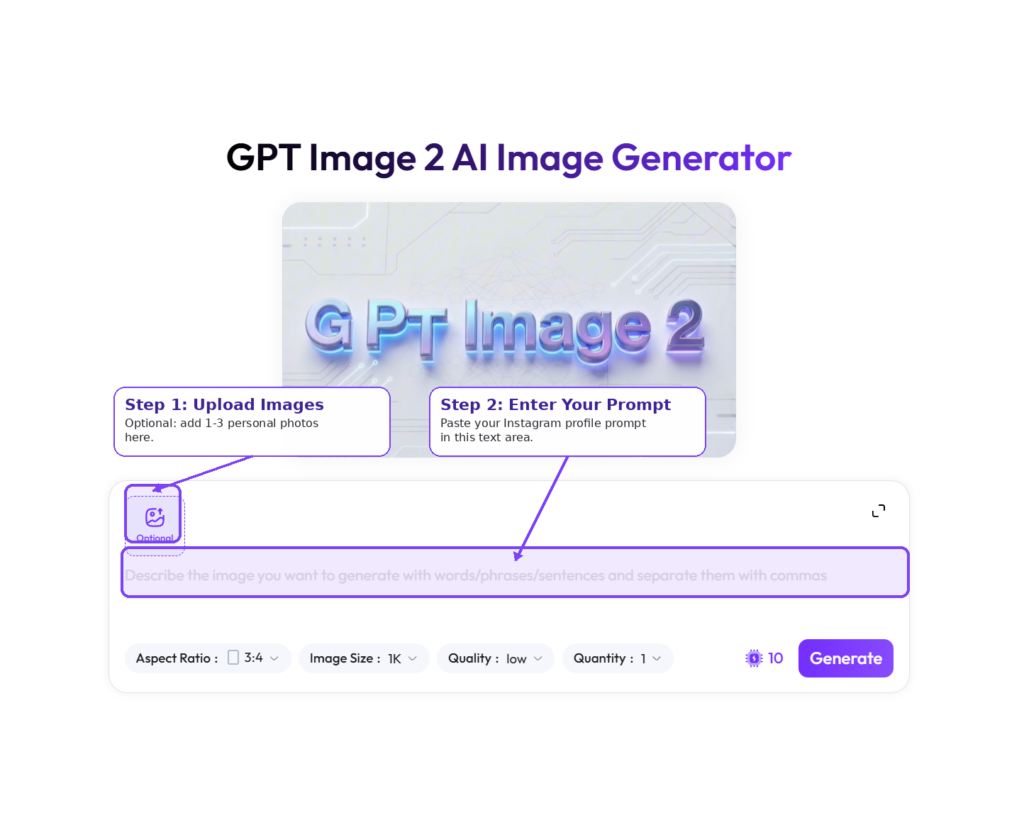
Once the workspace opens, you will see two main areas. One is for image upload. The other is for text input.
Upload your product or model image in the image area. Then paste the prompt into the text box.
WeShop AI can understand detailed photo instructions. For example, it can follow lighting, camera angle, background style, pose, and texture details. Because of that, it works well for creating polished AI commercial photography.
Step 2: Upload Your Reference Image
Next, drag your product image or model image into the upload area.
This step is important because the prompt tells the AI what details to keep. In other words, your reference image becomes the visual guide.
- If you upload a person image, the AI will try to keep the person’s face, hairstyle, body shape, skin tone, and overall vibe.
- If you upload a product image, the AI will focus on the product’s shape, material, color, structure, and design.
- If you upload both, WeShop AI will try to blend them into one scene. For example, the model may hold, lean on, stand beside, or interact with the giant product.
For a more natural result, use images with similar lighting. For example, if your model photo has soft studio light, choose a product photo with clean light too. This small step can make the final image feel more realistic.
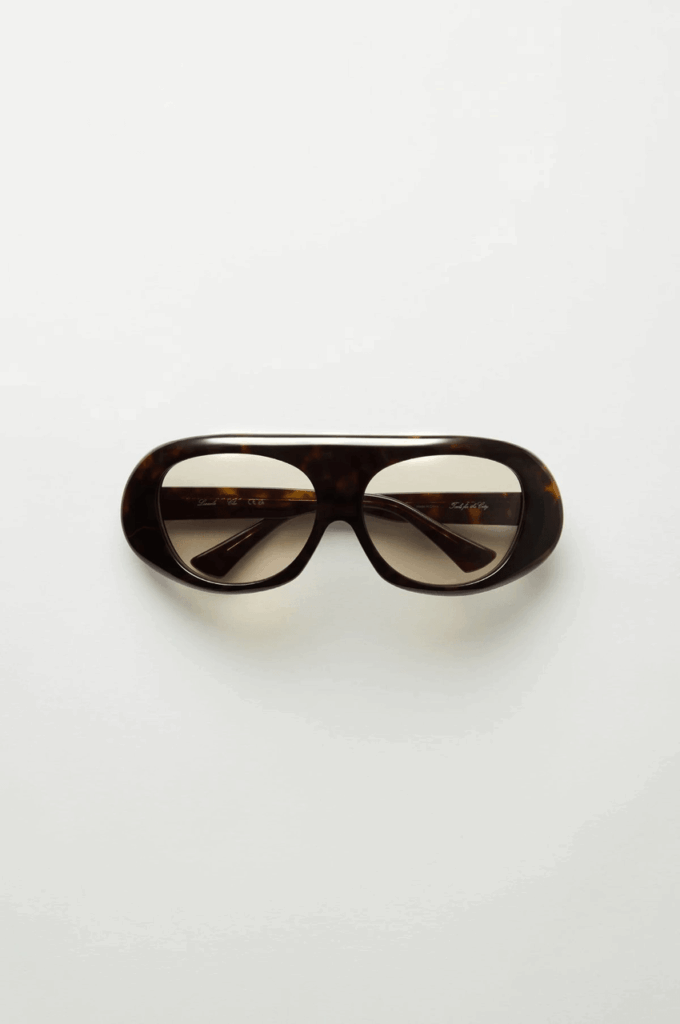
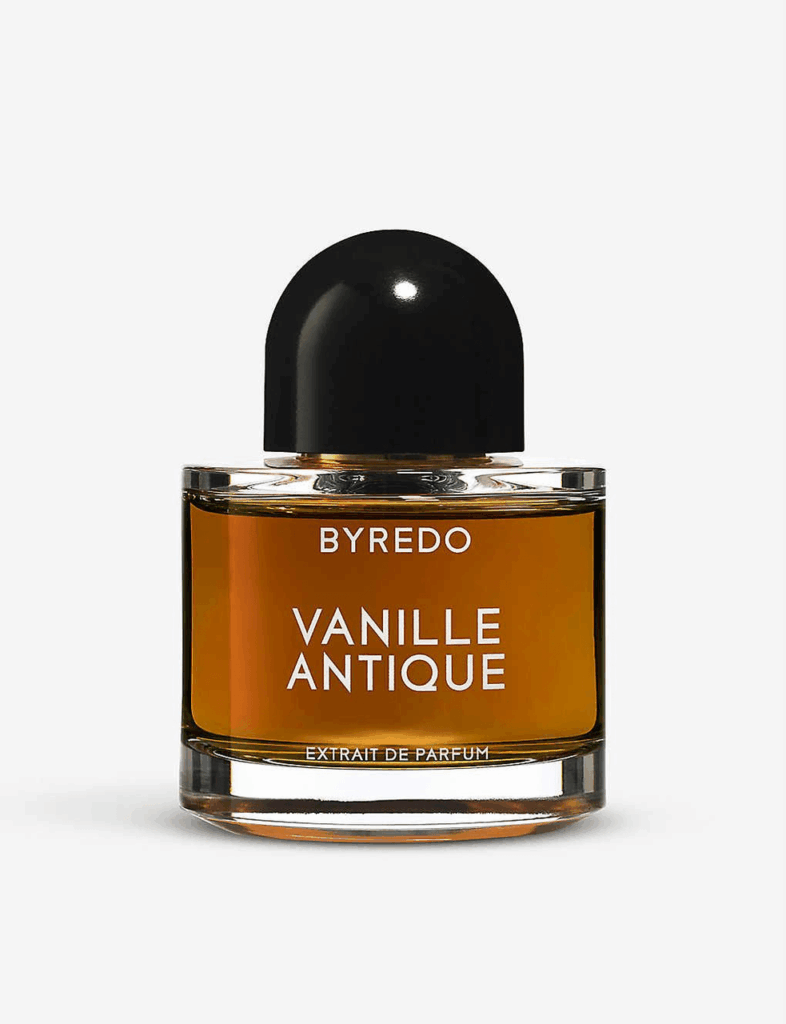
Step 3: Copy and Paste the Core Prompt
Now, use the main prompt.
This prompt is built for AI commercial photography. It focuses on oversized product props, fashion styling, full-body framing, and realistic textures.
At the same time, it tells the AI what to avoid. This helps reduce common issues like cropped bodies, tiny products, messy backgrounds, or cartoon-like results.
Copy the full prompt below. Then paste it into WeShop AI.
👇 Copy this English prompt directly:
Use the uploaded reference image as the primary visual reference when available. If a person image is uploaded, preserve the person’s recognizable identity, facial features, hairstyle, body shape, skin tone, and overall character. If a product image is uploaded, preserve the product’s key shape, material, color, logo-free structure, and recognizable design.

Create an ultra-photorealistic fashion editorial full-body shot of a person from head to toe, striking a bold pose with an absurdly oversized, surreal, anti-conventional product as the central hero element. The product must be dramatically larger than normal, visually dominant, and interact with the model like a sculptural fashion prop.

Clean minimal studio background, vibrant playful energy, high-key lighting, soft crisp shadows, wide-angle low camera angle, tack-sharp focus, commercial photography aesthetic, realistic skin, fabric, and product textures. Adapt aspect ratio to the uploaded image unless otherwise specified. No cropped body, no close-up, no small or normal-sized product, no clutter, no cartoon style.
Why This Prompt Works
This prompt works because it gives the AI clear direction.
First, it uses your uploaded image as the main reference. This helps the final result stay close to your model or product.
Next, it asks for a giant product. This creates the visual drama. Instead of looking like a normal accessory, the product becomes the star of the image.
Finally, it adds photo style details. Words like high-key lighting, wide-angle low camera angle, tack-sharp focus, and realistic textures help the image look polished and commercial.
Because the prompt is specific, the output feels more planned. It looks less like a random AI picture and more like a fashion shoot.
Step 4: Click Generate and Review the Result
After you upload the image and paste the prompt, click Generate.
In a few seconds, WeShop AI will create a fashion-style image with a clean background, sharp focus, realistic textures, and a giant product.
When the result appears, check the main details.
First, look at the product size. It should be large and easy to notice. Then check the model. The body should appear from head to toe.
Next, look at the interaction. The model should feel connected to the product. They may hold it, lean on it, frame the body with it, or pose beside it.
Finally, check the overall style. The light should feel clean. The textures should look real. The image should work for a campaign, ecommerce hero image, or social media cover.
If the first result is not perfect, try again. AI results can vary. Often, the best image appears after a few generations.
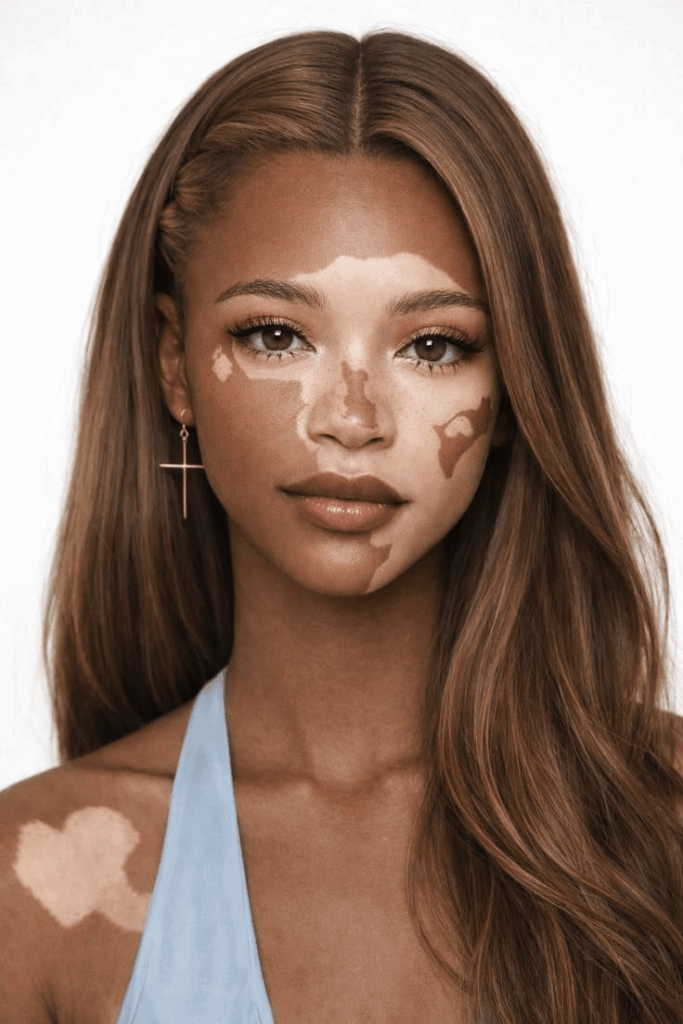
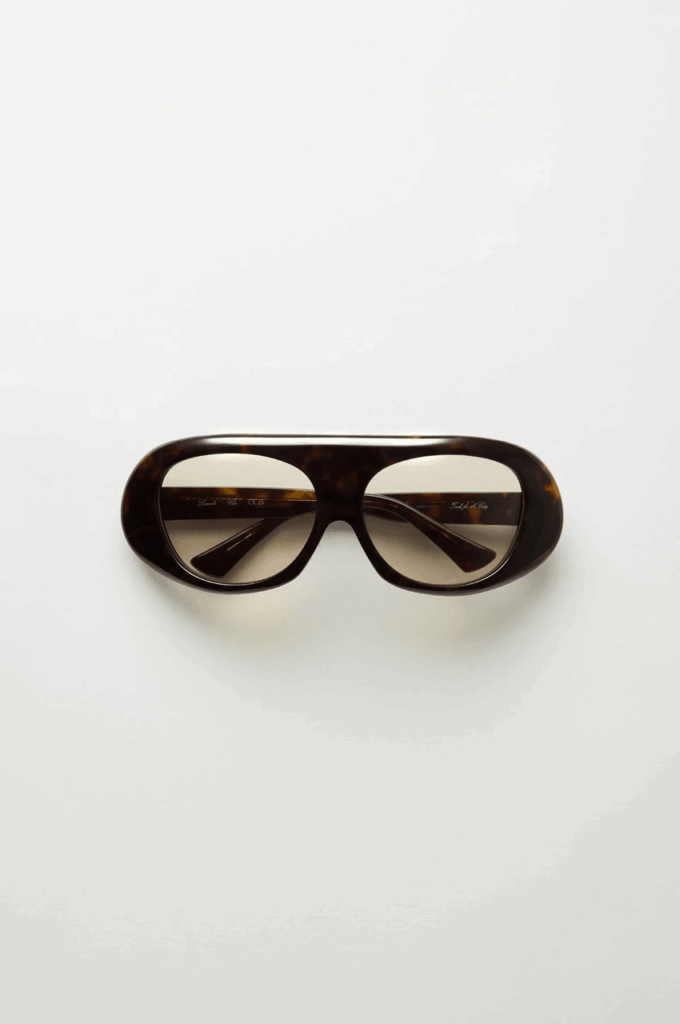
Advanced Tips and FAQ
Here are a few simple tips to improve your AI commercial photography results.
- Q: Why is the product not big enough?A: The prompt already says
absurdly oversizedandvisually dominant. Still, the AI may sometimes make the product too small.To fix this, use a product image where the product fills most of the frame. This gives the AI a stronger reference.You can also add this line near the end of the prompt:(No small or normal-sized product:1.5)This makes the size instruction stronger. - Q: How can I make the image look more premium?A: The prompt already includes
high-key lightingandwide-angle low camera angle. These details help create a clean fashion campaign look.To change the mood, edit the background phrase. Replace:Clean minimal studio backgroundwith:in a futuristic desertor:in a luxury hotel lobbyThis gives the image more story and atmosphere. - Q: Can I upload both a model image and a product image?A: Yes. WeShop AI can combine both references.For best results, use clear images. Also, keep the lighting style similar. This helps the model and product look like they belong in the same scene.
- Q: Why is the model cropped?A: Make sure these phrases stay in the prompt:
full-body shot from head to toe No cropped body no close-upThese phrases tell the AI to show the full body. If cropping still happens, move them closer to the start of the prompt. - Q: Will the AI keep the product logo?A: The current prompt uses
logo-free structure. This means the AI focuses on the product shape and design instead of the logo.This is often safer because AI can distort text or logos. However, if you want to keep the logo, change that part to:preserve the product’s key shape, material, color, logo, and recognizable designEven then, check the logo carefully. For brand work, it is better to refine the logo after generation. - Q: What products work best?A: Products with clear shapes work best. Good options include sunglasses, handbags, heels, sneakers, perfume bottles, lipsticks, headphones, coffee cups, phones, watches, and hats.On the other hand, very small or complex products can be harder to enlarge. If you are new to this workflow, start with a simple product.
Best Use Cases for This Workflow
This AI commercial photography workflow works well for many types of content.
You can use it for ecommerce hero images, social media covers, fashion posters, launch visuals, campaign ideas, blog images, and newsletter graphics.
It is also useful before a real photoshoot. You can test ideas with AI first. This helps you explore styling, product scale, mood, and composition faster.
For small brands, it can save time and budget. For creative teams, it can speed up concept work. For creators, it offers an easy way to make bold visuals without a full studio.
Final Thoughts
AI is changing how brands create commercial images.
A campaign idea that once needed a full production team can now begin with one image and one prompt.
With WeShop AI, you can turn a simple product or model photo into a bold fashion editorial image. The giant product adds instant drama. At the same time, the clean lighting keeps the image polished.
Best of all, this workflow is easy to try. You do not need advanced photo skills. You only need a clear reference image, a strong prompt, and a few test runs.
Now it is your turn. Open WeShop AI, upload your image, paste the prompt, and create your own oversized fashion visual.
If you make something exciting, share it with your audience or use it for your next product campaign.
Go to WeShop AI For Exploration: