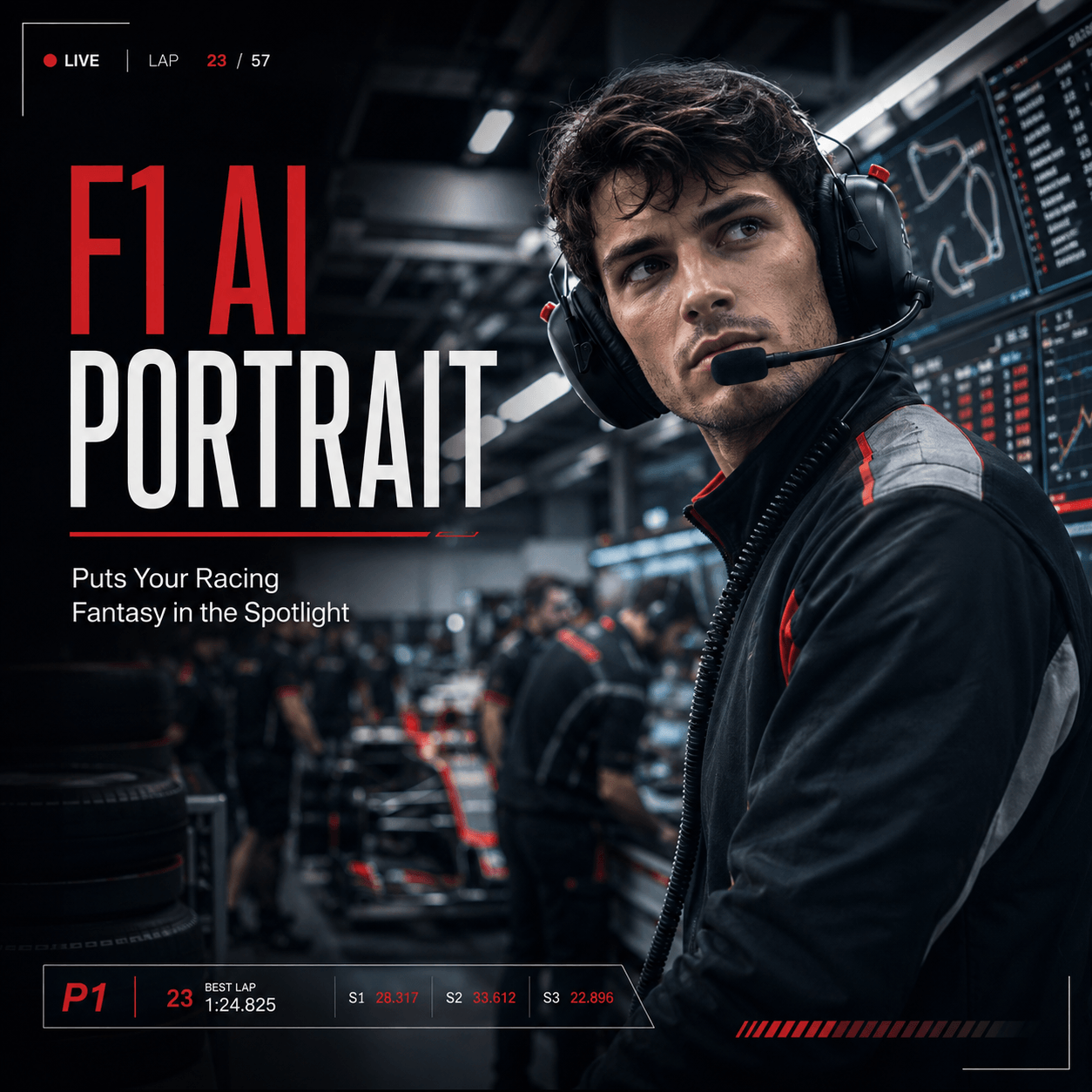
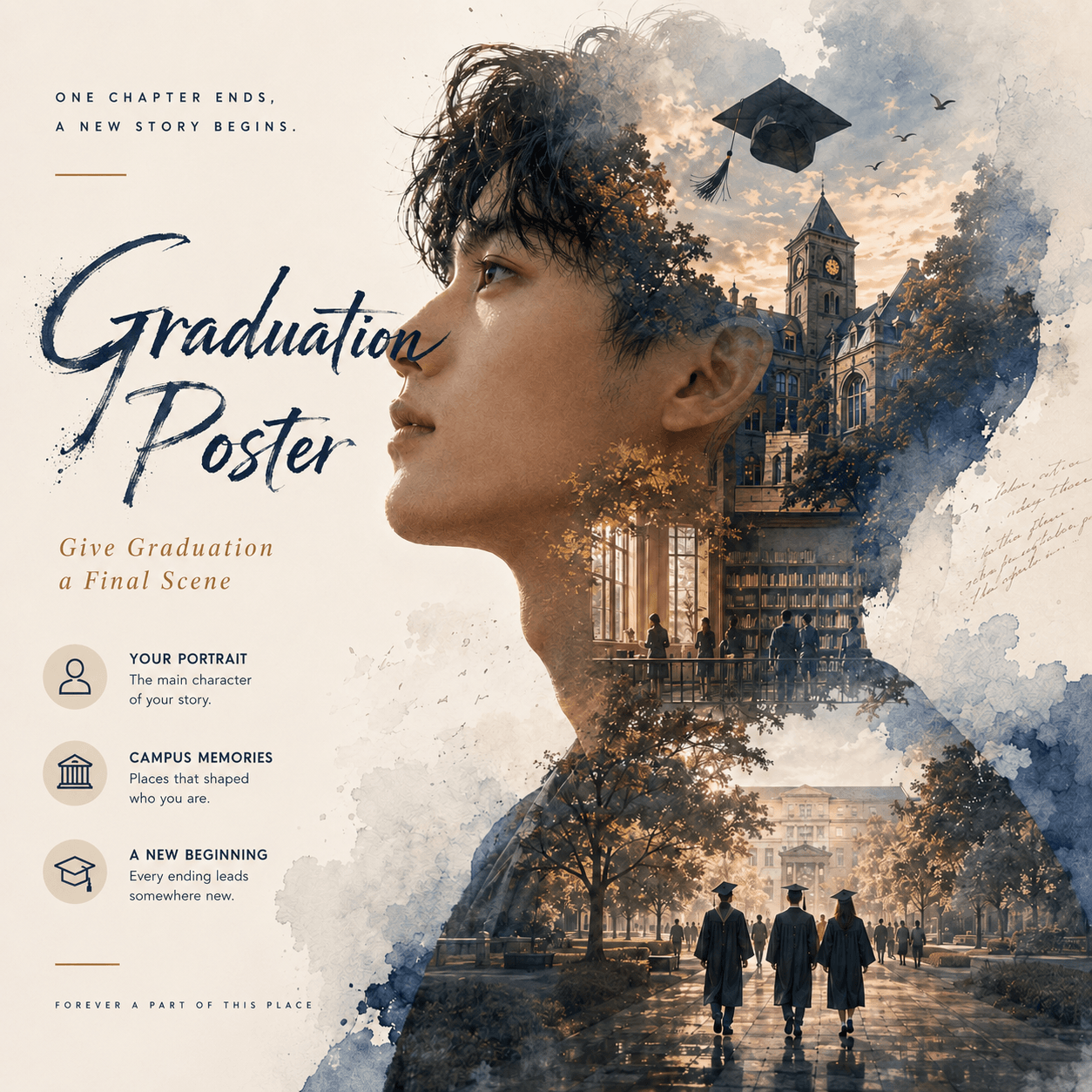
With a Ready-to-Use GPT Image Prompt
AI video tools are moving fast. However, one problem still shows up again and again.
You write a good prompt. You upload a nice character image. Then you generate the video. At first, everything looks promising. But soon, the motion feels random. The pose changes too much. The character may even look different from one shot to the next.
If you have used Seedance 2.0 for AI dance videos, character animation, or dynamic short videos, you have probably seen this before.
The reason is simple. Text prompts are useful, but they do not always explain movement clearly. A video model needs to understand not only what the character looks like, but also how the character should move.
That is why an Action Control Sheet can be so helpful.
An action control sheet gives the AI a visual motion guide. It shows the pose, direction, rhythm, and movement path. As a result, Seedance 2.0 can better understand the action you want.
In this guide, I will show you how to use WeShop AI GPT Image 2 to create a Seedance 2.0 action control sheet in just a few minutes.
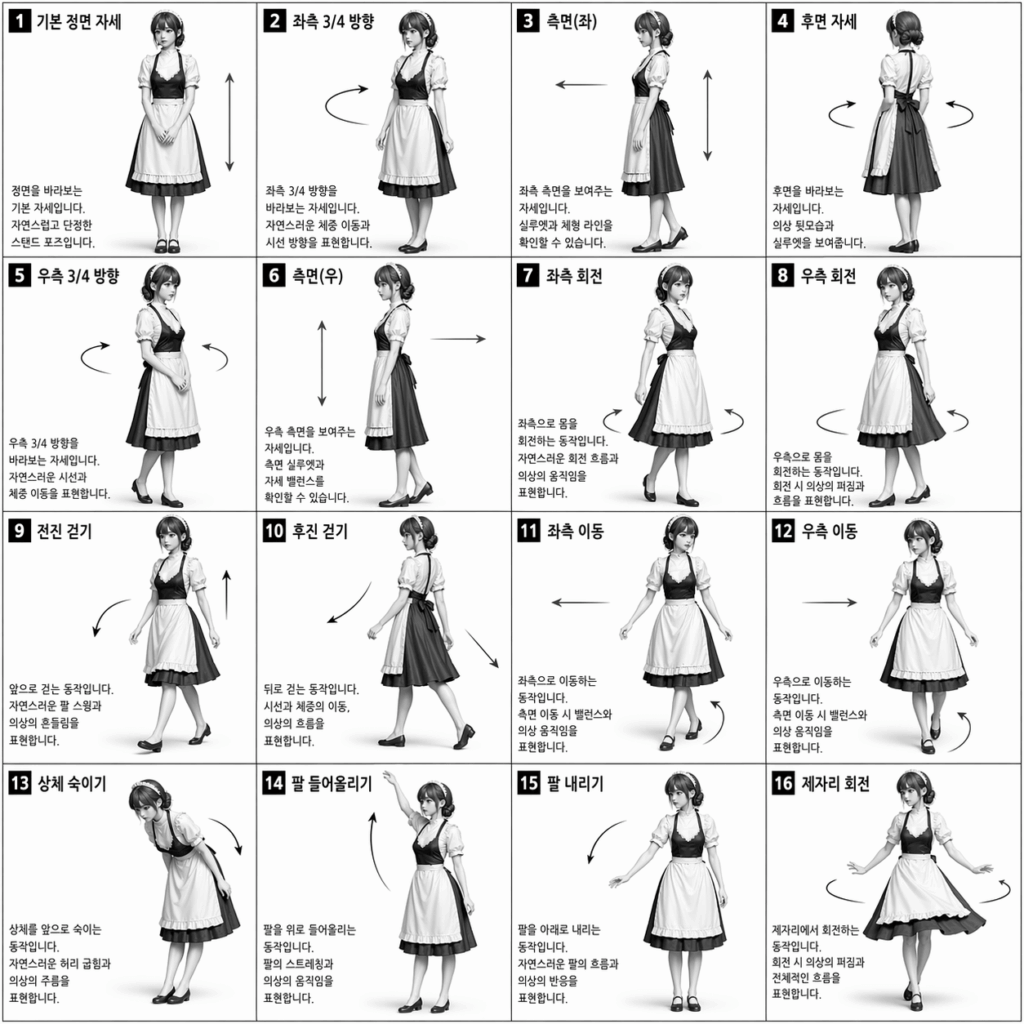
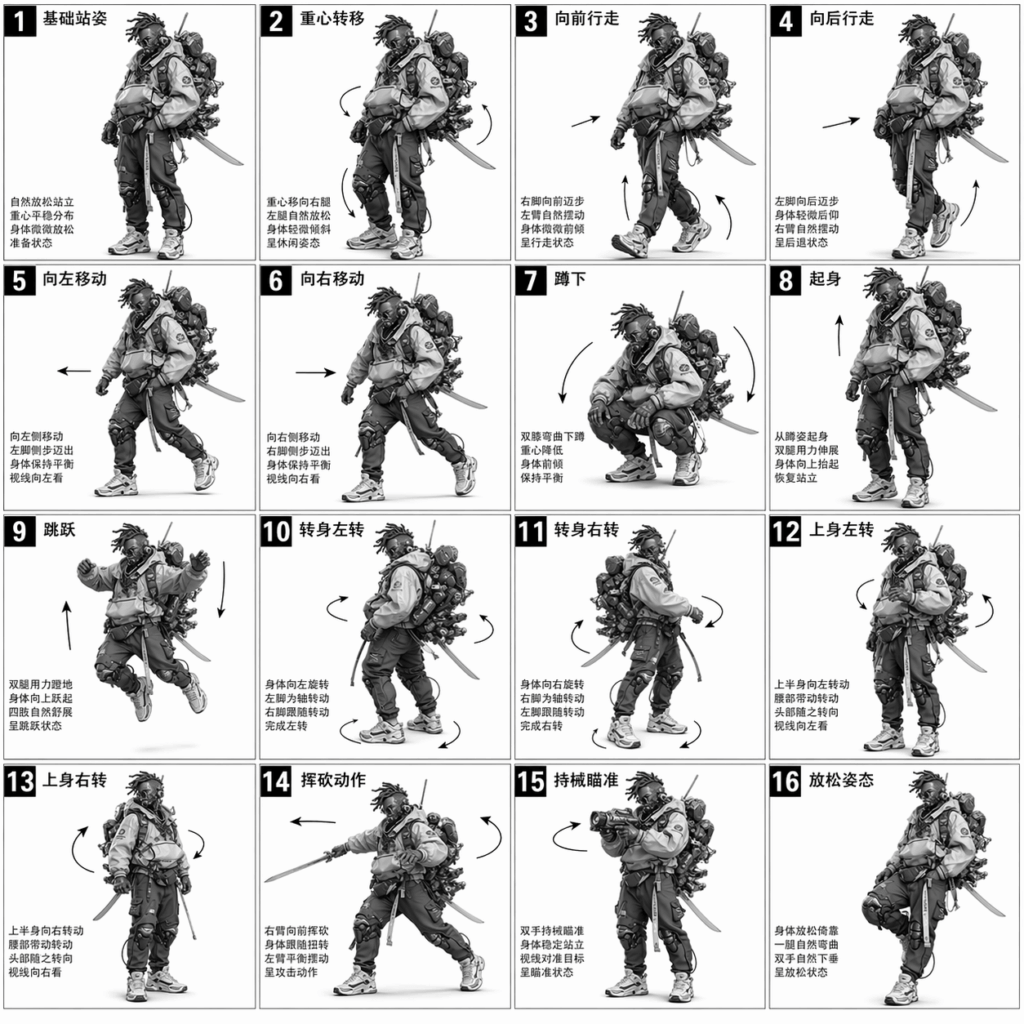
The final image will include:
- A 4×4 grid layout
- 16 motion panels
- A consistent 3D character
- Pose changes
- Motion arrows
- Rotation indicators
- A clean grayscale technical style
In short, it is not just a pretty image. It is a practical motion reference for AI video generation.
What You Need Before You Start
Before we begin, prepare a few simple things. This will make the process much smoother.
1. A Desktop Browser
First, use a desktop browser such as Chrome or Edge.
This is not required, but it helps. You can upload images more easily. You can also copy the prompt, check the result, and download the final image with fewer issues.
2. WeShop AI GPT Image 2
Next, open the WeShop AI tool page and enter the GPT Image 2 workspace (see the button above).
This is where you will upload your character image. Also, this is where you will paste the prompt and generate the action control sheet.
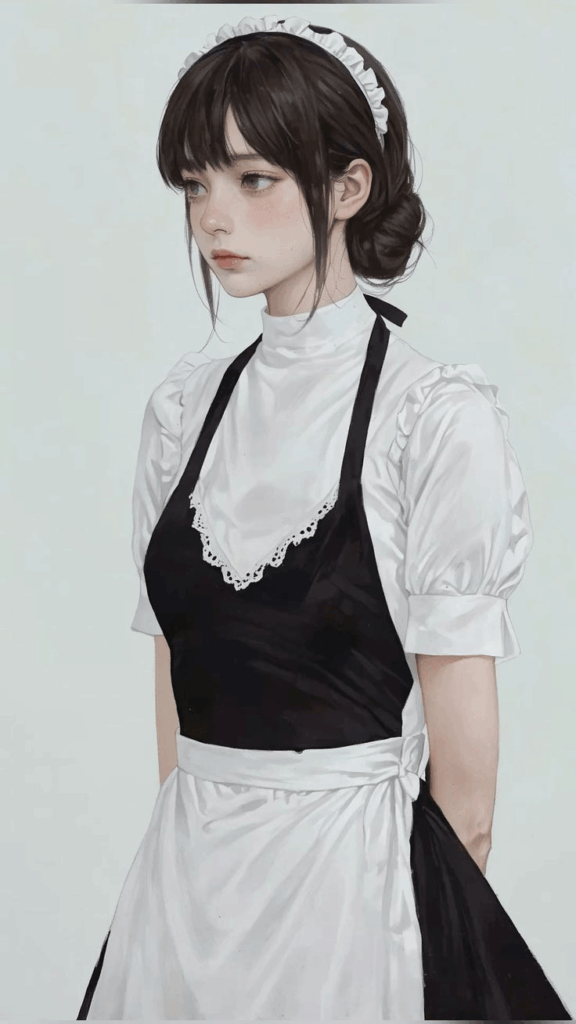
3. A Clean Character Reference Image
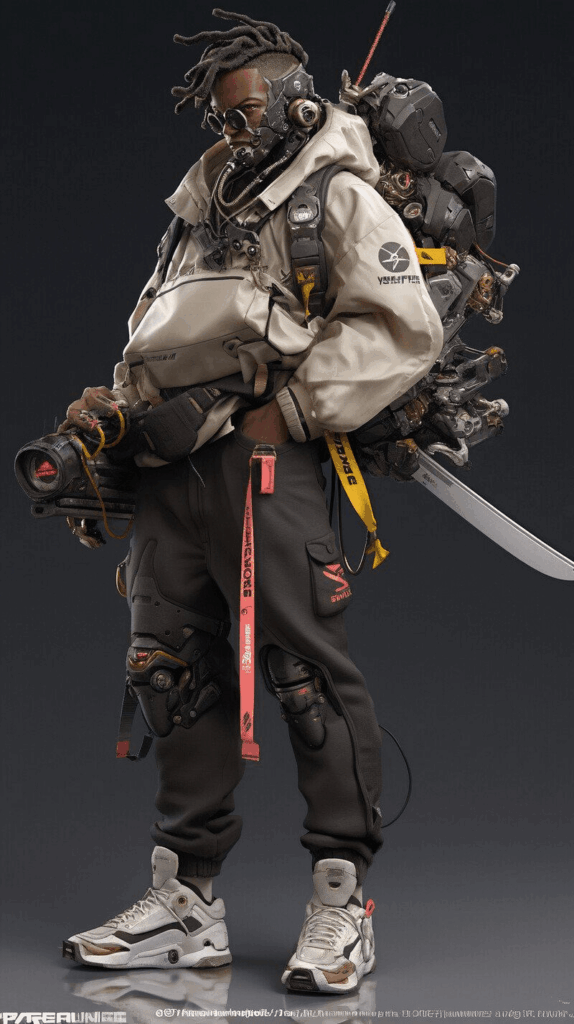
Then, prepare one clear 3D full-body character image.
For best results, choose an image with:
- A full-body character
- A clean or plain background
- Clear facial features
- A visible hairstyle
- A clear outfit
- No extra characters
- No complex scene behind the character
A front-facing pose works well. A slightly angled pose is also fine.
This image is important because it helps GPT Image 2 keep the same character across all 16 panels. If the image is blurry, the final sheet may look less consistent.
In this tutorial, we will call the uploaded image:
@image1
4. The Prompt From This Article
Finally, you need the prompt below.
You do not need to write it yourself. Just copy it, paste it into GPT Image 2, and make sure the image tag matches your uploaded file.
Step-by-Step Guide
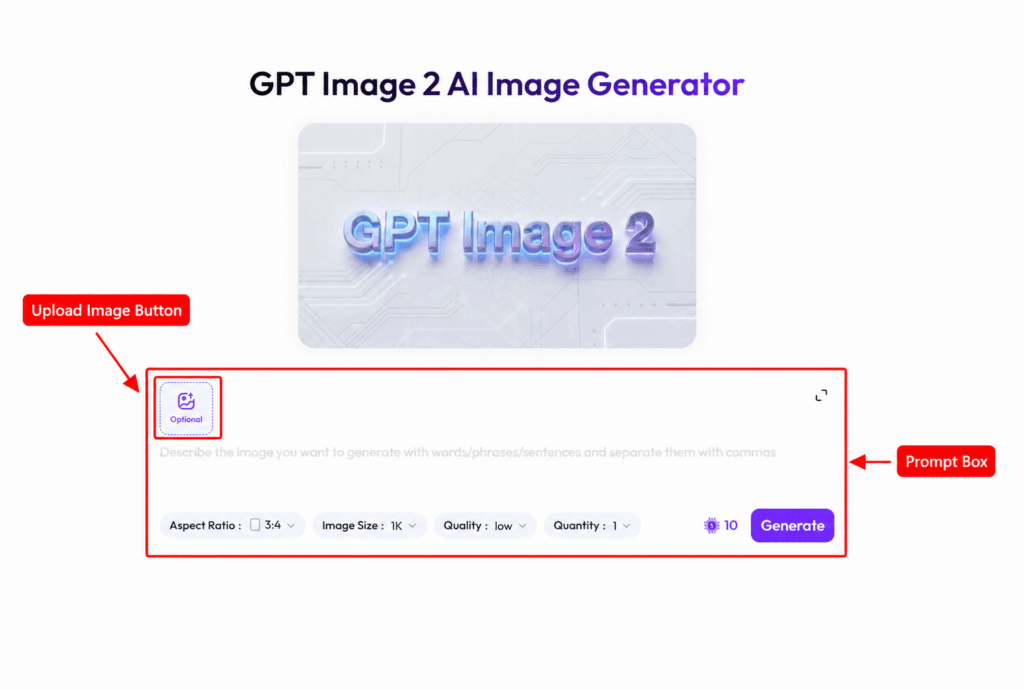
Step 1: Open GPT Image 2 and Find the Main Workspace
First, open GPT Image 2 in WeShop AI.
Once you enter the workspace, look for two areas.
Prompt Box
This is where you paste the text prompt.
Image Upload Area
This is where you upload your character reference image.
Before you generate anything, take a quick look around the page. Find the upload button, the prompt box, and the generate button. Usually, the upload option looks like a “+” icon, an image icon, or an “Upload Image” button.
Step 2: Upload Your Character Reference Image
Next, upload your 3D character image.
After the upload is complete, check the image tag. In this guide, we use:
@image1
However, your tool may show a different tag. If it does, replace @image1 in the prompt with the correct tag.
This small detail matters. The prompt tells GPT Image 2 to use the same character in all panels. So, if the tag is wrong, the tool may not use your uploaded image correctly.
Also, make sure the character image is clear. A sharp full-body image usually gives better results. As a result, the hairstyle, outfit, face, and body shape stay more stable across the sheet.
Step 3: Copy and Paste the Core GPT Image Prompt
Now you can create the action control sheet.
The goal is not to make a normal character image. Instead, we want a structured 16-panel reference sheet. Each panel should show a pose. Also, the sheet should include arrows, numbers, and a technical layout.
Copy the full prompt below and paste it into the GPT Image 2 prompt box:
3D-rendered character, clean reference sheet, white background, comic-style cell grid layout, technical diagram aesthetic

[LAYOUT] 4x4 grid layout, total of 16 panels, each panel separated by thin black border lines, cells numbered from 1 to 16, consistent panel size

[CHARACTER] @image1 (same character in all panels)

[PANEL STRUCTURE - per cell]
Top-left: bold number badge + Korean title text
Center: full-body character pose illustration
Bottom-left: Korean description text (3-4 lines)
Overlay: directional arrows indicating movement flow

[ARROWS / MOTION INDICATORS] Curved arrows, straight arrows, circular rotation indicators, placed around the character to show motion flow and direction

[RENDERING STYLE] High-detail 3D sculpted style, soft studio lighting, subtle shadows, no color, grayscale shading, clean linework, game concept art quality

[NEGATIVE] No background scenery, no color tones, no additional characters, no complex background
This prompt works well because it is clear and structured.
First, it asks for a 4×4 grid layout. This tells GPT Image 2 to create 16 separate panels.
Next, it uses @image1 as the character reference. This helps the tool keep the same character in every panel.
Then, it adds motion arrows and rotation indicators. These elements show how the body should move. They also make the image more useful for Seedance 2.0.
In other words, the final image becomes more than a design sheet. It becomes a visual motion guide.
Step 4: Generate and Download the Action Control Sheet
After pasting the prompt, check it once.
Make sure @image1 matches the image you uploaded. Also, check that the full prompt is included.
Then click Generate.
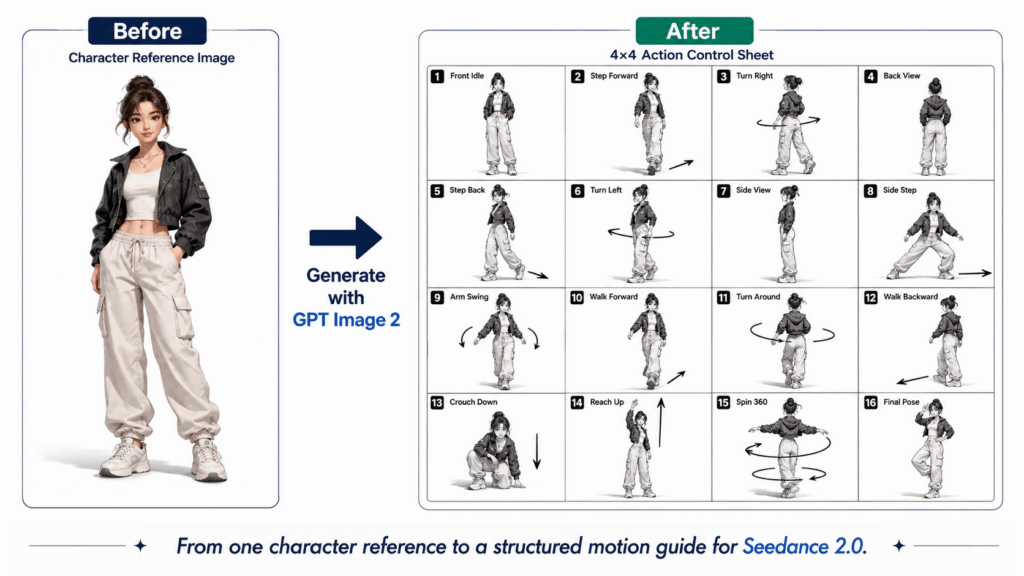
After a short wait, GPT Image 2 should create a grayscale 3D action control sheet. Ideally, the result should include:
- A clean 4×4 grid
- 16 separate panels
- The same character in different poses
- Clear panel numbers
- Straight arrows
- Curved arrows
- Circular rotation marks
- A simple white background
- A technical reference sheet style
If the result looks good, download the image.
You can now use it as a motion reference for Seedance 2.0. For example, you can use it to guide dance movement, body turns, walking motion, or character action sequences.
Advanced Tips and FAQ
Q1: Why does the prompt ask for Korean title text?
This is a visual style trick.
In many AI image workflows, Korean-style labels and small technical notes can make the image feel more like a polished concept art sheet. It often gives the result a clean game design or animation reference look.
However, the Korean text does not need to be readable. Its main purpose is visual style.
If you prefer another look, you can replace:
Korean title textwith:
English title textor:
technical annotation textAs a result, the sheet will feel more like an English production guide or a general technical reference.
Q2: What if the character looks different across the 16 panels?
This can happen. After all, the AI is creating many poses in one image. So, small details may change from panel to panel.
However, you can improve the result in a few ways.
First, use a clearer reference image. A full-body image with a clean background works best.
Next, add more details to the character section. For example:
a young girl with short black bob hair, wearing a casual hoodie, white sneakers, same hairstyle, same outfit, same facial features in all panelsAlso, you can add stronger consistency phrases, such as:
consistent outfit, consistent hairstyle, consistent facial features, same body proportions in every panelThese words remind GPT Image 2 what should stay the same.
Finally, avoid using a reference image with too many props or background details. A simpler image is easier for the model to follow.
Q3: Can I use this action control sheet as the first or last frame in Seedance 2.0?
Not really.
This action control sheet is better used as a motion reference or control image. Its job is to explain movement. It is not meant to be a polished first frame or final frame.
For a first frame or last frame, use a clean colored character image instead.
Then, use the action control sheet as a separate motion guide. This gives Seedance 2.0 two types of information.
The character image controls the look.
The action control sheet controls the motion.
Together, they can help the final video feel more stable and intentional.
Q4: What types of videos can use this workflow?
This workflow is useful whenever the motion needs to be clear.
For example, you can use it for:
- AI dance videos
- Character turnaround videos
- Walking animations
- Running animations
- Game character skill actions
- Virtual influencer clips
- Dynamic social videos
- Short-form video ads
- Animation storyboards
- Seedance 2.0 motion reference workflows
In general, it works best when you want planned movement instead of random motion.
Q5: How can I make the action sheet better for dance videos?
To make the sheet more dance-focused, add dance terms to the motion section.
For example:
dance choreography motion guide, hip movement arrows, arm swing direction, footstep path, body rotation marks, rhythm sequence indicatorsYou can also add:
step-by-step dance pose breakdown, each panel showing a different key pose of the same dance movementThis helps GPT Image 2 create a sheet that feels more like a dance tutorial. Also, it can make the rhythm and body direction easier to understand.
Optional: Enhanced Prompt for More Stable Results
If your first result is not stable enough, try the enhanced prompt below.
It gives GPT Image 2 more details about character consistency, motion design, and panel layout.
3D-rendered character action control sheet, clean white background, professional game concept art reference, technical motion diagram aesthetic

[LAYOUT]
Create a 4x4 grid layout with exactly 16 panels.
Each panel has the same size and is separated by thin black border lines.
Number each panel clearly from 1 to 16 with a bold number badge in the top-left corner.

[CHARACTER]
Use @image1 as the main character reference.
Keep the same character in all 16 panels.
Maintain consistent facial features, hairstyle, body proportions, outfit, shoes, and overall identity across every panel.

[PANEL STRUCTURE]
Each cell contains:
- a full-body 3D character pose in the center
- a bold number badge in the top-left corner
- short Korean-style technical annotation text near the bottom-left
- directional arrows overlaid around the body to indicate motion flow

[MOTION DESIGN]
Show a continuous action sequence across the 16 panels.
Include straight arrows for movement direction, curved arrows for body turns, circular arrows for rotation, and small footstep path indicators.
Make the poses dynamic and useful for AI video motion reference.

[STYLE]
High-detail 3D sculpted character style, grayscale rendering, soft studio lighting, subtle shadows, clean linework, technical reference sheet layout, professional animation storyboard quality, game character motion design sheet

[NEGATIVE]
No background scenery, no colorful environment, no extra characters, no complex props, no messy layout, no distorted body, no duplicate faces, no inconsistent outfit
Use this version when you need better character consistency. Also, use it if the basic prompt creates panels that feel too disconnected.
Final Thoughts
Creating a good Seedance 2.0 video is not only about writing a better text prompt. In fact, a visual guide can often help more.
A Seedance 2.0 action control sheet gives the model a clear plan. It shows the pose sequence, movement direction, and action rhythm. As a result, the video model has less room to guess.
The workflow is simple.
Upload your character image.
Paste the GPT Image 2 prompt.
Generate the action control sheet.
Use it as a motion reference in Seedance 2.0.
If you create AI dance videos, game-style character animations, or short-form character content, this step is worth trying. It can save time, reduce trial and error, and make your final video feel more controlled.
Now open WeShop AI GPT Image 2, upload your character image, copy the prompt, and create your own Seedance 2.0 action control sheet in just a few minutes.
Go to WeShop AI For Exploration: