My Workspace

Turn Any Photo Into a Funny Ugly Doodle With AI

Marine
05/29/2026

Most of us have a camera roll full of “normal” photos.Group selfies. Birthday shots. Travel pictures. Couple photos. Dinner snapshots. The kind of pictures that are perfectly fine, but somehow feel too polished, too expected, or just not interesting enough to post.That is exactly why ugly doodle edits are having a moment.

Instead of making your photo cleaner, smoother, or more flattering, this trend does the opposite. It turns a regular photo into a messy, childish, slightly awkward doodle that looks like it was drawn with a cheap marker by someone who had five minutes and zero patience.

The result is funny, imperfect, meme-friendly, and surprisingly shareable.

These “ugly cute” AI doodles work especially well for TikTok, Instagram, Pinterest, Xiaohongshu-style posts, birthday memes, reaction images, group chat jokes, and profile pictures that do not take themselves too seriously.

In this guide, I’ll show you how to turn almost any regular photo into a rough, silly, internet-style doodle using an AI doodle generator. You do not need drawing skills. You do not need design software. You just need one photo and the right prompt.

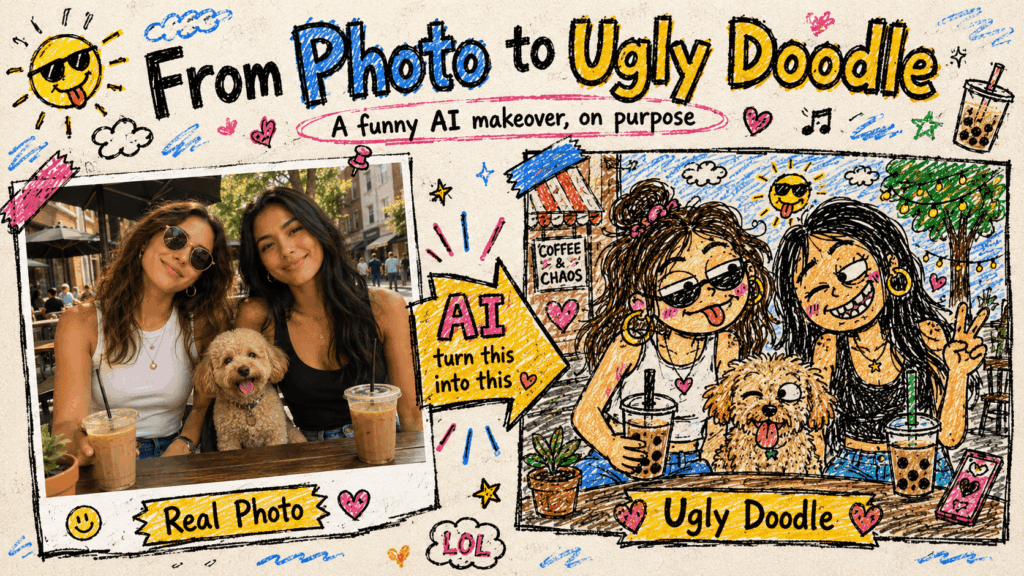
Before-and-after poster showing a real photo turned into a funny ugly doodle with AI.
From real photo to ugly doodle

What You Need

Before you start, prepare three simple things.

1. A Clear Original Photo

Choose a photo where the main subject is easy to see.

The best results usually come from photos with one to three people. A front-facing selfie, half-body photo, couple picture, or small group shot works well.

Your photo can be:

a friend group photo;
a couple selfie;
a birthday picture;
a travel photo;
a casual street shot;
a photo with your pet;
a slightly awkward but funny photo you already love.

You do not need the perfect expression. A normal smile, a stiff pose, or even a slightly confused face can work really well. The more ordinary the original photo feels, the funnier the doodle version can become.

2. An AI Image Tool

You can use WeShop AI’s GPT Image tool(See the button above!)

Upload your photo, paste the prompt, and let the tool generate your doodle-style version.

3. A Good Style Prompt

The prompt is what tells the AI not to make the picture beautiful.

That part matters.

Most AI image tools naturally try to make things look polished, balanced, and visually pleasing. For this trend, you want the opposite. You want messy lines, bad proportions, rough coloring, and a slightly stupid-looking charm.

Your prompt should tell the AI to make the image:

messy;
rough;
childlike;
funny;
badly drawn on purpose;
meme-like;
not realistic;
not polished.

I’ll give you a copy-ready prompt later in the article.

Step-by-Step Guide

Step 1: Describe Your Photo

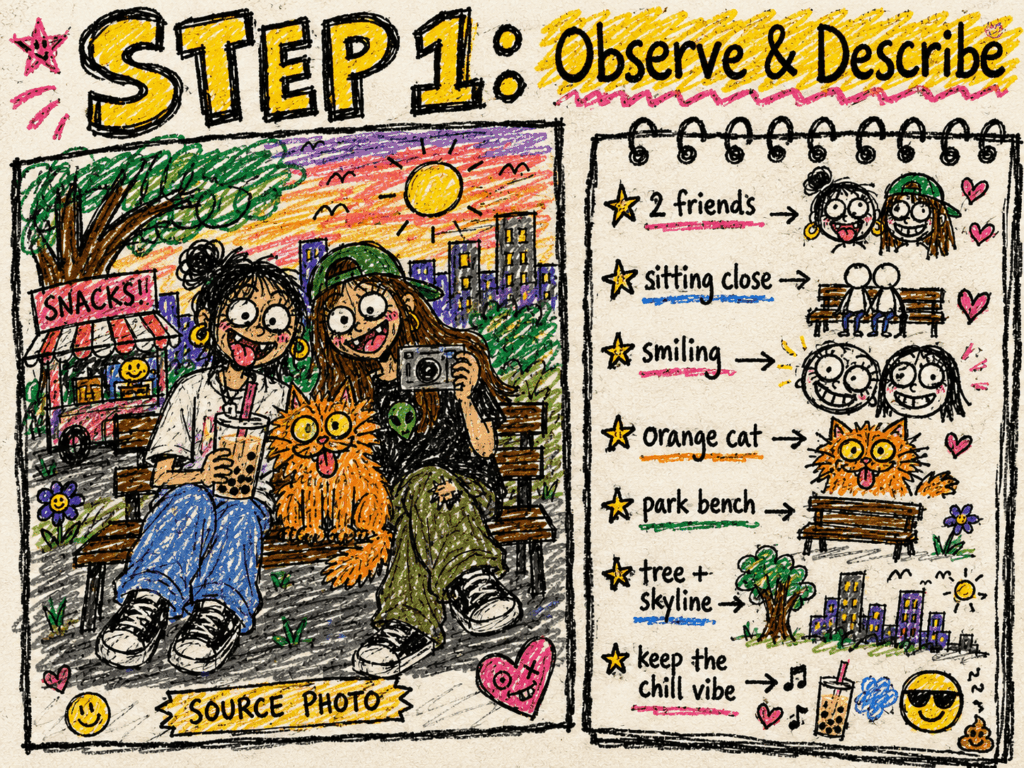
Step 1 tutorial image showing how to describe a photo before turning it into an ugly doodle.
Describe the photo first

Before writing the full prompt, take a few seconds to describe what is actually in your photo.

You do not need a long description. Just list the key visual details so the AI knows what to keep.

For example:

Two people are standing on the street. There are buildings and a tree behind them. Both people are smiling slightly and standing close together.

That is enough.

Try to describe the photo in three parts.

People

How many people are in the photo? What are they doing? What is their pose or expression?

For example:

“Two young people standing close together, both smiling slightly.”

Or:

“Three friends posing together, one person making a peace sign, everyone looking happy.”

Or:

“A man and a woman standing side by side on the street, looking at the camera.”

Background

What can you see behind the subject?

For example:

“The background is a street with a few buildings and a tree.”

Or:

“The background is a restaurant with warm lights and tables.”

Or:

“The background is a beach with sand, sky, and people in the distance.”

Overall Feeling

What do you want the image to keep?

For example:

“Keep the friendly, casual feeling, but make it look ugly and funny.”

Or:

“Keep the couple-photo feeling, but turn it into a childish meme doodle.”

Or:

“Keep the group-photo composition, but make everyone look like they were drawn badly on purpose.”

This part does not need to sound fancy. Clear is better than poetic.

Step 2: Combine Your Photo Description With the Prompt

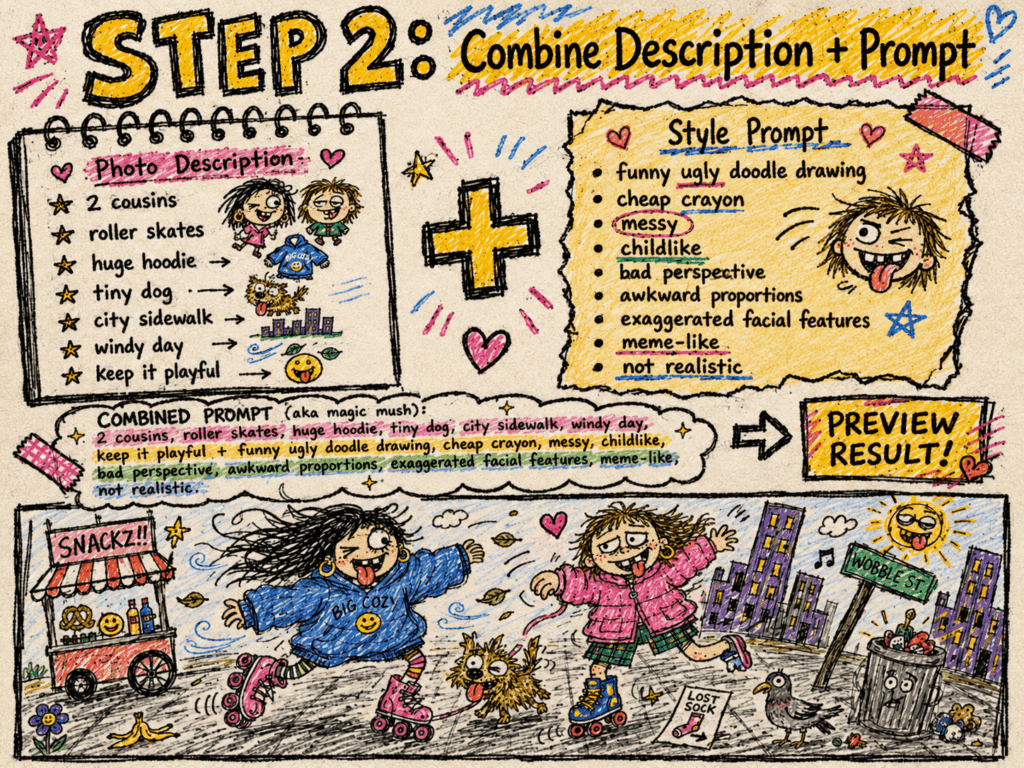
Step 2 tutorial image showing how to combine a photo description with an ugly doodle prompt.
Combine description and prompt

Now combine your short photo description with the ugly doodle style prompt.

Here is the basic formula:

[Describe your photo] + Turn this photo into a funny ugly doodle drawing. Make it look like a quick sketch using a cheap marker or crayon, messy, rough, childlike style, bad perspective and awkward proportions, slightly exaggerated facial features. Add a simple cartoon background based on the original photo, with random sketchy lines and details, uneven coloring and visible strokes. Style: lazy drawing, not polished, humorous, a bit stupid-looking, meme-like, casual internet style. Do NOT make it realistic.

Here is a full example:

Two young people, a man and a woman, standing close together on the street, both smiling slightly, with buildings and a tree in the background. Turn this photo into a funny ugly doodle drawing. Make it look like a quick sketch using a cheap marker or crayon, messy, rough, childlike style, bad perspective and awkward proportions, slightly exaggerated facial features. Add a simple cartoon background based on the original photo, with random sketchy lines and details, uneven coloring and visible strokes. Style: lazy drawing, not polished, humorous, a bit stupid-looking, meme-like, casual internet style. Do NOT make it realistic.

This prompt works because it gives the AI both structure and attitude.

The first sentence tells the AI what is in the photo. The rest tells it how badly, and how funnily, to redraw it.

Step 3: Upload Your Photo and Generate

Open the AI image tool, upload your original photo, and paste your prompt.

Then replace the first sentence with your own photo description.

Once you click generate, the tool will create a new version of your photo in a rough doodle style.

Do not judge the result too quickly.

This style depends a lot on randomness. Sometimes the first version will be too clean. Sometimes it will be too strange. Sometimes the second or third version is the one that suddenly looks like a perfect meme.

Try a few rounds if needed.

For this kind of edit, “technically wrong” is not always bad. A weird face, uneven eyes, strange hands, or crooked background can actually make the result funnier.

Step 4: Pick the Funniest Version

The best AI ugly doodle is not the most beautiful one. It is the one that makes you laugh first.

A good result usually has these qualities:

the subject is still recognizable enough;
the facial features are slightly exaggerated;
the lines look rough and unplanned;
the coloring feels uneven;
the proportions are a little awkward;
the background is simplified but still connected to the original photo;
the whole image feels casual, silly, and meme-ready.

If the image looks too professional, it is probably not ugly enough.

If it looks like a clean digital illustration, try pushing the prompt harder with negative instructions.

You can add:

no beauty, no aesthetic, no professional drawing, no clean lines, no smooth shading, no polished artwork, no realistic details.

This tells the AI to stop trying to make the image “good” in the traditional sense.

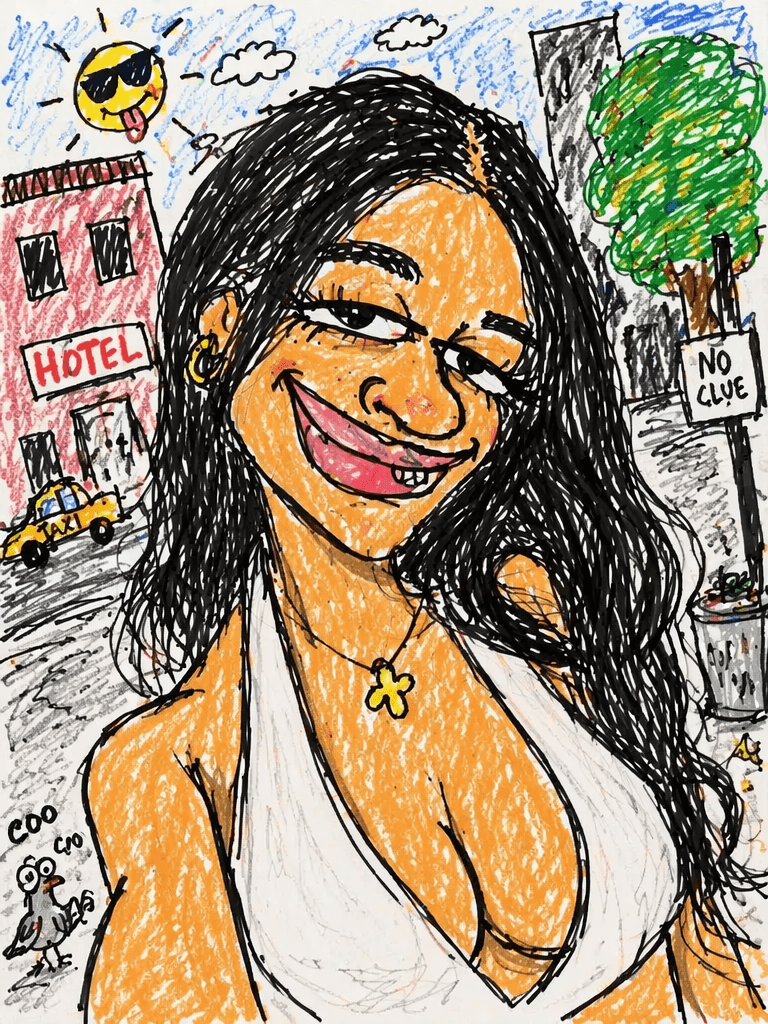
A selfie transformed into a funny ugly doodle portrait with messy crayon lines and exaggerated features.
Selfie to ugly doodle
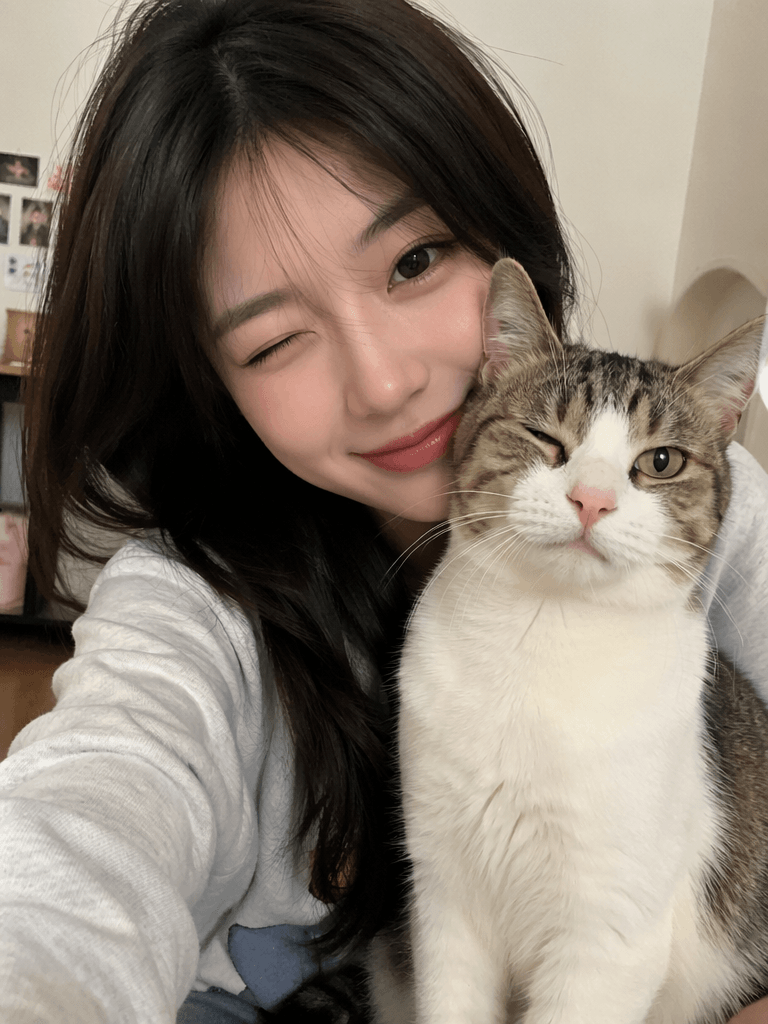
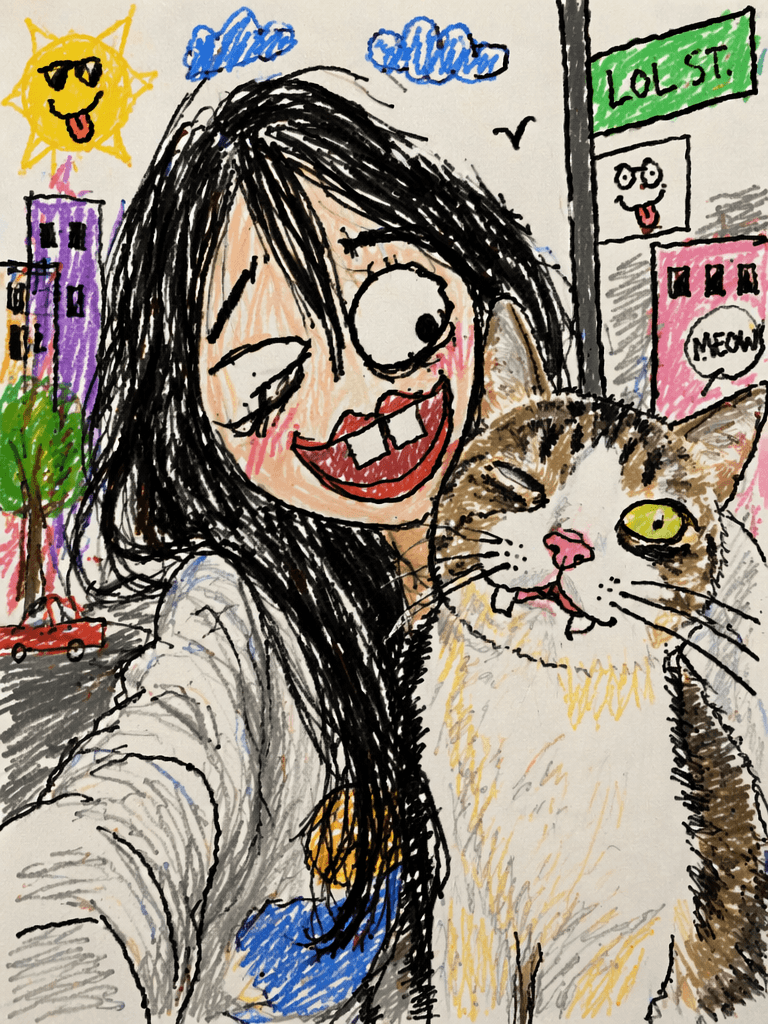
A photo of a girl with a cat transformed into a playful ugly doodle with mismatched eyes and rough sketchy lines.
Pet selfie doodle edit
Funny ugly doodle of two cats sitting at a cafe with silly speech bubbles and messy crayon-style city details.
Cats but make it chaotic
Funny ugly doodle of three dogs in a park with goofy expressions, rough crayon coloring, and a cartoon city background.
Pet selfie doodle edit
Funny ugly doodle of two cats sitting at a cafe with silly speech bubbles and messy crayon-style city details.
Cats but make it chaotic
Funny ugly doodle of three dogs in a park with goofy expressions, rough crayon coloring, and a cartoon city background.
Dog park doodle chaos

Advanced Tips and FAQ

Q1: What if the face does not look like the original photo?

That is normal.

This style is not about perfect facial accuracy. It is about creating a funny, ugly-cute doodle that captures the overall vibe of the original photo.

If you want the result to stay a little more recognizable, add this line to your prompt:

while keeping the general hairstyle and glasses if any, but still ugly and childlike.

This helps the AI keep obvious features such as hairstyle, glasses, or the general silhouette.

That said, do not worry too much if the face changes. With this trend, the slightly wrong version is often the funniest one.

Q2: How do I add text and turn it into a meme?

After generating the doodle image, you can add a short handwritten caption.

For example:

Add messy handwritten text at the top: “I said I was fine.”

Or:

Add rough handwritten text: “Me trying to act normal.”

You can also use captions like:

“When you said just one bite”;
“Me after one minor inconvenience”;
“Totally fine, obviously”;
“Running on 3% battery”;
“Trying to be normal”;
“Emotionally offline”;
“Current status: loading.”

The key is to keep the text short and casual.

Avoid clean, formal fonts. A rough handwritten style works better with the doodle look. It should feel like someone grabbed a marker and wrote the caption in three seconds.

Q3: Why does my image still look too nice?

Because AI likes to be helpful.

Many image models automatically make things clean, balanced, and attractive. If your result still looks too pretty, make the prompt more direct.

Add this to the end:

Make it intentionally ugly, funny, lazy, and badly drawn. No beauty, no aesthetic, no professional drawing, no clean lines, no smooth shading.

You can also ask for:

cheap crayon drawing, messy marker lines, awkward proportions, lazy sketch, bad perspective.

The more clearly you reject polish, the closer the result will get to the ugly doodle style.

Q4: What kinds of photos work best?

The best photos are simple, clear, and centered around one main subject.

Great options include:

one-person selfies;
couple photos;
small friend group photos;
birthday photos;
casual street pictures;
restaurant snapshots;
travel photos;
pet photos;
awkward but funny photos.

Photos that may not work as well include:

large group photos with too many faces;
dark or blurry images;
photos where the subject is too far away;
busy backgrounds with too many details;
photos where faces are heavily covered.

Still, part of the fun is experimenting. Sometimes a “bad” source photo creates the funniest final image.

Q5: Can I use this style for pet photos?

Yes. Pet photos are perfect for this trend.

Try a prompt like:

A fluffy dog sitting on the floor, looking confused, with a sofa in the background. Turn this photo into a funny ugly doodle drawing, childlike, messy, rough crayon style, awkward proportions, exaggerated eyes, meme-like and stupid-looking.

This works especially well for dogs, cats, rabbits, and any pet with a dramatic expression.

The final result often looks like a tiny chaotic creature drawn by a child, which is exactly the point.

Q6: How do I make the image feel more like a viral social media meme?

Add words that point the AI toward internet humor rather than polished illustration.

Try adding:

viral meme style, internet humor, casual social media post, silly doodle, funny reaction image.

Or use this full sentence:

Make it look like a viral meme-style doodle for social media, funny, casual, silly, and instantly shareable.

This helps the image feel more like something you would post in a group chat, TikTok slideshow, Instagram Story, or meme page.


Copy-Ready AI Doodle Prompt

Use this template and replace the first sentence with your own photo description.

[Describe the photo: who is in it, what they are doing, their expression, and the background.] Turn this photo into a funny ugly doodle drawing. Make it look like a quick sketch using a cheap marker or crayon, messy, rough, childlike style, bad perspective and awkward proportions, slightly exaggerated facial features, while keeping the general hairstyle and glasses if any. Add a simple cartoon background based on the original photo, with random sketchy lines and details, uneven coloring and visible strokes. Style: lazy drawing, not polished, humorous, a bit stupid-looking, meme-like, casual internet style. Make it intentionally ugly and funny. Do NOT make it realistic. No beauty, no aesthetic, no professional drawing, no clean lines, no smooth shading.

Here is a shorter version if you want something faster:

Turn this photo into a funny ugly doodle drawing. Make it look like a messy childlike crayon sketch with bad proportions, rough lines, uneven coloring, exaggerated facial features, and a silly meme-like internet style. Keep the basic pose, hairstyle, and background, but make it intentionally ugly, lazy, and funny. Do not make it realistic or polished.

Final Thoughts

Not every photo needs to be beautiful.

Sometimes the most shareable edit is the one that looks a little wrong, a little chaotic, and a lot more human.

That is the charm of the AI ugly doodle trend. It takes an ordinary photo and gives it a messy, low-effort, meme-ready personality. Instead of making everyone look perfect, it makes the moment feel funny and memorable.

So next time you have a normal selfie, a group photo, a pet picture, or a birthday shot that feels too plain to post, try turning it into a funny ugly doodle.

Upload your photo, paste the prompt, generate a few versions, and pick the one that makes you laugh first.

That is probably the one worth sharing.


Go to WeShop AI For Exploration:
author avatar
Marine
Half journalist, half writer. Hooked on the erratic pulse of modern poetry and the cold accuracy of data trends. Caught in the cyber tide, I’m just out here lifting heavy and speaking my truth. À plus.
Related recommendations
A creative hero image showing a real photo transforming into a Family Guy-style AI image with bold cartoon visuals and AI editing icons.
Marine
06/07/2026

How to Turn Any Photo Into a Family Guy Style AI Image: A Beginner-Friendly Guide

Turn your everyday photos into bold, funny, Family Guy-style AI images with WeShop AI. This beginner-friendly guide includes copy-ready prompts and simple tips for better cartoon results.

WeShop.ai tutorial cover showing how to turn a portrait into a bold black-and-white AI typography poster in three minutes
Marine
06/07/2026

How to Create a Minimal Black-and-White AI Typography Poster in 3 Minutes

Turn one portrait into a striking AI typography poster with this beginner-friendly WeShop.ai prompt tutorial.