




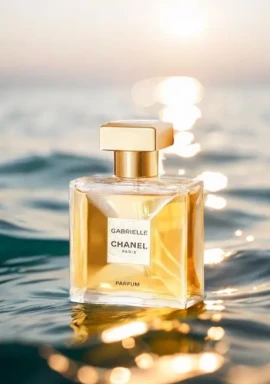
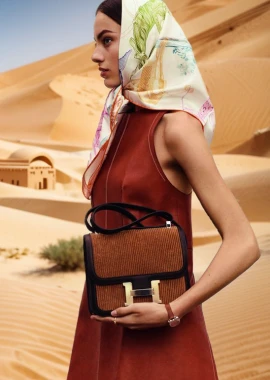
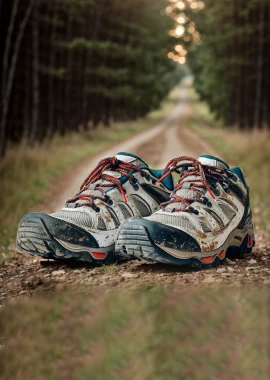
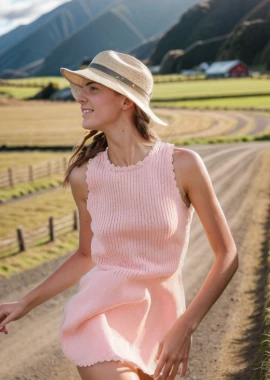



Qwen-Image 2.1 AI Image Generation & Editing Guide
Learn how Qwen-Image 2.1 handles text-to-image creation, reference-image editing, and multi-reference composition for ecommerce and creative workflows.
Qwen-Image 2.1: AI Image Generator and Image Editor Guide
AI image generation is moving beyond the simple process of entering one prompt and receiving one image.
Creators increasingly want to upload references, preserve subject details, replace selected content, combine several images, and continue editing the result within the same workflow.
Qwen-Image 2.1 is designed around this unified approach to image generation and editing.
The official Qwen-Image 2.1 ModelScope page describes the model as combining high-quality image generation with flexible editing, efficient creation, localized changes, and fine-grained creative control.
What Is Qwen-Image 2.1?
Qwen-Image 2.1 is an AI image generation and editing model in the Qwen family.
Instead of treating text-to-image generation and image editing as completely separate processes, it allows prompts and reference images to participate in the same generation workflow.
Its publicly documented capabilities cover three main tasks:
- Generating original images from text
- Editing an uploaded reference image
- Combining information from multiple reference images
A creator can begin with a text prompt:
Create an oil painting of a capybara wearing a wizard hat and reading a book by candlelight.
The generated image can then become the input for another instruction:
Keep the capybara’s appearance and painting style unchanged. Move the scene to a snow-covered mountain top.
This creates a continuous workflow from initial generation to later refinement.
Text-to-Image Generation
Qwen-Image 2.1 supports original image generation from natural-language prompts.
A structured prompt can define:
- Subject
- Action
- Environment
- Composition
- Lighting
- Color palette
- Materials
- Photography or illustration style
For example:
Create a premium skincare advertising image.

Place one transparent glass serum bottle in the center of a light beige stone surface. Keep the bottle design minimal and do not add invented logos or unrelated text.

Use a cream-colored background with a soft tonal gradient. Warm natural light enters from the left and creates gentle shadows across the wall and tabletop.

Add a few transparent water droplets and pale botanical leaves around the product, but do not cover the bottle.

Use high-end commercial product photography, realistic glass reflections, natural materials, shallow depth of field, and clean negative space. Use a 4:5 aspect ratio.
A complete prompt reduces the number of visual decisions the model must make independently.
Reference-Image Editing
Qwen-Image 2.1 can also use an uploaded image as a generation condition.
The Diffusers documentation shows an image-conditioned workflow in which an existing image is supplied together with a new editing instruction.
For an ecommerce product image, an editing prompt could be written as:
Keep the product’s appearance, color, material, proportions, packaging, and camera angle unchanged.

Move the product onto a light wooden table in a modern living room with soft natural daylight.

Preserve realistic contact shadows and product reflections. Do not add text, logos, watermarks, or extra products.
This approach is useful when the subject should remain recognizable while its setting or supporting details change.
A Reusable Image-Editing Prompt Structure
Content to preserve:
[Describe the subject, person, product, composition, or style that must remain unchanged.]

Requested changes:
[Describe the content that should be added, replaced, removed, or moved.]

Consistency requirements:
[Describe the required lighting, perspective, proportions, materials, and shadows.]

Do not add or change:
[List unwanted text, logos, objects, distortions, or visual changes.]
For ecommerce content, preservation instructions are especially important.
A prompt such as “place the product in a living room” may allow the model to redesign the product. Explicitly protecting its structure, packaging, color, and proportions helps reduce that risk.
Multiple Reference Images
Qwen-Image 2.1 supports multiple condition images in the same generation request.
The Diffusers documentation provides a simple example:
Put the flowers from the first image into the second scene.
In this relationship:
- Image 1 supplies the flowers
- Image 2 supplies the scene
- The prompt explains how they should be combined
The same workflow can be extended to ecommerce and fashion:
Dress the adult model from Figure 2 in the outfit from Figure 1 and place the model in the background from Figure 3.

Preserve the color, cut, material, pattern, and design details of the outfit in Figure 1.

Preserve the facial identity, hairstyle, skin tone, and body proportions of the adult model in Figure 2.

Use the environment, composition, and lighting from Figure 3 as the final background.

Match the lighting direction, perspective, scale, and contact shadows across the model, clothing, and environment.

Do not add new logos, text, accessories, or unrelated objects.
Different reference images may separately provide:
- Product or clothing
- Model identity
- Background environment
- Composition
- Materials
- Visual style
The more reference images a task uses, the more important it becomes to define each image’s role clearly.
Why Reference-Image Order Matters
In the documented Diffusers workflow, condition images are read in the order they are passed to the model.
If the references are defined as:
Figure 1: Outfit
Figure 2: Adult model
Figure 3: Background
The prompt should preserve the same order:
Dress the model from Figure 2 in the outfit from Figure 1 and place the model in the background from Figure 3.
If the upload order changes without updating the prompt, the model may confuse the intended roles of the outfit, person, and setting.
A more reliable workflow is:
- Decide what each reference image should provide.
- Upload the references in a fixed order.
- Define every reference at the beginning of the prompt.
- Explain how the references should be combined.
- Add preservation requirements.
- List unwanted changes.
How Qwen-Image 2.1 Processes Text and Images
According to the Diffusers documentation, Qwen-Image 2.1 uses Qwen3-VL to encode the prompt and condition images together.
In simpler terms, the model processes the text and visual references as connected context rather than as unrelated inputs.
The workflow can be summarized as:
Text prompt + condition images
               ↓
Qwen3-VL interprets the text, subjects, and image relationships
               ↓
The image model constructs the target composition
               ↓
A new image or edited result is produced
This unified context can help the model understand:
- Which subject should come from which image
- Which details must remain unchanged
- Which environment should be replaced
- How several references relate to one another
- What visual style the final image should follow
Publicly Documented Inference Settings
The current Diffusers documentation lists the following defaults:
| Parameter | Documented Default | Purpose |
|---|---|---|
num_inference_steps | 40 | Controls the number of denoising steps |
true_cfg_scale | 1.0 | Uses no classifier-free guidance by default |
output_resolution | 1024 | Helps derive the output dimensions |
num_images_per_prompt | 1 | Controls the number of outputs per prompt |
use_kv_cache | True | Caches condition information during generation |
The documentation states that classifier-free guidance is enabled only when a negative prompt is provided together with a true_cfg_scale greater than 1.
Enabling it doubles the work performed during each inference step.
A basic Diffusers example looks like this:
import torch
from diffusers import QwenImage21Pipeline

pipe = QwenImage21Pipeline.from_pretrained(
    "Qwen/Qwen-Image-2.1",
    dtype=torch.bfloat16
).to("cuda")

prompt = "A capybara wearing a wizard hat, reading a book by candlelight, oil painting"

image = pipe(
    prompt,
    num_inference_steps=40,
    true_cfg_scale=1.0
).images[0]

image.save("qwen-image-2-1-result.png")
Image-conditioned editing:
edited = pipe(
    "Move the subject to a snowy mountain top",
    image=original_image
).images[0]

edited.save("qwen-image-2-1-edited.png")
Multiple condition images:
result = pipe(
    "Put the flowers from the first image into the second scene",
    image=[flowers_image, scene_image]
).images[0]

result.save("qwen-image-2-1-multi-reference.png")
Ecommerce Uses for Qwen-Image 2.1
For ecommerce sellers, Shopify stores, and brand content teams, the model may support several useful workflows.
Product Images to Lifestyle Scenes
Upload a clean product image and place the product in a living room, kitchen, bedroom, studio, or outdoor environment.
A preservation instruction should include:
Keep the product’s original color, structure, material, proportions, packaging, and logo unchanged.
Clothing, Model, and Background Composition
Upload separate references for an outfit, an adult model, and a background.
This workflow can support:
- AI clothes changer concepts
- Virtual try-on mockups
- Fashion ecommerce scenes
- Social media outfit content
Local Product Editing
Preserve the main product while changing:
- Background
- Tabletop
- Packaging decoration
- Seasonal props
- Local colors
- Supporting objects
Advertising and Social Media Assets
Prompts can define the aspect ratio, negative space, product position, and visual style for:
- Amazon secondary images
- Shopify homepage banners
- Instagram vertical content
- TikTok Shop product visuals
- Pinterest images
- Advertising landing pages
These use cases still require practical testing for product consistency, text accuracy, and editing stability.
Confirmed Information and Areas That Still Need Testing
Public documentation confirms that Qwen-Image 2.1 supports:
- Text-to-image generation
- Image-conditioned editing
- Multiple condition images
- Joint encoding of prompts and references with Qwen3-VL
- A dedicated Diffusers pipeline
- A recommended default of 40 inference steps
- A default
true_cfg_scaleof 1.0
Practical testing is still needed to evaluate:
- Complex Chinese and English text rendering
- Identity preservation with multiple references
- Product structure and logo consistency
- Clothing material, pattern, and cut retention
- Changes to unselected image regions
- Generation speed and memory requirements
- Fine-detail stability at higher resolutions
Until these tasks are tested consistently, claims such as “the fastest model,” “better than every competitor,” or “perfect text rendering” should be avoided.
Is Qwen-Image 2.1 Worth Watching?
The most important part of Qwen-Image 2.1 is not simply the introduction of another AI image generator.
It places three common visual tasks inside one workflow:
- Create an original image from text
- Edit an uploaded reference image
- Combine multiple references into a new composition
For creators, this means an image can be generated and then refined.
For ecommerce teams, products, models, outfits, and backgrounds can be supplied as separate references.
For developers, the Diffusers documentation already demonstrates text-to-image, image-conditioned editing, and multi-reference generation.
Its real-world quality still needs broader testing, but the unified generation-and-editing workflow reflects an important direction for the next generation of AI image tools.
Qwen-Image 2.1 Effect Showcase
The following examples demonstrate reference-image editing and multi-reference composition.
1. Reference-Image Editing
| Original Image | Qwen-Image 2.1 Edited Result |
|---|---|
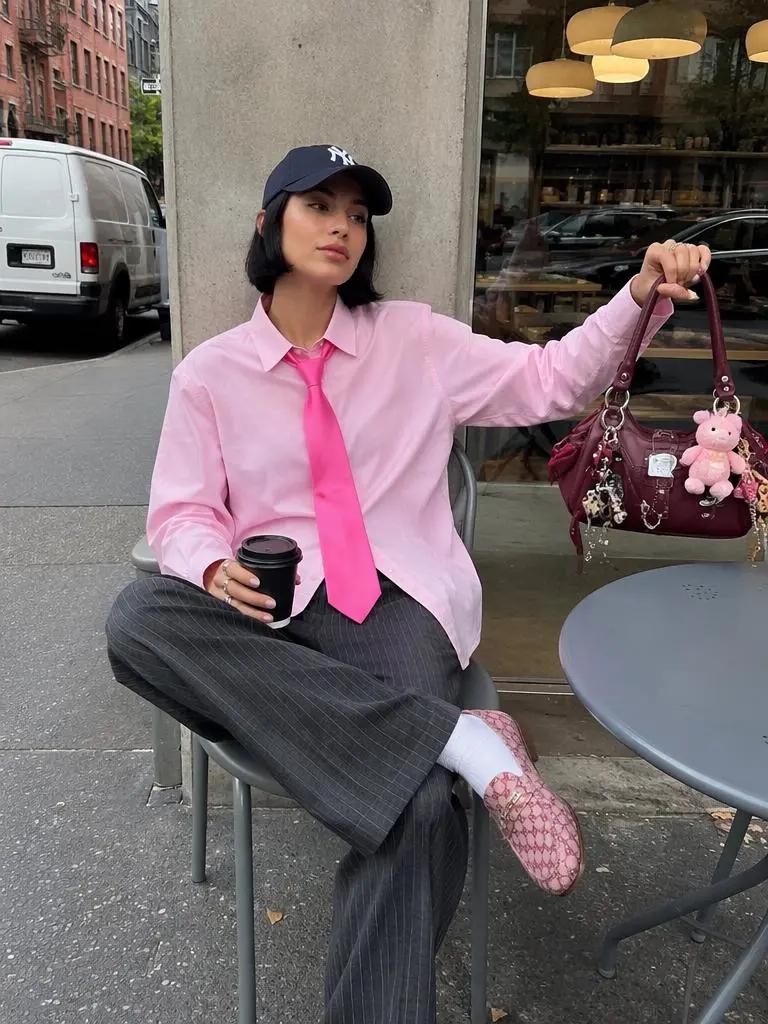 | 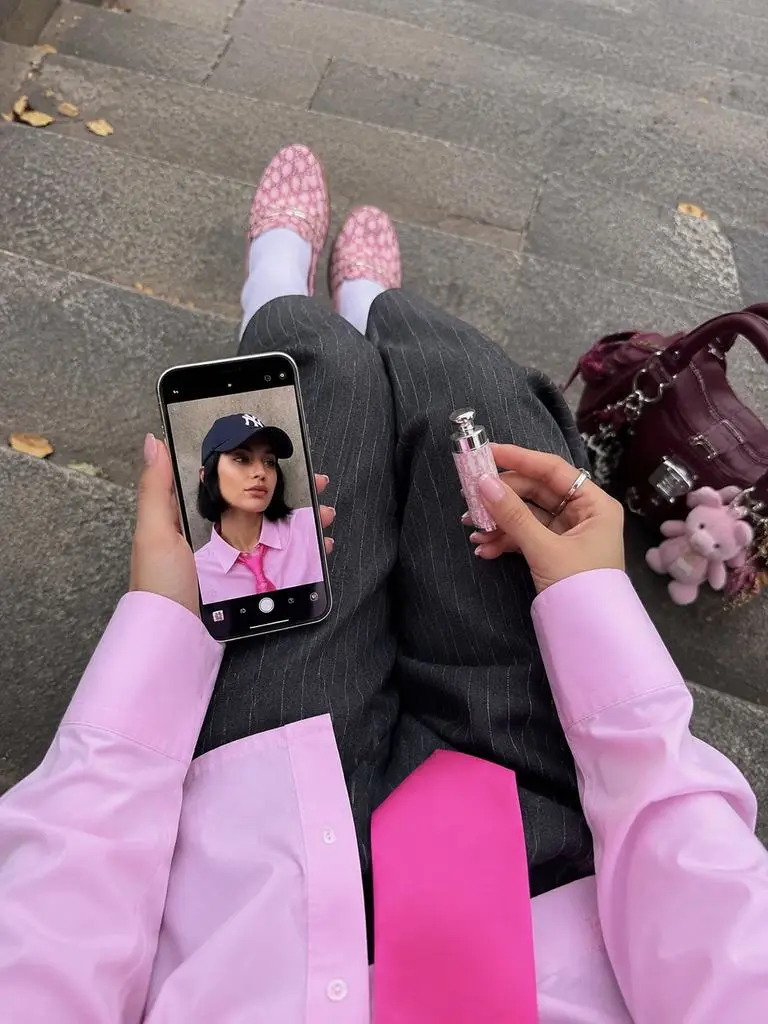 |
| The original image provides the subject and base composition. | The edited result follows the new text instruction while retaining information from the reference. |
When reviewing an image-editing result, check:
- Whether the subject remains recognizable
- Whether proportions and composition remain coherent
- Whether the requested content changed correctly
- Whether unrelated regions remained stable
- Whether lighting, materials, and shadows match
- Whether unwanted text, logos, or objects appeared
2. Multi-Reference Composition
To prevent four images from becoming too narrow in Markdown, the three inputs and final result are displayed separately.
Reference Inputs
| Reference Image 1 | Reference Image 2 | Reference Image 3 |
|---|---|---|
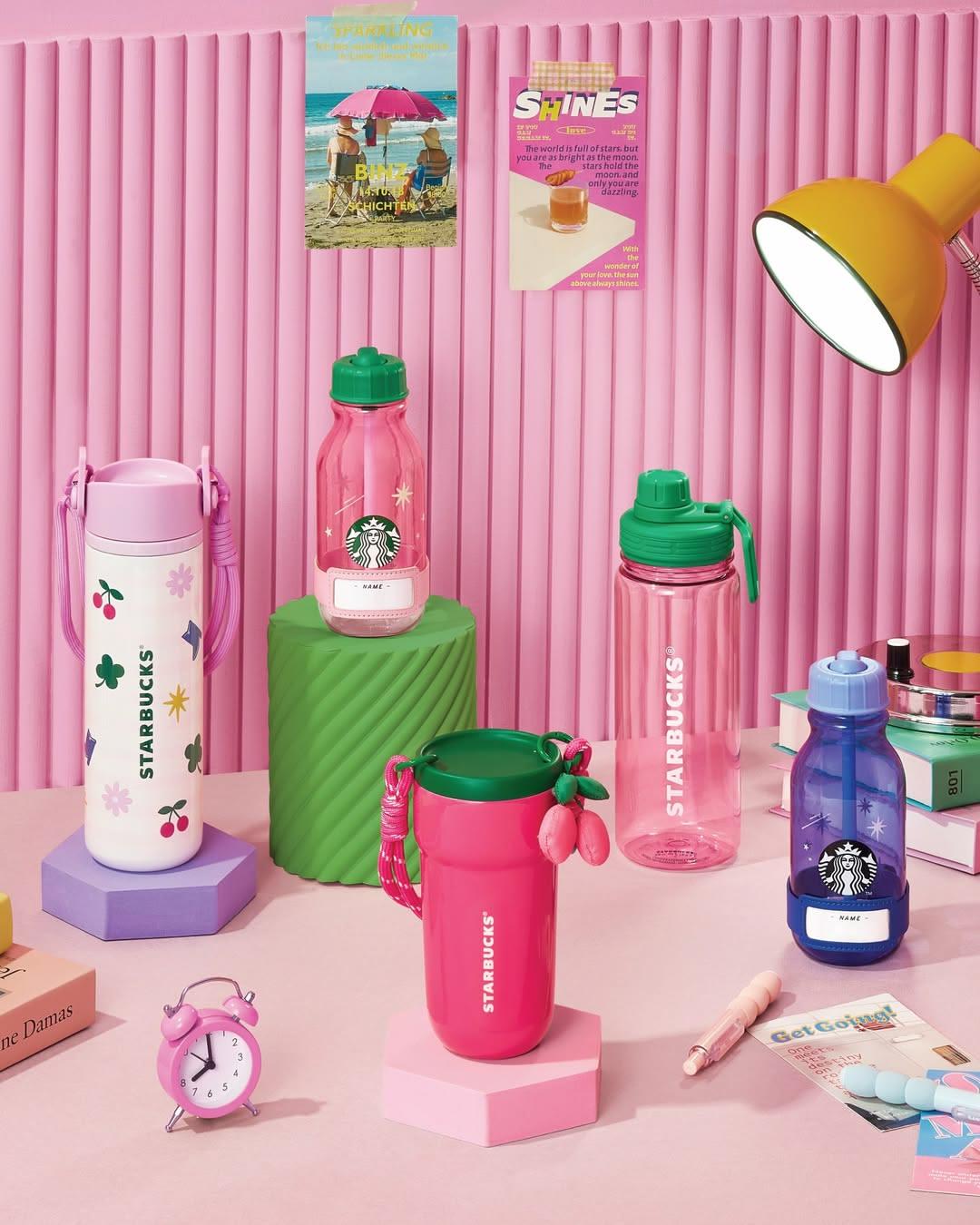 | 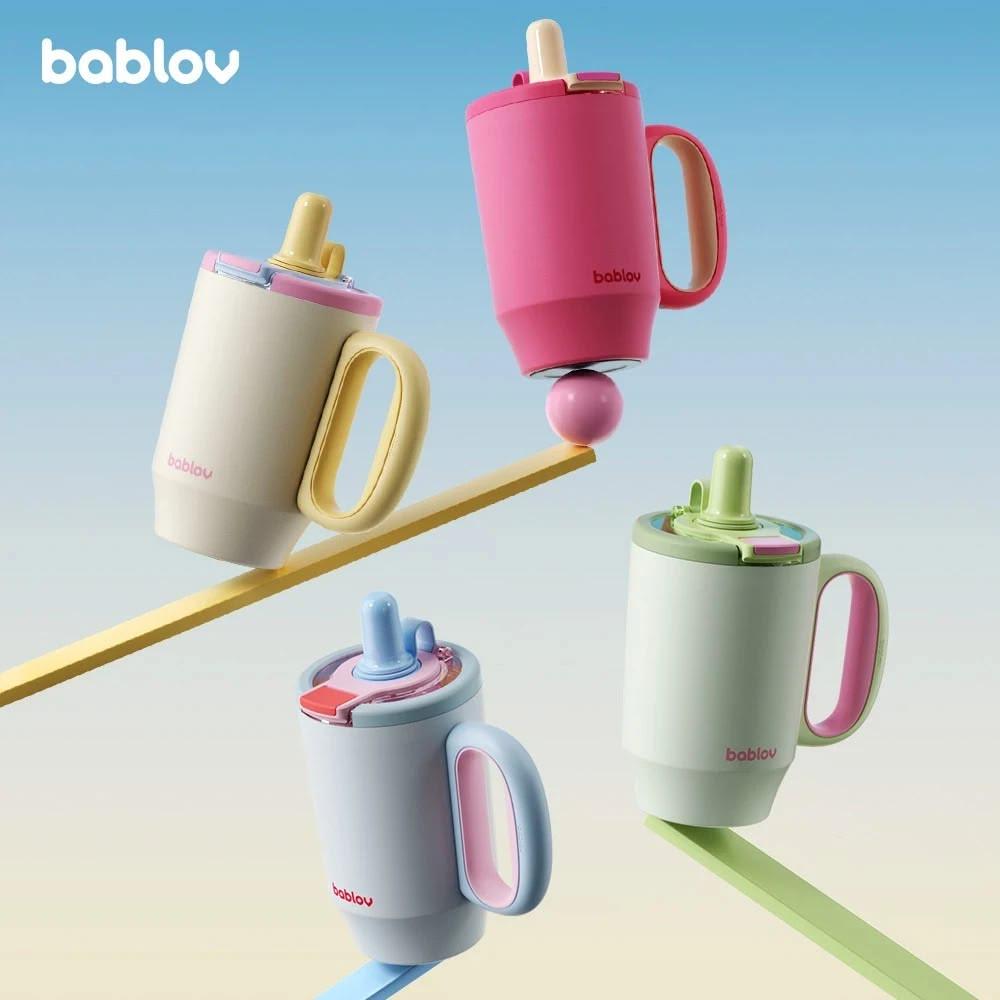 | 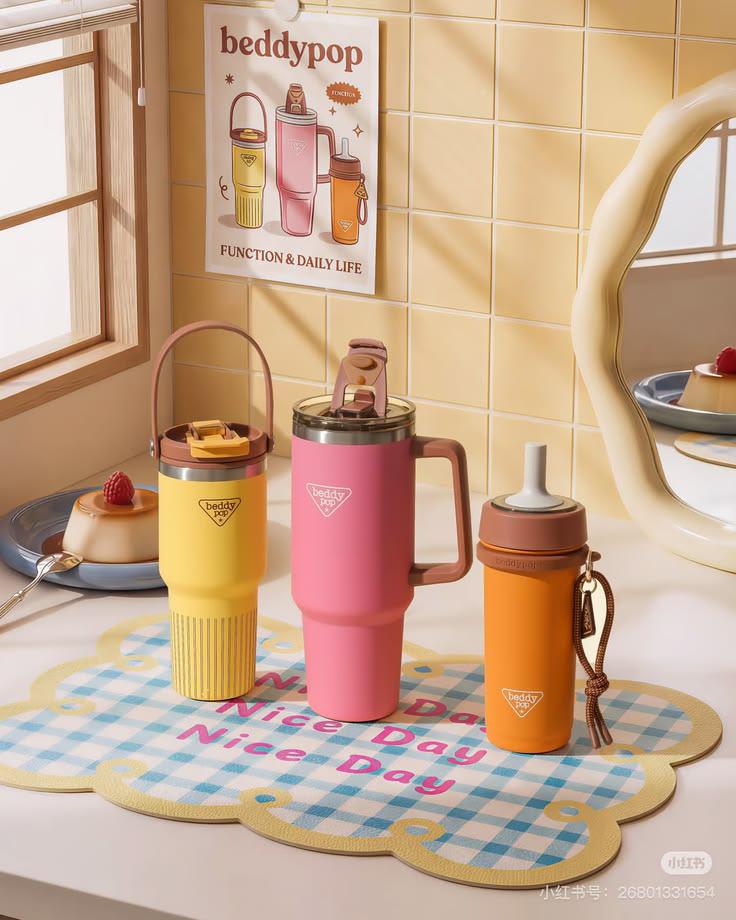 |
| Supplies the first group of visual information. | Supplies the second group of visual information. | Supplies the third group of visual information. |
Generated Result
| Qwen-Image 2.1 Multi-Reference Result |
|---|
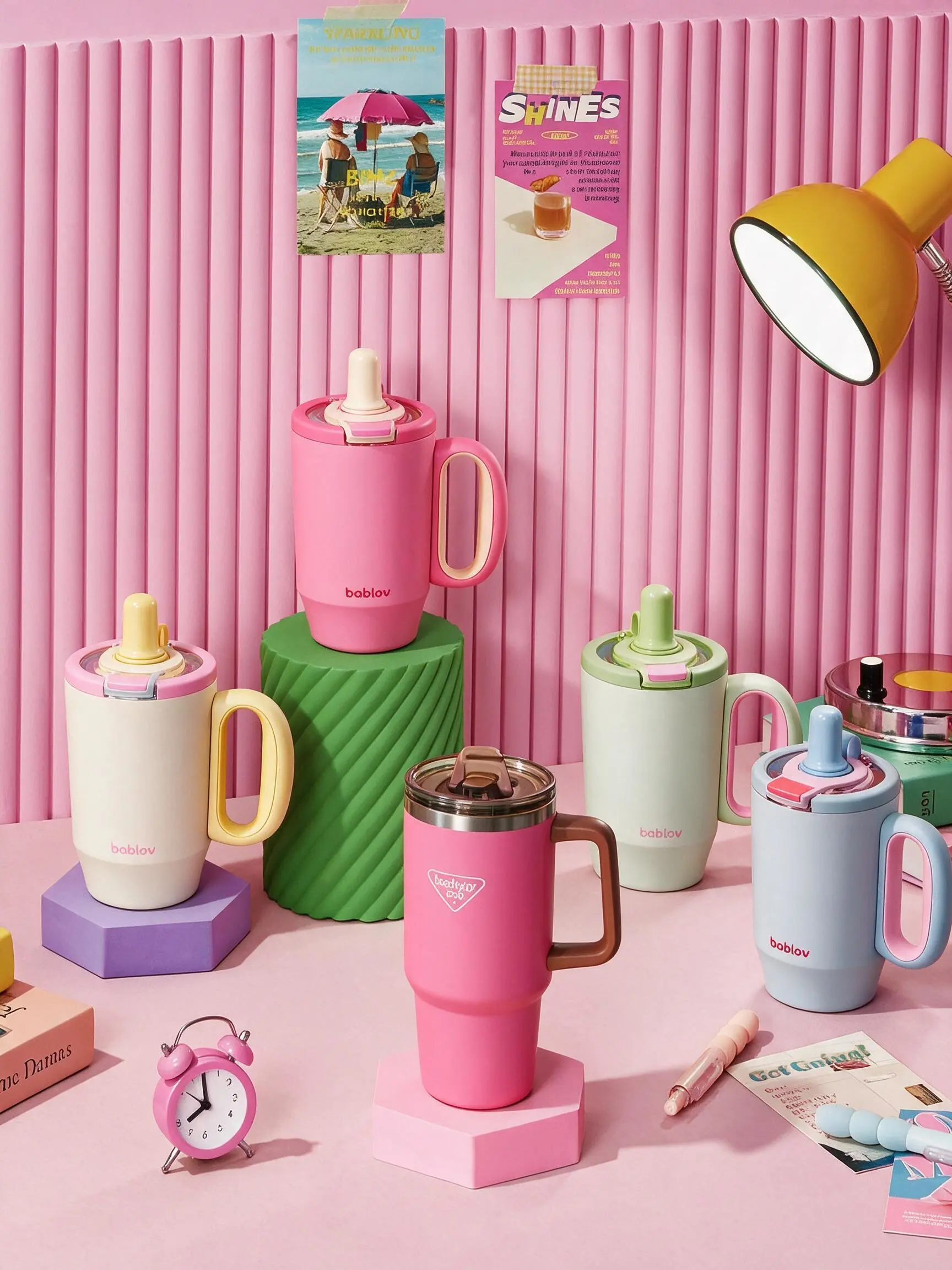 |
| The final image combines designated information from all three references. |