





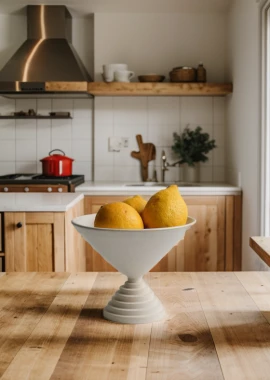


Nano Banana 2.1 Guide: Generate, Edit, and Export Images
Learn how to use Nano Banana 2.1 with the Gemini API for text-to-image generation, editing, multi-reference workflows, Search grounding, and 1K, 2K, or 4K exports.
Nano Banana 2.1 Guide: How to Generate, Edit, and Export Images in 1K, 2K, and 4K
Nano Banana 2.1 is more than a text-to-image model. It accepts text, images, video, and PDF inputs, supports conversational image editing, combines multiple reference images, controls aspect ratios and resolutions, and offers configurable thinking levels for complex tasks.
Google positions it as its latest high-efficiency model for image generation and conversational editing. Compared with Nano Banana 2, Google says the update improves visual quality, prompt adherence, multi-turn character consistency, text rendering, and performance across panoramic formats.
In this guide, you will use the Gemini API to:
- Generate images from text
- Edit images with visual references
- Export images in 1K, 2K, or 4K
- Control the output aspect ratio
- Configure the thinking level
- Combine multiple reference images
- Continue editing through multi-turn conversations
- Ground image generation with Google Search
- Generate new images from video content
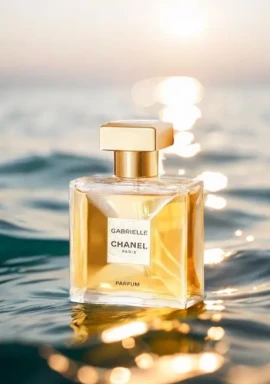
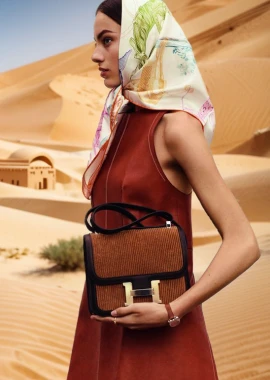
| 4K Image Generation | Video-to-Image Generation |
|---|---|
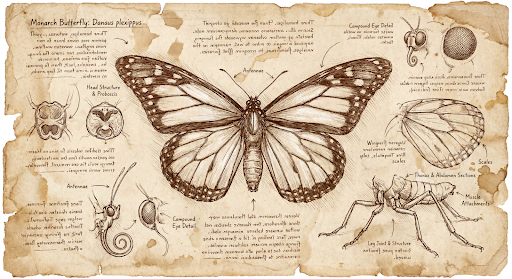 | 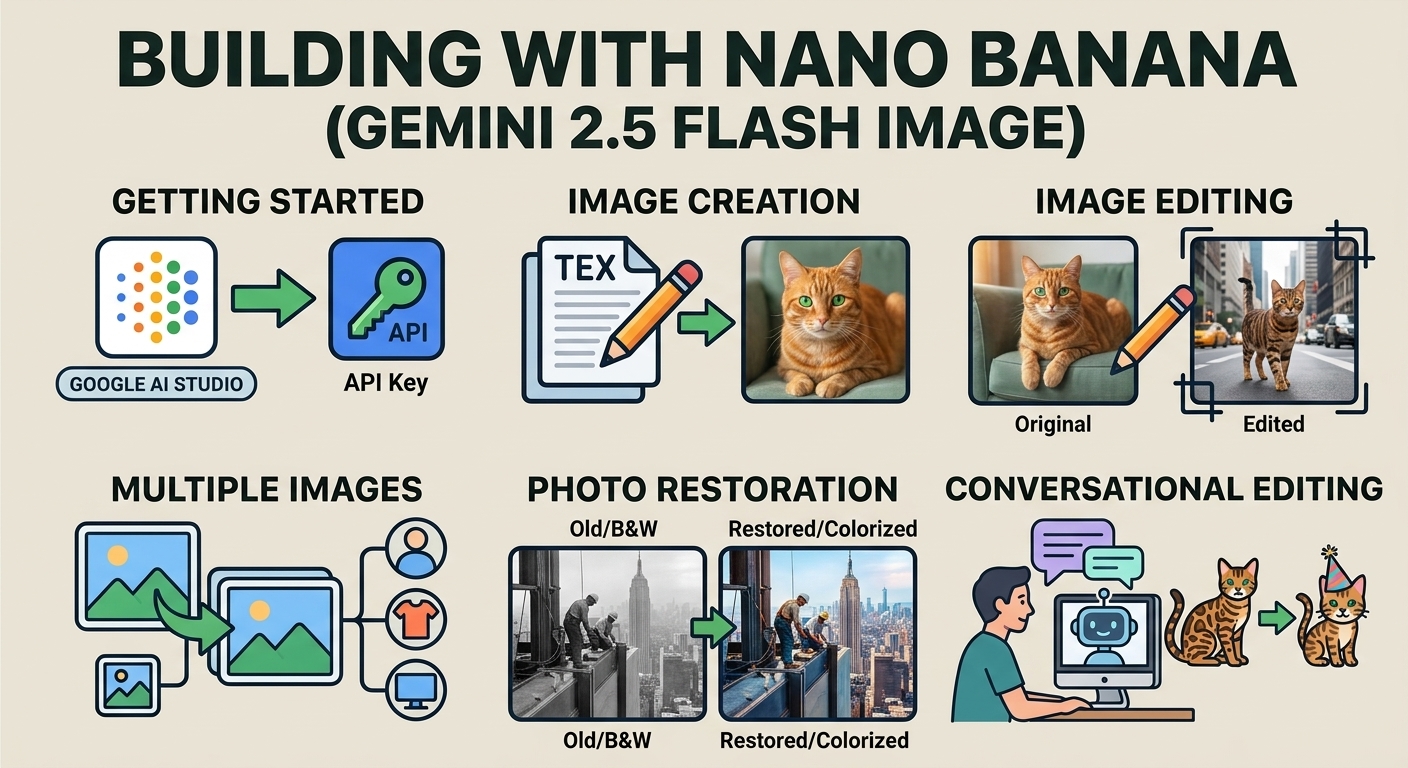 |
| An official high-resolution image-generation example. | An official example generated from the visual context of a YouTube video. |
What Is Nano Banana 2.1?
The official model code for Gemini Nano Banana 2.1 is:
gemini-nano-banana-2.1
According to the official Google model page, Nano Banana 2.1 is an update to Nano Banana 2 designed for:
- Image generation
- Conversational image editing
- Multi-reference image fusion
- Multi-turn image refinement
- Visual content containing text
- Infographics and marketing assets
- Character and object consistency
- Search-grounded image generation
The model was released on October 6, 2026, and is currently listed as a stable model.
Which Inputs and Outputs Does Nano Banana 2.1 Support?
| Item | Support |
|---|---|
| Text input | Supported |
| Image input | Supported |
| Video input | Supported |
| PDF input | Supported |
| Image output | Supported |
| Text output | Supported |
| Audio input | Not supported for image generation |
| Audio output | Not supported |
| Structured output | Not supported |
| Live API | Not supported |
| Batch API | Supported |
| Google Web Search grounding | Supported |
| Google Image Search grounding | Supported |
The model has an input limit of 131,072 tokens and an output limit of 32,768 tokens. See the Nano Banana 2.1 model page for current capabilities and restrictions.
What You Need Before Starting
To call the Nano Banana 2.1 API, prepare:
- A Google account
- A Gemini API key
- A Python or JavaScript environment
- The Google GenAI SDK
- A local directory for generated images
- Reference images that you have permission to use, if you plan to edit existing assets
The examples below use Python.
Step 1: Generate an Image from Text
Here is a basic text-to-image example:
from google import genai
import base64

client = genai.Client()

prompt = """
Create a premium commercial product photograph of a transparent
glass perfume bottle on a polished dark stone surface.

Use soft directional studio lighting, realistic reflections,
subtle shadows, a clean luxury composition, and no visible logo.
"""

interaction = client.interactions.create(
    model="gemini-nano-banana-2.1",
    input=prompt,
)

with open("generated_image.png", "wb") as output_file:
    output_file.write(
        base64.b64decode(interaction.output_image.data)
    )
This code:
- Calls
gemini-nano-banana-2.1 - Sends the text prompt as input
- Retrieves the returned image data
- Saves it as
generated_image.png
Step 2: Set the Aspect Ratio and Resolution
Nano Banana 2.1 generates 1K images by default. Use response_format when you need a specific aspect ratio or resolution:
from google import genai
import base64

client = genai.Client()

prompt = """
Create a cinematic ecommerce campaign image featuring a luxury
perfume bottle in the center, surrounded by deep red silk,
soft golden light, realistic glass reflections, and generous
negative space for advertising copy.
"""

interaction = client.interactions.create(
    model="gemini-nano-banana-2.1",
    input=prompt,
    response_format={
        "type": "image",
        "aspect_ratio": "16:9",
        "image_size": "2K",
    },
)

with open("campaign_16x9_2k.png", "wb") as output_file:
    output_file.write(
        base64.b64decode(interaction.output_image.data)
    )
Supported Resolutions
| Setting | Recommended Use |
|---|---|
1K | Prompt testing, composition previews, and standard online content |
2K | Marketing images and product visuals that require more detail |
4K | High-resolution assets, large-format layouts, and further design work |
Nano Banana 2.1 does not support 0.5K output.
Supported Aspect Ratios
| Format | Available Ratios |
|---|---|
| Square | 1:1 |
| Standard landscape | 3:2, 4:3, 5:4 |
| Standard portrait | 2:3, 3:4, 4:5 |
| Mobile portrait | 9:16 |
| Landscape video | 16:9 |
| Ultrawide | 21:9 |
| Panoramic | 1:4, 4:1, 1:8, 8:1 |
According to the Google image-generation documentation, Nano Banana 2.1 improves tiling artifacts that could appear in 2K and 4K panoramic formats.
This is an official update claim. It does not guarantee that every panoramic generation will be free of composition problems or repeated textures.
Step 3: Control the Thinking Level
Nano Banana 2.1 supports three thinking levels:
| Level | Recommended Use |
|---|---|
minimal | Simple generations, localized edits, or latency-sensitive tasks |
medium | The default setting for most generation and editing tasks |
high | Multi-element compositions, multiple references, and complex instructions |
Configure the thinking level with generation_config:
from google import genai
import base64

client = genai.Client()

interaction = client.interactions.create(
    model="gemini-nano-banana-2.1",
    input="""
    Create a futuristic city built inside a giant transparent
    glass bottle floating in space. Preserve physically plausible
    reflections, atmospheric depth, internal architecture, and
    a clearly readable silhouette.
    """,
    generation_config={
        "thinking_level": "high"
    },
)

with open("high_thinking_result.png", "wb") as output_file:
    output_file.write(
        base64.b64decode(interaction.output_image.data)
    )
Google describes thinking levels as a way to balance quality and latency. Choosing high does not guarantee that every result will better match your preferences, and it cannot compensate for an unclear prompt.
For ordinary tasks, start with the default medium setting. Try high when the composition is complex, multiple references are involved, or the model overlooks important relationships.
Step 4: Edit an Image
Nano Banana 2.1 can combine an image with text instructions to add, remove, or modify visual elements.
The official Google documentation demonstrates this workflow with a photograph of an orange cat and an edited result featuring a knitted wizard hat.
| Original Image | Edited Result |
|---|---|
 | 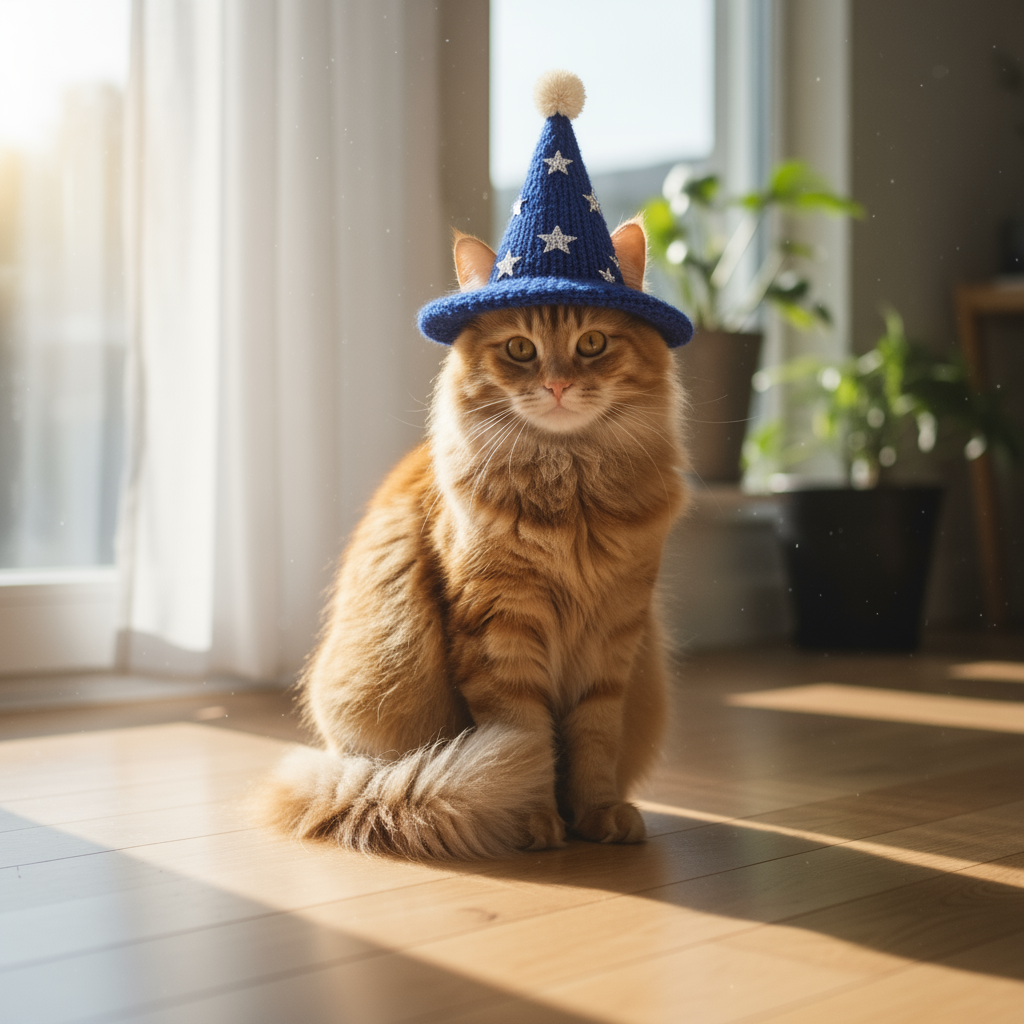 |
| A photograph of an orange cat | The original style is preserved while a knitted wizard hat is added |
Python structure:
from google import genai
import base64

client = genai.Client()

with open("/path/to/cat.png", "rb") as image_file:
    image_bytes = image_file.read()

interaction = client.interactions.create(
    model="gemini-nano-banana-2.1",
    input=[
        {
            "type": "text",
            "text": """
            Add a small knitted wizard hat to the cat.
            Preserve the cat's identity, fur texture, facial
            expression, original lighting, perspective, and
            background.
            """
        },
        {
            "type": "image",
            "data": base64.b64encode(image_bytes).decode("utf-8"),
            "mime_type": "image/png"
        }
    ],
)

with open("cat_with_hat.png", "wb") as output_file:
    output_file.write(
        base64.b64decode(interaction.output_image.data)
    )
Before uploading an image, confirm that you have the necessary rights to use and edit it.
Step 5: Combine Multiple Reference Images
Nano Banana 2.1 accepts up to 14 reference images in a single workflow.
Google further divides this capacity into:
- Up to four character images for character consistency
- Up to ten object images for object-detail fidelity
- Up to 14 total reference images
Multi-Reference Character Example
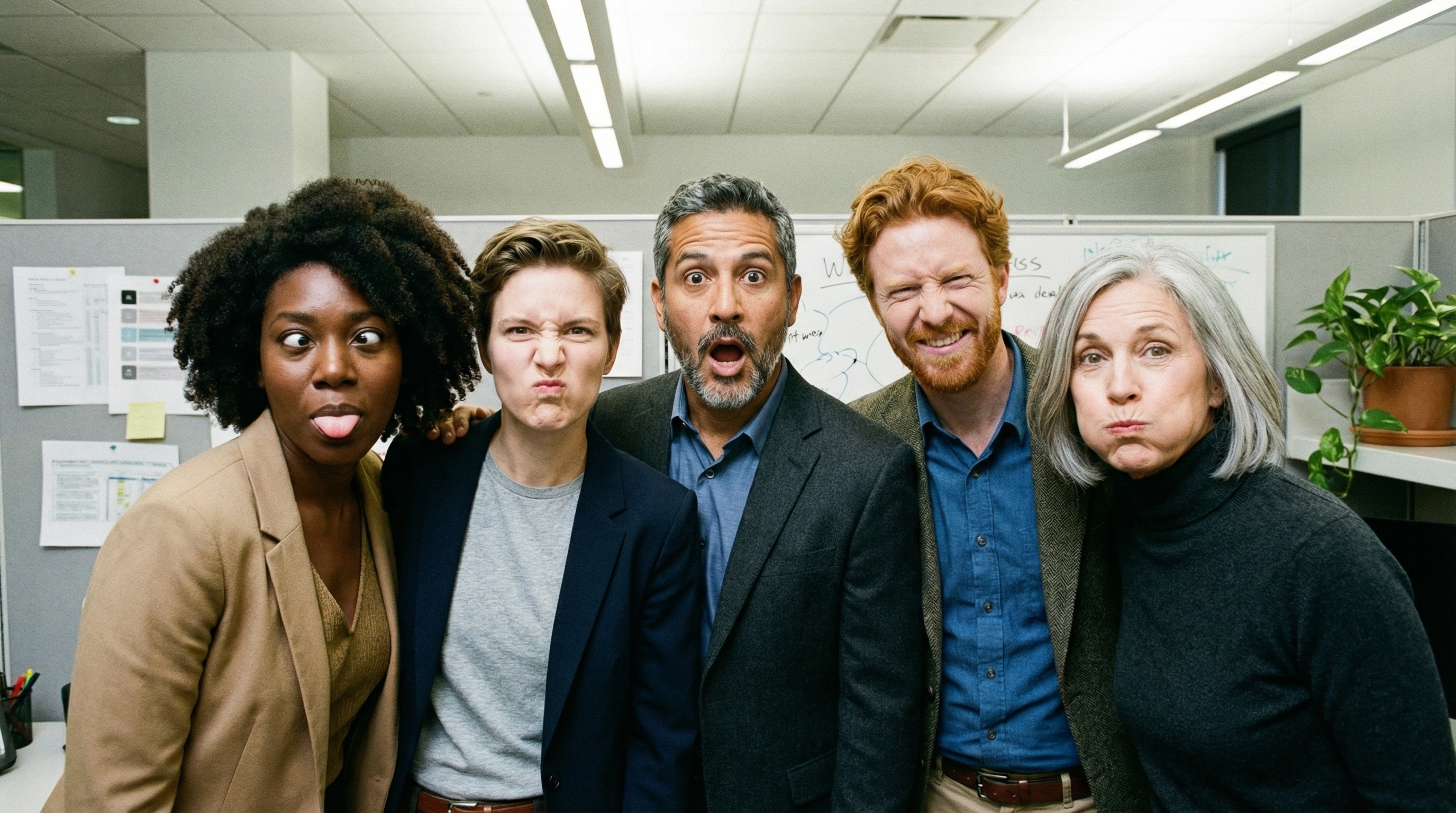
This example from the official documentation demonstrates a multi-character composition. A single result does not prove that every generation will consistently preserve four characters, so each output still requires inspection.
Multi-Image Ecommerce Example
| Clothing Reference | Model Reference | Combined Result |
|---|---|---|
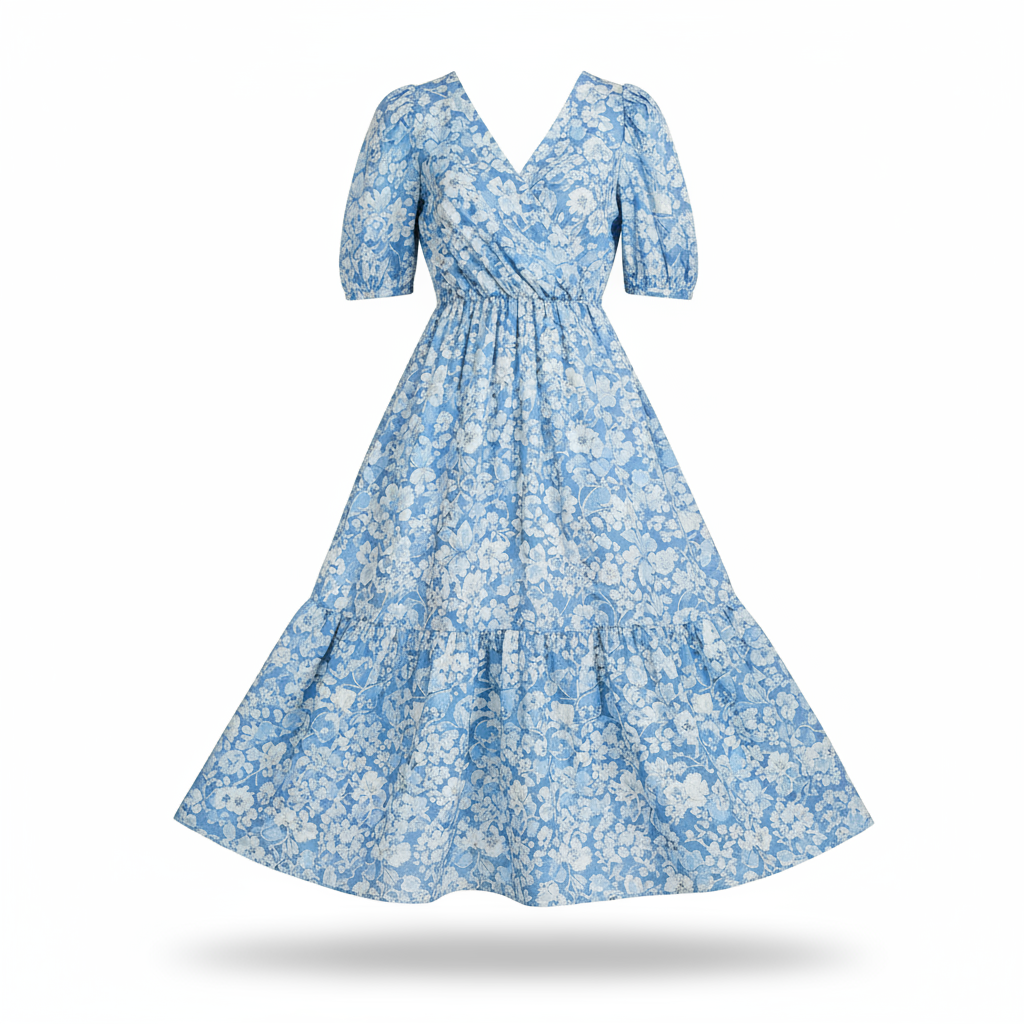 |  | 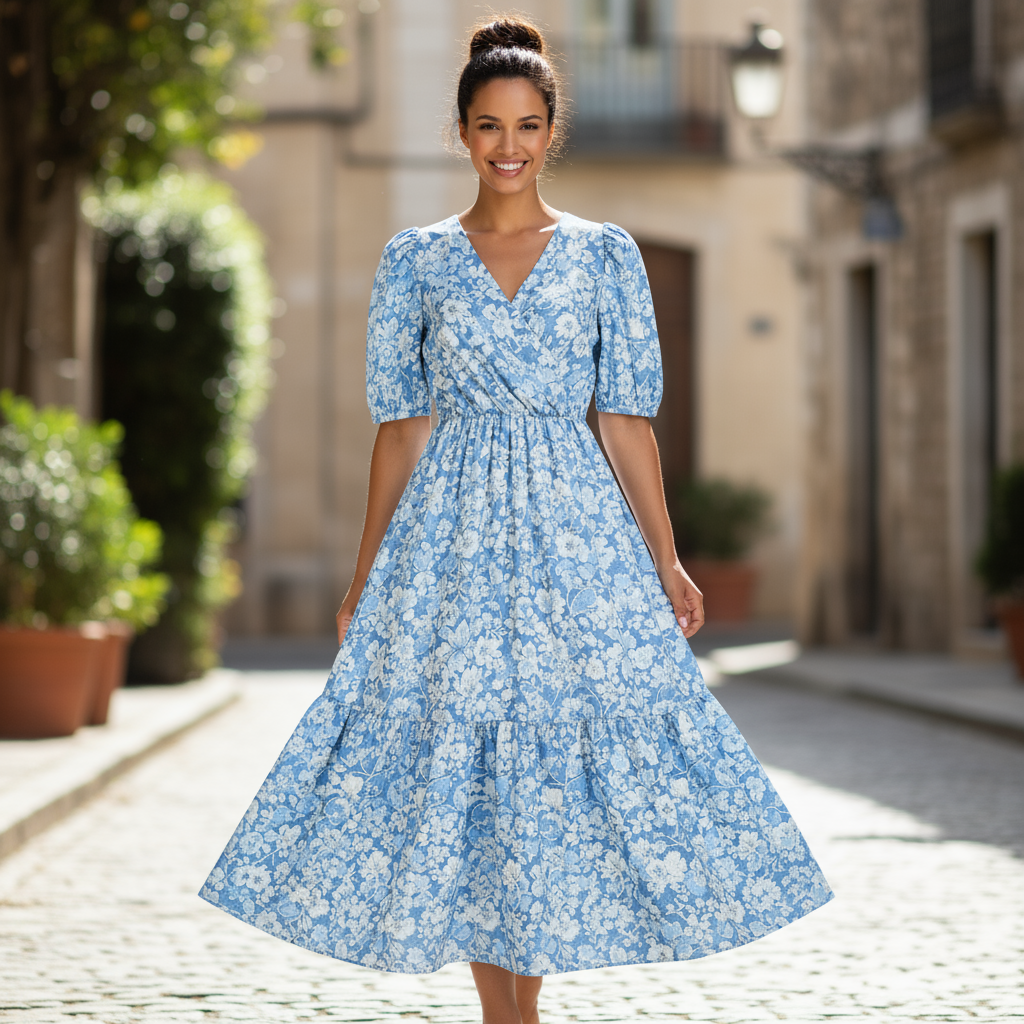 |
| A flat-lay image of a blue floral summer dress | A full-body female model reference | A complete ecommerce scene combining the model and dress |
Basic code structure:
from google import genai
import base64

client = genai.Client()

def encode_image(path):
    with open(path, "rb") as image_file:
        return base64.b64encode(
            image_file.read()
        ).decode("utf-8")

interaction = client.interactions.create(
    model="gemini-nano-banana-2.1",
    input=[
        {
            "type": "text",
            "text": """
            Dress the woman from the second reference image in
            the exact blue floral dress from the first reference.

            Preserve the model's facial identity, hairstyle,
            body proportions, and pose. Preserve the dress pattern,
            colors, neckline, sleeves, length, and fabric appearance.

            Present the result as a realistic outdoor fashion
            ecommerce photograph.
            """
        },
        {
            "type": "image",
            "data": encode_image("dress.png"),
            "mime_type": "image/png"
        },
        {
            "type": "image",
            "data": encode_image("model.png"),
            "mime_type": "image/png"
        }
    ],
    generation_config={
        "thinking_level": "high"
    },
    response_format={
        "type": "image",
        "aspect_ratio": "4:5",
        "image_size": "2K",
    },
)

with open("fashion_result.png", "wb") as output_file:
    output_file.write(
        base64.b64decode(interaction.output_image.data)
    )
Do not upload more references merely to reach the 14-image limit. Every image should have a defined role, such as character identity, clothing, product angle, material, or composition.
Step 6: Preserve Character Consistency Across Different Angles
Nano Banana 2.1 can use one character reference to generate additional viewing angles.
Google recommends including previously generated images in later prompts to improve consistency. For complex poses, you can also provide a separate pose reference.
| Original Character | Right-Side Profile | Front View |
|---|---|---|
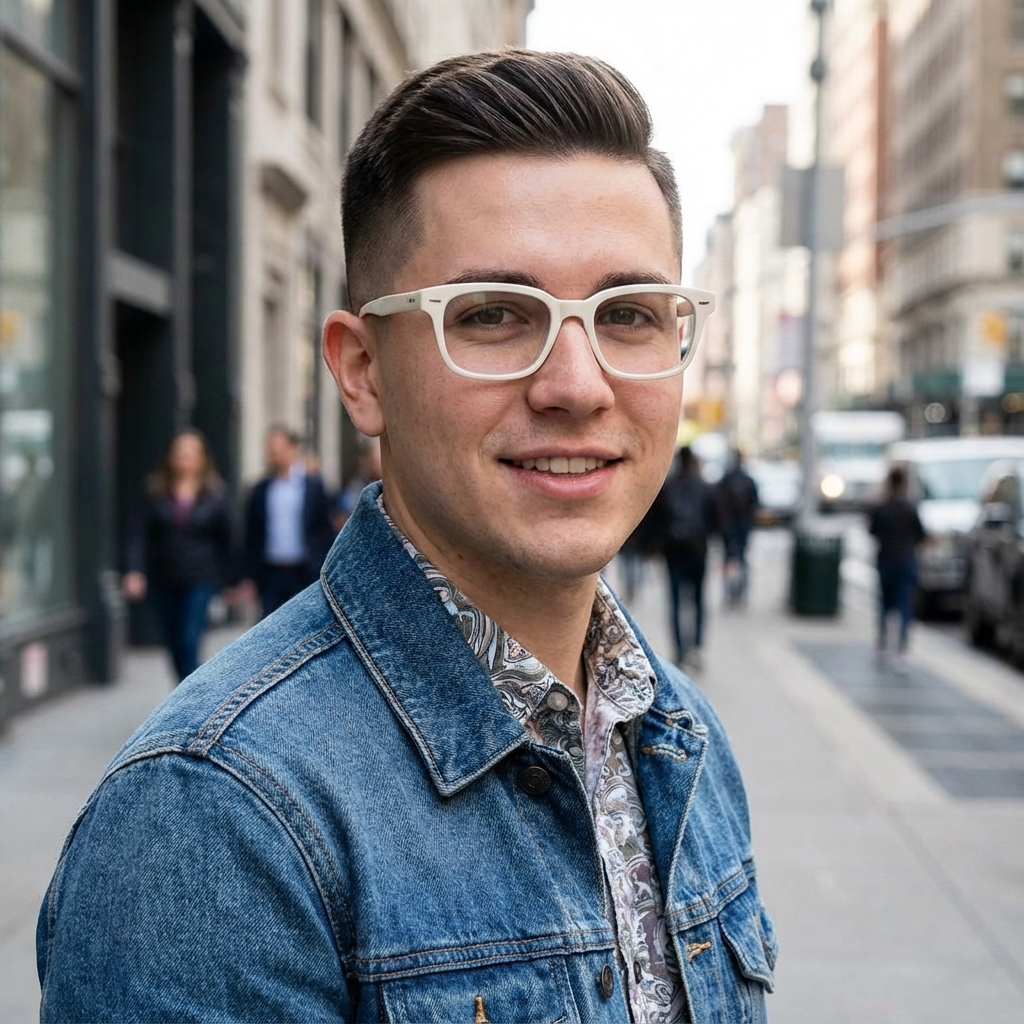 | 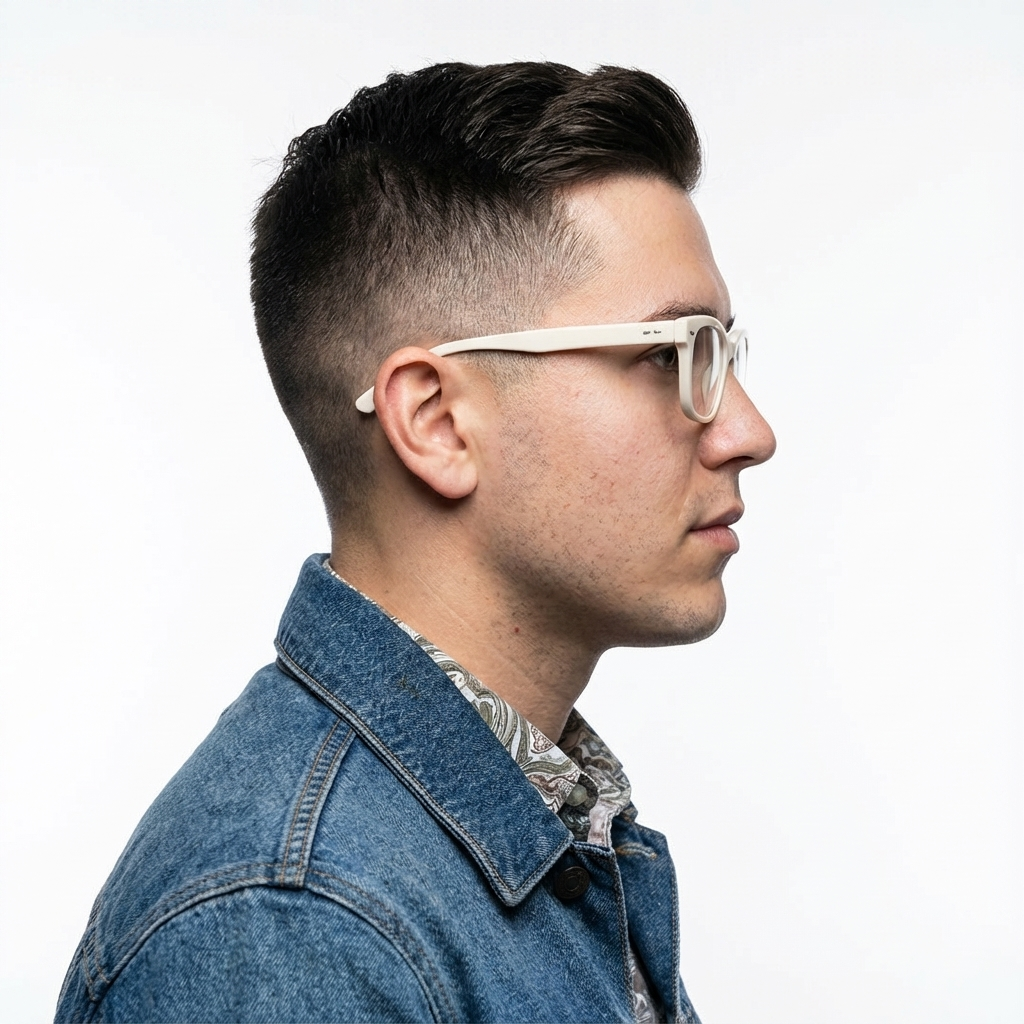 |  |
| Original identity reference | A profile preserving the face, glasses, and clothing | A front view preserving the same identity |
A prompt for changing the viewing angle can follow this structure:
Create a right-side profile view of the same exact adult man.

Preserve his facial identity, facial structure, white glasses,
hairstyle, skin tone, clothing, body proportions, photographic
style, background, and lighting.

Only change the camera angle. Do not redesign or beautify the person.
The key is not merely asking for a side view. The prompt must also lock every identity attribute that should remain unchanged.
Step 7: Continue Editing Through Multi-Turn Conversations
Nano Banana 2.1 can continue editing a previous result without requiring you to describe the entire image again.
In Google’s official example, the model first generates an English infographic about photosynthesis. A subsequent instruction changes its text to Spanish.
| First Generation: English | Second Edit: Spanish |
|---|---|
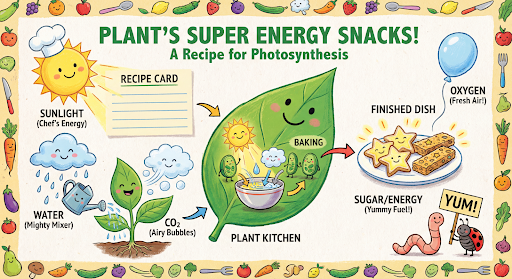 | 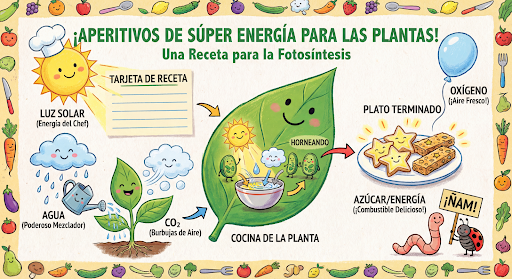 |
| The initial infographic structure and English content | The same layout with the text translated into Spanish |
The key parameter is:
previous_interaction_id
Create the first image:
from google import genai
import base64

client = genai.Client()

first_result = client.interactions.create(
    model="gemini-nano-banana-2.1",
    input="""
    Create a vibrant infographic that explains photosynthesis
    as if it were a recipe for a plant's favorite food.

    Show the ingredients: sunlight, water, and CO2.
    Show the finished dish as sugar and energy.
    Use a colorful children's cookbook style.
    """
)

with open("photosynthesis_en.png", "wb") as output_file:
    output_file.write(
        base64.b64decode(first_result.output_image.data)
    )
Continue the interaction:
second_result = client.interactions.create(
    model="gemini-nano-banana-2.1",
    input="""
    Update this infographic to be in Spanish.
    Do not change any other elements of the image.
    """,
    previous_interaction_id=first_result.id,
    response_format={
        "type": "image",
        "aspect_ratio": "16:9",
        "image_size": "2K",
    },
)

with open("photosynthesis_es.png", "wb") as output_file:
    output_file.write(
        base64.b64decode(second_result.output_image.data)
    )
A multi-turn edit should explain:
- What needs to change
- What must remain unchanged
This gives the model a clearer editing boundary than describing only the desired change.
Step 8: Use Google Search Grounding
Nano Banana 2.1 can use Google Web Search and Google Image Search results as grounding for image generation.
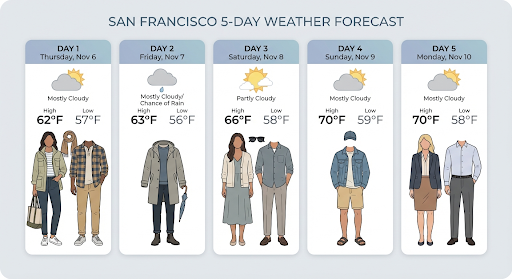
The official documentation demonstrates this workflow by generating a weather chart from time-sensitive information.
Enable web and image search:
from google import genai
import base64

client = genai.Client()

interaction = client.interactions.create(
    model="gemini-nano-banana-2.1",
    input="""
    Create a clear visual weather forecast for San Francisco
    covering the next five days. Use an easy-to-read horizontal
    infographic layout with weather icons and temperatures.
    """,
    tools=[
        {
            "type": "google_search",
            "search_types": [
                "web_search",
                "image_search"
            ]
        }
    ],
)

with open("grounded_weather.png", "wb") as output_file:
    output_file.write(
        base64.b64decode(interaction.output_image.data)
    )
Keep these limitations in mind:
- One request may trigger one or more search queries
- Search grounding may result in additional charges
- Real-world images of people returned by search cannot currently be used as image-generation references
- Image Search grounding requires compliance with Google’s citation and search-suggestion display requirements
- Grounding does not guarantee that every detail in the final image is completely accurate
Step 9: Inspect the Result
Review the following before approving an output:
| Check | What to Review |
|---|---|
| Prompt adherence | Whether the subject, action, environment, and composition appear |
| Reference preservation | Whether people, products, colors, and structures remain intact |
| Anatomy | Whether hands, feet, faces, and body proportions look natural |
| Text rendering | Spelling, hierarchy, line breaks, and information relationships |
| Composition | Whether subjects are cropped or overlap |
| Aspect ratio | Whether the output matches the requested ratio |
| Resolution | Whether the target image size was used |
| Multi-turn editing | Whether unchanged areas were modified |
| Object count | Whether objects are missing or duplicated |
| Search-grounded information | Whether time-sensitive data needs manual verification |
| Watermark | Whether the presence of SynthID is understood |
Google states that the model may not always return the exact number of requested images or objects. Any task involving precise quantities still requires manual inspection.
How to Write More Reliable Prompts
Be Specific
Instead of:
Create fantasy armor.
Write:
Create ornate silver elven plate armor engraved with leaf motifs,
featuring a high collar and shoulder pieces shaped like falcon wings.
Explain the Intended Use
Instead of simply asking the model to design a poster, specify its purpose:
Create a vertical product launch poster for a premium minimalist
skincare brand, designed for an ecommerce homepage.
Break Complex Tasks into Steps
For a complex scene, describe the sequence:
- Create the background
- Position the primary subject
- Add supporting elements
- Define the lighting and camera
- Identify the details that must remain unchanged
Use Photography and Cinematography Language
For example:
wide-angle shotmacro shoteye-level cameralow-angle perspectiveshallow depth of fieldsoft studio lightingcinematic rim lighting
Use Positive Semantic Descriptions
Instead of:
No cars.
Write:
An empty and quiet street with no signs of traffic.
Frequently Asked Questions
Why Does Text Still Contain Spelling Errors?
For text-heavy images:
- Generate and confirm the copy first
- Ask the model to place the approved text into the image
- Check spelling, line breaks, and hierarchy
- Correct localized errors through multi-turn editing
Which Thinking Level Should I Use?
- Simple edits: start with
minimal - Standard generation: use the default
medium - Multi-reference or complex compositions: try
high
These are configuration guidelines, not fixed quality guarantees.
When Should I Use 4K?
Consider 4K when you need large-format output, detailed inspection, or further layout and design work.
For prompt and composition testing, begin with 1K or 2K. Generate the 4K version after confirming the direction to avoid unnecessary testing costs.
Current Nano Banana 2.1 Limitations
- Image generation does not support audio input
- 0.5K image output is not supported
- The model may not return the exact requested number of images
- Search grounding cannot use real-world images of people returned by search
- URL context is not supported
- Live API is not supported
- Function calling is not supported
- Structured output is not supported
- All generated images include SynthID
- Multi-character scenes, text, and complex compositions still require manual review
- API pricing and service limits may change and should be rechecked before publication
Its Core Value Goes Beyond One-Off Text-to-Image Generation
Nano Banana 2.1 combines text, image, video, and PDF inputs with multi-turn editing, multi-reference composition, character consistency, and high-resolution output in one workflow.
For quick previews, start with 1K and the default medium thinking level. For complex multi-image composition, character consistency, or commercial assets, gradually add references, increase the thinking level where necessary, and move to 2K or 4K only after confirming the composition.