











How to Use Seedance 2.5: Skip Long Prompts and Create a 30-Second Product Usage Video
Learn how to turn a product image and details screenshot into a 30-second Seedance 2.5 usage-guide video for ecommerce.
What if your entire product-video brief were just two images?
In this example, the only core references are a clean product image of the Cosori TurboBlaze Air Fryer and a screenshot of its product details. Instead of writing a long, shot-by-shot prompt, the workflow gives Seedance 2.5 the visual product reference and the information it needs to understand the product, then asks for a 30-second product usage guide.
The goal is simple: turn existing ecommerce assets into a video that shows what the product is, how it is used, and what the finished result looks like.
What This Seedance 2.5 Product Video Needs to Accomplish
A useful product video needs to do more than animate a static product photo. In a short sequence, viewers should be able to understand:
- what the product is;
- how it fits into a real use scenario;
- the basic usage flow; and
- what the final outcome looks like.
For the Cosori TurboBlaze Air Fryer, that means keeping the video centered on a recognizable air-fryer workflow rather than trying to squeeze every specification from the product page into 30 seconds.
The two inputs have different jobs: the product image establishes the visual subject, while the product-details screenshot supplies useful context about the product and its features.
Prepare Two Inputs: One Product Image and One Details Screenshot
1. Product Image: Define the Visual Subject
The first reference is a clear product image of the Cosori TurboBlaze Air Fryer.
It gives the model a visual reference for elements such as the overall shape, dark-gray finish, front drawer, handle, control panel, and COSORI branding visible in the supplied image.
For this kind of workflow, use a product image where:
- the full product is easy to see;
- important design features are unobstructed; and
- the product is separated clearly from the background.
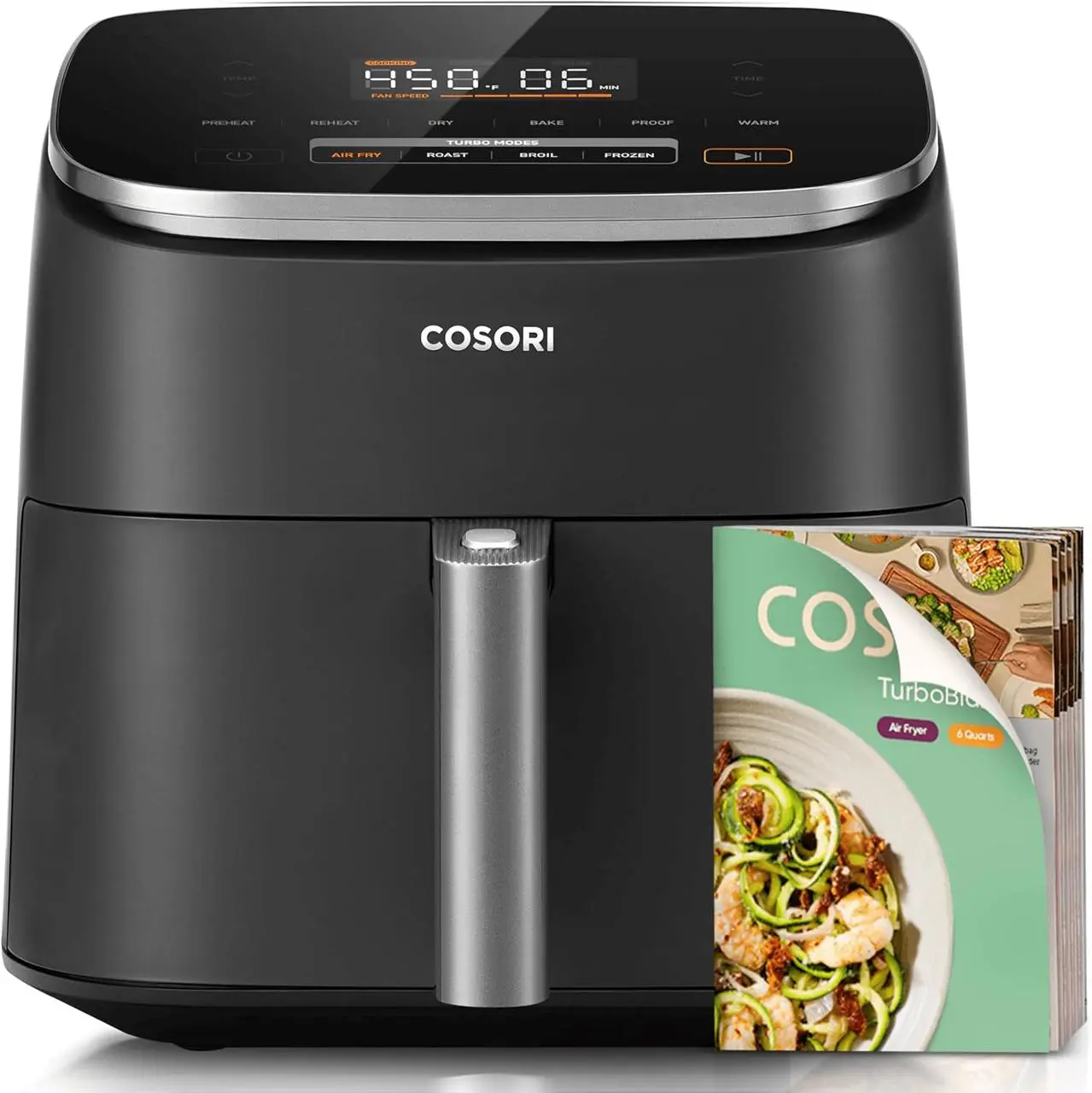
The first image gives Seedance 2.5 a clear visual reference for the product.
2. Product Details Screenshot: Add Feature and Usage Context
The second reference is the product-details screenshot.
In this example, it contains information such as:
- 6-quart capacity;
- temperature control;
- five fan-speed levels;
- four Turbo modes; and
- a PFAS-free ceramic coating.
Rather than manually rewriting every detail into a long prompt, the screenshot keeps relevant product information available as part of the reference set.
Not every specification needs to appear in the final video. The purpose of this input is to give the generation more context for building a believable product demonstration around the supplied product.
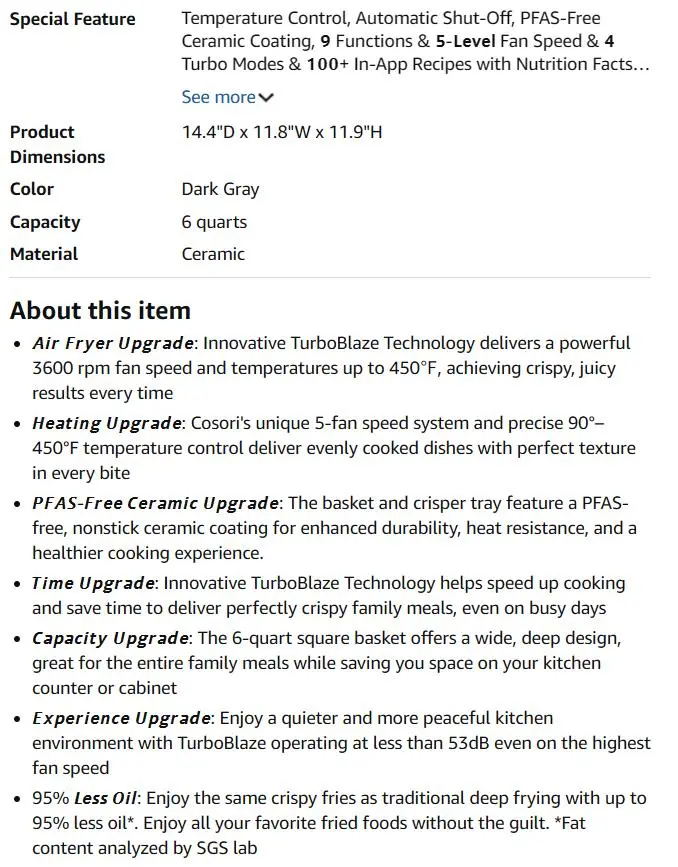
The second image provides product information that can help guide the usage scenario.
Build the 30-Second Video from the Two References
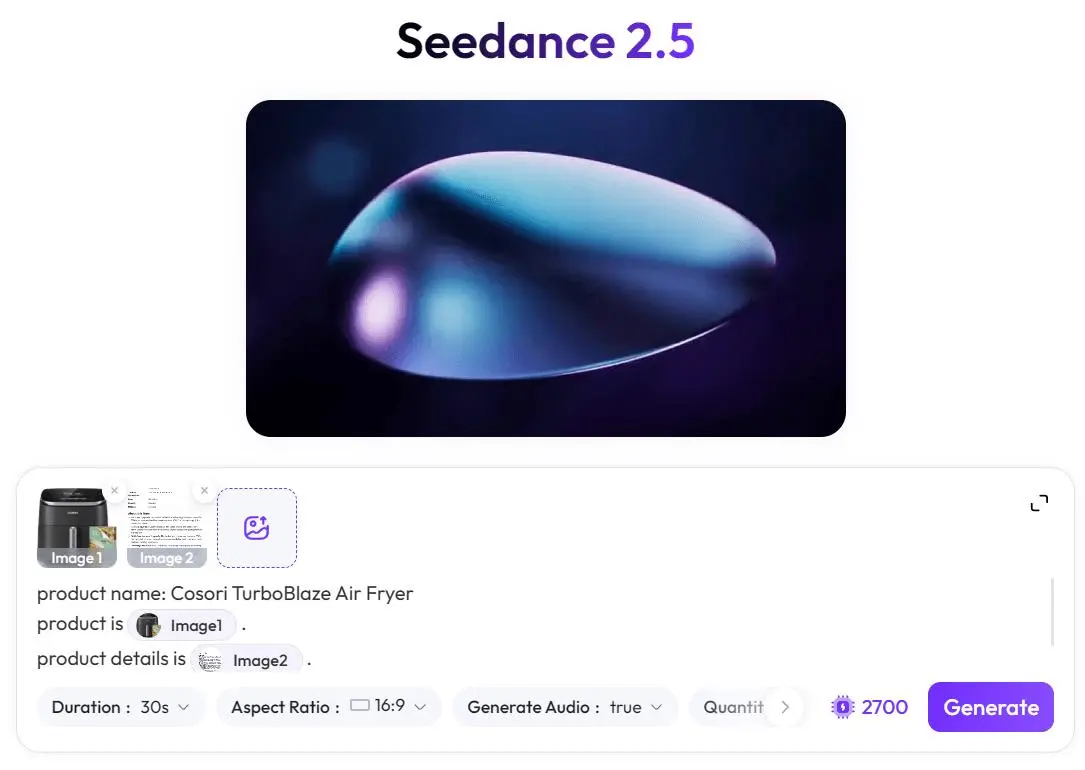
Seedance 2.5 is designed for native 30-second single-segment generation and supports image, video, and audio references. For this example, however, the workflow intentionally keeps the input minimal: two images with two clearly defined roles.
Open Seedance 2.5 on WeShop AI:
https://www.weshop.ai/apps/seedance-2.5
Use the inputs as follows:
- Image 1: the product image;
- Image 2: the product-details screenshot;
- Product:
Cosori TurboBlaze Air Fryer; - Output goal: a 30-second product usage guide.
The key is to describe the desired result rather than writing every camera move and shot transition.
A concise instruction can follow this structure:
Create a 30-second product usage guide video for the Cosori TurboBlaze Air Fryer.

Use the product image as the main visual reference and the product details screenshot as the feature and usage reference.

Show a complete user flow: introduce the air fryer, place it in a kitchen use scenario, demonstrate the main usage process, highlight relevant product features naturally, and finish with the cooking result.

Keep the product appearance consistent with the reference image.
This is deliberately different from a long production prompt. The two references already carry much of the product-specific information, so the text prompt can concentrate on the video task and sequence.
Turn Static Ecommerce Assets into a Complete Usage Flow
A 30-second product usage guide needs progression. For this air-fryer example, a practical structure is:
-
Introduce the product Establish the air fryer clearly so viewers immediately know what the video is about.
-
Move into a kitchen-use scenario Place the product in context instead of leaving it as an isolated ecommerce packshot.
-
Show the main usage action The video should make the operating sequence understandable—for example, preparing the product for cooking, interacting with it, and moving through the cooking process.
-
Bring product features into the demonstration Relevant information from the details reference can support the scene without turning the video into a list of specifications.
-
End on the finished result Close the sequence with a clear outcome so the viewer sees the progression from product to use to result.
This is what makes the workflow useful for ecommerce content: the source material begins as static product information, but the output is structured around an actual product-use story.
Review the Generated Product Video
Once the generation is complete, review it as a product demonstration rather than judging it only on visual style.
1. Check Product Appearance
Compare the generated air fryer with the original product image.
Pay attention to:
- overall color and shape;
- front drawer and handle;
- control-panel placement; and
- visible branding and distinctive product details.
AI-generated product visuals can change details between frames, so any commercially important product information should be reviewed by a person before publishing.
2. Check Whether the Usage Flow Is Easy to Follow
The sequence should feel like one understandable process rather than a collection of unrelated product shots.
Ask:
- Can viewers tell what happens first?
- Is the main product interaction understandable?
- Does the sequence progress naturally toward the result?
3. Check How Product Features Are Presented
The details screenshot contains more information than a 30-second video needs.
Prioritize features that contribute directly to the usage story instead of forcing every specification into the video. A feature is more useful when viewers can understand its relevance from the scene.
4. Check the Final Result
The ending should complete the product story and make the result of using the air fryer clear.
You can try it directly using the tool on the right.
Before using generated content commercially, verify product claims, generated product details, uploaded-asset rights, and any required AI-content disclosure.
From Two Static Images to a Product Story
The useful part of this workflow is not simply that two images can become moving footage. It is that each image has a clear job: one tells Seedance 2.5 what the product looks like, while the other gives it information about what the product does.
That gives you a lightweight starting point for turning existing ecommerce assets into a 30-second product usage story without building a long production prompt first.
If you already have a product image and product information, open Seedance 2.5 on WeShop AI and use those two assets as the starting point for your next product video.