









How to Use GPT Image 2 for Makeup Transfer in WeShop
Learn how to use GPT Image 2 in WeShop to transfer makeup styles from a reference image to your selfie in just a few clicks. Step-by-step guide with prompt examples.
Have you ever seen a beautiful makeup look online and wished you could try it on yourself, but felt unsure about your makeup skills?
With GPT Image 2 now available in WeShop, recreating your favorite makeup style has become much easier.
Instead of spending hours watching tutorials, buying new products, or worrying about whether the look will suit your face, you can now use AI to transfer a makeup style from a reference image directly onto your own selfie.
Whether it is a clean girl makeup look, a soft Korean idol style, a bold party glam look, or a delicate Douyin-inspired makeup style, GPT Image 2 can help you preview the result in just a few clicks.
How to Use GPT Image 2 for Makeup Transfer in WeShop
The process is very simple. You only need two images:
- One makeup reference image
- One selfie
Step 1: Find a Makeup Reference
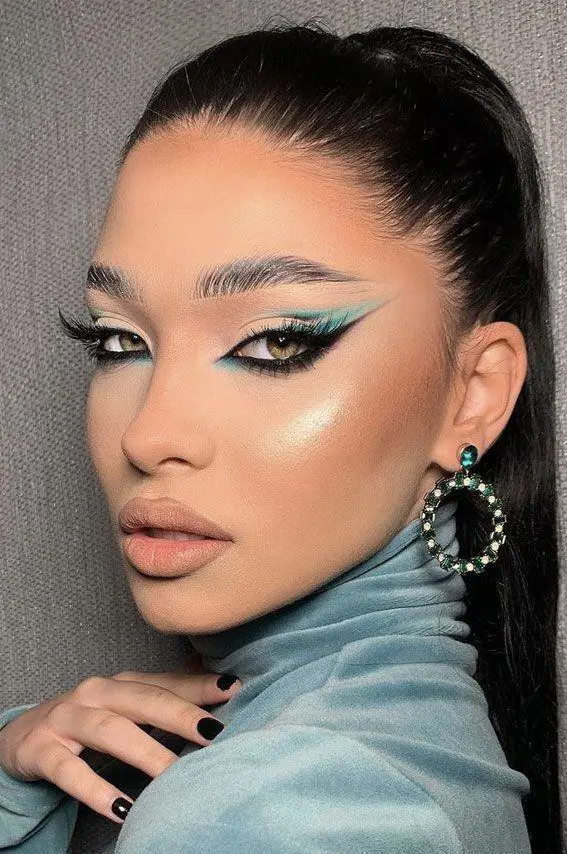
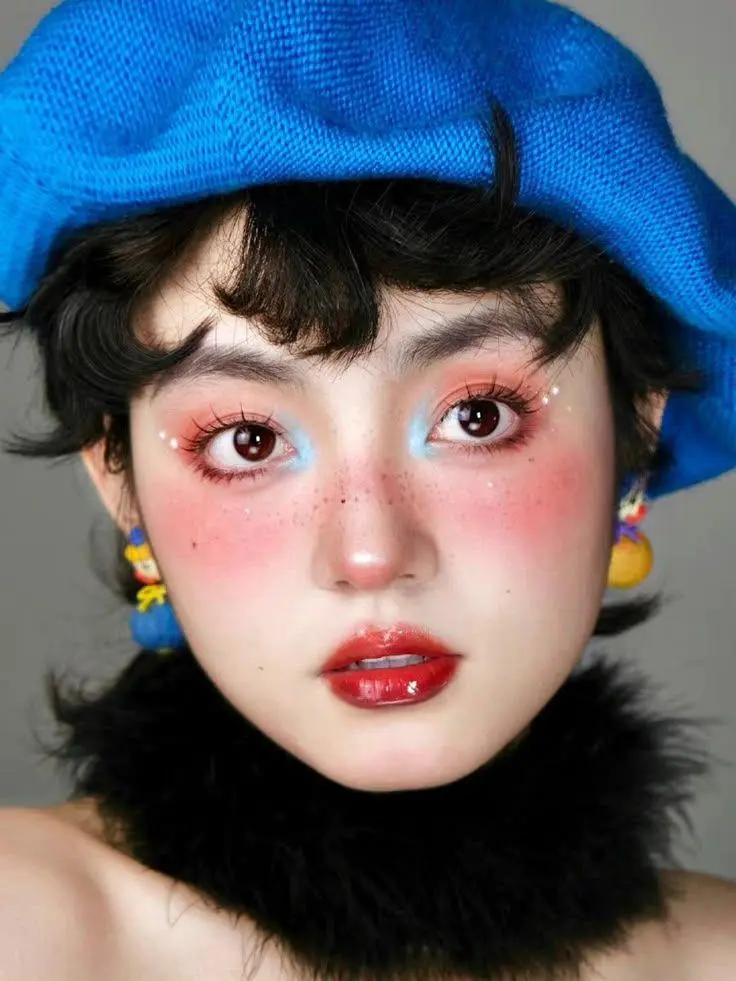
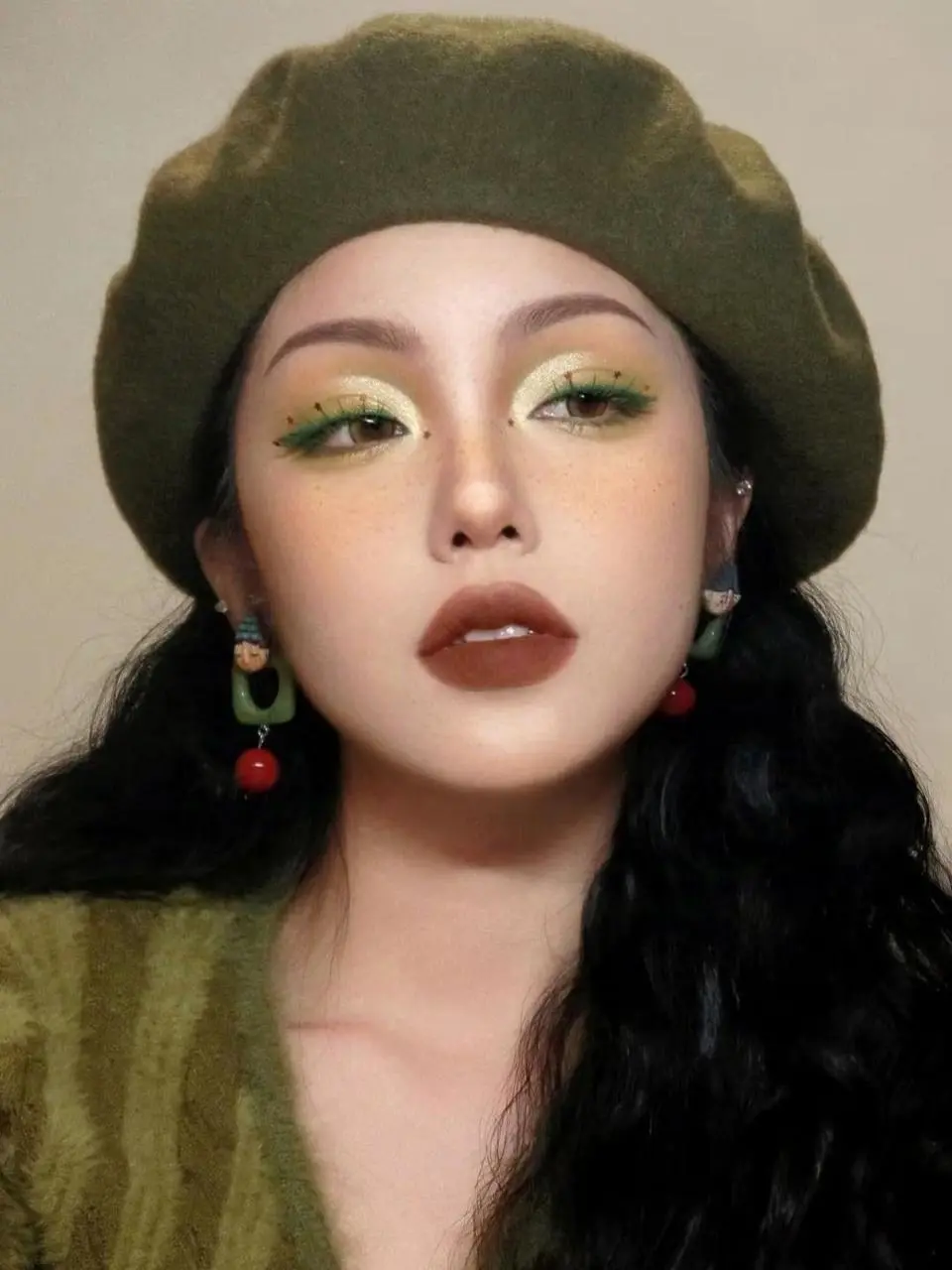
First, find a makeup look you like.
You can screenshot a makeup style from:
- Xiaohongshu
- TikTok
- Any other social media or beauty platform
It could be a soft daily makeup look, a glossy idol makeup style, a smoky eye look, or a full glam transformation.
Step 2: Select GPT Image 2 in WeShop
Next, open WeShop and go to the image generation area.
Under the input box, select GPT Image 2 as the image generation model.
Step 3: Upload Your Images
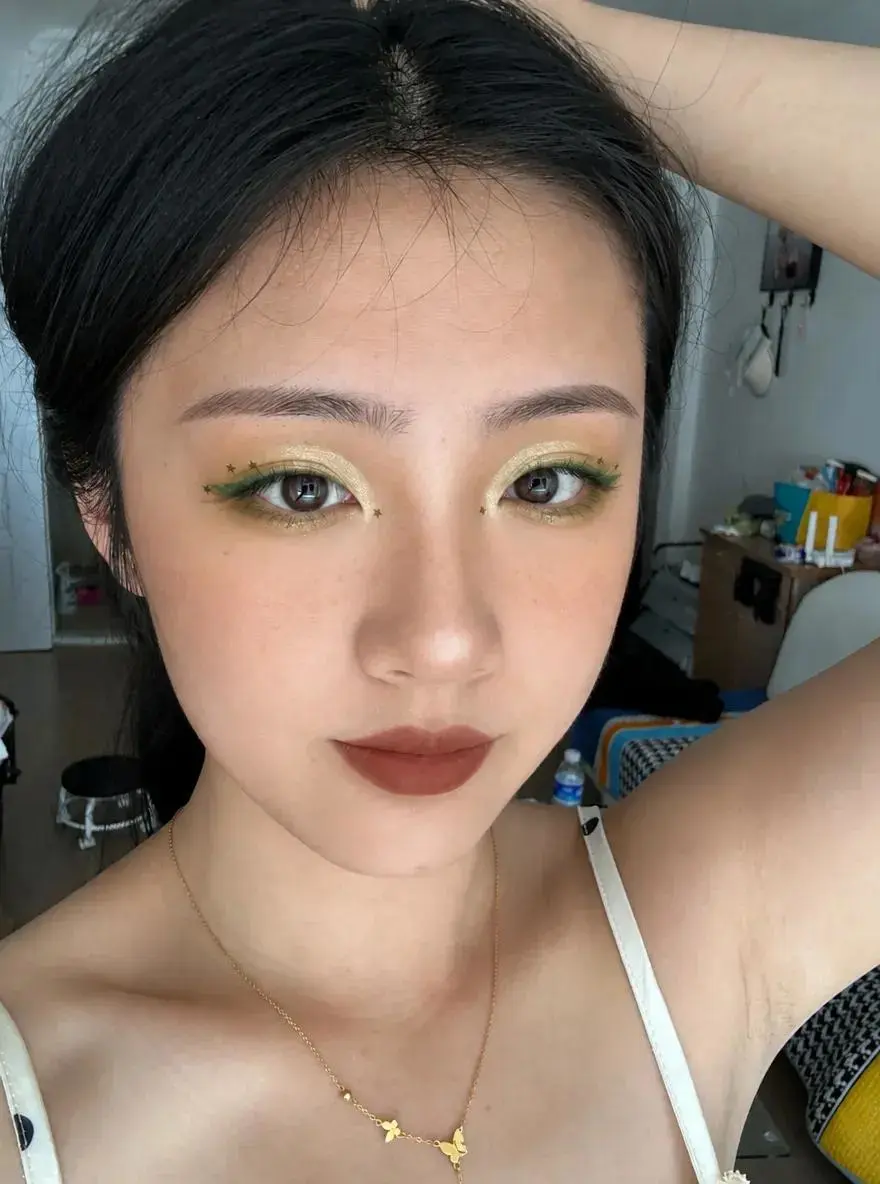
Upload the makeup reference image and your selfie together.
Make sure the makeup reference clearly shows the face and important makeup details, including:
- Eyeshadow
- Eyeliner
- Eyelashes
- Blush
- Contour
- Lip color
- Overall skin and makeup finish
For better results, use clear, well-lit images where the face is not heavily covered or obstructed.
Step 4: Enter a Makeup Transfer Prompt
After uploading the images, enter a clear prompt explaining what you want to change and what should remain unchanged.
You can use the following prompt:
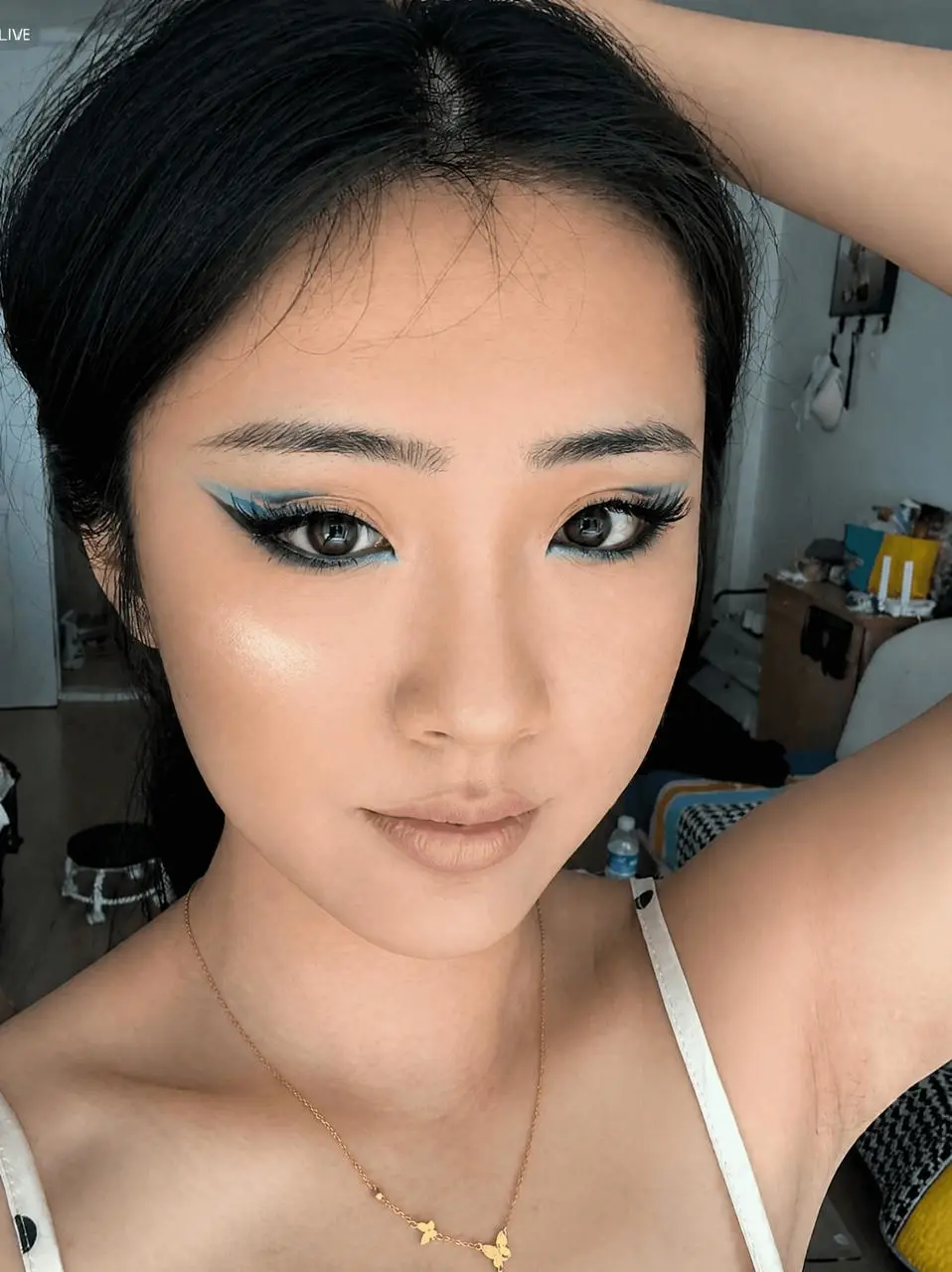
Transfer the makeup style from Image 1 to the person in Image 2. Only change the makeup on the person in Image 2, including eyeshadow, eyeliner, lashes, blush, contour, lip color, and overall makeup finish. Keep the person’s facial features, identity, hairstyle, clothing, pose, lighting, background, and photo style unchanged.
Step 5: Generate the Result
Finally, click Generate and wait for the result.
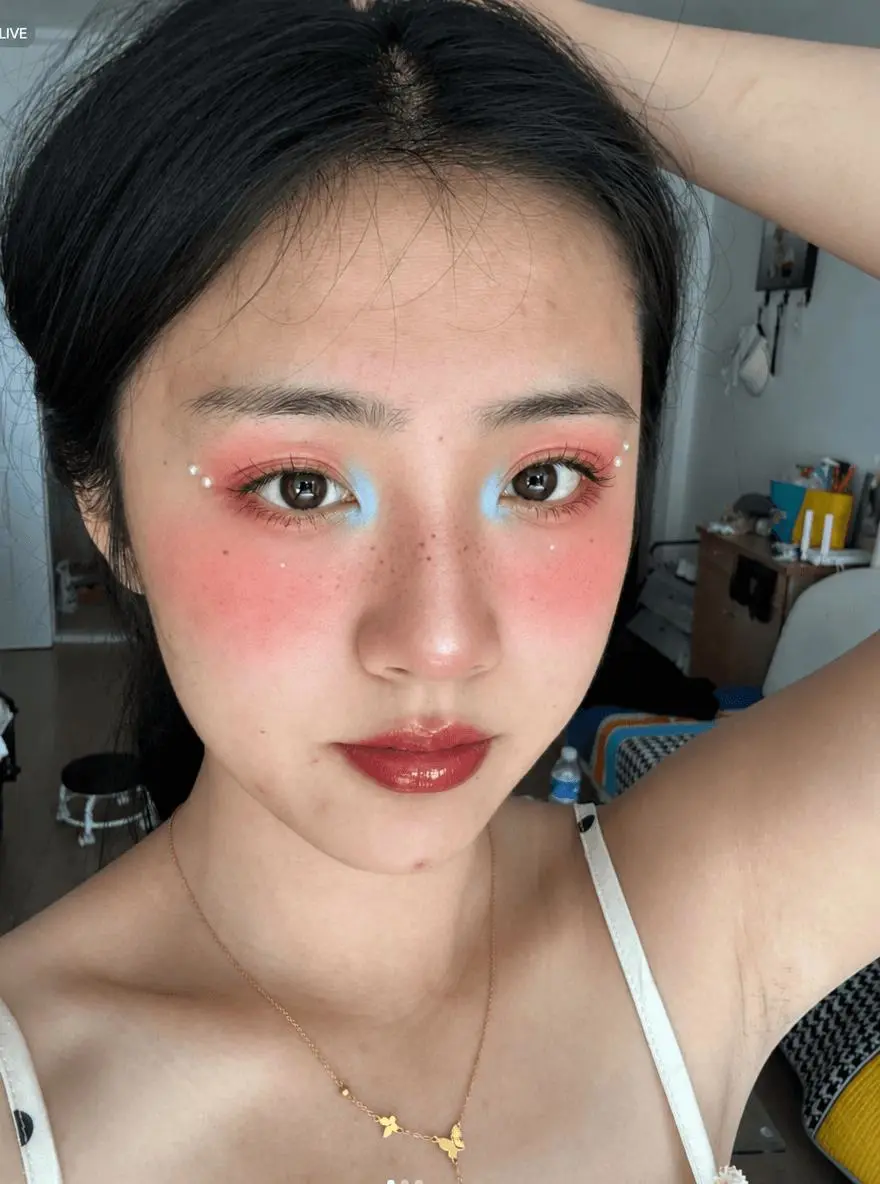
GPT Image 2 will apply the makeup style from your reference image to your selfie while keeping the rest of the photo as consistent as possible.
Try Makeup Transfer in WeShop
With WeShop, you can easily use GPT Image 2 for one-click makeup transfer without switching between different tools.
The complete workflow only takes a few steps:
- Choose GPT Image 2 under the input box.
- Upload your makeup reference image and selfie.
- Enter your makeup transfer prompt.
- Click Generate.
- Preview your new makeup look.
|
|
|
|
|
|
Create More Than Makeup Looks With WeShop
Beyond GPT Image 2, WeShop also integrates a wide range of powerful image and video generation models.
You can use WeShop to create:
- AI portraits
- Product images
- Fashion visuals
- AI-generated videos
- E-commerce content
- Creative social media assets
- Beauty and lifestyle content
- Marketing visuals
Instead of switching between multiple AI platforms, you can explore different image and video models through one flexible creative workflow.
Whether you want to test a new makeup style, create beauty content, generate product visuals, or explore the latest AI image and video models, WeShop makes the process simple and accessible.
Start Creating With WeShop
Try it now and see how far one image prompt can take your look.