







GPT Image 2.5 Guide: Flare vs Sunburst, Features, and Specs
Learn how GPT Image 2.5 Flare and Sunburst compare for image generation, editing, reference fidelity, transparent assets, text rendering, and production workflows.
GPT Image 2.5 Guide: Flare vs Sunburst, Features, and Specs
Changing the background of an AI-generated image is easy. Changing the background while keeping the product, subject, text, lighting, and composition under control is much harder.
This is the problem GPT Image 2.5 is designed to address.
Released by OpenAI on September 8, 2026, GPT Image 2.5 is a new image-generation and editing model family built around two options:
- GPT Image 2.5 Flare for fast, everyday image creation and iteration
- GPT Image 2.5 Sunburst for higher-precision generation and complex editing
Both models accept text and image inputs and produce image outputs. They can generate new visuals from written descriptions, edit uploaded images, preserve selected areas, render text, create transparent-background assets, and support iterative workflows across multiple turns.
What Is GPT Image 2.5?
GPT Image 2.5 is OpenAI’s image-generation and editing model family for turning natural-language instructions and reference images into new visual assets.
Unlike a conventional text-to-image workflow, it is not limited to creating an entirely new picture from a blank canvas. It can also work with an existing image and apply targeted changes such as:
- Replacing a background
- Removing an object
- Changing product colors
- Updating clothing
- Adjusting lighting or time of day
- Adding or replacing text
- Creating a transparent background
- Preserving a person or product from a reference
- Continuing an edit through several rounds
This makes GPT Image 2.5 relevant to ecommerce, advertising, social media, product design, presentations, educational graphics, and creative concept development.
The most important improvement is not simply image quality. It is the ability to make a requested change while keeping unrelated parts of the image more stable.
GPT Image 2.5 Flare vs Sunburst
OpenAI offers two GPT Image 2.5 models with different priorities.
| Feature | GPT Image 2.5 Flare | GPT Image 2.5 Sunburst |
|---|---|---|
| Primary advantage | Speed and efficient iteration | Maximum capability and editing precision |
| Best for | Everyday generation, drafts, variations, and high-volume workflows | Detailed compositions, difficult edits, and final-quality assets |
| Input | Text and images | Text and images |
| Output | Images | Images |
| Editing support | Yes | Yes |
| Transparent backgrounds | Yes | Yes |
| Multi-turn workflows | Yes | Yes |
| Recommended use | Rapid exploration and routine production | Complex or detail-sensitive production |
Choose Flare When Speed Matters
GPT Image 2.5 Flare is described by OpenAI as its fastest high-quality image model for everyday work.
It is suitable for:
- Testing several visual directions
- Producing social media variations
- Generating ecommerce lifestyle images
- Creating early campaign concepts
- Iterating on background, lighting, or color
- Building larger batches of routine assets
- Developing drafts before final refinement
According to OpenAI, Flare provides higher image quality than GPT Image 2 while reducing latency by 50%.
That does not mean every Flare result will be immediately publication-ready. Complex typography, precise layouts, hands, reflections, and small product details should still be reviewed.
Choose Sunburst When Precision Matters
GPT Image 2.5 Sunburst is the more capable model in the family.
It is better suited to:
- Detailed product-image editing
- Complex compositions
- Reference-sensitive character work
- Packaging and advertising concepts
- Images containing important text
- Multi-step edits where earlier changes must remain stable
- Final assets that require closer visual control
Sunburst may be the stronger choice when an incorrect logo, garment detail, product shape, or label could make the result unusable.
A practical workflow is to explore concepts with Flare and move the strongest direction to Sunburst when additional precision is necessary.
Create Images from a Written Description
The simplest GPT Image 2.5 workflow begins with a text prompt.
A short prompt may identify the subject, but a production-ready prompt should usually describe:
- The main subject
- The environment
- The composition
- The camera angle
- The lighting
- The materials and textures
- The intended use
- The elements that must not appear
For example, an ecommerce seller could use the following prompt to create a perfume product image.
Copy-Ready Prompt
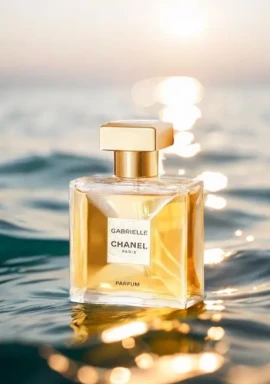
Create a premium ecommerce product photograph of one transparent rectangular perfume bottle filled with pale amber liquid.

Place the bottle on a light beige limestone pedestal against a warm neutral background. Use soft late-afternoon sunlight entering from the left, creating a controlled highlight through the glass and a natural shadow on the surface.

Use a vertical 4:5 composition. Keep the bottle centered in the lower-middle area with clean negative space above it for optional campaign copy.

Show realistic glass thickness, liquid refraction, subtle imperfections in the stone, and accurate contact shadows.

Do not add flowers, jewelry, ribbons, extra bottles, brand text, labels, logos, watermarks, or decorative props.
Generated Image 01
| GPT Image 2.5 Text-to-Image Result |
|---|
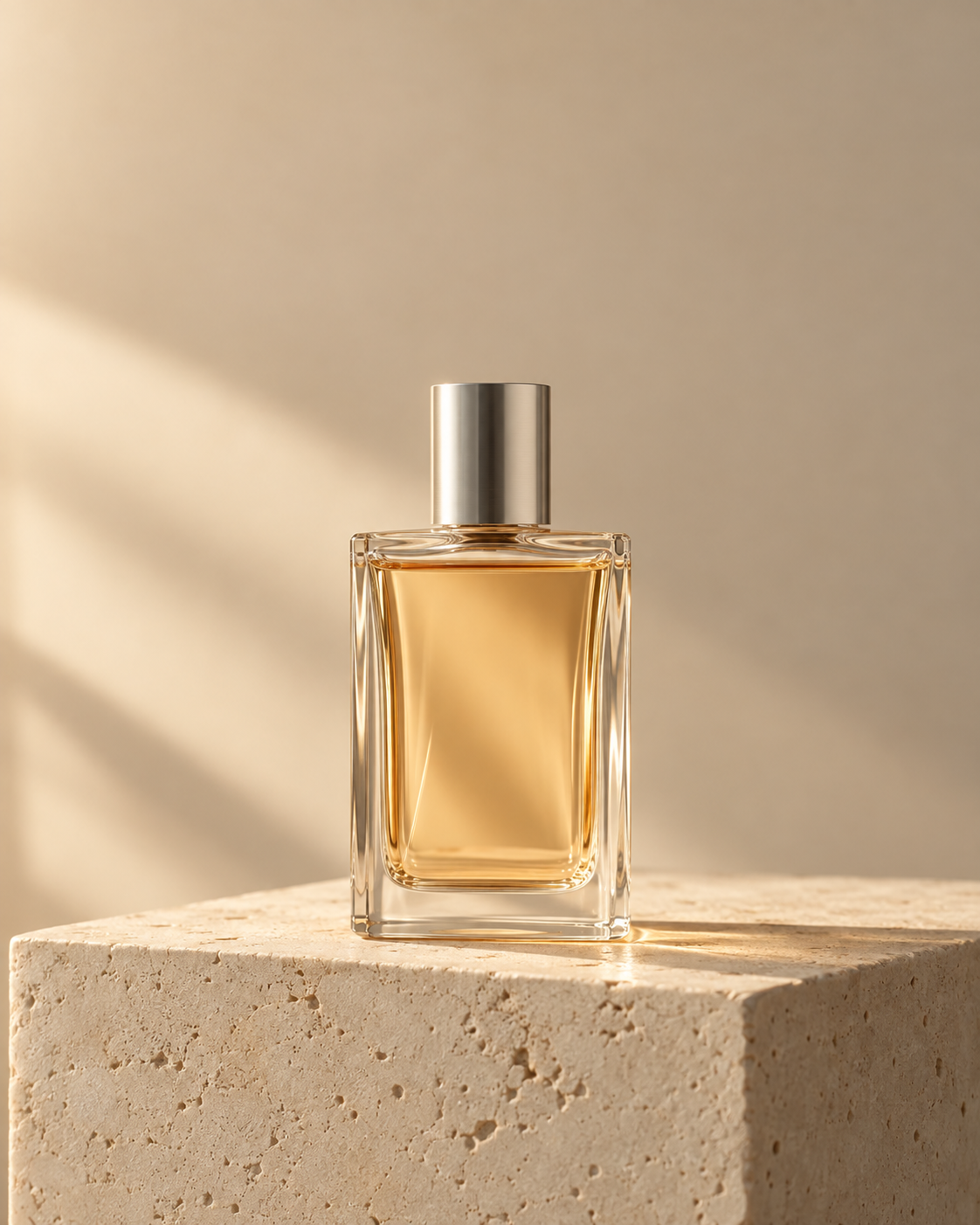 |
This prompt separates the subject, environment, lighting, composition, materials, and negative constraints.
It gives the model fewer opportunities to invent unnecessary objects or branding.
Generate a New Image from a Reference Photo
A reference image gives the model information that would be difficult to describe perfectly with words.
Depending on the task, a reference can provide:
- Product shape
- Packaging structure
- Character identity
- Facial features
- Clothing
- Color palette
- Artistic style
- Composition
- Material details
The prompt should clearly explain the role of the uploaded image.
For example, if the uploaded photo is a product reference, state that it should control the product’s appearance rather than the entire composition.
Copy-Ready Prompt
Use the uploaded product photo as the visual reference for the product only.

Place the same product in a clean, premium living-room environment with light oak furniture, warm white walls, soft natural daylight, and restrained neutral styling.

Preserve the product’s original shape, proportions, color, material, surface details, buttons, openings, and construction.

Change only the environment, lighting, camera composition, and surrounding lifestyle context.

Do not redesign the product. Do not add a logo, label, button, attachment, accessory, pattern, or feature that is not visible in the reference image.

Use a vertical 4:5 composition suitable for a Shopify product page and social media advertising.
Generated Image 02
| GPT Image 2.5 Reference-Based Product Result |
|---|
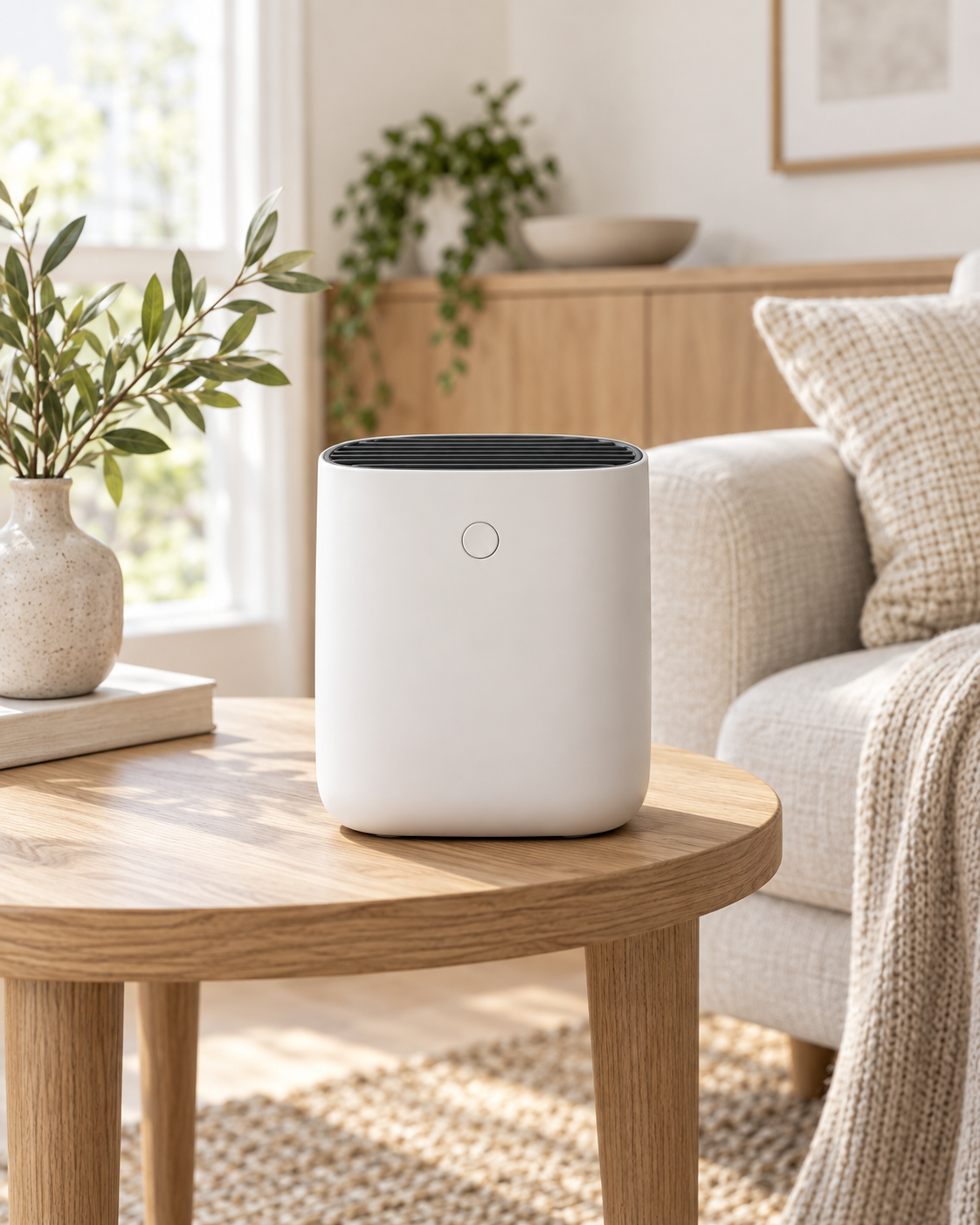 |
The phrase “use the uploaded image as the reference for the product only” defines what the model should preserve and what it may create.
That distinction is especially important for commercial images where product accuracy matters.
Edit an Existing Image with Natural Language
GPT Image 2.5 can also edit an existing image through written instructions.
Typical requests include:
- Replace the background with a studio setting
- Remove the object on the left
- Change the jacket from black to navy
- Add soft morning light
- Replace the headline while preserving the layout
- Make the product packaging matte instead of glossy
- Add more negative space around the subject
- Convert the asset into a vertical composition
A clear editing prompt should identify three things:
- What should change
- What must remain unchanged
- What the finished image should look like
Copy-Ready Prompt
Replace the existing background with a clean warm-white photography studio.

Keep the product’s shape, color, proportions, label, cap, reflections, and position unchanged.

Add a soft natural shadow directly beneath the product so it remains grounded on the surface.

Do not alter the product design, camera angle, crop, or packaging text.
Generated Image 03
| GPT Image 2.5 Background-Editing Result |
|---|
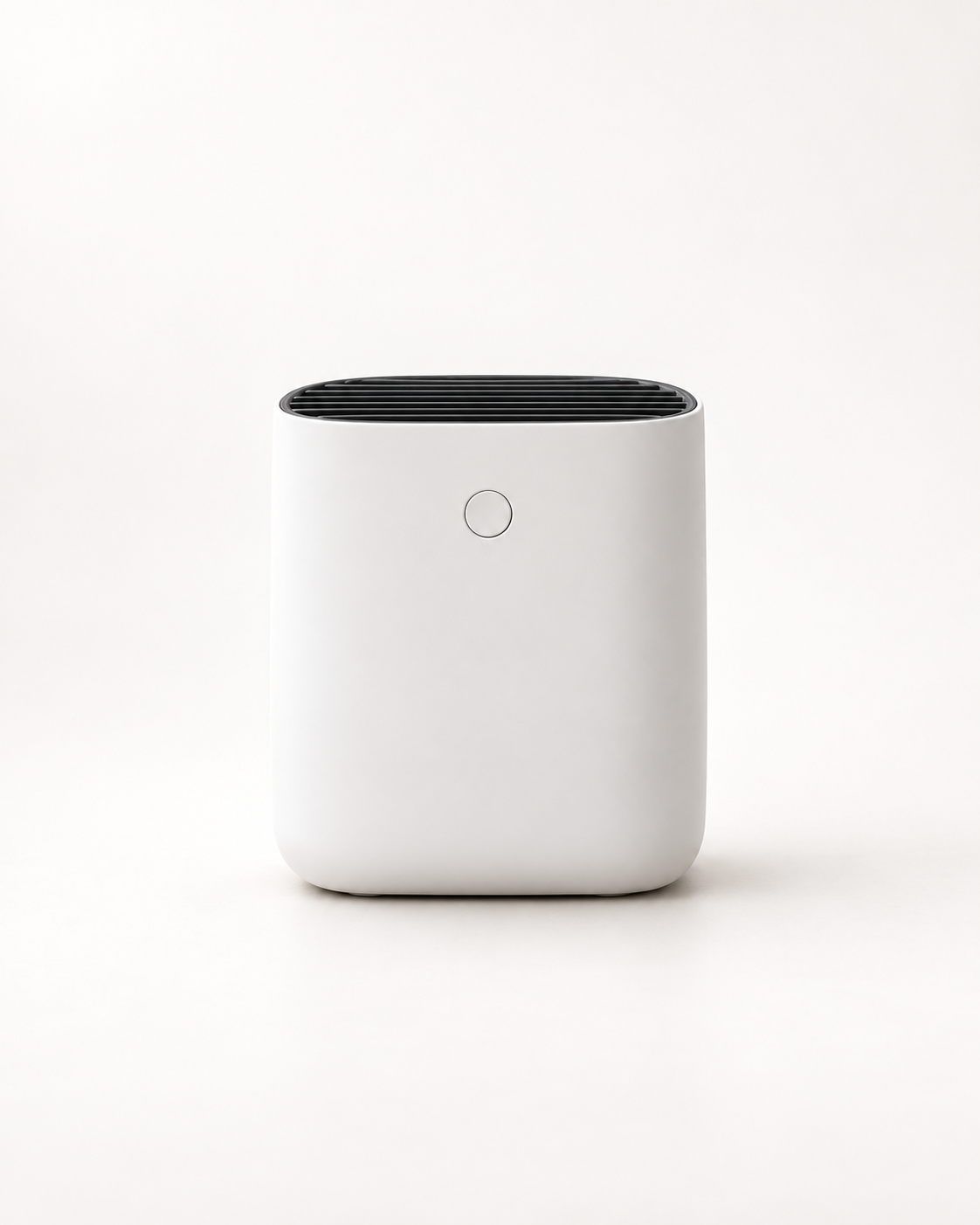 |
Without preservation instructions, an image model may treat the request as permission to reinterpret the entire picture.
For ecommerce editing, phrases such as the following are useful:
- Change only the background.
- Keep the product unchanged.
- Preserve the original proportions.
- Do not modify the packaging text.
- Maintain the same camera angle and crop.
- Do not add new accessories or branding.
Change One Area While Preserving the Rest
One of the most useful image-editing capabilities is localized modification.
Instead of regenerating the whole image, the user can request a change to one specific area.
Copy-Ready Prompt
Change only the red ceramic cup on the right side of the table to matte black.

Keep the person, clothing, hands, table, background, lighting, shadows, composition, and all other objects unchanged.

The new cup must have the same position, scale, orientation, and contact shadow as the original cup.
Generated Image 04
| GPT Image 2.5 Localized Editing Result |
|---|
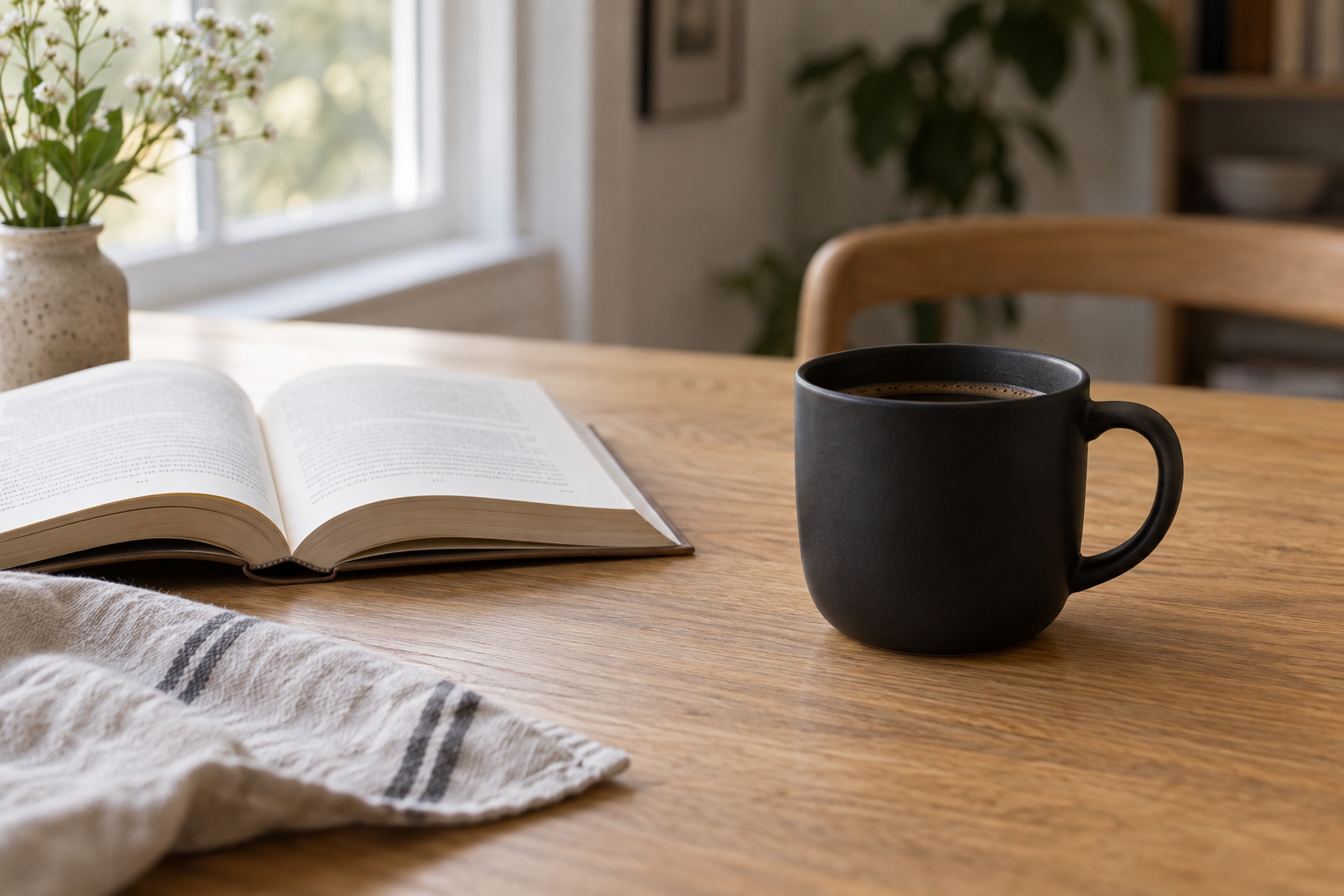 |
The important part is not only identifying the object to replace. The prompt also defines the invariants—the details that should not move or change.
This approach is useful for:
- Product color variations
- Packaging updates
- Clothing changes
- Background cleanup
- Prop replacement
- Seasonal decoration
- Advertising localization
- Minor layout corrections
Even with precise instructions, users should compare the edited image with the original. Small text, facial details, fingers, logos, and reflections can still change unexpectedly.
Make Multiple Changes Without Losing Earlier Edits
Image editing often requires more than one instruction.
A user may begin by changing the background, then adjust the lighting, remove an object, update the text, and finally change the aspect ratio.
GPT Image 2.5 supports multi-turn editing, which allows these changes to happen as a sequence rather than as one overloaded prompt.
A workflow might look like this:
- Replace the background with a warm neutral studio.
- Keep the new background and make the lighting softer.
- Preserve the background and lighting, then remove the small object beside the product.
- Keep all previous edits and add more negative space above the product.
- Preserve the final composition and convert the image to a vertical layout.
This is usually easier to control than requesting every change at once.
However, multi-turn consistency is not perfect. After several edits, compare the latest result against both the original image and the previously approved version.
Pay particular attention to:
- Product proportions
- Facial identity
- Packaging text
- Garment construction
- Color accuracy
- Small accessories
- Repeated visual patterns
- Background geometry
If an important detail begins to drift, return to the most recent acceptable version rather than continuing to edit the degraded result.
Generate Images with Transparent Backgrounds
GPT Image 2.5 can generate or edit images with transparent backgrounds.
This is useful for:
- Ecommerce product cutouts
- Website components
- Presentation assets
- Catalog layouts
- Stickers
- Graphic-design compositions
- Advertising templates
- Social media overlays
Transparent output requires a format that supports transparency, such as PNG or WebP.
Copy-Ready Prompt
Create a clean product cutout of one black leather handbag viewed from a three-quarter front angle.

Show realistic leather grain, stitching, metal hardware, and natural edge detail.

Isolate the handbag on a fully transparent background.

Do not add a floor, wall, shadow box, text, logo, watermark, stand, model, hand, or decorative object.
Generated Image 05
| GPT Image 2.5 Transparent-Background Result |
|---|
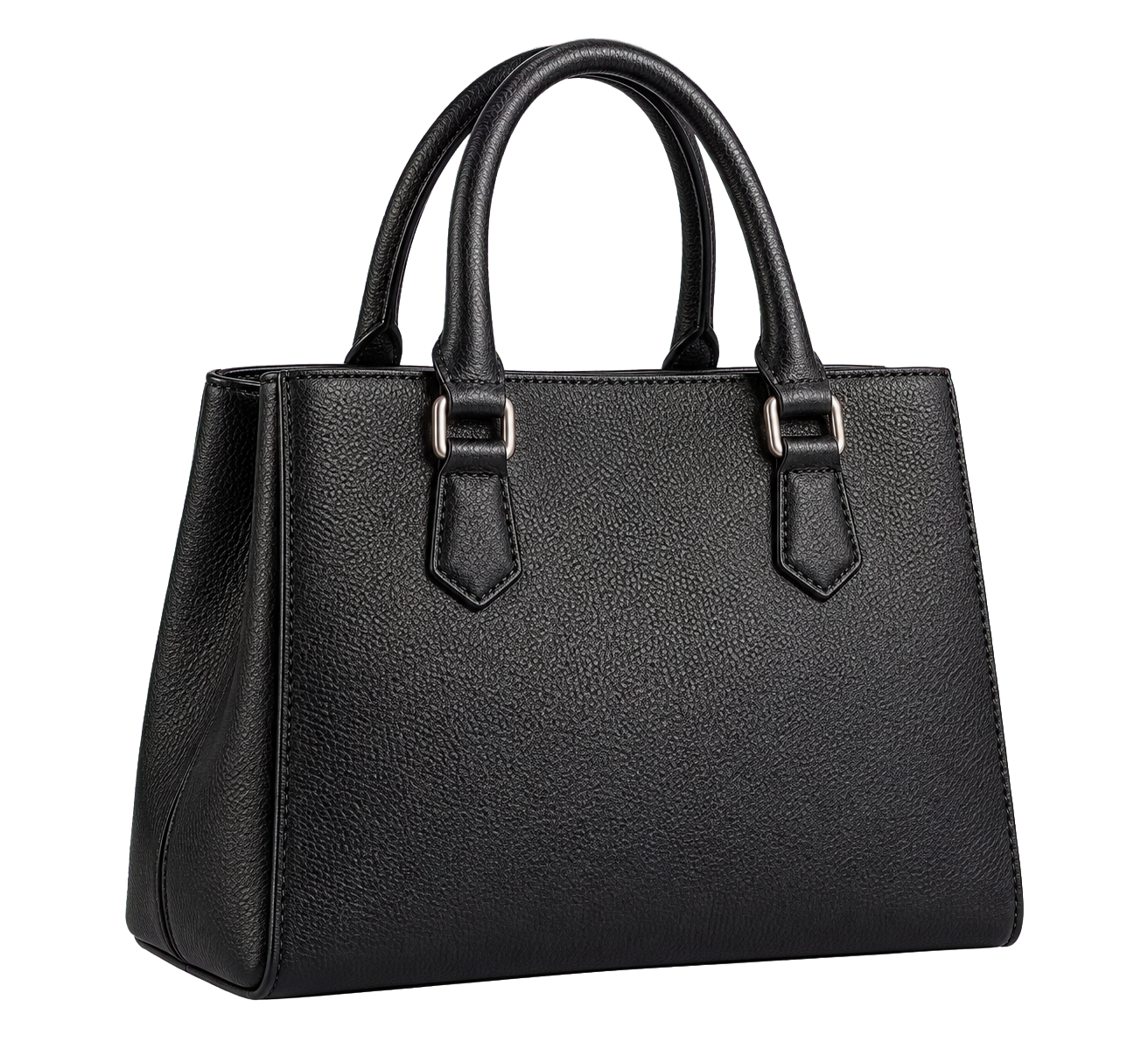 |
Transparency should still be checked after generation.
Inspect the edges around:
- Hair
- Fur
- Glass
- Fabric fringe
- Reflective metal
- Semi-transparent materials
- Soft shadows
These areas may require additional cleanup before the asset is ready for professional use.
Preserve a Subject from a Reference Image
Reference fidelity is important when generating images of a specific person, product, character, or design.
GPT Image 2.5 can use an uploaded image to preserve recognizable traits while changing the scene or composition.
Copy-Ready Prompt
Use the uploaded portrait as the identity reference for the adult subject.

Preserve the subject’s recognizable facial structure, hairstyle, hair color, skin tone, and overall visual appearance.

Place the subject in a softly lit modern office beside a large window. Use a natural seated pose and a professional editorial photography style.

Change only the environment, clothing, pose, and camera framing.

Do not significantly change the subject’s apparent age, facial proportions, ethnicity, or recognizable identity.
Generated Image 06
| GPT Image 2.5 Reference-Portrait Result |
|---|
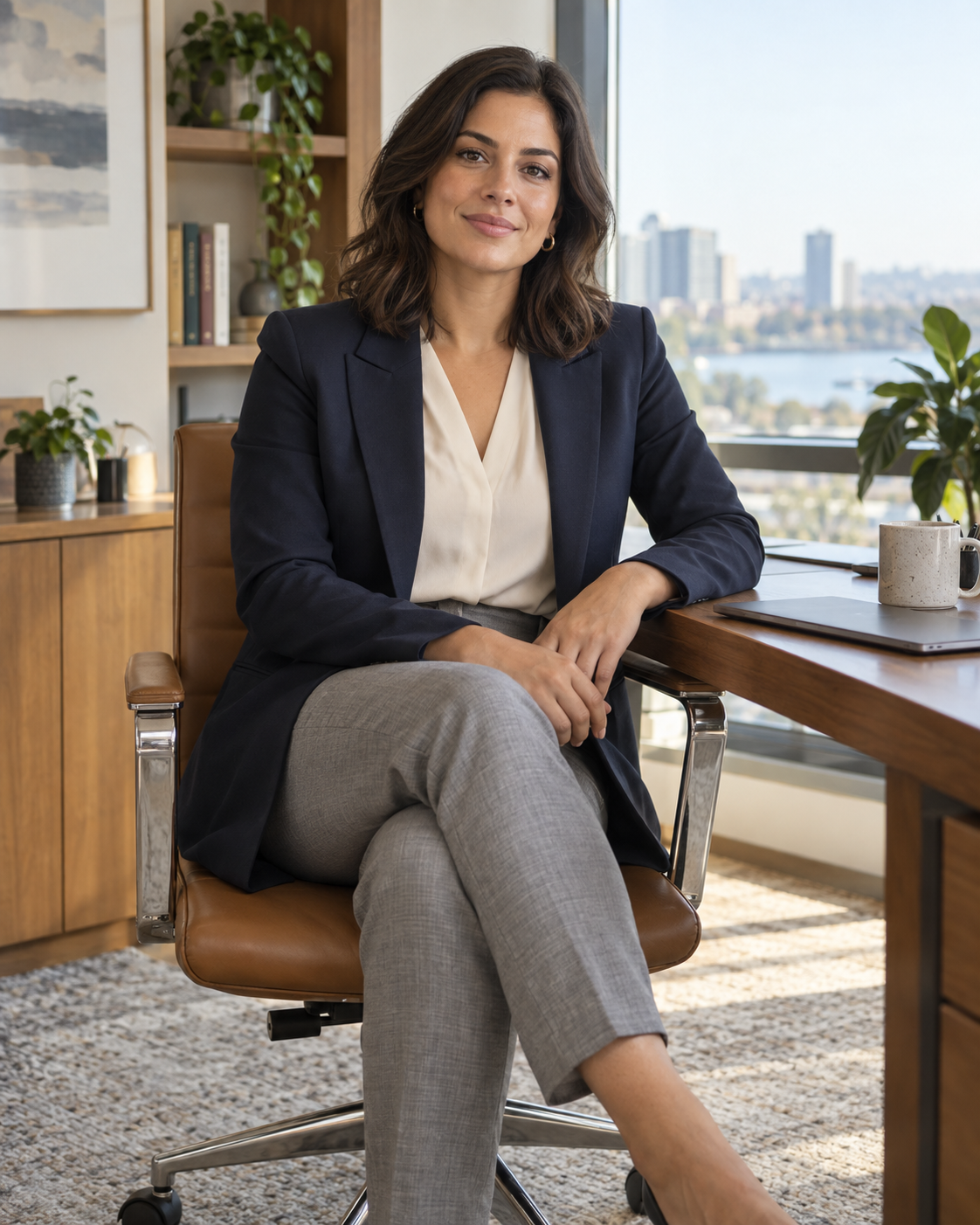 |
For commercial use, only upload images that you own or have permission to use.
Generated identity consistency should also be treated as an approximation rather than proof of a person’s real appearance, body, clothing, or actions.
Render Text, Labels, and Simple Charts
Text rendering has historically been a difficult area for image models.
GPT Image 2.5 improves the ability to generate:
- Headlines
- Product labels
- Short captions
- Signs
- Menus
- Packaging concepts
- Presentation graphics
- Simple charts
- Educational diagrams
- Social media graphics
To improve text accuracy:
- Put the exact required copy inside quotation marks.
- Keep the amount of text limited.
- Define where the text should appear.
- Specify hierarchy, alignment, and contrast.
- State that no additional words should be added.
- Review every letter before publication.
Copy-Ready Prompt
Create a clean vertical product announcement graphic.

Place one matte white reusable bottle in the lower center of the composition against a muted blue background.

Add the exact headline "REFILL. REUSE. REPEAT." at the top in bold white uppercase sans-serif lettering.

Add the exact subheading "Designed for everyday hydration." directly below the headline in smaller white text.

Use centered alignment, generous spacing, and strong readability.

Do not add any other words, letters, logos, labels, symbols, watermarks, or decorative text.
Generated Image 07
| GPT Image 2.5 Text-Rendering Result |
|---|
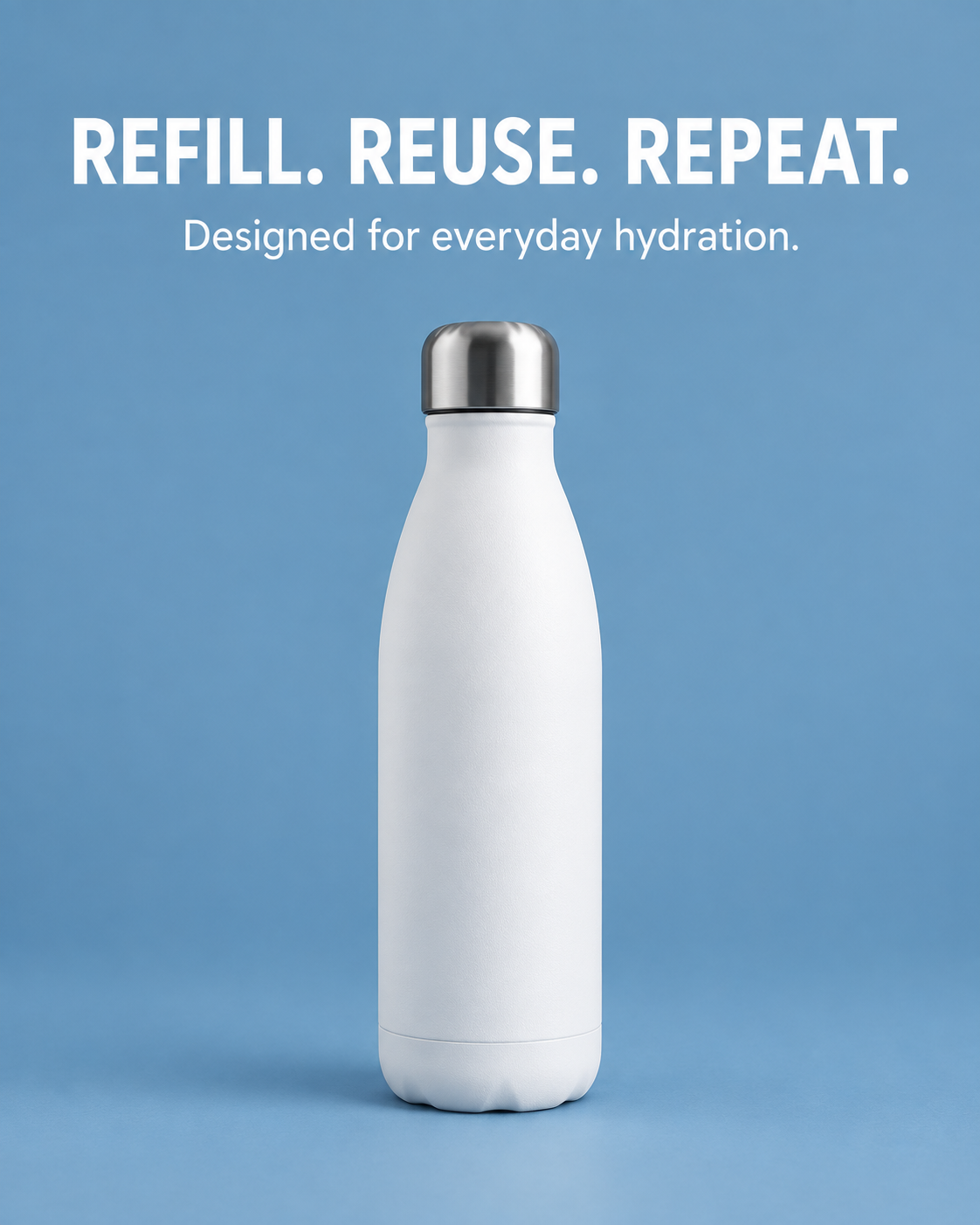 |
Even with improved text generation, images containing prices, legal statements, technical specifications, health claims, or mandatory packaging information should be reviewed manually.
For critical commercial content, it may still be safer to generate the visual first and add the final typography in a design tool.
GPT Image 2.5 Technical Specifications
The following specifications are based on OpenAI’s official image-generation documentation.
| Specification | Details |
|---|---|
| Models | gpt-image-2.5-flare, gpt-image-2.5-sunburst |
| Input | Text and images |
| Output | Images |
| Quality settings | low, medium, high, xhigh, max, auto |
| Recommended square size | 1024 × 1024 |
| Recommended landscape size | 1536 × 1024 |
| Recommended portrait size | 1024 × 1536 |
| Custom dimensions | Width and height must be multiples of 16 |
| Supported aspect-ratio range | From 1:3 to 3:1 |
| Maximum edge length | Neither edge may exceed 3,840 pixels |
| Minimum total pixel count | 655,360 pixels |
| Maximum total pixel count | 8,294,400 pixels |
| Experimental resolution range | Resolutions above 2560 × 1440 are experimental |
| Output formats | PNG, JPEG, WebP |
| Compression control | Available for JPEG and WebP |
| Transparent background | Supported with PNG and WebP |
| Partial-image streaming | Supports 0–3 partial images; fewer may be returned |
| Multiple-image generation | Supported through the Image API using the n parameter |
| Fine-tuning | Not supported |
| Function calling | Not supported |
| Structured outputs | Not supported |
A larger image is not automatically a better image.
The correct dimensions depend on the final placement:
- Square images for marketplace listings and catalog tiles
- Portrait images for social media and mobile product pages
- Landscape images for banners, presentations, and advertising
- Transparent cutouts for flexible design layouts
Higher quality settings may improve details but can also increase processing time and cost. The highest setting is not necessary for every draft.
Known GPT Image 2.5 Limitations
GPT Image 2.5 improves generation and editing, but it does not remove the need for human review.
Complex Requests Can Take Longer
OpenAI notes that complex prompts may require up to two minutes.
Prompts involving several reference images, detailed text, precise layouts, or multiple simultaneous edits will generally require more processing than a simple generation request.
Text Can Still Contain Errors
Text rendering is improved, but small letters, long paragraphs, dense packaging copy, and complex typography can still contain mistakes.
Always verify:
- Spelling
- Punctuation
- Prices
- Product names
- Units
- Legal copy
- Contact details
- Ingredient lists
- Claims and disclaimers
Identity and Brand Consistency Can Drift
Recurring characters, products, logos, and brand systems may change between generations.
A model might alter:
- Facial proportions
- Hair length
- Product dimensions
- Logo shape
- Packaging text
- Garment details
- Color values
- Accessory placement
Use the same approved reference images and repeat the important preservation instructions throughout the workflow.
Precise Structured Layouts Remain Difficult
Images containing charts, tables, diagrams, interface layouts, or several aligned information blocks may require multiple attempts.
If the content must be technically exact, consider separating the task:
- Generate the photographic or illustrative elements.
- Build the final text and layout in a dedicated design tool.
- Review the completed asset manually.
How to Choose Between Flare and Sunburst
The best model depends on the job rather than on a universal quality ranking.
| Task | Recommended Model | Reason |
|---|---|---|
| Early concept exploration | Flare | Faster iteration |
| Social media variations | Flare | Efficient for testing multiple directions |
| Routine ecommerce lifestyle images | Flare | Good balance of speed and quality |
| Background replacement | Flare for simple edits; Sunburst for difficult edges | Complexity determines the required precision |
| Detailed product editing | Sunburst | Better suited to precision-sensitive work |
| Packaging concepts with important text | Sunburst | Stronger choice for detail and text control |
| Complex multi-image composition | Sunburst | More capable for demanding instructions |
| Multi-turn refinement | Sunburst | Better option when preserving earlier edits matters |
| Transparent product cutouts | Flare for simple shapes; Sunburst for complex materials | Hair, glass, fur, and reflections require more care |
| Final advertising asset | Sunburst | Greater emphasis on detailed final output |
A practical decision process is:
- Start with Flare when exploring.
- Review composition, subject accuracy, and visual direction.
- Refine the prompt using the best draft.
- Move to Sunburst if the asset requires more precise editing or detail.
- Conduct a final human review before publication.
From One-Off Generation to a Repeatable Image Workflow
The most valuable use of GPT Image 2.5 is not generating one attractive image.
Its greater value comes from building a controlled workflow:
- Begin with an approved source image.
- Define which elements may change.
- Define which elements must remain unchanged.
- Generate a small number of focused variations.
- Select one direction before adding more edits.
- Make complicated changes in separate turns.
- Compare every result with the approved source.
- Check text, hands, faces, products, logos, and reflections.
- Save the prompt and generation history.
- Export the image in the correct format and dimensions.
For ecommerce teams, this can support product cutouts, lifestyle scenes, color variants, seasonal campaigns, social media assets, and advertising concepts.
For designers and content teams, it can accelerate visual exploration without removing the need for layout, branding, and quality review.
GPT Image 2.5 Flare and Sunburst offer two different production paths: one optimized for speed and one optimized for capability. The right choice depends on how quickly you need to iterate, how much detail must be preserved, and how costly an incorrect visual detail would be.
The simplest way to evaluate them is to run the same source image and prompt through both models, then compare iteration speed, detail retention, instruction accuracy, and the amount of manual cleanup required.