








AI Image Generator for Makeup Transfer: Apply a Reference Look to Your Selfie with GPT Image 2.5
Use WeShop AI GPT Image and GPT Image 2.5 to transfer eyeshadow, eyeliner, blush, contour, and lip color from a makeup reference to your selfie while preserving identity, hair, clothing, pose, and background.
AI Image Generator for Makeup Transfer: Apply a Reference Look to Your Selfie with GPT Image 2.5
Found a makeup look you love but are not ready to recreate it by hand?
With one makeup reference and one selfie, GPT Image 2.5 can transfer the reference image’s eyeshadow, eyeliner, lashes, blush, contour, lip color, and overall finish to your portrait. A structured prompt tells the AI image generator what to change while preserving your recognizable identity, hairstyle, clothing, pose, lighting, and background.
This tutorial shows you how to complete an AI makeup transfer using WeShop AI GPT Image.
AI Makeup Transfer Result
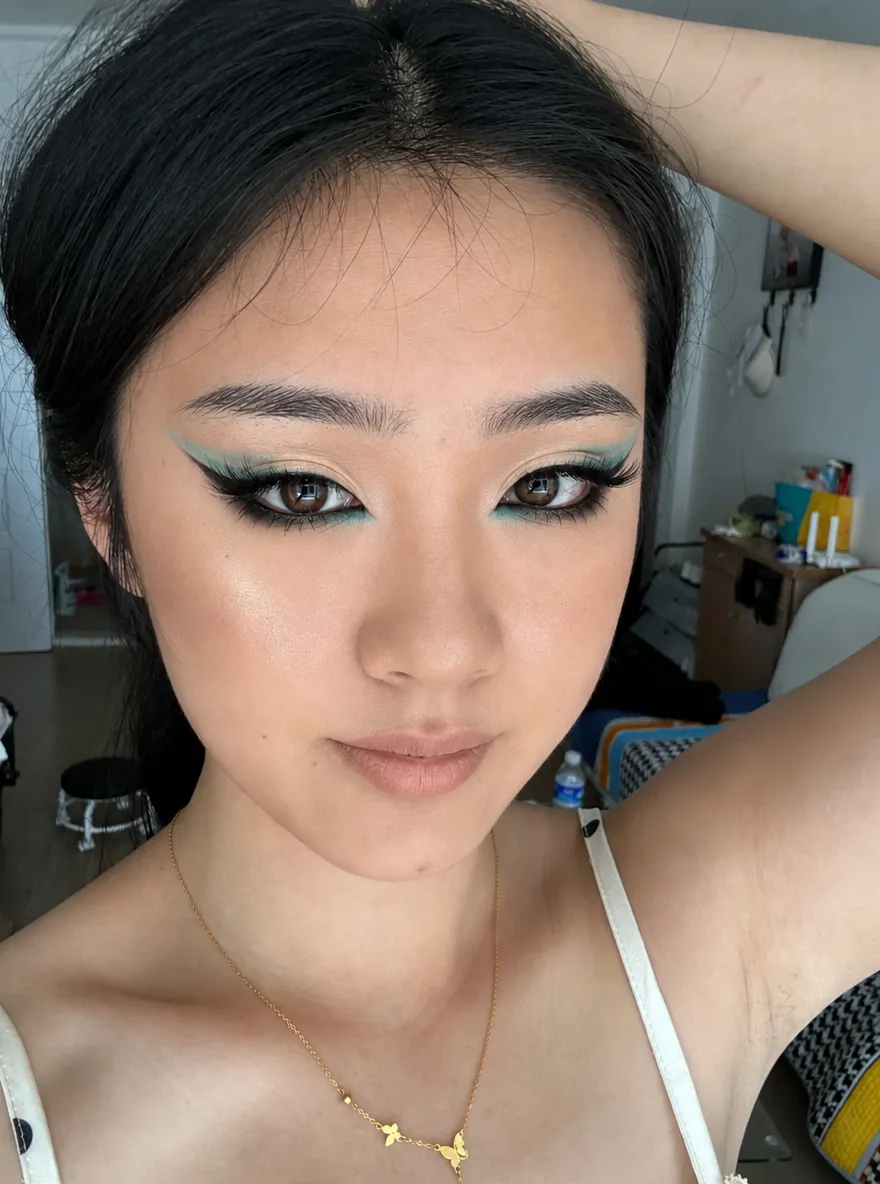
| Makeup reference | Original selfie | AI-generated result |
|---|---|---|
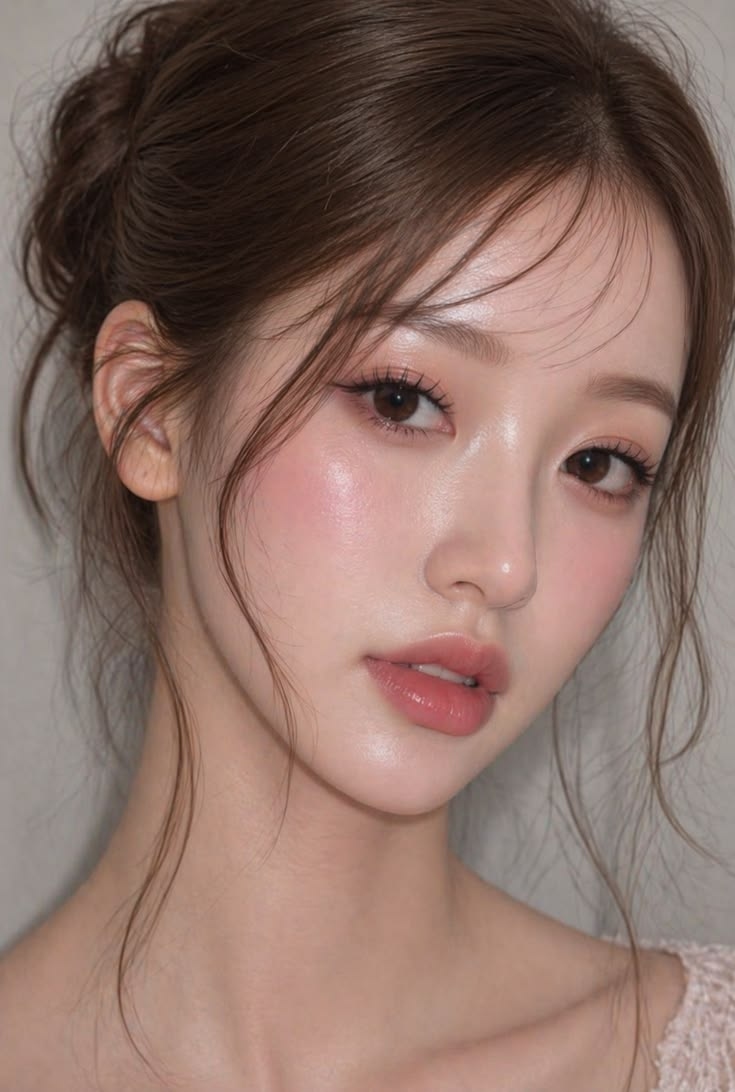 | 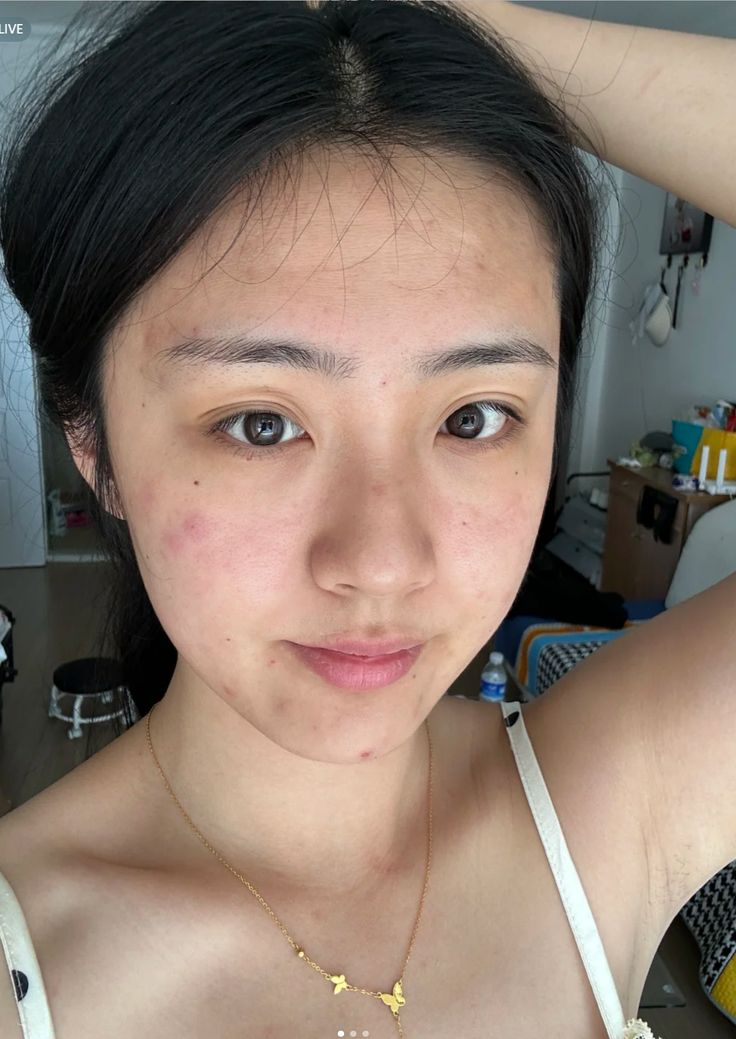 | 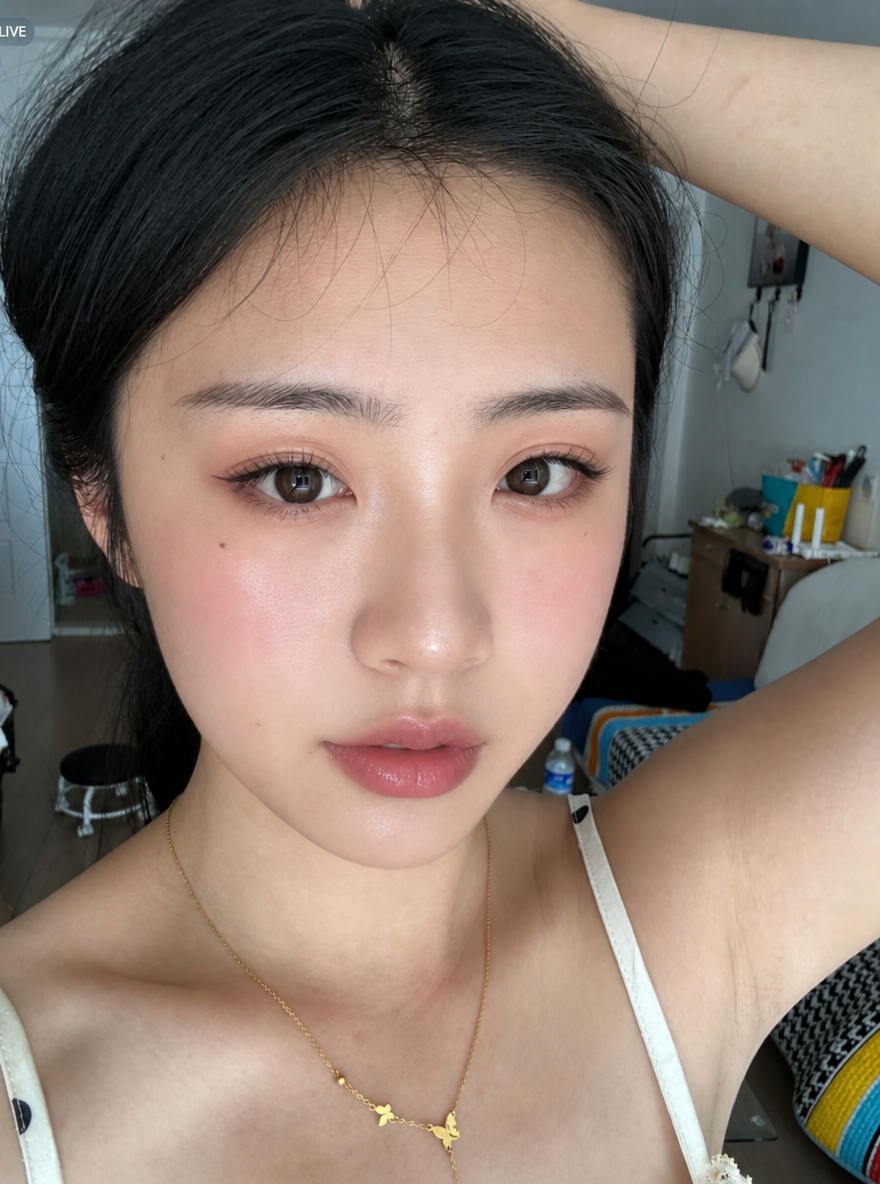 |
| Supplies the eyeshadow, eyeliner, blush, lip color, and overall makeup finish. | Supplies the subject’s identity, hairstyle, pose, clothing, lighting, and background. | Applies the referenced makeup style while keeping the original portrait recognizable. |
Prepare Two Input Images
You need two images for this workflow.
Image 1: Makeup Reference
Choose a clear portrait in which the makeup details are easy to see. The eyeshadow, eyeliner, lashes, cheeks, and lips should not be heavily obscured by hair, hands, glasses, or accessories.
The reference can feature soft everyday makeup, colorful editorial styling, glossy idol makeup, smoky eyes, or a full-glam look.
Image 2: Original Selfie
Use a sharp front-facing or slightly angled selfie. Avoid severe blur, heavy overexposure, and objects that cover large areas of the face.
Throughout this tutorial, the makeup reference is Image 1, while the original selfie is Image 2.
Use portrait and makeup reference images that you have permission to edit. Consider labeling publicly shared results as AI-edited where appropriate.
Step 1: Select GPT Image 2.5
Open WeShop AI GPT Image and go to the image generation area.
Open the model menu beneath the input box and select GPT Image 2.5.
| Step 1: Select GPT Image 2.5 |
|---|
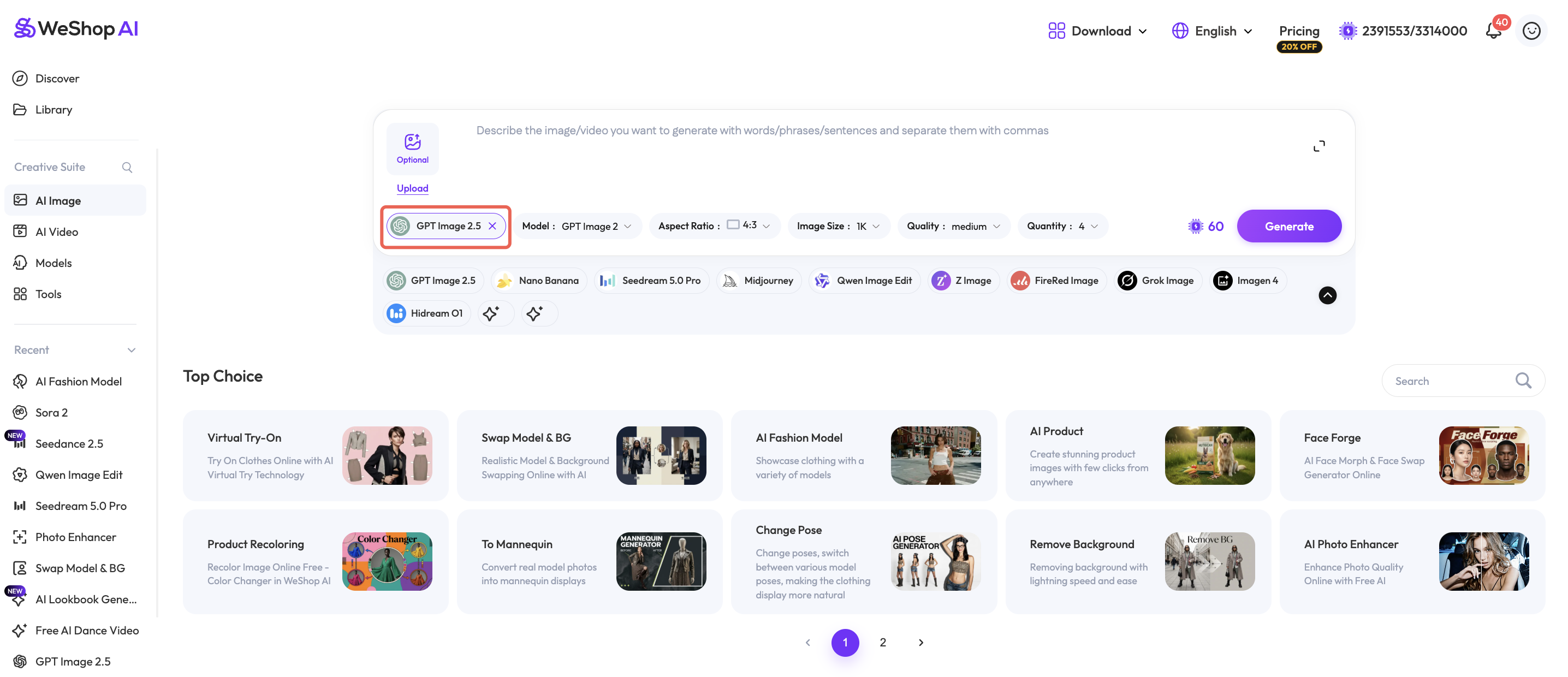 |
| Confirm that GPT Image 2.5 is selected before uploading the makeup reference and selfie. |
Step 2: Upload the Makeup Reference and Selfie
Upload the two images in the same order used by the prompt.
| Image 1: Makeup reference | Image 2: Original selfie |
|---|---|
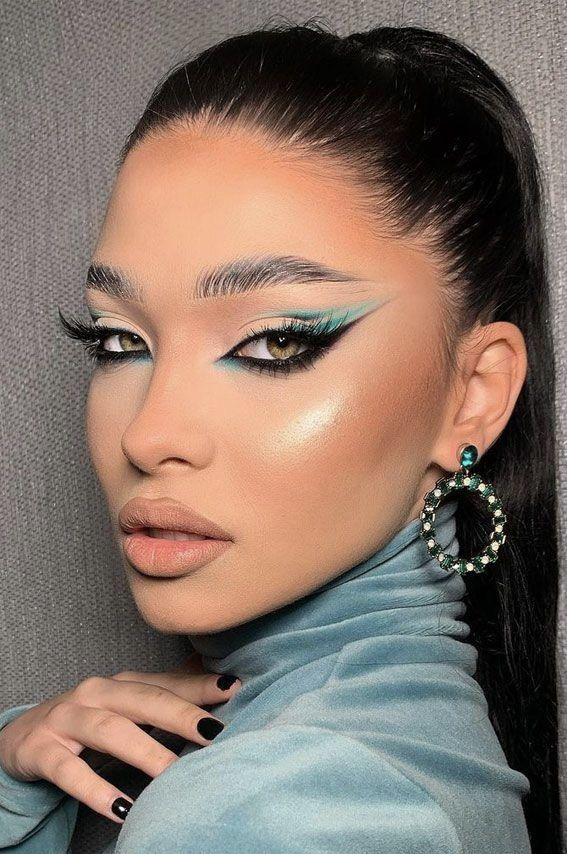 | |
| Defines the eyeshadow, eyeliner, blush, contour, lip color, and overall finish. | Defines the person, hairstyle, clothing, pose, lighting, background, and photographic style. |
The upload order matters. If you upload the selfie first, update the image numbers in the prompt so the AI image generator does not reverse the makeup transfer.
Step 3: Enter the AI Makeup Transfer Prompt
Paste the following prompt into the text input field:
Transfer the makeup style from Image 1 to the person in Image 2.

Only change the makeup on the person in Image 2, including eyeshadow, eyeliner, lashes, blush, contour, lip color, and overall makeup finish.

Keep the person’s facial features, identity, hairstyle, clothing, pose, lighting, background, and photo style unchanged.
The prompt separates the edit into two clear instruction groups:
- Change: eyeshadow, eyeliner, lashes, blush, contour, lip color, and overall makeup finish.
- Preserve: identity, facial features, hairstyle, clothing, pose, lighting, background, and photo style.
Transfer Only the Eye Makeup
To change only the eyeshadow, eyeliner, and lashes, use:
Transfer only the eyeshadow, eyeliner, and lashes from Image 1 to the person in Image 2.

Keep all other facial features, makeup, hairstyle, clothing, pose, lighting, background, and photo style unchanged.
Transfer Only the Lip Makeup
To change only the lip color and finish, use:
Transfer only the lip color and lip finish from Image 1 to the person in Image 2.

Keep all other facial features, makeup, hairstyle, clothing, pose, lighting, background, and photo style unchanged.
Step 4: Generate the Makeup Transfer
Before clicking Generate, confirm that:
- GPT Image 2.5 is selected.
- Image 1 is the makeup reference.
- Image 2 is the original selfie.
- The image numbers in the prompt match the upload order.
Click Generate and wait for the AI makeup transfer result.
| Step 4: GPT Image 2.5 Result |
|---|
 |
| GPT Image 2.5 applies the referenced makeup to the selfie while using the original portrait as the identity and composition reference. |
You can try it directly using the tool on the right.
Compare the generated portrait with both input images. The makeup colors and finish should come from Image 1, while the recognizable person, hairstyle, clothing, pose, lighting, and background should remain based on Image 2.
If the person’s appearance changes too much, add this sentence to the prompt:
Prioritize preserving the identity and facial structure of the person in Image 2. Do not change the face shape, eye shape, nose, lips, skin tone, or recognizable personal features.
Keep the Makeup Flexible and the Identity Recognizable
A reliable AI makeup transfer prompt gives each reference a separate role: one image supplies the makeup, while the other supplies the person and original photograph.
By keeping the upload order consistent and clearly separating what should change from what should remain, GPT Image 2.5 can produce a more controlled virtual makeup result without rebuilding the entire portrait.