








AI Fashion Model Tutorial: Turn a Flat-Lay Dress into an On-Model Ecommerce Photo
Learn how to turn a flat-lay dress image into an on-model ecommerce photo using WeShop AI Fashion Model, an adult model, a location, and WeShop 2.0.
AI Fashion Model Tutorial: Turn a Flat-Lay Dress into an On-Model Ecommerce Photo
A flat-lay clothing photo can clearly show a garment’s design, but it does not help shoppers understand how the item looks when worn.
Traditional fashion photography requires a model, a location, styling, lighting, and post-production. For fashion sellers managing frequent product launches, repeating this process for every SKU can quickly become expensive and time-consuming.
WeShop AI Fashion Model provides a faster workflow. Upload a clothing image, select an adult AI model and location, and generate an on-model ecommerce photo with WeShop 2.0.
This tutorial uses a black corset-style mini dress to demonstrate how to transform a product-only image into a complete fashion visual for Shopify product pages, online stores, fashion catalogs, and social media campaigns.
Before and After
| Original Flat-Lay Dress | AI-Generated On-Model Result |
|---|---|
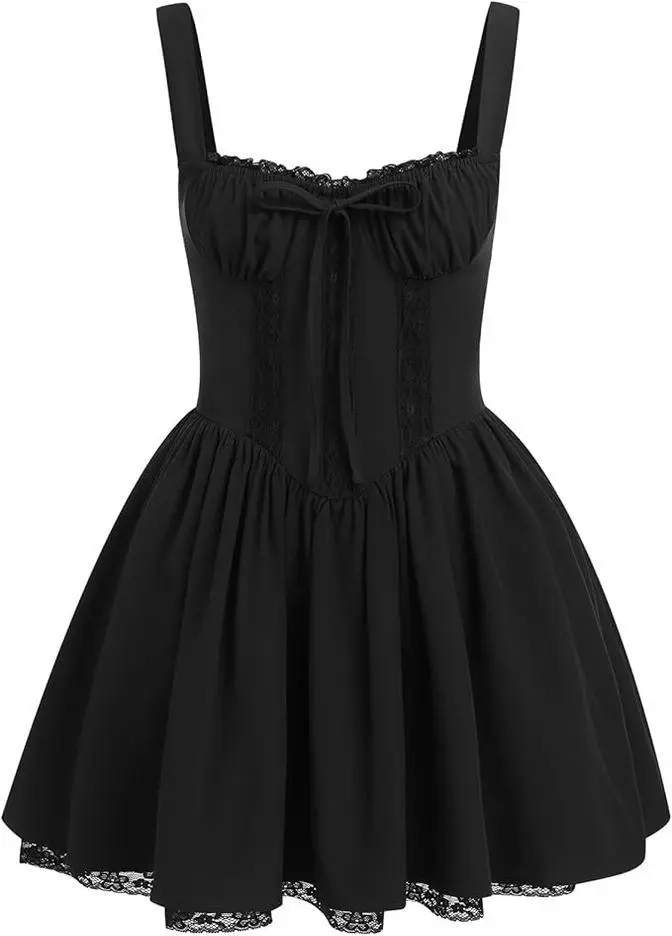 | 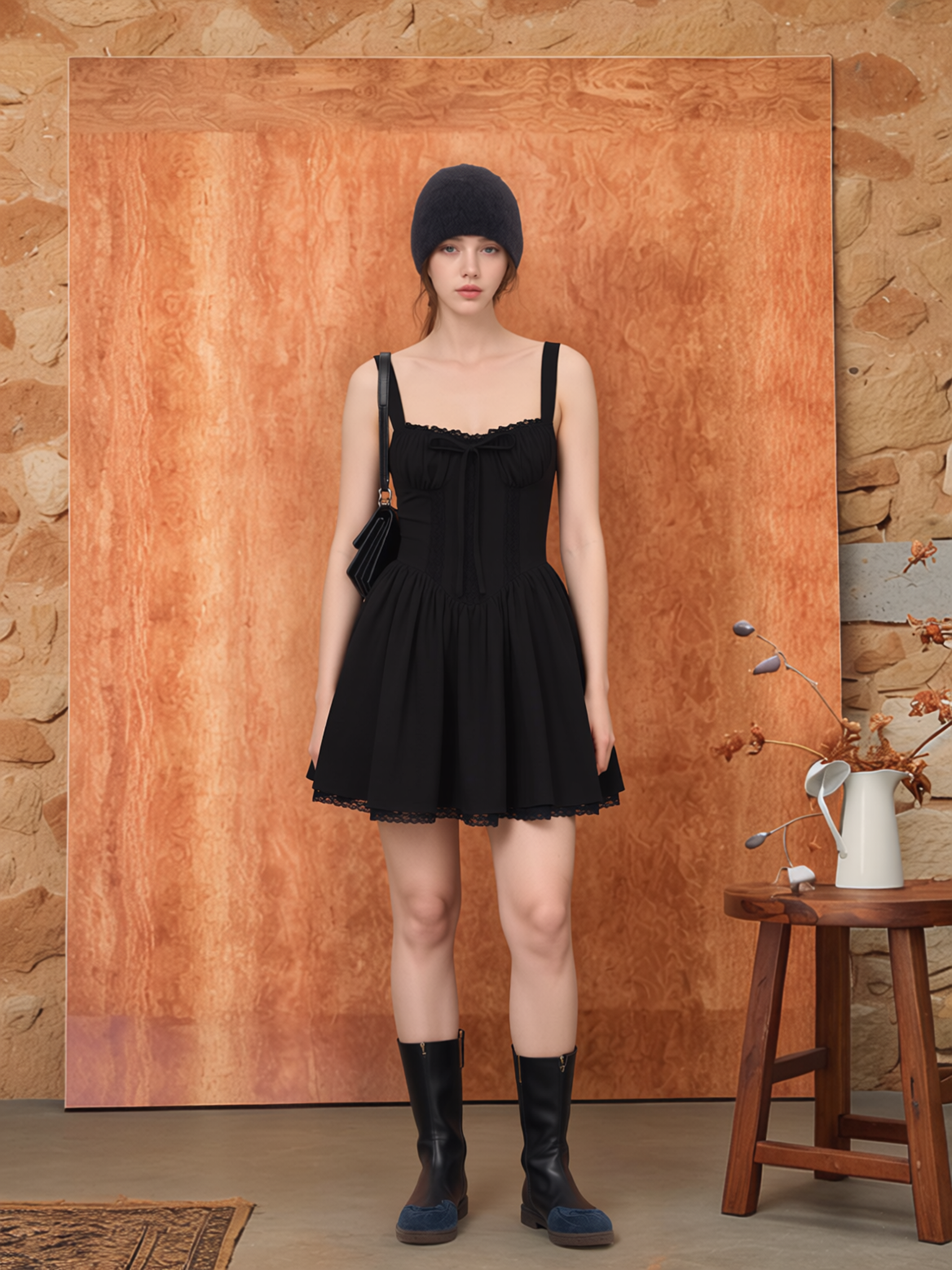 |
| The original image provides a clean reference for the black fabric, wide straps, lace neckline, front bow, fitted waist, and flared skirt. | The generated image presents the dress on an adult model with coordinated accessories and a warm lifestyle background. |
The on-model result makes the length, silhouette, waistline, and skirt volume easier to understand while keeping the dress as the visual focus.
Step 1: Upload the Clothing Image and Select a Mode
Open AI Fashion Model and upload the clothing product image you want to place on a model.
| Step 1: Upload the Product Image |
|---|
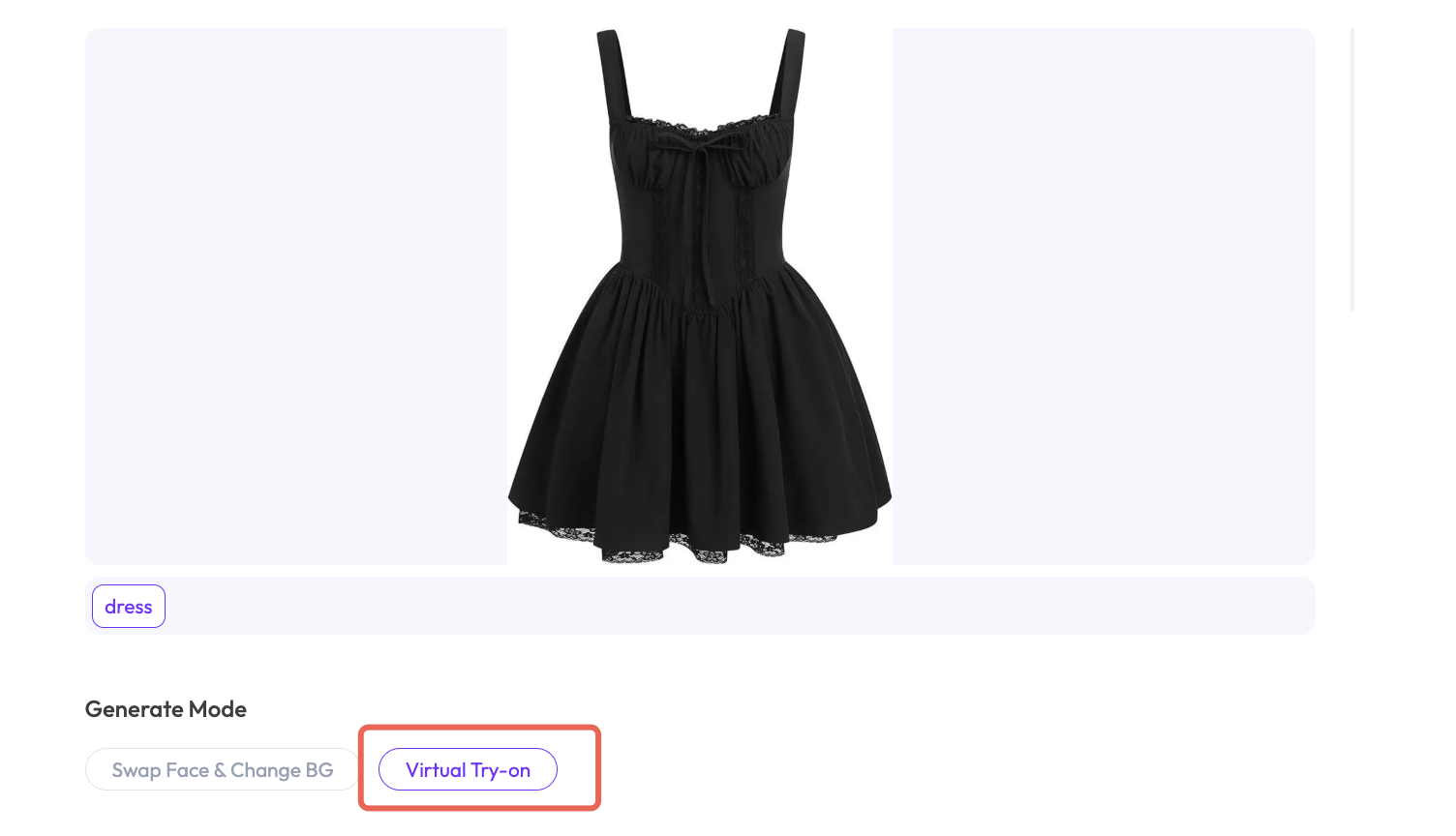 |
| For a flat-lay clothing image, select Virtual Try-On as the generation mode before proceeding to the next step. |
For more reliable results, use a product image with:
- A complete and unobstructed garment
- A clean or simple background
- Clearly visible edges
- Accurate colors
- Visible neckline, waist, sleeves or straps, and hem
- Minimal shadows and overlapping objects
The source image in this example places the black dress against a white background. There is no model, complex scenery, or unrelated prop, making it easier for the AI clothing model to identify the garment structure.
This workflow does not require a long prompt. The uploaded garment and interface selections provide the main generation instructions.
Step 2: Choose an Adult AI Fashion Model
Open the model library and select an adult AI model that matches the garment, brand identity, and target market.
| Step 2: Select an Adult AI Model |
|---|
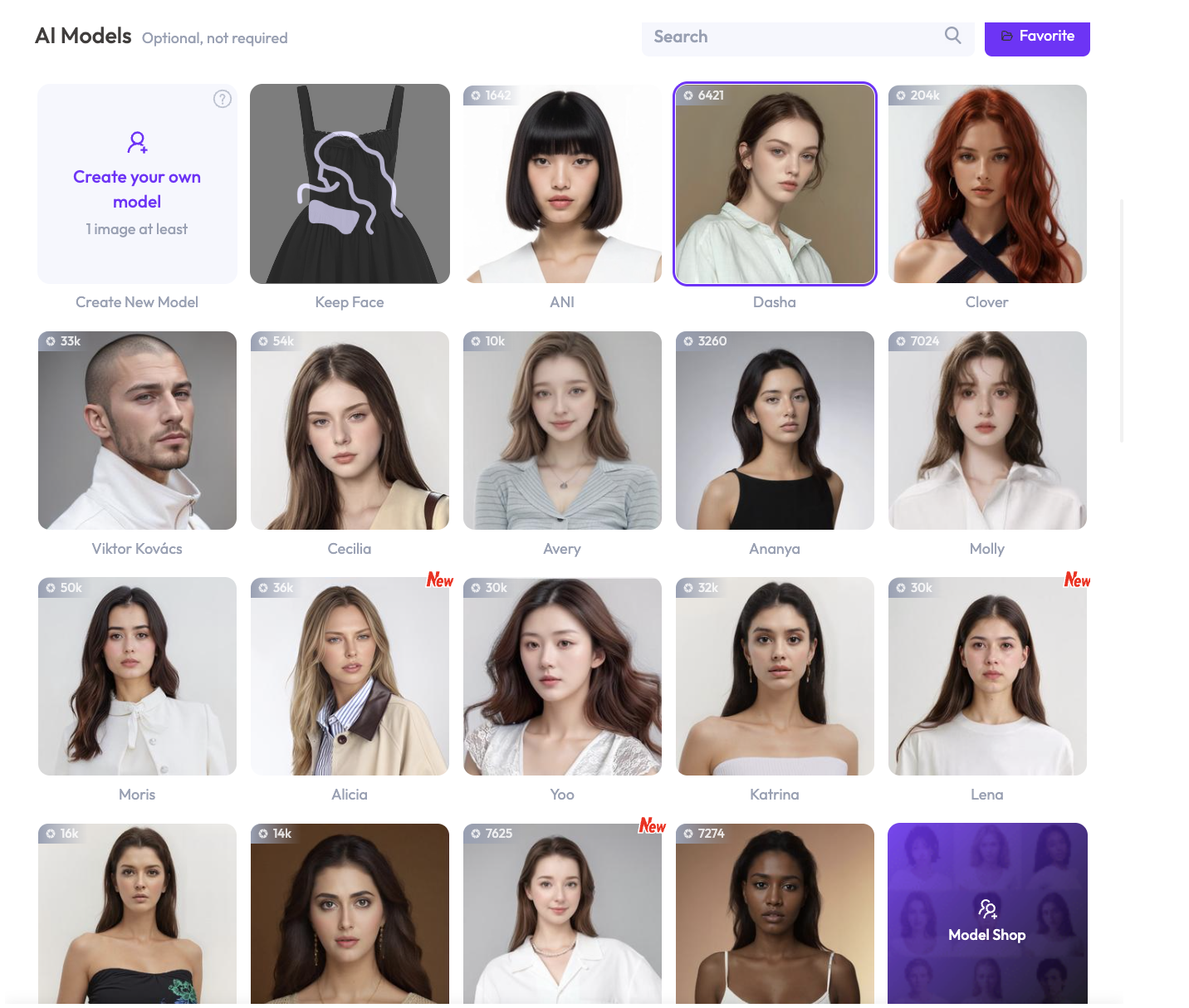 |
| Browse the available model options and select the adult model that best fits the intended fashion aesthetic. |
Consider the following factors when selecting a model:
- Age and overall appearance
- Body shape and garment fit
- Hair and makeup style
- Brand positioning
- Target customer and sales region
- Desired catalog or campaign aesthetic
The black mini dress in this example has a romantic, vintage-inspired silhouette. An adult female model with understated styling helps present the garment as a wearable fashion look rather than an isolated product.
Step 3: Select a Scene or Location
After choosing the model, select a background that supports the fashion concept.
| Step 3: Choose the Location |
|---|
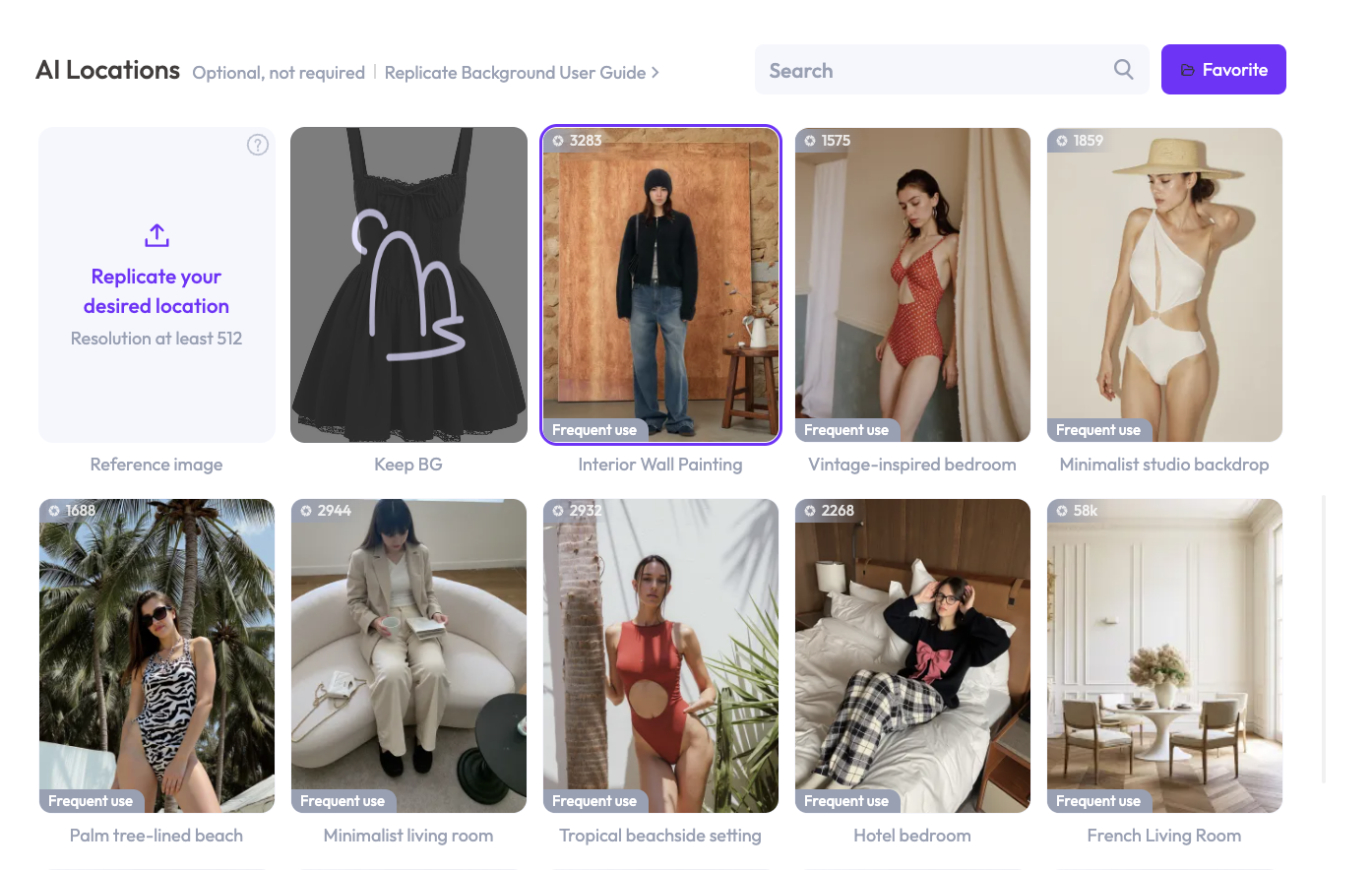 |
| Choose a studio, interior, exterior, or lifestyle location that complements the garment without distracting from it. |
The background should support the product rather than overpower it. Clean compositions, believable lighting, and clear color contrast usually work best for ecommerce fashion photography.
This example uses a warm interior containing wood and stone textures. Its orange-brown palette contrasts with the black garment, helping the dress remain clearly visible while adding a lifestyle-oriented fashion atmosphere.
For different uses, consider:
- A neutral studio for product detail pages
- A minimalist interior for fashion catalogs
- A lifestyle location for social media
- A clean architectural setting for brand campaigns
- A simple background for Shopify collection pages
Step 4: Select the Settings and Generate with WeShop 2.0
Review the generation settings before creating the final image.
| Step 4: Configure the Image and Generate |
|---|
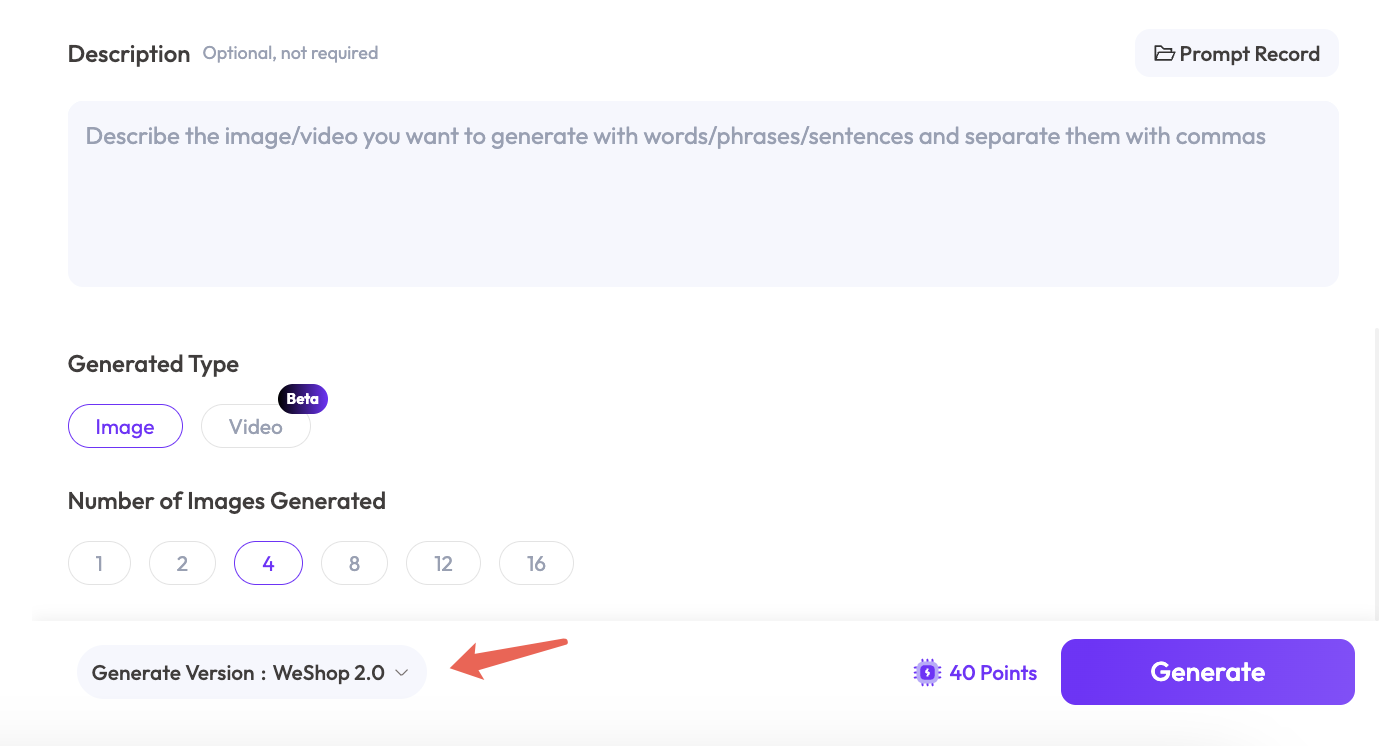 |
| Set the preferred aspect ratio, image options, and quantity. Select WeShop 2.0 as the generation version before clicking Generate. |
For this workflow, make sure the selected generation version is WeShop 2.0.
Choose the aspect ratio according to the final placement:
- Use a vertical format for complete on-model product photos.
- Use a consistent ratio across Shopify collection pages.
- Use mobile-friendly vertical images for social media.
- Leave negative space when the image will include advertising copy.
- Use the same output settings across a collection for greater visual consistency.
Once the settings are ready, click Generate. AI Fashion Model will combine the uploaded garment, selected model, location, and image settings into a new ecommerce fashion photo.
Final Result
| Original Clothing Image | WeShop 2.0 On-Model Image |
|---|---|
| |
| The product-only image supplies the garment’s shape, color, construction, and decorative details. | The generated result adds an adult model, full styling, and a commercial interior setting while preserving the main dress design. |
The generated image retains the garment’s most recognizable features:
- Black overall color
- Wide shoulder straps
- Lace-trimmed neckline
- Center bow and gathered bust
- Fitted waist
- Flared mini skirt
- Lace detailing around the hem
AI Fashion Model also adds a black beanie, shoulder bag, and boots to create a more complete editorial outfit.
A Prompt-Free Flat-Lay-to-Model Workflow
The main advantage of this workflow is its simplicity. Instead of writing a complex fashion prompt, the user defines the result through four visual choices:
- Upload the clothing product image.
- Select an adult AI fashion model.
- Choose a suitable background or location.
- Select WeShop 2.0 and generate the image.
This makes the workflow useful for Shopify sellers, independent fashion brands, clothing manufacturers, and ecommerce teams that need to produce on-model images for multiple garments.
It can help turn basic supplier photos or flat-lay product images into more complete visuals for:
- Shopify product pages
- Clothing collection pages
- Independent online stores
- Fashion lookbooks
- Marketplace listings
- Social media posts
- Paid fashion advertising
- New product launch campaigns
Try WeShop AI Fashion Model to turn flat-lay clothing images into on-model ecommerce photos with WeShop 2.0.