







Kling Motion Control: Turn a Photo Into a TikTok Dance Video
Learn how to use Kling Motion Control to transfer a TikTok-style dance from a reference video to a character created from a single image.
Kling Motion Control: Turn One Photo Into a TikTok Dance Video
Recreating a trending TikTok dance is harder than it looks. The performer has to match the hand choreography, head movements, expressions, and timing—then repeat everything with a new model, outfit, and location.
A text prompt alone rarely describes an entire performance with enough precision. With WeShop AI Kling Motion Control, the reference video supplies the movements while a single character image defines who performs them.
This tutorial uses a public WeShop Motion Control Showcase to demonstrate the workflow.
| Motion Reference | Generated TikTok-Style Video |
|---|---|
| Reference: The source performer provides the timing of the hand poses, head movements, expressions, and upper-body performance. | AI-generated result: The new character follows a similar performance sequence while retaining the appearance supplied by the character image. |
How Kling Motion Control Works
A regular image-to-video generator decides how a character moves from a text description. Even if the prompt says “look at the camera, raise both hands, and smile,” the timing and choreography may vary with every generation.
Motion Control separates the job into two inputs:
| Input | What it controls |
|---|---|
| Motion Reference | Body movement, hand gestures, head movement, expressions, and performance timing |
| Character Image | Character identity, hair, clothing, accessories, framing, and initial environment |
| Scene Description | Optional adjustments to the background, lighting, or setting |
The reference video answers how the character should move. The character image answers who should perform the movement.
What You Need
Prepare these two files before starting:
- A clear, continuous reference video containing the TikTok dance, gesture routine, or performance you want to recreate.
- A character image showing the person who should appear in the generated video.
A written prompt is optional for this workflow.
Step 1: Add the TikTok Dance Reference
Upload the performance video to Video Ref.
The reference used in this example contains one person facing the camera in a vertical composition. The performance relies on visible hand gestures, head movement, facial expressions, and changes in upper-body posture.
For a cleaner motion transfer, choose a reference video with:
- One clearly visible performer
- A continuous shot without frequent cuts
- Hands and facial expressions visible on screen
- Limited obstruction around the body
- A camera angle similar to the character image
- Movement that stays inside the frame
Avoid references in which multiple people overlap or the performer repeatedly leaves the shot. These make it harder to determine which movement should control the new character.
Step 2: Add the Character Image
Upload the person you want to animate to Image Ref.
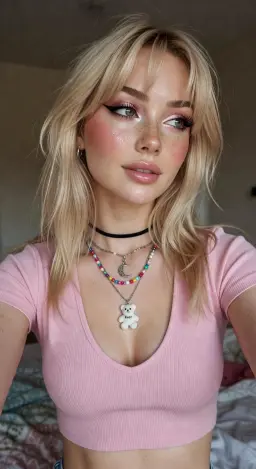
Use a clear portrait with visible facial features. If the motion reference mainly shows the upper body, an upper-body character image with a similar camera angle is usually the most practical choice.
Use only character images and reference videos you have permission to process, and disclose AI-generated media when required by the publishing platform.
Step 3: Describe the Scene Only If Needed
The Showcase states that no prompt is required. Motion is controlled by the reference video.
Leave the description empty when you want to preserve the environment and visual direction already present in the character image.
Add a short scene description only when you need to guide details such as:
- Background environment
- Lighting
- Camera framing
- Clothing preservation
- Overall visual mood
You do not need to describe every hand movement or expression again. Those instructions are already supplied by the motion reference.
Step 4: Generate the Motion-Controlled Video
After adding the two references, select the required output quantity and click Generate.
The motion reference controls the performance, while the character image supplies the appearance of the new on-screen subject.
In the generated result, the character performs a sequence that includes:
- A hand raised near the face
- Hands brought together
- Closed-eye expressions and head movement
- A finger pointed toward the camera
- Framing gestures made with both hands
- Crossed-arm poses and a smile
- A two-handed finishing gesture
Motion transfer should be evaluated as a recreated performance, not a guaranteed frame-for-frame copy of the source video.
You can try it directly using the tool on the right.
Make the Performance Repeatable
The useful part of Motion Control is not simply making a portrait move. It gives the performance a visible source: one video defines the choreography, while one image defines the new on-screen character.
That makes it possible to turn a static character into a TikTok-style performer without trying to describe an entire dance one gesture at a time.