








Connect Animated Scenes with Kling 4.0 Transition Prompts
Connect two animated scenes with Kling 4.0 using a character-driven wipe. See actual references, the complete prompt, settings and the generated video.
A character moving close to the lens can give an animated scene change a clear visual reason. In this Kling 4.0 test, a woman gathers snacks between shop refrigerators, briefly fills the frame, and emerges in a sunset exterior. Two reference images supply the opening and closing states; the prompt connects them with an action instead of asking for unrelated transition effects.
Generated result — shop interior to sunset exterior
Give each reference image a different scene job
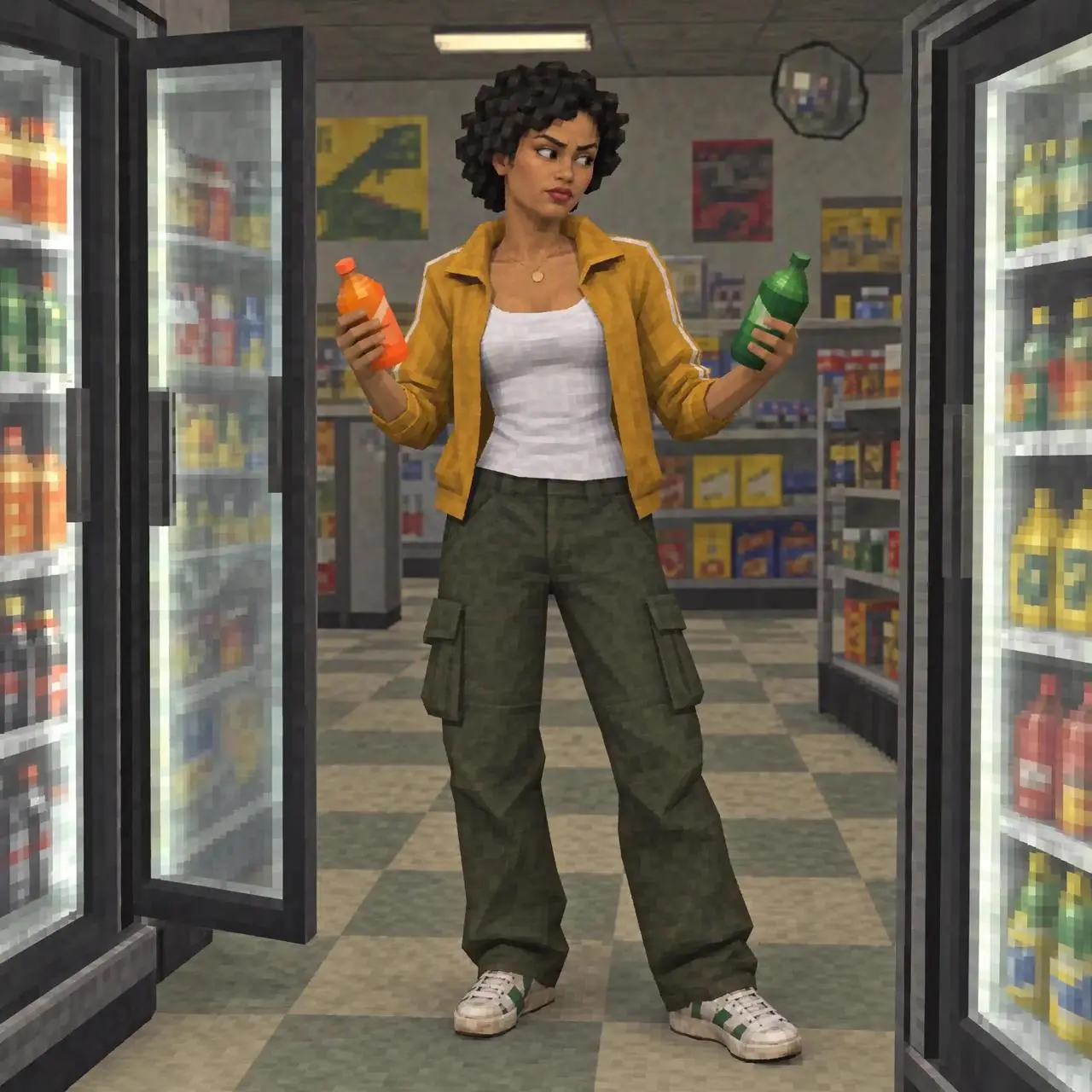
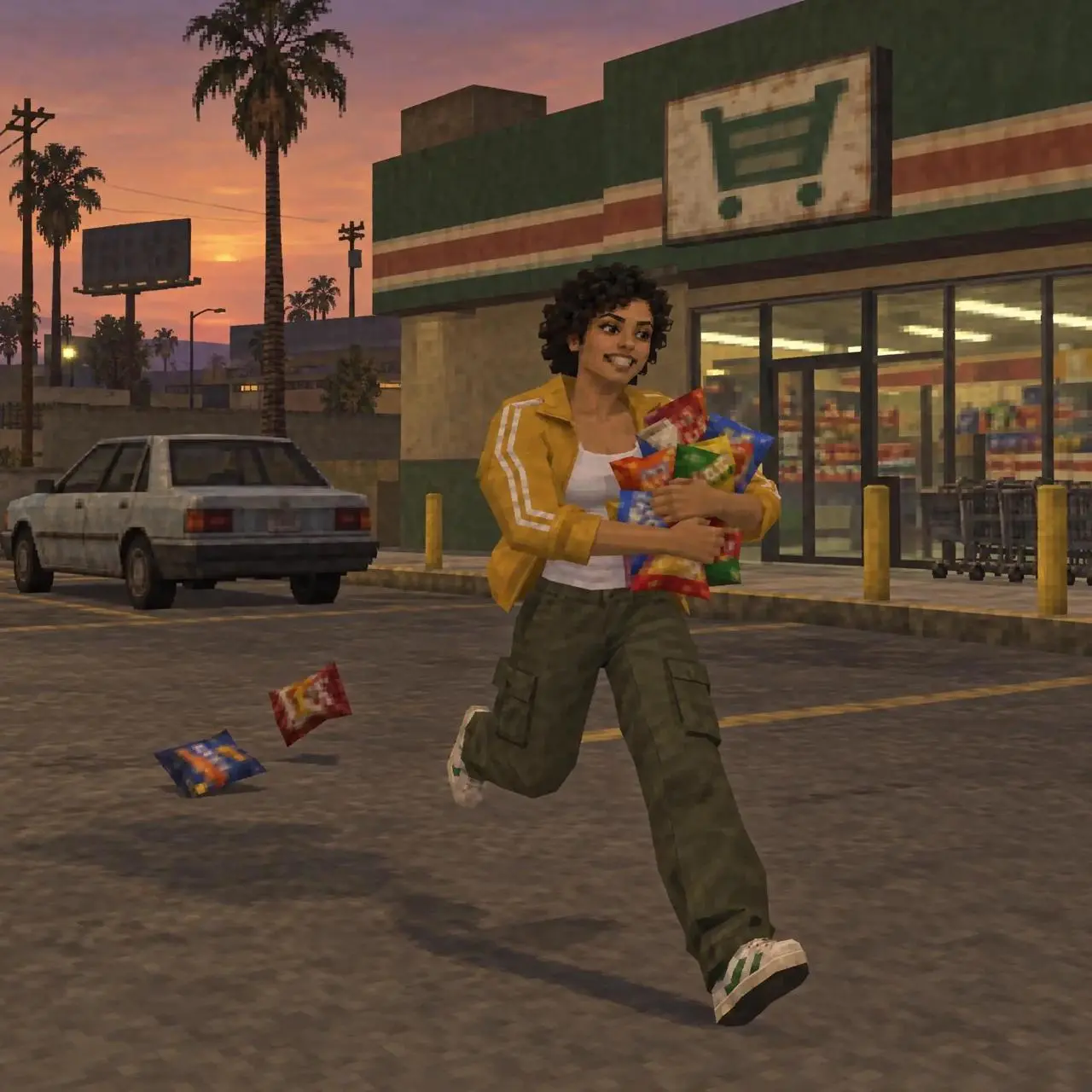
The opening image places a short-haired woman between open refrigerator doors in a small shop. The ending image places her outside the storefront at sunset, carrying several snacks. Her mustard-yellow jacket, white top, olive trousers, and sneakers provide recognizable links between the two locations. The images also share a low-poly, illustrated game-like aesthetic.
Both references come from WeShop's public animated-transition example. The video shown here is a new generation made for this tutorial. Replace these references with images you are authorized to use when adapting the workflow.
Prepare two images for one interior-to-exterior connection. Keep the character's outfit and the illustration style compatible so the transition has a clear visual link.
Use the character's movement to hide the scene boundary
The prompt gives the model a sequence to bridge: look at the drinks, gather the snacks, approach the camera, then continue outside. The close pass is the motivated wipe. The viewer temporarily loses a clear view of the background, which creates a place for the location change to happen.
Keep the character and visual style recognizable on both sides of that boundary. A demand for a realistic live-action exterior would introduce a separate style transformation. Likewise, asking for three new locations, a costume change, and a spinning camera would make it harder to evaluate whether this particular transition worked.
Use the two uploaded images as the starting and ending visual states of one square animated sequence. Keep the same short-haired woman in the mustard-yellow jacket, white top, olive trousers and sneakers. Begin inside the shop between the open refrigerator doors as shown in the first image. She looks from one drink bottle to the other, gathers the snacks and moves toward the exit. Use her passing close to the camera as a motivated wipe into the sunset storefront exterior shown in the second image, where she runs a few steps carrying the snacks and settles into the ending composition. Preserve the low-poly illustrated 3D game-like aesthetic, recognizable face, jacket colors and shop identity. One clear interior-to-exterior transition, readable body motion, no laundry room or third location, no collage, no grid, no duplicate people, no readable captions or logos.Load the interior and exterior as the two image states
Open Kling on WeShop and choose Kling 4.0 Image to Video. Upload the shop interior as the opening state and the sunset storefront as the closing state. Leave Middle Frame empty for this two-scene example.
Paste the complete prompt and use these settings:
| Setting | Recorded value |
|---|---|
| Model | Kling 4.0 Image to Video |
| Image inputs | Shop interior and sunset exterior |
| Middle frames | None |
| Duration | 7 seconds |
| Requested resolution | 720p |
| Aspect ratio | Automatic from the square input images |
| Quantity | One video |
This test was submitted through the WeShop web generator on November 11, 2026. Select the duration in the actual control; a number written into the prompt does not change the duration setting. For your first attempt, keep the request to one visible transition and give the ending composition enough time to become readable.
Check the close pass and the exterior landing together
The selected output first shows the refrigerator scene, then the character gathering and carrying snacks. Her close approach briefly obscures much of the view. The next portion shows the sunset storefront and the running pose from the ending reference. Sampling the clip every half second makes both scene states and the intervening close pass visible. The reference images are not displayed as a split-screen board.
The connection is creative reconstruction, not proof of a physically exact path through the shop. Snack positions and counts change, and the faster hand and arm motion deserves close inspection. Check object contact, fingers, clothing edges, and the frame around the scene switch before using the clip. A recognizable jacket does not establish exact character or clothing consistency across repeated runs.
This is one selected output, not a measured success rate. If the model produces a collage, explicitly say not to render panels or the reference board. If the exterior appears before the indoor action has established itself, make the action order clearer or increase the duration. If the wipe overwhelms the scene, reduce the requested camera movement and let the character provide the occlusion.
Extend the idea only after the two-scene connection works
The same structure can connect another pair of illustrated locations: establish the first scene, identify a foreground action that covers the view, then reveal the second scene with a recognizable subject. Prepare the reference pair so the character, outfit, and style are compatible. This article tests that structure with two images; it does not promise that adding many more scenes will retain the same quality.
For a separate empty-frame approach, see the Kling 4.0 OOTD walk-in and walk-out workflow. That tutorial changes outfits between an exit and entrance; this one changes the location across a close pass.
You can try it directly using the tool on the right.
Start with the loaded interior and exterior, replace them with your own compatible references, and judge the transition by watching the complete clip.