







How to Make AI Dance Video from Photo: Zero-Basics One-Click Photo Dance Tutorial
Turn a single photo into a viral AI dance video with zero editing skills. Learn how to use WeShop AI Kling Motion Control to animate a static image with any dance video.
On social platforms like TikTok, Instagram, and Douyin, all kinds of quirky transformation dance videos and high-energy girl-group dance videos easily earn millions of views. But if you can’t dance, or don’t have the budget to hire a professional model, how can you ride this wave of traffic?
The answer is: AI motion transfer technology! Today, we’ll give you a definitive answer to “how to make ai dance video from photo” (how to make an AI dance video from a single photo). Simply take one static image, add a dance video you like, and cutting-edge AI tools will make the person in the photo perfectly “replicate” every move in the video! No editing or VFX experience needed — achieve video creation freedom in just 3 minutes.
|
Preparation / Required Materials
Before starting this AI magic, please prepare the following tools and materials:
- Core AI Tool: Register and log in to WeShop AI - Kling Motion Control
- Reference Video (Video): A dance video you want to imitate (clear movements, clean background, and minimal occlusion are recommended).
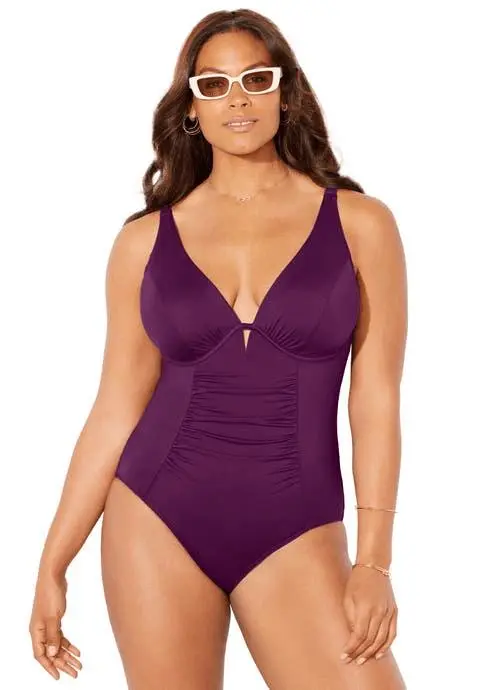
- Character Photo (Character): A static photo of a person, ideally a full-body or three-quarter shot with clearly visible limbs (this tutorial uses a photo of a model in a purple swimsuit as an example).
Detailed Step-by-Step Guide
Step 1: Get to Know the Kling Motion Control Workspace
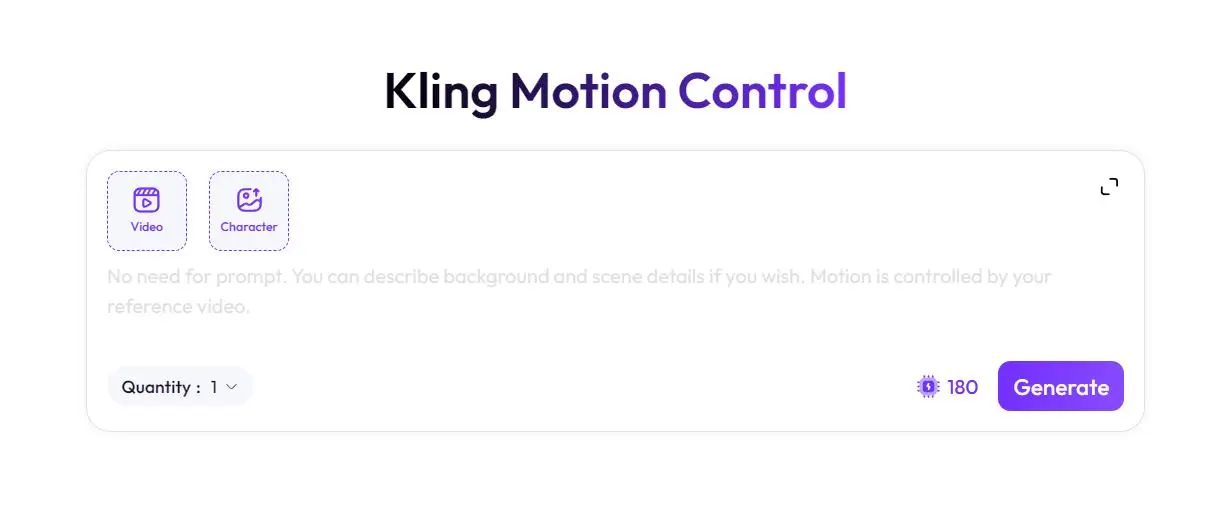
Open the WeShop AI Kling Motion Control tool page and you’ll see a very minimalist interface. On the left side of the interface, there are two core upload boxes: the one with the play icon is Video (video assets area), and the one with the image icon is Character (character image area). Below, there is a gray prompt input box and a parameter adjustment area.
Step 2: Upload the “Motion Skeleton” and “Target Character”
Next, we need to “feed” the prepared materials to the AI:
- Click the
Videodashed box on the left to upload your prepared [reference dance video]. The AI will extract skeletal movements and dance rhythm from this video. - Click the
Characterdashed box on the right to upload your [static character photo]. The AI will use this photo as the subject for animation.
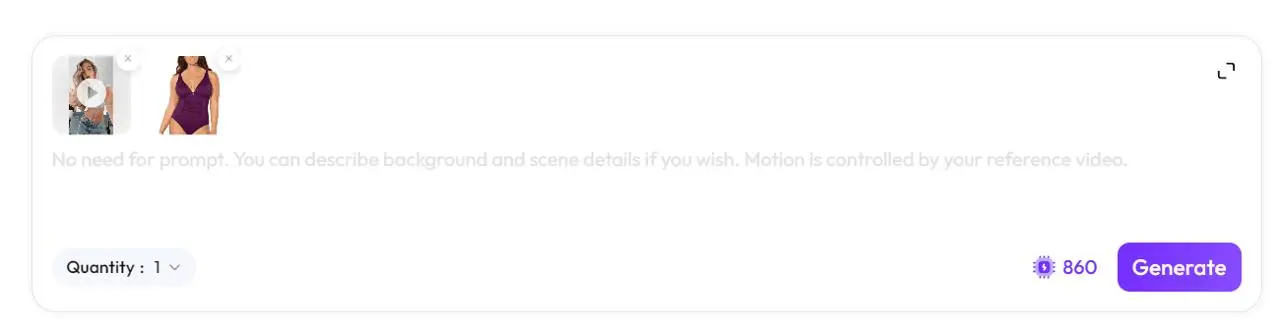
(As shown in the figure, we uploaded an energetic dance video as a reference and a static photo of a plus-size model as the main character.)
Step 3: Advanced Use of Text Prompts
Many beginners get stuck here: they don’t know what prompt to write.
💡 Key tip: Look at the English prompt in the input box: “No need for prompt. You can describe background and scene details if you wish. Motion is controlled by your reference video.”
This means you can leave it completely blank and write no prompt at all! Because the character’s movements are already completely controlled by the video you uploaded.
Advanced move: If you’re not satisfied with the background of the original photo, you can use this input box to describe a new scene (for example, enter: “A sunny beach, palm trees, cinematic lighting”). The AI will automatically replace and generate a new dynamic background while making the character dance!
Step 4: Set the Number of Generations and Execute (Generate)
To improve the success rate and perfection of the generated video, we need to adjust the parameters at the bottom:
- Quantity (Number of Generations): It’s strongly recommended to change the number from the default
1to4. Because AI-generated dynamic videos have a certain randomness (such as how clothing wrinkles are handled or how lighting behaves when limbs overlap), generating 4 versions at once lets you “open blind boxes” and pick the one with the smoothest movements and most natural picture. - After confirming, click the purple 【Generate】 button at the bottom right. Wait a moment, and your static model will vividly start dancing on the screen!
Advanced Tips / FAQ
- Q: Why are the person’s arms or legs distorted in the generated video? A: This is a common phenomenon in motion transfer. Please check your [character photo (Character)]: If the person in the original photo is wearing overly loose clothing that obscures the limbs, or has their arms tightly crossed over their chest, the AI will have difficulty recognizing joint positions. It’s recommended to use a photo where the limbs are stretched out and the person is facing the camera.
- 🔥 Advanced tip: Shot Size Matching Principle For the most realistic results, the “image” and the “reference video” should match in shot size as much as possible. If the reference video is a “full-body dance,” your uploaded photo should ideally also be a “full-body shot.” If the video is just a “half-body hand gesture dance,” uploading a half-body photo will work better.
- Q: Does generating this kind of video consume a lot of compute credits? A: Generating high-quality AI videos does consume a certain number of compute credits (for example, generating 4 videos in the example may cost 3440 credits), but this is far less expensive than hiring a model, renting a studio, and doing post-production for a real shoot. It’s ideal for e-commerce merchants and self-media creators who want to mass-produce viral content.
Now, you’ve fully mastered all the secrets of “how to make ai dance video from photo.” WeShop AI’s Kling Motion Control model truly breaks down the barrier between static images and dynamic videos, so your creativity is no longer limited by your filming skills.
Go dig out those beautiful static photos from your camera roll, find a trending TikTok dance video, and experience the thrill of bringing your photos to life!