






Wedding Photo Editing Prompts for Two Romantic Looks
Use two wedding photo editing prompts for warm garden color and soft black and white. Compare real outputs and check faces, dress detail, hands, and suit texture.
Wedding photo editing prompts need to preserve two people, fine fabric and the mood of the photograph. “Make it romantic” can give the editor too much freedom over all three. Here, a single couple photo is edited into a restrained warm garden look and a separate monochrome version, with complete prompts and actual outputs.
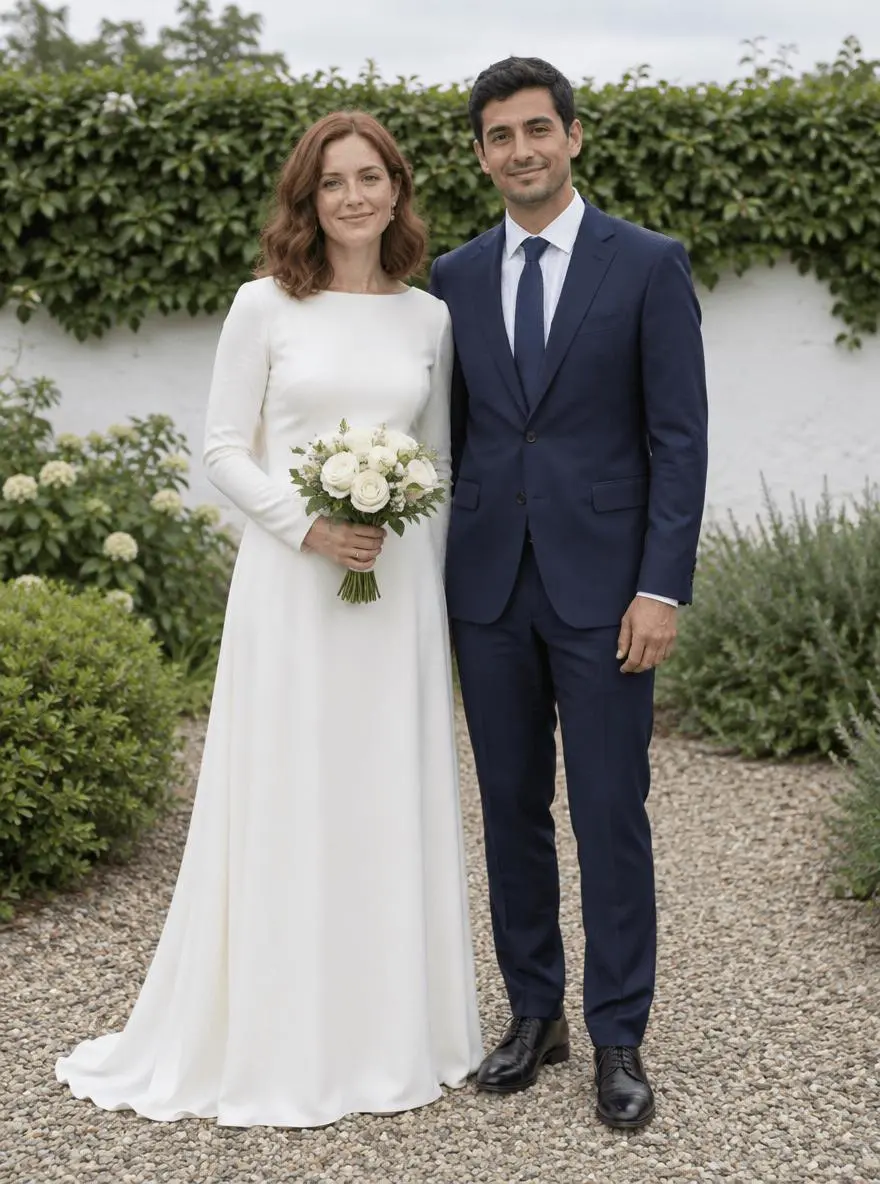
| Original reference | Warm garden wedding edit |
|---|---|
 |  |
Couple-preserving wedding photo edits. Each result below was generated independently from the original reference image.
Keep the couple and clothing as the fixed reference
Use a photo in which both faces and the dress and suit are already visible. Our source has two fictional adults standing together, a small bouquet and an uncluttered garden background. The edit is a treatment of that existing photograph, not proof that the couple attended a new location or that the clothing has been reconstructed exactly.
The original shown here is AI-generated for this demonstration. Both edits actually consumed that source as an attached reference. Use your own photo or another image you are authorized to edit.
Build a focused preservation brief
Separate a gentle light-and-background treatment from a tonal conversion. In the garden prompt, protect skin tone and white fabric while warming the light. In the monochrome prompt, protect midtones so the white dress and dark suit do not collapse into featureless areas. Keeping both requests separate makes the tradeoffs easier to inspect.
A useful structure is: target change → visible subject or object → details to retain → lighting and perspective → unwanted additions → output format. Adapt the nouns to the image in front of you. A preservation instruction is something to verify afterward, not a guarantee that every source pixel will survive.
Prompt 1: Warm garden wedding edit
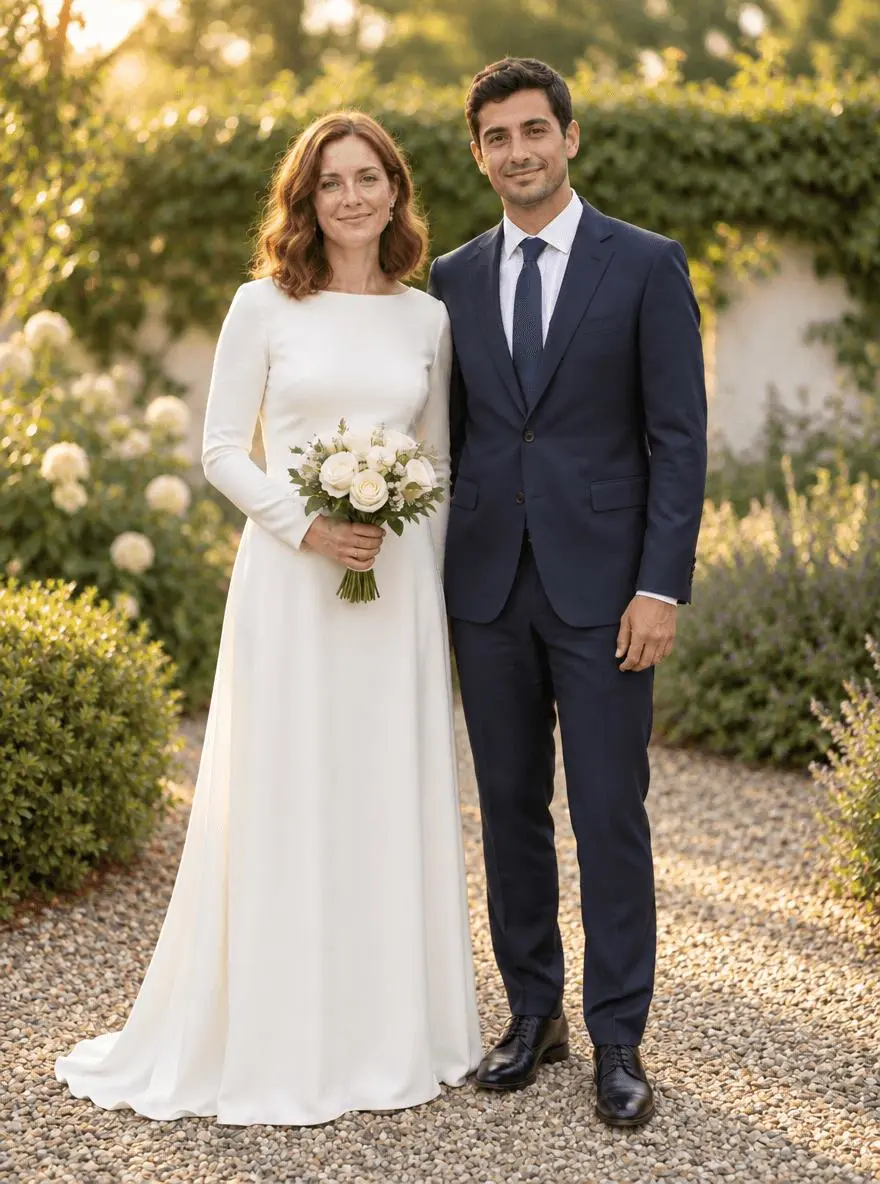
The opening comparison shows this result.
Edit image 1 into a warm garden wedding photograph. Preserve both adult identities, faces, expressions, hair, positions, body proportions, ivory dress coverage, navy suit, bouquet and hands. Retain the garden-path composition but soften the distant hedge and white wall into gentle background blur. Add restrained late-afternoon warmth, natural skin tones and soft side light. Keep white fabric detail visible. No new guests, rings, text, confetti, face beautification or changes to their outfits.
Both adults, the bouquet and the ivory-and-navy clothing remain recognizable. The garden becomes warmer with stronger back/side illumination and softer distant foliage. Fine fabric, faces and gravel texture can be redrawn.
Returned file: 880 × 1184 pixels. The selected interactive example includes its original reference and this exact prompt. You can try it directly using the tool on the right.
Prompt 2: Soft black-and-white wedding edit
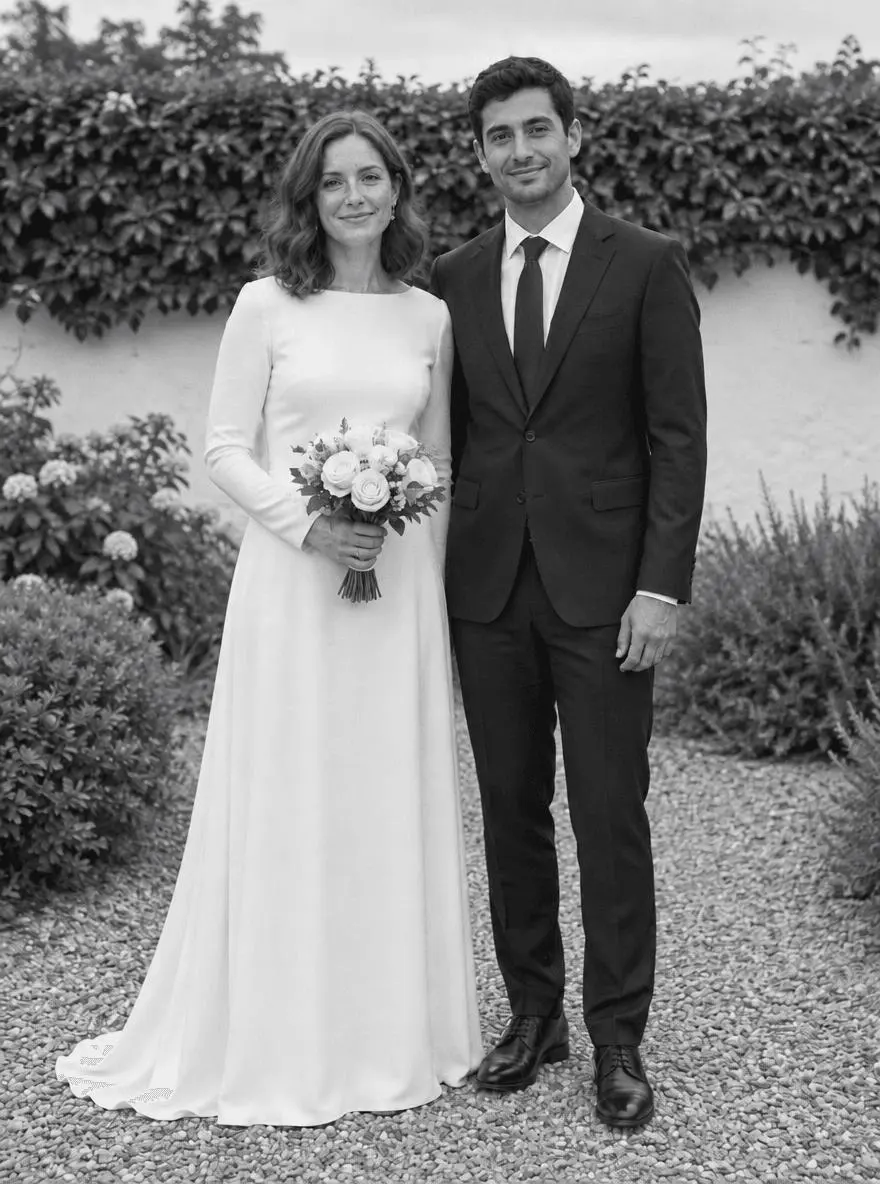
Edit image 1 into a timeless black-and-white wedding photograph. Preserve both adult identities, facial expressions, pose, hands, dress details, suit, bouquet, garden wall and path. Use soft monochrome midtones, subtle fine grain and gentle contrast that retains detail in the white dress and dark suit. Keep the original framing and perspective. No added people, text, sepia tint, heavy skin smoothing or artificial background replacement.
The image becomes monochrome with the same two-person arrangement, bouquet and garden path recognizable. White dress detail and dark suit areas remain distinguishable, though fine facial and textile detail is newly rendered.
Returned file: 880 × 1184 pixels.
Reproduce these two edits in WeShop
- Open GPT Image 2.5 Sunburst on WeShop.
- Attach the original through the reference-image upload control and confirm the thumbnail. A written description without the image would be a different task.
- Choose the tested model and settings below, then copy one prompt. Generate one image and inspect it at full size.
- For the second look, return to the same original and replace the prompt. Do not use the first output as the second input unless you intentionally want cumulative edits.
| Setting | Tested value |
|---|---|
| Model | gpt-image-2.5-sunburst |
| Input | One attached reference image |
| Requested aspect ratio | 3:4 |
| Requested image size | 1K |
| Quality | medium |
| Quantity | One result per prompt |
These examples were generated on October 29, 2026. They are two selected results, not a repeat-run reliability study or a comparison against other models. Requested settings and returned image dimensions are reported separately.
Check the details before choosing a result
- Check both identities individually; one face can drift while the other looks stable.
- Zoom into lace, sleeves, bouquet stems and fingers.
- Look for clipped whites in the dress and blocked shadows in the suit.
Small changes to identity, hand shape, bouquet detail and dress texture remain possible. These edits do not document an actual wedding at a new place or time.
If an important feature changes, return to the original and narrow the request. A more dramatic look is not automatically a better result when the task requires recognizable people, object detail or scene geometry.
Adapt the prompts to your own image
For an authorized wedding photo, replace the source-specific hair and clothing descriptions only when necessary. Do not add guests or change the ceremony details unless those are intentional creative edits. Keep the untouched original as the factual record, and choose a controlled local editing workflow if every fabric detail must remain exact.
Can these prompts fix an out-of-focus wedding face?
That is not tested here. A generative edit may invent plausible facial detail. Use another sharp photograph when faithful likeness matters instead of treating a newly drawn face as recovered camera information.
For a wider range of editing tasks, see Top 10 Prompts for Photo Editing That Actually Work. Start with the loaded example, replace its reference with your own, and compare the requested change and retained details before using the result.