









Create Transparent Assets from Photos with Seedream 5.5
Extract a bird from a photo with Seedream 5.5 and export a transparent PNG. Check feather edges, feet and true alpha before reusing the asset.
A bird surrounded by green foliage is difficult to place on a new layout without bringing the original background along. This workflow extracts the blue-and-orange bird from its stump into a transparent PNG, then checks the silhouette before treating it as a reusable asset.
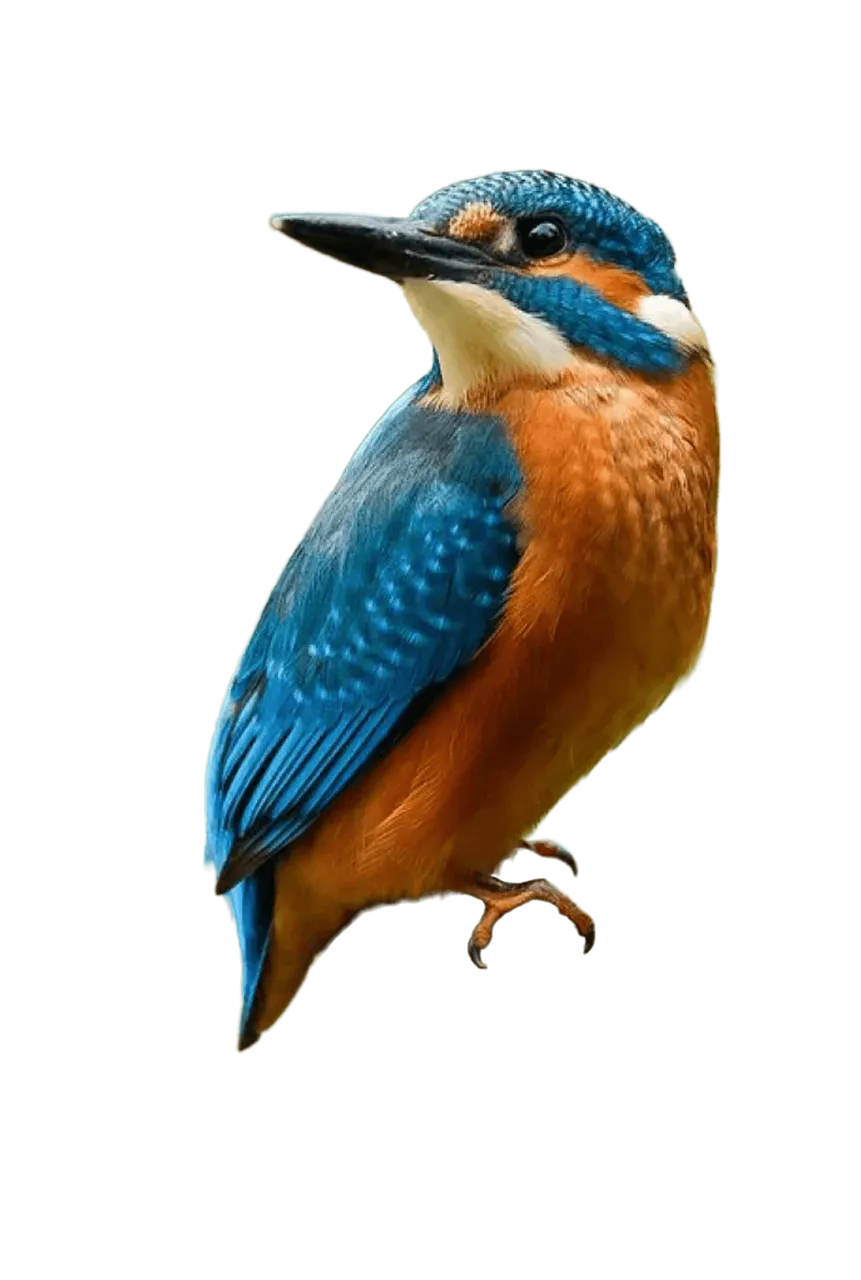
AI-generated result from the Seedream 5.5 workflow shown below.
Image-to-Image · Seedream 5.5 · PNG · 2K
Choose a source with inspectable edges
The Pinterest reference shows the bird, a tree stump and a blurred green background. Its beak, plumage and visible toes provide specific details to compare. Use your own permitted photo when reproducing the workflow. A larger, sharper input is more useful than a small preview when fine feather boundaries matter.
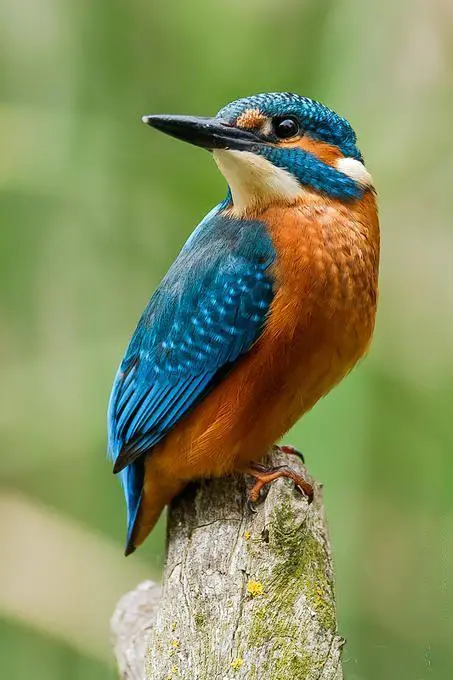
Reference input. The source link and context are provided above.
1. Upload the actual bird image
Open Seedream, add the reference image and confirm the thumbnail before generation. Describing a bird in text without uploading it would create a new bird rather than extract this one. Select Seedream 5.5, 2K, PNG, Background: Transparent, Quantity: 1 and Auto aspect ratio.
2. Separate the subject from its perch
Identify the bird as the only asset to keep. Name the stump, leaves and background as items to remove, and ask for no replacement pedestal or cast shadow. Keep the pose, feather colors, eye and beak in the preservation part of the prompt.
3. Inspect the original PNG on two backgrounds
Download the original result and open it in an editor that displays transparency. Place a light surface and then a dark surface beneath it. Check the beak tip, back of the head, tail and gaps around the feet. A preview with a checkerboard is not by itself proof that the file has an alpha channel.
Reuse the exact generation prompt
Extract only the bird from the supplied photograph as a single reusable asset. Preserve its exact species appearance, pose, plumage colors, beak, eye, feet and fine feather contours. Remove the branch, leaves, background and every other object. Keep both feet intact where visible, with no invented pedestal. Output a PNG with a real transparent alpha channel outside the bird, clean natural edges and no white border, checkerboard pattern, cast shadow or text.When reusing the template, check Background before you generate: the saved case currently opens with Opaque, so switch it to Transparent to follow this workflow. Keep PNG selected.
Inspect the result before reusing it
The generated file removes the green scene and stump while retaining the bird’s broad pose and blue-and-orange plumage. The downloaded PNG contains a non-opaque alpha channel. Look closely around the feet: removing the perch exposes boundaries that were partly hidden in the source, so these regions must be judged as generated reconstruction rather than recovered photographic detail.
| Check | What to inspect |
|---|---|
| Alpha channel | The original file must contain transparent pixels outside the bird. |
| Edge contamination | Inspect for green spill, pale halos and clipped feather tips on both light and dark surfaces. |
| Feet and occlusion | Check visible toes and reject an invented support or malformed silhouette. |
Extraction does not add genuine detail to a small source, and hidden toes cannot be faithfully recovered from pixels that are not visible. Do not describe the output as a lossless cutout. Keep the source alongside the result while checking the boundary.
Try this workflow with your own brief
You can try it directly using the tool on the right.
Replace the reference with an image you have permission to use, then change only the target instruction. Open the Seedream generator to select Seedream 5.5.
To generate an original group of transparent figures instead, see reusable character assets.