








Remove Background People from a Photo with GPT Image 2.5
Remove background people from a travel photo with a focused GPT Image 2.5 prompt. See the reference, actual edit, settings, and checks for unwanted changes.
A good travel portrait can still have two strangers standing beside the landmark. To remove background people from a photo, identify exactly who should disappear, protect the person you want to keep, and ask for a plausible fill of the exposed background. This tutorial uses one attached reference and a scoped GPT Image 2.5 Sunburst instruction, rather than asking the model to recreate the whole trip.
| Reference input | Generated result |
|---|---|
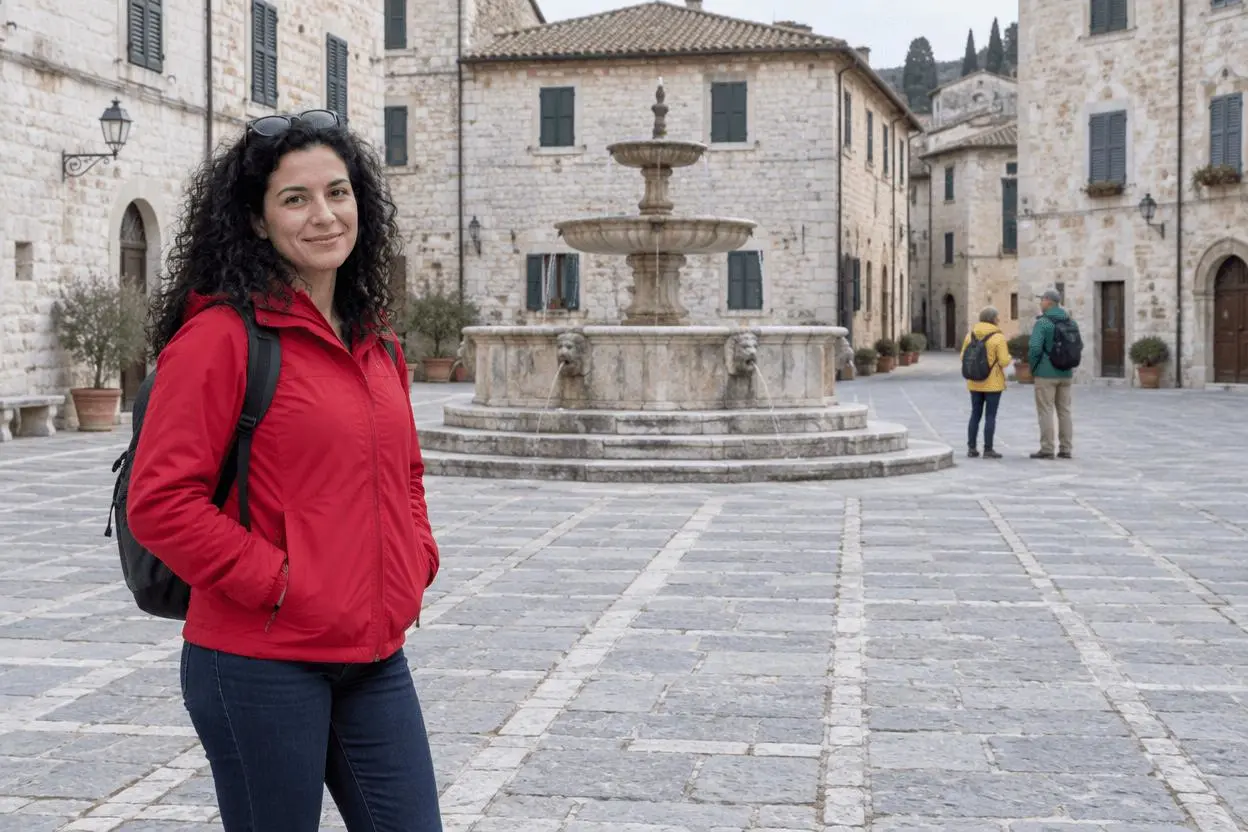 | 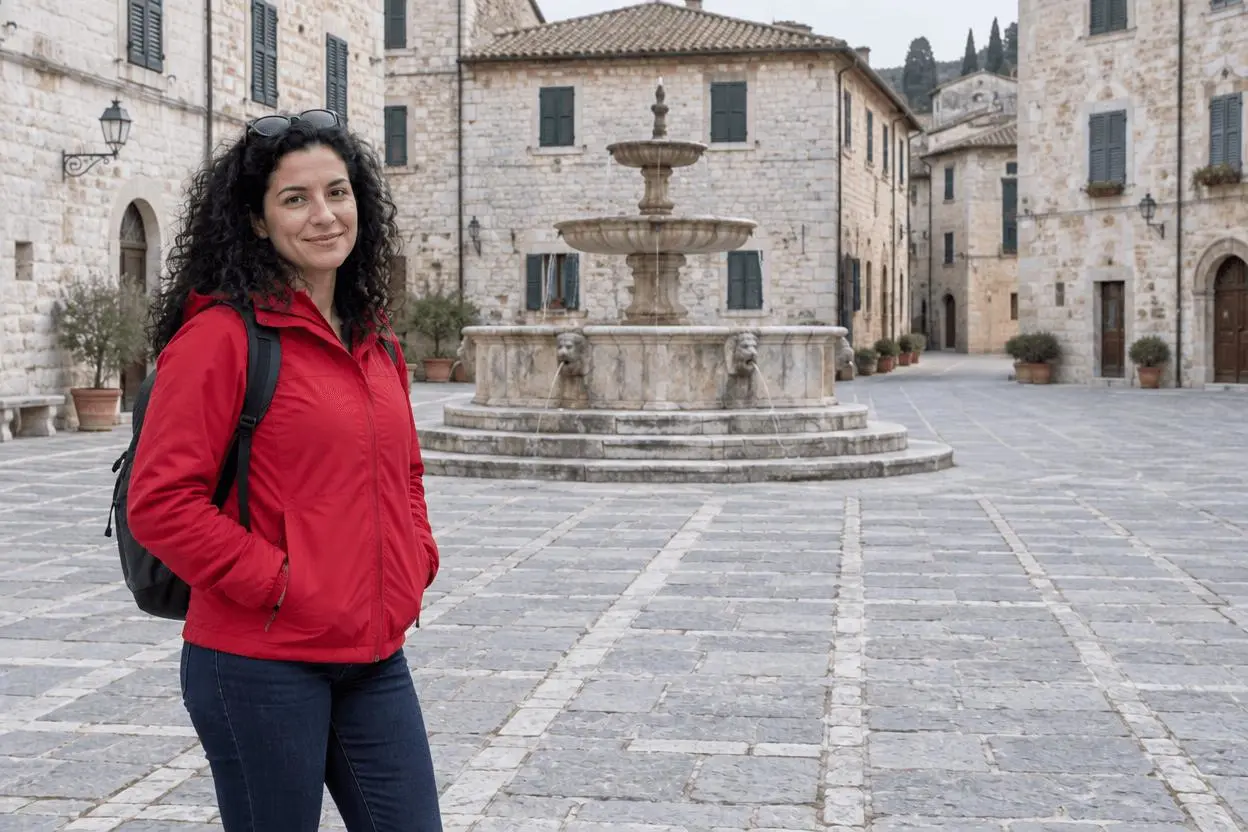 |
Travel photo cleanup. One attached source image and one focused edit.
Choose people who are separate from the main subject
Start with a photo where the background people are clearly separated from the person you want to keep. In this example, the red jacket identifies the foreground subject; yellow and green jackets identify the two distant tourists. Position and clothing together are less ambiguous than “remove the other people.” If someone overlaps a face or hand, the model must invent the hidden area, so that is a harder task than this demonstration.
The reference shown here is AI-generated specifically for this demonstration. The result is an actual image-to-image generation from that source, not a text-only illustration presented as an edit. Use your own photo or an image you are authorized to edit.
Name the people to delete
Use location plus appearance: the two distant tourists in yellow and green jackets to the right of the fountain. Include their shadows, because leaving a disconnected shadow can make the cleanup obvious.
Protect the landmark and paving
Specify the fountain, building geometry, paving perspective and crop as things to retain. Ask for continuation of the existing surfaces, not an empty square with a new architectural design.
Run the reference-based edit in WeShop
- Open WeShop’s GPT Image generator.
- Upload the source through the reference-image control and confirm its thumbnail is attached. A text description alone is not the same workflow.
- Select GPT Image 2.5 Sunburst, then enter the prompt below. Set the available controls to the tested values in the table.
- Generate an image and open the output at full size. Compare the requested change and the details you asked to retain against the original.
| Setting | Value in this test |
|---|---|
| Model | gpt-image-2.5-sunburst |
| Input | One attached image |
| Requested aspect ratio | 3:2 |
| Requested image size | 1K |
| Quality | medium |
| Quantity | 1 |
| Returned dimensions | 1248 × 832 pixels |
Copy the exact tested prompt
Edit image 1. Remove only the two distant background tourists in yellow and green jackets to the right of the fountain, including their shadows. Fill those areas with plausible continuation of the existing stone paving and building background. Keep the foreground woman in the red jacket, her face, hair, clothing, pose and position. Keep the fountain, building geometry, paving perspective, daylight, camera viewpoint and crop. Do not replace the scene, add people, text, logos or new objects.
The interactive example loads the source, selected result and generation setup for this edit. You can try it directly using the tool on the right. Replace the example reference with your own and update the scene-specific wording before generating.
What the actual result shows
Both distant tourists have disappeared from the right of the fountain. The foreground woman in red remains in the same side of the frame, with her backpack and overall pose recognizable.
The fountain tiers, main facade and stone paving remain recognizable. The cleared region is filled with paving and background architecture rather than a replacement subject.
Fine paving and facade details can be regenerated. This single example does not prove that complex overlapping people can be removed while all surrounding pixels remain unchanged.
This is one selected result from one request made on October 27, 2026. It demonstrates this example, not a success rate or a guarantee for every input. The requested aspect ratio and returned dimensions are reported separately.
A reusable removal prompt formula
Use this structure: “Remove [precisely identified people] and their shadows. Fill with a plausible continuation of [visible background]. Keep [main subject and landmarks], camera viewpoint, lighting and crop.” Replace the bracketed parts with what is actually visible. Do not copy the jacket colors if your photo contains different people.
If an output changes something important, return to the original and narrow the instruction to one edit. Do not keep stacking revisions on an output with an unnoticed defect. Suggested corrections are workflow guidance unless an additional result is shown here.
Frequently asked questions
Can it remove one person and keep everyone else?
Describe the person to remove and separately identify those to retain. The test here removes two clearly separated background people; it does not establish reliable results for overlapping groups.
Does it recover the real background?
No. The exposed area is a generated interpretation of nearby surfaces. Keep the original if the photo is being used as a factual record.
For broader prompt ideas, see Top 10 Prompts for Photo Editing That Actually Work. For this task, start with the loaded example and check the retained details before using the result.